
Table of Contents
Seeing “Unload event listeners are deprecated and will be removed” in Chrome, Lighthouse, or PageSpeed Insights? This guide explains what the warning means, why modern browsers are removing the unload event, how to identify the responsible WordPress script, and how to replace it safely without breaking your website.
Why WordPress Shows the “Uses Deprecated APIs” Warning
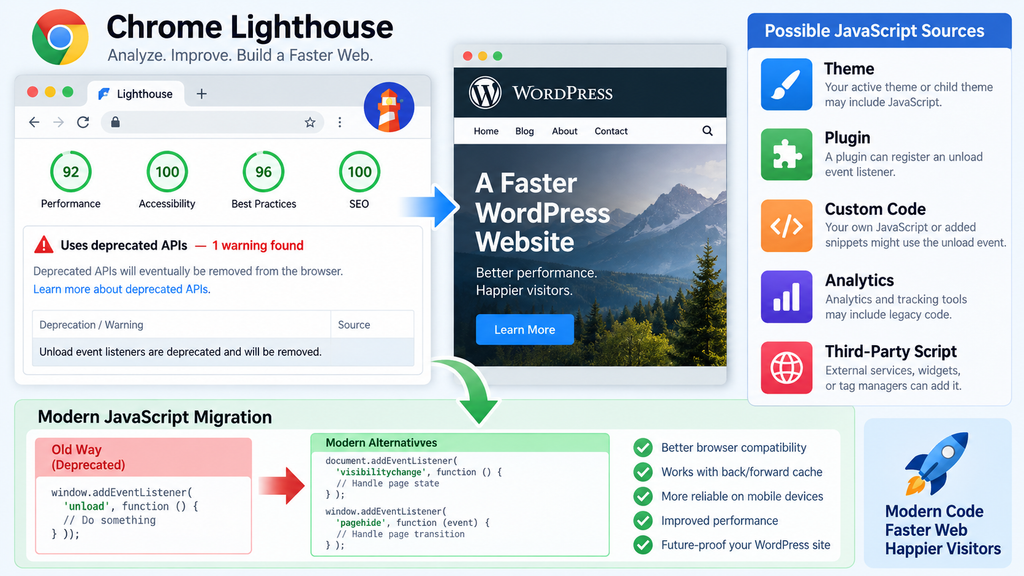
A WordPress performance audit can sometimes look almost perfect until Lighthouse displays a small red warning under Uses deprecated APIs. One of the most common messages now reads: “Unload event listeners are deprecated and will be removed.” The warning may appear even when your website seems completely normal. Pages still load, buttons work, forms submit correctly, and visitors may never notice anything unusual. However, the warning deserves attention because browsers are actively changing how the unload event works.
The message usually means that JavaScript loaded somewhere on the page has registered an unload event listener. That script may come from your WordPress theme, a plugin, a custom JavaScript file, a tag manager configuration, an analytics integration, or another third-party resource. The presence of the warning does not automatically mean WordPress itself has a problem. Instead, Lighthouse has detected browser behavior that developers should migrate away from.
Modern browsers want websites to use page lifecycle events that work reliably with features such as the back/forward cache, commonly called bfcache. The traditional unload event does not fit well into this model. Chrome is therefore gradually changing its default behavior so unload handlers stop firing unless a site explicitly opts back in. (Chrome for Developers)
What the Lighthouse Warning Actually Means
The warning shown in the screenshot can appear similar to this:
Uses deprecated APIs - 1 warning found

Deprecated APIs will eventually be removed from the browser.

Unload event listeners are deprecated and will be removed.
This is primarily a compatibility and modernization warning. It does not necessarily indicate a security vulnerability, JavaScript error, or immediate SEO penalty. Your website can continue functioning while Lighthouse reports the problem. Nevertheless, code that depends on unload may eventually stop working as expected because browsers are intentionally making that event less dependable.
That distinction matters for WordPress administrators. There is no reason to panic or start deleting plugins randomly. The correct approach is to identify which script registers the listener, understand what that listener is trying to accomplish, and then update, replace, or modify the responsible code.
For developers, the warning is even more useful. It provides an opportunity to remove an old lifecycle pattern before browser behavior changes affect analytics, state saving, session cleanup, or another feature.
Why This Warning Is Becoming More Important in 2026
Chrome’s deprecation process is already well underway. Google’s updated schedule says the rollout expanded across normal origins during 2026. Chrome 152, scheduled for August 25, 2026, was listed at 80% of Chrome page loads, while Chrome 154, scheduled for September 22, 2026, was listed for 100%. Google also notes that milestone dates can change while the rollout is monitored. (Chrome for Developers)
That makes the warning especially relevant now. It is no longer simply advice about an API that might disappear years in the future. WordPress developers should treat it as a migration task, particularly when custom functionality depends directly on the event.
The good news is that most WordPress websites do not require a major rewrite. In many cases, the listener belongs to a small script that can use pagehide, visibilitychange, or another modern technique instead.
What the JavaScript Unload Event Does
JavaScript events allow a website to respond when something happens in the browser. Developers can listen for clicks, keyboard input, scrolling, form submissions, page loading, visibility changes, and many other actions. Historically, the unload event was used when a user was leaving a document.
A basic implementation looks like this:
window.addEventListener('unload', function () {
    // Run something when the page unloads.
});
Older scripts commonly used this event for analytics, session cleanup, temporary data storage, notifications to a server, or attempts to save application state. At the time, it seemed like a convenient final opportunity to run JavaScript before the document disappeared.
The problem is that browsers cannot guarantee this final opportunity exists. A mobile operating system may terminate the browser process. A tab can be discarded. A page may move into the back/forward cache instead of being destroyed. Other lifecycle transitions can also occur without the traditional unload sequence working exactly as older code expects.
MDN currently marks the unload event as deprecated and specifically recommends that developers avoid using it. (MDN Web Docs)
The Traditional Page Exit Sequence
Historically, developers often thought of page navigation as a simple sequence:
User clicks another page
        ↓
beforeunload
        ↓
pagehide
        ↓
unload
        ↓
Old document disappears
        ↓
New document loads
Modern browsers use a more complex lifecycle. Instead of destroying the previous document immediately, the browser may preserve it in memory. If the visitor presses the Back button, that preserved document can appear almost instantly.
This behavior is one reason navigating backward on modern websites can feel dramatically faster than loading the same page again from scratch.
The unload event conflicts with that architecture because code listening for it often assumes the document is permanently disappearing. A browser cannot always make that assumption.
Why the Event Became Unreliable
Imagine a visitor reading a WordPress article on a smartphone. They switch from Chrome to another application. A few minutes later, the operating system needs memory and terminates Chrome in the background.
Your WordPress page never receives a traditional final moment where JavaScript can reliably say, “the document is now unloading.”
Another visitor may click an internal link, press Back, open another tab, minimize the browser, restore it, or navigate through browser history. Modern browsers optimize these situations differently.
For that reason, developers should model page lifecycle changes instead of assuming there will always be one final unload event.
Why Browsers Are Deprecating Unload Event Listeners
Browser vendors are not removing unload simply because the event is old. The larger reason involves reliability, performance, and modern navigation architecture. Websites increasingly behave like applications, while browsers aggressively optimize page transitions.
One of the most important optimization technologies involved is the browser’s back/forward cache. When it works, a visitor can return to a previously viewed document without forcing the browser to rebuild everything from the beginning.
That can reduce perceived loading time substantially. It also avoids unnecessary network requests and JavaScript initialization.
An unload listener can interfere with this process.
The Back/Forward Cache Problem
The back/forward cache stores a complete snapshot of a page, including its JavaScript state, in memory. When the visitor navigates back to that page, the browser can restore the snapshot instead of performing a normal page reload.
This is different from ordinary HTTP caching.
A normal browser cache may store assets such as:
CSS files
JavaScript files
Images
Fonts
HTML responses
The bfcache can preserve the entire page state.
For example, imagine a visitor scrolls halfway down a 3,000-word WordPress tutorial and clicks an external reference. After reading the reference, they press Back.
Without bfcache, the browser may need to load and initialize the WordPress page again. With bfcache, it can often restore the previous state nearly instantly.
The web.dev documentation explains that unload listeners are problematic for bfcache and recommends using pagehide instead. (web.dev)
Why Performance Can Improve Without Unload
Removing unnecessary unload listeners does not magically make every WordPress page faster. However, it gives modern browsers more freedom to optimize navigation.
A website eligible for bfcache may offer significantly smoother back and forward navigation. This is especially useful for blogs, documentation websites, stores, forums, and news websites where visitors frequently move between archive pages and individual posts.
For a WordPress blog, a typical browsing path could look like:
Homepage
↓
Category
↓
Article
↓
Back to Category
↓
Another Article
Those repeated transitions create ideal opportunities for browser-level caching.
Legacy lifecycle code can interfere with that optimization even when the code itself performs very little work.
Mobile Browsing Makes Unload Even Less Reliable
Mobile operating systems aggressively manage memory and battery usage. They can suspend or terminate browser processes without giving websites a traditional unload sequence.
Consider this scenario:
Visitor opens your WordPress post
↓
Visitor switches to another app
↓
Browser moves to background
↓
Operating system needs memory
↓
Browser process is terminated
There may never be a reliable unload event.
That makes it dangerous to depend on unload for critical operations such as saving important user data.
If data genuinely matters, applications should save it progressively or react to more suitable lifecycle signals rather than waiting for the final page exit.
How the Warning Can Appear on a WordPress Website
WordPress generates HTML on the server, while JavaScript runs inside the visitor’s browser. Consequently, the deprecated listener can originate from practically any JavaScript resource included on the page.
The first troubleshooting rule is simple: do not assume WordPress core is responsible.
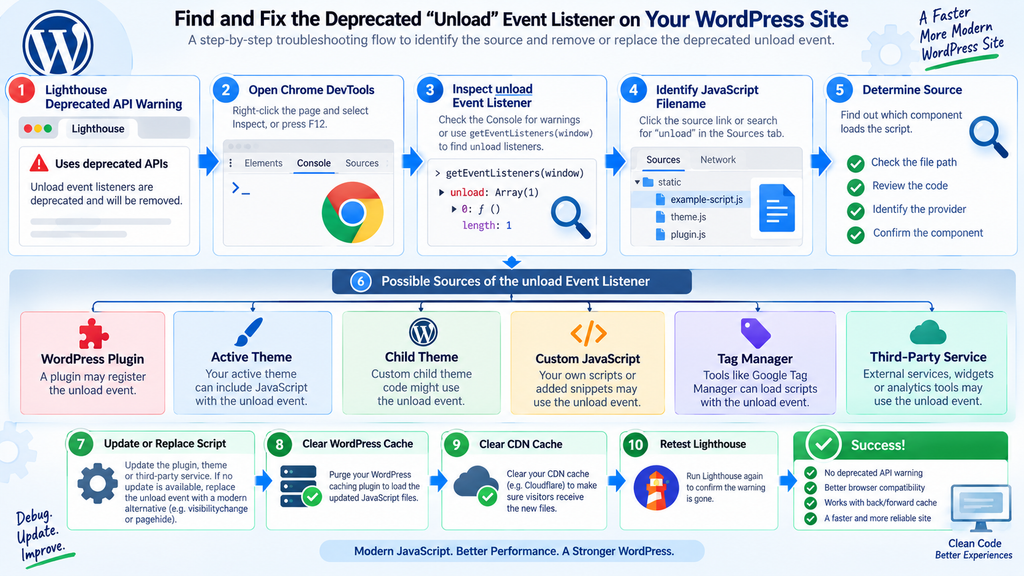
Your active theme could add the listener. A plugin could enqueue an old JavaScript library. A third-party service could inject it. Google Tag Manager could load a script that registers it. Your own custom code might also contain an older snippet copied from a tutorial many years ago.
Finding the source is more important than guessing.
WordPress Plugins
Plugins are one of the first places worth checking because many plugins load JavaScript on the front end.
Possible categories include:
Analytics plugins
Cookie consent plugins
Form plugins
Popup plugins
Page builders
Caching plugins
Optimization plugins
Video players
Chat widgets
Membership plugins
Advertising tools
Social sharing plugins
Tracking integrations
This does not mean plugins from these categories necessarily use unload. It simply means they often execute client-side code and therefore deserve investigation when a JavaScript deprecation warning appears.
A plugin can also bundle a third-party JavaScript library that contains the listener. In that situation, searching only the plugin’s PHP files may not reveal the cause.
WordPress Themes
Modern themes typically use relatively lightweight JavaScript, but custom or older themes can contain legacy page lifecycle code.
Check locations such as:
/wp-content/themes/your-theme/js/
/wp-content/themes/your-child-theme/js/
functions.php
custom JavaScript files
theme options containing scripts
A child theme deserves particular attention if it has accumulated custom snippets over several years.
Code copied from Stack Overflow, old tutorials, previous developers, or discontinued libraries may continue working long after the original reason for using it has disappeared.
Third-Party JavaScript
Sometimes your WordPress installation contains no unload listener at all.
Instead, the listener arrives through an external script.
Examples can include:
Advertising scripts
Analytics platforms
Embedded widgets
Customer support systems
Chat services
Marketing trackers
A/B testing tools
Video embeds
Social media integrations
Consent management platforms
In this situation, you may not be able to edit the JavaScript directly.
The correct response is normally to identify the provider, verify whether a newer integration exists, and update or replace the service if necessary.
Tag Manager Configurations
Google Tag Manager and similar systems can make troubleshooting slightly more confusing. WordPress may only contain one tag manager container snippet, while the problematic JavaScript gets loaded dynamically through the container.
Disabling WordPress plugins would not necessarily eliminate the warning.
If Lighthouse continues reporting an unload listener after your obvious plugin and theme checks, inspect scripts loaded by external tags.
Custom Code Snippets
Custom code is another common source because older JavaScript examples frequently used unload events.
Search for patterns such as:
window.addEventListener('unload', ...)and:
window.onunload = ...Older jQuery-based scripts may also contain related patterns.
The exact syntax can vary, so a complete code search is preferable to looking for only one specific string.
How to Find the Script Causing the Warning

Before changing anything, reproduce the issue consistently. Test the same public page where Lighthouse displayed the warning.
If your caching layer changes scripts between logged-in and logged-out visitors, perform testing in a private browser window as well. WordPress optimization plugins may combine, defer, delay, or minify JavaScript differently for anonymous visitors.
That difference can matter because Google and normal visitors usually see the public cached version.
Start With Chrome DevTools
Open the affected page in Chrome.
Then:
Right-click the page
→ Inspect
→ Open DevTools
Reload the page with DevTools open.
Check the Console for deprecation notices and inspect the source reference when Chrome provides one. If a filename and line number appear, click them.
You may discover something similar to:
plugin-script.js
theme.js
analytics.js
bundle.min.js
third-party-script.js
The filename can immediately narrow your investigation.
However, minification can make the source less obvious.
A file named something like:
autoptimize_8472ab.jsmay actually contain JavaScript combined from several plugins.
That means optimization should sometimes be disabled temporarily during debugging.
Use Chrome DevTools to Inspect Event Listeners
Chrome DevTools also provides debugging helpers that can assist with event listener inspection.
From the Console, developers can investigate listeners associated with the window object.
A useful diagnostic command in Chrome DevTools is:
getEventListeners(window)If an unload listener exists, Chrome’s developer environment may expose it inside the returned object.
You can also inspect specifically:
getEventListeners(window).unloadThis is intended as a DevTools debugging technique rather than JavaScript you should add to WordPress.
When listener information includes a source location or function reference, inspect it and trace the script back to the plugin, theme, or service responsible.
Search Loaded JavaScript
Chrome DevTools can search across loaded source files.
Open the Sources panel and use global search.
Search for:
unloadThen narrow the matches.
Useful patterns include:
addEventListener("unload"
addEventListener('unload'
onunload
"unload"
'unload'
Because minified JavaScript may remove spaces and rename variables, broad searches sometimes work better.
Do not automatically edit every file containing the word unload. A library may contain compatibility checks or references that never register a listener.
You need to identify actual usage.
How to Trace the Problem to a WordPress Plugin
When DevTools does not provide an obvious source, WordPress isolation testing can help. Always perform potentially disruptive troubleshooting on staging when possible.
Create a backup before changing production plugins or themes.
Then disable nonessential plugins systematically.
A binary-style troubleshooting method is faster than disabling plugins one at a time when the website contains many extensions.
For example, with 20 plugins you could disable 10, retest, and determine which half contains the problem. Continue narrowing the group until the responsible extension becomes clear.
Avoid Testing Only While Logged In
WordPress administrators often see different front-end resources than normal visitors.
A caching plugin might bypass cache for authenticated users. An advertising system may hide ads from administrators. Consent scripts may behave differently because your browser already stores preferences.
Therefore, test using:
Chrome Incognito
Logged-out state
Fresh consent state
Production-like caching
This provides a better approximation of what Lighthouse and normal users receive.
Temporarily Disable JavaScript Optimization
JavaScript optimization makes production websites faster, but it can make debugging more difficult.
Features that can obscure original filenames include:
JavaScript combination
Minification
Delay JavaScript
Defer JavaScript
Unused JavaScript processing
Cloud optimization
Third-party script proxying
Temporarily disabling the relevant feature can reveal the original script.
Once you identify and fix the listener, restore optimization and perform the audit again.
Do Not Modify Plugin Files Directly
Suppose you find this inside:
/wp-content/plugins/example-plugin/assets/js/frontend.jsEditing that file directly may appear to solve the warning.
However, the next plugin update will overwrite your change.
Instead, look for an updated plugin release first. If the latest version still contains the listener, contact the plugin developer or implement a maintainable override only when you fully understand the plugin architecture.
Direct edits inside vendor plugins should generally remain a temporary debugging measure.
How to Replace the Deprecated Unload Event Correctly
There is no universal one-line replacement for every unload listener. The correct event depends on what the old JavaScript was trying to accomplish.
That is one of the most important points in this migration.
Blindly replacing:
unloadwith:
pagehidemay work for some use cases but not all of them.
First determine the purpose.
Was the script trying to send analytics? Save an editor draft? Remember interface state? Release a resource? Warn about unsaved changes?
Each goal has a better modern approach.
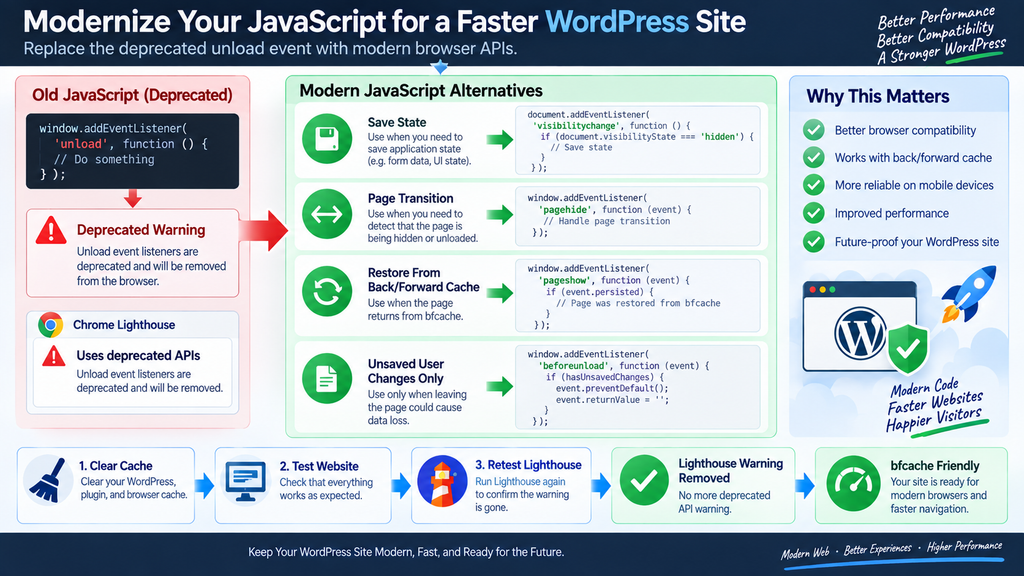
Use visibilitychange for Saving State
For application state, visibilitychange is often a better lifecycle signal.
Example:
document.addEventListener('visibilitychange', function () {
    if (document.visibilityState === 'hidden') {
        saveApplicationState();
    }
});
The important difference is timing.
Instead of waiting until the page is destroyed, the application reacts when the document becomes hidden.
That can occur when the user:
changes tabs
navigates elsewhere
minimizes the browser
switches applications
The application gets an earlier opportunity to preserve state.
MDN recommends visibilitychange as the best event for signaling the likely end of a user’s session in many situations, with pagehide serving as a useful fallback. (MDN Web Docs)
Use pagehide for Page Exit Behavior
When the code genuinely needs to detect that the page is being hidden because of navigation, pagehide is usually preferable to unload.
Example:
window.addEventListener('pagehide', function (event) {
    // Handle page transition.
});
The event also exposes the persisted property:
window.addEventListener('pagehide', function (event) {
    if (event.persisted) {
        console.log('The page may enter the back/forward cache.');
    }
});
Unlike unload, pagehide is compatible with bfcache. MDN specifically highlights this distinction. (MDN Web Docs)
That makes it far more suitable for modern websites.
Use pageshow When the Page Returns
If a WordPress interface stores temporary browser state, you may also need to think about what happens when a page returns from bfcache.
Use:
window.addEventListener('pageshow', function (event) {
    if (event.persisted) {
        // Page was restored from the back/forward cache.
    }
});
This can be useful for dynamic interfaces where information may need refreshing after restoration.
For example, imagine a membership dashboard showing a notification count. The visitor opens another page and then returns with the browser’s Back button.
If the dashboard comes directly from bfcache, JavaScript may need to refresh information that changed while the page was away.
A complete lifecycle migration therefore considers both departure and restoration.
Use beforeunload Only for Genuine Unsaved Changes
Developers sometimes respond to the unload deprecation by replacing every listener with beforeunload.
That is generally the wrong approach.
beforeunload exists mainly for situations where leaving the page could cause meaningful user data to be lost.
Imagine someone writing a long form response, editing an article, or entering information that has not yet been saved.
In that case, warning the visitor can make sense.
A simplified implementation might resemble:
function preventAccidentalExit(event) {
    event.preventDefault();
    event.returnValue = '';
}
The listener should ideally be active only while unsaved work exists.
Do not attach it permanently to every WordPress page.
MDN notes that beforeunload should be used sparingly and only when unsaved changes justify it. The documentation also warns about performance implications involving bfcache in Firefox. (MDN Web Docs)
Bad Use of beforeunload
This pattern is undesirable:
window.addEventListener('beforeunload', function (event) {
    event.preventDefault();
    event.returnValue = '';
});
when it runs on every page regardless of whether anything needs saving.
Visitors may experience unnecessary navigation prompts, while the website may lose browser optimization opportunities.
Better Conditional Behavior
A better pattern tracks whether meaningful data changed.
Conceptually:
let hasUnsavedChanges = false;

document.addEventListener('input', function () {
    hasUnsavedChanges = true;
});

window.addEventListener('beforeunload', function (event) {
    if (!hasUnsavedChanges) {
        return;
    }

    event.preventDefault();
    event.returnValue = '';
});
In a production application, you would usually attach and remove the listener more carefully, but the principle remains the same.
Use the event because the user has unsaved work, not because the visitor happens to be leaving the page.
How to Send Analytics Without Using Unload
Analytics code historically created many unload listeners because developers wanted to send one final request when the visitor left.
The approach is unreliable for the reasons already discussed.
A better strategy combines page lifecycle events with browser APIs designed for small asynchronous transmissions.
One option is navigator.sendBeacon().
Example:
document.addEventListener('visibilitychange', function () {
    if (document.visibilityState === 'hidden') {
        navigator.sendBeacon(
            '/analytics-endpoint',
            JSON.stringify({
                event: 'page_hidden'
            })
        );
    }
});
The example is intentionally generic. A real WordPress implementation should secure the server endpoint appropriately and avoid exposing sensitive information.
MDN documents sendBeacon() specifically for sending small amounts of data asynchronously and recommends lifecycle approaches such as visibilitychange rather than depending on unload. (MDN Web Docs)
Do Not Build Custom Analytics Unless Necessary
Most WordPress websites use established analytics platforms.
If a third-party analytics library generates the unload warning, avoid rewriting that vendor’s tracking logic yourself.
Instead:
Update the integration
Update the plugin
Update the analytics library
Check the provider documentation
Remove obsolete tracking code
Replace abandoned services
Maintaining a custom analytics implementation introduces privacy, reliability, consent, and data-quality responsibilities.
The goal of fixing a Lighthouse warning should not be to create a larger maintenance problem.
Why This Warning Can Affect WordPress Performance
Lighthouse lists deprecated APIs separately from many Core Web Vitals metrics, so an unload warning should not automatically be interpreted as the reason your Largest Contentful Paint or Interaction to Next Paint score is poor.
Still, the underlying event can influence navigation performance indirectly.
The important connection is bfcache.
If browser navigation can restore a page from memory, visitors may perceive Back and Forward operations as almost instantaneous. If legacy lifecycle behavior prevents that optimization, the browser may perform more work.
For content-heavy WordPress websites, this can affect the overall browsing experience even when a standard single-page Lighthouse test does not show a dramatic numerical difference.
Deprecated API Does Not Mean Core Web Vitals Failure
It is important to separate these concepts:
Deprecated API warning
≠
Core Web Vitals failure
Your site might have excellent:
LCP
INP
CLS
TTFB
and still display the unload warning.
Likewise, removing the listener does not guarantee that Lighthouse performance jumps from 80 to 100.
The migration is primarily about browser compatibility, lifecycle correctness, and enabling modern navigation optimizations.
Do Not Chase a Perfect Lighthouse Score Blindly
A common WordPress optimization mistake is treating every Lighthouse message as equally urgent.
Prioritize issues according to impact.
For example, a homepage with:
5 MB hero image
2-second server response
large render-blocking CSS
heavy JavaScript
layout shifts
has more immediate performance problems than a harmless third-party unload listener.
However, because unload is now being actively deprecated, it should still enter your maintenance queue.
Fix it carefully rather than ignoring it indefinitely.
How to Check Whether bfcache Works on Your Website
After removing unload listeners, test whether your website can benefit from back/forward caching.
Chrome DevTools provides tools for inspecting page lifecycle behavior and bfcache eligibility, although the exact interface can change between browser releases.
A practical manual test also helps.
Open a WordPress article, navigate to another same-site page, and then use the browser’s Back button. Observe whether the previous page restores instantly and whether state such as scroll position behaves correctly.
For deeper debugging, use Chrome’s developer tools and inspect lifecycle-related information.
Test Dynamic WordPress Features After Restoration
Do not test only static text.
Check components such as:
Navigation menus
Search forms
Comment forms
Cookie consent
Popups
WooCommerce cart state
User account information
AJAX-loaded content
Infinite scrolling
Video players
Custom widgets
Advertisements
Analytics events
A page restored through bfcache is not necessarily equivalent to a completely fresh page load.
Custom JavaScript that relies exclusively on DOMContentLoaded or load may need additional logic when restoration occurs.
Watch for Duplicate Initialization
Suppose your script initializes a custom widget during a normal page load.
Then you add a pageshow listener and initialize it again whenever the page becomes visible.
If the page was not restored from bfcache, that could duplicate event listeners or UI components.
Use the event’s state carefully.
For example:
window.addEventListener('pageshow', function (event) {
    if (event.persisted) {
        refreshDynamicState();
    }
});
Here the refresh happens only when the browser restored the document from bfcache.
That is safer than blindly re-running the entire initialization process.
A Safe WordPress Troubleshooting Workflow
The most efficient way to solve the deprecated unload warning is to follow a controlled process.
Start by confirming the warning on a specific URL. Next, identify the responsible script. Then determine whether it belongs to WordPress core, your theme, a plugin, custom code, or a third-party integration.
After that, check for an official update before modifying code.
This workflow minimizes unnecessary changes and protects your website from accidental regressions.
Step 1: Create a Backup
Before changing WordPress code, create a working backup containing:
Database
wp-content
Themes
Plugins
Uploads
Custom MU-plugins
Relevant configuration
A backup is particularly important before modifying custom JavaScript or changing optimization settings.
Step 2: Clear Existing Caches
Cached JavaScript can make debugging misleading.
Clear relevant layers such as:
WordPress page cache
JavaScript optimization cache
Server cache
CDN cache
Browser cache
Do not clear everything repeatedly without reason, but ensure you are testing the current code.
Step 3: Reproduce the Warning
Run Lighthouse again against the exact page.
If the warning disappears unpredictably, test multiple times.
Third-party scripts can load conditionally because of:
Consent state
Advertising inventory
Geolocation
Device type
Login state
A/B tests
Delayed JavaScript
Interaction triggers
Reproducibility makes diagnosis much easier.
Step 4: Find the Listener
Use Chrome DevTools.
Inspect:
Console
Sources
Loaded scripts
Event listeners
Network requests
Search JavaScript for unload.
Record the filename before making changes.
Step 5: Identify Ownership
Map the script back to its source.
A URL containing:
/wp-content/plugins/example/strongly suggests a plugin.
A path containing:
/wp-content/themes/example/points toward a theme.
A completely external domain indicates a third-party dependency.
An optimization-generated bundle requires another step because several scripts may have been combined.
Step 6: Update Before Editing
Check whether the plugin or theme has a newer version.
Developers may already have removed the deprecated listener.
Updating is usually safer than maintaining a private patch.
Step 7: Replace the Event Only When Necessary
If the code belongs to you, determine what it does.
Choose the replacement according to purpose:
Save application state → visibilitychange

Detect page transition → pagehide

Handle bfcache restoration → pageshow

Warn about unsaved work → beforeunload, conditionally

Send small final analytics data → visibilitychange + sendBeacon
Avoid mechanically replacing event names without reviewing the behavior.
Step 8: Clear Caches Again
After changing the source, purge any cache capable of serving the old JavaScript.
This step is particularly important when using a CDN.
Otherwise, Lighthouse might continue seeing the deprecated code even though you already fixed the local file.
Step 9: Retest Lighthouse
Run the audit again.
The warning should disappear when no active JavaScript registers the deprecated listener.
If it remains, return to DevTools. There may be multiple listeners.
Step 10: Test Website Functionality
A clean Lighthouse report does not prove your replacement works correctly.
Test:
Normal links
Back navigation
Forward navigation
Forms
AJAX interactions
Mobile behavior
Logged-in behavior
Logged-out behavior
Analytics
Consent system
Shopping cart
Account pages
A technically correct migration should preserve the original feature while removing dependence on the deprecated API.
What Not to Do When Fixing This Warning
Technical warnings often encourage quick fixes, especially when someone wants a clean Lighthouse report. However, several shortcuts can cause more damage than the deprecated event itself.
The first mistake is disabling random plugins until the warning disappears and then leaving an important plugin disabled without understanding why. Plugin isolation is a diagnostic method, not necessarily the final solution.
The second mistake is editing minified production files directly. Those files may be regenerated automatically.
A third mistake is hiding the Lighthouse warning rather than solving the underlying JavaScript behavior.
Do Not Suppress the Warning With Browser Tricks
Chrome provides temporary testing and policy mechanisms during the deprecation transition, but those should not become the permanent solution for a normal WordPress website.
Google’s deprecation documentation describes temporary opt-out approaches because large applications may need migration time. That does not change the long-term recommendation: developers should move away from unload handlers. (Chrome for Developers)
For a typical WordPress blog, using a compatibility escape hatch indefinitely makes little sense.
Fix the responsible script.
Do Not Replace unload With beforeunload Everywhere
These events have different purposes.
Using beforeunload across every page can introduce its own compatibility and performance concerns.
Reserve it for genuine unsaved user data.
Do Not Assume the Plugin Name From a Minified Bundle
A JavaScript optimization plugin may combine code from ten different sources into one file.
If Lighthouse reports:
combined.min.jsthat does not necessarily mean the optimization plugin created the problematic event.
It may simply have packaged the original script.
Temporarily disable combination or inspect the bundle’s source map when available.
Do Not Remove Code Without Understanding Its Purpose
Deleting this:
window.addEventListener('unload', someFunction);will eliminate the listener.
But what does someFunction() do?
If it saves an application draft, ends a media session, records analytics, or releases a resource, deleting the listener could create another bug.
Migration means preserving required behavior using a modern lifecycle model.
How WordPress Site Owners Can Fix It Without Coding
Not every website owner needs to edit JavaScript.
If you do not maintain custom code, your first goal is simply to identify the responsible component.
When a plugin causes the warning, check whether an update exists. Update the plugin on staging, clear caches, and run Lighthouse again.
If the latest release still creates the warning, contact the developer and include useful diagnostic information.
What to Tell a Plugin Developer
A concise support request could include:
Chrome/Lighthouse reports:
“Unload event listeners are deprecated and will be removed.”

Affected URL:
[example test page]
Plugin version:
[current version]
WordPress version:
[current version]
Browser:
[current Chrome version]
JavaScript source: [filename identified through DevTools]
Do not send passwords, administrator credentials, private API keys, license keys, or sensitive server details.
The source filename and line number are much more useful than a vague message saying “Lighthouse is broken.”
When Replacing a Plugin Makes Sense
A single deprecation warning is not automatically a reason to abandon a reputable plugin.
Developers need time to migrate libraries.
However, replacement becomes more reasonable when the plugin:
has not been updated for a long time
produces multiple browser errors
uses several obsolete dependencies
has unresolved security concerns
is no longer supported
causes measurable performance issues
Evaluate the extension as a whole.
A maintained plugin whose developer already has a compatibility fix scheduled may be worth keeping.
How Custom WordPress Developers Should Handle the Migration
Developers maintaining custom WordPress themes or plugins should search their entire source tree.
Useful searches include:
unload
onunload
beforeunload
pagehide
visibilitychange
Check both your original source files and bundled production files.
If you use npm packages, the listener could originate from a dependency rather than your own code.
Updating the package may resolve the issue automatically.
Review Build Dependencies
Modern WordPress development can involve:
Webpack
Vite
Rollup
npm
Composer
Babel
third-party JavaScript packages
Your readable source code might contain no unload event, while a bundled dependency introduces one.
Search the dependency tree and check package versions before patching bundled output.
A package update is much easier to maintain than a manual edit inside generated JavaScript.
Keep Event Logic Small
Lifecycle handlers should perform minimal work.
Do not run expensive DOM processing when a page becomes hidden.
Avoid synchronous network operations or heavy calculations.
If state can be saved earlier during normal interaction, that is usually preferable to waiting for a lifecycle transition.
For example, an editor could autosave periodically rather than relying on a final browser event.
That design is more resilient regardless of browser implementation.
Does the Deprecated Unload Warning Hurt SEO?
There is no reason to interpret the warning itself as a direct Google Search ranking penalty.
Lighthouse audits many aspects of browser quality, developer best practices, accessibility, and performance. Not every warning maps directly to a ranking signal.
However, technical quality still matters indirectly.
A WordPress website that uses modern lifecycle APIs can work better with browser caching and provide smoother navigation. Good performance and reliable user experiences are worthwhile even without treating every DevTools warning as an SEO emergency.
Focus on the Actual User Experience
For SEO and performance work, prioritize the visitor.
Ask:
Does the page load quickly?
Is the main content visible quickly?
Can users interact without delays?
Does the layout remain stable?
Does browser navigation feel responsive?
Do forms work?
Does mobile browsing work reliably?
Then treat API deprecations as part of ongoing technical maintenance.
This produces better results than chasing an artificial score.
A Warning Today Can Become Broken Behavior Later
The main reason to address deprecations early is compatibility.
A deprecated API means developers should no longer depend on its continued behavior.
MDN currently marks unload as deprecated and warns developers to avoid it, while Chrome is actively rolling out changes to how handlers fire. (MDN Web Docs)
Ignoring the issue forever therefore increases technical debt.
Fixing it now is usually simpler.
Does WordPress Core Need to Be Modified?
Do not modify WordPress core files to solve this Lighthouse warning.
WordPress core updates overwrite manual changes, and direct modifications make maintenance more difficult.
If DevTools genuinely traces a deprecated listener into core JavaScript, first verify that you are running the latest stable WordPress release and confirm whether the code actually registers an unload handler.
Often, a plugin uses WordPress libraries while adding its own event logic.
The source path alone does not always prove ownership.
Never Add the Fix to wp-includes
Avoid modifying files inside:
/wp-admin/
/wp-includes/
A proper fix belongs in:
your custom plugin
your child theme
your application source
the responsible third-party plugin update
This keeps the WordPress update path clean.
MU-Plugins Need Checking Too
WordPress administrators sometimes forget about must-use plugins because they are not managed exactly like normal plugins.
Check:
/wp-content/mu-plugins/if your website uses custom MU-plugin functionality.
An MU-plugin can enqueue JavaScript just like another custom component.
For installations with years of accumulated customization, this directory should always be included in troubleshooting.
Why the Warning May Remain After You Fix the Code
You removed the unload listener, saved the JavaScript file, opened Lighthouse, and the warning still appears.
This is common on cached WordPress websites.
The browser may still receive the previous JavaScript file from another caching layer.
Check every layer involved.
Browser Cache
Perform a hard refresh with DevTools open.
You can also temporarily enable Disable cache within Chrome DevTools while debugging.
WordPress Cache
Purge your page optimization or caching plugin.
If the tool generates static JavaScript bundles, regenerate them.
Server Cache
Hosting platforms may have their own page caching layer independent of WordPress.
Clear it when necessary.
CDN Cache
Cloudflare and similar CDNs can continue serving the old asset.
Purge the affected JavaScript URL or relevant cache entries.
Avoid repeatedly clearing the entire CDN unless necessary.
Service Worker
Progressive web app functionality may introduce another cache.
If the site uses a service worker, verify that visitors receive the new script version.
Multiple Listeners
Finally, you may have fixed one unload listener while another remains.
Run the diagnostic process again rather than assuming your change failed.
Large WordPress pages can load dozens of JavaScript files, so multiple independent listeners are possible.
Testing the Fix Properly
A clean Lighthouse report is the beginning of validation, not the end.
Navigate through the website the way a real visitor would.
Open posts. Move between categories. Press Back. Press Forward. Change tabs. Minimize the browser. Restore it. Submit forms. Interact with custom UI components.
If you migrated analytics or application state handling, verify those features explicitly.
Desktop Testing
Test at least one Chromium-based browser.
If the functionality is important, also test Firefox and Safari when practical.
Different browser engines may manage lifecycle behavior differently.
The point of moving away from unload is to make code less dependent on browser-specific navigation assumptions.
Mobile Testing
Mobile testing is particularly important because page lifecycle events become less predictable when operating systems suspend applications.
Try:
Open the page
Switch to another app
Return to the browser
Navigate away
Press Back
Lock and unlock the device
You do not need to simulate every theoretical scenario.
You simply want confidence that essential functionality does not depend on a perfect final unload event.
Logged-In WordPress Testing
If your listener belongs to a WordPress administration feature, test authenticated workflows separately.
For example:
Post editing
Custom editor fields
Front-end editing
Membership dashboards
Account forms
WooCommerce checkout
Custom AJAX features
Code dealing with unsaved information requires more careful lifecycle handling than a simple public blog page.
Frequently Asked Questions
What does “Unload event listeners are deprecated” mean?
It means JavaScript running on the page has registered a listener for the browser’s unload event. Modern browsers consider this event unreliable and incompatible with important navigation optimizations. Chrome is progressively changing its behavior, so developers should migrate to alternatives such as visibilitychange or pagehide depending on the use case. (MDN Web Docs)
Is the deprecated unload event warning dangerous?
Not by itself. The warning does not automatically indicate malware, a security vulnerability, or a hacked WordPress installation. It is primarily a browser compatibility warning. However, functionality that depends on the event may become unreliable as browser support changes.
Does this warning affect my Google rankings?
There is no basis for treating this specific warning as a direct ranking penalty. It is still worth fixing because modern lifecycle code can improve compatibility and allow browser performance features such as bfcache to operate more effectively.
Is WordPress causing the unload warning?
Possibly, but do not assume WordPress core is responsible. The listener can come from a plugin, theme, child theme, MU-plugin, custom JavaScript, analytics integration, tag manager, advertisement, or external service. Chrome DevTools can help identify the actual JavaScript file.
Can I simply replace unload with pagehide?
Sometimes, but not automatically. pagehide is appropriate when you genuinely need to detect a page transition. For saving application state, visibilitychange may be more appropriate. Unsaved form data may justify conditional beforeunload. The replacement depends on what the original handler does.
Should I use beforeunload instead?
Only when the user has meaningful unsaved work and leaving could cause data loss. It should not be added globally just to replace unload. MDN recommends using it sparingly because of reliability and performance considerations. (MDN Web Docs)
What is bfcache?
The back/forward cache can preserve an entire web page in memory when a visitor navigates away. If they return using Back or Forward, the browser may restore the page rather than reload it. This can make navigation dramatically faster. Legacy unload handlers can interfere with this mechanism. (web.dev)
Why does Lighthouse still report the warning after I changed the script?
Your browser, WordPress caching plugin, hosting platform, CDN, optimization plugin, or service worker may still serve the old JavaScript. Purge the relevant caches and test again. Also check whether another script registers a second unload listener.
Do I need to remove the plugin causing the warning?
Usually not immediately. First check for updates. If the latest plugin version still uses deprecated functionality, contact the developer. Consider replacement if the plugin is abandoned, unsupported, insecure, or consistently causes broader compatibility problems.
Will my WordPress site stop working when Chrome removes unload behavior?
Only functionality that genuinely depends on the unload handler is at risk. The rest of the website can continue functioning normally. Identifying the listener now allows you to determine exactly what feature depends on it and migrate that feature safely.
A Cleaner WordPress Site Starts With Modern Browser APIs
The “Uses deprecated APIs – Unload event listeners are deprecated and will be removed” warning is not something WordPress administrators need to fear, but it should not be ignored indefinitely. Browsers are moving toward more flexible page lifecycle models, and the old assumption that every document receives a final reliable unload event no longer matches how modern browsing works.
Start by identifying the JavaScript source rather than changing plugins blindly. Use Chrome DevTools, temporarily simplify JavaScript optimization when necessary, and trace the listener back to the responsible theme, plugin, custom script, or third-party integration. An official update may solve the problem without any custom coding.
When the code belongs to you, replace unload according to the actual requirement. Use visibilitychange for many state-saving scenarios, pagehide for page transitions, pageshow for bfcache restoration, and beforeunload only when unsaved user data genuinely requires a warning. After the change, clear your WordPress and CDN caches, rerun Lighthouse, and test real navigation on desktop and mobile.
⚠️ Disclaimer and Source Hygiene
This article is intended for educational and general WordPress troubleshooting purposes. Browser APIs, Chrome rollout schedules, WordPress versions, plugin behavior, and developer recommendations can change over time. Test JavaScript modifications on a staging environment whenever possible and maintain a verified backup before changing production code.
Technical guidance in this article was cross-checked against current documentation from Chrome for Developers, MDN Web Docs, and web.dev. Google’s published unload deprecation schedule specifically notes that browser milestones and rollout dates may change while implementation is monitored. (Chrome for Developers)
🔔 For more tutorials like this, consider subscribing to our blog.
📩 Do you have questions or suggestions? Leave a comment or contact us!
🏷️ Tags: WordPress deprecated APIs, unload event, WordPress Lighthouse, Chrome deprecated API, JavaScript unload event, WordPress performance, Chrome DevTools, pagehide event, visibilitychange event, back forward cache
📢 Hashtags: #WordPress, #WordPressPerformance, #JavaScript, #Lighthouse, #ChromeDevTools, #WebPerformance, #WebDevelopment, #DeprecatedAPI, #PageSpeed, #WordPressTips
Sources and References
Chrome for Developers – Deprecating the unload event
Google explains that Chrome is gradually changing its default behavior so unload handlers stop firing unless sites explicitly opt back in during the transition period. The documentation also provides the current 2026 rollout schedule and explains the relationship between unload handlers and the browser’s back/forward cache. (Chrome for Developers)
MDN Web Docs – Window unload Event
MDN marks the unload event as deprecated and advises developers not to use it for new implementations. Its current guidance recommends visibilitychange for many session-ending scenarios and pagehide when developers specifically need a page transition signal. (MDN Web Docs)
MDN Web Docs – pagehide Event
MDN explains that pagehide remains imperfect on mobile but, unlike unload, is compatible with the browser’s back/forward cache. (MDN Web Docs)
web.dev – Back/Forward Cache
Google’s web.dev documentation explains how bfcache works, why unload handlers interfere with browser navigation optimizations, and how pagehide and pageshow can be used when working with cached page lifecycle states. (web.dev)
MDN Web Docs – Navigator.sendBeacon()
MDN documents sendBeacon() as a mechanism for sending small asynchronous requests and explains why lifecycle events such as visibilitychange are preferable to waiting for unload for analytics-style transmissions. (MDN Web Docs)
Secondary Sources and Testimonials
The recommendations in this guide align with the broader direction of modern browser development: applications should not depend on receiving a guaranteed final JavaScript callback when a user leaves a page. Browsers increasingly preserve, freeze, restore, suspend, or discard documents according to performance and device constraints.
For WordPress developers, the practical lesson is straightforward. Treat the Lighthouse warning as a signal to modernize the responsible JavaScript rather than as an emergency. Identify the source, understand what the handler does, migrate it to the appropriate lifecycle API, and verify the result across normal navigation, mobile browsing, and back/forward restoration.