
Table of Contents
Learn the most important WordPress basic and advanced settings every website owner should understand. This guide explains how to configure WordPress correctly for better SEO, speed, security, user experience, and long-term website performance.
Why WordPress Settings Matter
WordPress is powerful because it gives users complete control over how a website works. However, many beginners install WordPress and never configure the settings properly. As a result, their websites become slow, insecure, difficult to manage, or poorly optimized for search engines.
Understanding WordPress settings helps you:
- Improve website speed
- Increase security
- Boost SEO rankings
- Create a better user experience
- Prevent technical problems later
- Manage content more efficiently
Some settings are basic and should be configured immediately after installation. Others are advanced and help optimize performance and security over time.
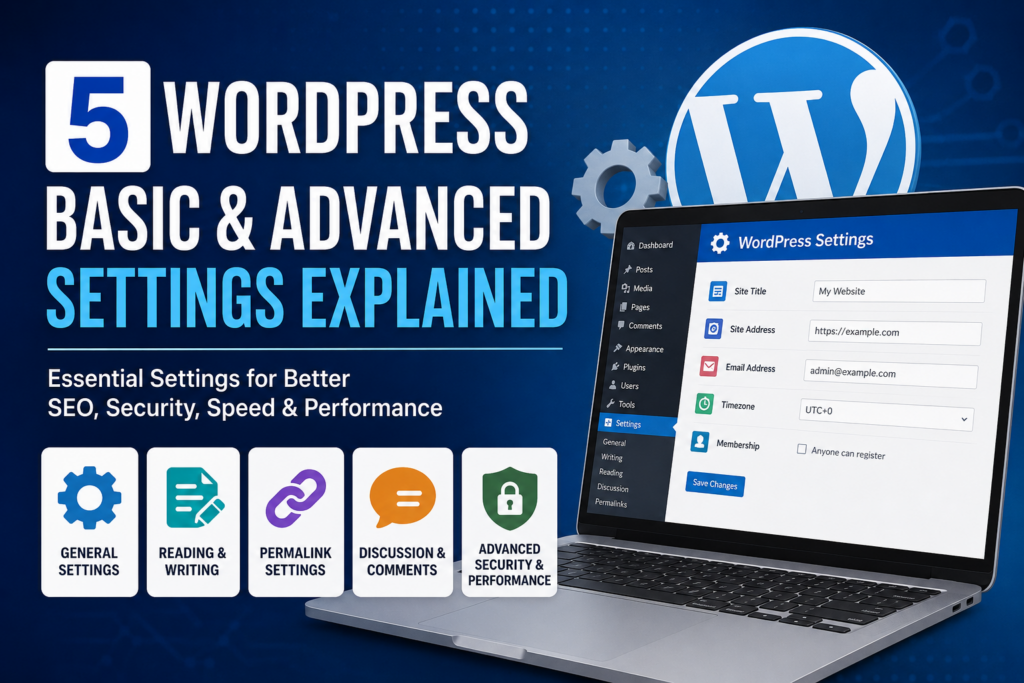
This guide explains five important WordPress settings categories, including both beginner and advanced options.
General Settings in WordPress
General settings control the core identity and behavior of your website. These are usually the first settings every WordPress user should configure.
You can find them in:
Dashboard → Settings → General
Site Title and Tagline
The site title is your website’s main name. The tagline is a short description of your website.
Example:
- Site Title: WPZone Blog
- Tagline: WordPress Tutorials and Optimization Guides
These elements often appear in:
- Browser tabs
- Search engine results
- Themes
- SEO plugins
A clear title improves branding and SEO visibility.
WordPress Address and Site Address
These URLs define where WordPress is installed and how visitors access the website.
Example:
https://yourdomain.com
Avoid changing these URLs unless you fully understand what you are doing. Incorrect values can make your site inaccessible.
Admin Email Address
WordPress uses this email for:
- Password reset notifications
- Security alerts
- Update notifications
- Plugin messages
Always use an active email address you regularly monitor.
Timezone and Date Settings
Correct timezone settings are important for:
- Scheduled posts
- Cron jobs
- Backups
- Event plugins
- WooCommerce stores
Set your local timezone instead of using UTC whenever possible.
Membership and User Roles
If your site allows user registration, configure permissions carefully.
Available roles include:
- Administrator
- Editor
- Author
- Contributor
- Subscriber
Never give administrator access unnecessarily.
Advanced Tip for General Settings
Use HTTPS instead of HTTP.
Secure URLs protect user data and improve trust. Modern websites should always use SSL certificates.
Example:
https://yourdomain.com
Google also uses HTTPS as a ranking factor.
Reading and Writing Settings
These settings control how content is published and displayed.
Writing Settings
Location:
Dashboard → Settings → Writing
Default Post Category
WordPress automatically assigns a category if none is selected.
Instead of leaving:
Uncategorized
Create a meaningful default category like:
- Tutorials
- News
- Guides
- Updates
This improves website organization.
Default Post Format
Most websites use the standard format. However, some themes support:
- Gallery
- Video
- Audio
- Quote
- Aside
Choose formats only if your theme fully supports them.
Update Services
WordPress can notify update services when new content is published.
This helps search engines discover your content faster.
Most modern SEO plugins handle this automatically.
Reading Settings
Location:
Dashboard → Settings → Reading
Homepage Displays
You can choose between:
- Latest posts
- Static homepage
Blogs usually use latest posts. Business websites often use a static homepage.
Blog Pages Show at Most
This controls how many posts appear per page.
Too many posts can slow loading times.
Recommended:
5–10 posts
Search Engine Visibility
This setting is extremely important.
If enabled:
Discourage search engines from indexing this site
your website may disappear from Google search results.
Many beginners accidentally leave this enabled after development.
Always verify it is unchecked before launching a website.
Advanced Reading Optimization
Enable RSS summaries instead of full-text feeds.
Benefits include:
- Reduced content scraping
- Better feed performance
- Faster RSS loading
Permalink Settings for SEO
Permalinks define your website URLs.
Location:
Dashboard → Settings → Permalinks
This is one of the most important SEO settings in WordPress.
Best Permalink Structure
Recommended structure:
/post-name/
Example:
https://yourdomain.com/wordpress-speed-guide/
Avoid ugly URLs like:
https://yourdomain.com/?p=123
Clean URLs are:
- Easier to read
- Better for SEO
- More user-friendly
- Easier to share
Why Permalinks Matter
Search engines analyze URLs to understand page topics.
Keyword-rich URLs improve relevance.
Example:
Good:
/wordpress-security-tips/
Bad:
/page-id-445/
Custom Structures
Advanced users sometimes create custom structures like:
/category/post-name/
However, shorter URLs are generally better for SEO and performance.
Important Warning
Never change permalink structures on an established website without setting proper redirects.
Changing URLs incorrectly can:
- Break backlinks
- Cause 404 errors
- Reduce SEO rankings
- Damage indexed pages
Use redirect plugins or server redirects when changing structures.
Advanced Permalink Optimization
Remove unnecessary stop words from URLs.
Example:
Instead of:
/how-to-improve-the-speed-of-your-wordpress-website/
Use:
/improve-wordpress-speed/
Shorter URLs are easier to remember and share.
Discussion and Comment Settings

Comments help build engagement, but poorly configured discussions can create spam and security problems.
Location:
Dashboard → Settings → Discussion
Allow People to Submit Comments
Enable comments only if they provide value to your website. Blogs and tutorials often benefit from comments. Corporate websites may disable them entirely.
Comment Moderation
Always enable moderation for first-time commenters.
This helps prevent:
- Spam
- Malicious links
- Offensive content
- Fake users
Avatar Settings
WordPress uses Gravatar for profile images. You can select default avatars or disable them entirely for privacy and performance reasons.
Email Notifications
WordPress can notify administrators when:
- New comments are posted
- Comments require moderation
This helps you respond faster to users.
Blacklist and Spam Protection
Spam comments are a major issue on WordPress websites.
Use anti-spam plugins like:
- Akismet
- Antispam Bee
- CleanTalk
These tools automatically filter spam content.
Advanced Comment Optimization
Disable comments on old posts.
Benefits include:
- Reduced spam
- Lower database usage
- Better moderation control
Example:
Automatically close comments after 30 days
Nested Comments
Nested replies improve readability in active discussions. However, deep nesting can slightly impact page performance.
Recommended depth:
2–3 levels
Advanced Performance and Security Settings
Advanced settings improve website stability, security, and speed. These settings are critical for professional WordPress websites.
Caching Configuration
Caching stores temporary versions of pages to reduce server load.
Popular caching plugins include:
- LiteSpeed Cache
- WP Rocket
- W3 Total Cache
- FlyingPress
Benefits of Caching
Caching improves:
- Page loading speed
- Core Web Vitals
- Server performance
- User experience
- SEO rankings
Page Cache
Stores static HTML versions of pages. This reduces PHP execution and database queries.
Browser Cache
Allows visitors’ browsers to store files locally.
Benefits:
- Faster repeat visits
- Reduced bandwidth usage
- Better performance scores
Object Cache
Advanced websites use object caching systems like:
- Redis
- Memcached
These reduce database load significantly.
Security Settings
WordPress security should never be ignored.
Change Default Login URL
Bots constantly attack:
/wp-admin/
and
/wp-login.php
Changing login URLs reduces brute-force attacks.
Plugins:
- WPS Hide Login
- iThemes Security
Limit Login Attempts
Prevent attackers from guessing passwords endlessly.
Recommended limit:
3–5 failed attempts
Enable Two-Factor Authentication
Two-factor authentication adds an extra security layer.
Users must confirm login using:
- Authenticator apps
- SMS codes
This dramatically improves security.
Disable File Editing
WordPress allows administrators to edit theme files directly. Disable this feature for security.
Add this to:
wp-config.php
Code:
define('DISALLOW_FILE_EDIT', true);
Automatic Backups
Backups are essential. Use automated backups daily or weekly depending on your website activity.
Popular backup plugins:
- UpdraftPlus
- Jetpack Backup
- BlogVault
Store backups externally:
- Google Drive
- Dropbox
- Amazon S3
Database Optimization
WordPress databases collect unnecessary data over time:
- Post revisions
- Spam comments
- Expired transients
Optimization plugins help clean databases.
Popular tools:
- WP-Optimize
- Advanced Database Cleaner
Advanced PHP Settings
Professional websites often adjust PHP settings like:
memory_limit
upload_max_filesize
max_execution_time
These settings improve performance and prevent upload errors.
Recommended PHP Version
Use modern PHP versions for:
- Better security
- Faster performance
- Improved plugin compatibility
Recommended:
PHP 8.1 or newer
Common WordPress Settings Mistakes
Many website owners make avoidable mistakes.
Ignoring Backups
Without backups, one problem can destroy an entire website. Always automate backups.
Using Weak Passwords
Weak passwords remain one of the biggest security risks.
Use:
- Long passwords
- Password managers
- Two-factor authentication
Installing Too Many Plugins
Too many plugins can:
- Slow websites
- Create conflicts
- Increase security risks
Only install necessary plugins.
Ignoring Updates
Outdated plugins and themes are common attack vectors.
Always update:
- WordPress core
- Themes
- Plugins
Using Default Settings Forever
Default settings are not optimized for every website. Customize settings based on your goals and audience.
Best Practices for WordPress Settings
Audit Settings Regularly
Review your settings every few months. Website needs change over time.
Test Before Major Changes
Always test major changes on:
- Staging sites
- Local installations
Avoid experimenting directly on live websites.
Monitor Website Performance
Use tools like:
- Google PageSpeed Insights
- GTmetrix
- Pingdom
- Lighthouse
These tools identify configuration issues.
Keep Documentation
Document important changes. This helps troubleshoot future problems faster.
Frequently Asked Questions
What are the most important WordPress settings?
The most important settings include permalinks, general settings, reading settings, security settings, and caching configuration.
Which permalink structure is best for SEO?
The “Post Name” structure is usually the best choice for SEO and readability.
Should I disable comments in WordPress?
Disable comments if they are unnecessary or attracting spam. Blogs often benefit from active discussions.
Why is caching important in WordPress?
Caching improves speed, reduces server load, and helps achieve better Core Web Vitals scores.
How often should I back up my WordPress site?
Dynamic websites should back up daily. Smaller websites may back up weekly.
Is WordPress secure by default?
WordPress is relatively secure, but proper configuration and updates are essential for strong protection.
What happens if I change permalinks later?
Changing permalinks can break URLs and hurt SEO unless proper redirects are configured.
Do I need a security plugin?
Most websites benefit from security plugins that provide firewall protection and login security.
Why should I update PHP?
Newer PHP versions improve performance, security, and plugin compatibility.
Can too many plugins slow WordPress down?
Yes. Poorly coded or excessive plugins can reduce speed and create compatibility issues.
Building a Better WordPress Website
Proper WordPress settings create a strong foundation for every successful website. While many users focus only on themes and plugins, the real performance improvements often begin inside the settings panel.
Basic settings help organize your content and improve usability. Advanced settings strengthen security, optimize performance, and prepare your website for long-term growth.
Taking time to configure WordPress correctly saves countless hours later. It also helps create a faster, safer, and more professional website experience for visitors and search engines alike.
⚠️ Disclaimer and Source Hygiene
This article is intended for educational and informational purposes only. WordPress configurations may vary depending on hosting providers, plugins, server environments, and website requirements. Always create backups before making major changes. Information in this guide is based on research from authoritative WordPress documentation, hosting providers, and industry best practices.
🔔 For more tutorials like this, consider subscribing to our blog.
📩 Do you have questions or suggestions? Leave a comment or contact us!
🏷️ Tags: WordPress settings, WordPress optimization, WordPress security, WordPress performance, WordPress SEO, caching WordPress, advanced WordPress settings, WordPress beginner guide, WordPress tutorials, WordPress configuration
📢 Hashtags: #WordPress #WordPressTips #WordPressSEO #WebDevelopment #Blogging #WordPressTutorial #WebsiteOptimization #WordPressSecurity #WPBeginner #TechGuide
📚 Sources and References
- WordPress.org Official Documentation
- Google Search Central SEO Guidelines
- WPBeginner Tutorials
- LiteSpeed Documentation
- Cloudflare Performance Guides
- PHP Official Documentation
- UpdraftPlus Backup Documentation
🕊️ Secondary Sources and Testimonials
- Developer experiences from WordPress communities
- Hosting optimization recommendations
- SEO industry case studies
- Website performance benchmarking reports
1 thought on “WordPress Basic and Advanced Settings Explained”