
Table of Contents
Learn how to use the cPanel File and Directory Restoration feature to recover deleted or modified files from backups. This complete guide explains every option, common errors, troubleshooting methods, and best practices for restoring WordPress websites safely and efficiently.
How to Restore Files in cPanel Using File and Directory Restoration
Losing important website files can be stressful. Whether you accidentally deleted a WordPress plugin, overwrote your functions.php file, or corrupted your website during an update, having a working backup can save hours of work.
Modern versions of cPanel include a powerful feature called File and Directory Restoration. This tool allows users to restore individual files or folders without restoring the entire hosting account.
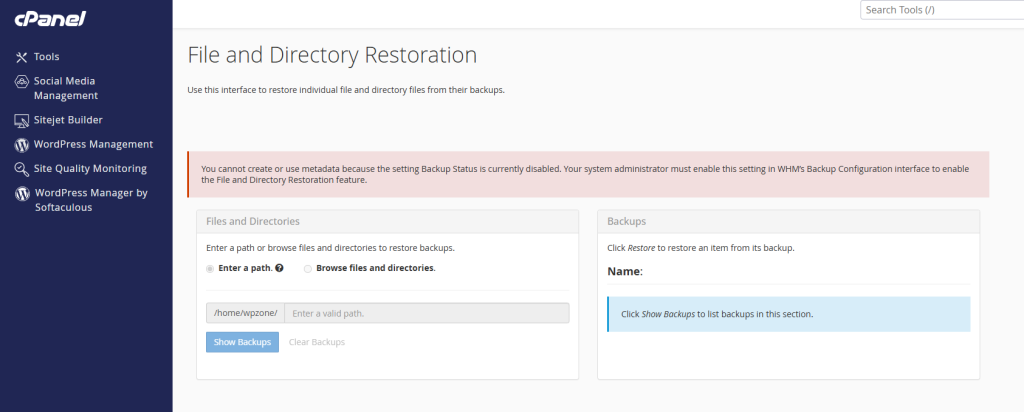
In this guide, you’ll learn everything about this feature, including how it works, why it may not be available, and how to fix common problems like the one shown in the screenshot.
What Is File and Directory Restoration?
File and Directory Restoration is a cPanel backup utility that lets you recover:
- Individual files
- Entire folders
- Website directories
- WordPress files
- Images
- Configuration files
- PHP scripts
- HTML files
- CSS and JavaScript files
Instead of restoring an entire account backup, you can recover only what you need.
This dramatically reduces downtime and prevents accidentally replacing newer website content.
Understanding the Interface
The screenshot displays the File and Directory Restoration page inside cPanel.
Several important sections appear on this page.
Files and Directories
This section allows you to:
- Enter a file path manually
- Browse directories
- Select folders
- View available backups
Example paths:
public_html/
public_html/wp-content/
public_html/wp-content/plugins/
public_html/wp-content/themes/
public_html/wp-config.php
Browse Files and Directories
Instead of typing a path, you can browse your account just like File Manager. This is especially useful if you don’t remember the exact location of a deleted file.
Show Backups
After selecting a file or folder, clicking Show Backups displays all available backup versions.
If backups exist, you can restore:
- Yesterday’s version
- Last week’s version
- Monthly backup
- Custom backup
The Error in the Screenshot Explained
The red message says:
You cannot create or use metadata because the setting Backup Status is currently disabled.
This means nothing is wrong with your website.
Instead, the hosting server administrator has disabled part of WHM’s backup system.
As a result:
- Metadata cannot be created
- Backup indexes are unavailable
- File restoration cannot work
This is a server configuration issue.
Why This Happens

There are several common reasons.
1. Backup Status Disabled in WHM
This is the most common reason.
WHM contains a setting called:
Backup ConfigurationInside this menu there is an option:
Backup StatusIf disabled:
- No metadata
- No backup browsing
- No restore feature
2. No Backups Exist
Sometimes backups were never configured. Without backups, cPanel has nothing to restore.
3. Metadata Was Never Generated
Even if backups exist, metadata files must also exist.
These files tell cPanel:
- where backups are located
- what files exist
- backup dates
- restore points
4. Feature Disabled by Hosting Provider
Many shared hosting companies disable this feature to save:
- storage
- CPU
- backup processing
Instead, customers must open a support ticket.
How the Administrator Fixes This
If you own the server, log into WHM.
Navigate to:
WHM
→ Backup
→ Backup Configuration
Enable:
Backup StatusThen save the configuration.
After enabling backups, rebuild backup metadata.
Once metadata exists, File and Directory Restoration becomes available.
How to Restore a File
If backups are configured correctly, the restoration process is very simple.
Step 1
Open
cPanel↓
Files↓
File and Directory RestorationStep 2
Choose:
- Enter Path
or
- Browse Files
Step 3
Select the file.
Example:
public_html/wp-content/themes/generatepress/functions.phpStep 4
Click
Show BackupsStep 5
Choose the desired backup date.
Example:
YesterdayStep 6
Press
RestoreThe selected file is copied back into your account.
Restoring an Entire Folder
You can also restore directories.
Example:
public_html/wp-content/uploads/This restores:
- images
- PDFs
- videos
- uploads
without affecting plugins or themes.
WordPress Files You Can Restore
Some of the most common recovery targets include:
wp-config.phpfunctions.php.htaccessstyle.cssheader.phpfooter.phpEntire folders:
plugins/themes/uploads/Advantages Over Full Account Restore
Restoring one file is much safer.
Advantages include:
- Faster recovery
- No database replacement
- No email restoration
- No account rollback
- No data loss from recent content
When You Should Use This Feature
Ideal situations include:
- Deleted plugin
- Broken theme update
- PHP syntax error
- Deleted images
- Missing uploads
- Malware cleanup
- Accidental overwrite
- Corrupted CSS
- Missing JavaScript
- Damaged
.htaccess
Limitations
Although useful, this feature has limits.
It cannot restore:
- MySQL tables individually
- Email messages
- DNS zones
- Cron jobs
- SSL certificates (unless included by your backup configuration)
Those items require different restoration tools.
Best Practices Before Restoring
Always follow these recommendations.
Create a Fresh Backup
Before restoring older files, create a new backup.
This lets you undo the restore if necessary.
Check the Date
Never restore blindly.
Always verify the backup date.
Older backups may overwrite recent website changes.
Restore Only What Is Needed**
Avoid restoring the whole website if only one file is damaged.
Selective restoration reduces risk.
Test the Website
After restoring:
- Clear cache
- Clear Cloudflare cache
- Test pages
- Test login
- Test forms
- Check PHP errors
Troubleshooting
Show Backups Does Nothing
Possible causes:
- No backups exist
- Metadata missing
- Wrong path entered
Restore Button Missing
Possible reasons:
- Feature disabled
- No restore permissions
- Empty backup archive
Metadata Error
Exactly like the screenshot.
Fix:
Enable Backup Status inside WHM.
File Not Found
Possible causes:
- File never existed
- Wrong folder selected
- Backup predates file creation
Alternatives If This Feature Is Disabled
You can still recover files using:
- JetBackup
- Softaculous Backups
- Acronis Backup
- R1Soft
- Manual cPanel Backups
- Remote backup storage
- Local website backups
Many hosting providers install these instead of the default cPanel restoration feature.
Security Considerations
Only trusted administrators should perform file restoration.
Always:
- verify backup integrity
- scan restored files for malware
- update WordPress afterward
- update plugins
- update themes
Never restore infected backups without scanning them first.
Frequently Asked Questions
Can I restore only one WordPress plugin?
Yes. Simply restore the specific plugin folder inside wp-content/plugins.
Does this restore my database?
No. This tool restores files and directories only.
Can I restore deleted images?
Yes, if they exist inside the backup.
Does restoring overwrite existing files?
Yes. Existing files with the same name are replaced.
Why is Show Backups empty?
Usually because backups or metadata do not exist.
Can shared hosting users use this feature?
Only if the hosting provider enables it.
Is it safer than restoring the whole account?
Yes. Restoring individual files greatly reduces the risk of data loss.
Can I restore multiple folders?
Yes, provided they exist in the available backup.
Does it work with WordPress?
Absolutely. It is especially useful for recovering WordPress themes, plugins, uploads, and configuration files.
How often should backups be created?
For active WordPress websites, daily backups are strongly recommended.
Small Restores, Big Time Savings
The File and Directory Restoration feature in cPanel is one of the most valuable recovery tools available to website administrators. Instead of restoring an entire hosting account, it allows you to recover only the files or folders you need, saving time and minimizing the risk of losing recent changes.
If you encounter the error shown in the screenshot, the problem usually lies with the server configuration rather than your website. Enabling Backup Status in WHM and ensuring backup metadata is generated will restore the functionality. Whether you manage a personal blog or a large WordPress site, understanding this feature can help you recover quickly from accidental deletions, failed updates, or file corruption.
⚠️ Disclaimer and Source Hygiene
This article is intended for educational purposes. Always create a complete backup before restoring website files or modifying server settings. If you are unsure about any step, consult your hosting provider or a qualified system administrator. Information in this guide is based on current cPanel and WHM functionality and general WordPress administration best practices.
🔔 For more tutorials like this, consider subscribing to our blog.
📩 Do you have questions or suggestions? Leave a comment or contact us!
🏷️ Tags: cPanel, WHM, File Restoration, Backup Recovery, WordPress Backup, cPanel Tutorial, Website Recovery, Hosting Guide, Linux Hosting, WordPress Security
📢 Hashtags: #cPanel #WHM #WordPress #Backup #Hosting #Linux #WebsiteRecovery #ServerAdmin #WebHosting #Tutorial
Sources and References
- cPanel Documentation
- cPanel & WHM Backup Documentation
- WordPress Developer Documentation
- WordPress Codex
- Linux System Administration Best Practices
Secondary Sources and Testimonials
- WordPress community forums
- Experienced hosting providers
- System administrators specializing in cPanel and WHM environments
- Web hosting knowledge bases