
Table of Contents
Learn how to safely delete WordPress post revisions with WP-CLI using the wp post delete command. This guide explains what the command does, when to use it, backup steps, safer alternatives, troubleshooting tips, and best practices for keeping your WordPress database clean.
Delete WordPress Revisions with WP-CLI Safely
WordPress revisions are helpful, but they can pile up over time.
Every time you update a post or page, WordPress may store an older version of that content. This lets you compare changes and restore previous versions when needed. WordPress officially describes revisions as saved records of draft or published updates, which can help you review what changed in your content. (WordPress.org)
However, large sites can collect thousands of revisions. These entries live in the WordPress database. In many cases, they are harmless. Yet on busy websites, old revisions can add clutter and make database maintenance harder.
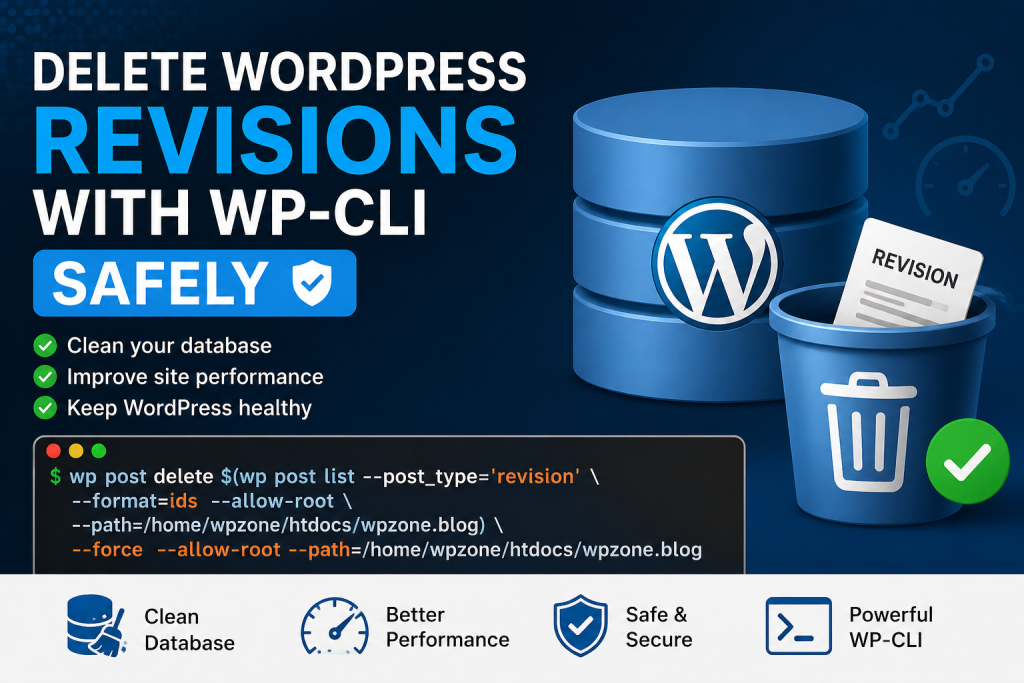
The command you shared is designed to delete all WordPress revision posts from a specific installation path:
wp post delete $(wp post list --post_type='revision' --format=ids --allow-root --path=/home/wpzone/htdocs/wpzone.blog) --force --allow-root --path=/home/wpzone/htdocs/wpzone.blog
This is a powerful WP-CLI command. It lists revision post IDs, then deletes them permanently. The official WP-CLI documentation says wp post list gets a list of posts, while wp post delete deletes posts by ID. The --force option skips the trash bin. (WordPress Developer Resources) (WordPress Developer Resources)
What This WP-CLI Command Does
The command has two parts.
The first part finds all revision IDs:
wp post list --post_type='revision' --format=ids --allow-root --path=/home/wpzone/htdocs/wpzone.blog
The second part deletes those IDs:
wp post delete IDS_HERE --force --allow-root --path=/home/wpzone/htdocs/wpzone.blog
Together, they become:
wp post delete $(wp post list --post_type='revision' --format=ids --allow-root --path=/home/wpzone/htdocs/wpzone.blog) --force --allow-root --path=/home/wpzone/htdocs/wpzone.blog
The $() part runs the list command first. Then it passes the returned revision IDs into the delete command.
This means WP-CLI first asks WordPress:
“Which posts are revisions?”
Then it tells WordPress:
“Delete those revision posts permanently.”
Why WordPress Revisions Exist
- WordPress revisions exist to protect your content.
- They help you recover earlier versions of posts and pages. If you accidentally remove a paragraph, change a title, or overwrite important content, revisions can help you restore an older version.
- This is useful for bloggers, editors, agencies, and teams. It creates a simple content safety net.
- For example, revisions can help when:
- You accidentally delete part of a blog post.
- A contributor changes content that needs review.
- You want to compare two versions of an article.
- You need to restore older wording.
- A browser crash interrupts editing.
- Because revisions are useful, deleting them should never be done casually.
Why Delete Old WordPress Revisions
Deleting old revisions can make sense when your database has become cluttered.
- A small website with 50 posts may not notice any issue. A large website with thousands of posts can collect many more revision records. Each revision is stored as a post-like database entry.
- Cleaning old revisions may help with:
- Database organization.
- Backup size reduction.
- Cleaner database exports.
- Easier migrations.
- Less unnecessary stored content.
- Better long-term maintenance.
This does not usually create a dramatic front-end speed boost by itself. Visitors do not normally load every revision when reading a post. Still, database cleanup can support a healthier maintenance routine.
Why You Must Backup First

Always back up your database before running this command.
The --force flag skips the trash. WP-CLI documents --force as an option that skips the trash bin when deleting posts. (WordPress Developer Resources)
That means deleted revisions are not moved somewhere you can restore them from inside WordPress. Once removed, they are gone unless you have a backup.
Before running the command, create a database backup:
wp db export before-revision-cleanup.sql --allow-root --path=/home/wpzone/htdocs/wpzone.blog
You can also create a full site backup through your hosting panel.
A database backup is the minimum. A full file and database backup is better.
Recommended Safer Workflow
Instead of deleting immediately, first count or preview revisions.
Run:
wp post list --post_type='revision' --format=count --allow-root --path=/home/wpzone/htdocs/wpzone.blog
Then preview some revision IDs:
wp post list --post_type='revision' --format=ids --allow-root --path=/home/wpzone/htdocs/wpzone.blog
If the output looks correct, export the database:
wp db export before-revision-cleanup.sql --allow-root --path=/home/wpzone/htdocs/wpzone.blog
Then run the delete command:
wp post delete $(wp post list --post_type='revision' --format=ids --allow-root --path=/home/wpzone/htdocs/wpzone.blog) --force --allow-root --path=/home/wpzone/htdocs/wpzone.blog
Afterward, check the count again:
wp post list --post_type='revision' --format=count --allow-root --path=/home/wpzone/htdocs/wpzone.blog
Command Breakdown
wp post list
This command retrieves posts from WordPress. In this case, it retrieves only posts with the revision post type. WP-CLI’s official command page describes wp post list as a command that gets a list of posts. (WordPress Developer Resources)
–post_type=’revision’
This limits the list to revision records only.
Without this filter, you could list normal posts, pages, or other content. That would be dangerous when combined with wp post delete.
–format=ids
This tells WP-CLI to return only IDs.
That matters because wp post delete expects one or more post IDs. The command substitution then passes those IDs directly into the delete command.
wp post delete
This deletes post records by ID. The official WP-CLI documentation describes wp post delete as a command that deletes an existing post. (WordPress Developer Resources)
–force
This skips the trash bin.
Use it only after a backup. It makes deletion permanent from the WordPress admin perspective.
–allow-root
This allows WP-CLI to run as the root user.
Many server environments discourage running commands as root unless necessary. If your hosting setup requires it, this flag may be needed. If you can run WP-CLI as the website user instead, that is usually cleaner.
–path=/home/wpzone/htdocs/wpzone.blog
This tells WP-CLI where the WordPress installation lives.
It is useful when you run commands from outside the WordPress root directory.
Cleaner Version of the Command
Your command is valid, but it repeats --allow-root and --path in both places because both the inner and outer commands need WordPress context.
You can make it easier to read by storing the path in a shell variable:
SITE_PATH="/home/wpzone/htdocs/wpzone.blog"

wp post delete $(wp post list --post_type='revision' --format=ids --allow-root --path="$SITE_PATH") --force --allow-root --path="$SITE_PATH"
This reduces mistakes.
Even Safer Version for Empty Results
If there are no revisions, the command may pass no IDs to wp post delete.
A safer shell approach is:
SITE_PATH="/home/wpzone/htdocs/wpzone.blog"

REVISION_IDS=$(wp post list --post_type='revision' --format=ids --allow-root --path="$SITE_PATH")

if [ -n "$REVISION_IDS" ]; then
  wp post delete $REVISION_IDS --force --allow-root --path="$SITE_PATH"
else
  echo "No revisions found."
fi
This avoids running the delete command with an empty ID list.
When You Should Not Delete Revisions
- Do not delete revisions if you still need editing history.
- Avoid deleting revisions when:
- You are reviewing recent content changes.
- Your site has many authors.
- You need audit history.
- You are restoring content after an editing mistake.
- You have no backup.
- You are unsure which WordPress installation the path points to.
- You are working on a live production site during peak traffic.
- Revisions can be valuable during active editing. Cleaning them is best after content is published, reviewed, and backed up.
Best Time to Run the Command
Run this command during low-traffic hours.
- Database write operations can use server resources. On a small site, the command may finish quickly. On a large site, it can take longer.
- Good times include:
- Late evening.
- Early morning.
- Maintenance windows.
- After a fresh backup.
- Before a migration.
- After major content cleanup.
- Avoid running it while editors are actively writing content.
How to Limit Future Revisions
Deleting old revisions solves the current issue. Limiting future revisions helps prevent the same problem from returning.
You can add this to wp-config.php:
define( 'WP_POST_REVISIONS', 5 );
This keeps a limited number of revisions per post.
You can also disable revisions:
define( 'WP_POST_REVISIONS', false );
However, disabling revisions removes an important safety net. For most websites, limiting revisions is better than turning them off.
Should You Optimize the Database After Deleting Revisions
After deleting many revisions, you may want to optimize the database.
You can run:
wp db optimize --allow-root --path=/home/wpzone/htdocs/wpzone.blog
This can help clean up database overhead depending on your database engine and hosting environment.
Do not treat optimization as a magic speed fix. Think of it as routine maintenance.
Common Mistakes to Avoid
Running the Command Without a Backup
This is the biggest mistake.
Because --force skips trash, you need a backup before deleting anything.
Using the Wrong Path
The --path value must point to the correct WordPress installation.
If you manage multiple sites, double-check the path before running the command.
Removing the post_type Filter
Never remove this part unless you fully understand the result:
--post_type='revision'
Without it, you may delete content you did not intend to delete.
Running as Root Without Need
Use --allow-root only when your environment requires it.
A better approach is often to run WP-CLI as the site’s system user.
Deleting During Active Editing
If someone is editing content while you delete revisions, they may lose access to useful history.
Schedule cleanup when the editorial team is inactive.
Troubleshooting
Command Not Found
If you see:
wp: command not found
WP-CLI may not be installed or available in your shell path.
Check with:
which wp
This Does Not Seem to Be a WordPress Installation
If WP-CLI cannot find WordPress, verify the path:
ls /home/wpzone/htdocs/wpzone.blog
You should see WordPress files such as wp-config.php, wp-content, and wp-admin.
Permission Errors
Permission errors may happen if your shell user cannot access the WordPress files or database.
You may need to run the command as the correct website user or use your host’s recommended WP-CLI method.
Too Many IDs
Very large sites may produce a long list of IDs. In that case, deleting in batches is safer.
Example:
wp post list --post_type='revision' --format=ids --allow-root --path=/home/wpzone/htdocs/wpzone.blog | xargs -r wp post delete --force --allow-root --path=/home/wpzone/htdocs/wpzone.blog
This passes IDs through xargs.
Frequently Asked Questions
What does this command delete?
It deletes WordPress post revision records only, because the inner command filters by --post_type='revision'.
Does it delete published posts?
No, not if the command remains exactly filtered to --post_type='revision'.
Is this command permanent?
Yes. The --force option skips the trash bin, according to WP-CLI’s official documentation. (WordPress Developer Resources)
Should I back up my site first?
Yes. Always back up your database before deleting revisions.
Will this improve website speed?
It may help database maintenance, backup size, and cleanup. It may not create a noticeable front-end speed boost by itself.
Can I restore deleted revisions?
Only if you have a database backup from before the cleanup.
Is WP-CLI better than deleting revisions with SQL?
WP-CLI is often safer because it uses WordPress-aware commands instead of manually deleting rows from the database.
Why is –path used?
It tells WP-CLI where the WordPress installation is located.
Why is –allow-root used?
It allows WP-CLI to run as the root user. Use it only when your server setup requires it.
Can I limit revisions instead of deleting them often?
Yes. Add define( 'WP_POST_REVISIONS', 5 ); to wp-config.php to limit future revisions.
A Cleaner Database Starts with Careful Maintenance
Deleting WordPress revisions with WP-CLI can be a smart maintenance step when your site has collected too many old content versions. The command is direct, fast, and useful for administrators who manage WordPress from the terminal.
Still, treat it with care. Revisions protect your content history. The --force flag makes deletion permanent from the WordPress admin side. Always preview, back up, run the command carefully, and verify the result afterward.
Used wisely, this command can help keep your WordPress database cleaner and easier to manage.
⚠️ Disclaimer and Source Hygiene
This guide is for general WordPress maintenance education. Always consult your hosting provider, developer, or server administrator before running permanent database cleanup commands on a live website. Information is based on official WordPress and WP-CLI documentation, plus reputable WordPress maintenance guidance. (WordPress Developer Resources)
🔔 For more tutorials like this, consider subscribing to our blog.
📩 Do you have questions or suggestions? Leave a comment or contact us!
🏷️ Tags: WP-CLI, WordPress revisions, delete WordPress revisions, WordPress database cleanup, wp post delete, WordPress maintenance, WordPress optimization, WordPress command line, WP-CLI tutorial, WordPress admin tips
📢 Hashtags: #WPCLI, #WordPress, #WordPressTips, #WordPressMaintenance, #DatabaseCleanup, #WordPressOptimization, #BloggingTools, #WebDevelopment, #WordPressAdmin, #WebsiteMaintenance
📚 Sources and References
- Official WP-CLI
wp post deletedocumentation. (WordPress Developer Resources) - Official WP-CLI
wp post listdocumentation. (WordPress Developer Resources) - Official WordPress revisions documentation. (WordPress.org)
🕊️ Secondary Sources and Testimonials
Additional WordPress maintenance discussions and hosting tutorials commonly recommend cleaning old revisions only after creating a backup and confirming the target site path. This guide follows that cautious approach for safer database hygiene.