
Table of Contents
Want a faster and more reliable WordPress website? Learn what MU plugins are, how they improve performance, why developers use them, and how to create your first Must-Use plugin. This complete guide includes practical examples, installation instructions, best practices, and performance tips.
What Is an MU Plugin Performance Strategy?
When people optimize WordPress, they usually focus on caching plugins, image optimization, or choosing better hosting. While those improvements certainly matter, there is another powerful technique that many beginners never discover: Must-Use (MU) plugins.
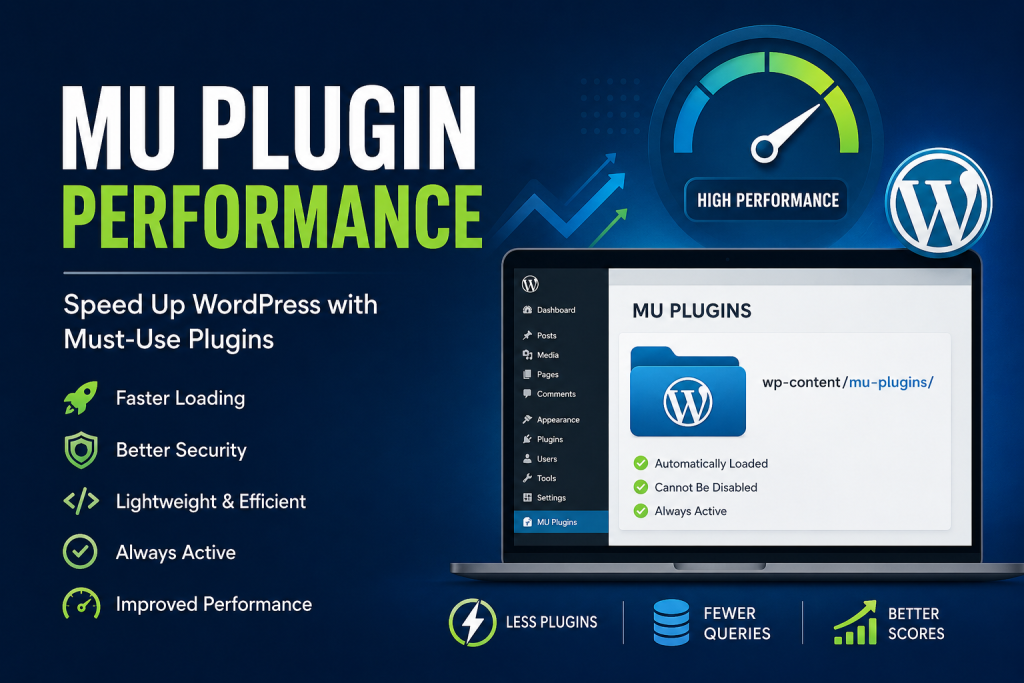
An MU plugin is a special type of WordPress plugin that loads automatically before regular plugins. Unlike standard plugins, MU plugins cannot be accidentally disabled from the WordPress dashboard. This makes them perfect for performance optimizations, security rules, custom functionality, or essential code that should always remain active.
Using MU plugins correctly can improve website speed, reduce unnecessary database queries, eliminate dependency on bulky plugins, and make WordPress easier to maintain.
This guide explains everything you need to know about MU plugin performance, including real-world use cases, advantages, disadvantages, and a complete working example.
What Is an MU Plugin?
MU stands for Must-Use.
WordPress automatically loads every PHP file located inside:
/wp-content/mu-plugins/Unlike normal plugins located in:
/wp-content/plugins/MU plugins:
- load automatically
- never require activation
- cannot be disabled accidentally
- load before standard plugins
- are ideal for critical website functionality
Think of an MU plugin as WordPress core customization that survives theme changes and accidental plugin deactivation.
Why MU Plugins Improve Performance
Performance isn’t just about caching.
Many websites install dozens of plugins simply because each one performs a tiny task.
For example:
- disable emojis
- remove REST API headers
- disable embeds
- remove DNS prefetch
- clean wp_head
- preload fonts
- add browser caching headers
Instead of installing ten different plugins, one lightweight MU plugin can handle all these tasks.
That means:
- fewer plugins
- fewer database calls
- fewer PHP files
- less memory usage
- cleaner code
- faster loading
How MU Plugins Load
The WordPress loading order looks like this:
WordPress Core

↓

MU Plugins

↓

Network Plugins (Multisite)

↓

Regular Plugins

↓

Theme

↓

Functions.php
Because MU plugins load very early, they are ideal for:
- performance tweaks
- custom caching
- security headers
- maintenance mode
- custom redirects
- login restrictions
Why Developers Prefer MU Plugins

Professional developers rarely place critical code inside a theme.
If someone changes themes, the functionality disappears.
Instead, developers create an MU plugin because it:
- survives theme updates
- survives theme changes
- cannot be disabled accidentally
- works on every page
- loads consistently
This creates a far more stable website.
Typical Performance Tasks for MU Plugins
Some common examples include:
Disable WordPress Emojis
WordPress loads emoji scripts even if you never use emojis.
Removing them saves HTTP requests.
Remove Embed Scripts
Many websites never embed WordPress posts elsewhere.
Removing embed scripts reduces unnecessary JavaScript.
Remove Version Numbers
Hide WordPress version information.
Besides improving security, it slightly reduces generated HTML.
Disable XML-RPC
Many websites never use XML-RPC.
Blocking it improves security while reducing attack attempts.
Remove Unused Header Tags
Examples include:
- RSD
- WLW Manifest
- Shortlinks
- Generator tags
Cleaning the document head produces lighter HTML.
Optimize Database Queries
Developers often use MU plugins to:
- disable unnecessary options
- cache expensive queries
- reduce transient lookups
- clean scheduled events
Preload Fonts
Modern websites benefit from:
<link rel="preload">instead of waiting until CSS discovers fonts.
Add Browser Security Headers
Instead of another plugin, an MU plugin can add:
- Content Security Policy
- X-Frame-Options
- X-Content-Type-Options
- Referrer Policy
Example: Simple MU Performance Plugin
Create a folder:
wp-content/mu-pluginsInside it create:
performance.phpPaste:
<?php
/* *
 * Plugin Name: Performance Optimizer
 * Description: Lightweight MU performance plugin.
 * Author: WpZone
 */

if (!defined('ABSPATH')) {
    exit;
}

// Disable emojis
remove_action('wp_head', 'print_emoji_detection_script', 7);
remove_action('admin_print_scripts', 'print_emoji_detection_script');
remove_action('wp_print_styles', 'print_emoji_styles');
remove_action('admin_print_styles', 'print_emoji_styles');

// Remove WordPress version
remove_action('wp_head', 'wp_generator');

// Remove shortlink
remove_action('wp_head', 'wp_shortlink_wp_head');

// Remove RSD
remove_action('wp_head', 'rsd_link');

// Remove WLW Manifest
remove_action('wp_head', 'wlwmanifest_link');
Save the file.
That’s it.
No activation is required.
WordPress loads it automatically.
More Advanced Example
A professional MU plugin could also include:
// Disable embeds
function disable_embeds() {
    wp_dequeue_script('wp-embed');
}
add_action('wp_footer', 'disable_embeds');
Organizing Large MU Plugins
Instead of placing everything in one file, developers often use folders.
Example:
mu-plugins/

loader.php

performance/
    cache.php
    cleanup.php
    fonts.php
    security.php
The loader simply includes every file.
Example:
require_once __DIR__ . '/performance/cache.php';
require_once __DIR__ . '/performance/cleanup.php';
require_once __DIR__ . '/performance/fonts.php';
This structure is much easier to maintain.
Real Performance Improvements
A good MU plugin can reduce:
- HTTP requests
- page size
- DOM elements
- JavaScript execution
- render-blocking assets
- PHP execution time
While the improvements vary by website, removing unnecessary WordPress features often results in noticeably cleaner page output and slightly faster loading times, especially when combined with page caching and optimized hosting.
MU Plugins vs Regular Plugins
| Feature | MU Plugin | Regular Plugin |
|---|---|---|
| Auto loads | ✅ | ❌ |
| Needs activation | ❌ | ✅ |
| Easy to disable | ❌ | ✅ |
| Good for critical code | ✅ | ❌ |
| Updates automatically | ❌ | ✅ |
| Dashboard management | Limited | Full |
Best Practices
Always:
- keep MU plugins lightweight
- comment your code
- test on staging first
- back up before changes
- avoid unnecessary database queries
- use WordPress hooks correctly
- separate large projects into multiple files
Common Mistakes
Many beginners:
- install too many optimization plugins
- duplicate functionality
- edit WordPress core files
- place performance code inside themes
- forget backups
- never document custom code
An MU plugin helps avoid these issues by centralizing essential optimizations in one reliable location.
Who Should Use MU Plugins?
MU plugins are excellent for:
- WordPress developers
- agencies
- hosting providers
- WooCommerce stores
- membership websites
- multisite networks
- high-traffic blogs
- business websites
Even a personal blog can benefit from a small MU plugin containing performance and security tweaks.
Frequently Asked Questions
What does MU mean in WordPress?
MU stands for Must-Use, referring to plugins that WordPress loads automatically from the wp-content/mu-plugins directory.
Are MU plugins faster?
They do not magically make WordPress faster, but they allow lightweight optimizations without installing multiple regular plugins.
Can I deactivate an MU plugin?
Not from the WordPress dashboard. You must rename, remove, or edit the file through your hosting file manager or FTP.
Where are MU plugins stored?
Inside:
wp-content/mu-pluginsCan MU plugins replace regular plugins?
Only for custom functionality. Complex plugins such as WooCommerce, SEO plugins, or page builders should remain standard plugins.
Do MU plugins work with every theme?
Yes. They are independent of your active theme.
Can I have multiple MU plugins?
Yes. WordPress loads every PHP file inside the mu-plugins directory.
Are MU plugins safe?
Yes, provided they contain well-written code and are tested before deployment.
Do MU plugins update automatically?
No. You are responsible for maintaining and updating custom MU plugins.
Should beginners use MU plugins?
Yes, but start with simple optimizations and always test changes on a staging site first.
Build a Faster WordPress Foundation
Performance is not only about caching plugins or expensive hosting. A well-designed MU plugin lets you centralize critical optimizations, reduce plugin bloat, and keep essential functionality active regardless of theme changes. Whether you manage a personal blog or a high-traffic business site, MU plugins provide a clean, reliable way to improve speed, stability, and long-term maintainability.
⚠️ Disclaimer and Source Hygiene
This article is intended for educational purposes only. Always create a full backup and, if possible, test changes on a staging environment before deploying them to a live website. Performance improvements depend on your hosting, theme, plugins, and overall site configuration.
🔔 For more tutorials like this, consider subscribing to our blog.
📩 Do you have questions or suggestions? Leave a comment or contact us!
🏷️ Tags: MU Plugin, Must Use Plugin, WordPress Performance, WordPress Speed, WordPress Optimization, WordPress Development, PHP, WordPress Tips, WordPress Security, WordPress Guide
📢 Hashtags: #WordPress #MUPlugin #Performance #WordPressSpeed #WebDevelopment #PHP #WordPressOptimization #SEO #Caching #WordPressTutorial
Sources and References
Primary Sources
- WordPress Developer Documentation
- WordPress Plugin Handbook
- WordPress Core Code Reference
- PHP Official Documentation
Secondary Sources and Testimonials
- Performance testing with GTmetrix
- Google PageSpeed Insights recommendations
- Community discussions on WordPress.org
- Best practices shared by experienced WordPress developers