
Table of Contents
Worried that your WordPress website may have been compromised? Learn how to check for unknown administrators, modified files, malicious plugins, suspicious redirects, hidden PHP files, unusual cron jobs, and other warning signs that can reveal a hacked WordPress site before the damage becomes worse.
How to Check If Your WordPress Site Has Been Hacked
A WordPress website does not always look broken after an attacker gains access. In fact, many compromises remain almost invisible to ordinary visitors. The homepage may load normally, WooCommerce may continue accepting orders, and administrators may still access the dashboard. Meanwhile, malicious code can quietly run behind the scenes.
Attackers often want compromised websites to remain online. A working website can provide a useful platform for SEO spam, redirects, phishing pages, malicious scripts, unauthorized administrator accounts, or persistent server access. Obvious destruction would alert the owner too quickly.
That makes early detection extremely important. Instead of waiting for Google, your hosting provider, or a visitor to warn you, you can inspect several areas of WordPress yourself.
This guide explains how to check if a WordPress site is hacked, what warning signs deserve immediate investigation, and what to do when something does not look right. It focuses on practical checks that WordPress administrators can perform without turning every unusual file or failed login into a security emergency.
Why a Hacked WordPress Site Can Look Completely Normal
People often imagine a hacked website as a page covered with strange messages or replaced by an attacker. Defacement still happens, but modern WordPress compromises can be far less obvious.
An attacker usually benefits more from keeping a website operational. A compromised WordPress installation can potentially be used to publish hidden spam pages, redirect selected visitors, inject scripts, create unauthorized users, or maintain persistent access. Some malicious behavior may even appear only under particular conditions, making it difficult for the site owner to reproduce.
For example, a redirect might target visitors arriving from a search engine while administrators see the legitimate website. Spam pages may exist without appearing in the WordPress Pages screen. A malicious PHP file can sit quietly until someone sends it a particular request.
The absence of obvious symptoms therefore does not prove that a website is clean.
WordPress administrators should pay particular attention after learning that an installed plugin contained a serious vulnerability. A security update closes the vulnerable code path, but it cannot automatically reverse actions that occurred before the update.
We recently covered this problem in our detailed report about the WPMU DEV Dashboard vulnerability. That vulnerability illustrates an important security principle: after exposure to a serious vulnerability, administrators should not stop at installing the patch. They should also investigate the website for possible indicators of compromise.
Common Signs That a WordPress Site May Be Hacked
A single strange event does not automatically mean someone hacked your website. WordPress installations are complex, and legitimate plugins can modify files, schedule background tasks, create database entries, or make external connections.
However, several unexplained changes appearing together deserve immediate attention.
Common warning signs include unfamiliar administrator accounts, unexplained PHP files, unexpected plugins, suspicious redirects, spam pages, browser security warnings, unusual scheduled tasks, sudden traffic changes, modified configuration files, and scripts loaded from domains you do not recognize.
Administrators should also investigate unexpected changes to search results. Attackers sometimes compromise websites specifically for SEO spam. Search engines may discover pages advertising products or services that have nothing to do with the legitimate website.
Another warning sign is a difference between what administrators see and what visitors experience. If users report redirects but you cannot reproduce them while logged into WordPress, do not automatically dismiss the reports.
Conditional behavior can make malicious activity difficult to detect.
The objective is not to panic whenever something changes. Instead, establish what belongs on your website and investigate anything that cannot be explained.
Check for Unknown WordPress Administrator Accounts
The WordPress Users screen is one of the first places to inspect when you suspect a compromise.
Open:
WordPress Dashboard → Users → All Users
Filter the list by the Administrator role and inspect every account carefully.
You should recognize each administrator username, email address, and purpose. Pay particular attention to recently created accounts. An unfamiliar administrator account can provide persistent dashboard access even after the original vulnerability or stolen password has been fixed.
Do not assume an account is legitimate simply because its username looks ordinary. An unauthorized account could use a generic name designed to blend into a real installation.
Before deleting anything, determine whether another administrator, developer, hosting company, maintenance service, or legitimate plugin created the account. Larger WordPress websites often have several people managing them.
If you confirm that an administrator account is unauthorized, treat the situation as a serious security incident rather than an isolated user-management problem.
Removing the account may close one access method, but it does not establish how the account appeared or whether additional persistence exists elsewhere.
Check Administrators With WP-CLI
Administrators with SSH and WP-CLI access can inspect WordPress users without relying entirely on the dashboard.
A useful command is:
wp user list --role=administrator
The official WordPress Developer Blog specifically recommends reviewing administrator users as part of security checks. WP-CLI can display user IDs, usernames, emails, roles, and registration information, making unexpected accounts easier to identify.
This method can become especially useful when dashboard access has been disrupted.
Record suspicious accounts before removing them if you are investigating an incident. Usernames, email addresses, registration dates, and IDs may provide useful clues when you later compare the incident with server logs.
Do not publish this information publicly. Incident evidence can contain personal or security-sensitive data.
Look for Recently Modified WordPress Files

File changes are another important indicator.
WordPress websites legitimately modify files during core, theme, and plugin updates. Cache systems can also create and delete files continuously. Therefore, a recently modified file is not automatically malicious.
Context matters.
Start by examining WordPress core directories and files. Unexpected modifications inside wp-admin or wp-includes deserve attention because normal site content should not require arbitrary changes to core PHP files.
The WordPress Developer Blog recommends checksum verification as one method for identifying unexpected core changes.
With WP-CLI, administrators can run:
wp core verify-checksums
This compares WordPress core files with known official files for the installed WordPress version.
A successful result provides useful evidence that core files match the expected release. However, it does not prove that the entire website is malware-free.
Malicious code could exist inside plugins, themes, uploads, custom directories, must-use plugins, configuration files, or completely new files.
That is why checksum verification should be one part of a wider investigation.
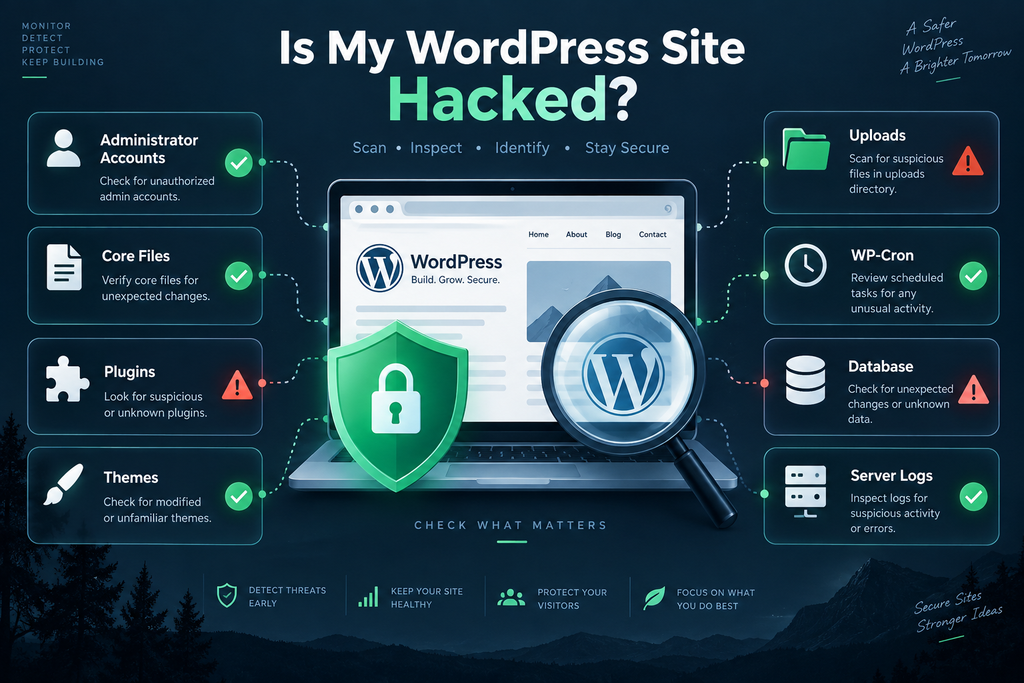
Verify WordPress Core Files With Checksums
Checksums provide a practical way to determine whether official WordPress files have changed.
Run:
wp core verify-checksums --version=$(wp core version)
WordPress documentation explains that this process checks installed core files against known WordPress versions. Unexpected differences can indicate corruption, manual modifications, or potentially malicious changes.
Administrators can also include the installation root:
wp core verify-checksums --include-root --version=$(wp core version)
Do not automatically delete every file reported by a verification process. First determine why the file exists.
Some hosting environments add legitimate files. Developers may also have intentionally changed something, although modifying WordPress core directly is generally poor maintenance practice.
More importantly, a clean checksum result should not create false confidence.
An attacker does not need to modify official WordPress core files. Adding a new malicious file elsewhere can be enough to establish persistence.
Continue inspecting the rest of the installation even when core verification succeeds.
Inspect WordPress Plugins for Unexpected Changes
Plugins deserve special attention because they contain executable PHP code and are a frequent source of legitimate file changes.
Open:
Plugins → Installed Plugins
Review the complete list rather than checking only active plugins.
Ask yourself whether you recognize every plugin.
A plugin you do not remember installing is not automatically malicious. A developer, hosting provider, migration tool, or management service may have installed it. Nevertheless, every unexplained plugin deserves verification.
Check the plugin name, developer, installation directory, update history, and whether it exists in the expected distribution channel.
Attackers can potentially hide persistence inside a directory that resembles a legitimate utility or performance plugin. A harmless-looking name alone proves nothing.
Administrators using WP-CLI can also verify checksums for plugins distributed through WordPress.org:
wp plugin verify-checksums --all --strict
WordPress notes that checksum verification may not be available for custom or premium plugins that are not distributed through WordPress.org. A checksum warning in that situation does not automatically indicate malware.
For premium plugins, compare files with a clean package downloaded directly from the legitimate vendor.
Do Not Forget Must-Use Plugins
Must-use plugins deserve their own inspection because they behave differently from ordinary WordPress plugins.
Look inside:
wp-content/mu-plugins/ (Speed Up with Must-Use Plugins)
Many legitimate hosting providers and website administrators use MU plugins for performance features, security controls, custom functionality, caching, or maintenance tasks.
However, the directory is easy to overlook if you only inspect the standard Plugins screen.
Identify every file and determine its purpose.
If you manage the website yourself, you should ideally know why each MU plugin exists. If another developer manages the installation, ask for confirmation before deleting unfamiliar files.
Security investigations become significantly easier when administrators maintain documentation of custom code and expected server components.
Without that baseline, distinguishing legitimate customizations from unauthorized modifications can become difficult.
Inspect Your Active WordPress Theme
Themes contain executable PHP files too.
Navigate to:
wp-content/themes/
Identify the active theme and any child theme. Then determine whether other installed themes are necessary.
Pay attention to unexplained modifications in important files such as functions.php, template files, and custom includes.
Attackers sometimes inject malicious code into existing legitimate files because an altered file may attract less attention than an obviously suspicious new directory.
However, themes also change legitimately. Developers modify child themes, insert custom functionality, and deploy template updates.
Compare suspicious files against a known clean copy or version-control history whenever possible.
Avoid relying solely on visual inspection. Obfuscated code can be difficult to recognize, while perfectly legitimate optimized code may look unusual to someone unfamiliar with the project.
If you cannot confidently evaluate a suspicious PHP modification, preserve a copy and ask an experienced WordPress security professional or developer to inspect it.
Search the Uploads Directory for Unexpected PHP Files
The WordPress uploads directory normally stores media and files generated by legitimate site functionality.
A common location is:
wp-content/uploads/
Images, PDFs, videos, documents, generated CSS, cache-related assets, and plugin-specific directories may all appear here.
Executable PHP files deserve closer inspection.
Finding PHP in uploads does not prove a compromise because some legitimate plugins may create unusual file structures. Nevertheless, unexpected executable files in a media-oriented directory should never be ignored.
The existing WpZone WPMU DEV security guide specifically highlights new files inside uploads as an indicator worth investigating after a serious plugin vulnerability.
Look at modification dates and compare them with the suspected incident window.
If an unfamiliar PHP file appeared during the same period as suspicious log entries, unauthorized administrator creation, or exploitation attempts, that correlation becomes far more significant.
Do not execute suspicious files to determine what they do.
Preserve evidence and inspect them safely.
Check for Unexpected Website Redirects
Malicious redirects are among the most noticeable symptoms of a compromised WordPress website, yet they can also be frustratingly inconsistent.
A visitor may report being redirected while the administrator sees nothing unusual.
Test the website from different conditions when appropriate. Check logged-out sessions and several important pages. Pay particular attention to reports from search visitors or mobile users.
Before assuming malware, rule out legitimate causes.
Redirect plugins, caching rules, CDN configuration, advertising systems, affiliate links, HTTPS configuration, multilingual plugins, and old .htaccess rules can all create redirects.
When the behavior has no legitimate explanation, inspect WordPress files and configuration carefully.
Review:
index.php
wp-config.php
.htaccess
your active theme
active plugins
MU plugins
and relevant server configuration.
Also examine the rendered page source for scripts or external resources you do not recognize.
The key question is not simply whether a redirect exists. You need to determine who configured it and why.
Inspect .htaccess and Server Configuration
Apache-based WordPress websites commonly use .htaccess for rewrite rules and other configuration.
WordPress itself may update parts of this file, while security, caching, redirect, and optimization plugins can add legitimate rules.
That means a long .htaccess file is not necessarily suspicious.
Instead, compare the current file with a known clean backup. Look for changes that you cannot associate with a legitimate plugin or administrator action.
Pay attention to unexpected rewrite destinations, unfamiliar external domains, and unexplained PHP configuration.
NGINX users will generally need to inspect server configuration rather than relying on .htaccess.
Do not modify server rules blindly during an incident. An incorrect configuration change can take the website offline and destroy useful evidence.
Create a backup before editing configuration files.
If the website is actively redirecting visitors toward dangerous destinations, containment becomes the priority. Your hosting provider or security specialist may be able to temporarily restrict access while preserving the environment for investigation.
Look for Suspicious JavaScript Injections
Not every WordPress compromise relies on PHP.
Injected JavaScript can alter page content, load external resources, display unwanted advertisements, capture information entered by visitors, or trigger redirects.
Inspect the HTML source of affected pages and compare it with what WordPress should normally generate.
External scripts deserve attention when you cannot connect them to a known service.
However, modern WordPress websites legitimately load scripts from many places, including analytics platforms, advertising networks, consent systems, CDNs, fonts, video services, payment providers, and social platforms.
Do not label an external script malicious simply because you do not recognize the domain.
Trace it back to the plugin, theme, tag manager, advertisement, or service responsible for loading it.
If the script appears without a legitimate source, investigate the database and WordPress files for the code responsible for injecting it.
Review WordPress Posts and Pages for SEO Spam
Search spam can remain hidden from ordinary website navigation.
Attackers may create pages targeting pharmaceuticals, gambling terms, counterfeit products, questionable downloads, or unrelated commercial searches. The content may be designed primarily for search engines rather than your normal visitors.
Start by reviewing:
Posts → All Posts
and:
Pages → All Pages
Look for content you did not publish.
Next, search Google for indexed pages from your domain using a site: search. This can sometimes expose URLs that do not appear in your normal navigation.
Remember that strange indexed URLs are not automatically proof of hacking. Old pages, query parameters, legitimate archives, deleted URLs, or historical content can remain visible in search results.
Investigate unexpected pages before reaching a conclusion.
Google Search Console can also help you notice unusual changes in indexed pages, search queries, security warnings, and website visibility.
A sudden appearance of irrelevant search terms deserves investigation, particularly when combined with other compromise indicators.
Check Google Search Console for Security Problems
Google Search Console should be part of a WordPress administrator’s security monitoring routine.
Review security-related notifications and inspect unexpected changes in search performance.
A compromised website can sometimes generate large numbers of spam URLs, unusual search impressions, or indexing patterns unrelated to the site’s real content.
Do not wait for Google to identify every incident. Search Console sees the website primarily through Google’s systems, not from inside your server.
A clean Search Console report therefore does not prove that WordPress is uncompromised.
Think of it as another source of evidence.
Your WordPress dashboard, filesystem, database, server logs, CDN logs, security tools, and Search Console each provide a different view of what happened.
The strongest investigations combine those views rather than relying on a single scanner or dashboard.
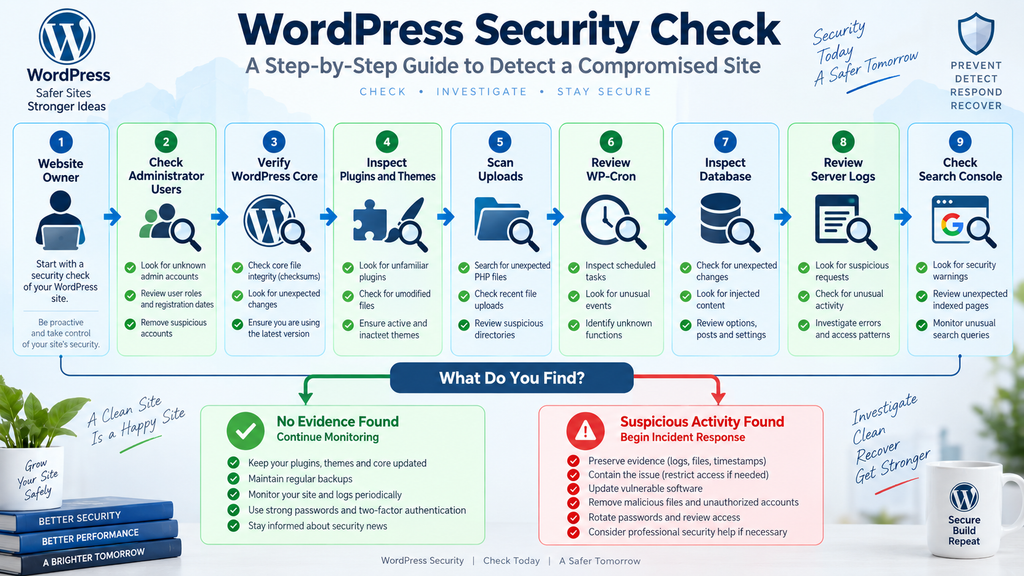
Review WP-Cron for Suspicious Scheduled Tasks
WordPress uses WP-Cron to schedule background work.
Plugins rely on it for backups, publishing, maintenance, email processing, cache cleanup, WooCommerce operations, security scans, and many other legitimate tasks.
As a result, a typical WordPress installation can contain many cron events.
An unfamiliar event is not automatically malicious.
Still, attackers who establish persistence may potentially use scheduled execution mechanisms. That makes unexpected cron entries relevant during an investigation.
Compare scheduled events with installed plugins and custom code. If an event references a function that does not belong to anything you recognize, investigate further.
Do not simply delete every unfamiliar cron job.
Removing legitimate scheduled tasks can break backups, WooCommerce processes, scheduled posts, email queues, optimization jobs, or plugin maintenance.
The correct approach is attribution.
Determine which component registered the event. If no legitimate component explains it, preserve the details and investigate the associated PHP code.
Examine Your WordPress Database for Unexpected Changes
Some compromises live partly or entirely in the database.
Attackers may potentially alter options, posts, user records, widgets, plugin settings, or other stored values.
Database inspection requires care because serialized WordPress data can be damaged by careless editing.
Start with information accessible through WordPress itself. Review administrators, active plugins, widgets, posts, pages, menus, and important settings.
If suspicious behavior remains unexplained, experienced administrators can inspect database tables through appropriate management tools.
Create a backup before changing anything.
Pay particular attention to suspicious content that reappears after files are cleaned. Persistence can indicate that another component is restoring the malicious change.
Similarly, if a redirect returns after clearing caches and replacing affected files, investigate whether its configuration is stored in the database.
Never run random SQL cleanup commands copied from untrusted sources against a production WordPress database.
Review Server Access Logs
Logs are among the most valuable sources of evidence during a WordPress security investigation.
The official WordPress hardening documentation describes logs as important for understanding website activity and forensic investigation. Logs can help reveal suspicious requests, brute-force attempts, traversal attempts, and other activity.
Start with the suspected compromise window.
Look for unusual request patterns around the time an unauthorized file, administrator account, or configuration change appeared.
A useful investigation connects events.
For example:
A suspicious request occurs.
Minutes later, an unknown PHP file appears.
An administrator account is created.
Then the website begins contacting an unfamiliar external server.
Each event alone may be ambiguous. Together, they can tell a much clearer story.
Keep original logs whenever possible. Rotating or deleting logs too early can remove valuable evidence.
If your hosting plan provides only short log retention, consider whether longer retention would improve future incident response.
Check Authentication and Login Activity
Credential compromise remains another possible path into WordPress.
Review login logs if your security plugin, hosting platform, identity provider, or WAF records them.
Look for unusual successful logins rather than focusing only on failed attempts.
Thousands of failed login attempts can be ordinary internet background noise. A successful administrator login from an unexpected context may be far more important.
Still, location and IP address alone should not determine whether a login is malicious. Mobile networks, VPNs, corporate networks, dynamic addresses, and privacy services can make legitimate logins appear unusual.
Combine authentication information with other evidence.
If a successful login is followed by a new plugin installation, administrator creation, theme modification, or configuration change that nobody authorized, the event deserves immediate investigation.
After a confirmed compromise, reset affected credentials and review active sessions.
Two-factor authentication can also reduce the risk created by stolen passwords.
Investigate Sudden Changes in Website Traffic
Traffic anomalies can sometimes reveal security problems.
A hacked site used for spam may suddenly receive impressions for unrelated keywords. Redirect malware can cause legitimate traffic to disappear. Automated abuse can produce unexpected server load or bandwidth consumption.
However, traffic changes have many non-security explanations.
Google algorithm updates, seasonality, viral content, advertising campaigns, crawler activity, CDN configuration, analytics errors, and indexing changes can all create unusual patterns.
Treat traffic as a signal rather than proof.
Compare analytics with Search Console, access logs, server resource usage, and recent website changes.
If organic impressions suddenly appear for keywords completely unrelated to your content, search the domain for unexpected indexed pages.
If server traffic rises dramatically without a corresponding increase in human visitors, inspect access logs to identify what is generating the requests.
Security investigations work best when multiple independent signals point toward the same explanation.
Check for Unexplained Outbound Connections
WordPress websites make many legitimate outbound requests.
Plugins contact update servers. Payment systems communicate with APIs. SMTP plugins send email. Security tools use cloud services. Analytics systems transfer information. WordPress itself performs update and service checks.
Therefore, outbound traffic is normal.
The concern is traffic that cannot be attributed to anything legitimate.
Hosting dashboards, firewalls, server monitoring tools, or network logs may reveal unusual destinations or sudden increases in outbound requests.
If you find something suspicious, identify which process or application generated the connection before blocking it.
A compromised server may be used for spam, automated attacks, command-and-control communication, or other abuse. At the same time, blocking an essential API without understanding it could disrupt payments, email delivery, backups, licensing, or other important services.
Evidence should guide the response.
Scan WordPress With a Security Plugin
A reputable WordPress security scanner can provide another useful perspective.
Security plugins may detect changed files, known malware signatures, suspicious URLs, vulnerable software, unauthorized modifications, or other indicators.
For example, Wordfence describes its scanner as a tool that can identify compromise and other security problems, while its firewall and login security features provide additional layers of protection.
No scanner should be treated as absolute proof.
Malware changes. Custom WordPress code can trigger false positives. Sophisticated persistence may not match a known signature.
Use scanners to collect evidence, not to replace investigation.
If a scanner reports a suspicious file, ask:
- Where is the file located?
- When was it modified?
- Which component created it?
- Does it match a clean vendor package?
- Is it referenced elsewhere?
- Do server logs show requests to it?
Those questions turn a generic warning into useful forensic information.
Compare Your Website With a Clean Backup
Backups are valuable for more than restoration.
A known clean backup can provide a historical baseline.
Compare current files with a backup created before the suspected incident. New files and unexplained modifications become easier to identify when you know what previously existed.
Be careful when deciding that a backup is clean.
A backup created yesterday is not useful as a clean reference if the website was compromised two weeks ago.
This is one reason multiple backup generations matter.
Keep enough history to reach a point before a potential incident.
Backups should also exist outside the live hosting account whenever practical. If an attacker gains broad server access, locally stored backups may also be altered or deleted.
Finally, test restoration procedures periodically.
A backup that cannot be restored is not a reliable recovery plan.
What to Do If You Find Evidence of a WordPress Hack
Once evidence strongly suggests compromise, shift from routine inspection to incident response.
First, preserve evidence where practical. Save relevant logs and record suspicious users, files, timestamps, plugins, and observed behavior.
Next, contain the incident.
The exact approach depends on the website. A small informational blog and a busy WooCommerce store have very different operational requirements.
Update vulnerable software, but remember that patching the original vulnerability does not necessarily remove attacker persistence.
Reset compromised credentials, review administrator accounts, inspect active sessions, rotate exposed secrets when necessary, and replace modified software with trusted clean copies.
If you cannot determine the extent of the compromise, professional assistance may be safer than repeatedly deleting files until warnings disappear.
A clean-looking homepage is not the objective.
You want confidence that unauthorized access has been removed and the original entry point has been closed.
Why Updating WordPress Is Not Always Enough After a Hack
Updates fix vulnerable software. They do not travel backward in time.
Suppose an attacker exploited a vulnerable plugin on Monday and installed a persistent backdoor. You discover the vulnerability on Wednesday and update the plugin immediately.
The vulnerable plugin is now patched.
The backdoor may still exist.
This distinction is extremely important when dealing with actively exploited WordPress vulnerabilities.
Our investigation of the critical WPMU DEV Dashboard vulnerability makes the same point. The existing guide recommends checking for unknown administrators, modified PHP files, new plugins, suspicious cron tasks, unexpected redirects, JavaScript injections, and new files inside uploads after exposure to the vulnerable plugin.
That principle applies beyond one vulnerability.
When a flaw could provide meaningful unauthorized access, administrators need to consider both patching and post-exploitation investigation.
They solve different problems.
Reset Passwords After a Confirmed Compromise
A confirmed compromise can expose credentials in several ways.
Reset WordPress administrator passwords and any other credentials reasonably believed to have been exposed.
Depending on the incident, this may include hosting, SFTP, SSH, database, email, API, CDN, or service credentials.
Do not rotate everything blindly before understanding the incident if doing so would destroy evidence or cause major outages. For serious compromises, coordinate credential rotation as part of a structured response.
Use unique passwords for separate services.
Password reuse turns one stolen credential into a much larger problem.
Enable two-factor authentication for privileged WordPress accounts whenever practical.
Also review whether former employees, contractors, developers, or old integrations still have access they no longer require.
Reducing unnecessary privileged access makes both prevention and incident investigation easier.
Replace Compromised WordPress Files With Clean Copies
When legitimate WordPress software has been modified maliciously, replacing it with trusted clean copies is generally safer than manually removing individual suspicious fragments.
WordPress core files can be obtained from the official WordPress distribution.
Plugins and themes should come from their legitimate developers or trusted repositories.
Do not download replacement packages from random websites offering “nulled,” modified, or unofficial premium software.
If custom code is involved, compare it with your version-control repository or known clean backup.
Preserve suspicious files before replacing them if forensic investigation matters.
The objective is to rebuild trust.
After replacement, scan again, verify checksums where available, review configuration files, and monitor the website for reappearing changes.
If malicious files return, you probably have not removed the persistence mechanism.
Restore From Backup Carefully
Restoring a backup can be an effective recovery method, but only when you know the backup predates the compromise.
Otherwise, you may simply restore the attacker along with the website.
Estimate the earliest likely compromise date using logs, file timestamps, administrator registration dates, security alerts, and vulnerability disclosure information.
Then select a backup from before that point.
After restoration, immediately patch the vulnerable software and reset credentials that may have been exposed.
For dynamic websites, restoration can also remove legitimate recent data. WooCommerce orders, form submissions, comments, membership changes, and user registrations may have occurred after the selected backup.
Plan carefully before overwriting a production database.
High-value or transactional sites may require professional recovery that preserves legitimate new data while removing malicious changes.
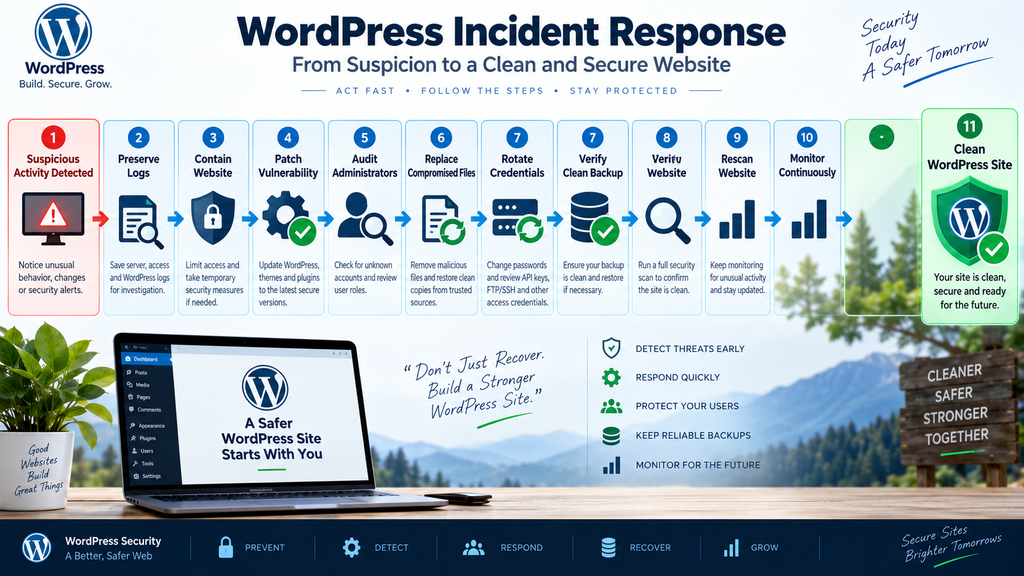
Harden WordPress After Cleaning the Website
Recovery should end with improved security, not simply a return to the previous configuration.
Update WordPress core, themes, and plugins regularly. Remove software you no longer use. Every unnecessary plugin adds code that must be maintained and monitored.
Use strong unique passwords and two-factor authentication for privileged users.
Restrict administrator access to people who genuinely need it.
Maintain reliable off-site backups with multiple restore points.
Consider a Web Application Firewall where appropriate.
Keep PHP and server software on supported versions.
WordPress hardening guidance also emphasizes the importance of maintaining secure server software and understanding the security responsibilities of your hosting environment.
Most importantly, build a routine.
Security becomes much easier when you already know which administrators, plugins, MU plugins, cron events, integrations, and custom files belong on your website.
A baseline transforms future investigations from guesswork into comparison.
Create a WordPress Security Baseline
One of the best times to prepare for a hack is when your website is clean.
Record the expected configuration.
Document administrator accounts, installed plugins, active themes, MU plugins, important integrations, scheduled jobs, PHP version, WordPress version, and major hosting settings.
Keep this information securely.
You can also retain file integrity information or use version control for custom code.
When something changes later, you have a reference.
Imagine discovering an unfamiliar MU plugin six months from now. Without documentation, you may spend hours determining whether it is legitimate.
With a baseline, you can immediately see when the file appeared and whether it was authorized.
Security monitoring becomes far more effective when you know what “normal” means for your own WordPress installation.
Monitor WordPress After an Incident
A successful cleanup should be followed by heightened monitoring.
Watch administrator accounts, file modifications, login activity, plugin installations, scheduled tasks, server logs, search visibility, and outbound connections.
Pay special attention to previously affected areas.
If an attacker created a backdoor that your investigation missed, suspicious activity may return after the obvious malware has been removed.
Monitoring also helps validate your cleanup.
The longer the website operates normally without unexplained changes, the more evidence you collect that remediation succeeded.
Still, monitoring should continue after the immediate incident window.
WordPress websites constantly change. New plugin vulnerabilities appear, credentials can be stolen, and configuration mistakes happen.
Security is a process rather than a one-time scan.
When You Should Contact Your Hosting Provider
Your hosting provider can be extremely helpful when the problem extends beyond WordPress itself.
Contact support when you need server logs you cannot access, suspect compromise across multiple sites, discover unusual server processes, lose dashboard access, or believe the hosting account itself may have been breached.
Ask precise questions.
Instead of simply saying “My site is hacked,” provide the evidence you have collected.
For example, explain when suspicious behavior started, which files changed, whether an unknown administrator appeared, and whether a vulnerable plugin was installed.
Specific information can help support teams investigate faster.
If you use shared hosting and several websites under the same account show similar symptoms, mention that immediately.
A compromise may not be isolated to one WordPress installation.
When Professional WordPress Security Help Makes Sense
Not every compromise requires a forensic security team.
A small website with a clearly identified malicious file, reliable clean backup, and known entry point may be recoverable by an experienced administrator.
Professional assistance becomes more important when sensitive customer information may be involved, multiple websites are affected, malicious files repeatedly return, the entry point remains unknown, or the server itself may be compromised.
WooCommerce, membership, healthcare, financial, and other data-sensitive websites can also create legal or regulatory considerations.
Do not make assumptions about notification obligations based solely on a malware scan.
Consult appropriate security, legal, hosting, or privacy professionals when an incident may involve personal or confidential information.
The cost of professional help should be weighed against the value of the website, its data, its users, and the consequences of an incomplete cleanup.
Frequently Asked Questions
How can I tell if my WordPress website has been hacked?
Check for unknown administrator accounts, unexpected file modifications, suspicious plugins, unexplained redirects, unfamiliar PHP files, unusual cron events, injected scripts, spam pages, and security warnings. Compare suspicious findings with server logs and known clean backups before concluding that the website is compromised.
Can a WordPress site be hacked without showing obvious signs?
Yes. A compromised website may continue operating normally while unauthorized code or accounts remain hidden. Attackers often benefit from avoiding detection, so visible defacement is not required for a serious compromise.
Does a malware scanner guarantee that my WordPress site is clean?
No. Security scanners are useful, but no single scanner can guarantee that every form of persistence or malicious modification has been detected. Combine scanning with file verification, account reviews, log analysis, backups, and manual investigation.
How do I check WordPress core files for modifications?
Administrators with WP-CLI can use wp core verify-checksums to compare core files with known WordPress releases. Unexpected differences require investigation, although legitimate manual changes or environmental files can sometimes explain warnings.
Is an unknown PHP file in wp-content/uploads always malware?
Not necessarily. Some legitimate plugins may create unusual files. However, an unexplained executable PHP file inside the uploads directory deserves immediate investigation, particularly after exposure to a serious vulnerability.
Is updating a vulnerable plugin enough after an attack?
Not if the vulnerability may already have been exploited. Updating closes the vulnerable code path but does not necessarily remove files, users, scheduled tasks, or other persistence created earlier.
Should I delete an unknown WordPress administrator immediately?
First determine whether the account belongs to a legitimate developer, hosting provider, employee, or service. If you confirm it is unauthorized, preserve relevant evidence and remove access as part of your incident response.
Should I restore a hacked WordPress website from backup?
A clean backup can be an effective recovery method if it predates the compromise. After restoring, patch the original entry point and rotate credentials that may have been exposed. Be careful with transactional websites because restoring an old database can remove legitimate recent data.
Can Google Search Console tell me if WordPress is hacked?
Search Console can provide valuable security and indexing signals, but a clean report does not prove that the server is clean. Use it alongside WordPress, filesystem, database, security scanner, and server-log checks.
What should I do first if I confirm my WordPress site was hacked?
Preserve useful evidence, contain unauthorized access, patch the entry point, audit privileged accounts, inspect files and persistence mechanisms, rotate exposed credentials, restore or replace compromised components, and continue monitoring after cleanup.
Building a WordPress Site You Can Trust
Learning how to check if a WordPress site is hacked is less about finding one magical scanner and more about collecting reliable evidence.
Start with administrator accounts. Verify WordPress core files. Inspect plugins, themes, MU plugins, uploads, scheduled tasks, and configuration files. Review Search Console and server logs. Compare suspicious changes with clean backups.
Most importantly, do not confuse patching with incident recovery.
When a serious vulnerability has already been exposed to attackers, installing the security update is only the first step. Our coverage of the WPMU DEV Dashboard vulnerability provides a practical example of why WordPress administrators should investigate signs of compromise after patching an actively targeted vulnerability.
A well-maintained baseline, reliable backups, strong authentication, regular updates, and useful logs make future investigations much easier.
You cannot eliminate every WordPress security risk. You can, however, make compromise harder, detection faster, and recovery far more predictable.
⚠️ Disclaimer and Source Hygiene
This article provides general WordPress security information and should not be treated as individualized cybersecurity, forensic, legal, or privacy advice. Security incidents differ significantly depending on hosting configuration, installed software, website functionality, stored information, and the attack involved.
The recommendations in this guide are based on established WordPress administration practices, official WordPress documentation, and publicly available security guidance. Always verify security information against authoritative and current sources before making changes to a production website. If a compromise may involve sensitive information, customer data, payment information, or broader server access, consider consulting qualified security, hosting, privacy, and legal professionals.
🔔 For more tutorials like this, consider subscribing to our blog.
📩 Do you have questions or suggestions? Leave a comment or contact us!
🏷️ Tags: WordPress security, hacked WordPress site, WordPress malware, WordPress security check, WordPress malware scan, WordPress hacked website, WordPress WP-CLI, WordPress file integrity, WordPress security audit, WordPress recovery
📢 Hashtags: #WordPress, #WordPressSecurity, #CyberSecurity, #WordPressTips, #WebsiteSecurity, #Malware, #WPCLI, #WordPressHelp, #WebSecurity, #WordPressTutorial
📚 Sources and References
WordPress Developer Resources – Website Security Checks With WP-CLI
Official WordPress guidance explains how administrators can use WP-CLI for security-related checks, including WordPress core checksum verification, plugin checksum verification, and administrator account inspection.
WordPress Advanced Administration Handbook – Hardening WordPress
Official WordPress hardening documentation covers server security, logging, security practices, and the importance of logs during investigations.
WpZone – Critical WPMU DEV Dashboard Vulnerability Under Active Attack
Our related security report examines CVE-2026-15459 and explains why administrators exposed to a serious WordPress plugin vulnerability should investigate for signs of compromise after updating.
🕊️ Secondary Sources and Testimonials
Community reports can help administrators recognize emerging patterns, but individual reports should never be treated as definitive proof that two incidents share the same cause.
WordPress community discussions regularly demonstrate that malicious or fake plugins can appear during compromised-site investigations. These reports reinforce the importance of verifying unfamiliar plugins rather than trusting a directory or plugin name at face value.
Security plugin documentation can also provide useful information about scanner capabilities. For example, Wordfence describes file and malware scanning, firewall protection, login security, and two-factor authentication among its WordPress security features.
Always confirm critical findings through multiple sources of evidence before removing files, restoring databases, or making major production changes.
3 thoughts on “How to Check If Your WordPress Site Has Been Hacked”