
Table of Contents
A critical PPOM vulnerability in WooCommerce product add-ons allows unauthenticated attackers to relocate sensitive WordPress server files into a publicly accessible directory. Learn how CVE-2026-104801 works, which plugin versions are affected, why exposed configuration files threaten website security, and how to update, investigate, and recover safely.
The security of a WordPress website often depends on details that visitors never see. Configuration files, database credentials, authentication keys, and server permissions all work quietly behind the scenes. When a plugin handles file paths incorrectly, those hidden components can suddenly become accessible to outsiders. That is the concern surrounding a newly disclosed critical vulnerability in PPOM, a popular WooCommerce product customization plugin.
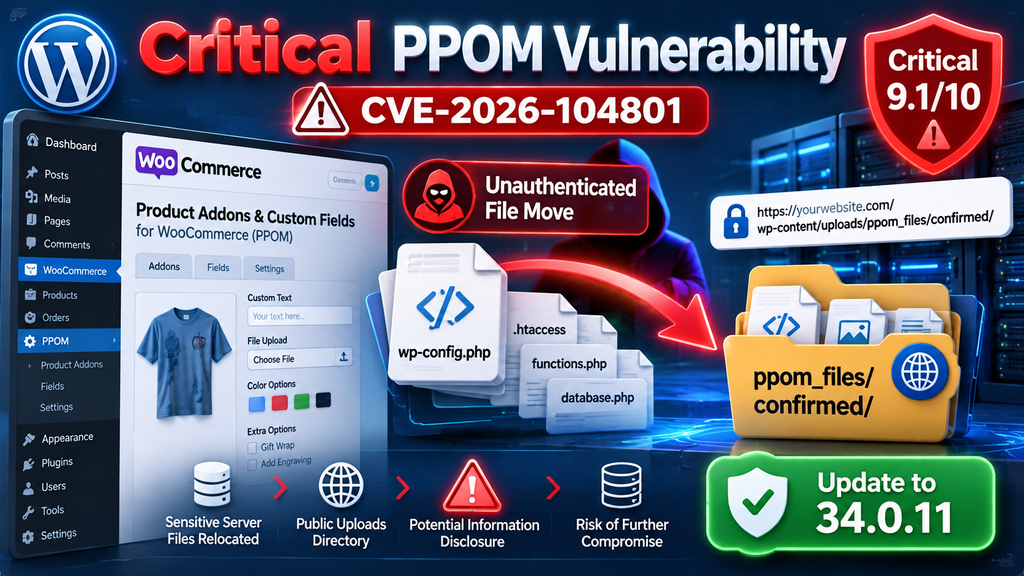
Tracked as CVE-2026-104801, the issue affects the plugin’s file-handling functionality. An attacker who does not have a WordPress account may be able to move files from their original server locations into a directory accessible through the website. This creates two separate dangers: removing a file from the location where WordPress expects it and potentially exposing the file’s contents to unauthorized visitors.
For website owners, the distinction matters. A missing configuration file can disrupt normal website operation, while an exposed configuration file may reveal information that remains sensitive even after the website is repaired. Simply updating the vulnerable plugin does not automatically undo a previous compromise. This guide explains the technical issue in understandable language and provides practical steps for securing a WooCommerce store, examining possible exposure, and recovering safely.
What Is CVE-2026-104801
CVE-2026-104801 is a critical path traversal vulnerability affecting PPOM – Product Addons & Custom Fields for WooCommerce. The plugin helps online stores collect additional information from customers, including product personalization details, custom selections, and uploaded files. Those capabilities make file processing an important part of its operation. Unfortunately, improper validation of a file path in the rename_files functionality created an opportunity for unauthorized file relocation.
The vulnerability was published on October 10, 2026, and received a CVSS v3.1 severity score of 9.1 out of 10, classified as Critical. The advisory identifies CWE-22, improper limitation of a pathname to a restricted directory, as the underlying weakness. The issue can be exploited without an authenticated WordPress account, although actual impact depends on server permissions, file locations, and the affected functionality being reachable. CVE-2026-104801
Security Advisory Overview
| Vulnerability | CVE-2026-104801 |
|---|---|
| Severity | Critical – 9.1/10 |
| Affected Versions | 34.0.10 and earlier |
| Patched Version | 34.0.11 |
| Authentication Required | No |
| Weakness | CWE-22: Path Traversal |
Source: Published CVE record and PPOM security advisories.
Why This Vulnerability Is More Than Ordinary File Deletion
Security advisories describe the flaw as arbitrary file deletion. That classification makes sense because the original file disappears from its expected location. However, the underlying behavior involves relocating the file rather than simply erasing its contents. The destination identified in the advisory is a directory under wp-content/uploads/ppom_files/confirmed/, which may be publicly accessible on affected installations.
Imagine a shop assistant moving a confidential document from a locked office into a display cabinet near the entrance. The document is no longer in the office, but it has not been destroyed. Instead, people who should never see it may now be able to read it. That is the important difference between deletion and relocation in this PPOM vulnerability. A file can be both missing from its original location and exposed somewhere else.
Does a Critical Rating Mean Every Website Has Been Hacked?
No. A critical severity rating describes the potential impact and exploitation characteristics of a vulnerability, not proof that every affected installation has been compromised. Some servers may prevent a particular file from being moved because of restrictive filesystem permissions. Other installations may expose more files because the web server process has broader access than necessary. The presence of the vulnerable plugin alone does not establish that an attacker successfully exploited it.
However, the absence of obvious symptoms is not enough to declare a website safe. File relocation can occur without a visible homepage change, especially when an attacker targets a file that is not immediately required for page rendering. Administrators should therefore verify their installed PPOM version, review relevant server records, and examine sensitive file locations before treating the incident as resolved.
Which PPOM Versions Are Vulnerable
According to the published vulnerability record, all PPOM versions up to and including 34.0.10 are affected. Version 34.0.11 is identified as the patched release. The relevant WordPress plugin slug is woocommerce-product-addon, which is useful when inspecting installations through WP-CLI, hosting dashboards, or automated security inventory systems. Store owners should verify the installed version rather than assuming that WordPress has already applied an automatic update.
An installation running version 34.0.10 remains within the affected range even if it appears to function normally. A store running an earlier release may also be exposed, and an inactive copy should not be ignored during an inventory review. Deactivation can prevent vulnerable WordPress functionality from being invoked through normal plugin execution, but old files should still be removed safely when no longer needed. The strongest long-term approach is to maintain a supported, patched installation.
How to Check the Installed PPOM Version
Open the WordPress administration dashboard and navigate to Plugins → Installed Plugins. Search for PPOM or Product Addons & Custom Fields for WooCommerce. Look below the plugin name for its installed version number. If the version is 34.0.10 or earlier, schedule an immediate update after preparing a verified backup. If the plugin is missing from the list, confirm that it is not installed on another WordPress instance or staging environment.
For administrators with SSH access, WP-CLI provides a reliable way to inspect the installation without opening the dashboard. Change to the correct WordPress installation directory, then execute the following read-only command. The example uses the plugin’s actual slug rather than its display name, helping avoid confusion with similarly named WooCommerce extensions.
wp plugin get woocommerce-product-addon \
  --fields=name,title,status,version,update_version
A sample result might show version 34.0.10, status active, and an available update. That combination requires attention because the installation remains within the documented vulnerable range. If the command reports that the plugin is not installed, verify the WordPress path and installation context before drawing conclusions. Multisite installations and staging copies should be inspected separately because they may use different plugin configurations.
Why WooCommerce Store Owners Should Act Quickly
WooCommerce websites often process valuable operational information, including customer accounts, order records, and payment-related integrations. PPOM itself is used to extend product options, but its file-handling permissions operate within the broader WordPress hosting environment. A weakness in one extension can therefore affect files that belong to WordPress core or another component. This is why plugin vulnerabilities sometimes create risks far beyond their advertised features.
For example, a store selling customized gifts might use PPOM to accept engraving instructions or uploaded artwork. Customers interact only with product fields, while the server manages temporary files and confirmed uploads. If the application accepts an unsafe file path during that process, a malicious request may reach outside the intended upload directory. The exact consequences depend on which files the server can access and relocate.
How Path Traversal Moves Server Files
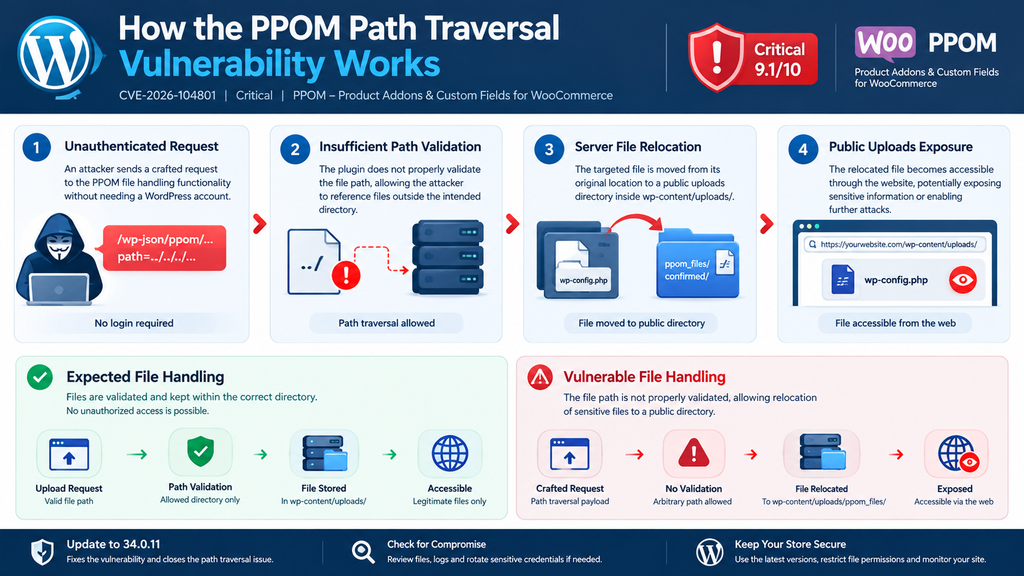
Path traversal occurs when an application uses an untrusted filesystem path without properly restricting it to an authorized directory. A file-processing function may expect a filename belonging to a customer upload, but the supplied value can potentially reference a different location. Without effective validation, the application may operate on a file outside its intended working area. This weakness is commonly classified as CWE-22.
In the PPOM case, the affected functionality is associated with rename_files. The vulnerability record identifies insufficient validation of a file-path value associated with PPOM field data. That means the security problem is not simply that a file can be renamed. The deeper issue is that the application may accept a source location that should never be available to an unauthenticated request.
The Difference Between Deleting and Moving a File
A conventional deletion operation removes a file’s directory entry and may eventually make its data unrecoverable without backups or forensic recovery. A move operation changes the file’s location. Depending on the filesystem and implementation, the contents can remain unchanged while the original pathname disappears. That is precisely why a vulnerability categorized as arbitrary file deletion can also introduce a confidentiality risk.
Consider a harmless demonstration using an imaginary file named sample-document.txt. Before the operation, it exists inside a protected application directory. After an unauthorized move, it could appear inside a web-accessible uploads folder. An application looking for the original pathname would report the file missing, but the file itself might still exist at the new location. This example illustrates the security consequence without requiring a real exploit.
Conceptual File Relocation
Conceptual example only. The original file may disappear from its expected path while its contents remain in the destination. Public accessibility depends on server configuration.
Why a Public Uploads Directory Changes the Risk
WordPress normally stores uploaded media under wp-content/uploads/. Many websites configure this directory to serve images, documents, and other customer-facing assets. Those files are intended to be accessible through the website. Configuration files, private keys, and internal application documents are not. Moving a sensitive file into a public uploads directory can therefore cross an important security boundary.
The directory named in the PPOM advisory is wp-content/uploads/ppom_files/confirmed/. Whether a relocated file is actually downloadable depends on server configuration, access controls, file extensions, and request handling. For instance, some web servers execute PHP files rather than returning their source text, while others may expose source code if PHP processing is disabled for the uploads directory. Administrators must not assume that a relocated PHP file is either safely hidden or automatically readable.
What a Secure File-Handling Function Should Do
A properly secured upload workflow should limit file operations to directories explicitly authorized for that purpose. The application should resolve and validate filesystem paths, verify that the source file belongs to the expected upload process, and reject references to unrelated application files. It should also account for symbolic links and filesystem boundaries. Merely checking whether a filename contains suspicious characters is not sufficient.
For developers, the lesson is to enforce an allowlisted source directory and destination directory using canonical paths, ownership checks, and appropriate permissions. A request should never be allowed to select an arbitrary server file simply because the application has permission to read or move it. This principle applies to WooCommerce add-ons, media managers, backup plugins, form builders, and any other WordPress extension that processes files.
Why Exposing wp-config.php Is Critical
The WordPress wp-config.php file is one of the most sensitive files in a typical installation. It contains the configuration values WordPress needs to connect to its database and establish important security settings. Depending on the website, it may also include custom constants, environment-specific settings, or integration secrets added by developers. Because WordPress relies on this file, losing access to it can cause immediate operational problems.
If an attacker successfully relocates wp-config.php, two separate incidents may occur. First, WordPress may no longer find its configuration file, potentially interrupting normal operation or triggering installation-related behavior. Second, the relocated copy may become accessible through a web-facing directory, depending on how the server handles the file. The published advisory explicitly identifies wp-config.php as a high-impact target and describes possible downstream takeover or code-execution consequences.
What Sensitive Information Can Be Exposed?
A standard WordPress configuration commonly includes database connection settings such as DB_NAME, DB_USER, DB_PASSWORD, and DB_HOST. It also contains authentication salts and keys used in WordPress security mechanisms. These values should never be displayed publicly or included in screenshots, diagnostic reports, support tickets, or security discussions without appropriate redaction.
Database credentials can become particularly dangerous when an attacker also has a route to the database server. However, knowing a password does not automatically guarantee database access. Network restrictions, database permissions, and authentication configuration can limit what an attacker can do. Similarly, exposed WordPress authentication keys create serious security concerns, but the precise impact depends on the rest of the environment and whether additional attack conditions exist.
Why Replacing the Missing File Is Not Enough
Imagine that an administrator discovers wp-config.php missing and restores it from yesterday’s backup. The website starts working again, and the dashboard becomes accessible. That looks like a successful repair, but it addresses only the availability problem. If an unauthorized visitor already obtained a copy of the original configuration, the exposed secrets may remain useful even after the file has been restored.
A proper response must therefore consider confidentiality as well as availability. Administrators should restore the configuration securely, investigate whether the original file was relocated, determine whether it could have been downloaded, and rotate credentials that may have been disclosed. If access logs cannot establish that no disclosure occurred, treating the secrets as potentially compromised is the safer response.
Can This Vulnerability Lead to Remote Code Execution?
The advisory identifies remote code execution as a possible downstream outcome when important files are moved. That does not mean every successful file relocation automatically gives an attacker the ability to run arbitrary PHP code. Additional conditions may be necessary, such as an exploitable WordPress setup state, access to exposed credentials, or another weakness that can be combined with the initial file move.
This distinction matters because vulnerability severity and exploitation outcomes are not interchangeable. A missing configuration file, an exposed configuration file, administrator account takeover, and remote code execution are different events. Investigators should look for evidence of each outcome separately rather than assuming that the most serious possible consequence definitely occurred.
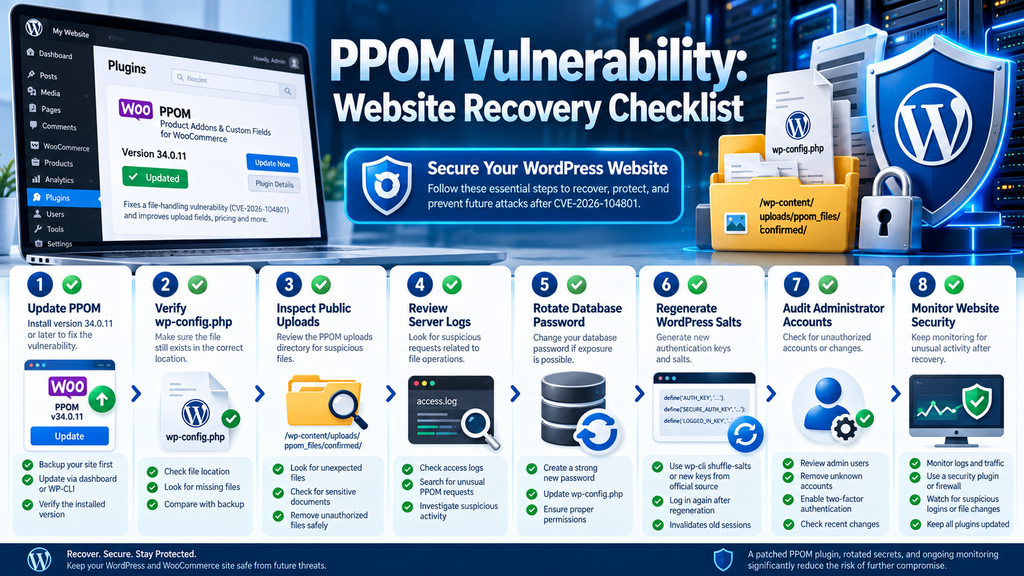
Updating PPOM to Version 34.0.11

The most important preventive action is to update PPOM to version 34.0.11 or later. The official WordPress.org changelog lists version 34.0.11, released on October 7, 2026, and specifically mentions a fix for file uploads allowing visitors to delete files outside the uploads folder. This confirms that the vendor addressed the affected file-handling behavior. The same release also includes improvements to upload fields, conditional pricing, currency handling, and dependencies.
Updating should be treated as an urgent security maintenance task, particularly on public WooCommerce stores. However, store owners should not rush into changes without preserving a reliable recovery option. A failed plugin update can interrupt product customization, checkout calculations, or uploaded customer files. A short, structured update procedure helps reduce those risks while closing the known vulnerability.
Step 1: Create a Complete Website Backup
Before changing the plugin, create a backup containing both the WordPress database and website files. Include wp-content, the configuration file, installed themes, plugins, and any custom modifications. If your hosting provider offers snapshots, consider creating one in addition to a conventional WordPress backup. Store at least one copy outside the public website directory so that an attacker cannot easily access it through the same server.
For a WooCommerce store, the database backup deserves particular attention. Orders, customer records, inventory, and product configuration may change throughout the day. A backup from the previous week could restore the website but lose recent business activity. Verify that the backup completes successfully and that its files are accessible. If compromise is suspected, preserve forensic evidence before making changes and avoid treating an old backup as automatically trustworthy.
Step 2: Update Through the WordPress Dashboard
Sign in to the WordPress administration area using an authorized administrator account. Navigate to Plugins → Installed Plugins, locate PPOM, and check whether WordPress offers an update. If version 34.0.11 or a later supported release is available, select the update option. Wait for the installation process to finish and confirm that WordPress reports success before navigating away.
After the update, reopen the Installed Plugins screen and verify the version number. Do not rely solely on the success notification because interrupted connections or filesystem permission problems can occasionally prevent changes from completing correctly. If WordPress cannot update the plugin, review the dashboard error, hosting filesystem permissions, and available disk space. Download replacement files only from official or otherwise trusted vendor sources.
Step 3: Update Using WP-CLI
Administrators managing WordPress through SSH can use WP-CLI to update the plugin directly. First, connect to the server and navigate to the appropriate WordPress installation directory. Run the following command under the website’s operating-system account, not an unnecessarily privileged account.
wp plugin update woocommerce-product-addonAfter completion, confirm the installed version:
wp plugin get woocommerce-product-addon \
  --field=version
The result should be 34.0.11 or a newer supported version. If the command fails, read the error before retrying. Avoid manually overwriting plugin directories while WooCommerce is handling active orders unless you have planned for that interruption. On busy stores, a brief maintenance window or carefully managed deployment may be appropriate.
Step 4: Test Product Customization and Checkout
Updating a plugin is only the first part of successful maintenance. Open a product that uses PPOM fields and check whether its customization options still appear. Select different values, test conditional fields, and verify that additional prices are calculated correctly. If customers can upload artwork or documents, use a harmless test file and confirm that the upload works without exposing unrelated server files.
Continue through the cart and checkout process using an appropriate test environment or payment gateway sandbox. Confirm that product options remain attached to the cart item and appear correctly in the order details. Avoid creating real charges during testing. Finally, review WooCommerce logs and PHP error logs for new warnings introduced after the update. This helps distinguish security remediation from unrelated compatibility problems.
Step 5: Check Every WordPress Installation
Some website owners maintain a production site, staging environment, development copy, and separate testing domain. Each installation may have a different PPOM version. Updating the production website does not necessarily update its staging counterpart, especially if plugin files are maintained independently. Publicly reachable staging sites deserve the same attention because attackers may discover them through search engines, DNS records, or automated scanning.
Keep a small maintenance record containing the installation name, previous plugin version, new version, update date, and testing result. This documentation becomes useful when investigating later incidents or comparing changes across several websites. If a staging site contains copied production credentials, treat those credentials carefully and rotate them when appropriate. A staging environment should never become an overlooked entry point into a production database.
Auditing Files and Rotating WordPress Secrets
Once PPOM is updated, administrators should determine whether sensitive files were moved before the patch was installed. This investigation is especially important if wp-config.php disappeared, unexpected files appeared in an uploads directory, or the website experienced unexplained configuration errors. A security audit should distinguish between attempted exploitation, successful file relocation, actual file disclosure, and subsequent unauthorized access. Each finding requires a different response.
Begin by preserving relevant evidence. Record the approximate time of any website outage, plugin update, suspicious request, or configuration change. Collect access logs, PHP error logs, WordPress security events, and filesystem metadata when available. If the website may be compromised, coordinate with the hosting provider or an incident-response specialist before removing suspicious files. Deleting evidence too early can make it harder to understand what happened.
Step 1: Verify That wp-config.php Still Exists
Use your hosting file manager or an SSH session to inspect the WordPress installation directory. On many installations, wp-config.php is located alongside wp-settings.php and wp-load.php, although WordPress also supports certain configurations with the file one directory above the installation root. Confirm its expected location rather than assuming that every website uses the same layout.
For an ordinary installation, a basic read-only check might look like this:
cd /path/to/wordpress

if [ -f wp-config.php ]; then
    echo "wp-config.php exists in this directory"
else
    echo "Check the parent directory and investigate"
fi
Replace /path/to/wordpress with the actual installation directory. This command does not display the configuration contents or modify files. If the file is absent, do not immediately create a fresh WordPress installation. First, check whether it exists in an authorized alternative location, inspect recent file changes, and preserve evidence that could explain its disappearance.
Step 2: Inspect the PPOM Confirmed Uploads Directory
The advisory identifies wp-content/uploads/ppom_files/confirmed/ as the relevant destination for relocated files. Inspect this directory carefully using a file manager or a read-only shell command. Look for unexpected PHP files, configuration documents, backup archives, or files unrelated to legitimate customer uploads. A suspicious filename alone is not definitive proof of compromise, but sensitive configuration files in a public upload location require urgent attention.
A basic directory listing can help administrators begin their review:
find wp-content/uploads/ppom_files/confirmed \
  -maxdepth 2 -type f \
  -printf '%TY-%Tm-%Td %TH:%TM %p\n'
This example lists file modification timestamps and paths without opening file contents. It assumes the current directory is the WordPress installation root and that the hosting environment supports GNU find. Remember that file modification times may be preserved during relocation and therefore do not necessarily reveal when the suspicious move occurred. Correlate findings with access logs and other filesystem metadata.
Step 3: Investigate Suspicious Requests in Server Logs
Web server access logs may reveal unusual requests associated with PPOM product fields, uploads, carts, or order processing. Investigators should focus on patterns such as repeated malformed file-related parameters, requests targeting unexpected paths, unusual bursts of activity, and responses occurring shortly before files disappeared. These observations can support an investigation, but they should not be interpreted as conclusive evidence without additional context.
For an authorized server administrator, a simple starting point is to search an archived access log for PPOM-related activity:
grep -i 'ppom' /path/to/access.log \
  | tail -n 100
This is only an initial filtering example. A normal WooCommerce store may generate many legitimate PPOM requests, and some relevant requests may not contain the word ppom in a readily searchable location. Access logs often omit POST request bodies, so the absence of a suspicious parameter does not rule out exploitation. Preserve complete logs securely and avoid sharing records containing customer data or session identifiers.
Step 4: Determine Whether Sensitive Files Were Publicly Accessible
If a configuration file appears in an uploads directory, do not test its accessibility by opening a live public URL in a normal browser. Such a request could expose secrets to browser history, proxy logs, monitoring systems, or third-party services. Instead, restrict public access to the affected location and have an authorized administrator inspect the server configuration and historical access records.
The response depends on whether the file was reachable, whether its contents could be served, and whether unauthorized requests accessed it. A web server returning a forbidden response today does not prove that the same restriction existed yesterday. Similarly, a file’s presence in an uploads directory does not automatically establish that its PHP source was disclosed. Where evidence is incomplete, assume potentially exposed secrets require rotation.
Step 5: Rotate Database Credentials
If wp-config.php may have been exposed, changing the database password is a priority. Start by identifying the database user used by the affected WordPress installation. Create or assign a strong new password through the database administration interface, hosting control panel, or approved database management procedure. Ensure the corresponding configuration value is updated securely, preferably during a coordinated maintenance window.
For example, a cPanel administrator may use the MySQL Databases interface to manage database-user credentials. After updating the database password, change the DB_PASSWORD value in the protected WordPress configuration file. Confirm that WordPress reconnects successfully and that the database user retains only the permissions it requires. Never place real passwords directly into public tutorials, shell history, chat messages, or screenshots.
Changing the database password can interrupt the website until the configuration is synchronized. For a busy WooCommerce store, prepare the replacement credentials and the recovery procedure in advance. If the database account is shared by multiple applications, identify those dependencies before rotating it. Ideally, each website should have its own database account with limited privileges, making incident recovery easier and reducing the consequences of credential disclosure.
Step 6: Regenerate WordPress Authentication Keys and Salts
WordPress uses authentication keys and salts as part of its cookie and security mechanisms. If an exposed configuration file contained these values, regenerate them after restoring a trusted configuration. The official WordPress documentation recommends strong, random secret keys. Changing them invalidates existing authentication cookies, which helps force users to establish new authenticated sessions.
An administrator with WP-CLI access can regenerate the default WordPress salts using:
wp config shuffle-saltsThis command modifies the WordPress configuration, so create a secure backup and verify the file location before executing it. Users will generally need to sign in again after the keys and salts change. Custom authentication systems or plugins may have additional session mechanisms that require separate review. The command is documented in the official WP-CLI reference.
Step 7: Rotate Other Exposed Secrets and Review Accounts
Not every WordPress configuration contains only database credentials and authentication keys. Some installations define SMTP passwords, third-party API tokens, custom integration secrets, or application-specific credentials inside wp-config.php. Review the file privately and create an inventory of any values that could have been exposed. Rotate each secret through its issuing service, then update the website to use the replacement securely.
Next, inspect WordPress administrator accounts, recent account changes, unfamiliar plugins, scheduled tasks, and unexpected modifications to application files. Reset potentially compromised administrator credentials and require multifactor authentication where possible. If unauthorized access is confirmed, expand the investigation to WooCommerce orders, customer information, payment integrations, and connected systems. Depending on the facts and applicable laws, a confirmed personal-data breach may also create notification obligations.
Step 8: Harden Filesystem Permissions and Uploads
Filesystem permissions can limit the impact of file-handling vulnerabilities. WordPress application files should be owned and writable only by the appropriate operating-system accounts. The web server should not have unrestricted write access to configuration files or unrelated directories. On hosting platforms using separate PHP execution accounts, review the actual PHP process identity before applying permission changes.
Avoid applying broad recursive permission commands without understanding the hosting environment. Permissions that are too permissive increase security risk, while permissions that are too restrictive can break updates, uploads, and legitimate WooCommerce functionality. Ask the hosting provider to verify appropriate ownership and permissions for wp-config.php, plugin directories, and uploads. Also ensure that PHP execution is blocked in directories intended exclusively for static customer uploads, using server-specific rules tested for compatibility.
Step 9: Verify Recovery and Monitor for Recurrence
After remediation, verify that the website operates normally. Check the homepage, administration dashboard, WooCommerce product pages, shopping cart, checkout, and order management. Confirm that sensitive files are no longer exposed through public paths and that access restrictions remain effective. Review security logs for additional suspicious activity after the update and credential rotation.
Keep monitoring for unexpected administrator logins, new privileged accounts, modified PHP files, repeated requests to sensitive locations, and unusual database activity. If attackers previously obtained credentials, patching PPOM alone may not remove their access. A complete recovery requires identifying and closing every confirmed persistence mechanism. Document the final plugin version, rotated credentials, recovered files, and evidence reviewed so future audits have a reliable starting point.
Frequently Asked Questions
1. What is the PPOM vulnerability CVE-2026-104801?
CVE-2026-104801 is a critical file-path validation vulnerability in PPOM – Product Addons & Custom Fields for WooCommerce. It may allow an unauthenticated attacker to relocate files outside the intended upload area. Because relocated files can enter a publicly accessible directory, the flaw may cause both website disruption and sensitive information exposure.
2. Which PPOM versions are affected?
All versions up to and including 34.0.10 are listed as vulnerable. Version 34.0.11 is the first documented patched release. Administrators should update to that version or a later supported release and confirm the installed version afterward.
3. Can attackers exploit the issue without logging in?
Yes. The published advisory classifies the vulnerability as unauthenticated. That means an attacker does not need an existing WordPress user account to attempt exploitation. Successful relocation of a particular file still depends on the relevant filesystem access and application conditions.
4. Does the vulnerability delete files permanently?
Not necessarily. The reported behavior involves moving a file from its original location into another directory. The original pathname disappears, which resembles deletion from the application’s perspective, but the relocated file may still exist. This difference introduces an additional confidentiality concern.
5. Why is wp-config.php particularly sensitive?
The wp-config.php file commonly contains database connection credentials and WordPress authentication keys and salts. If its contents become accessible to unauthorized parties, attackers may gain information useful for further compromise. Removing the file from its expected location can also disrupt WordPress operation.
6. Does updating PPOM automatically repair an exploited website?
No. Updating closes the documented vulnerability in the affected plugin code, but it does not automatically restore relocated files, revoke exposed credentials, or remove unauthorized access established earlier. A suspected compromise requires a separate investigation and recovery process.
7. Should I change my database password after updating?
If there is credible evidence that wp-config.php was exposed, or you cannot reasonably rule out disclosure following a suspicious relocation, rotate the database password. Also review authentication keys, salts, and any other secrets stored in the configuration. An ordinary update without evidence of exposure does not automatically mean every credential was stolen.
8. Can this vulnerability lead to remote code execution?
Potentially, under additional conditions. The advisory describes scenarios where removing critical configuration files may contribute to further compromise. However, file relocation alone does not automatically establish remote code execution. Investigators should assess the actual sequence of events and available evidence.
9. How can I tell whether my WooCommerce store was attacked?
Check the installed PPOM version, inspect the confirmed uploads directory, verify important configuration files, and review server access logs. Unexpected files, unexplained outages, or suspicious file-processing requests may justify further investigation. No single indicator conclusively proves or excludes exploitation.
10. Is a security firewall enough to protect an outdated PPOM installation?
A properly configured web application firewall can provide an additional defensive layer, but it should not replace the vendor’s patch. Some attacks may bypass generic filtering, and firewall effectiveness depends on rules and deployment configuration. Updating PPOM and restricting filesystem access remain essential.
Building a Safer WooCommerce Store After the PPOM Patch
The critical PPOM vulnerability demonstrates how a seemingly ordinary file-handling operation can create serious consequences for a WordPress website. A file does not need to be permanently deleted to cause damage. Moving it from a protected location can interrupt website functionality and potentially expose information that should remain private.
For store owners, the immediate priority is straightforward: update PPOM to version 34.0.11 or later, verify the installation, and investigate any signs of unauthorized file relocation. If wp-config.php may have been exposed, restoring the missing file is only the beginning. Database credentials, authentication keys, and other sensitive values may also need to be replaced.
The broader lesson applies to every WordPress extension that handles uploads or filesystem operations. Keep plugins updated, restrict file permissions, maintain recoverable backups, and review unusual server activity. These habits will not eliminate every vulnerability, but they significantly improve your ability to prevent incidents, recognize suspicious behavior, and recover without unnecessary disruption.
⚠️ Disclaimer and Source Hygiene
This article is provided for educational and defensive cybersecurity purposes. It is based on publicly available vulnerability disclosures, official WordPress documentation, and security research available as of October 11, 2026. Technical details, affected versions, and remediation recommendations may change as vendors and researchers publish additional findings.
Commands and examples are intended for administrators working on systems they own or are authorized to manage. Before modifying production files, database credentials, or security configurations, create verified backups and consult a qualified hosting administrator or cybersecurity professional when necessary. The article does not claim that every vulnerable website has been compromised or that exploitation automatically produces remote code execution.
Sources and References
The following resources provide the technical background, vendor changelog, and official WordPress guidance used in this article.
- CVE Program – CVE-2026-104801 – Published vulnerability record and classification.
- Wordfence Intelligence – PPOM Security Advisory – Technical advisory and affected versions.
- WordPress.org – PPOM Plugin – Official plugin page and release changelog, including version 34.0.11.
- WordPress Plugin Trac – Security Fix Changeset – Upstream code changes referenced in the vulnerability record.
- WordPress Developer Resources – wp-config.php – Official configuration and secret-key guidance.
- WP-CLI – Shuffle Authentication Salts – Official command documentation for rotating WordPress authentication keys and salts.
Secondary Sources and Testimonials
Independent vulnerability tracking services provide additional context for CVE-2026-104801, including severity classification, affected plugin versions, and remediation guidance. These sources are useful for cross-checking the primary advisory, but they do not independently prove that a particular website was attacked.
- OpenCVE – CVE-2026-104801 – CVE metadata and vulnerability tracking.
- Fused – PPOM Vulnerability Analysis – Technical discussion of file relocation and public disclosure risk.
- CVE.report – PPOM Security Record – Additional record of the published advisory.
No verified first-hand exploitation testimonials were used in this article. The practical scenarios are explanatory examples, not claims about confirmed incidents at individual WooCommerce stores.
Sign in with a Subscriber account to vote.