
Table of Contents
A serious WPO365 vulnerability could expose WordPress websites connected to Microsoft 365 to authentication bypass attacks. Learn which plugin versions are affected, how attackers may reuse identity tokens, what version 45.0 fixes, and how to audit WordPress accounts, Microsoft Entra sign-ins, and Microsoft Graph permissions.
Editorial Focus: A practical security alert for WordPress intranets and organizational websites using Microsoft 365 single sign-on, focusing on the WPO365 authentication bypass vulnerability (CVE-2026-104759), updating to version 45.0, auditing WordPress administrator accounts and Microsoft Entra sign-in activity, and reviewing Microsoft Graph permissions to prevent unauthorized access.
What Is CVE-2026-104759
A WordPress intranet often serves as much more than a company website. Employees may use it to access internal announcements, documents, SharePoint resources, calendars, and information that should never become public. When Microsoft 365 handles authentication, staff members expect their corporate identities to protect those resources.
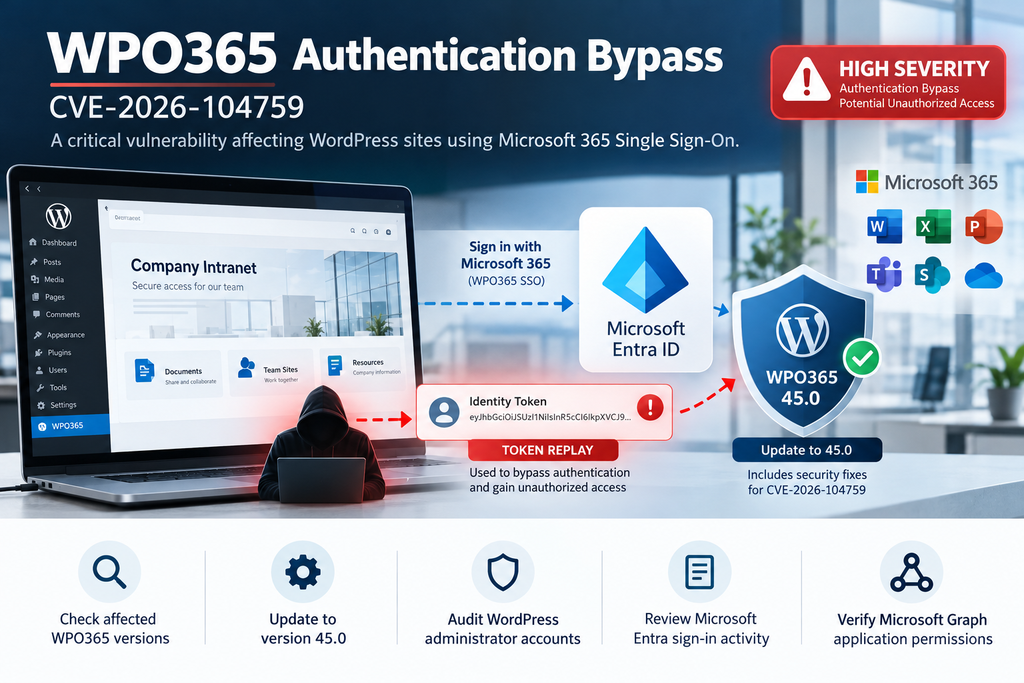
That trust makes a vulnerability in a single sign-on integration particularly concerning. A security flaw affecting the WPO365 plugin has been identified as CVE-2026-104759. It involves an authentication bypass caused by improper validation of OpenID Connect (OIDC) nonces. Under specific conditions, an attacker who possesses a previously issued identity token could reuse that token to authenticate as the associated WordPress user.
The vulnerability affects WPO365 versions up to and including 44.1. Security references identify version 45.0 as the corrected release. The reported severity is high, with a CVSS score of 8.1. Organizations using WPO365 for employee authentication should treat the update and subsequent security review as a priority.
Understanding the authentication bypass
To understand this issue, consider what normally happens when an employee signs in to a WordPress intranet using Microsoft Entra ID, formerly Azure Active Directory. The user visits the website, chooses Microsoft sign-in, and completes authentication through Microsoft’s identity platform. Microsoft then returns authentication information that the WordPress integration must validate before establishing a local session.
One important element is the OIDC nonce. This value helps connect an authentication response to the login request that initiated it. A properly implemented system rejects an identity token when its nonce does not match the expected value. This protects against certain replay attacks, where an old authentication response is submitted again outside its original login transaction.
In the affected WPO365 authentication path, the nonce verification process did not provide the expected protection. A token that should have been rejected could continue through authentication processing. The distinction matters because an attacker does not necessarily need to know a WordPress password to exploit a token replay weakness.
What caused the security failure?
The vulnerability description identifies an incompatibility between two different nonce mechanisms. The plugin generated a 64-character hexadecimal nonce using its own nonce service, but a deprecated authentication component attempted to validate it with WordPress’s wp_verify_nonce() function.
WordPress nonces and OIDC authentication nonces serve different purposes and use different validation methods. They cannot simply be substituted for one another. According to the published vulnerability description, the failed validation did not terminate authentication, allowing processing to continue with the supplied identity token.
The important lesson is that authentication security depends on more than checking whether a token looks legitimate. The application must verify its signature, intended audience, issuer, validity period, and relationship to the current authentication request. A failure in one essential check can weaken the entire login process.
Does this vulnerability allow anyone to log in?
No. The reported attack requires possession of a previously issued, valid identity token for the target account. The advisory does not establish that an arbitrary visitor can simply enter an administrator’s email address and gain access.
However, a stolen or otherwise exposed identity token could become particularly dangerous when the vulnerable authentication path accepts its replay. If the token belongs to a WordPress administrator, the resulting WordPress session may carry administrator privileges.
This distinction should guide an organization’s response. Updating the plugin closes the identified vulnerable behavior, but administrators must also investigate whether identity tokens or privileged sessions were exposed before the update.
Which WPO365 Versions Are Affected
Identifying the installed version is the first practical step in responding to the WPO365 vulnerability. Administrators should not assume their intranet is protected simply because WordPress displays no obvious error or because Microsoft 365 authentication continues to work normally.
Security advisories identify WPO365 | LOGIN versions 44.1 and earlier as vulnerable to the reported OIDC nonce replay issue. Version 45.0 contains the relevant authentication security changes. The developer also recommends updating installed premium WPO365 components, not just the free plugin.
| Plugin version | Security interpretation |
|---|---|
| 44.1 and earlier | Affected by CVE-2026-104759 |
| 45.0 | Contains the reported security fix |
| Later releases | Use the latest supported release and review its changelog |
| Premium add-ons | Update compatible components and verify their security configuration |
How to check the installed plugin version
Sign in to WordPress with an administrator account. Navigate to Plugins → Installed Plugins, then locate WPO365 | SEAMLESS WORDPRESS + MICROSOFT INTEGRATION. The installed version should appear beneath the plugin name or in its details.
For example, suppose an organization’s intranet reports WPO365 version 44.1. The administrator should classify the installation as affected and prepare an immediate update. If the plugin reports version 45.0, the specific reported issue has been addressed in that release, although a retrospective security review may still be appropriate.
On WordPress Multisite, check the network-level plugin inventory as well. A network administrator should confirm which plugins are network-activated and whether individual sites use additional WPO365 components. Do not rely solely on the plugin list of one subsite.
Checking WPO365 through WP-CLI
Administrators with authorized SSH access can inspect plugin versions without opening the WordPress dashboard. WP-CLI is especially useful when managing multiple websites, documenting updates, or working with an intranet that has restricted administrator access.
From the WordPress installation directory, run:
wp plugin list --fields=name,status,version,updateLook for the wpo365-login plugin slug and review the version shown in the results. You can also inspect the core integration directly:
wp plugin get wpo365-login --fields=name,version,statusThese commands are read-only and do not change authentication settings. If the server hosts several WordPress installations, run them with the correct --path option. A successful command on one site does not establish the security status of every other installation.
Checking premium components
Some organizations use WPO365 extensions for role synchronization, Microsoft Graph integration, intranet access, or additional Microsoft 365 functionality. These components may depend on the core login plugin, and their compatibility matters during a security update.
Review every installed WPO365 extension, its current version, and the developer’s compatibility requirements. Record the versions before making changes. This creates a useful audit trail if authentication or embedded Microsoft 365 services behave differently afterward.
The developer’s version 45.0 security notice specifically recommends updating the free and premium plugins together, then running the built-in Self-Test and reviewing health messages.
Why an SSO Authentication Bypass Matters
Single sign-on simplifies everyday work. Employees can use their Microsoft 365 identities instead of maintaining separate passwords for every internal application. Administrators gain centralized identity management, and organizations can apply policies such as multifactor authentication and conditional access.
However, SSO also creates an important trust relationship. WordPress depends on the authentication integration to correctly interpret identity information received from Microsoft Entra. If the integration mishandles that information, a successful Microsoft sign-in is no longer the only factor determining whether WordPress creates a session.
An authentication bypass at this boundary can undermine controls that organizations rely on to protect internal resources. This is especially serious when a WordPress installation contains confidential employee information, operational documents, internal dashboards, or privileged administrative functions.
Example: A corporate intranet with administrator access
Imagine a company that uses WordPress as its internal employee portal. Staff members sign in with Microsoft 365, while a small IT team maintains administrator accounts for updates, user management, and security configuration.
If an attacker obtains a previously issued, valid identity token associated with a WordPress administrator, the vulnerable authentication path may allow that token to be replayed. The resulting access could expose the administrative dashboard, depending on the account’s privileges and the site’s configuration.
From that point, an attacker with full administrator privileges might modify pages, install unauthorized plugins, change user permissions, or attempt to establish persistent access. These are possible consequences of privileged WordPress access, not evidence that every affected site experienced them.
Example: A Microsoft 365 employee portal
Consider a second organization that embeds SharePoint content and Microsoft 365 resources into WordPress. Employees authenticate through Microsoft Entra and access documents based on their assigned permissions.
An authentication bypass could allow an attacker to enter WordPress as the identity associated with a replayed token. What the attacker could see or do afterward would depend on WordPress authorization, WPO365 configuration, Microsoft Graph permissions, and whether additional tokens are available.
A compromised WordPress administrator session does not automatically grant unrestricted Microsoft Graph access or full control of the Microsoft 365 tenant. Nevertheless, excessive application permissions or unsafe token handling can increase the consequences of a WordPress compromise.
Why multifactor authentication is not enough on its own
Multifactor authentication remains essential, but it cannot correct every flaw in an application that consumes authentication tokens. MFA protects the original authentication process. It does not automatically prevent a relying application from accepting a previously issued token through a defective validation path.
This is why organizations should combine MFA with secure token validation, short-lived sessions, least-privilege permissions, monitoring, and prompt software updates. Each layer addresses a different part of the security problem.
A properly configured identity provider and a secure WordPress integration must work together. Protecting only the Microsoft account while leaving the WordPress authentication component outdated creates an avoidable gap.
What Changed in WPO365 Version 45.0
WPO365 version 45.0 is a significant security release rather than a routine maintenance update. The developer’s October 4, 2026 changelog describes improvements involving authentication validation, Microsoft Graph permissions, token handling, endpoint restrictions, and other protective controls.
The release addresses the authentication bypass associated with a deprecated token-processing option and removes legacy settings that could weaken security. It also strengthens issuer and audience verification, helping ensure that identity tokens belong to the expected application and trusted identity provider.
Authentication and identity validation improvements
One important change is the removal of the deprecated option labeled “Use Firebase\JWT instead of phpseclib.” The developer identifies this option as connected to an authentication bypass. Removing the legacy path reduces the risk of administrators unknowingly retaining an unsafe authentication configuration.
Version 45.0 also removes the “Skip ID token verification” option and enforces issuer and audience checks. This is particularly relevant for multi-tenant environments, where organizations may permit users from selected Microsoft Entra tenants while rejecting identities from other tenants.
These changes deserve attention during testing. An integration that previously depended on permissive identity settings may require configuration adjustments before it works correctly with the stricter validation rules.
Microsoft Graph security improvements
The update introduces several controls designed to reduce unnecessary Microsoft Graph access. Applications can no longer freely request arbitrary Graph endpoints through the previously supported mechanism. Instead, endpoints must be explicitly allow-listed, and matching rules are hardened against misleading addresses.
The plugin also restricts application-level Microsoft Graph permissions to those an administrator explicitly approves. Whether a Graph request uses delegated user permissions or application permissions now depends on saved application configuration rather than request-controlled behavior.
Additionally, the developer reports protections against exposing application-level access tokens to browsers and changes to SharePoint uploads so they use the signed-in user’s permissions. These improvements matter because application permissions can operate independently of an individual user’s access rights.
How to update WPO365 safely
For a business-critical intranet, updating should be treated as a controlled security change. Before starting, identify the WordPress administrator responsible for the site and confirm that an authorized Microsoft Entra administrator is available if authentication settings require attention.
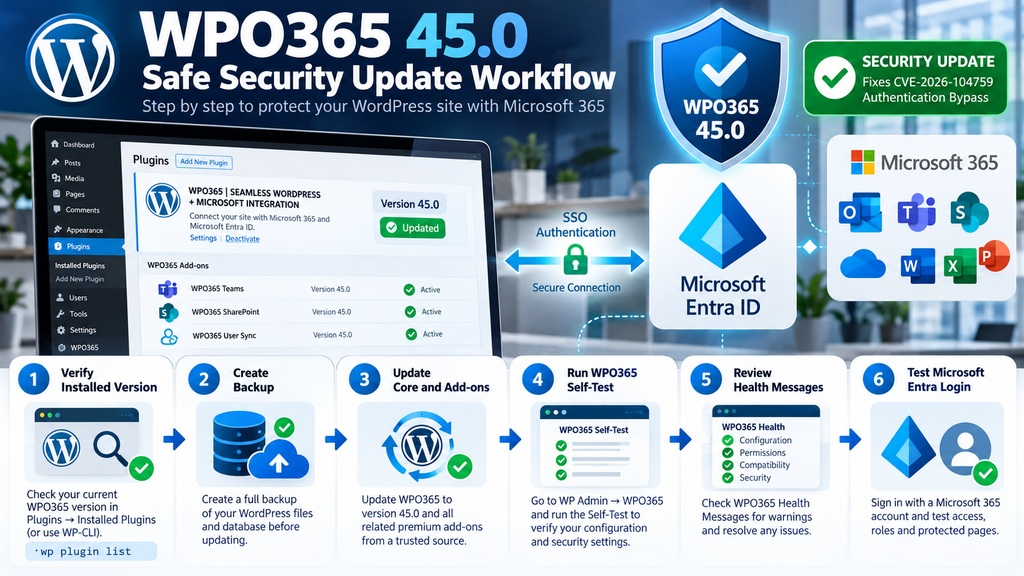
Create a verified backup of the WordPress database and files. Make sure the backup is stored outside the affected website and can be restored. If possible, test the update on a staging environment that uses a properly isolated Microsoft Entra application registration.
Then follow these steps:
- Sign in to WordPress using an authorized administrator account.
- Open Plugins → Installed Plugins.
- Locate the WPO365 integration and its installed extensions.
- Review the developer’s release notes and compatibility requirements.
- Update the core WPO365 plugin to version 45.0 or the latest supported secure release.
- Update the associated premium WPO365 components.
- Confirm that the new plugin versions appear in WordPress.
- Test Microsoft 365 login using an authorized test account.
- Verify that administrators and regular employees receive their intended WordPress roles.
- Check that protected pages remain inaccessible to anonymous visitors.
The test should cover both successful and unsuccessful authentication scenarios. For example, a permitted employee should be able to sign in, while an unauthorized external tenant account should not receive access merely because it has a valid Microsoft identity.
Run the WPO365 Self-Test
After updating, navigate to WP Admin → WPO365 → Dashboard and run the WPO365 Self-Test. According to the developer, this checks important elements of the Microsoft 365 integration, including authentication configuration, permissions, and plugin settings.
Next, open WPO365 Health Messages from the same dashboard. Review warnings related to deprecated settings, security configuration, compatibility, and Microsoft Graph access. Document each warning and resolve it before declaring the upgrade complete.
A successful plugin update does not automatically prove that every integration feature still works or that the website was never compromised. The Self-Test is an important configuration check, but it should be combined with real login testing and a review of historical security activity.
Auditing WordPress and Entra Sign-In Activity

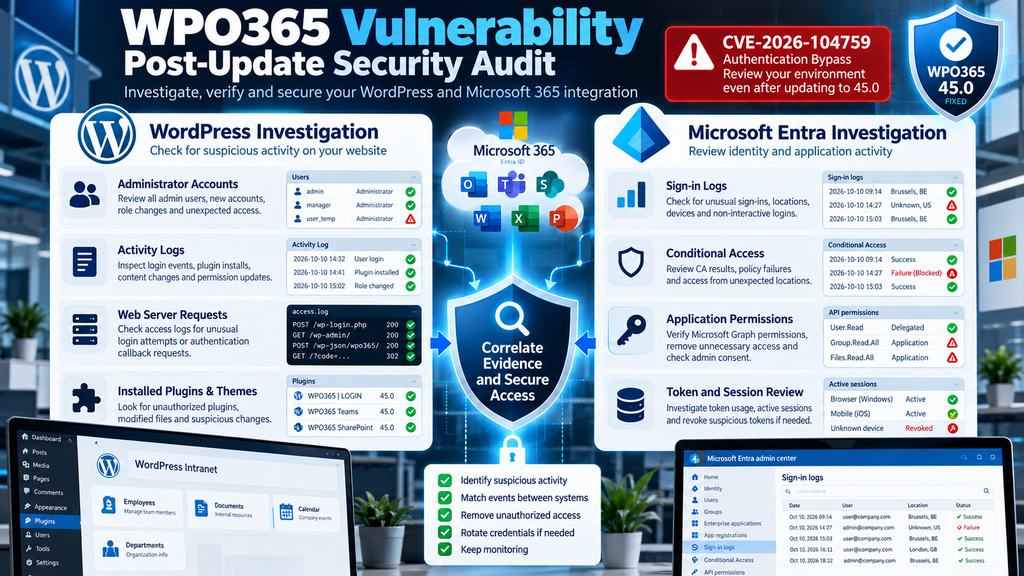
Updating WPO365 is the most immediate protective action, but it does not answer an equally important question: did someone exploit the vulnerability before the update? For an organizational website, administrators should investigate both WordPress activity and Microsoft Entra authentication records.
The two systems provide different evidence. Microsoft Entra records identity-provider authentication events, while WordPress records application-level activity only to the extent that logging has been enabled. A replayed identity token might result in a WordPress session without generating a new interactive Microsoft sign-in at that moment.
This difference is central to the investigation. Finding no suspicious Microsoft Entra login does not prove that WordPress was unaffected. Security teams need to compare available evidence from the identity provider, web server, WordPress audit logs, and relevant WPO365 diagnostic records.
Step 1: Review WordPress administrator accounts
Begin by opening Users → All Users in the WordPress dashboard. Filter the list by Administrator and inspect every account with elevated privileges. Confirm that each account belongs to an authorized person and still requires administrative access.
Look for unfamiliar usernames, unexpected email addresses, recently created accounts, and accounts whose roles have changed. Also inspect users who appear legitimate but have privileges beyond their job responsibilities. A compromised administrator session may be used to create another privileged account, but it could also be used to modify an existing account.
For example, suppose an intranet normally has three administrators. After the security review begins, the team discovers a fourth account created during an unusual maintenance window. That account requires investigation, even if its username resembles a legitimate employee. Compare its creation date with available audit records before deciding what happened.
Step 2: Review WordPress activity logs
WordPress does not maintain a complete, detailed security audit trail by default. If the organization already uses a security or activity logging plugin, review its records for suspicious administrative actions during the potential exposure period.
Pay particular attention to successful logins, role changes, new administrator accounts, plugin installations, theme modifications, security-setting changes, and unexpected updates to protected content. A login event alone may not prove exploitation, but a sequence of unusual administrative actions can provide stronger evidence.
For example, a successful administrator session followed by an unfamiliar plugin installation and a change to user permissions should receive immediate attention. Export relevant records before making extensive changes to the website, preserving timestamps and associated metadata wherever possible.
Step 3: Inspect web server access logs
Web server logs can reveal requests that WordPress itself does not retain. Administrators using Apache or Nginx should examine the appropriate access logs for unusual requests around authentication callbacks, WordPress administration endpoints, and other sensitive paths.
For example, an authorized server administrator can search a known access log for requests involving WordPress login endpoints:
grep -E 'wp-login\.php|wp-admin/' \
  /path/to/access.log
Replace /path/to/access.log with the actual log location. On cPanel-managed systems, the relevant access logs may be available through cPanel’s Raw Access interface or server-managed domain log files.
This command is a starting point, not an exploit detector. WPO365 authentication callbacks may use different paths, and a successful HTTP response does not establish that a login succeeded. Investigators should correlate request timestamps, client IP addresses, application events, and other available records.
Avoid copying identity tokens, authorization headers, or session cookies into investigation reports. These values may remain sensitive even after the immediate incident has ended.
Step 4: Check Microsoft Entra sign-in logs
An authorized Microsoft Entra administrator should sign in to the Microsoft Entra admin center. Navigate to Entra ID → Monitoring & health → Sign-in logs, using the available portal navigation for the tenant.
Filter the records by the relevant users, application, and investigation period. Review interactive and non-interactive sign-ins where available. The goal is to identify authentication patterns that differ from the organization’s normal activity.
Look for unusual geographic locations, unfamiliar devices, unexpected applications, repeated authentication failures, changes in Conditional Access outcomes, and sign-ins involving privileged users. Also compare the recorded activity with employee schedules and approved administrative maintenance.
For example, if an employee normally works from Belgium but the logs show an unexpected sign-in associated with another country, the event deserves verification. Geographic differences alone are not proof of compromise because VPNs, proxies, and mobile networks can affect apparent locations.
Step 5: Correlate Entra and WordPress evidence
Consider an example involving a WordPress administrator whose last expected Microsoft Entra sign-in occurred at 09:00. Later, the WordPress activity log records an unexpected administrator session and a plugin installation at 14:30.
The security team should investigate whether the WordPress session was legitimate, whether the administrator was working at that time, and whether any existing session or token could explain the activity. An absence of a new Entra interactive sign-in at 14:30 would not automatically clear the event.
Build a timeline using consistent timestamps, preferably UTC, and document which records are available. Account for differences between server time, WordPress time, and Microsoft Entra timestamps. Preserve the original evidence before drawing conclusions.
Step 6: Respond to suspicious activity
If the investigation identifies credible signs of unauthorized access, activate the organization’s incident-response process. Preserve relevant logs and evidence, restrict suspicious sessions, and coordinate with the Microsoft Entra administrator before revoking access or changing credentials.
Where supported, revoke affected users’ sign-in sessions, investigate exposed tokens, reset compromised credentials, and rotate application secrets or certificates when evidence indicates they may have been exposed. Review administrator accounts, installed plugins, scheduled tasks, and modified files for persistence.
Importantly, revoking Microsoft Entra sessions does not necessarily terminate every existing WordPress session. The WordPress team must address application sessions separately using appropriate session-management controls.
For serious incidents, involve qualified incident responders. Organizations handling regulated or sensitive information may also have contractual or legal notification obligations.
Reviewing Microsoft Graph Application Permissions
For organizations using WPO365 beyond basic authentication, Microsoft Graph permissions deserve particular attention. Microsoft Graph provides a unified API for accessing Microsoft 365 resources, including users, groups, SharePoint, OneDrive, and other supported services.
Applications can access these resources using different permission models. Delegated permissions generally operate in the context of a signed-in user, while application permissions allow an application to act independently of a user, within the permissions granted to it.
This distinction matters because an application with broad Microsoft Graph permissions may have access to more organizational information than an individual WordPress user. WPO365 version 45.0 introduces additional restrictions on how Graph endpoints, application permissions, and access tokens are handled.
Step 1: Identify the Microsoft Entra application
Open the Microsoft Entra admin center and navigate to Entra ID → App registrations → All applications. Locate the application registration used by the WordPress WPO365 integration.
If the organization maintains multiple application registrations, verify the correct one by comparing its Application (client) ID with the identifier configured in WPO365. Do not assume that the application display name alone identifies the correct registration.
Record the application name, client ID, tenant ID, owners, and relevant configuration details. Treat secrets, certificates, and access tokens as sensitive information. They should not be copied into ordinary support tickets, screenshots, or publicly accessible documentation.
Step 2: Inspect API permissions
Within the application registration, select API permissions. Review the Microsoft Graph permissions granted to the application and determine whether they are delegated or application permissions.
For each permission, ask what business feature requires it. A WordPress website that only authenticates employees may not need the same Graph access as a portal that synchronizes users, reads SharePoint documents, or displays Microsoft 365 calendars.
For example, an application might legitimately require a limited permission to read a signed-in user’s basic profile. That requirement does not automatically justify broad organization-wide directory or file permissions.
Step 3: Identify unnecessary permissions
Compare the configured permissions against the organization’s current WPO365 features. Permissions may remain after a feature has been disabled or replaced. A former SharePoint integration, for instance, might no longer need the access originally granted to it.
Document unused or excessive permissions and review them with the application owner. Removing permissions without understanding their dependencies can interrupt business-critical services, so changes should be tested and approved.
Apply the principle of least privilege: each application should receive only the access required for its intended function. Where possible, prefer narrowly scoped delegated permissions over broad application permissions when the feature operates on behalf of a signed-in user.
Step 4: Review administrator consent
Some Microsoft Graph permissions require administrator consent. In the application’s API permissions page, review which permissions have been granted consent for the organization.
Confirm that every consented permission has a legitimate purpose and an authorized owner. Investigate unfamiliar permissions, unexpected changes, or access that extends beyond the application’s documented responsibilities.
Also review the corresponding enterprise application under Entra ID → Enterprise applications. Depending on the tenant configuration and available licensing, administrators may be able to inspect assignments, permissions, and relevant audit activity.
Step 5: Check application credentials
Navigate to Certificates & secrets within the application registration. Review the active client secrets and certificates, including their expiration dates and documented ownership.
An expired credential can interrupt authentication or Microsoft Graph integration. An unnecessarily long-lived or poorly protected credential can create a security risk. Organizations should maintain a controlled credential rotation process and use secure storage.
If investigation evidence indicates that an application secret or certificate private key may have been exposed, coordinate credential replacement promptly. Update the dependent WordPress configuration, test the integration, and retire the compromised credential once the replacement works.
Step 6: Verify Microsoft Graph behavior after updating
After upgrading WPO365, test the Microsoft 365 features that employees actually use. This might include displaying a SharePoint list, accessing a calendar, retrieving a user profile, or uploading a document.
The developer’s version 45.0 changes may affect applications that relied on unrestricted Graph endpoints or application-level access. For example, SharePoint uploads now use the signed-in user’s permissions, so an operation that previously worked with broader application privileges may require different user permissions.
If a feature fails, investigate the documented configuration and permissions rather than restoring an unsafe legacy setting. The objective is to preserve functionality while keeping the new security protections active.
Building a Long-Term WordPress and Microsoft 365 Security Strategy
The WPO365 vulnerability highlights an important reality: securing WordPress is not only about protecting WordPress itself. Modern organizational websites often connect to identity providers, cloud APIs, document platforms, and internal business systems.
Every integration creates a relationship between systems that must be maintained. An outdated plugin can weaken authentication, while excessive application permissions can increase the impact of a compromised session. Security teams should therefore review the entire integration, not just the WordPress plugin version.
A sustainable strategy combines software maintenance, identity governance, application permission reviews, and monitoring. These practices are especially important for intranets that remain available to remote employees, contractors, and external business partners.
Establish a recurring security review
Organizations should assign responsibility for WPO365 updates and Microsoft Entra configuration. A practical process might include checking plugin security advisories weekly, reviewing privileged accounts monthly, and auditing application permissions after significant integration changes.
Document the current configuration, application registration ownership, approved Graph permissions, and recovery procedures. Keep a tested backup and ensure authorized administrators have a secure recovery path if SSO becomes unavailable.
Regular testing should also verify that former employees and unauthorized tenant accounts cannot access protected WordPress content. A website that successfully authenticates legitimate users is not necessarily configured to reject every unauthorized identity.
Protect the WordPress environment itself
Keep WordPress core, themes, and plugins updated. Remove abandoned extensions and restrict administrator privileges to personnel who genuinely require them. Enforce secure authentication for privileged accounts and maintain server-level monitoring.
Protect configuration files, backups, and logs against unauthorized access. Apply appropriate file permissions and restrict access to administrative interfaces where operationally practical.
For intranets containing sensitive information, consider additional network controls, managed devices, Conditional Access policies, and dedicated security monitoring. These controls complement the WPO365 update but do not replace it.
Prepare for authentication emergencies
Organizations should maintain a documented procedure for responding when SSO authentication fails or becomes compromised. The procedure should identify authorized contacts, emergency access arrangements, recovery steps, and escalation responsibilities.
Test recovery procedures in a controlled environment rather than improvising during an incident. Any emergency administrator access should be tightly restricted, monitored, and protected with strong authentication.
The objective is to restore legitimate access without weakening security controls or creating an unmonitored backdoor.
Frequently Asked Questions
1. What is the WPO365 vulnerability?
The WPO365 vulnerability, CVE-2026-104759, is an authentication bypass involving improper OIDC nonce validation. Under specific conditions, an attacker possessing a previously issued, valid identity token could replay it to authenticate as the associated WordPress user.
2. Which WPO365 versions are vulnerable?
Versions 44.1 and earlier are affected by the reported vulnerability. Version 45.0 contains the relevant security fix. Administrators should install the latest supported secure version and update compatible WPO365 extensions.
3. Can this vulnerability lead to administrator account takeover?
Yes, potentially. If an attacker obtains a valid identity token associated with a WordPress administrator and successfully exploits the vulnerable authentication path, the resulting session may provide administrator-level access.
4. Does an attacker need the administrator’s password?
Not necessarily. The reported attack relies on replaying a previously issued identity token rather than guessing a password. However, the attacker must first obtain an appropriate valid token; the vulnerability does not eliminate that requirement.
5. Does Microsoft Entra multifactor authentication prevent this attack?
MFA protects the identity-provider authentication process, but it does not independently correct defective token validation inside WordPress. The WPO365 security update remains necessary even when MFA is enabled.
6. Is updating WPO365 enough to secure an intranet?
Updating addresses the reported vulnerable behavior, but organizations should also review WordPress accounts, administrator activity, existing sessions, Microsoft Entra sign-ins, and application permissions. An update does not automatically reverse a compromise that occurred earlier.
7. How can administrators check whether someone exploited the vulnerability?
Investigators should correlate WordPress activity logs, web server requests, Microsoft Entra sign-in records, and available application logs. Unexplained administrator activity, unexpected role changes, and unauthorized plugin installations may justify further investigation. No single log source can reliably establish every possible token replay event.
8. Why should Microsoft Graph permissions be reviewed?
Broad application permissions can increase the impact of a compromised integration. Reviewing permissions helps ensure that WPO365 and its connected applications access only the Microsoft 365 resources they genuinely require.
9. What should organizations do after installing WPO365 45.0?
Run the WPO365 Self-Test, review WPO365 Health Messages, verify legitimate Microsoft Entra authentication, test restricted access, and check Microsoft Graph-dependent features. Investigate historical activity if the site previously ran an affected version.
10. Can WPO365 be used safely after this vulnerability?
Yes, provided the organization uses a supported, security-updated release and follows appropriate configuration and monitoring practices. The vulnerability is a reason to update and audit the integration, not evidence that every WPO365 deployment has been compromised.
The Next Step Toward a Safer Microsoft 365 Intranet
The WPO365 vulnerability demonstrates how a seemingly small authentication validation error can have serious consequences for an organizational WordPress website. A security weakness involving OIDC nonce verification may allow previously issued identity tokens to be replayed under the reported conditions.
For businesses using Microsoft 365 authentication, the immediate priority is clear: identify affected installations, update WPO365 to version 45.0 or a later supported secure release, and verify that the integration continues to enforce the intended authentication and authorization rules.
The investigation should not end with the plugin update. Review WordPress administrator accounts, examine available activity logs, compare relevant Microsoft Entra events, and evaluate Microsoft Graph permissions. These checks help identify possible historical compromise and reduce unnecessary access.
A secure intranet depends on several systems working correctly together. Maintaining the WordPress integration, protecting Microsoft identities, and applying least-privilege permissions will make the organization better prepared for future security vulnerabilities.
⚠️ Disclaimer and Source Hygiene
This article is provided for educational and informational purposes. It is based on publicly available vulnerability descriptions, the WPO365 developer’s security documentation, and established WordPress and Microsoft identity security practices available as of October 11, 2026.
The presence of an affected plugin version does not automatically prove that a website has been compromised. Likewise, updating the plugin does not establish that no earlier unauthorized activity occurred. Organizations should consult qualified WordPress security professionals, Microsoft Entra administrators, or incident-response specialists when handling suspected compromise or sensitive business information.
Security findings, plugin releases, and vendor guidance may change. Always consult official documentation before making changes to a production environment.
Sources and References
Official Developer and Platform Sources
- WPO365 – Version 45.0 Security Update: Action Required. Developer guidance on security changes, plugin updates, the Self-Test, and health messages.
- WPO365 – Official Changelog. Details of version 45.0 security improvements and changes to authentication and Microsoft Graph access.
- WordPress.org – WPO365 Plugin. Official plugin listing, release information, and installation resources.
- Microsoft Learn – Sign-in Logs in Microsoft Entra ID. Official documentation for reviewing authentication activity.
- Microsoft Learn – Microsoft Graph Permissions Overview. Guidance on delegated and application permissions.
Secondary Sources and Security Research
- OpenCVE – CVE-2026-104759. Vulnerability description and tracking information.
- SecAlerts – WPO365 OIDC Nonce Replay Vulnerability. Published description of the authentication bypass conditions.
- WP Vanguard – WPO365 Vulnerability Records. Affected version and fixed-version tracking.
These references support the technical findings and defensive guidance in this article. The hypothetical corporate intranet scenarios are illustrative examples, not documented incidents or customer testimonials.
Sign in with a Subscriber account to vote.