
Table of Contents
Discover how Blog SEO v1.1.0 helps WordPress website owners manage SEO titles, meta descriptions, canonical URLs, structured data, social sharing, breadcrumbs, and XML sitemaps. This practical guide explains installation, configuration, real-world examples, compatibility considerations, and essential checks for building a cleaner, more search-friendly WordPress website.
Why Simple WordPress SEO Still Matters
Search engine optimization often feels more complicated than it needs to be. WordPress website owners install plugins, adjust dozens of settings, and follow conflicting advice, hoping their content will appear in Google. Yet effective technical SEO starts with a few important principles: clear page titles, useful descriptions, consistent URLs, accessible content, and a website structure that search engines can understand. These fundamentals matter whether you publish a personal blog, maintain a technology website, or manage a growing collection of WordPress tutorials.
Blog SEO v1.1.0 approaches these fundamentals through a lightweight WordPress plugin. Instead of building an extensive marketing platform around SEO, it concentrates on essential metadata, indexing controls, social previews, structured data, breadcrumbs, and sitemap management. The plugin also includes several practical cleanup features that can reduce unnecessary output in the HTML head. For website owners who prefer straightforward configuration, this focused approach can be appealing, provided they understand what each option changes.
This guide is based on an inspection of the supplied Blog SEO v1.1.0 plugin archive, including its main PHP file, implementation class, and documentation. It explains the available features, how to use them, and which precautions matter before activating the plugin on a live website. Code inspection does not replace live compatibility testing, and no search ranking improvements are guaranteed. The goal is to help you configure the plugin responsibly and understand the results.
What Is Blog SEO v1.1.0?
Blog SEO is a WordPress plugin designed to handle common technical and on-page SEO requirements without an overwhelming settings interface. Version 1.1.0 provides editable SEO titles and meta descriptions for posts and pages, canonical URL generation, robots directives, Open Graph metadata, X/Twitter Card tags, Schema.org structured data, breadcrumb navigation, and WordPress sitemap filtering. It also includes attachment redirects, image alternative text handling, and optional HTML head cleanup.
The plugin is particularly relevant to website owners who want direct control over the metadata that WordPress sends to search engines and social platforms. For example, a tutorial about optimizing WordPress images can have a descriptive search title, a carefully written meta description, an appropriate canonical URL, and a social sharing image. These elements help communicate the page’s subject more clearly, although Google and other platforms may choose different titles, descriptions, or previews.
Blog SEO v1.1.0 at a Glance
| Feature | Available |
|---|---|
| Custom SEO titles and descriptions | Yes |
| Canonical URLs | Yes |
| Meta robots and noindex controls | Yes |
| Open Graph metadata | Yes |
| X/Twitter Cards | Yes |
| Schema.org JSON-LD | Yes |
| Breadcrumb navigation | Yes |
| Native WordPress sitemap filtering | Yes |
| Attachment page redirects | Yes |
| Image alt text handling | Yes |
| Compatibility checks for major SEO plugins | Yes |
| Built-in keyword rank tracking | Not identified |
| Automated backlink analysis | Not identified |
Technical Requirements
The plugin archive declares WordPress 5.7 or later and PHP 7.2 or later as minimum requirements. Its readme lists WordPress 6.8 as the latest tested version. That is a compatibility declaration, not confirmation that every newer WordPress release has been tested. Before deploying the plugin, check your actual WordPress version, PHP environment, theme, and other active plugins.
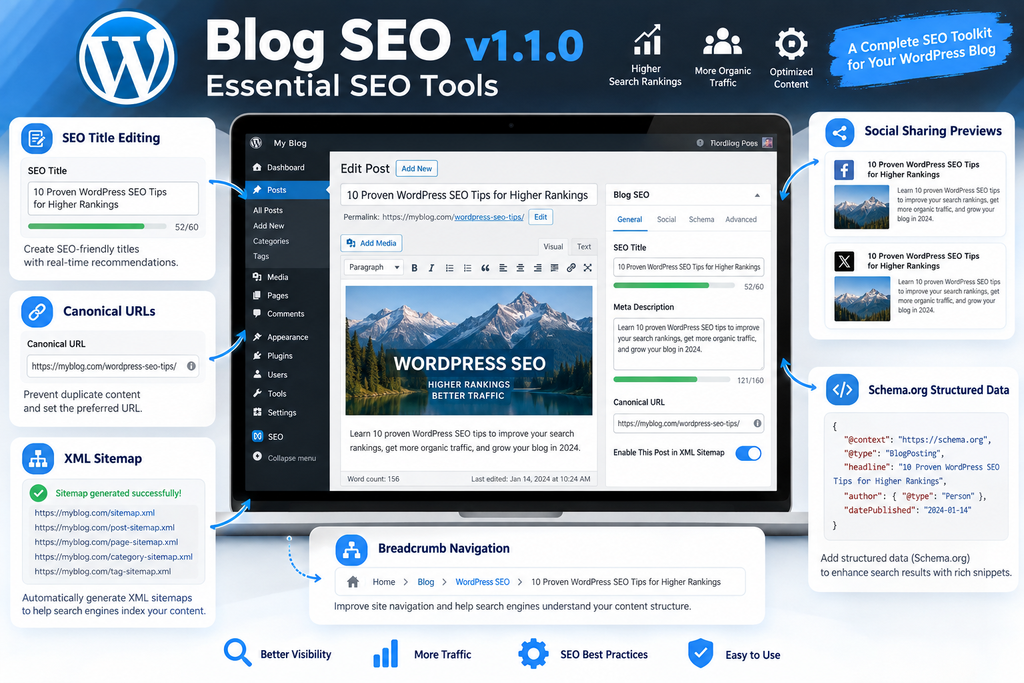
Download Blog SEO v1.1.0 for WordPress
Blog SEO v1.1.0 is a lightweight WordPress SEO plugin designed to help website owners manage essential search engine optimization settings. It includes SEO titles, meta descriptions, canonical URLs, XML sitemap integration, structured data, social sharing metadata, and breadcrumb navigation.
You can download the plugin as a ZIP archive and install it directly through your WordPress dashboard. Before installing, create a complete website backup and check whether another SEO plugin is already active to avoid conflicting metadata.
Blog SEO v1.1.0. WordPress Plugin · ZIP Archive · Version 1.1.0
Plugin Information
| Detail | Information |
|---|---|
| Plugin name | Blog SEO |
| Version | 1.1.0 |
| File format | ZIP |
| Minimum WordPress | 5.7 |
| Minimum PHP | 7.2 |
| License | GPL-2.0-or-later |
| Installation | WordPress Dashboard → Plugins → Add New → Upload Plugin |
Important: Always download WordPress plugins from a trusted source, verify the archive, and test new installations on a staging website when possible.
How to Install Blog SEO v1.1.0 in WordPress
Installing Blog SEO follows the familiar WordPress plugin upload process. However, SEO plugins deserve additional attention because they modify information that search engines use to interpret your website. Activating two overlapping SEO systems can produce duplicate metadata, inconsistent canonical URLs, or conflicting indexing instructions. A short preparation process can prevent these issues and make it easier to restore your previous configuration if necessary.
Step 1: Back Up Your WordPress Website
Before installing Blog SEO, create a backup of both your website files and database. You can use your hosting control panel, a trusted backup plugin, or your hosting provider’s backup service. The database is especially important because WordPress stores plugin settings and individual post metadata there. If you need to reverse a configuration change, having a recent backup provides a reliable recovery option.
For example, if your hosting provider offers cPanel, open its backup tools and create a backup according to your hosting configuration. If you maintain a staging website, test Blog SEO there first. Record your existing SEO title templates, robots settings, sitemap setup, and canonical URL behavior. This baseline will help you identify whether the new plugin produces the expected output.
Step 2: Upload the Blog SEO Plugin
Sign in to your WordPress administration dashboard using an account with permission to install plugins. Navigate to Plugins → Add New Plugin → Upload Plugin. Select the supplied blog-seo-v1.1.0.zip archive and choose Install Now. WordPress should unpack the plugin and display the installation result. Once installation finishes successfully, select Activate Plugin.
If WordPress reports that the destination folder already exists, check whether Blog SEO is already installed before replacing files. Avoid deleting an existing installation without first understanding which settings and metadata it uses. When updating an existing plugin manually, a controlled replacement through your usual deployment process is safer than making changes without a backup.
Step 3: Open the Blog SEO Settings
After activation, navigate to Settings → SEO Blog. The plugin registers its administration screen under the standard WordPress Settings menu. You can also use its settings link from the Plugins screen. This area provides the main controls for website-level SEO behavior, while individual posts and pages receive their own SEO editing fields.
Some administration labels in the supplied release are written in Romanian. For example, the plugin uses labels such as Setări, Titlu SEO, and URL canonic. These labels do not prevent English-language metadata from being entered, but they are worth mentioning for website owners expecting an entirely English administration interface.
Step 4: Check for Conflicting SEO Plugins
The supplied Blog SEO code includes compatibility checks for several established SEO plugins, including Yoast SEO, Rank Math, All in One SEO, SEOPress, and The SEO Framework. Its documentation describes a protective mechanism intended to avoid overlapping functionality when one of these plugins is active. This is useful, but it should not be treated as a substitute for inspecting the actual page output.
If you are migrating from another SEO plugin, export or document your existing metadata first. Blog SEO does not automatically guarantee that every proprietary field from another plugin will be imported. A post with a carefully written Yoast SEO description, for example, may need its description transferred into Blog SEO’s own field. Test several pages before deactivating your previous SEO system permanently.
Configuring SEO Titles and Meta Descriptions

A well-written SEO title helps search engines and readers identify a page’s main subject. Blog SEO allows website owners to provide custom SEO titles for individual posts and pages rather than relying entirely on their visible WordPress titles. This is particularly helpful when an article’s editorial heading is longer than the title you want search engines to consider displaying.
Meta descriptions serve a different purpose. They summarize the content and can help readers decide whether a search result answers their question. Google may generate a different snippet based on the search query, so the meta description is not a guaranteed display instruction. Nevertheless, a clear, accurate summary remains useful for communicating the page’s value.
Writing an Effective SEO Title
Open an existing WordPress post and locate the SEO editing box. Enter a descriptive title that includes the main topic naturally. Avoid repeating keywords or creating a title that promises information the article does not deliver. Blog SEO includes character-count assistance and a Google-style preview, helping you assess how the title may appear before publishing.
For example, an article called “Everything You Should Know About Making Your WordPress Website Faster” could use the SEO title “How to Speed Up WordPress: Practical Tips.” This shorter version communicates the topic directly. A title around 50–60 characters is a useful editorial starting point, but Google measures display space in pixels and can rewrite titles. Accuracy and clarity matter more than reaching a fixed character count.
Writing a Useful Meta Description
In the same SEO box, enter a concise description that summarizes the article’s actual content. Include the main subject, explain what readers will learn, and use natural language. Avoid exaggerated promises such as guaranteed first-page rankings or instant traffic growth. A typical description may fall around 140–160 characters, although search result snippets vary by device and query.
For example, a WordPress performance article could use: “Learn how to improve WordPress loading speed by optimizing images, reviewing plugins, configuring caching, and testing Core Web Vitals.” This description explains the practical value without sounding promotional. The plugin’s preview helps with editing, but always inspect the published page to confirm the metadata appears correctly.
Setting Homepage Metadata
The homepage often represents the overall purpose of a website rather than a single article. Blog SEO provides homepage title and description settings, allowing you to describe your website clearly. A technology blog might use “WordPress Tutorials, Security and SEO Guides” as its homepage title, followed by a description explaining the kinds of tutorials and resources it publishes.
Make sure the homepage description reflects your actual content. If your website mainly publishes WordPress plugin tutorials, avoid describing it as a general news organization. Consistency between metadata, visible content, and navigation helps visitors understand what your website offers. After saving the settings, open the homepage in a private browser window and inspect its HTML source to confirm the intended metadata is present.
Understanding Canonical URLs and Duplicate Content
Canonical URLs help search engines identify a preferred page when multiple URLs contain identical or substantially similar content. WordPress websites can generate different URLs through pagination, archives, tracking parameters, and other features. Without consistent canonical signals, search engines may need to decide which version should represent the content in search results.
Blog SEO generates canonical URLs across supported page types and includes pagination-aware behavior. It also provides an optional canonical URL field for individual posts and pages. This allows website owners to override the automatically generated URL when a legitimate publishing scenario requires it. However, incorrect canonical settings can create serious indexing problems, so manual overrides should be used carefully.
How Automatic Canonical URLs Work
Consider a published article at https://example.com/wordpress-speed-guide/. Its canonical URL would normally point to the same address. If a visitor opens that article using an additional tracking parameter, the preferred canonical can still identify the clean article URL. This helps search engines consolidate signals when the different URLs represent the same content.
You can inspect the page source and search for rel="canonical". The expected output resembles the following example:
<link rel="canonical"
href="https://example.com/wordpress-speed-guide/">
A canonical tag is a signal rather than an absolute command. Search engines may select another canonical if the website sends conflicting signals through redirects, internal links, sitemaps, or content differences.
When to Use a Custom Canonical URL
Imagine that you republish an article originally published on another website with permission. Depending on the publishing arrangement, you may want the canonical URL to reference the original version. Blog SEO’s custom canonical field can support this kind of decision. Enter the full preferred URL only after confirming that it is accessible and appropriate for the content.
Do not automatically point every article in a category to the category archive. Similarly, avoid canonicalizing page two of a genuinely paginated archive to page one without considering the distinct content on each page. For ordinary WordPress posts, the automatically generated self-referencing canonical is usually the most appropriate choice.
Managing Noindex Rules and WordPress Archives
Not every URL on a WordPress website needs to appear in search results. Search pages, certain archive types, temporary content, and utility pages may provide little independent value to search users. Blog SEO includes configurable robots directives to help website owners decide which sections should remain eligible for indexing.
A noindex directive tells supporting search engines not to include a page in their index once they can crawl and process that instruction. It does not make a page private or prevent visitors from accessing it. This distinction is essential because some website owners mistakenly use noindex as a security mechanism. Sensitive content requires proper authentication and access restrictions.
Choosing Which Archives to Noindex
Blog SEO includes controls for archive types such as author archives, tag archives, date archives, and paginated content. The best configuration depends on your website. A single-author blog may have an author archive that closely duplicates its main article listing. In that situation, noindexing the author archive may be reasonable.
A multi-author publication presents a different case. Its author pages may contain useful biographies, editorial expertise, and organized article collections. Those pages can provide genuine value and should not automatically be excluded. Similarly, carefully curated tag archives may deserve indexing, while thin tag pages with only one article may not.
How to Noindex an Individual Page
Open the WordPress page editor and locate Blog SEO’s metadata box. The plugin provides a checkbox for excluding that page from indexing and the sitemap. Select it only when you have a clear reason, such as preventing a temporary informational page from appearing in search results. Save or update the page afterward.
To verify the change, open the public URL and inspect its robots metadata. You should see an appropriate noindex directive in the page output, provided no other system overrides it. Remember that Google must be able to access the page to discover the directive. Blocking the same URL in robots.txt can prevent crawlers from reading the noindex instruction.
Open Graph and Social Media Sharing
Search engines are not the only systems that read website metadata. Social platforms also use page information to build link previews, often displaying a title, short description, image, and website name. A useful preview can make an article easier to recognize when readers share it in messages, communities, or social feeds.
Blog SEO includes Open Graph metadata and X/Twitter Card support. These features help provide structured information for platforms that recognize the relevant tags. The plugin also includes image fallback behavior, which is particularly helpful when some articles have featured images while others rely on images placed inside the post content.
How Social Sharing Images Are Selected
According to the supplied plugin documentation and implementation, Blog SEO looks for an appropriate image using a fallback sequence. It first considers the featured image associated with the content. If that is unavailable, it can use an image from the article. When neither is suitable, the configured default image provides another option.
For example, a WordPress security article might have a featured image showing a shield and a dashboard. That image can become the preferred social preview. A tutorial without a featured image may use an image embedded in the article. If the content has no usable image, a general website-branded graphic can provide a consistent appearance.
Recommended Social Image Dimensions
A practical image size for many link previews is 1200 × 630 pixels, although individual platforms can crop images differently. The 1200 × 675 pixel images suggested throughout this article are suitable for editorial illustrations and can also work as social images, but important text should remain away from the edges to account for cropping.
Use descriptive filenames, optimize image file sizes, and check that the images are publicly accessible. After publishing, test a link with the relevant platform’s preview or debugging tools. Some platforms cache older metadata, so an updated image may not appear immediately. This does not necessarily mean the plugin is malfunctioning.
Schema.org Structured Data Explained
Structured data provides machine-readable information about a webpage and its relationship to other entities. Instead of relying only on visible text, search engines can use supported structured data to better understand the page type, publisher, author, and navigation structure. Blog SEO generates JSON-LD structured data using several Schema.org types.
The plugin includes Organization or Person information, WebSite, WebPage, BlogPosting, and BreadcrumbList structures. These are useful building blocks for a typical WordPress blog. However, adding Schema.org markup does not guarantee enhanced search appearances or rich results. Search engines apply their own eligibility rules and may ignore valid structured data when it is not relevant.
Configuring Organization or Person Information
A company-operated website can describe its publishing entity as an Organization. A personal blog may instead use Person, depending on how the site represents its owner or publisher. Blog SEO provides an entity type option, along with settings for entity information and a logo.
For example, a WordPress tutorial website operated under a business name may use Organization and provide its official name and logo URL. A personal publication written and managed by an individual may choose Person. Select the option that reflects the website’s real identity, not whichever type seems more likely to produce search enhancements.
Understanding BlogPosting Schema
BlogPosting structured data describes an article as a blog publication. It can communicate information such as the page’s identity and relationships to other entities. Blog SEO constructs its structured data from WordPress content and available plugin settings. The generated output should correspond to the information readers can actually see.
When checking an article, use Google’s Rich Results Test and the Schema Markup Validator. These tools serve different purposes. The Rich Results Test checks supported Google rich-result features, while Schema Markup Validator helps inspect Schema.org vocabulary more broadly. A valid BlogPosting object does not necessarily qualify for a particular Google rich-result format.
Avoiding Duplicate Structured Data
WordPress themes and other plugins may already generate structured data. If Blog SEO adds another representation of the same article, the result can contain duplicate or inconsistent entities. Multiple JSON-LD blocks are not automatically invalid, but conflicting descriptions of the same content can make interpretation harder.
Inspect your existing structured data before activating Blog SEO on a production website. Check article URLs, author names, publisher details, and breadcrumb relationships. If another plugin already handles the same information, decide which system should be responsible. A clean, consistent implementation is more useful than adding as many schema types as possible.
Adding Breadcrumb Navigation to WordPress
Breadcrumbs provide a simple navigation trail that helps visitors understand where they are on a website. On a WordPress blog, a breadcrumb trail might show the homepage, an article category, and the current post. This navigation is especially useful when a website contains hundreds of tutorials across multiple categories.
Blog SEO supports both visible breadcrumb navigation and BreadcrumbList structured data. These are related but different features. Visible breadcrumbs help people navigate the website, while structured data helps compatible search engines interpret the navigation hierarchy. Search engines may display breadcrumb information in search results, although the appearance is not guaranteed.
Method 1: Add Breadcrumbs Using a Shortcode
The easiest way to display breadcrumbs is through the shortcode included with the plugin:
[seo_breadcrumbs]Open a WordPress post, page, or reusable block location where shortcodes are supported. Insert a Shortcode block, paste the shortcode, and save your changes. Visit the public page afterward to confirm that the navigation appears in the intended position.
For example, a post about configuring Redis object caching might display a trail similar to “Home → WordPress → Redis Object Cache Guide.” The exact labels and links depend on your website’s content structure and categories. Check that the breadcrumb trail does not duplicate navigation already generated by your theme.
Method 2: Add Breadcrumbs to Your Theme
Blog SEO also provides a PHP function for developers who want breadcrumbs to appear automatically in a theme template. The following example checks that the function exists before calling it:
<?php
if ( function_exists( 'bseo_breadcrumbs' ) ) {
    bseo_breadcrumbs();
}
?>
Place this code in an appropriate child-theme template or another supported theme integration location. Avoid editing the parent theme directly because theme updates may overwrite your changes. If you use a block theme, the shortcode method may be simpler than modifying PHP templates.
After implementing the function, test single posts, pages, category archives, and the homepage. Breadcrumbs should reflect the actual content hierarchy and link to accessible pages. If a category changes or an article moves to another section, check that the navigation remains accurate.
Improving XML Sitemaps With Blog SEO
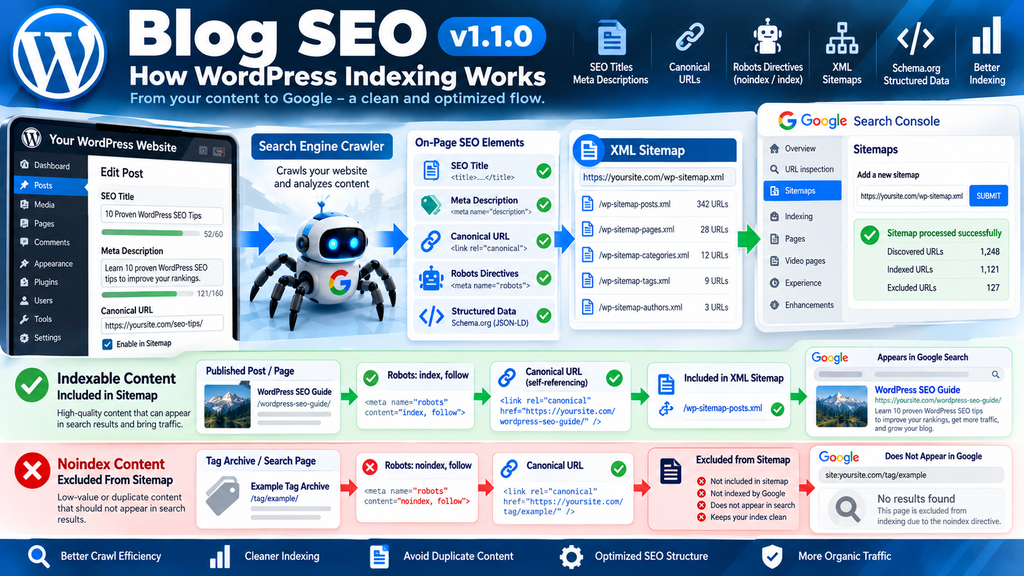
An XML sitemap helps search engines discover URLs that a website considers important. WordPress includes a native sitemap system, and Blog SEO works with that functionality rather than introducing an entirely separate sitemap platform. The plugin applies filters that can remove selected noindex content and provide modification information for supported entries.
A sitemap is not a guarantee of crawling or indexing. Search engines still evaluate accessibility, content quality, duplication, canonical signals, and other factors. Nevertheless, a consistent sitemap can make discovery easier, particularly for websites that publish regularly or contain many articles.
How Blog SEO Filters the Native Sitemap
Blog SEO includes sitemap-related filters for posts, taxonomies, and author archives. For example, when the relevant noindex options are enabled, tag archives and author sitemap entries can be excluded. Individual posts marked noindex can also be filtered from the sitemap.
This alignment matters because an XML sitemap should normally contain canonical, indexable URLs that the website wants search engines to discover. If a page is marked noindex but remains in the sitemap, the signals are inconsistent. Such inconsistencies do not necessarily cause a penalty, but they create unnecessary confusion during technical audits.
How to Find Your WordPress Sitemap
The native WordPress sitemap index is generally available at:
https://example.com/wp-sitemap.xmlReplace example.com with your actual domain. Blog SEO also displays a sitemap link in its settings screen when WordPress provides one. Open that link and confirm that the sitemap loads correctly.
Check whether important published posts appear in the relevant sitemap files. Also verify that excluded content does not appear unexpectedly. If the website already uses a custom sitemap plugin, you must examine how that system interacts with Blog SEO’s native sitemap filters.
Submitting Your Sitemap to Google Search Console
Open Google Search Console and select the correct website property. Navigate to the Sitemaps section and enter the sitemap URL or path. Submit it and review the processing status.
For example, if your site uses the native WordPress sitemap, submit wp-sitemap.xml. If you use a separate custom sitemap at /sitemap.xml, verify which sitemap system is authoritative before submitting it. Do not assume that Blog SEO automatically replaces an existing custom sitemap.
After submission, inspect the indexing reports over time. A successful sitemap submission confirms that Google could process the file; it does not mean every listed page will be indexed.
Redirecting WordPress Attachment Pages
WordPress creates media attachment records when images and other files are uploaded. Depending on the theme and configuration, these records may have publicly accessible attachment pages. Some attachment pages contain very little useful content, especially when they display only an image without additional context.
Blog SEO includes an option to redirect attachment pages using HTTP 301 redirects. According to the plugin documentation, the destination is the parent article when available, or the media file itself as a fallback. This can help reduce unnecessary attachment-page URLs on websites where those pages serve no independent purpose.
How to Enable Attachment Redirects
Navigate to Settings → SEO Blog and locate the attachment redirect option in the optimization settings. Enable it and save the configuration. Then identify an existing media attachment URL and test its behavior.
For example, imagine that an image attachment page exists at https://example.com/wordpress-guide/image-name/. If the image belongs to a published article, the redirect may send visitors to that article instead of displaying a separate attachment page.
Check the final destination and response code using your browser’s developer tools or an HTTP header inspection tool. A 301 redirect indicates a permanent move, but the final destination should also be appropriate and accessible.
When Attachment Redirects May Not Be Appropriate
Some photography websites, digital archives, and media-focused publications intentionally use attachment pages as independent content. These pages may contain descriptions, licensing information, or other material that provides value to visitors.
In such cases, automatically redirecting every attachment page may not be desirable. Review your website’s publishing model before enabling the feature. SEO configuration should support your content strategy rather than remove useful pages simply because they belong to a particular WordPress URL type.
Image Alt Text and Accessible WordPress Content
Alternative text describes meaningful images for people who cannot see them. Screen readers use alt text to communicate image information, and search engines may also use it to understand visual content. Blog SEO includes automatic image alt text handling, which can help address certain missing attributes.
However, automatically generated alt text should not be confused with carefully written descriptions. Accessibility requires context. A decorative image may need an empty alt attribute, while a technical screenshot may require a specific explanation of what the image shows.
How to Write Better Image Alt Text
Consider a screenshot showing the WordPress Settings menu with the Blog SEO configuration page open. A useful description might be “Blog SEO settings page showing homepage metadata and indexing controls.”
That description communicates the image’s purpose without repeating the article title or adding unrelated keywords. Avoid writing alt text such as “WordPress SEO best plugin SEO optimization WordPress Google SEO,” because it provides little useful information.
When Automatic Alt Text Needs Review
If an image’s filename is image-123.webp, generating alternative text from the filename may not provide a meaningful description. Similarly, a logo, chart, or screenshot can require contextual information that software cannot reliably infer.
After enabling any automatic alt text functionality, inspect a sample of published pages. Pay special attention to charts, instructional screenshots, decorative images, and images containing important text. Manually written descriptions remain preferable when the visual information is essential to understanding the article.
Cleaning the WordPress HTML Head
WordPress includes several links and metadata elements in the HTML head. Some support legacy publishing tools or features that individual websites may no longer use. Blog SEO offers an optional cleanup setting that removes selected entries, including generator metadata, RSD links, Windows Live Writer links, shortlinks, and certain previous/next links.
The plugin also includes an option to disable WordPress emoji-related assets. These features can reduce some unnecessary output, although the actual performance improvement depends on the WordPress version, theme, and other active plugins.
How to Enable HTML Head Cleanup
Open the Blog SEO settings screen and locate the optimization controls. Enable the HTML head cleanup option, save the settings, and clear any page cache.
Next, open a public page and view its HTML source. Compare the output with a baseline captured before activation. The objective is to confirm that the intended entries were removed without affecting required metadata, stylesheets, scripts, or third-party integrations.
For example, removing an unused RSD link may simplify the HTML source, but it will not automatically improve Core Web Vitals. The impact is usually modest compared with optimizing images, reducing render-blocking resources, and improving server response times.
Should You Disable WordPress Emojis?
If your website does not need WordPress’s emoji compatibility scripts and styles, disabling them may remove unnecessary resources. Modern browsers already support many emoji characters natively, so the additional WordPress functionality is not always required.
However, test your content after changing the setting. If your website relies on special emoji presentation behavior or plugins that interact with those assets, the change may have unintended effects. A small optimization is only worthwhile when it does not interfere with the user experience.
Blog SEO and Other WordPress SEO Plugins
SEO plugins frequently overlap because they manage the same fundamental elements: titles, descriptions, canonical URLs, robots directives, and structured data. Running multiple systems simultaneously can create conflicting instructions even when the plugins themselves operate correctly.
Blog SEO includes compatibility checks for major SEO plugins and also detects its own must-use plugin implementation. The supplied archive’s main plugin file checks whether the Blog SEO class is already present and avoids initializing another copy when the must-use version has loaded.
Blog SEO Compared With Larger SEO Platforms
| Area | Blog SEO v1.1.0 | Larger SEO platforms |
|---|---|---|
| Metadata editing | Included | Commonly included |
| Canonical management | Included | Commonly included |
| Structured data | Core blog-oriented types | Often broader options |
| Breadcrumbs | Shortcode and PHP function | Varies by plugin |
| Sitemap handling | Filters WordPress native sitemaps | Often dedicated systems |
| SEO analysis tools | Limited in inspected release | Often more extensive |
| Setup complexity | Focused configuration | Depends on platform |
This comparison describes feature categories rather than a benchmark of plugin quality, speed, or security. Different plugins serve different needs, and a more extensive feature set is not automatically better for every website.
Migrating From Another SEO Plugin
If you are moving from Yoast SEO, Rank Math, or another established plugin, begin by documenting your existing metadata. Export settings where supported and make a database backup. Select a few representative posts, including one with custom metadata, one with a canonical override, and one marked noindex.
Test those pages on a staging website with Blog SEO. Confirm that the intended titles, descriptions, canonical URLs, and robots directives appear correctly. Do not assume that the new plugin automatically reads another plugin’s proprietary metadata fields.
Only complete the migration when you have verified the output and have a plan for preserving important SEO information. A successful transition is measured by consistent public page behavior, not simply by whether the new plugin activates.
Using Blog SEO on a Website With a Custom Sitemap
Some WordPress websites use custom sitemap implementations rather than the native WordPress sitemap. This is particularly common on websites with specialized content types, large archives, or custom SEO management code.
Blog SEO’s sitemap features are built around WordPress native sitemap hooks. If a separate plugin generates /sitemap.xml, those filters may not control the custom sitemap’s output. Both systems may remain accessible unless another plugin or configuration disables one of them.
Checking for Multiple Sitemap Systems
Begin by checking the sitemap URLs used by your website. The native WordPress index commonly uses /wp-sitemap.xml, while custom plugins may expose /sitemap.xml or /sitemap_index.xml.
Open each URL and inspect the response. If several valid sitemaps exist, determine which one you intend to maintain and submit to search engines. Multiple sitemap files are not inherently harmful, but maintaining conflicting or outdated URL lists creates unnecessary complexity.
Keeping Sitemap and Noindex Rules Consistent
Suppose Blog SEO marks tag archives as noindex, but your custom sitemap plugin continues listing those tag archive URLs. Search engines may receive a sitemap that recommends discovering URLs that the website simultaneously asks them not to index.
To resolve this, configure the custom sitemap generator to exclude the same URL types, or choose a single sitemap management system. Recheck the output after changes. Do not disable a working custom sitemap merely because a new SEO plugin also supports sitemap functionality.
A Practical Blog SEO Configuration Example
Imagine a WordPress website that publishes tutorials about website performance, security, and plugin development. It contains several hundred posts, uses a lightweight theme, and receives visitors from Google and social media.
The website owner wants clean metadata, consistent indexing rules, and a straightforward publishing workflow. Blog SEO can provide the essential metadata controls, but each setting should reflect the website’s actual content structure.
Homepage Configuration Example
A possible homepage configuration would be:
| Setting | Example |
|---|---|
| SEO title | WordPress Tutorials and SEO Guides |
| Meta description | Practical WordPress tutorials covering website security, SEO, performance, plugin configuration, and troubleshooting. |
| Title separator | – |
| Entity type | Organization |
| Entity name | Example WordPress Blog |
| Default social image | Website-branded 1200 × 630 image |
These are illustrative values, not mandatory settings. A personal blog might use Person instead of Organization, while a business website may use its registered brand name.
Article Configuration Example
Now consider a post explaining how to improve WordPress Core Web Vitals.
Its visible article title could be “Five Practical Ways to Improve Core Web Vitals on WordPress.” The custom SEO title might be “Improve WordPress Core Web Vitals: 5 Tips.” The meta description could explain that readers will learn about image optimization, caching, JavaScript, and performance testing.
The canonical URL would normally reference the article’s permanent URL. The social image could show a performance dashboard. If the article is intended for search traffic, it should generally remain indexable and appear in the sitemap.
Category and Archive Configuration Example
For a single-author website, noindexing author archives may be appropriate if those pages simply duplicate the main blog listing. Date archives may also be unnecessary if readers already navigate through categories and search.
However, category pages such as “WordPress Security” and “WordPress Performance” may contain useful collections of related tutorials. Keeping those pages indexable can make sense when they have clear descriptions, organized content, and genuine navigational value.
The important principle is to evaluate page usefulness rather than apply every noindex option automatically.
How to Verify Blog SEO Is Working Correctly
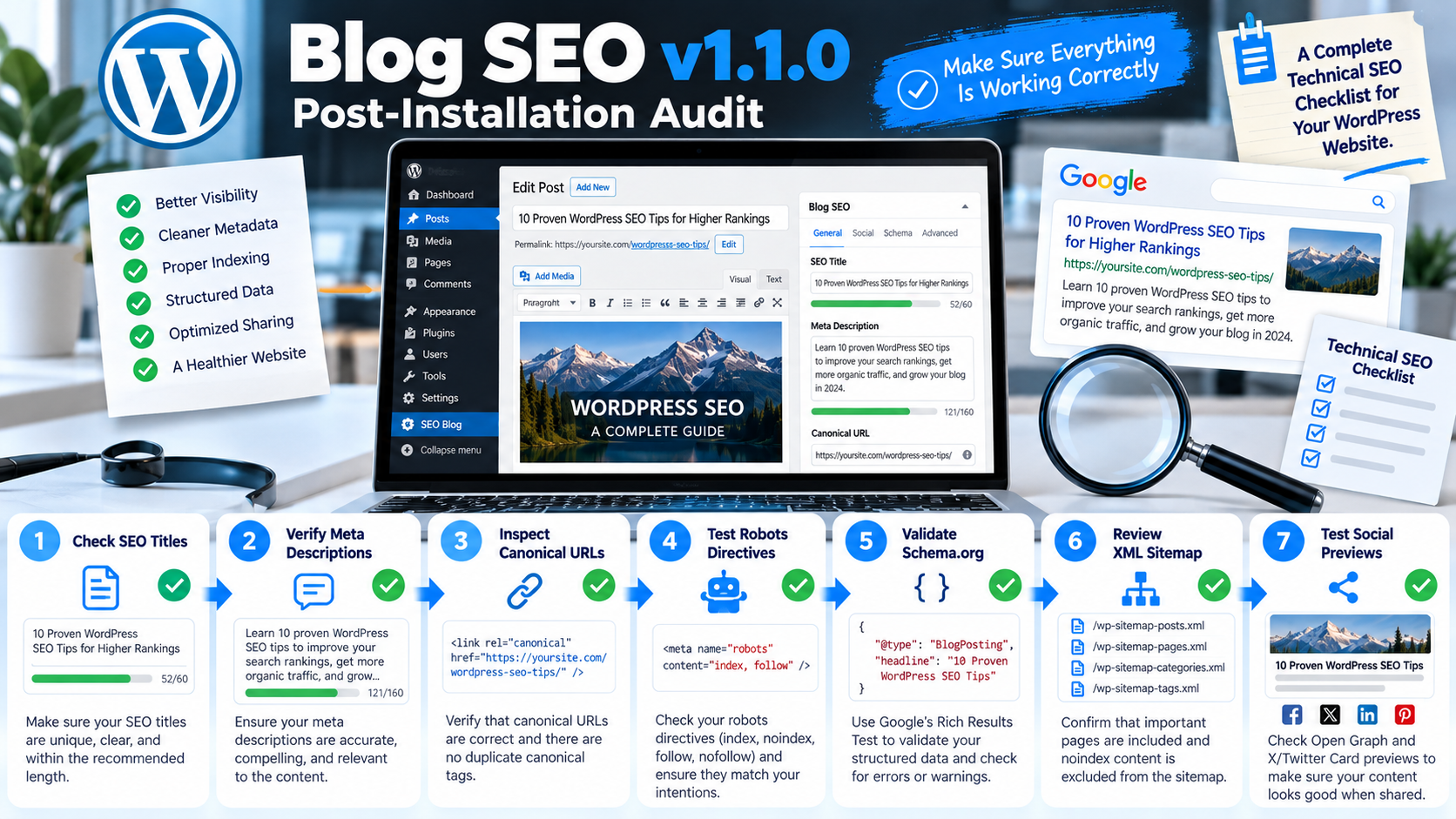
Installing an SEO plugin does not finish the optimization process. The most important work begins when you verify what the website actually sends to visitors, crawlers, and social platforms.
A reliable verification process checks individual pages, metadata consistency, sitemap behavior, structured data, and technical compatibility. These checks are especially important after plugin updates, theme changes, or migrations from another SEO system.
Step 1: Inspect the HTML Source
Open a published post in your browser and select the option to view its page source. Search for the title element, meta description, canonical link, robots directives, Open Graph tags, and JSON-LD scripts.
Confirm that the values match your intended configuration. Look for duplicate meta descriptions or canonical links, which can indicate overlapping SEO functionality. Do not confuse metadata that appears in the HTML source with content added dynamically by browser extensions.
Step 2: Test Structured Data
Open Google Rich Results Test and enter a published article URL. Review the detected supported structured data and any reported errors.
For broader Schema.org validation, use Schema Markup Validator. Check that publisher information, page URLs, and breadcrumb relationships are accurate.
If a warning appears, investigate whether it identifies a required property, a recommended property, or a type that Google does not support for rich results. Not every warning represents a critical SEO issue.
Step 3: Review Search Console
Open Google Search Console and inspect the Pages indexing report. Look for patterns involving canonical selection, noindex directives, redirects, and crawled pages that remain unindexed.
For example, if a published tutorial is unexpectedly excluded by a noindex directive, inspect the page’s robots output and the Blog SEO post settings. If Google selects a different canonical, compare the canonical tag with internal links, redirects, and sitemap entries.
Search Console reports may reflect older crawls, so changes do not always appear immediately. Use the URL Inspection tool when you need to examine a specific page.
Step 4: Check Page Performance
Run representative pages through Google PageSpeed Insights. Compare results before and after the SEO plugin installation when a reliable baseline exists.
Pay attention to Core Web Vitals and other meaningful performance indicators rather than assuming that fewer HTML tags automatically make a website faster. The plugin’s cleanup options may reduce unnecessary output, but they are not replacements for caching, image optimization, efficient themes, or good hosting.
Step 5: Test Mobile and Desktop Output
Check the homepage, a single article, a static page, a category archive, and a paginated archive on both mobile and desktop. Confirm that visible breadcrumbs remain readable, navigation links work, and metadata does not unexpectedly change between device types.
If your website uses page caching, clear the relevant caches after configuration changes. Otherwise, you may continue seeing older HTML output even though the plugin settings were saved successfully.
Common Blog SEO Problems and How to Fix Them
Even a relatively focused SEO plugin can encounter configuration problems. Some originate from WordPress settings, while others involve themes, caching systems, must-use plugins, or overlapping SEO functionality. Troubleshooting becomes easier when you isolate the issue and compare the expected output with what the website actually produces.
SEO Titles or Descriptions Are Missing
First, verify that Blog SEO is active and that no compatibility condition prevents it from initializing. Check whether another SEO plugin is still managing metadata. Then inspect the post’s SEO fields and confirm that the content has been saved.
Clear page caches and reload the public page. If the title is still missing, inspect whether your theme supports the standard WordPress document title system. If the meta description is absent, verify whether the plugin is using a fallback and whether another component modifies the HTML head.
Duplicate Canonical Tags Appear
Duplicate canonical links commonly indicate that more than one component generates them. Check your theme, active SEO plugins, must-use plugins, and custom snippets.
For example, a custom SEO function in functions.php might add a canonical link while Blog SEO generates another. Remove or disable the redundant implementation after determining which system should own the canonical output. Always test the homepage, posts, archives, and pagination separately.
Sitemap URLs Do Not Match Indexing Rules
If noindex pages continue appearing in a sitemap, identify which component generates the sitemap. Blog SEO filters the native WordPress sitemap, but a separate sitemap plugin may use its own logic.
Update the relevant sitemap settings, clear caches, and inspect the XML again. If the sitemap is generated dynamically, confirm that you are not viewing a cached version from before the configuration change.
Social Images Do Not Update
Social platforms frequently cache previews. Confirm that the HTML contains the correct Open Graph image URL and that the image is publicly accessible.
Then use the platform’s available preview inspection tools to request a refreshed preview when supported. Also check image dimensions, content type, redirects, and access restrictions. A correct plugin setting cannot compensate for an image URL that the social platform cannot retrieve.
The Settings Screen Is Not Fully in English
The supplied Blog SEO v1.1.0 archive includes Romanian administration labels. These labels are part of the plugin’s current implementation rather than a WordPress language configuration error.
English metadata can still be entered normally. However, translating the administration interface requires an appropriate localization implementation or code changes. Do not assume that changing the WordPress site language will translate strings that are not properly internationalized.
Security and Maintenance Considerations
SEO plugins operate in an important part of the WordPress publishing process. They handle stored metadata, administrative settings, and HTML output that may appear on every public page. For this reason, website owners should evaluate maintenance practices, compatibility, and update procedures alongside SEO features.
The inspected Blog SEO archive includes WordPress administration hooks, post metadata handling, settings registration, and output functions. However, reviewing the archive’s structure does not establish that the plugin has passed a comprehensive security audit. No automated penetration test or live production assessment was performed for this article.
Keep WordPress and PHP Updated
Although Blog SEO declares compatibility with older WordPress and PHP versions, using the minimum supported versions is not necessarily a good security strategy. Run a maintained WordPress release and a supported PHP version appropriate for your hosting environment.
Before updating WordPress, test critical plugins on a staging installation when possible. Verify that metadata, sitemaps, and structured data remain correct afterward. Technical SEO problems can arise from compatibility changes even when the public website appears visually normal.
Understand the Plugin’s Uninstall Behavior
The supplied documentation states that uninstalling Blog SEO can remove its saved settings and SEO metadata when the must-use version is not installed. This is important if you intend to migrate to another SEO plugin later.
Deactivating and uninstalling are not always equivalent operations. Before deleting Blog SEO, export or back up the relevant database information. Otherwise, custom titles, descriptions, and canonical settings may be lost during removal.
Use a Staging Website for Major Changes
A staging website provides a safe place to evaluate plugin updates, SEO migrations, and indexing configuration changes. Keep staging environments protected from public indexing and unauthorized access.
Test the plugin’s behavior on representative pages, then deploy the verified configuration to production. After deployment, inspect the live website again because caching, server configuration, and other environmental differences can affect the final output.
Frequently Asked Questions
1. Is Blog SEO v1.1.0 a Free WordPress Plugin?
The supplied plugin declares the GPL-2.0-or-later license and does not show a paid-feature or license-key system in the inspected archive. However, this inspection does not establish whether the plugin is publicly distributed through an official marketplace. Its licensing information should be checked against the distribution source.
2. Can Blog SEO Replace Yoast SEO or Rank Math?
Blog SEO can handle several essential functions commonly provided by larger SEO plugins, including titles, descriptions, canonical URLs, robots directives, and structured data. However, it does not offer every feature of those platforms. A migration requires careful testing and may require transferring existing metadata.
3. Does Blog SEO Automatically Improve Google Rankings?
No SEO plugin can guarantee ranking improvements. Blog SEO helps manage technical signals and metadata, but rankings depend on many additional factors, including content relevance, usefulness, accessibility, competition, and search engine evaluation. Correct configuration creates a better technical foundation rather than guaranteed results.
4. Does Blog SEO Generate an XML Sitemap?
Blog SEO integrates with the native WordPress sitemap system and applies filtering behavior to supported entries. It does not necessarily control XML sitemaps generated by unrelated custom sitemap plugins. Check your actual sitemap URL and inspect its contents before submitting it to search engines.
5. Can I Use Blog SEO With GeneratePress?
The plugin uses standard WordPress functionality, which makes compatibility with conventional themes such as GeneratePress plausible. However, compatibility should be tested with the specific theme version, child-theme modifications, and active plugins. Pay particular attention to breadcrumbs, canonical output, and existing structured data.
6. Does Blog SEO Support Social Media Sharing Images?
Yes. The plugin generates Open Graph and X/Twitter Card metadata and supports image fallback behavior. It can use a featured image, an image from the article, or a configured default image, depending on availability. Social platforms still control how previews are displayed and cached.
7. Can I Noindex Individual WordPress Posts?
Yes. Blog SEO provides an individual noindex checkbox in the post or page SEO editing area. This can exclude the selected content from indexing instructions and the native sitemap filtering process. Use it carefully because accidentally noindexing an important article can reduce its search visibility.
8. Does Blog SEO Support Breadcrumb Navigation?
Yes. You can display breadcrumbs using the [seo_breadcrumbs] shortcode or the bseo_breadcrumbs() PHP function. The plugin also generates BreadcrumbList structured data where applicable. Verify that your theme does not already display another breadcrumb system.
9. Can I Use Blog SEO as a Must-Use Plugin?
The supplied documentation describes compatibility between the regular plugin and a must-use version that shares its implementation and settings. The regular plugin checks whether the must-use implementation is already loaded. Avoid running duplicate copies, and verify that the correct implementation is active.
10. What Happens if I Uninstall Blog SEO?
The plugin’s documentation indicates that uninstalling the regular plugin removes its settings and SEO post metadata when the must-use version is not present. Create a database backup before uninstalling, especially if you have manually configured SEO titles, descriptions, or canonical URLs across many articles.
Building a Cleaner SEO Foundation With Blog SEO
Blog SEO v1.1.0 provides a focused collection of tools for WordPress website owners who want to manage essential technical SEO without a large configuration framework. Its features cover the most common metadata requirements, including search titles, descriptions, canonical URLs, robots directives, social sharing information, structured data, and breadcrumbs.
Its native sitemap integration and optional cleanup features can also support a more consistent website configuration. However, the value of these tools depends on how they are used. Noindex rules should reflect the usefulness of individual page types, canonical URLs should identify genuine preferred versions, and structured data should accurately describe the visible content.
The most effective approach is to begin with a backup, configure a staging installation, and verify the public HTML output before deploying changes widely. For websites migrating from another SEO plugin, preserving existing metadata is especially important. Once configured, continue monitoring indexing reports and reviewing new articles as part of your normal publishing workflow.
Blog SEO is best understood as a technical SEO foundation rather than a complete search marketing strategy. High-quality content, logical navigation, accessible pages, good performance, and regular maintenance remain essential. When those elements work together, a focused SEO plugin can help keep the technical side of WordPress publishing manageable.
⚠️ Disclaimer and Source Hygiene
This article is provided for educational and informational purposes. It is based on inspection of the supplied Blog SEO v1.1.0 archive and general WordPress and search engine documentation. Features described here reflect the inspected release and may change in future versions.
No live production compatibility test, formal security audit, or ranking performance benchmark was conducted. Website owners should create backups, test configuration changes, and consult qualified WordPress developers or SEO professionals when managing important production websites. Search engine behavior and structured data eligibility can change without notice.
Sources and References
Official Technical Documentation
- WordPress Plugin Developer Handbook – WordPress plugin architecture, settings, hooks, and development practices.
- WordPress wp_get_canonical_url() Reference – WordPress canonical URL functionality.
- WordPress wp_robots Filter – WordPress robots directives and filtering.
- WordPress Sitemaps API – Native WordPress sitemap infrastructure.
- Google Search Central: Canonical URLs – Canonicalization principles and duplicate URL management.
- Google Search Central: Noindex – Search engine indexing controls.
- Google Search Central: Structured Data – Structured data concepts and search appearance guidance.
- Schema.org – Structured data vocabulary.
- Open Graph Protocol – Open Graph metadata specifications.
- Web.dev: Core Web Vitals – Website performance metrics and user experience.
Secondary Sources and Testimonials
Plugin source reviewed: blog-seo-v1.1.0.zip, including blog-seo.php, includes/class-bseo-plugin.php, readme.txt, administration assets, and uninstall behavior.
The supplied archive was treated as the primary source for version-specific features. Official WordPress and Google documentation provides background for the SEO concepts explained in this article. No independent customer testimonials, download statistics, user ratings, or performance measurements were supplied or verified, so none have been invented.
Sign in with a Subscriber account to vote.