
Table of Contents
A critical WPCOM Member vulnerability can allow attackers to bypass social login authentication and access WordPress accounts, including administrators. Learn how CVE-2026-104803 exploits missing OAuth state validation, why session isolation matters, which websites face exposure, and how to update, investigate suspicious activity, and protect privileged accounts.
When a Convenient Login Becomes a Security Risk
Social login has become a familiar feature on modern WordPress websites. Instead of remembering another password, visitors can sign in using an existing account from a supported social platform. For membership websites, online communities, and customer portals, this convenience can make registration easier and encourage visitors to return. However, social login also creates an important security responsibility. A website must verify that every authentication response belongs to the visitor who originally started the login process.
The recently disclosed WPCOM Member vulnerability, CVE-2026-104803, demonstrates what can happen when that verification breaks down. The issue affects WPCOM Member versions up to and including 1.7.27. Under specific conditions, an unauthenticated attacker can exploit the social login callback to impersonate an existing WordPress user, potentially including an administrator. The vulnerability received a critical CVSS 3.1 score of 9.8, reflecting the serious consequences of successful exploitation.
What makes this issue particularly concerning is that an attacker does not necessarily need the victim’s WordPress password. The weakness involves how the plugin handles social identity information and stores temporary login data. This guide explains the underlying problem in practical terms, identifies the conditions required for account takeover, and provides a detailed defensive checklist. It also distinguishes between a confirmed vulnerability, a possible attack, and evidence that a website has actually been compromised.
What Is CVE-2026-104803
Understanding the WPCOM Member Security Vulnerability
WPCOM Member is a WordPress plugin designed to provide membership and user account features. It supports front-end registration, login forms, profile management, password recovery, and social authentication. Depending on configuration, visitors can sign in using providers such as WeChat, QQ, Weibo, Google, Facebook, Twitter, and GitHub. These features make the plugin useful for websites that want an alternative to the standard WordPress login experience.
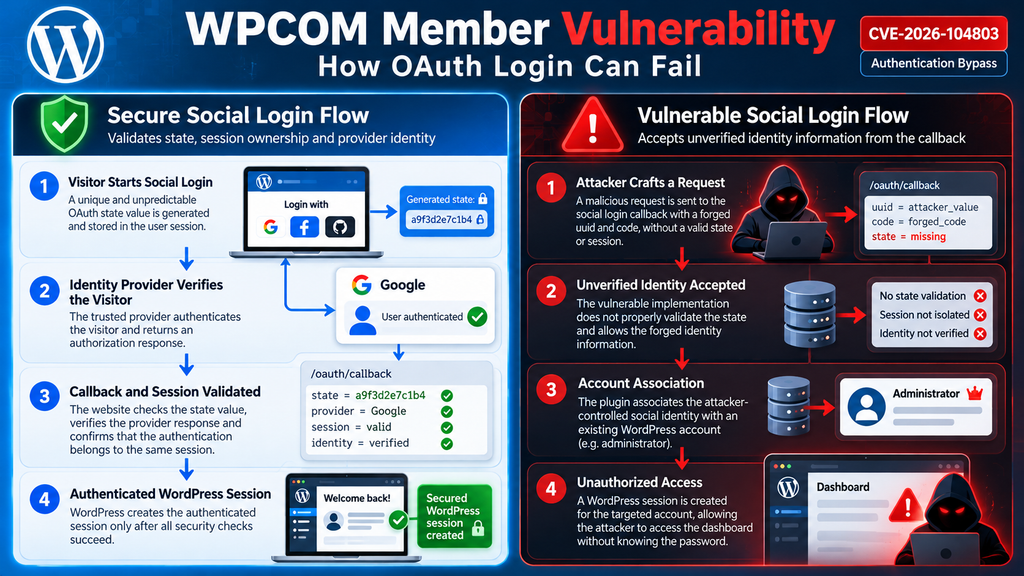
CVE-2026-104803 is an improper authentication vulnerability affecting the plugin’s social login implementation. The published advisory identifies weaknesses in callback validation and session handling. Specifically, the vulnerable workflow does not adequately validate an authentication nonce or OAuth state, while the session storage mechanism lacks sufficient isolation between visitors. As a result, a crafted sequence of requests can cause the plugin to associate attacker-controlled identity information with an existing WordPress account.
Verified vulnerability details:
Critical
| Security attribute | Published information |
|---|---|
| CVE identifier | CVE-2026-104803 |
| Affected plugin | WPCOM Member |
| Affected versions | 1.7.27 and earlier |
| Vulnerability type | Authentication bypass |
| CWE classification | CWE-287 |
| CVSS 3.1 score | 9.8 / Critical |
| Authentication required | No |
| User interaction required | No |
| Potential impact | WordPress account takeover |
| Disclosure date | October 10, 2026 |
Why a Critical Severity Rating Is Justified
The severity rating reflects the potential for a remote attacker to obtain an authenticated WordPress session without possessing the account password. When the targeted account belongs to an administrator, the attacker may inherit permissions to manage plugins, change website settings, create accounts, and modify content. On websites that allow administrators to install plugins or edit executable code, those permissions can also create a route toward broader server compromise.
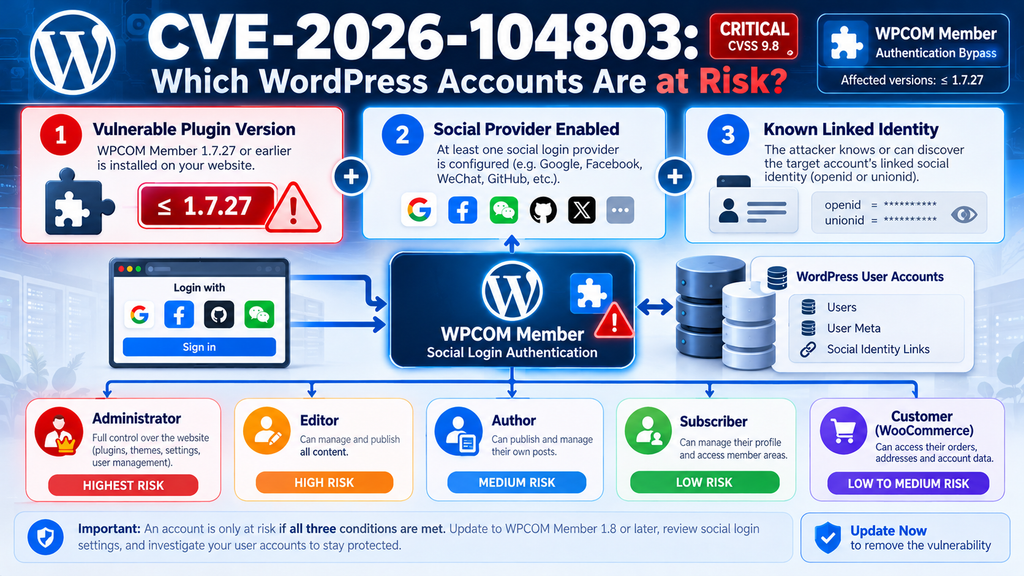
However, a critical rating does not mean every installation can be compromised automatically. The published vulnerability description identifies two essential prerequisites: the website must have at least one social provider configured, and the attacker must know or discover the target account’s associated social identity identifier. These conditions matter when evaluating actual exposure. A vulnerable plugin version is a warning sign, but it is not proof of a successful attack.
How the Social Login Callback Can Be Forged
How a Normal OAuth Login Should Work
OAuth-based login usually involves a sequence of redirects between the website and an identity provider. A visitor clicks a social login button, the website starts an authorization process, and the provider verifies the user’s identity. After successful authorization, the provider redirects the browser to a callback endpoint. The WordPress plugin then processes the response and establishes a local authenticated session.
A secure implementation must connect that callback to the original browser session. The OAuth state parameter provides an important part of this protection. The website generates an unpredictable value when authentication begins, stores it in the initiating visitor’s session, and checks it when the visitor returns. If the values do not match, the website must reject the response. This prevents an unrelated request from being accepted as the continuation of a legitimate login attempt.
Example: A Properly Validated Social Login
How a secure OAuth login should verify identity before creating a WordPress session.
Visitor Starts Social Login
A unique, unpredictable OAuth state value is generated and securely associated with the visitor’s session.
Identity Provider Verifies the Visitor
The trusted social identity provider authenticates the visitor and returns an authorization response.
Callback and Session Validated
The website validates OAuth state, verifies the provider response, and confirms that the authentication transaction belongs to the correct session.
Authenticated WordPress Session
WordPress creates the authenticated session only after all required identity and security checks succeed.
Where the WPCOM Member Login Process Fails
The reported WPCOM Member vulnerability involves the social login callback handler registered through WordPress’s init hook. The vulnerable flow accepts parameters named uuid and code without sufficient validation. More importantly, the plugin’s session storage permits an attacker-controlled entry to cross the intended visitor-specific boundary. This creates an opportunity for forged identity data to influence how the plugin resolves a WordPress account.
The published description identifies the weapp_new_user() function as part of the account resolution process. If the plugin accepts a forged social identity and matches it to an existing account, wp_set_auth_cookie() can establish an authenticated WordPress session. The issue is therefore not merely an incorrect redirect or a harmless login error. It is a trust-boundary failure that can result in impersonation.
Why Session Isolation Matters
Consider two people visiting the same WordPress website. Alice starts a legitimate social login, while Bob opens the site in a different browser. Their temporary authentication data should remain completely separate. Bob must never be able to create, overwrite, or influence the values that Alice’s authentication process will read. This separation is commonly enforced through securely generated session identifiers, strict ownership checks, and server-side storage boundaries.
In the vulnerable WPCOM Member implementation, the reported session behavior allows certain crafted identifiers to bypass the intended visitor-specific namespace. The problem illustrates why storing temporary login information is not enough by itself. The application must also enforce who owns that information and which authentication transaction may consume it. Even a valid social identifier should not become sufficient proof of identity without an authenticated, verified provider response.
OAuth Callback Security
Which WordPress Accounts Are Exposed
Administrator Accounts and the Risk of Privilege Abuse
Administrator accounts represent the highest-risk targets because they generally control essential WordPress settings. An administrator may install plugins, activate themes, manage users, change security configurations, and access sensitive operational information. If an attacker successfully impersonates an administrator through the vulnerable social login flow, the attacker can potentially perform those actions using the compromised account’s existing permissions.
For example, imagine a membership website where the primary administrator previously connected a WeChat account to WordPress. If the website runs an affected WPCOM Member version, has social login enabled, and the administrator’s linked identifier becomes known to an attacker, the conditions described in the advisory may be satisfied. This does not require the administrator to approve a new login request. The attack instead abuses the website’s handling of the authentication response.
Editors, Authors, Subscribers, and Customer Accounts
The vulnerability is not restricted to administrators. Any WordPress account with a relevant linked social identity may be exposed if the attack prerequisites are met. The consequences depend on the permissions assigned to that account. An editor might allow unauthorized changes to published content, while an author account could provide access to drafts and permitted publishing functions. Subscriber accounts usually have fewer capabilities, but unauthorized access can still expose personal account information.
For websites using WooCommerce or membership extensions, the consequences may extend to customer profiles, orders, saved addresses, subscription information, or other account-specific data. The exact exposure depends on the site’s configuration and access controls. Administrators should therefore avoid treating this issue as a problem that affects only privileged users. Every social-linked account deserves consideration, even though the most serious administrative consequences require a privileged target.
Conditions Required for Successful Account Takeover
The published CVE description establishes a narrower set of conditions than the headline alone might suggest. The attacker must be able to reach the vulnerable callback, the relevant social login functionality must be configured, and the target account’s associated openid or unionid must be known or discoverable. Without a usable target identity, the published attack path does not automatically provide access to an arbitrary account.
| Website condition | Risk interpretation |
|---|---|
| WPCOM Member 1.7.27 or earlier with social login configured | Potentially vulnerable |
| Administrator has a linked social identity | High-value target if its identifier is discoverable |
| Subscriber has a linked social identity | Account takeover may affect subscriber-level access |
| Plugin installed but no social provider configured | Published exploit prerequisite not satisfied |
| Plugin disabled | The plugin’s active callback should no longer be available |
| Updated installation | Verify installed version and the vendor’s remediation status |
Why Knowing an Email Address Is Not Necessarily Enough
A social identity identifier is not the same as a WordPress username or email address. The vulnerability description specifically identifies the bound provider openid or unionid as an important prerequisite. These identifiers help the plugin associate an external social account with a local WordPress account. A website may store such values in account metadata or other plugin-managed records, depending on its implementation.
An attacker who knows an administrator’s public username does not automatically know the associated social identity identifier. Conversely, if those identifiers have been exposed through a separate information disclosure, insecure integration, or other weakness, the risk may increase. Administrators should protect social identity mappings as authentication-sensitive data. They should also avoid publishing them in diagnostic output, publicly accessible API responses, or shared support screenshots.
Updating WPCOM Member to Version 1.8

What the Official Release Information Confirms
The official WordPress.org changelog identifies WPCOM Member 1.8.0, dated October 7, 2026, as including improvements to social login security. The plugin directory currently displays version 1.8.0.1. These are important developments because the affected range documented in CVE-2026-104803 ends at 1.7.27. However, the public changelog does not explicitly name this CVE, so it should not be treated as independent confirmation that every aspect of the vulnerability was fixed.
The recommended administrative response is to move away from the known affected versions, install the latest legitimate vendor release, and confirm the security fix through the vendor or an updated vulnerability advisory. If the vendor’s remediation status remains uncertain, temporarily disabling social login provides an additional precaution while the administrator investigates.
Step 1: Check Your Installed Plugin Version
Sign in to the WordPress administration dashboard using a trusted administrator account. Navigate to Plugins → Installed Plugins and locate WPCOM Member. Review the version displayed below the plugin name and check whether an update is available. If the version is 1.7.27 or earlier, the installation falls within the documented affected range. Record the version before making changes, especially when managing multiple websites.
For example, a site running WPCOM Member 1.7.25 with WeChat login enabled should be treated as potentially exposed. An administrator should not wait for evidence of suspicious activity before taking action. The absence of visible login failures or security warnings does not establish safety, because the reported weakness concerns the authentication workflow itself rather than conventional password guessing.
Step 2: Create a Reliable Backup Before Updating
Before modifying a membership plugin, create a complete backup of the WordPress files and database. The database is especially important because it contains user accounts, plugin settings, and potentially social account associations. A complete backup should also preserve relevant custom login integrations and configuration files. Use your hosting backup system or a trusted WordPress backup solution, then confirm that the backup completed successfully.
A backup is only useful when it can be restored. If possible, verify the archive contents or perform a restoration test in a staging environment. Keep the backup outside the publicly accessible website directory and protect it against unauthorized downloads. For a membership website, schedule the update during a quieter period if practical, but do not postpone urgent security work simply to find a perfectly convenient maintenance window.
Step 3: Install the Latest Available WPCOM Member Release
Return to Plugins → Installed Plugins and use the available update action for WPCOM Member. If the WordPress dashboard does not show an update, consult the official plugin directory and verify that the release is legitimate. Avoid downloading modified plugin packages from unofficial websites. After installation, reload the plugin list and confirm the version that WordPress reports.
Official plugin page: WPCOM Member on WordPress.org.
For websites maintained through WP-CLI, the following commands can help administrators inspect and update the plugin. Run them from the correct WordPress installation, using an account with appropriate permissions.
# Display the installed plugin version
wp plugin get wpcom-member --fields=name,status,version,update,update_version

# Update from the configured WordPress plugin repository
wp plugin update wpcom-member

# Confirm the version after updating
wp plugin get wpcom-member --fields=name,status,version,update
The first command checks the current plugin state. The second requests an update from the configured WordPress plugin source. The final command confirms what is installed after the operation. These commands do not independently prove that a CVE has been fixed. They establish the installed version, which must still be compared with reliable vendor and vulnerability information.
Step 4: Test Social Login After the Update
Once the update finishes, test the authentication experience using a dedicated, low-privilege test account. Open a private browser window, visit the website’s login page, and start a normal social login using a provider configured for testing. Confirm that the login completes, the account receives the correct WordPress role, and logout behaves as expected. Repeat the test with the social providers that your website actively supports.
Also test password-based login, registration, password recovery, and any custom account dashboard. Some membership websites use custom redirects or additional plugins to manage login sessions. A plugin update can affect these integrations even when the security fix works correctly. Testing ordinary user journeys helps administrators detect compatibility problems without attempting to reproduce the vulnerability against a live website.
Step 5: Apply Temporary Protection if Remediation Is Uncertain
If a confirmed security fix is unavailable, or the installed update cannot be verified, disable the affected social login functionality until the issue is resolved. Review the WPCOM Member settings and turn off configured social providers where supported. Then confirm that the affected callback is no longer active. If the configuration does not reliably disable the vulnerable handler, deactivate the plugin after evaluating the impact on existing users.
A web application firewall can provide additional protection, but generic request filtering should not be considered a substitute for correcting authentication logic. Blocking specific parameters without understanding the plugin may disrupt legitimate login activity while leaving alternate paths unprotected. The priority is to remove the vulnerable behavior, verify the installed code, and maintain a secure authentication method for authorized users.
Auditing Social Login Activity
Why Updating Alone Is Not a Complete Investigation
Installing a newer plugin version addresses future exposure only to the extent that the release fixes the underlying weakness. It does not establish whether someone exploited the previous version. If a website operated with social login enabled while vulnerable, administrators should review available evidence for unauthorized access. The investigation should focus on authentication activity, privileged account changes, unusual administrative actions, and signs of persistence.
This distinction matters because an attacker who previously obtained administrator access might have created another account or installed an unauthorized plugin. Even after the vulnerable authentication path is closed, that additional access could remain. Conversely, suspicious requests alone do not prove compromise. A careful investigation separates attempted access, successful authentication, and confirmed malicious actions before reaching conclusions.
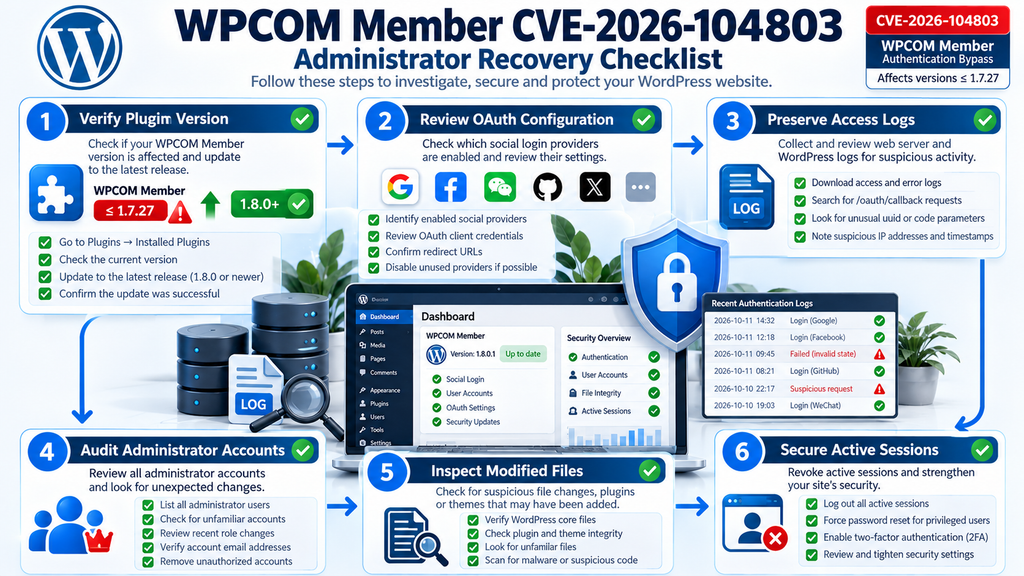
Step 1: Preserve Logs and Establish a Timeline
Start by collecting the available web server access logs, error logs, WordPress security logs, and authentication records. Record the dates when WPCOM Member was vulnerable, when social login was enabled, and when the plugin was updated. Preserve original copies before filtering or rotating logs. This creates a reliable timeline for later analysis and helps avoid losing evidence during routine maintenance.
On a typical cPanel server, relevant information may be available through the hosting control panel’s raw access log features. Administrators with shell access can also inspect the server’s configured Apache or Nginx log locations. Paths differ between hosting environments, so avoid assuming that every website uses the same directory structure. Limit access to these records because authentication URLs and logs can contain sensitive identifiers.
Step 2: Review Suspicious Callback Requests
Search available request logs for unusual activity involving the social login callback and the parameters identified in the advisory. Repeated requests with uuid or code parameters may deserve further review, particularly when they originate from unfamiliar addresses or appear outside expected login sequences. However, those parameter names can also occur during legitimate authentication. Their presence alone is not proof of exploitation.
A useful investigation compares request timing, HTTP response behavior, subsequent authenticated actions, and available session records. For example, a cluster of unusual callback requests followed immediately by a new administrator account deserves closer attention than an isolated unsuccessful login. Administrators should avoid publishing raw callback URLs in support forums because those records may expose authentication-related values.
Step 3: Check for Unexpected Administrator Accounts
Navigate to Users → All Users and filter the list by the Administrator role. Review every account and confirm that each belongs to an authorized person. Look for unfamiliar usernames, recently created accounts, unexpected email changes, and accounts that have received higher privileges without an approved reason. Where reliable audit logs exist, compare the current user list with historical account changes.
WP-CLI can provide a quick overview of privileged accounts:
# List administrator accounts
wp user list --role=administrator \
  --fields=ID,user_login,user_email,user_registered \
  --format=table

# List all accounts and assigned roles
wp user list \
  --fields=ID,user_login,roles,user_registered \
  --format=table
These commands are read-only. They help identify accounts requiring investigation without changing WordPress permissions. If an unfamiliar administrator appears, preserve the relevant evidence and investigate how the account was created before removing it. Deleting an account immediately can destroy useful information or disrupt legitimate website content associated with that user.
Step 4: Inspect Plugins, Themes, and Unexpected File Changes
A successful administrator takeover may allow an attacker to install a malicious plugin or modify existing website files. Review the installed plugins for unfamiliar names, recently activated components, and unexpected changes. Check active themes and must-use plugins as well, since persistent malicious code may exist outside the normal plugin management interface. Compare suspicious files against known-good backups or trusted release packages.
WordPress administrators can use WP-CLI to verify core files and, where supported, plugin checksums. A checksum mismatch does not automatically mean malware is present, because custom modifications and development versions can also differ from official packages. Still, unexpected changes deserve investigation, especially when they coincide with suspicious login activity.
# Verify WordPress core files
wp core verify-checksums

# Verify supported WordPress.org plugins
wp plugin verify-checksums --all

# List installed plugins and versions
wp plugin list --fields=name,status,version,update
Checksum verification has limitations. It cannot prove that a website is clean, and it may not cover premium plugins, custom themes, must-use plugins, or other executable files. Administrators should supplement it with a trusted malware scanner and manual review when compromise is suspected. Do not delete unfamiliar files before determining whether they belong to a legitimate integration.
Step 5: Examine Authentication and Security Events
Review any activity logging plugin, security platform, or server-side audit system already installed on the website. Look for administrator logins from unfamiliar locations, unusual login times, unexpected plugin activations, changes to user roles, and alterations to authentication settings. Pay particular attention to events that occurred shortly after suspicious social login callback requests.
For example, suppose a site normally receives administrator logins from two known office networks. The audit trail suddenly shows a privileged session from an unfamiliar network followed by installation of an unknown plugin. That combination warrants immediate investigation. However, IP addresses can be shared, proxied, or reassigned, and geographic information is not always reliable. Correlate multiple signals instead of relying on a single indicator.
Step 6: Respond Safely to Suspected Compromise
If evidence suggests that an unauthorized user obtained access, begin a structured incident response. Preserve logs and backups, restrict administrative access where feasible, and use a trusted device to secure the hosting account. Revoke active WordPress sessions, rotate relevant credentials, and inspect user accounts and executable files. Review external integrations and OAuth provider credentials where there is evidence they may have been exposed.
A password reset alone is insufficient if the attacker gained access through authentication bypass. The vulnerable plugin behavior must be fixed or disabled, and any attacker-created persistence must be removed. On a heavily compromised website, restoring a verified clean backup and carefully reapplying legitimate changes may be safer than attempting selective cleanup. Consider professional incident response assistance when sensitive customer data or production systems are involved.
WordPress Security Audit Checklist
Securing Administrator Accounts From SSO Attacks
Enforce OAuth State Validation and Session Ownership
The most important lesson from CVE-2026-104803 is that authentication must rely on verified identity information, not simply values supplied through a browser request. A secure social login implementation should generate a cryptographically unpredictable state value when authentication begins. The application must associate that value with the initiating visitor, verify it when the callback arrives, and reject missing, expired, reused, or mismatched values.
The application must also verify the identity provider’s response according to the provider’s protocol. Where OpenID Connect is used, this may include validating the ID token’s signature, issuer, audience, expiration, and nonce. A developer should never treat an arbitrary account identifier received through a URL as sufficient evidence of authentication. State validation, provider verification, and session isolation protect different parts of the workflow and should operate together.
Separate Temporary Authentication Data Between Visitors
Session isolation prevents one visitor from influencing another visitor’s authentication process. Temporary login records should belong to a specific session or authentication transaction, with server-side enforcement of that ownership. Developers should avoid constructing security-sensitive storage keys directly from untrusted parameters without validation and proper namespacing.
For example, a membership application may need to remember which visitor initiated a login and which provider is processing the request. The application should generate a unique transaction identifier, store the corresponding state securely, and retrieve it only for the correct visitor. Once the transaction completes or expires, its temporary data should be invalidated. This approach reduces the risk of replay, cross-session contamination, and unauthorized identity association.
Strengthen WordPress Administrator Authentication
Administrator accounts should use unique, strong passwords and multifactor authentication wherever supported. Prefer phishing-resistant methods such as passkeys or hardware security keys when the authentication system supports them. Review whether privileged accounts genuinely need social login. For some websites, disabling social authentication for administrators and requiring a dedicated administrative login process may reduce unnecessary exposure.
Multifactor authentication remains valuable, but it is not a universal solution to authentication bypass. If a vulnerable plugin creates an authenticated session without invoking the MFA verification process, the additional factor may not prevent exploitation. Administrators must therefore verify that their MFA controls apply to every authentication path, including social login, custom login forms, REST-based authentication, and recovery workflows.
Apply the Principle of Least Privilege
Every WordPress user should receive only the permissions necessary for their responsibilities. Content writers rarely need administrator privileges, and customer support personnel may not require full access to plugin installation or security settings. Reducing unnecessary privileges limits the damage that an attacker can cause if a lower-level account becomes compromised.
For example, a writer responsible for publishing articles might need the Author or Editor role rather than Administrator. A customer who only manages personal orders should retain the Customer role. Review role assignments regularly and remove unused accounts. Where custom roles exist, inspect their actual capabilities instead of relying only on the role name. A custom role with powerful capabilities can present the same risks as an administrator.
Monitor Changes to Authentication Configuration
Security monitoring should include more than failed password attempts. Track changes to social login settings, newly linked identity providers, administrator role assignments, authentication plugins, and session-management configurations. These changes can reveal unauthorized activity that traditional brute-force protection may overlook.
An effective alerting process should notify the website owner when a new administrator is created, an existing user receives elevated permissions, or an authentication plugin is activated unexpectedly. Alerts should contain enough information for investigation without exposing secrets or sensitive session data. A reliable audit trail can significantly reduce the time needed to identify and contain an account takeover.
Establish a Regular Security Maintenance Routine
WordPress security works best as a continuous process rather than an emergency response after every vulnerability disclosure. Maintain a current inventory of installed plugins, their versions, active integrations, and privileged accounts. Subscribe to trusted vulnerability notifications and test updates on staging when possible. Keep reliable backups and periodically verify that restoration works.
For a website using social login, include provider configuration reviews in the maintenance schedule. Confirm that unused providers are disabled, redirect URLs remain correct, and authentication credentials are stored securely. Review whether login flows continue to enforce state validation and session boundaries after major updates. This routine helps detect configuration drift and reduces the likelihood that an old integration becomes an overlooked security weakness.
Practical WPCOM Member Security Checklist
The following checklist provides a defensive workflow for administrators who need to respond to CVE-2026-104803. It does not require exploiting the vulnerability or testing unauthorized access against a production website. Website security review
0 of 10 completedIdentify the installed WPCOM Member versionCheck which social login providers are enabledBack up website files and databaseUpdate to the latest legitimate vendor releaseConfirm the vendor’s CVE remediation statusTest normal login using a low-privilege accountReview administrator accounts and role changesPreserve and inspect authentication and access logsInspect unfamiliar plugins and modified filesRevoke suspicious sessions and strengthen MFA. Reset checklist Copy checklist
Frequently Asked Questions
1. What is the WPCOM Member vulnerability?
The WPCOM Member vulnerability, CVE-2026-104803, is an authentication bypass issue affecting the plugin’s social login process. It involves insufficient callback validation and improper isolation of temporary session data. Under the documented prerequisites, an unauthenticated attacker may impersonate an existing WordPress account, including an administrator.
2. Which WPCOM Member versions are vulnerable?
The published CVE identifies versions up to and including 1.7.27 as affected. WordPress.org lists version 1.8.0.1 as available, and the 1.8.0 changelog mentions social login security improvements. Administrators should update and confirm the specific CVE fix through reliable vendor or security advisories.
3. Can an attacker access a WordPress administrator account without knowing the password?
Yes, successful exploitation can bypass the normal password authentication process. However, the attacker must meet the vulnerability’s prerequisites, including access to an enabled social login flow and knowledge or discovery of the target account’s linked social identifier. The published advisory does not establish that every administrator account is automatically accessible.
4. Does disabling social login prevent this attack?
Disabling the vulnerable social login handler can remove the attack path described in the advisory. However, administrators must confirm that the handler is actually inactive. Simply hiding social login buttons may not disable the underlying callback. Deactivating the plugin is a stronger temporary measure when safe configuration-based mitigation cannot be verified.
5. What is the OAuth state parameter?
OAuth state is a value used to associate an authorization response with the browser session that initiated the authentication process. It helps protect against login-related cross-site request forgery and transaction confusion. A secure application generates an unpredictable state value and validates it before accepting the callback.
6. Does two-factor authentication stop CVE-2026-104803?
Not necessarily. Two-factor authentication can strengthen normal login security, but an authentication bypass may avoid the mechanism that requests the second factor. Administrators should ensure that MFA is enforced across all supported login methods and should prioritize fixing the vulnerable authentication flow.
7. How can I tell whether my WordPress website was compromised?
Review authentication records, access logs, administrator accounts, user role changes, plugin installations, and unexpected file modifications. Look for suspicious events that occur close together. No single indicator proves compromise, and missing logs can limit visibility. A professional investigation may be necessary when sensitive accounts or data are involved.
8. Is WPCOM Member 1.8 completely safe?
The 1.8.0 changelog documents social login security improvements, and the currently listed release is 1.8.0.1. However, the public changelog does not explicitly identify CVE-2026-104803 as fixed. Updating away from affected versions is important, but administrators should continue checking vendor guidance and should not assume any plugin version is free from all vulnerabilities.
9. Are subscriber accounts also vulnerable?
Potentially, yes. The reported weakness can affect WordPress accounts associated with a usable social identity identifier. A subscriber normally has fewer permissions than an administrator, so the consequences are different. Unauthorized access can still expose account information and enable actions permitted to that subscriber.
10. Should I remove WPCOM Member permanently?
Permanent removal is not automatically necessary. First evaluate the installed version, active social login providers, vendor remediation status, and your website’s dependence on the plugin. If you cannot verify a secure configuration or confirmed fix, disabling the affected functionality or replacing the plugin with a maintained alternative may be appropriate.
The Bigger Lesson: Social Login Must Never Bypass Trust
CVE-2026-104803 highlights a fundamental security principle: a website must independently verify every authentication transaction before granting access. Social login can simplify the user experience, but convenience must not weaken the connection between the visitor, the identity provider, and the local WordPress account.
The WPCOM Member vulnerability is especially serious because the affected workflow can potentially create a valid WordPress session for an account the attacker does not own. The critical CVSS rating reflects the impact of that possibility. Still, responsible risk assessment requires understanding the actual prerequisites, not assuming that every website using the plugin has already been compromised.
For website owners, the practical priorities are clear. Identify affected installations, update to the latest legitimate release, verify the vendor’s security guidance, inspect relevant activity, and strengthen administrator authentication. If compromise is suspected, preserve evidence and investigate potential persistence rather than relying only on a plugin update.
The broader lesson applies to every WordPress plugin that connects external identity providers to local user accounts. OAuth state verification, session isolation, trusted identity validation, and carefully controlled privileges are essential security boundaries. When these protections work together, social login can remain convenient without becoming an unnecessary path to account takeover.
⚠️ Disclaimer and Source Hygiene
This article provides educational information about CVE-2026-104803 and defensive WordPress security practices. It is based on publicly available vulnerability records, the official WordPress plugin directory, and authoritative authentication guidance available as of October 11, 2026. Security advisories and software versions may change after publication.
The explanations and examples are intended for authorized website administration, risk assessment, and incident response. They do not establish that a particular website has been attacked. For confirmed incidents, complex authentication integrations, or possible exposure of personal data, consult a qualified WordPress security specialist or incident response professional.
📚 Sources and References
Official Vulnerability and Plugin Documentation
1. CVE Program – CVE-2026-104803 – Official vulnerability identifier and published record.
2. Wordfence Threat Intelligence – WPCOM Member Authentication Bypass – Security advisory covering the vulnerable callback and account takeover conditions.
3. WordPress.org – WPCOM Member – Official plugin listing, version information, and release changelog.
4. WordPress.com Developer Documentation – OAuth Authentication – Guidance explaining OAuth state validation and its role in preventing authentication-related CSRF.
🕊️ Secondary Sources and Technical Context
5. OpenCVE – CVE-2026-104803 – Structured CVE record, affected versions, CVSS rating, and technical references.
6. Fused – WPCOM Member Vulnerability History – Secondary vulnerability tracking and remediation context.
7. MITRE CWE-287: Improper Authentication – Technical classification and explanation of improper authentication weaknesses.
8. OWASP Authentication Cheat Sheet – Established defensive authentication guidance.
No independent victim testimonial or confirmed real-world compromise case is presented in this article. Hypothetical scenarios are clearly described as examples rather than documented incidents.
Sign in with a Subscriber account to vote.