
Table of Contents
A critical Extensions for CF7 vulnerability may allow unauthenticated attackers to upload dangerous PHP files to WordPress websites. Learn how CVE-2026-94589 affects file handling, why Contact Form 7 itself should not be confused with the vulnerable extension, and how to update, inspect upload directories, and investigate suspicious files safely.
Editorial focus: Plugin vulnerability analysis, unauthenticated file uploads, PHP execution risks, and practical WordPress incident response.
What Is CVE-2026-94589
A contact form seems like one of the simplest features on a WordPress website. Visitors enter their names, write a message, and click Submit. Some websites also allow visitors to attach documents, images, or other files. These features make communication easier, especially for businesses that accept customer requests, job applications, and support tickets. However, file uploads also create a security responsibility. Every file submitted by an unknown visitor must pass strict validation before WordPress stores it. The reported Extensions for CF7 vulnerability, tracked as CVE-2026-94589, concerns this sensitive part of the upload process and the possibility of accepting dangerous PHP files without requiring an authenticated WordPress account.
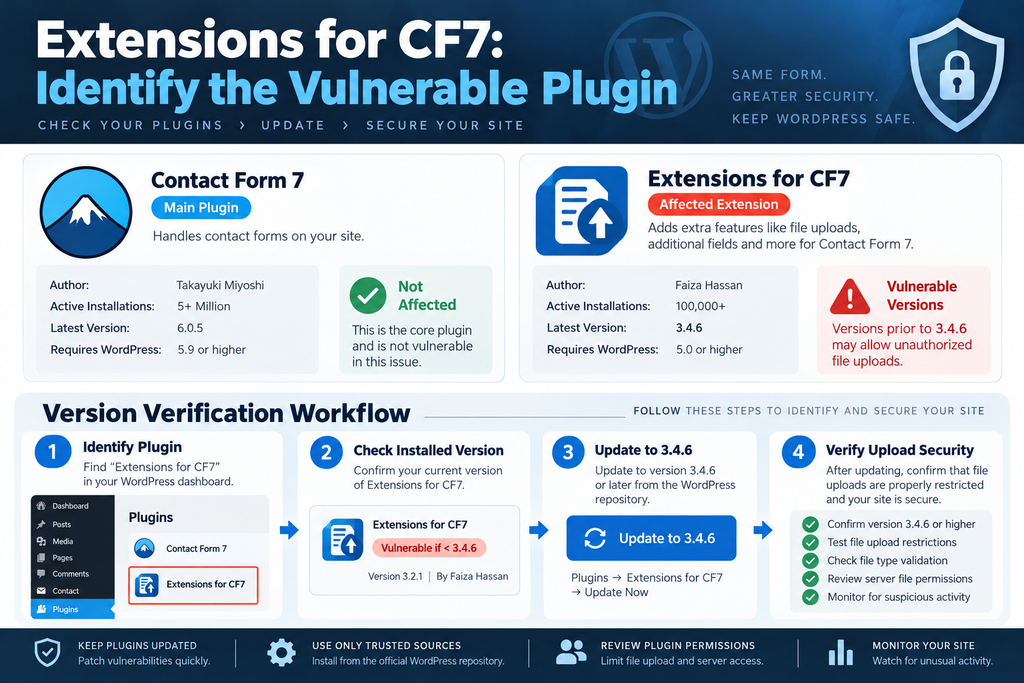
The most important distinction is that Extensions for CF7 and Contact Form 7 are not the same plugin. Contact Form 7 provides the underlying contact form functionality, while Extensions for CF7 adds features to that environment. A security weakness in an extension does not automatically mean the main Contact Form 7 plugin contains the same weakness. Website owners should therefore identify exactly which plugins they have installed before making changes. Removing the wrong plugin could interrupt legitimate contact forms without resolving the vulnerable upload functionality. A proper response begins with accurate identification, continues with patching, and finishes with checking whether suspicious files reached the server.
Why an Unauthenticated Upload Vulnerability Is Serious
An unauthenticated vulnerability means that an attacker may not need a WordPress username, password, or existing user account to reach the affected functionality. This matters because public contact forms are intentionally accessible to anonymous visitors. A normal visitor should be able to submit a form, but that access must never become permission to store executable server-side scripts. When an upload handler fails to enforce its file restrictions, an attacker may be able to submit a file that the application should reject. The potential impact depends on where the file is stored, how the server handles it, and whether the uploaded content can execute.
A PHP upload vulnerability can create risks beyond unwanted files consuming disk space. If the server executes an attacker-controlled PHP script, the attacker may gain the ability to interact with WordPress files, read configuration data, or modify website content within the permissions of the PHP process. However, uploading a PHP file does not automatically prove remote code execution. The file must also become executable through a reachable path or another vulnerable processing mechanism. Understanding this distinction helps administrators respond accurately without assuming that every suspicious upload represents a confirmed server compromise.
Vulnerability Summary
| Security detail | Reported information |
|---|---|
| Vulnerability identifier | CVE-2026-94589 |
| Affected plugin | Extensions for CF7 |
| Related plugin | Contact Form 7 |
| Vulnerability category | Unrestricted or insufficiently restricted file upload |
| Authentication requirement | Reportedly unauthenticated |
| Potential consequence | PHP file upload and possible remote code execution |
| Remediation target | Extensions for CF7 3.4.6 |
| Main investigation area | WordPress upload and extension-managed file directories |
The identifier, affected version range, and patch details should be checked against the vendor’s current advisory before publication or operational use. The technical discussion below explains the reported vulnerability scenario and defensive verification steps; it does not establish that any particular website has been exploited.
Which Extensions for CF7 Versions Are Vulnerable
Plugin versions are essential when evaluating a WordPress security advisory. Two websites can use the same extension while facing different levels of risk because one has installed the corrected release and the other continues running an older build. For the reported Extensions for CF7 vulnerability, version 3.4.6 is the stated remediation target. Administrators should treat earlier installations as requiring investigation until they have verified the exact affected range against a trusted advisory. Version numbers alone are not enough to establish whether a website was compromised, but they provide a practical starting point for deciding which installations need urgent attention.
A common mistake is checking only whether Contact Form 7 itself is up to date. The main plugin may already be running its latest release while Extensions for CF7 remains outdated. WordPress manages these as separate plugins, with separate code, version numbers, and update histories. An administrator might therefore see no available update for Contact Form 7 and incorrectly conclude that the website is protected. The correct approach is to examine the extension directly. This is especially important on websites where several contact form add-ons provide file uploads, conditional fields, submission storage, or integrations with external services.
How to Check the Installed Plugin Version
Open your WordPress administration dashboard and navigate to Plugins → Installed Plugins. Use the browser’s search function or the plugin search field to locate Extensions for CF7. Check the version displayed beneath its name, and confirm the plugin author and directory information. Do not rely on a similarly named extension because different developers sometimes use comparable branding. If the plugin is installed but inactive, it may not expose the same active functionality, although unused vulnerable code should still be updated or removed. If it is active, determine which public forms use its upload features before testing or changing their behavior.
For example, imagine a small recruitment website that uses Contact Form 7 for its application form and Extensions for CF7 to process attachments. The owner checks the main Contact Form 7 version but overlooks the extension. The application form continues to accept CV files, and the vulnerable upload handler remains available to visitors. In this situation, updating only Contact Form 7 would not address a flaw located inside the extension. The administrator must update the affected component and then confirm that normal applications still work. This protects the website while avoiding unnecessary disruption to its recruitment process.
Checking Extensions for CF7 With WP-CLI
Administrators who manage WordPress through SSH can use WP-CLI to inspect installed plugins. This approach is particularly helpful for servers hosting multiple websites because it provides exact version information without opening each dashboard. Connect to the server using an authorized account, navigate to the correct WordPress installation, and run the following read-only command. It displays installed plugin names, activation status, versions, and available update information. The command does not modify WordPress files or database records, making it suitable for an initial security inventory.
wp plugin list \
  --fields=name,status,version,update,update_version \
  --format=table
Review the output and identify the exact slug for Extensions for CF7. If the website uses a customized plugin directory, confirm that WP-CLI is running against the correct installation. On a server with several domains, using the wrong document root can produce misleading results. For an additional record, save the output to an administrator-controlled location outside the public web directory. This gives you a snapshot of installed versions before remediation. If you later investigate a suspicious upload, the snapshot can help establish which plugin release was present when the incident was discovered.
How Filename Normalization Enables PHP Uploads
File upload security is more complicated than checking whether a filename ends in .jpg or .pdf. Browsers, operating systems, programming languages, and web servers do not always interpret filenames in exactly the same way. An upload handler may receive a filename, remove unwanted characters, normalize its format, determine its extension, and finally move the file into a storage directory. Problems arise when these operations happen in the wrong order or use inconsistent rules. A file that appears acceptable during an early validation step might be transformed into a different filename before it reaches the server. If the final filename receives less scrutiny than the original one, security restrictions may fail.
Filename normalization generally refers to converting filenames into a consistent format. An application might replace spaces, remove unsupported characters, normalize Unicode text, or adjust separators. These operations are not inherently unsafe. In fact, normalization often improves compatibility and reduces errors. The danger appears when validation and normalization disagree about the file’s final extension. For example, a system might validate a submitted name using one representation but save it using another. If the resulting filename is interpreted as PHP by the web server, a supposedly harmless attachment may become a server-side script. The reported Extensions for CF7 vulnerability is associated with this type of file-handling concern.
Understanding the Difference Between Filename and File Content
A filename describes a file, but it does not reliably establish what the file contains. An image can have an incorrect extension, and a text document can contain code without being an executable PHP script. Secure upload handling therefore needs several layers of validation. First, the application should restrict permitted extensions to those required by the form. Next, it should inspect file content using appropriate server-side checks. It should also create a safe storage name rather than trusting the name supplied by a visitor. Finally, the server should prevent executable scripts from running inside public upload directories.
Consider a customer support form that accepts PDF documents. A visitor uploads service-request.pdf, and the website checks the extension, file type, and maximum size. The server then stores the document under a generated name such as submission-4821.pdf. This is a reasonable workflow when the file content also passes validation and the storage location cannot execute scripts. By contrast, a weak handler might rely on a single filename comparison before applying transformations. If those transformations change how the final extension is interpreted, the earlier validation becomes unreliable. The important security principle is to validate the final stored representation, not merely the original filename.
Why MIME Type Validation Alone Is Not Enough
MIME types help software describe file content. A PDF commonly uses application/pdf, while JPEG images typically use image/jpeg. These values are useful, but they should not be treated as absolute proof of safety. Browser-supplied MIME information can be inaccurate or manipulated. Server-side file identification provides another layer, although content inspection also has limitations. Some file formats can contain unexpected data, and a file may satisfy a superficial signature check without being appropriate for the application. Upload security works best when extension restrictions, content inspection, storage controls, and execution prevention support one another.
For a contact form that only needs PDFs and images, allowing arbitrary PHP files serves no legitimate purpose. Administrators should configure the narrowest possible list of accepted formats and avoid enabling uploads that their website does not require. The maximum file size should also reflect business needs. A small support form rarely needs to accept hundreds of megabytes per attachment. These restrictions reduce the opportunities for abuse, but they do not replace a vendor security update. If an extension contains a validation flaw, its code must be corrected rather than relying entirely on form configuration.
A Safer File Upload Processing Model
A secure upload process should follow a predictable sequence. The application receives the submitted file, checks the actual content, applies filename normalization, validates the final extension, generates a server-controlled storage name, and places the file in a restricted directory. The server then serves or downloads the file as data rather than interpreting it as executable code. The exact implementation varies by platform and file type, but the underlying principle remains consistent: no visitor-controlled filename should determine whether the server executes uploaded content. For WordPress, this responsibility is shared between plugin code, WordPress upload APIs, and server configuration.
The distinction matters during vulnerability analysis because administrators sometimes focus only on the final uploaded file. That file is important evidence, but the root cause may exist earlier in the validation sequence. A security patch might correct filename handling, strengthen extension checks, or change where files are stored. Without examining the actual patch, it would be premature to claim exactly which implementation change resolved CVE-2026-94589. Website owners should therefore rely on the developer’s release notes and authoritative vulnerability documentation for the precise technical explanation while applying the broader defensive practices described here.
Aldo read: Ninja Forms File Uploads Vulnerability
When File Upload Becomes Remote Code Execution
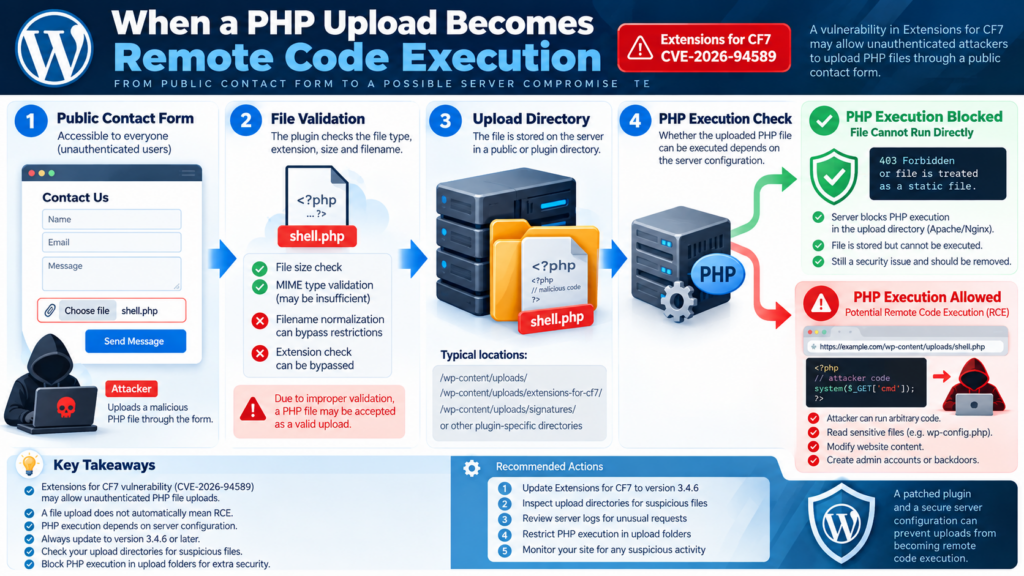
Remote code execution, often abbreviated as RCE, describes a situation where an attacker can cause a target system to execute code remotely. In the context of WordPress, this may happen when a vulnerable upload handler accepts a malicious PHP script and the web server subsequently executes it. However, the ability to upload a file and the ability to execute that file are separate security conditions. An attacker might successfully store a PHP file in a directory where PHP execution is disabled. That still represents an upload validation failure, but it does not necessarily provide working remote code execution through the uploaded file.
The level of risk increases when the upload directory is publicly accessible and the server processes PHP files stored there. On some Apache configurations, a request for a .php file may be passed to a PHP handler. On Nginx, execution depends on location matching, PHP-FPM routing, and filesystem restrictions. A server that blocks PHP execution in upload directories creates an important defensive barrier. Nevertheless, administrators should not assume that a generic security rule protects every custom upload directory. Extensions may store attachments outside the standard WordPress media path, and those locations can have different server permissions.
The Difference Between Arbitrary Upload and RCE
An arbitrary file upload vulnerability means the application accepts files that should not be permitted. Its consequences depend on file type, location, access controls, and processing behavior. A remote code execution vulnerability requires an additional mechanism that causes attacker-controlled instructions to run. The distinction is particularly important when interpreting security headlines. A critical upload weakness may create a realistic path to RCE, but the presence of that path should be verified rather than assumed. Security teams should describe confirmed findings precisely so that remediation decisions are based on evidence instead of speculation.
Imagine two WordPress websites using the same vulnerable extension. Both accept a PHP attachment because of a file validation weakness. On the first website, uploaded files are stored in a directory that denies script execution. The dangerous file is present, but a direct web request cannot execute it through the normal PHP handler. On the second website, the uploaded file is placed in a directory where PHP processing is enabled. The second configuration may allow the upload weakness to escalate into remote code execution. Both websites require remediation, but the potential immediate consequences are different.
What a Successful PHP Execution Could Expose
WordPress stores sensitive application settings in wp-config.php, including database connection information and authentication-related secrets. If an attacker achieves PHP execution with sufficient filesystem permissions, those values may become accessible. The attacker might also read plugin configuration files, inspect local directories, modify website content, or attempt to establish persistent access. The exact impact depends on server isolation, filesystem permissions, database privileges, and the capabilities of the compromised process. A well-isolated hosting environment can reduce the damage, but it does not make a working PHP execution vulnerability harmless.
A compromised WordPress installation can also affect visitors. Attackers sometimes modify pages, insert unwanted redirects, create unauthorized administrator accounts, or alter legitimate PHP files. These activities can damage a website’s reputation and interfere with search engine visibility. However, suspicious behavior should not automatically be attributed to Extensions for CF7 without supporting evidence. WordPress websites may have several plugins, themes, and server components, each with its own attack surface. Investigators should connect suspicious files, requests, and timestamps before assigning a likely entry point.
Why Public Contact Forms Increase Exposure
Public contact forms are designed to receive requests from people who have never logged in. This is useful for ordinary website visitors but creates a broad attack surface when file handling is insecure. A registration requirement is not necessarily appropriate for every contact form, and forcing visitors to create accounts can make a website less accessible. The better approach is to ensure that anonymous submissions receive strict server-side validation. Rate limiting, spam protection, file restrictions, and upload isolation can all reduce abuse, but none should be presented as a replacement for patching a vulnerable extension.
For example, a real estate agency might allow prospective tenants to upload supporting documents through a public inquiry form. The agency needs that functionality to operate efficiently, but it does not need to permit executable files. Its administrator should restrict accepted formats, use a private or non-executable storage location, and keep the extension updated. If a vulnerability becomes public, the agency should temporarily disable attachment submissions when immediate patching is not possible. The normal text-only contact form may remain available if it does not depend on the affected upload functionality and has been assessed separately.
Updating Extensions for CF7 to Version 3.4.6

The published CVE record confirms that Extensions for CF7 versions up to and including 3.4.5 are vulnerable, with a critical CVSS 3.1 score of 9.8. The affected functionality involves the extcf7_submit function and the signature field’s validation_filter(). The advisory identifies missing extension, MIME-type, and file-size validation, together with insufficient PHP execution protection in the upload directory. WordPress filename sanitization can also turn a specially formed filename into one ending in .php. These findings establish a specific technical weakness rather than a general concern about contact form uploads. CVE-2026-94589
Version 3.4.6 is the remediation release referenced by the official WordPress plugin changeset. Website owners running 3.4.5 or an earlier version should prioritize updating the extension. The reported weakness is especially concerning for installations exposing the affected signature upload functionality to anonymous visitors. Administrators should not wait for suspicious activity before applying the correction. A security update closes the known vulnerable path, but it cannot automatically undo an earlier compromise. Consequently, patching and investigation should be treated as two related but separate tasks. CVE-2026-94589
Step 1: Create a Verified WordPress Backup
Before updating the extension, create a complete backup containing both WordPress files and the database. This backup should include the wp-content directory, uploaded attachments, custom plugins, theme modifications, and relevant configuration files. Use your hosting provider’s backup system or another trusted backup solution. Confirm that the archive can be restored rather than assuming that a successful backup notification guarantees recoverability. If the website may already be compromised, preserve an additional read-only evidence copy before modifying files. Keep this copy separate from routine backups so that later cleanup operations do not overwrite potentially useful forensic information.
For example, a business website using cPanel can open its backup interface, generate an account backup, and verify the resulting archive. Administrators with SSH access can also create backups using WP-CLI and standard server tools, provided they understand their hosting configuration. Backup files should not be left inside publicly accessible directories. Database exports may contain personal information, customer messages, and confidential settings. Protecting those archives is therefore part of the security process, not simply an administrative convenience.
Step 2: Update the Extension From the WordPress Dashboard
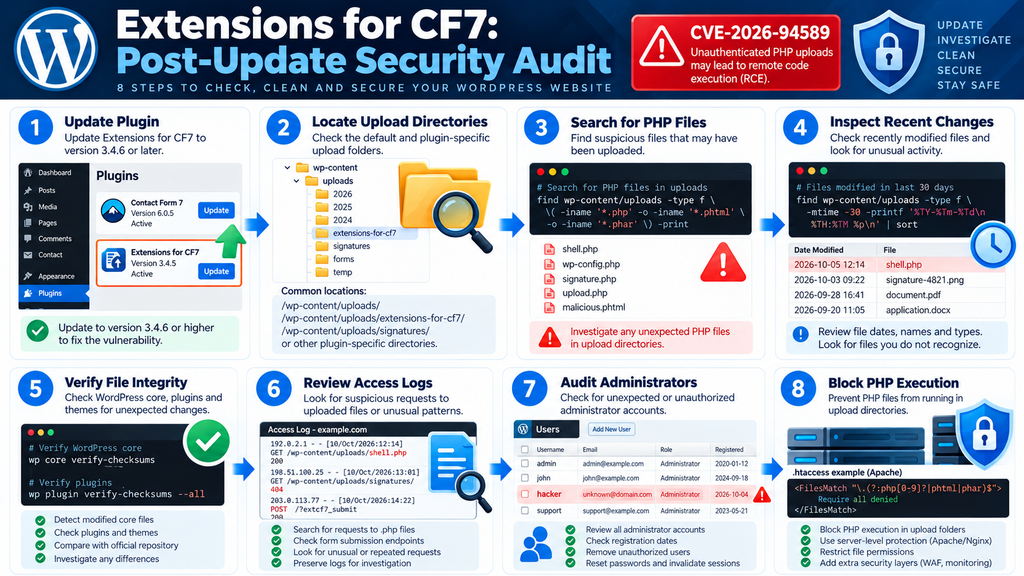
Open Dashboard → Plugins → Installed Plugins and locate Extensions for CF7. If WordPress displays an available update to version 3.4.6 or a newer release containing the fix, select the update option. Wait until WordPress confirms that the installation completed successfully. Do not close the browser while the update is still running. Afterward, refresh the plugin page and check the displayed version. If no update appears, open Dashboard → Updates and check again. You can also verify the official plugin listing before downloading anything manually.
Do not install a ZIP archive from an unknown website claiming to provide an emergency security patch. Attackers sometimes distribute modified plugins through unofficial download pages. A compromised archive can introduce additional malicious code while appearing to solve the original problem. Use the official WordPress repository or the developer’s authenticated distribution channel. If your hosting provider manages updates, confirm that the new version actually reached the production installation rather than only a staging copy.
Step 3: Update Using WP-CLI
WP-CLI offers an efficient alternative for administrators who manage websites through SSH. The official plugin slug is extensions-for-cf7. First, confirm that the plugin exists in the intended WordPress installation. Then update it using the command below. Run WP-CLI under the appropriate website account rather than unnecessarily using the root user. This helps preserve correct filesystem ownership and reduces the risk of permission problems.
wp plugin get extensions-for-cf7 \
  --fields=name,title,version,status

wp plugin update extensions-for-cf7

wp plugin get extensions-for-cf7 \
  --fields=name,version,status
The first command displays the installed version and activation status. The second requests the available update, and the final command confirms the installed version afterward. If WP-CLI reports that no update is available despite an outdated version, investigate repository connectivity, plugin metadata, update filters, and any hosting-level update restrictions. Do not manually change the plugin’s version header to make it appear updated. That would alter the displayed number without applying the security correction.
Step 4: Verify That Contact Forms Still Work
After the update, open a public page containing a contact form and perform a normal submission. Use a harmless test message and, where appropriate, an approved sample attachment. Confirm that required fields work, success messages appear, and notifications reach their intended recipients. If the form uses conditional fields or redirects, test those features as well. For signature forms, use ordinary signature input to verify that the legitimate workflow remains functional. Do not upload executable test files to a live website as part of routine verification.
Next, inspect the WordPress error log and the server’s PHP error log for unexpected warnings or fatal errors. Some websites rely on custom integrations that may require compatibility checks after a plugin update. If a problem appears, investigate it rather than immediately restoring the vulnerable release. You may need to update related components or adjust a custom integration. Security should remain the priority, but a careful verification process helps preserve the user experience and avoids unnecessary service interruptions.
Step 5: Confirm the Patch and Review Historical Exposure
A successful update means the installed plugin has changed, but administrators should also establish how long the vulnerable version was active. Review plugin update records, available backups, deployment logs, and monitoring history. If the website exposed the affected signature upload feature, inspect files created during the relevant period. Even if the form has received no visible spam, automated requests might have reached the underlying upload handler. The absence of a warning from WordPress does not prove that every submission was harmless.
For organizations managing several websites, create an inventory showing each domain, installed extension version, update date, and investigation status. This makes it easier to identify forgotten staging sites, older subdomains, and installations maintained by different administrators. A security issue may remain unresolved on a secondary website even after the main domain is patched. Consistent records also help teams demonstrate which systems received the update and which still require additional review.
Searching WordPress for Uploaded Webshells
Updating Extensions for CF7 closes the reported vulnerability in the affected component, but it does not automatically remove files that might have been uploaded before the update. A webshell is a server-side script that provides unauthorized interaction with a compromised system. Not every PHP file is malicious, and WordPress legitimately contains thousands of PHP files inside its core, themes, and plugins. The concern is finding executable files in locations intended to hold visitor attachments, images, signatures, or other non-executable content. Investigators should therefore focus on unexpected file types, unusual locations, creation timestamps, and related server activity.
The standard WordPress media directory is wp-content/uploads, but an extension can create additional directories or organize submitted files in its own structure. The reported CVE involves the signature upload workflow, so administrators should examine any storage paths associated with that functionality. Do not assume that scanning only the current year’s media folder provides complete coverage. Older directories, custom upload paths, and directories outside the standard media tree may also deserve attention. Start with read-only checks and preserve suspicious files before making changes.
Step 1: Inspect the Standard WordPress Upload Directory
Connect to your hosting account using SSH or open the cPanel File Manager. Navigate to the WordPress document root and locate wp-content/uploads. Browse the directory structure and look for unexpected executable files. Ordinary WordPress media directories generally contain images, documents, audio, video, and generated thumbnails. A PHP file in this location deserves investigation, although some legitimate software may create PHP files for specific purposes. Do not assume that every result represents a confirmed webshell.
For a basic read-only search, run the following command from the WordPress installation directory. It identifies files ending in common PHP-related extensions. The command prints matching paths but does not open, execute, modify, or delete them. This makes it appropriate for initial triage. If the search returns results, record the paths and investigate each file in context. Avoid opening a suspicious PHP file through a public browser URL, because doing so could execute its contents.
find wp-content/uploads -type f \
  \( -iname '*.php' \
  -o -iname '*.phtml' \
  -o -iname '*.php3' \
  -o -iname '*.php4' \
  -o -iname '*.php5' \
  -o -iname '*.phar' \) \
  -print
An empty result is encouraging, but it does not prove that the website is clean. Malicious code may exist under another extension, inside a modified legitimate PHP file, or in a directory not included in the search. Conversely, finding a PHP file does not prove that an attacker uploaded it. Security tools, backup systems, and custom plugins sometimes create unusual files. The next step is to inspect timestamps, ownership, file content, and related server requests without executing the suspected code.
Step 2: Search for Recently Modified Files
File modification times can help narrow an investigation when administrators know approximately when a vulnerability became relevant or when unusual behavior started. Use find to list files modified within a selected period. The following example searches the upload directory for files modified during the previous 30 days. Adjust the time window to match your investigation. Remember that modification times are not reliable proof of when an attacker first accessed a file, because backups, migrations, and administrative operations can change timestamps.
find wp-content/uploads -type f \
  -mtime -30 \
  -printf '%TY-%Tm-%Td %TH:%TM:%TS %p\n' \
  | sort
Review the results for unfamiliar filenames, unexpected file extensions, and clusters of files created around the same time. Compare those findings with legitimate form submissions and website maintenance activities. For example, several image attachments created during a recruitment campaign may be completely normal. A newly modified executable script inside an attachment directory, however, requires closer examination. If the server has experienced a migration or backup restoration, use additional evidence before drawing conclusions from timestamps alone.
Step 3: Identify Files That Need Closer Inspection
When a suspicious file appears, begin by collecting basic metadata. The stat command can display file size, ownership, permissions, and timestamps. The file utility can help identify the apparent content type without running the script. A cryptographic hash provides a stable identifier for comparing evidence with security intelligence or other server copies. Use these commands only on files you are authorized to investigate, and keep the original evidence unchanged whenever possible.
stat -- "wp-content/uploads/suspicious-file.php"

file -- "wp-content/uploads/suspicious-file.php"

sha256sum -- "wp-content/uploads/suspicious-file.php"
The filename in this example is illustrative and must be replaced with an actual path found during your investigation. Do not paste the path into a browser address bar. If you need to inspect the source, use an appropriate text viewer in a controlled environment. Avoid executing the file with PHP or running it as a shell command. When investigating a business website that stores customer documents, be careful not to expose private uploads to third-party analysis services without authorization.
Step 4: Check for Unexpected PHP Files Across wp-content
The standard upload directory is the first place to inspect, but it should not be the only one. WordPress plugins can use temporary folders, cache directories, and custom storage paths. A compromised website may also contain malicious files inside themes or plugin directories. Searching the broader wp-content tree helps identify unusual PHP files, although many results will be legitimate because plugins and themes are written in PHP. Treat the output as an inventory requiring context rather than a list of confirmed infections.
find wp-content -type f \
  \( -iname '*.php' -o -iname '*.phtml' \) \
  -printf '%TY-%Tm-%Td %TH:%TM %p\n' \
  | sort -r
To reduce false positives, compare the current installation with clean copies of installed plugins and themes. WordPress core integrity can be checked using WP-CLI, and official repository plugins can often be verified against published checksums. Custom themes, premium plugins, and modified files may require manual comparison with trusted deployment packages. If an unexpected file appears inside an official plugin directory, do not immediately delete it without preserving evidence. Its presence may indicate a separate compromise or a persistence mechanism unrelated to the original upload vulnerability.
Step 5: Verify WordPress Core Integrity
WordPress core files should match the official release unless an administrator has deliberately customized the installation, which is generally discouraged. WP-CLI can compare core files against published checksums and identify unexpected modifications. This is useful when investigating whether an attacker changed WordPress itself. Run the command from the correct installation directory and review all reported differences. An integrity warning is a reason to investigate, not automatic proof that a specific vulnerability was exploited.
wp core verify-checksumsFor official WordPress.org plugins, you can also attempt checksum verification using the following command. Availability depends on the plugin’s distribution and published checksum data. A missing checksum should not be confused with a failed integrity check. If the extension or another plugin is distributed outside the official repository, compare its files against a trusted vendor package instead. Avoid relying on a downloaded archive from an unknown source during a security investigation.
wp plugin verify-checksums --allStep 6: Review Web Server Access Logs
Suspicious files become more concerning when access logs show unexpected requests to their paths. Apache and Nginx logs can reveal request timestamps, URLs, response codes, and sometimes user-agent information. On cPanel servers, raw domain access logs may be available through the hosting interface or server log directories. Search for requests involving the affected form endpoint and unexpected PHP paths inside upload directories. Preserve the original logs before filtering them, particularly if you suspect an active incident.
The following command illustrates a basic search against an Apache access log. Replace the example path with the actual log file used by your server. The command does not alter the log. It simply extracts lines containing upload-directory paths that also end in a PHP-related extension, allowing optional query strings. It is a starting point, not a comprehensive detection rule.
grep -Ei \
  '/wp-content/uploads/[^ ?"]+\.(php|phtml|phar)(\?| |")' \
  /path/to/access.log
A request returning HTTP 200 does not automatically prove that a PHP file executed. Some servers return file contents or use application routing that changes how requests are handled. Similarly, an HTTP 403 response may indicate that execution was blocked, but the underlying upload attempt still deserves investigation. Correlate the request with file metadata, server configuration, application logs, and any available security alerts. Where possible, preserve the original timestamps and note the server’s time zone.
Step 7: Review WordPress Administrator Accounts
A successful compromise may leave evidence outside the upload directory. Review Users → All Users and identify every account with Administrator privileges. Confirm that each account belongs to an authorized person or approved service. Check for unexpected email addresses, unfamiliar usernames, and accounts created during suspicious periods. Do not remove accounts solely because their names look unusual; some integrations legitimately use service accounts. Investigate their creation history, permissions, and recent activity before making changes.
WP-CLI can display administrator accounts without modifying them. Use the following command and compare the results with your organization’s approved administrator list. If an unauthorized account is confirmed, preserve the relevant evidence, revoke its access, and investigate how it was created. Consider resetting affected credentials and reviewing active sessions. On a multisite installation, remember that network-level privileges and individual site roles require separate attention.
wp user list \
  --role=administrator \
  --fields=ID,user_login,user_email,user_registered \
  --format=table
Step 8: Protect Upload Directories From PHP Execution
Upload directories should normally store data rather than executable server-side code. Preventing PHP execution in these locations provides defense in depth against file upload vulnerabilities. However, the correct configuration depends on whether the server uses Apache, Nginx, PHP-FPM, or another execution model. Administrators should apply restrictions through the appropriate server configuration and test them carefully. A rule that works on one hosting environment may be ineffective or cause errors on another. Custom extension directories must also be included when they store visitor-controlled files.
On Apache installations that use a compatible configuration, a directory-specific rule may deny direct access to PHP-related files. The following example illustrates a possible .htaccess restriction for a dedicated upload directory. It is not a universal solution, and some servers ignore .htaccess files or handle PHP requests through different routing rules. Test the configuration on staging and confirm its effectiveness before relying on it in production.
<FilesMatch "\.(?:php[0-9]?|phtml|phar)$">
    Require all denied
</FilesMatch>
This example blocks direct HTTP access to matching filenames where Apache honors the directive. It does not remove malicious files, prevent every alternate execution path, or replace proper server-side validation. For Nginx, equivalent protections generally belong in the server configuration and must account for PHP location matching. Administrators should work with their hosting provider when they cannot safely modify these rules. The goal is to make visitor-controlled upload directories non-executable without breaking legitimate website features.
Step 9: Respond if a Suspicious Webshell Is Confirmed
If investigation confirms an unauthorized executable file, treat the situation as a potential security incident. Preserve a copy of the suspicious file, relevant logs, and the affected site’s configuration. Restrict access to the compromised environment and seek qualified incident-response assistance if the website handles sensitive information. Do not assume that deleting the visible file resolves the compromise. An attacker may have modified additional files, created administrator accounts, accessed database credentials, or established another persistence mechanism.
After collecting evidence, remove confirmed malicious content through a controlled cleanup process, reinstall affected components from trusted sources, and rotate credentials that may have been exposed. This can include WordPress administrator passwords, database credentials, hosting credentials, API tokens, and WordPress authentication salts. Regenerating salts invalidates existing authentication cookies, so plan for users to sign in again. If the incident involved customer information, assess applicable notification obligations with appropriate legal or privacy professionals. Finally, monitor the restored website for repeated suspicious requests and unexpected changes.
Additional Security Measures for WordPress Contact Forms
The Extensions for CF7 vulnerability highlights a wider lesson about WordPress security: every public upload feature needs protection at multiple levels. Keeping a plugin updated is essential, but a secure website also depends on appropriate file permissions, restricted server execution, careful monitoring, and reliable backups. A website may use Contact Form 7 safely for years before an overlooked extension introduces a new weakness. That is why plugin inventories should include every add-on, not just the most recognizable components. A regular review of installed software helps administrators identify unnecessary features and reduce the number of potential entry points.
Administrators should also review the actual business purpose of each upload field. A contact form that only collects general inquiries may not need attachments at all. Removing an unnecessary upload feature eliminates its associated attack surface. Where uploads are essential, the application should accept only approved formats, enforce sensible size limits, and store files in a non-executable location. These controls do not guarantee that every future vulnerability will be harmless, but they can substantially limit the consequences of mistakes in upload validation.
Using Security Monitoring Without Disrupting Visitors
A WordPress security plugin or web application firewall can help identify suspicious requests, unexpected file changes, and unusual login activity. However, monitoring tools should be configured to match the website’s legitimate traffic. An overly aggressive rule might block real customers submitting documents or signatures. Administrators should review alerts, test form submissions, and avoid treating every rejected request as evidence of compromise. Security monitoring is most useful when alerts include enough context to support investigation, such as request timestamps, affected paths, and the rule responsible for the detection.
For example, a business receiving dozens of legitimate contact form submissions each day may occasionally encounter unusual filenames or rejected attachments. A monitoring system should help distinguish routine validation failures from repeated attempts to reach executable upload paths. Administrators can compare suspicious requests with their normal traffic patterns and server logs. Where possible, alerts should be sent to an actively monitored email address or security dashboard. An alert that nobody reads provides little practical protection, regardless of how sophisticated the underlying detection system may be.
Establishing a Regular Plugin Security Review
A useful maintenance routine includes checking available updates, removing unused extensions, reviewing privileged accounts, and examining security alerts. For high-risk plugins that accept files or process public requests, administrators should prioritize updates rather than postponing them for weeks. Testing changes on staging can reduce compatibility problems, especially on websites with custom integrations. However, staging should not become an excuse for leaving a critical production vulnerability unpatched indefinitely. If immediate updating is impossible, temporarily disabling the affected feature may reduce exposure while a safe remediation plan is prepared.
A simple maintenance record can document the plugin name, installed version, update date, backup reference, and verification result. This information becomes valuable during an incident because it helps establish when a vulnerable component was present. For organizations with multiple WordPress installations, the same routine can be applied across all sites. Consistency matters more than complexity. A straightforward process that administrators follow regularly is often more effective than an elaborate security checklist that remains unused.
Frequently Asked Questions
1. What Is the Extensions for CF7 Vulnerability?
CVE-2026-94589 is a critical arbitrary file upload vulnerability affecting the Extensions for CF7 WordPress plugin. The weakness involves insufficient validation in its signature upload functionality. According to the published advisory, an unauthenticated attacker may upload dangerous files that could become executable under certain server configurations. The vulnerability carries a CVSS 3.1 score of 9.8, reflecting its potentially severe impact.
2. Is Contact Form 7 Itself Vulnerable?
This specific CVE concerns Extensions for CF7, not the main Contact Form 7 plugin. The two products are related but maintain separate codebases and update histories. A website can have an updated Contact Form 7 installation while still running a vulnerable extension. Administrators should check both components individually and apply updates to the affected software. The advisory does not establish that Contact Form 7 itself contains this particular weakness.
3. Which Versions of Extensions for CF7 Are Affected?
The published CVE record identifies all versions up to and including 3.4.5 as affected. Version 3.4.6 is the referenced remediation release. Administrators should update to 3.4.6 or a later release that retains the security correction. After updating, verify the installed version through the WordPress dashboard or WP-CLI.
4. Can Attackers Exploit the Vulnerability Without Logging In?
The advisory classifies the weakness as unauthenticated, meaning an existing WordPress account is not required to exploit the affected upload functionality. The relevant exposure involves the extension’s signature field processing. Actual exploitability on a particular installation depends on its enabled functionality and configuration. Website owners should not assume that login protection alone secures public file upload endpoints.
5. Does Uploading a PHP File Automatically Mean Remote Code Execution?
No. A dangerous PHP file must also become executable through the server or another vulnerable processing mechanism. A directory that blocks PHP execution can prevent direct execution of an uploaded script. However, the upload itself remains a serious validation failure. Administrators should update the vulnerable extension and investigate suspicious files even when execution restrictions appear to be working.
6. How Can I Find Suspicious PHP Files in WordPress?
Begin by inspecting wp-content/uploads and any custom directories used for submitted attachments or signatures. Search for unexpected PHP-related extensions, review file metadata, and compare findings with legitimate website activity. Check access logs for requests to suspicious paths. Avoid executing unfamiliar files during the investigation. If a file appears malicious, preserve evidence and seek qualified assistance before performing destructive cleanup.
7. Will Updating to Version 3.4.6 Remove Existing Malware?
No. A security update addresses the reported vulnerability in the plugin, but it does not automatically remove malicious files, unauthorized accounts, or modified configuration settings created during a previous compromise. Administrators should separately inspect upload directories, verify file integrity, review administrator accounts, and investigate relevant server logs. A confirmed compromise may require credential rotation and a controlled restoration from trusted sources.
8. Should I Delete Extensions for CF7 Immediately?
Updating to a patched release is generally the preferred approach when the extension is still needed. If a secure update cannot be applied immediately, temporarily disabling the affected functionality may reduce exposure. Removing the entire extension can interrupt legitimate forms, stored submissions, conditional fields, or integrations. Before deleting it, identify which features depend on the plugin and preserve necessary data. Do not delete Contact Form 7 merely because its name appears in the extension’s vulnerability advisory.
9. Can a Web Application Firewall Completely Prevent This Vulnerability?
A web application firewall can provide additional protection by identifying or blocking suspicious upload requests. However, it should not be considered a complete replacement for updating vulnerable software. Request filtering can have limitations, and some attack patterns may evade generic rules. Administrators should combine the patched plugin with restricted upload types, non-executable storage, sensible permissions, and regular monitoring.
10. What Should I Do if My Website Was Already Compromised?
Preserve evidence, restrict unauthorized access, and investigate the affected server before making extensive changes. Identify suspicious files, review logs, check administrator accounts, and determine whether sensitive information may have been accessed. After documenting the incident, remove confirmed malicious content, reinstall affected components from trusted sources, and rotate exposed credentials. If the website processes personal or business-sensitive data, consult appropriate security and legal professionals about additional responsibilities.
Building a Safer Future for WordPress Contact Forms
The Extensions for CF7 vulnerability demonstrates how a seemingly ordinary contact form feature can become a serious security concern when file validation fails. The reported weakness affects Extensions for CF7 through version 3.4.5, with version 3.4.6 identified as the corrective release. Its potential consequences are significant because the affected upload functionality may be accessible without authentication. If a dangerous PHP file reaches an executable location, the problem can extend beyond a simple upload restriction failure and create a path toward remote code execution.
The most effective response combines accurate plugin identification, prompt updating, and practical investigation. Website owners should distinguish Extensions for CF7 from Contact Form 7, verify the installed extension version, inspect relevant upload directories, and review suspicious server activity. A patched plugin addresses the known flaw, while file integrity checks and incident-response procedures help identify damage that may already exist. Maintaining secure upload configurations, reliable backups, and consistent monitoring will also improve resilience against future vulnerabilities affecting other WordPress components.
⚠️ Disclaimer and Source Hygiene
This article is provided for educational, informational, and defensive WordPress security purposes. It is based on publicly available vulnerability disclosures, WordPress development references, and established security practices. The information reflects the published details available as of October 11, 2026. Vulnerability records, software releases, and security recommendations may change as researchers and developers publish additional findings.
The commands and configuration examples are intended for authorized website administrators working on systems they own or manage. Server environments differ, so administrators should verify compatibility, preserve backups, and test configuration changes before applying them to production websites. This article does not guarantee that a website is secure or free from compromise. For suspected intrusions, sensitive data exposure, or complex server configurations, consult a qualified WordPress security professional or incident-response specialist.
📚 Sources and References
The following sources support the vulnerability information and provide additional technical context. The CVE record and official WordPress code changes are particularly important because they identify the affected component and the security correction.
1. Wordfence Intelligence – CVE-2026-94589. Primary vulnerability disclosure describing the affected upload processing, technical weakness, and potential impact. View Wordfence advisory.
2. CVE Record – CVE-2026-94589. Published October 10, 2026. Identifies affected versions through 3.4.5, classifies the issue under CWE-434, and records a CVSS 3.1 score of 9.8. CVE-2026-94589
3. WordPress Plugin Trac – Official Changeset for Version 3.4.6. Provides source-code changes between the vulnerable and corrected plugin releases. View official changeset.
4. WordPress Plugin Trac – Signature Field Security Changes. Official source-code reference for the affected signature functionality. View source changes.
5. WordPress Developer Resources. Documentation for safe file handling, plugin development, and WordPress administration. WordPress Developer Documentation.
6. OWASP – File Upload Cheat Sheet. Established defensive guidance covering upload validation, safe storage, and restricting executable content. Read OWASP guidance.
7. WP-CLI – Official Documentation. Reference for plugin updates, checksum verification, and command-line WordPress maintenance. WP-CLI Documentation.
🕊️ Secondary Sources and Testimonials
Additional independent references include the Tenable vulnerability record and the SANS Internet Storm Center vulnerability entry. These sources corroborate the reported vulnerability and its potential security impact.
No independently verified website-owner testimonials or confirmed exploitation case studies have been included. This avoids presenting hypothetical examples as real incidents. The practical scenarios throughout the article are illustrative and intended to help administrators understand the risk and appropriate defensive actions.
Editorial note: The three image locations include complete suggested text, dimensions, filenames, and alternative text for WordPress media optimization. The image previews are illustrative references rather than finished custom infographics.
Sign in with a Subscriber account to vote.