
Table of Contents
A critical Frontend Dashboard vulnerability allows unauthenticated attackers to take over WordPress administrator accounts through unsafe PHP function calls. Learn which plugin versions are affected, how the security flaw works, how to update safely, and how to investigate suspicious accounts, sessions, and website changes after possible exploitation.
Editorial focus: Frontend Dashboard vulnerability
A WordPress administrator account is one of the most valuable targets on any website. It controls plugins, themes, users, settings, and often sensitive business information. Normally, reaching that level of access requires valid credentials and the necessary permissions. However, a critical security flaw in the Frontend Dashboard plugin creates a dangerous exception to those rules.
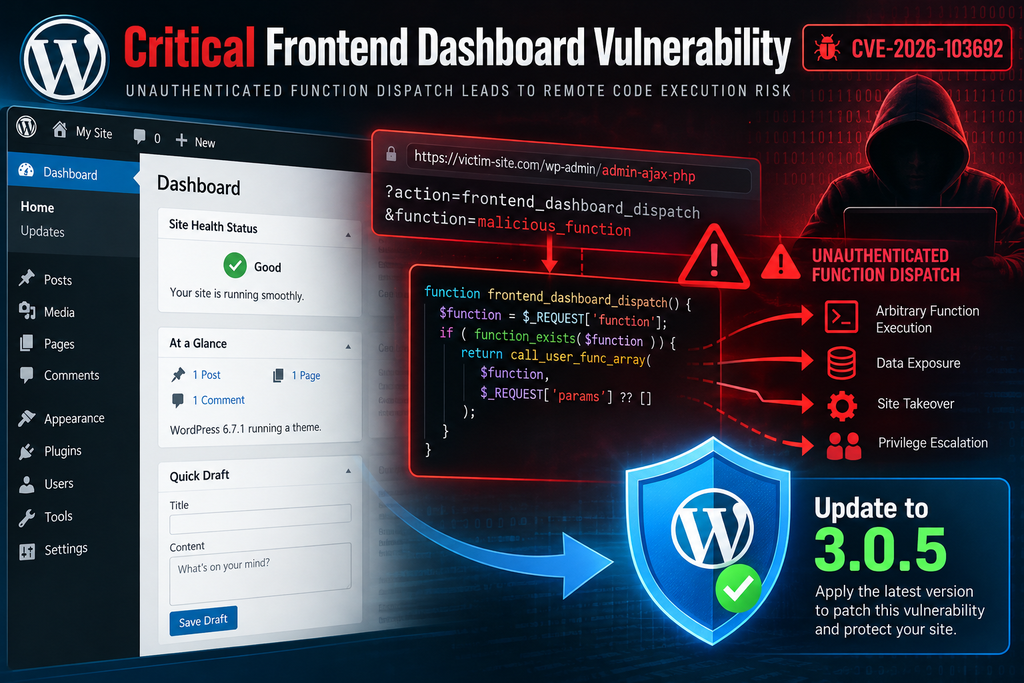
The newly disclosed Frontend Dashboard vulnerability, tracked as CVE-2026-103692, can allow an attacker to take over an existing WordPress account without logging in first. The weakness involves publicly accessible plugin actions that can invoke attacker-selected PHP functions or class methods without appropriate security checks. Administrator accounts are included in the potential impact.
The vulnerability affects Frontend Dashboard versions 3.0.0 through 3.0.4. Version 3.0.5 addresses the reported issue. The advisory was published on October 8, 2026, and the vulnerability carries a critical CVSS 3.1 score of 9.8. Website owners using an affected release should prioritize updating and reviewing privileged accounts. CVE-2026-103692
This guide explains what went wrong, why arbitrary function invocation is dangerous, how to update the plugin, and how to investigate a possible compromise. It also includes practical WordPress dashboard instructions, WP-CLI examples, server-log checks, and a recovery process for administrators who suspect unauthorized access.
What Is CVE-2026-103692
CVE-2026-103692 is a critical privilege-escalation vulnerability affecting the Frontend Dashboard WordPress plugin. The flaw arises because certain actions accessible without authentication do not adequately restrict which PHP functions or class methods may be called. They also lack the authorization and nonce checks described in the security advisory. As a result, attackers may reach sensitive account-related functionality through a route that should never expose those capabilities to anonymous visitors.
The vulnerability is classified under CWE-269: Improper Privilege Management. This classification describes situations where software fails to enforce appropriate restrictions on privileged operations. In this case, the problem is especially serious because a visitor does not need an existing WordPress account to reach the vulnerable functionality. A successful attack can compromise an administrator account, potentially giving the attacker extensive control over the website.
Frontend Dashboard Vulnerability: Key Security Facts
| Security detail | Confirmed information |
|---|---|
| CVE identifier | CVE-2026-103692 |
| Affected plugin | Frontend Dashboard |
| Vulnerable versions | 3.0.0–3.0.4 |
| Fixed version | 3.0.5 |
| Severity | Critical |
| CVSS 3.1 score | 9.8 / 10 |
| Authentication required | No |
| Main weakness | Arbitrary PHP callable dispatch |
| Potential impact | Account takeover, including administrators |
| Publication date | October 8, 2026 |
| CWE classification | CWE-269 |
The CVE record credits security researcher Ryan Fabella with discovering the issue, with WPScan coordinating the disclosure. The published information establishes the possibility of administrator account takeover. However, it does not establish that every affected website has been attacked. A vulnerability’s severity describes potential consequences, not proof that a particular installation has already been compromised. CVE-2026-103692
Why a CVSS Score of 9.8 Matters
A CVSS score of 9.8 represents an exceptionally serious security weakness. The published vector describes a network-accessible vulnerability with low attack complexity, no required privileges, and no required user interaction. In practical terms, an attacker may be able to target an exposed website without convincing an administrator to click a link or provide credentials. That significantly changes how urgently website owners should respond.
The potential impact also covers confidentiality, integrity, and availability. Confidentiality concerns unauthorized access to private information. Integrity concerns unauthorized changes to website content, accounts, and configuration. Availability concerns the possibility of disrupting normal operations. These are potential consequences of privileged account compromise, not a claim that every attack will produce all three outcomes.
Why This Is Not an Ordinary Password Attack
Many WordPress security incidents begin with stolen passwords, phishing messages, or repeated login attempts. CVE-2026-103692 is different. The reported flaw concerns insufficient protection around plugin actions that can call sensitive PHP functionality. The attacker does not necessarily need to discover or guess the administrator’s password through the normal login interface.
For example, an administrator might use a long, randomly generated password and enable two-factor authentication. Those measures remain important, but they cannot replace authorization checks inside a vulnerable plugin. If software exposes an unsafe route to account-changing operations, the attacker may attempt to abuse that route rather than follow the normal login process. This distinction is central to understanding the Frontend Dashboard vulnerability.
Which Frontend Dashboard Versions Are Vulnerable
The published CVE record identifies Frontend Dashboard versions 3.0.0 through 3.0.4 as affected. Version 3.0.5 is identified as the first fixed release. Website administrators should compare the installed plugin version with this range instead of relying only on whether WordPress displays an update notification. Automatic updates may be disabled, delayed, or unable to complete because of filesystem permissions or server configuration.
The record specifically identifies the 3.0.0-to-3.0.5 version interval. It should not be interpreted as evidence that every historical release before 3.0.0 has the same vulnerability. Administrators using an older or modified installation should review its support status separately. The safest supported choice for the reported issue is version 3.0.5 or a newer release that retains the fix.
How to Check the Plugin Version in WordPress
Open your website’s administration area and navigate to Plugins → Installed Plugins. Search for Frontend Dashboard and locate its version number. If the installed version is 3.0.0, 3.0.1, 3.0.2, 3.0.3, or 3.0.4, the website falls within the published vulnerable range. Record the version, the website address, and the time of inspection before making changes.
For example, imagine that a small business website uses Frontend Dashboard 3.0.3 for customer profile management. The owner might assume the plugin is safe because the website appears to work normally. Unfortunately, a functioning interface does not prove that its background actions enforce security correctly. The vulnerable version still requires remediation, even if no errors or suspicious login notifications have appeared.
Checking With WP-CLI
Administrators with SSH access can inspect installed plugins without opening the WordPress dashboard. This is particularly useful when managing several websites or when an administrator suspects that the dashboard itself has been modified. Navigate to the correct WordPress installation directory, then run the following read-only command:
wp plugin list --fields=name,status,version,update,update_version --format=tableLook for the plugin slug frontend-dashboard and compare its installed version with 3.0.5. A site running 3.0.4 requires updating. If the command reports 3.0.5 or a later supported version, the reported vulnerability should be addressed by that release, although other security checks remain necessary.
On a cPanel server, run WP-CLI under the correct website account whenever possible rather than operating as root. This reduces unnecessary privileges and helps prevent ownership problems. For multisite installations, also verify which plugins are network-activated and which sites depend on the affected functionality.
Checking Websites Without Dashboard Access
If you cannot log into WordPress, inspect the installed plugin through your hosting file manager, SFTP connection, or SSH account. The plugin directory is normally located at wp-content/plugins/frontend-dashboard/. Its main plugin PHP file generally contains a version header, although the exact filename should be confirmed from the installation rather than assumed.
Avoid changing plugin files manually simply to make their version numbers appear current. Editing a version header does not install a security fix. If the dashboard is inaccessible or the update mechanism is broken, obtain a verified plugin package from its official distribution source and follow a controlled replacement procedure. Preserve evidence first if you suspect a compromise.
How Unauthenticated Function Dispatch Leads to Account Takeover
To understand the Frontend Dashboard vulnerability, it helps to understand how WordPress plugins process user actions. A plugin may receive a request to update a profile, save a preference, or perform another permitted operation. The server then determines which internal function should handle that request. Secure implementations restrict the available operations and check whether the requester has permission to perform each one.
The reported vulnerability breaks this trust boundary. According to the advisory, exposed actions can call a PHP function or class method chosen through request data without the required authorization protections. This is commonly described as arbitrary function or callable dispatch. The issue is not that PHP functions are inherently unsafe. The danger comes from allowing untrusted requests to influence privileged execution paths without enforcing appropriate restrictions.
Understanding Arbitrary Function Calls
A PHP function performs a defined operation, such as reading data, updating a setting, or processing an account change. A class method works similarly but belongs to an object or class. WordPress plugins routinely use these mechanisms to implement legitimate features. Problems arise when externally supplied data controls which callable is executed and the application does not adequately restrict that choice.
Consider a simplified example unrelated to the plugin’s actual implementation. A customer dashboard offers three approved actions: view a profile, update a display name, and change a notification preference. The server should recognize only those approved operations. If a request can instead influence an unrestricted callable dispatcher, the system may reach operations never intended for public use. That is the architectural weakness behind this class of vulnerability.
How the Authentication Boundary Fails
Authentication answers the question, “Who is making this request?” Authorization answers a different question: “Is this requester allowed to perform this operation?” A secure application must apply both checks where appropriate. A visitor might legitimately access a public registration page, but that does not grant permission to modify another user’s account.
In the vulnerable scenario, publicly accessible actions fail to enforce the necessary restrictions before processing attacker-influenced callable requests. The CVE advisory confirms that this can lead to account takeover, including administrator accounts. It does not publicly identify every underlying action name, callable selector, or account-changing parameter in the summarized record. Those details should not be invented or treated as confirmed attack indicators.
A Simplified Illustration of the Trust Boundary
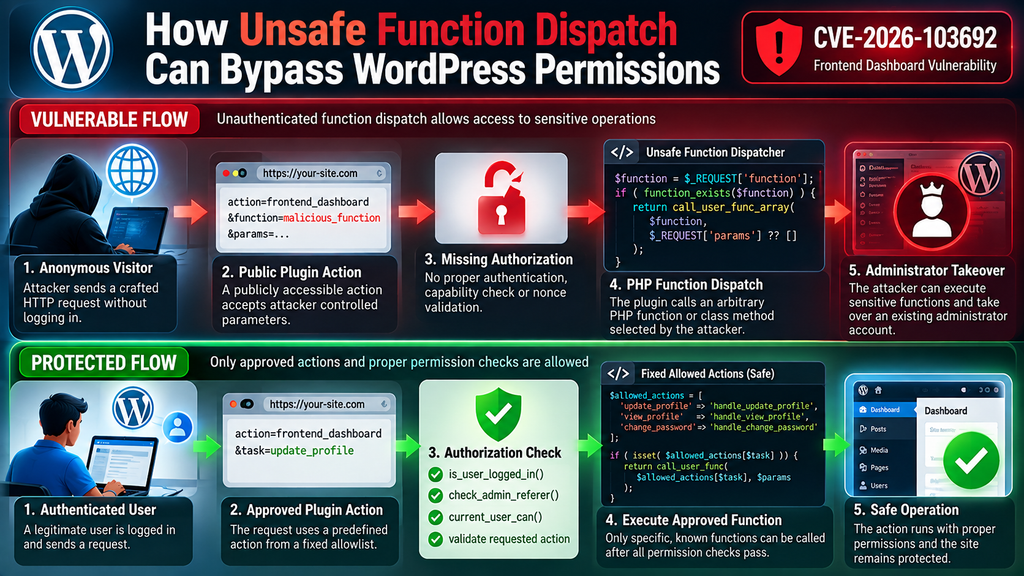
A secure design uses a fixed mapping of approved actions to internal functions. The requester cannot select arbitrary PHP operations. Before executing an action that changes another user’s account, the server also verifies the appropriate WordPress capability. Sensitive operations must validate their inputs and confirm that the authenticated user is permitted to modify the requested resource.
The following example demonstrates the defensive principle rather than reproducing vulnerable Frontend Dashboard code. It uses an explicit allowlist and a capability check before allowing an administrator-only operation:
<?php
function wpzone_safe_account_action( $action ) {
    $allowed_actions = array(
        'view_own_profile',
        'update_own_preferences',
    );

    if ( ! in_array( $action, $allowed_actions, true ) ) {
        return new WP_Error(
            'invalid_action',
            'This action is not allowed.'
        );
    }

    if ( ! is_user_logged_in() ) {
        return new WP_Error(
            'authentication_required',
            'Please sign in first.'
        );
    }

    // Additional capability, ownership, nonce,
    // and input checks belong in each handler.
    return true;
}
This is an educational illustration, not a replacement patch or production-ready account-management handler. It does not implement the full authorization and request-validation requirements of a real plugin. Its purpose is to show why fixed operation lists and explicit permission checks are safer than unrestricted callable selection.
Why a Missing Nonce Is Not the Whole Problem
WordPress nonces help protect certain actions against cross-site request forgery. They are useful security controls, but they are not substitutes for authentication or authorization. A nonce should never be treated as proof that a requester has administrator privileges. A secure handler must independently verify that the user has permission to perform the requested action.
For CVE-2026-103692, the advisory mentions both missing authorization and nonce checks. The central security failure is the ability of an unauthenticated caller to reach powerful operations. Simply adding a nonce without correcting callable restrictions and permission checks would not provide a complete security design. This is why the plugin update matters more than temporary changes to login-page settings.
What an Attacker Could Do After Taking Over an Administrator Account
A successful administrator account takeover can create consequences far beyond a single unauthorized login. Depending on the site’s configuration and available permissions, an attacker could modify content, change settings, create additional privileged users, install malicious plugins, or alter how the website handles visitors. An online store might also expose customer information or operational settings if the compromised account can access them.
These are potential post-compromise actions, not individually confirmed exploitation steps for CVE-2026-103692. The advisory establishes the account-takeover risk. Administrators should therefore investigate related changes rather than assume the incident ends when the vulnerable plugin is updated. A compromised account may remain dangerous if unauthorized sessions, credentials, or malicious modifications survive the patch.
Updating Frontend Dashboard to a Safe Version
Updating Frontend Dashboard is the most important immediate remediation step for CVE-2026-103692. The published advisory identifies version 3.0.5 as the first fixed release. Administrators running versions 3.0.0 through 3.0.4 should update as soon as possible, especially when the website is publicly accessible. However, the update process should also preserve business functionality, protect existing data, and avoid destroying useful evidence if suspicious activity has already occurred.
A plugin update can remove the vulnerable behavior, but it cannot automatically undo account changes or malicious modifications made before installation. For that reason, remediation has two distinct objectives: close the original security weakness and establish whether the website was compromised while it remained exposed. Treating these as separate tasks helps prevent a false sense of security after WordPress displays an update-success message.
Step 1: Create a Complete WordPress Backup
Before updating, create a complete backup of the WordPress database and website files. The database contains users, account metadata, settings, content, and other information that may be important during an investigation. Website files include plugins, themes, uploads, configuration files, and custom modifications. A complete backup gives administrators a recovery option if the update introduces compatibility problems.
For example, a website hosted through cPanel may use its backup interface or an independent backup system. Open the relevant backup tool, create a new backup, and confirm that it includes both the database and filesystem. Store the backup outside the publicly accessible website directory. If a compromise is suspected, preserve a separate evidence copy before making changes, and restrict access to that copy.
Step 2: Update Through the WordPress Dashboard
Sign in to WordPress using a trusted administrator account and navigate to Plugins → Installed Plugins. Locate Frontend Dashboard and check whether an update to version 3.0.5 or a newer supported release is available. Select the update option and wait for WordPress to confirm that installation has finished. Avoid closing the browser or interrupting the process while files are being replaced.
After installation, inspect the version displayed in the plugin list. Confirm that the plugin remains activated if your website requires it. Next, test the frontend dashboard, profile forms, customer account pages, and any customized workflows that depend on the plugin. A successful installation message does not guarantee that every integration continues to behave correctly.
Step 3: Update Frontend Dashboard Using WP-CLI
For administrators comfortable with SSH, WP-CLI provides another update method. Start by navigating to the WordPress installation directory and checking the installed version. The following commands assume that WP-CLI is configured correctly and that you are using the appropriate website account.
# Check the installed plugin version
wp plugin get frontend-dashboard --field=version

# Update Frontend Dashboard
wp plugin update frontend-dashboard

# Verify the installed version
wp plugin get frontend-dashboard --field=version
The final command should report 3.0.5 or a newer supported version that contains the fix. If the update fails, read the error message before trying again. Common causes include filesystem permissions, unavailable update packages, insufficient disk space, and connectivity problems. Do not repeatedly force the update or manually change the plugin’s version metadata.
Step 4: Temporarily Deactivate the Plugin if Updating Is Impossible
If a safe update cannot be installed immediately, consider temporarily deactivating the vulnerable plugin. This can reduce exposure while you investigate the problem, although deactivation may interrupt frontend account management or other website features. Coordinate the change with anyone responsible for customer accounts, subscriptions, or business operations.
Through WordPress, open the installed plugins page and select Deactivate beneath Frontend Dashboard. Alternatively, use WP-CLI:
wp plugin deactivate frontend-dashboardConfirm that the plugin is inactive, then test the website’s public pages and critical functionality. Deactivation is an interim containment measure, not a substitute for a supported fix or a compromise investigation. If malicious modifications already exist, disabling the plugin will not necessarily remove them.
Step 5: Verify the Update and Website Functionality
After remediation, test the website from several perspectives. Open the homepage as an anonymous visitor, sign in with a normal test account, and confirm that expected frontend features work. Then review administrator-only actions using an authorized account. Pay attention to user-profile editing, registration workflows, password recovery, and role-dependent features.
A useful example involves a membership website where customers update their contact information through Frontend Dashboard. The administrator should confirm that members can still edit their own permitted details but cannot access another user’s account information. Avoid performing exploit tests against production websites. If security validation requires specialized testing, use an isolated staging environment and a qualified security professional.
Step 6: Record the Remediation
Maintain a short security record showing when the vulnerability was discovered, which plugin version was installed, when the update occurred, and who performed it. Include the backup identifier and any unusual observations. This information becomes valuable when multiple administrators maintain the same website or when a later investigation needs to reconstruct the timeline.
For example, record that Frontend Dashboard 3.0.4 was found on October 11, 2026, and updated to 3.0.5 that morning. Note whether administrator accounts were audited and whether unexpected sessions appeared. Such records do not prove that the website was never compromised, but they establish a clear remediation history and support future incident response.
Auditing WordPress Administrator Accounts

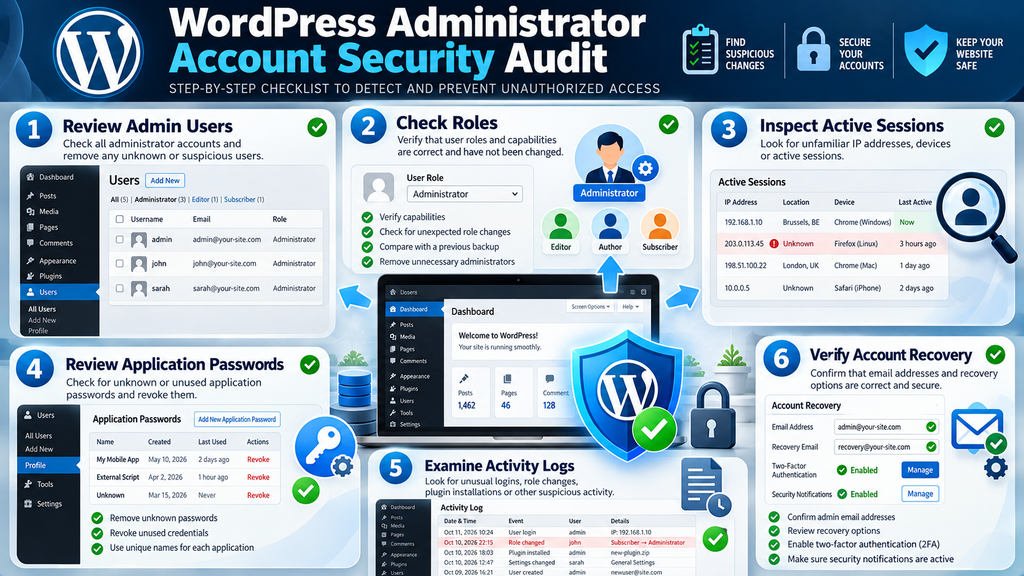
The Frontend Dashboard vulnerability deserves special attention because the published advisory confirms the potential takeover of existing accounts, including administrators. Updating the plugin addresses the reported weakness, but an attacker who previously gained privileged access may have changed credentials, created another administrator, installed a malicious component, or modified sensitive settings. A proper audit must therefore examine both user accounts and their recent activity.
Start with a complete inventory of administrator accounts. Compare the current list against a trusted historical record, such as an earlier database backup or a documented administrator roster. Then review account email addresses, registration dates, capabilities, active sessions, and recent changes. No single indicator proves exploitation, but several unexpected changes occurring together may justify a deeper investigation.
Step 1: Review Every Administrator Account
Open Users → All Users in the WordPress dashboard and filter the list by Administrator. Examine each username and email address. Confirm that every account belongs to a known person or approved service. Pay particular attention to unfamiliar accounts, unexpected email changes, and administrators who should no longer have access.
Imagine a website that normally has two administrators: its owner and a technical maintenance provider. During the audit, a third administrator appears with an unfamiliar email address. This does not automatically prove exploitation of CVE-2026-103692. The account could have been created legitimately. Nevertheless, its origin must be established before the website can be considered trustworthy.
Step 2: List Administrators With WP-CLI
WP-CLI can display privileged accounts in a format suitable for auditing. Run the following command from the correct WordPress installation:
wp user list --role=administrator \
  --fields=ID,user_login,user_email,user_registered,roles \
  --format=table
The command displays account identifiers, usernames, email addresses, registration timestamps, and roles. Compare the output against a known-good backup or administrator list. Record unexpected differences before making changes. If an unfamiliar account appears, preserve the relevant evidence and investigate its origin rather than immediately assuming it is malicious.
Step 3: Check for Unexpected Role Changes
Attackers do not always need to create new accounts. An existing Subscriber, Contributor, or Author account could become more dangerous if its privileges are increased. Review users whose roles changed unexpectedly, especially around the period when the vulnerable plugin was installed. WordPress does not provide a complete historical role-change audit by default, so you may need an activity-logging plugin, database backups, or external logs.
For example, suppose a customer account registered several months ago but now has Administrator privileges. The registration date alone will not reveal when the privilege change occurred. Compare the account’s historical metadata with its current capabilities and consult any available activity records. This distinction matters because an old account can be compromised just as easily as a newly created one.
Step 4: Examine Administrator Sessions
Active sessions can reveal unusual access patterns. Review the sessions associated with each privileged account, including available login timestamps, IP addresses, and user-agent information. WP-CLI provides a session-listing command that can help administrators inspect this information.
wp user session list 1 --format=tableReplace 1 with the actual user ID of the administrator being investigated. The output may include session tokens represented as hashes, login times, expiration times, IP addresses, and browser information. An unfamiliar IP address deserves investigation, but it is not definitive evidence of compromise. Mobile networks, VPNs, corporate proxies, and travel can all change a legitimate user’s apparent location.
Step 5: Review Application Passwords
WordPress application passwords allow supported external applications to authenticate through approved API mechanisms. They are separate from the normal WordPress account password. If an attacker obtained privileged access, reviewing these credentials is important because an unexpected application password could provide another route into the website.
Open the relevant user’s profile and inspect the Application Passwords section, where available. Identify every integration and confirm its business purpose. Revoke credentials that are unknown or no longer required, then replace legitimate credentials if their exposure is suspected. WP-CLI also supports application-password management, although administrators should verify the available commands and their permissions before making changes.
Step 6: Compare Current Users With Historical Backups
Historical database backups can help identify unauthorized account changes. Compare user records, email addresses, role metadata, and registration dates between the current database and a trusted earlier snapshot. Perform comparisons using read-only copies or a separate analysis environment, not by overwriting the production database.
A database backup from before the suspected incident can reveal whether an administrator account was added or changed. However, it may not identify the person responsible. Also remember that WordPress uses user metadata for role assignments, and the exact metadata keys depend on the database table prefix. Avoid running destructive SQL queries against production data during the initial investigation.
Step 7: Review Activity Logs and Hosting Records
A security activity log may record user creation, role changes, plugin installation, settings modifications, and authentication events. Hosting access logs can provide additional context about incoming HTTP requests. Compare these sources to establish a timeline, but remember that many WordPress installations do not retain every account-related event.
For example, a suspicious administrator role change at 02:15 could be compared with web requests around that time. If the website uses Cloudflare or another reverse proxy, check whether logs preserve the real client IP address correctly. A request from an unfamiliar address is not proof of exploitation, and the absence of a suspicious request does not prove safety when logs are incomplete.
Step 8: Check Administrator Email Addresses and Recovery Paths
A compromised account may have had its email address changed. Review the current email address associated with each administrator and compare it with trusted records. Also verify the website’s administration email under Settings → General, along with any security notification destinations configured by plugins or hosting tools.
If a recovery address has changed unexpectedly, investigate it before initiating password resets. Otherwise, recovery messages could be sent to an unauthorized recipient. Confirm ownership of the correct email accounts, secure those mailboxes with strong authentication, and only then proceed with credential recovery.
Responding to a Suspected Compromise
When evidence suggests that an administrator account may have been compromised, the response must go beyond a routine plugin update. The immediate objective is to prevent further unauthorized access while preserving enough information to understand what happened. After containment, administrators can remove unauthorized changes, restore trusted components, rotate credentials, and verify that the website is safe to operate.
The exact response depends on the site’s importance and the evidence available. A personal blog may require a different recovery plan from an online store that processes customer information. However, the underlying principles remain consistent: preserve evidence, contain the incident, identify unauthorized changes, recover from trusted sources, and monitor for recurrence.
Step 1: Preserve Evidence Before Cleaning the Website
If compromise is suspected, collect relevant logs and create a forensic backup before deleting suspicious accounts or files. Preserve the current database, website files, access logs, security-plugin logs, and any available hosting records. Record the time of collection and store the evidence securely. This helps investigators reconstruct events and prevents important information from disappearing during cleanup.
For example, deleting an unfamiliar administrator immediately may remove useful account metadata before it has been examined. A safer approach is to preserve the relevant records, then restrict or revoke access as part of a documented containment process. If active abuse is ongoing, containment takes priority, but evidence collection should occur as early as practical.
Step 2: Contain the Vulnerable Functionality
Install the patched Frontend Dashboard release or temporarily deactivate the affected plugin if updating is impossible. If there is evidence of active compromise, consider placing the website behind maintenance restrictions or temporarily limiting administrative access through the hosting environment. Coordinate these measures carefully because overly broad restrictions can interrupt legitimate services.
For a WooCommerce store, maintenance restrictions may affect orders and customer access. For a membership website, disabling account-management functionality may prevent users from updating their profiles. Explain the temporary interruption to relevant stakeholders and prioritize measures that reduce exposure without causing unnecessary data loss.
Step 3: Invalidate Suspicious Administrator Sessions
If an administrator account may have been taken over, invalidate its active sessions after preserving any session information needed for investigation. WP-CLI supports terminating every active session associated with a selected user.
# Replace 1 with the affected administrator ID
wp user session destroy 1 --all
This forces the affected user to authenticate again. If the entire website’s account integrity is uncertain, administrators can plan a broader session invalidation. Such an action will log out legitimate users, so it should be coordinated with password resets and customer communications when necessary. WordPress documents this session-management functionality in its official WP-CLI reference.
Step 4: Reset Passwords and Rotate Authentication Secrets
Reset passwords for affected administrator accounts and any other users whose credentials may have been exposed. Use unique, randomly generated passwords and enable multifactor authentication where supported. Protect the associated email accounts as well, since password recovery mechanisms can become a secondary entry point.
For a serious compromise, consider rotating the WordPress authentication keys and salts stored in wp-config.php. These secrets help protect WordPress authentication cookies. Changing them can invalidate existing authentication cookies and require users to sign in again. Back up the configuration file, generate fresh secrets through an official trusted method, and replace the existing values carefully. Never publish the generated secrets in tickets, screenshots, or public logs.
Step 5: Investigate Unauthorized Accounts
Identify accounts that cannot be explained by legitimate administration activity. Preserve their relevant details, review their capabilities, and determine whether they were created or modified during the suspected incident. Then revoke unauthorized privileges or remove confirmed malicious accounts using controlled procedures.
Be careful when deleting WordPress users because they may own published posts or other content. The WordPress dashboard provides options for handling content ownership, while WP-CLI supports reassignment during deletion. On multisite installations, user deletion behaves differently and may affect network membership. Always verify the correct scope before removing an account.
Step 6: Inspect Plugins, Themes, and Modified Files
Administrator compromise can allow unauthorized changes to website components. Review recently installed or modified plugins, themes, must-use plugins, and configuration files. Compare them with trusted copies where possible. Unexpected PHP files inside upload directories, unfamiliar scheduled tasks, or modified plugin code deserve additional investigation.
On a server with WP-CLI, the following read-only commands can help verify WordPress core and eligible WordPress.org plugin files:
# Verify WordPress core files
wp core verify-checksums

# Verify eligible WordPress.org plugins
wp plugin verify-checksums --all
Checksum warnings require interpretation. Premium plugins, custom plugins, modified distributions, and components without published checksums may not be verifiable through this method. A successful checksum check also does not prove the entire installation is clean, since malicious files may exist outside the verified paths.
Step 7: Examine Recent PHP File Changes
A filesystem review can help identify files modified during the suspected incident window. For example, an administrator can search for PHP files changed within the last seven days. Run the command from the correct WordPress directory and review the results without automatically deleting anything.
find wp-content -type f -name "*.php" \
  -mtime -7 -print
This command lists recently modified PHP files beneath wp-content. It does not identify malware by itself. Legitimate plugin updates, deployments, cache operations, and administrative changes can produce recent timestamps. Attackers may also manipulate timestamps, so older modification dates do not guarantee safety.
Step 8: Review Web Server and Security Logs
Check the available Apache, Nginx, CDN, WAF, and WordPress activity logs. Focus on unusual requests, unexpected administrator activity, and changes occurring during the period of exposure. The published CVE summary does not provide a confirmed endpoint or complete request signature for this vulnerability, so avoid relying on a single URL pattern as a definitive detection method.
For example, a cluster of unusual POST requests followed by unexplained account changes may justify further investigation. However, normal traffic can also generate POST requests, and legitimate plugins frequently use WordPress AJAX handlers. Correlate timestamps, source information, account activity, and file changes before drawing conclusions.
Step 9: Restore From a Trusted Backup When Necessary
If the investigation reveals extensive unauthorized modifications, restoring from a known-good backup may be safer than attempting to clean individual files. The backup must predate the compromise and should be verified before restoration. Otherwise, the restored installation could contain the same malicious changes or vulnerable plugin version.
Restoration also requires careful data handling. An online store may have received legitimate orders after the backup date, while a community website may have gained new members or comments. Coordinate database recovery to avoid unnecessarily losing valid information. After restoration, install the patched plugin, rotate relevant credentials, and repeat the security checks.
Step 10: Determine Whether Data Was Exposed
Administrator access may provide visibility into sensitive information, depending on the website’s plugins and configuration. Investigate whether customer records, private content, personal data, API credentials, or other protected information could have been accessed. Distinguish between potential access and confirmed disclosure, and document the evidence supporting each conclusion.
If personal data may have been compromised, consult an appropriate privacy or legal professional about notification obligations. For organizations operating under the GDPR, reporting requirements depend on the nature and risk of the personal-data breach. The 72-hour supervisory-authority notification rule applies to qualifying reportable breaches, not automatically to every vulnerability or suspicious event.
Step 11: Monitor the Website After Recovery
A recovered website still requires monitoring. Review privileged account activity, authentication events, unexpected plugin changes, and suspicious requests during the following days and weeks. Confirm that backups continue to run and that restoration procedures remain functional.
For example, an administrator might review privileged users daily during the first week and periodically thereafter. Alerts for new administrator accounts, role changes, plugin installations, and configuration modifications can help identify suspicious activity quickly. Monitoring is especially important when the investigation cannot establish the full duration or scope of the original exposure.
Step 12: Improve Long-Term WordPress Security
Once the immediate incident is resolved, review the site’s broader security practices. Remove unused plugins, keep supported components updated, limit administrator accounts, protect hosting credentials, and maintain independent backups. Consider security activity logging and alerts for privileged changes. WordPress’s official hardening guidance also recommends strong authentication, secure file permissions, and ongoing maintenance.
For websites managed by several people, establish a simple approval process for new administrator accounts and plugin installations. Avoid sharing a single administrator login among multiple staff members. Individual accounts make activity easier to attribute and simplify access revocation when someone leaves an organization.
Practical Frontend Dashboard Security Checklist
The following checklist summarizes the essential actions for website owners responding to CVE-2026-103692. It separates immediate patching from account investigation and longer-term recovery. Completing the list does not guarantee that a website is uncompromised, but it provides a structured starting point for responsible remediation.
Security review progress
0 of 12 completedIdentify the installed Frontend Dashboard versionPreserve a database and filesystem backupUpdate to version 3.0.5 or newerVerify the update and test frontend functionalityReview every WordPress administrator accountInvestigate unexpected role and email changesInspect privileged sessions and application passwordsReview available activity and web server logsCheck files and plugins for unauthorized modificationsRotate affected credentials and invalidate sessionsAssess possible data exposure and notification dutiesEnable ongoing security monitoring.
Reset Copy checklist.
Frequently Asked Questions
1. What is the Frontend Dashboard vulnerability?
The Frontend Dashboard vulnerability, CVE-2026-103692, is a critical WordPress privilege-escalation flaw. It affects plugin actions that can invoke attacker-selected PHP functions or class methods without adequate authorization protections. Successful exploitation may allow an unauthenticated attacker to take over an existing account, including an administrator account.
2. Which Frontend Dashboard versions are vulnerable?
The published CVE record identifies versions 3.0.0 through 3.0.4 as affected. Version 3.0.5 is the first fixed release. Administrators should install version 3.0.5 or a newer supported release that retains the security correction.
3. Can attackers exploit the vulnerability without logging in?
Yes. The security advisory specifically identifies the issue as unauthenticated privilege escalation. This means an attacker does not need to possess a legitimate WordPress account before attempting to abuse the exposed functionality.
4. Does the vulnerability affect administrator accounts?
Yes. The published advisory confirms that successful exploitation can lead to the takeover of arbitrary accounts, including administrators. Because administrator accounts often control plugins, themes, users, and website settings, the potential consequences can be severe.
5. Does updating Frontend Dashboard remove an existing compromise?
No. Updating addresses the reported vulnerable functionality, but it does not automatically reverse unauthorized account changes, remove malicious files, or invalidate every suspicious credential. Administrators should investigate the website separately if exploitation may have occurred.
6. Can two-factor authentication prevent this vulnerability?
Two-factor authentication remains an important security measure, but it cannot replace proper authorization checks in vulnerable plugin code. The reported flaw concerns access to unsafe plugin functionality rather than ordinary password guessing. Administrators should use multifactor authentication alongside timely patching and security monitoring.
7. How can I tell whether my WordPress administrator account was compromised?
Review administrator accounts, email addresses, user roles, active sessions, application passwords, and available activity logs. Compare current records with trusted backups. Unexpected changes may indicate compromise, but no single indicator is conclusive. A qualified investigation may be necessary.
8. Should I delete Frontend Dashboard immediately?
If you use an affected version, updating to the fixed release is the preferred solution. Temporary deactivation may be appropriate when updating is impossible, but it can interrupt website functionality. Permanent removal is reasonable if the plugin is no longer needed, provided its removal does not damage required workflows.
9. Is there evidence that every vulnerable website has been attacked?
No. A critical vulnerability establishes a serious potential security risk, not proof that every affected installation has been compromised. The published record confirms the vulnerability and its possible impact. Individual websites require their own evidence-based investigation to determine whether exploitation occurred.
10. What should I do first if I suspect administrator takeover?
Preserve relevant evidence, contain the vulnerable functionality, secure administrator access, and investigate suspicious accounts and sessions. If the website handles customer information or important business operations, involve your hosting provider or a qualified incident-response professional promptly.
Protecting Your WordPress Website Beyond the Patch
The Frontend Dashboard vulnerability demonstrates why WordPress security depends on more than strong passwords and a protected login page. A plugin that exposes privileged functionality without proper authorization can undermine otherwise sensible security precautions. CVE-2026-103692 is particularly concerning because the reported weakness is accessible without authentication and can lead to administrator account takeover.
The immediate priority is clear: identify affected installations, update Frontend Dashboard to version 3.0.5 or newer, and verify that the website continues to operate correctly. If the plugin was vulnerable while publicly accessible, administrators should also review privileged accounts, sessions, application credentials, activity logs, and potentially modified files. An update fixes the reported weakness, but it does not establish whether an earlier compromise occurred.
Long-term protection comes from consistent maintenance, limited privileges, reliable backups, meaningful logging, and a practical incident-response plan. WordPress websites can remain dependable platforms when administrators treat security as an ongoing responsibility rather than a task performed only after a critical vulnerability becomes public.
Also read: Critical CF7 Vulnerability
⚠️ Disclaimer and Source Hygiene
this article is provided for educational and defensive cybersecurity purposes. It is based on the published CVE record, WPScan-coordinated vulnerability information, WordPress documentation, and supporting security references available as of October 11, 2026. Security advisories may change as researchers and maintainers publish additional technical details.
The article distinguishes confirmed vulnerability characteristics from illustrative examples and general post-compromise risks. Its PHP example demonstrates a defensive design principle and is not an official Frontend Dashboard patch. The investigation commands are intended for authorized website administrators. Before modifying a production environment, preserve backups and consult a qualified WordPress developer, cybersecurity professional, hosting provider, or legal adviser when appropriate.
📚 Sources and References
Primary Security Sources
1. CVE Program – CVE-2026-103692
Official vulnerability record documenting the affected versions, missing security checks, potential account takeover, and researcher attribution. View the official CVE record.
2. WPScan – Frontend Dashboard Vulnerability
The upstream security advisory referenced by the CVE record, covering the vulnerability identified in Frontend Dashboard. Read the WPScan vulnerability advisory.
3. WordPress Developer Documentation – Hardening WordPress
Official guidance on strengthening WordPress installations, protecting credentials, managing plugins, and improving website security. Read the WordPress hardening guide.
4. WordPress WP-CLI Documentation – User Sessions
Official command references explaining how to inspect and invalidate WordPress user sessions during an authorized security investigation. Read WP-CLI session documentation.
🕊️ Secondary Sources and Testimonials
5. OpenCVE – CVE-2026-103692
A vulnerability-tracking reference providing CVE metadata, affected-version information, and security classifications. Review the OpenCVE vulnerability record.
6. Fused – Frontend Dashboard Security Advisory
An additional security reference summarizing the vulnerability, affected versions, fixed release, and defensive remediation principles. Read the Frontend Dashboard security analysis.
Researcher and community attribution: The CVE record credits Ryan Fabella as the vulnerability finder and WPScan as coordinator. No independently verified administrator testimonials or confirmed victim case studies were used in this article. This avoids presenting hypothetical incidents as documented real-world attacks.
Sign in with a Subscriber account to vote.