
Table of Contents
Site Security & Redirects gives WordPress administrators a clean way to manage maintenance mode, disable XML-RPC, and enforce HTTPS. Version 1.2.0 also provides responsive dashboard controls, WordPress and PHP version information, AJAX-powered settings, and practical safeguards without turning everyday site management into a complicated security project.
Meet Site Security & Redirects for WordPress
Managing a WordPress website often means installing a separate solution for every small administrative task. One plugin handles maintenance mode, another changes redirect behavior, while another disables an interface you no longer use. That approach can work, but it can also leave a website with more plugins, settings pages, and dependencies than necessary. Site Security & Redirects takes a deliberately smaller approach. Version 1.2.0 brings several useful controls together in one straightforward WordPress administration interface.
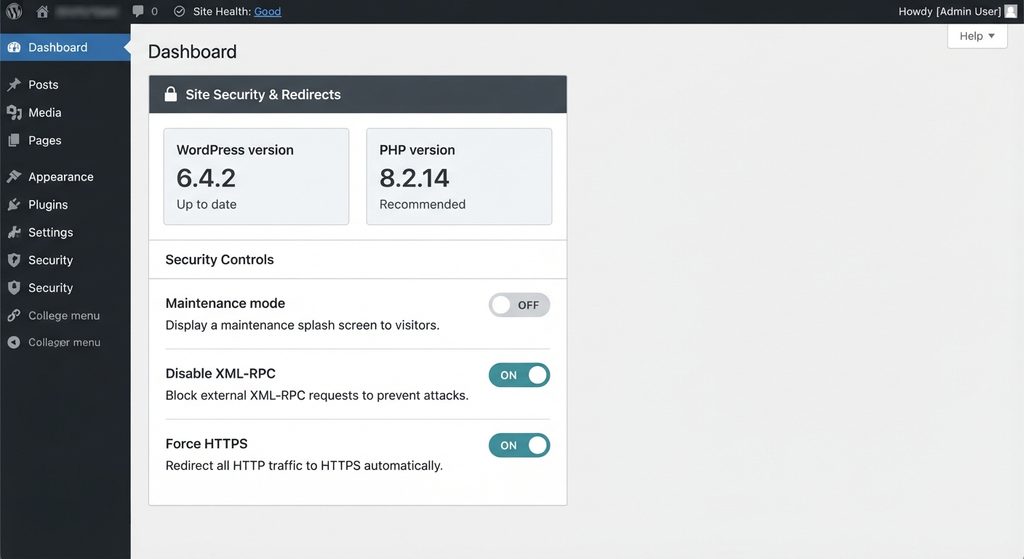
The plugin currently focuses on three practical functions: Maintenance Mode, Disable XML-RPC, and Force HTTPS. It also displays the currently installed WordPress and PHP versions directly inside its interface. Administrators can access these controls through a dedicated Security & Redirects page or through the WordPress Dashboard widget. The goal is not to replace a complete security platform. Instead, the plugin provides convenient controls for several common WordPress administration tasks.
That distinction matters. WordPress security rarely comes from one switch or one plugin. Secure hosting, current software, strong authentication, sensible permissions, backups, monitoring, and careful administration still matter. Site Security & Redirects should therefore be viewed as a focused administration utility. It makes a few important settings easier to reach while keeping the interface understandable for users who do not want to navigate through several different tools.
A Focused Interface Instead of Feature Overload
The plugin uses a card-based interface that fits naturally into the modern WordPress administration area. Each setting has its own switch and an ON or OFF indicator, making the current state easy to understand. Changes are saved through WordPress AJAX, so administrators can toggle a supported feature without submitting a traditional settings form or reloading the entire page after every change.
Version 1.2.0 also improves how the plugin behaves inside the standard WordPress Dashboard. Dashboard widgets can become surprisingly narrow when several columns are enabled. The interface now adapts to the available width, keeping the WordPress and PHP information cards inside the widget instead of allowing them to overflow. This responsive behavior may sound like a cosmetic improvement, but a predictable administration interface is especially important when settings affect site availability or request handling.
The plugin remains intentionally compact. There are no complicated security scores, oversized configuration wizards, or dozens of options that require research before they can be used. An administrator sees what each control does, checks its current state, and decides whether that feature is appropriate for the website.
What Site Security & Redirects 1.2.0 Includes
Site Security & Redirects 1.2.0 concentrates on a small set of features that have clear administrative purposes. The dedicated page is available from the WordPress menu as Security & Redirects. At the top, administrators can see their WordPress and PHP versions. Below those cards, the controls are divided into Security and Redirects sections. This structure keeps unrelated settings from becoming mixed together and makes the plugin easy to scan.
The Security section currently contains Maintenance Mode and Disable XML-RPC. The Redirects section contains Force HTTPS. Each feature stores its own state as a WordPress option. That means administrators can enable one function without being required to activate the others. For example, a site can use the maintenance page while leaving XML-RPC untouched. Likewise, an administrator can disable XML-RPC without enabling the plugin’s HTTPS redirect.
This modular behavior is useful because WordPress websites have different requirements. A small publishing site may have no reason to accept XML-RPC requests, while another installation could depend on a workflow that uses the interface. HTTPS behavior can also depend on the hosting environment, proxy configuration, and existing server rules. The plugin therefore provides individual controls rather than assuming one configuration is suitable for every WordPress installation.
WordPress and PHP Version Information
The two information cards at the top of the interface show the active WordPress version and the PHP version reported by the server. They are informational rather than update mechanisms. The plugin does not automatically change WordPress or PHP from these cards. Their purpose is to give administrators immediate context before changing other settings or investigating a website problem.
Version visibility can be surprisingly useful during routine maintenance. An administrator might open the plugin while checking a redirect issue and immediately notice that the server is using a different PHP branch than expected. Likewise, knowing the WordPress version can help when checking compatibility documentation for a theme or plugin. It reduces the need to navigate to another administration screen simply to confirm basic environment information.
However, the version cards should not be treated as a complete compatibility or security assessment. A current WordPress version does not guarantee that every installed plugin is current. Likewise, the PHP version alone says nothing about extensions, configuration, operating system patches, or hosting security. The cards provide useful context, while deeper maintenance still requires broader checks.
Maintenance Mode Without Locking Out Administrators
Maintenance pages are useful when visitors should temporarily avoid the public website. You might be changing a theme, repairing a layout, moving content, performing a migration, or completing another task that should not be visible while work is underway. Site Security & Redirects includes a built-in maintenance mode that can be switched on from either its main administration page or its Dashboard interface.
When enabled, the plugin intercepts normal front-end requests and displays a simple maintenance page. The response uses the HTTP 503 Service Unavailable status rather than pretending that the temporary page is ordinary website content. It also sends no-cache headers and a Retry-After value. This approach gives browsers, crawlers, and other clients a clearer indication that the interruption is temporary.
The default visitor message is intentionally simple. Visitors see that the website is undergoing scheduled maintenance and are asked to check again shortly. Because the page is generated directly by the plugin, it does not depend on the site’s regular theme template. That can be particularly useful when the theme itself is being changed or repaired.
Administrator Access During Maintenance
One of the most important requirements for a maintenance feature is avoiding an accidental administrator lockout. Site Security & Redirects allows the WordPress administration area to remain available. A logged-in user with the manage_options capability can also continue accessing the site while maintenance mode is active. This lets an administrator inspect the front end and continue working without exposing the normal pages to ordinary visitors.
The plugin also avoids applying the maintenance response to several WordPress processes that need special handling. Administrative requests are excluded, as are AJAX and cron processing. REST and WP-CLI contexts are also excluded. The WordPress login request remains reachable, which is particularly important if an administrator enables maintenance mode and later needs to start a new authenticated session.
These exclusions make the feature more practical, but administrators should still test maintenance mode after enabling it. Open the website in a private browser window where you are not logged in. Confirm that the maintenance page appears there, then verify that your authenticated administration session still works. This quick test is safer than assuming every hosting configuration behaves identically.
Why a 503 Response Is Better Than a Normal Page
A maintenance page should communicate temporary unavailability rather than silently replace normal content with an HTTP 200 response. Site Security & Redirects uses a 503 status for this reason. A 503 response tells a client that the service is temporarily unavailable. The plugin also sends a Retry-After header with a one-hour value, providing additional information about when another request may be appropriate.
That does not mean maintenance mode can be left active indefinitely without consequences. Search engines and monitoring services may interpret long periods of unavailability differently from a short maintenance window. Administrators should enable the feature when it is actually needed and disable it once normal service has returned.
For longer infrastructure work, a hosting-level maintenance strategy may be more appropriate. The built-in feature is best understood as a convenient WordPress-level tool for planned work where the WordPress application remains operational enough to serve the temporary response.
Disable XML-RPC When Your Website Does Not Need It
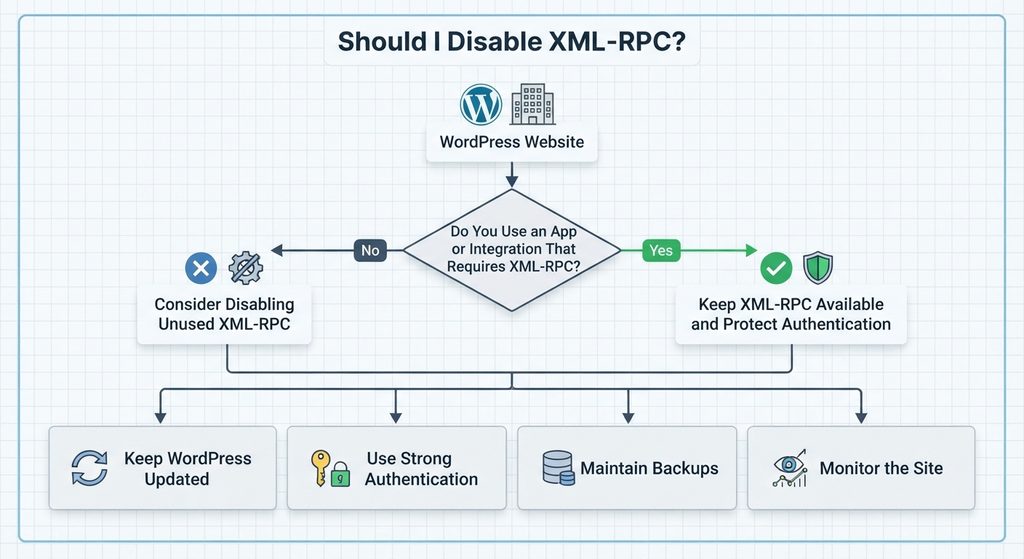
XML-RPC is a long-standing WordPress interface that allows external clients to communicate with a WordPress installation. Some applications, integrations, publishing tools, and legacy workflows may depend on it. Other websites never use it. Site Security & Redirects provides a switch for administrators who have determined that their installation does not require XML-RPC access.
When the Disable XML-RPC option is active, the plugin uses WordPress’s xmlrpc_enabled filter to disable XML-RPC functionality. It also removes the X-Pingback response header when appropriate. In addition, requests targeting xmlrpc.php are blocked with an HTTP 403 response and a short text message stating that XML-RPC is disabled on the site.
Using several layers makes the state more explicit than simply hiding a reference to XML-RPC. The feature is still designed around WordPress itself, however, rather than trying to act as a network firewall. Requests continue to reach the web server and WordPress environment before the plugin can make its application-level decision.
Disabling XML-RPC Is Not Required on Every Website
The presence of an XML-RPC endpoint does not automatically mean a WordPress installation is compromised or insecure. Whether the interface should remain enabled depends on how the site is used. Administrators should first determine whether an application, remote publishing workflow, or other integration depends on it. Turning off a required interface can break legitimate functionality.
For a conventional website managed entirely through wp-admin, disabling unused functionality may simplify the site’s exposed application surface. Still, it should be one part of a larger security approach. Strong passwords, multi-factor authentication where appropriate, timely updates, limited administrator accounts, secure hosting, backups, and monitoring generally matter far more than treating one endpoint as a complete security solution.
After enabling the setting, test the workflows that matter to your site. Check remote applications, integrations, publishing systems, and anything else that communicates with WordPress externally. If something stops working, determine whether it genuinely depends on XML-RPC before deciding whether the setting should remain enabled.
Force HTTPS for Normal Front-End Requests

HTTPS protects information in transit between a visitor and the website when TLS is configured correctly. Modern WordPress installations should normally operate over HTTPS, especially when they include logins, forms, e-commerce features, or other interactions. Site Security & Redirects includes a Force HTTPS control that redirects qualifying front-end HTTP requests to the corresponding HTTPS URL.
When the feature is enabled and the plugin determines that a request is not secure, it builds an HTTPS version of the requested address and issues a permanent 301 redirect. The requested path is retained, so a visitor requesting an HTTP article URL is directed to the HTTPS version of that same location rather than being sent only to the homepage.
The feature also checks several common indicators before deciding that a request is insecure. In addition to WordPress’s SSL detection, the plugin examines the standard HTTPS server value and common forwarded-protocol indicators. This is relevant because WordPress may operate behind a reverse proxy or another infrastructure layer that terminates TLS before the request reaches PHP.
Why HTTPS Must Already Work Before Enabling the Redirect
Force HTTPS does not create an SSL/TLS certificate, install one on the server, or repair a broken HTTPS configuration. It only redirects eligible requests. Therefore, the HTTPS version of the website should already load successfully before the setting is enabled. Otherwise, visitors could be redirected from a working HTTP address to an HTTPS endpoint that cannot establish a valid connection.
Administrators should first open the website manually with HTTPS. Check the certificate, important pages, images, stylesheets, scripts, forms, and WordPress administration area. You should also confirm the WordPress Address and Site Address configuration where relevant. Existing web-server or CDN redirects deserve attention as well because duplicating redirect logic can make troubleshooting unnecessarily difficult.
Once HTTPS works correctly, enable the plugin setting and test an HTTP URL. The browser should arrive at its HTTPS counterpart. It is also worth testing several deeper URLs instead of checking only the homepage. This confirms that paths and query information continue to behave as expected in the actual hosting environment.
Requests the Plugin Intentionally Avoids Redirecting
Not every WordPress request should be processed like an ordinary public page. Site Security & Redirects skips its HTTPS redirect routine for the WordPress administration area and several special execution contexts. AJAX, WordPress cron, REST requests, and WP-CLI operations are excluded by the current implementation.
These safeguards reduce the risk of interfering with internal or administrative processes. They also reinforce an important point: application-level HTTPS redirection is only one possible layer. Many production websites enforce HTTPS earlier at the web server, load balancer, reverse proxy, CDN, or hosting platform. Earlier enforcement can be more efficient because the request does not need to reach WordPress before the redirect happens.
The plugin’s option is useful when a WordPress-level control fits the site’s architecture. Administrators with an existing server-level HTTPS policy do not necessarily need to duplicate that policy through the plugin.
A Responsive WordPress Dashboard Widget
Version 1.2.0 gives particular attention to the plugin’s Dashboard experience. WordPress lets administrators arrange Dashboard widgets in different layouts. A widget that looks spacious in a wide column may become much narrower after it is moved. Fixed-width interface components can then overflow their container, overlap nearby widgets, or force awkward horizontal spacing.
The Site Security & Redirects Dashboard interface uses responsive rules so its components stay within the available metabox width. WordPress and PHP version cards can adapt rather than demanding a fixed minimum layout. The setting rows also use flexible columns, allowing descriptions and status controls to shrink or reposition when the available width becomes limited.
This is more than a visual refinement. A control panel should remain understandable regardless of where WordPress places it. Administrators should not have to enlarge a browser window or reorganize their entire Dashboard just to reach a security switch. Responsive administration design is especially valuable for laptops and other displays where the WordPress sidebar already consumes part of the available width.
Main Page and Dashboard Serve Different Purposes
The dedicated Security & Redirects page remains the more spacious environment for managing the plugin. It can use the full WordPress content area and therefore has room for wider cards and descriptions. The Dashboard widget provides quicker access when an administrator is already on the WordPress home screen.
Both interfaces control the same underlying settings. Enabling Maintenance Mode in the Dashboard therefore changes the same option shown on the dedicated page. There is no separate Dashboard configuration that can drift away from the main plugin state. The ON and OFF indicators help reinforce that relationship by showing the current value beside each switch.
For websites maintained frequently, this can save a small amount of time every day. More importantly, it makes important operational states visible. An administrator opening the Dashboard can quickly notice that maintenance mode is still active instead of discovering it later through a visitor report.
How Settings Are Saved Securely in WordPress
A polished switch is useful only when the code behind it handles changes carefully. Site Security & Redirects uses an authenticated WordPress AJAX action to save supported options. When an administrator changes a switch, the plugin sends the requested option and state to WordPress, where the server validates the request before updating the corresponding setting.
The server checks whether the current user has the manage_options capability. This capability is normally associated with administrators on a standard WordPress installation. The plugin also verifies a WordPress nonce for the AJAX action. These checks help ensure that a settings request originates from an authorized administration context rather than accepting arbitrary unauthenticated changes.
Input is normalized before storage, and the plugin uses an explicit allowlist of its three recognized option keys. A submitted value cannot simply instruct the handler to update any arbitrary WordPress option. The accepted states are normalized to 1 or 0, which keeps the stored configuration straightforward.
Why Capability Checks and Nonces Both Matter
A capability check answers an important authorization question: is the current WordPress user permitted to perform this administrative action? A nonce addresses a different part of request validation by helping protect the action against unwanted cross-site requests. Using both is a standard defensive pattern for sensitive WordPress administration operations.
Neither mechanism should be described as magic protection. WordPress security still depends on secure administrator accounts, safe extensions, current software, proper session handling, and the integrity of the wider site. If an attacker already controls an administrator session, a settings nonce cannot restore the account’s security.
For normal operation, however, capability checks, nonce verification, input sanitization, and option allowlisting provide a sensible foundation for a small settings plugin. They also make the code easier to review because the permitted actions remain narrowly defined.
Installing Site Security & Redirects 1.2.0
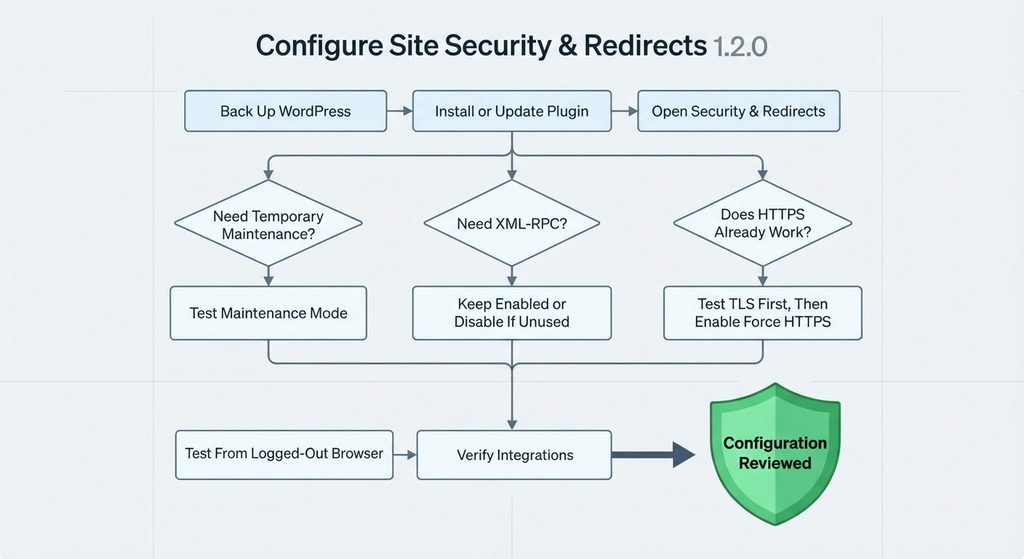
Installation follows the familiar WordPress plugin process. Start by creating a recent backup of the website, particularly if you are replacing an earlier plugin version. In WordPress, open Plugins → Add New Plugin, choose the upload option, select the Site Security & Redirects ZIP package, and proceed with installation. If WordPress recognizes an existing copy, use the replacement workflow only after confirming that the package is the version you intend to install.
After activation, a Security & Redirects item appears in the WordPress administration menu. Open it before enabling anything. Confirm that the WordPress and PHP version cards render correctly, then review all three controls. The settings are disabled by default on a fresh activation, so the plugin does not immediately place the site in maintenance mode, block XML-RPC, or force HTTPS simply because it has been installed.
That conservative default is important. Redirects and communication interfaces can depend on the hosting environment and external integrations. An administrator should make those decisions intentionally rather than having a plugin silently change request behavior during activation.
Recommended First Configuration
Begin with the feature that has the clearest purpose for your website. If you need to perform visible maintenance, test Maintenance Mode first. Open an incognito browser after enabling it and confirm that visitors receive the temporary page while your administrator session continues to work.
Next, consider XML-RPC. Do not disable it solely because the option exists. Check whether any application or integration needs it. If your site has no dependency on XML-RPC, enable the setting and test normal publishing and external services. Keep a note of the change so it can be reversed quickly if an overlooked integration stops communicating.
Treat Force HTTPS with similar care. Visit the HTTPS version manually before activating the redirect. Only enable the setting after confirming that the site’s TLS certificate and HTTPS pages work correctly. Then test both the homepage and several internal HTTP URLs.
Updating From an Earlier Version to 1.2.0
Administrators upgrading an existing installation can replace the previous plugin package with version 1.2.0. The plugin stores the states of Maintenance Mode, Disable XML-RPC, and Force HTTPS as WordPress options. Replacing the plugin files therefore does not inherently require recreating those settings, provided the existing database remains intact.
As with any plugin update that can affect request handling, a backup is sensible before replacement. After updating, reload the WordPress Dashboard and the dedicated Security & Redirects page. Verify that the displayed version and interface are correct. Pay particular attention to the Dashboard widget because version 1.2.0 includes responsive layout improvements intended to keep its content inside the WordPress metabox.
If browser caching or another administrative caching layer preserves older styles, a hard refresh may be useful. The plugin versions its administration assets, which helps browsers recognize updated CSS and JavaScript, but caches outside WordPress can sometimes behave differently.
Test Functionality After the Upgrade
Do not stop after confirming that the interface looks correct. Check the state of each switch and compare it with the behavior you expect. If maintenance mode is enabled, verify it from a logged-out session. If XML-RPC is disabled, confirm that required integrations still work. If Force HTTPS is active, test an HTTP front-end request and verify the destination.
This short post-update check can reveal configuration-specific issues quickly. WordPress installations vary widely, and a plugin may operate alongside caching systems, reverse proxies, security extensions, custom MU plugins, server redirects, and hosting-level controls. A setting that behaves perfectly on one installation can overlap with another layer on a different site.
The best approach is therefore simple: update, verify the interface, test the relevant behavior, and keep a rollback path available.
Practical Uses for Different WordPress Websites
A personal blog can benefit from the plugin without needing a complex security configuration. The owner might use Maintenance Mode during a theme redesign, disable XML-RPC because no remote publishing tools are connected, and use Force HTTPS only when the hosting environment does not already enforce it. The version cards provide quick environment information when troubleshooting compatibility.
A business website has different priorities. Maintenance windows should be short because customers may depend on contact pages, opening hours, or service information. The administrator can enable the temporary page during a controlled change and then immediately disable it after testing. Before blocking XML-RPC, the business should check whether an external publishing, automation, or management service relies on that endpoint.
Development and staging websites may use Maintenance Mode more frequently, although access controls at the hosting or server level can be more appropriate when a staging environment must remain genuinely private. A public maintenance page does not turn a staging site into a protected environment. Sensitive development systems should use proper authentication or network restrictions rather than relying on maintenance mode as a privacy mechanism.
When the Plugin Should Complement Other Tools
Site Security & Redirects is intentionally not a malware scanner, firewall, backup system, vulnerability database, two-factor authentication provider, or activity logging platform. Those jobs require different functionality. Presenting a small plugin as a complete WordPress security suite would create unrealistic expectations and could encourage administrators to neglect more important protections.
Instead, the plugin fits beside existing WordPress maintenance practices. A website might use automated backups from its hosting provider, multi-factor authentication from a dedicated authentication solution, server-level malware monitoring, and Site Security & Redirects for the three controls covered here.
This narrower role also makes troubleshooting easier. If a redirect problem begins after Force HTTPS is enabled, the relevant setting is immediately obvious. If remote publishing stops after XML-RPC is disabled, administrators know which control to investigate. Clear boundaries are often more useful than a single plugin trying to modify every part of WordPress.
Important Limitations to Understand
The Force HTTPS feature is a redirect mechanism, not a certificate manager. It cannot obtain or renew TLS certificates. It cannot guarantee that every resource on a page uses HTTPS, and it does not replace proper configuration of WordPress URLs, web-server rules, proxies, or CDNs. If a hosting platform already performs HTTPS redirection correctly, adding another redirect layer may be unnecessary.
Similarly, Disable XML-RPC should not be described as a universal security requirement. XML-RPC has legitimate uses. The plugin gives administrators a way to block it when it is not required, but the decision should follow an inventory of site integrations. Blocking one interface also does not eliminate the need to protect normal WordPress authentication.
Maintenance Mode has its own boundaries. It provides a temporary visitor-facing response while allowing administrative work to continue. It does not function as a private staging-site access system. Anyone who needs strong access restrictions should implement authentication or network-level controls designed specifically for that purpose.
WordPress Security Still Requires the Basics
The strongest improvement most administrators can make is often less exciting than installing another security switch: keep WordPress, themes, and plugins current. Remove extensions that are no longer needed. Use unique passwords and appropriate multi-factor authentication. Limit administrator privileges to people who genuinely need them. Maintain tested backups and review the website after significant changes.
Hosting security matters as well. Supported PHP versions, current server software, secure file permissions, controlled database access, TLS configuration, and monitoring all operate outside the scope of this plugin. A WordPress plugin cannot compensate for a fundamentally insecure server environment.
Site Security & Redirects works best when these foundations already exist. It provides convenient controls for specific tasks and makes their current state visible. That is valuable, but its usefulness comes from fitting into a responsible maintenance process rather than replacing one.
Troubleshooting Site Security & Redirects
If the interface does not appear after activation, first verify that the plugin is active and that the current account has administrative permissions. The menu page requires the manage_options capability. If the page appears but its design looks unusual, reload the administration area and clear any browser or administrative asset cache that may be serving an older stylesheet.
When a switch does not save, check the browser for connectivity problems and confirm that WordPress AJAX requests are not being blocked by another security rule. The plugin expects an authenticated administrator request with a valid nonce. A very aggressive firewall or custom administration restriction could interfere with that process.
For redirect problems, temporarily disable Force HTTPS from the plugin and inspect other redirect layers. Hosting panels, .htaccess, NGINX rules, reverse proxies, CDN configurations, WordPress constants, and other plugins can all influence HTTPS behavior. Troubleshooting becomes easier when each layer is tested separately.
Recovering From an Incorrect Setting
If an administrator enables a setting and discovers an unexpected compatibility issue, the first response should be to reverse the relevant setting when the administration area remains available. Maintenance Mode deliberately keeps wp-admin and the login page reachable, which should make normal recovery straightforward.
If an unrelated server or WordPress problem prevents access to the administration area, use the recovery tools appropriate to your hosting environment. That may include a hosting file manager, SFTP, SSH, WP-CLI, database administration tools, or a recent backup. Anyone uncomfortable with these methods should contact the hosting provider or an experienced WordPress professional rather than making uncontrolled database changes.
The same principle applies to HTTPS troubleshooting. Redirect loops can involve several layers, so disabling random settings across the entire website can make diagnosis harder. Identify which component performs each redirect and simplify the chain until the expected behavior returns.
Frequently Asked Questions
What is Site Security & Redirects?
Site Security & Redirects is a focused WordPress administration plugin that provides controls for Maintenance Mode, disabling XML-RPC, and forcing qualifying front-end HTTP requests to HTTPS. Version 1.2.0 also displays WordPress and PHP version information and includes a responsive Dashboard widget.
Is Site Security & Redirects a complete security plugin?
No. It does not replace a firewall, malware scanner, backup solution, vulnerability monitor, authentication system, or secure hosting environment. Its purpose is narrower: it makes several useful WordPress settings available from a simple administration interface.
Will Maintenance Mode block me from WordPress?
The plugin is designed to keep the administration area accessible. Logged-in users with administrative capabilities can continue working, and the WordPress login page remains available. You should still test the feature from both an authenticated browser and a private logged-out window.
Does Maintenance Mode return HTTP 503?
Yes. The current implementation sends a 503 Service Unavailable response, no-cache headers, and a Retry-After header. This communicates that the public interruption is temporary rather than presenting the maintenance page as ordinary website content.
Should every WordPress website disable XML-RPC?
No. Some applications and integrations may require XML-RPC. Check your site’s dependencies first. If you do not use the interface, the plugin gives you a convenient way to disable it. Test external services after making the change.
Does Force HTTPS install an SSL certificate?
No. HTTPS must already function correctly on the server. The feature redirects qualifying HTTP requests to HTTPS; it does not issue, install, configure, or renew a TLS certificate.
What happens if my hosting already forces HTTPS?
You may not need the plugin’s Force HTTPS option. Duplicating redirect rules at several layers can complicate troubleshooting. If your hosting platform or web server already handles HTTPS correctly, leaving the plugin’s additional redirect disabled can be reasonable.
How are plugin settings saved?
The interface uses an authenticated WordPress AJAX action. The server checks the user’s manage_options capability, verifies a WordPress nonce, validates the requested setting against an allowlist, and normalizes the saved value.
Does version 1.2.0 work inside the WordPress Dashboard?
Yes. The plugin provides a Dashboard widget containing environment information and the main settings. Version 1.2.0 includes responsive styling so the interface can adapt to narrower WordPress Dashboard columns without the information cards overflowing their container.
Will updating to version 1.2.0 erase my settings?
The plugin stores its feature states as WordPress options rather than relying on values inside the plugin files. A normal file replacement should therefore preserve those options while the database remains intact. Creating a backup before any plugin update is still recommended.
A Small Plugin With a Clear Job
WordPress administration does not always need another enormous settings panel. Sometimes a focused tool is more useful. Site Security & Redirects 1.2.0 provides three clearly defined controls while keeping basic WordPress and PHP environment information within easy reach. Maintenance Mode offers a temporary 503 page, XML-RPC can be disabled when it is genuinely unused, and Force HTTPS provides an application-level redirect when that approach suits the site’s infrastructure.
Version 1.2.0 also improves the everyday experience by making the Dashboard interface responsive. That refinement supports the larger philosophy behind the plugin: important controls should remain visible, understandable, and predictable. Administrators can manage the same settings from the dedicated plugin page or the Dashboard without navigating through an oversized configuration system.
The most important practice remains thoughtful configuration. Test HTTPS before forcing it. Confirm XML-RPC dependencies before disabling them. Use Maintenance Mode only for temporary work, and verify the website from a logged-out browser afterward. Combined with updates, secure authentication, backups, monitoring, and reliable hosting, these simple controls can become useful pieces of a broader WordPress maintenance routine.
⚠️ Disclaimer and Source Hygiene
This article describes the functionality of Site Security & Redirects version 1.2.0 based on a review of the plugin’s current implementation. Features and behavior may change in future releases. WordPress installations, hosting platforms, reverse proxies, CDNs, and server configurations differ, so administrators should test changes on their own environment and maintain a current backup before modifying request or security behavior.
Security-related features should not be interpreted as a guarantee that a website is secure. For business-critical, high-traffic, membership, e-commerce, or otherwise sensitive WordPress installations, consider consulting your hosting provider, a qualified WordPress developer, or a security professional. General WordPress and HTTP concepts should also be cross-checked against current authoritative documentation when configuring production infrastructure.
🔔 For more tutorials like this, consider subscribing to our blog.
📩 Do you have questions or suggestions? Leave a comment or contact us!
🏷️ Tags: Site Security & Redirects, WordPress security plugin, WordPress maintenance mode, disable XML-RPC, Force HTTPS WordPress, WordPress HTTPS redirect, WordPress dashboard plugin, WordPress security, WordPress administration, WordPress plugin
📢 Hashtags: #WordPress, #WordPressSecurity, #SiteSecurity, #WordPressPlugin, #WebSecurity, #HTTPS, #XMLRPC, #WordPressTips, #WordPressAdmin, #WPZone
Sources and References
Primary technical reference for this article: Site Security & Redirects version 1.2.0 source code, including the main plugin bootstrap, PHP plugin class, administration JavaScript, and responsive administration stylesheet. The implementation was reviewed for the features described in this article, including the three option states, AJAX settings handler, maintenance response, XML-RPC handling, HTTPS redirect logic, Dashboard registration, capability validation, nonce verification, and WordPress/PHP information cards.
For broader implementation guidance, WordPress developers and administrators should consult the current official WordPress Developer Resources for the Plugin API, AJAX, nonces, capabilities, XML-RPC filters, redirects, HTTP status handling, and administration interfaces. Hosting-provider documentation should be treated as authoritative for server-level TLS, reverse proxies, CDN configuration, and HTTPS enforcement because those details cannot be determined by a WordPress plugin alone.
Secondary Sources and Testimonials
No fabricated testimonials or user reviews have been included in this article. Real-world feedback should be added only when it comes from identifiable, permissioned users or publicly available reviews that can be verified. This avoids presenting marketing statements as independent experience.
Secondary technical guidance should favor official WordPress documentation, PHP documentation, recognized web standards, and documentation from the website’s actual hosting or infrastructure provider. When behavior differs between a general tutorial and a site’s production environment, the tested behavior of that environment and its authoritative documentation should guide the final configuration.