
Table of Contents
A WordPress XSS campaign targeting Ninja Forms and WPC Product Bundles highlights a serious security concern: attackers may maintain access even after vulnerable plugins are updated. Learn how malicious scripts reach administrators, how suspicious plugins support persistence, and how to investigate four possible backdoor mechanisms safely.
Editorial note: This article distinguishes reported attack patterns from investigation steps. The exact affected versions, campaign-specific indicators, and current exploitation status require confirmation from original security advisories before publication.
WordPress XSS Campaign: Why Updating Plugins May Not Be Enough
A WordPress website can appear completely normal while unauthorized changes remain hidden inside its database, plugin directory, or administrator settings. Visitors may continue reading articles, customers may complete purchases, and the WordPress dashboard may display no obvious warnings. Yet a malicious script introduced through a vulnerable plugin can sometimes provide attackers with opportunities to change site settings, create unauthorized accounts, or install additional code. This is why a suspected WordPress XSS campaign involving Ninja Forms and WPC Product Bundles deserves more attention than a routine plugin update. The important question is not simply whether a vulnerability has been patched. Website owners must also determine whether someone exploited it before the fix was installed.
Cross-site scripting, commonly called XSS, is a vulnerability that allows attacker-controlled JavaScript to execute within another user’s browser under certain conditions. When the affected browser belongs to a WordPress administrator, the consequences can become serious. The script may interact with dashboard functionality available to that administrator, depending on the vulnerability, browser protections, security controls, and user permissions. However, XSS does not automatically grant full server access or guarantee successful plugin installation. Those outcomes require additional conditions. Understanding these distinctions helps website owners respond accurately, avoid unnecessary panic, and focus on evidence rather than assumptions.
The most important lesson is that removing the original XSS entry point does not necessarily remove changes an attacker already made. An administrator account, malicious plugin, modified configuration, or scheduled task can survive a successful update. This article explains the potential attack chain, examines four important persistence mechanisms, and provides a practical WordPress security audit workflow. It also explains how to investigate the suspicious name WP Smart Thumbnails without assuming that every similarly named plugin is malicious. The goal is to help site owners restore trust in their websites through careful verification, supported remediation, and continued monitoring.
What Vulnerabilities Are Being Exploited in Ninja Forms and WPC Product Bundles?
Understanding the Ninja Forms XSS Attack Surface
Ninja Forms is widely used to create contact forms, registration workflows, surveys, and other interactive forms. Because these features accept information from visitors, developers must carefully validate incoming data and escape values before displaying them in HTML or JavaScript contexts. An XSS weakness may appear when untrusted information reaches a browser without the appropriate output protection. Depending on the affected code path, an attacker might place a malicious payload in a field, stored record, or another value that later appears in the administrator interface. The precise attack route must be established from the advisory for the affected version rather than inferred from the plugin’s general functionality.
Stored XSS is especially concerning because a payload can remain in website data until an authorized user views the affected screen. Reflected XSS works differently: malicious input is included in a response, often requiring a victim to open a crafted URL or initiate a particular action. Both categories can threaten administrator sessions, but they have different prerequisites. A security advisory should identify the affected versions, required privileges, vulnerable parameter or feature, and the location where script execution occurs. Without those details, claiming that all Ninja Forms installations are vulnerable would be inaccurate and could mislead readers into unnecessary emergency changes.
Why WPC Product Bundles May Be a Valuable Target
WPC Product Bundles for WooCommerce adds product bundling functionality to WooCommerce stores. Product names, bundle settings, descriptions, and other dynamic information can appear across both storefront and administrative screens. As with any plugin processing external or lower-trust data, a failure to handle that data safely can create an XSS exposure. A successful exploit depends on the exact vulnerability and the privileges needed to reach it. Store owners should therefore consult the relevant vulnerability record and official changelog rather than assuming that every product bundle, every customer interaction, or every plugin release presents the same risk.
An e-commerce administrator often has access to valuable site functionality, including product management, user administration, payment integration settings, and plugin configuration. This makes administrative browser sessions attractive targets. However, a malicious script running in the browser is not identical to an attacker possessing the administrator’s password. Browser permissions, security nonces, capability checks, and restrictions on privileged actions can influence what an exploit can accomplish. The difference matters during incident response because investigators must identify which operations actually occurred. Suspicious product data may indicate an attempted injection, while unauthorized plugin installation or administrator creation indicates that the attack progressed much further.
Why a Campaign Can Involve Multiple Vulnerabilities
Attackers sometimes combine several vulnerabilities or target multiple plugins during the same campaign. This allows them to reach websites with different configurations while reusing infrastructure, malicious scripts, or post-exploitation techniques. A WordPress XSS campaign may therefore have one common objective but several entry points. For defenders, the practical approach is to separate three questions: which vulnerability exposed the website, what actions occurred after exploitation, and what changes remain. Those questions should be answered using plugin versions, HTTP logs, WordPress records, filesystem timestamps, and reliable threat intelligence. A shared campaign label alone does not prove that two plugins share identical vulnerabilities or exploitation requirements.
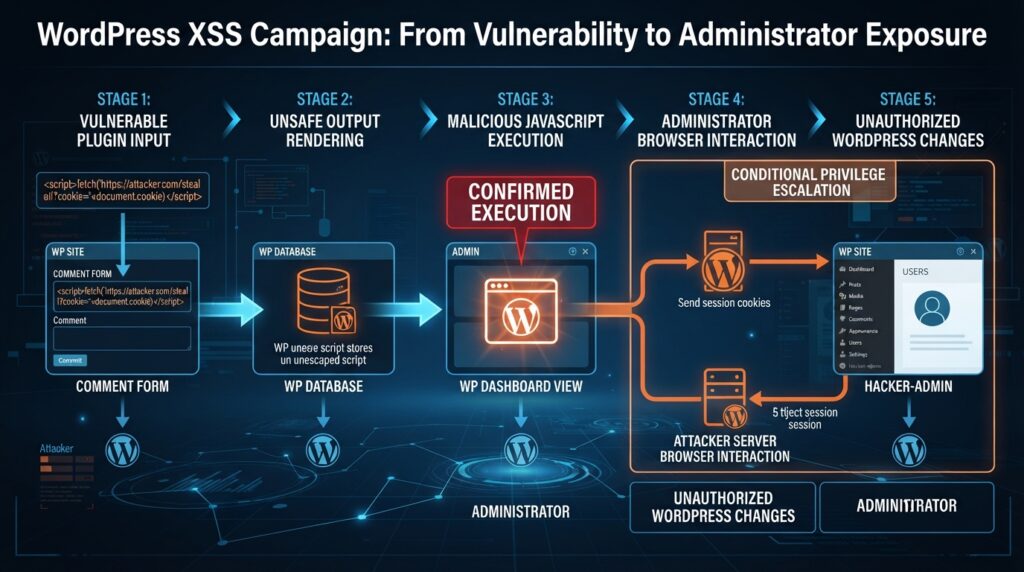
How Malicious JavaScript Reaches the WordPress Administrator Dashboard
The Difference Between Injection and Execution
An attacker-controlled value becomes dangerous when a vulnerable page interprets it as executable JavaScript rather than ordinary text. Consider a contact form that stores visitor-submitted information. The form may successfully save the submission without executing anything in the visitor’s browser. Later, an administrator opens the submission inside WordPress. If the plugin renders the stored value into an unsafe context, the browser may execute the injected code. This is a conceptual example, not a confirmed Ninja Forms exploitation sequence. The same principle can apply to other features that display untrusted information. Correct output escaping and safe DOM handling prevent data from crossing into executable code.
The administrator may not notice that anything unusual happened. A page can look unchanged while JavaScript performs unauthorized actions or communicates with external infrastructure. Some scripts attempt to read page content, manipulate forms, or trigger requests to WordPress administrative endpoints. Whether these requests succeed depends on the authenticated user’s capabilities and the security checks protecting each action. Modern WordPress functions commonly use nonces to reduce cross-site request forgery risks, but nonces should never replace permission checks. A script executing within an administrator’s authenticated browser may be able to access values available on the page, making strong capability validation and context-aware escaping essential defenses.
Why Administrator Privileges Increase the Potential Damage
WordPress administrators can normally manage plugins, themes, users, and important site settings on standard single-site installations. If malicious JavaScript successfully operates within an administrator’s browser context, it may attempt actions that ordinary subscribers cannot perform. Potential consequences include the creation of additional privileged accounts, changes to site options, or installation of unauthorized plugins. These outcomes are conditional rather than automatic. They depend on whether the required screens and endpoints are accessible, whether valid security tokens are available, and whether the server correctly enforces authorization. Multisite configurations, filesystem restrictions, and security hardening can also change the attacker’s opportunities.
A dangerous assumption is that an administrator must click an obviously suspicious button for an attack to progress. With stored XSS, simply opening an affected administrative page can sometimes trigger script execution. That possibility makes routine workflows such as reviewing form submissions or managing product records relevant to an investigation. Still, investigators should not treat every unexpected browser request as proof of compromise. Browser extensions, legitimate plugins, security scanners, and normal background activity may produce unfamiliar traffic. Evidence becomes more meaningful when it connects a suspicious input, a vulnerable rendering location, an administrator session, and a subsequent unauthorized change within a consistent timeline.
What Website Owners Should Look For
During a preliminary investigation, administrators should review recent changes rather than relying only on the appearance of the dashboard. Unexpected accounts, unfamiliar installed plugins, modified options, unexplained scheduled events, and unusual outbound connections deserve attention. Access logs may reveal requests involving affected plugin endpoints, but a request alone does not establish successful exploitation. Browser console messages, content security policy reports, and server-side audit logs can provide additional context if they were collected before the incident. Investigators should preserve original records whenever possible. Editing or deleting suspicious content before documenting it can destroy information needed to understand how an attacker entered the website.
How the Suspicious WP Smart Thumbnails Plugin May Be Installed
Understanding the Role of a Secondary Plugin
The name WP Smart Thumbnails should be treated as a campaign-specific indicator requiring verification, not as automatic proof that every plugin with a similar name is malicious. In a hypothetical or reported post-exploitation chain, attackers may attempt to install a secondary WordPress plugin after gaining access to privileged functionality. That plugin can serve as a durable foothold because its PHP code may execute independently of the original XSS payload. If the installation succeeds, updating the vulnerable entry-point plugin may leave the secondary component untouched. This is the central persistence risk that makes post-exploitation auditing essential.
A secondary plugin might appear in the normal plugin list, use an innocuous description, or imitate a familiar administrative utility. The name and visual presentation are not reliable indicators of legitimacy. Defenders should compare its files against a known, trusted distribution, examine the installation date, identify the source of the package, and review the plugin’s behavior. They should also verify whether a legitimate administrator intentionally installed it. WordPress installations often contain custom plugins, must-use plugins, and vendor-specific components that are not distributed through the official repository. Automatically deleting every unfamiliar plugin can damage legitimate site functionality and complicate forensic analysis.
The Possible Installation Sequence
A plausible XSS-to-plugin-installation chain begins when an administrator opens a vulnerable dashboard screen containing attacker-controlled data. JavaScript then attempts to use available administrative functionality to upload or install a plugin package. If the action passes the necessary authorization and security checks, WordPress may extract the package into its plugins directory. Activation can then make the new PHP code available to the website. Each stage is a separate condition that investigators must verify. Successful XSS does not prove that installation occurred, and the presence of a plugin directory does not prove how it arrived.
The most useful evidence may come from combining WordPress audit records, web server logs, file modification timestamps, and backup comparisons. For example, a plugin directory created shortly after a suspicious administrator session could justify deeper investigation. An accompanying plugin activation event or unexpected outbound request would strengthen that hypothesis. However, timestamps can change during backups, migrations, deployments, and file restoration. Investigators should avoid attributing malicious intent to a single timestamp. The goal is to reconstruct an evidence-supported sequence rather than force every unusual event into a predetermined campaign narrative.
How to Investigate WP Smart Thumbnails Safely
Administrators should begin by documenting the exact plugin name, folder, version, author metadata, and activation status. They can then compare its code with a trusted source if one exists. Suspicious characteristics may include unexpected remote requests, hidden administrative functionality, unexplained filesystem changes, or code designed to conceal other modifications. None of these characteristics should be interpreted in isolation. Some legitimate plugins communicate with external APIs, schedule maintenance tasks, or manage files as part of their intended purpose. A professional code review examines context, authorization, data flow, and the purpose of each operation.
If the plugin appears malicious, preserve a copy for investigation before removal, using secure storage that cannot execute its contents. Avoid opening unknown PHP files through a public web address or running them on a production server to observe their behavior. A staging or isolated forensic environment is safer for advanced examination. The website may also need temporary restrictions on administrative access while the incident is assessed. Once the evidence is preserved, a trusted administrator can remove unauthorized components and restore verified files. The process should include a search for additional persistence mechanisms, because one suspicious plugin may be only part of a larger compromise.
The Four Persistence Mechanisms That Can Keep Attackers Inside WordPress

Persistence Mechanism 1: Unauthorized Administrator Accounts
One of the simplest ways to retain access is to create an additional account with elevated privileges. If an attacker can establish a working administrator account, that account may remain usable after the original vulnerability is patched. A hidden or unfamiliar user may have an ordinary-looking username and email address, making it easy to overlook in a busy installation. Administrators should review all privileged accounts, creation dates, assigned roles, and recent activity. The review must include accounts belonging to former employees, contractors, and external developers. A legitimate account that has been compromised can be just as dangerous as a newly created unauthorized account.
Account investigation should go beyond checking whether a username looks suspicious. Site owners need to verify that each administrator has a current business purpose and a recognized owner. They should review recent role changes, password resets, active sessions, and authentication logs where available. WordPress multisite installations require additional attention because super administrators have different capabilities from ordinary site administrators. If an unauthorized account is identified, preserve relevant evidence, revoke its sessions, and remove its access through a controlled response. Credentials for other privileged users should also be reviewed because the attacker may have gained access to more than one identity.
Persistence Mechanism 2: Malicious or Modified Plugin Files
A second mechanism involves PHP code stored inside a plugin directory or another location that WordPress loads. An attacker may install a new plugin, modify an existing one, or add code to a component that appears legitimate. Such code can run during normal WordPress requests, depending on how it is registered and activated. This makes filesystem integrity an important part of incident response. A clean-looking dashboard does not guarantee that plugin files match their original releases. Conversely, custom modifications are not necessarily malicious. Investigators must establish what the trusted version should contain before deciding that a file has been altered.
WordPress must-use plugins deserve particular attention because they load automatically and do not behave exactly like ordinary plugins in the administration interface. Custom code may also exist in theme files or other application-specific locations. A safe investigation compares WordPress core files with official releases and compares plugins and themes with known-good copies. For premium or custom plugins, checksums may not be available, so verified vendor packages or earlier clean backups become important. Replacing compromised code with trusted copies is generally safer than manually deleting a few suspicious lines without understanding the rest of the modification.
Persistence Mechanism 3: Database-Based Payloads and Modified Settings
The WordPress database stores much more than article content. It can contain site settings, plugin configurations, user metadata, scheduled task information, and other values that influence application behavior. An attacker with sufficient access may alter selected records to preserve a malicious configuration or reintroduce unwanted behavior. Examples include unexpected changes to administrative settings, unauthorized user capabilities, or malicious content stored in fields that later appear in privileged interfaces. These modifications may survive plugin updates because updating application code does not necessarily reset stored data. This is why database review belongs in a complete WordPress security investigation.
Database analysis requires care because legitimate WordPress installations contain serialized values, generated metadata, and configuration records that can look unusual to inexperienced reviewers. Searching for a suspicious string may help identify leads, but broad automated replacements can corrupt serialized data or remove legitimate content. Investigators should work from verified backups and use tools that understand WordPress data structures. They should also compare current settings with known-good configurations where possible. If a malicious stored payload remains, removing a secondary plugin without cleaning the affected database records may leave an opportunity for reinfection when a vulnerable or similarly unsafe rendering path is encountered.
Persistence Mechanism 4: Scheduled Tasks and Reinstallation Logic
A fourth persistence mechanism involves scheduled execution or code designed to restore removed components. WordPress uses WP-Cron to run scheduled events, and hosting environments may also use system cron jobs. Legitimate plugins rely on scheduled tasks for backups, publishing, synchronization, and maintenance. However, attackers who obtain sufficient control may attempt to introduce unauthorized tasks or modify existing routines. A suspicious scheduled action might contact an external endpoint, alter files, or restore an unwanted configuration. The mere presence of a scheduled event is not evidence of malicious activity. Investigators must connect the task to its registered callback, owning component, and actual behavior.
This mechanism explains why deleting one visible malicious file may not fully resolve an incident. If another component can recreate that file, the website may appear clean temporarily before the unwanted code returns. Site owners should inspect WordPress scheduled events, hosting cron entries, and relevant automation settings. They should identify unknown callbacks, unexplained external destinations, and tasks introduced around the suspected compromise period. Disabling tasks indiscriminately can interrupt backups, subscriptions, orders, or other important functions. A safer approach is to preserve the configuration, establish which task is unauthorized, remove the responsible code, and then monitor for reappearance.
Campaign Update: What Patchstack Actually Confirmed
On October 6, 2026, Patchstack published technical findings that confirmed active exploitation attempts against both plugins. The company first observed the WPC Product Bundles attack on October 4 and the Ninja Forms attack on October 5. Both attacks delivered JavaScript from the same external infrastructure. This connection supports treating them as part of one coordinated WordPress XSS campaign rather than unrelated security incidents. The research also identified the malicious WP Smart Thumbnails plugin as part of the observed attack chain.
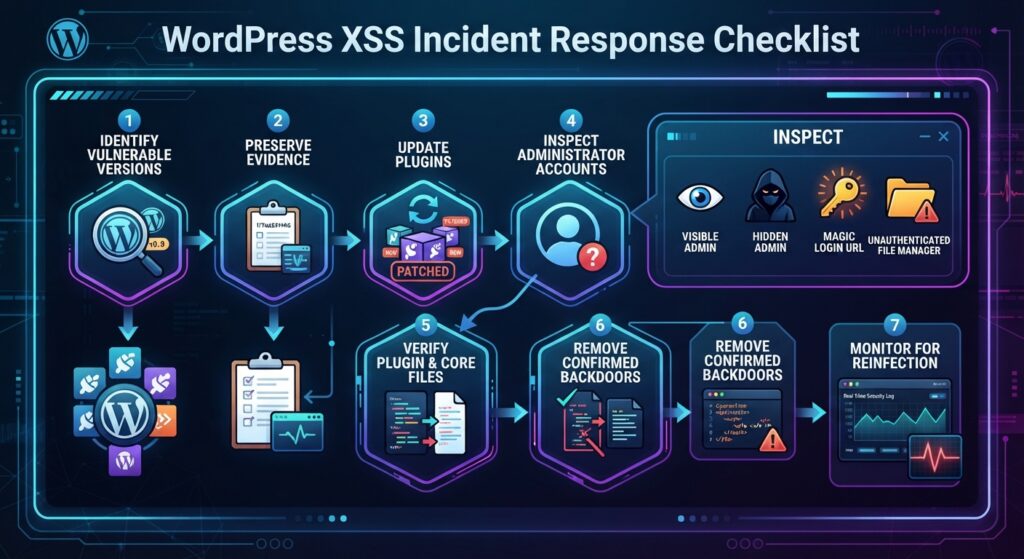
The four persistence mechanisms described earlier are useful general WordPress investigation categories. However, the four specific mechanisms confirmed in this campaign are different: a visible administrator account, a hidden administrator account, a special login URL, and an unauthenticated file manager. These confirmed mechanisms deserve priority during an investigation. Attackers may use additional techniques, but investigators should not confuse general possibilities with the findings documented in this particular incident.
The Four Confirmed Backdoors in This WordPress XSS Campaign
1. A Visible Rogue Administrator Account
The malicious implant can establish a conventional WordPress administrator account that appears in the user management interface. This gives attackers a potential way to return through normal authentication after the original vulnerability is fixed. The account may resemble a legitimate administrative or maintenance identity, so the safest approach is to verify ownership rather than rely on its name. Administrators should inspect privileged users and compare them with their internal access records. Any unexplained account created around the incident should be investigated, especially if its creation coincides with suspicious plugin activity or administrator requests.
2. A Hidden Administrator Account
The second mechanism is more deceptive because the attacker-controlled administrator is designed not to appear in the ordinary WordPress user list. As a result, an administrator may inspect the dashboard, see only familiar accounts, and incorrectly conclude that access is secure. This concealment is particularly dangerous when a malicious plugin modifies how administrative user queries or results appear. Investigators should use an independently trusted method to examine user records and capabilities. A clean-looking Users screen is not sufficient evidence that every privileged identity has been accounted for.
3. A Special Login URL That Bypasses Normal Authentication
The third mechanism creates an alternative way to access the website without using the normal username-and-password login process. Often described as a magic login URL, this approach can provide attacker-controlled access through functionality introduced by the malicious implant. Changing an administrator password may therefore fail to close this entry point while the underlying code remains installed. Site owners should investigate unexpected authentication hooks, unusual login-related requests, and suspicious changes to access-control behavior. The priority is to identify and remove the unauthorized authentication mechanism, then invalidate existing sessions and review the accounts that may have been exposed.
4. An Unauthenticated File Manager
The fourth mechanism involves file management functionality that can be accessed without the normal WordPress authentication checks. This represents a serious escalation because filesystem access may allow further modification of application code or other website resources, depending on server permissions. It also means that removing rogue administrator accounts may not eliminate the attacker’s access. Investigators should review unauthorized file-management endpoints, unexpected PHP files, and suspicious filesystem changes. Access logs and trusted backup comparisons can help establish whether the functionality was used. If confirmed, the incident should be treated as a broader application compromise rather than merely an account-security problem.
Campaign findings: Patchstack’s October 6 technical analysis.
Updating Ninja Forms and WPC Product Bundles Safely
Which Plugin Versions Are Affected?
The reported vulnerabilities have distinct CVE identifiers and affected version ranges. According to the campaign analysis, Ninja Forms versions through 3.15.3 are affected by CVE-2026-94504, while WPC Product Bundles for WooCommerce versions through 8.6.6 are affected by CVE-2026-93836. Both are stored XSS vulnerabilities, and both have been associated with active exploitation attempts. Their reported CVSS severity is 7.1, but the practical consequences can become more severe if an attacker successfully installs persistence mechanisms. Website owners should prioritize affected installations, especially those with recent suspicious activity.
| Plugin | Vulnerability | Affected versions | Initial fixed version |
|---|---|---|---|
| Ninja Forms | CVE-2026-94504 | 3.15.3 and earlier | 3.15.4 |
| WPC Product Bundles | CVE-2026-93836 | 8.6.6 and earlier | 8.6.7 |
Initial security fixes reported for these vulnerabilities. Install the latest trusted stable release rather than stopping at the first patched version.
Step 1: Identify the Installed Versions
Open the WordPress administration dashboard and navigate to Plugins → Installed Plugins. Locate Ninja Forms and WPC Product Bundles for WooCommerce, then examine the version displayed beneath each plugin. Compare those versions with the affected ranges and current releases. If the plugin is inactive, do not assume it is harmless; its files may still be present, although the vulnerable code path may not be reachable in the same way. Document the findings before changing anything. This creates a useful starting point for the incident timeline and helps determine whether the website was exposed during the observed attack period.
Step 2: Create and Verify a Backup
Before performing major changes, create a complete backup of the WordPress files and database. A reliable backup includes plugins, themes, uploads, configuration files, and database records. Store it outside the publicly accessible website directory and verify that it can be restored. If compromise is suspected, preserve a separate forensic copy of the current state before replacing suspicious files. This distinction matters because a backup taken after an attack may already contain malicious components. Backups support recovery and investigation, but their existence alone does not establish that a particular restore point is clean.
Step 3: Install the Latest Security Updates
Use the WordPress update interface or a trusted deployment process to install the latest stable plugin versions. For Ninja Forms, do not stop at 3.15.4 if a newer supported release is available. The same principle applies to WPC Product Bundles. After updating, test important functionality, including form submissions, email notifications, product bundles, cart calculations, and checkout behavior. These tests help identify compatibility problems introduced by updates. However, successful functionality testing does not prove that the website is free from malicious code. A separate security review remains necessary if the installation was exposed during the campaign.
Step 4: Check for Existing Persistence
After the update, investigate the four confirmed persistence mechanisms. Review privileged accounts through a trusted source, examine installed plugins and unexpected PHP files, investigate suspicious authentication behavior, and inspect possible unauthorized file-management functionality. Pay particular attention to a plugin directory named wp-smart-thumbnails when assessing this campaign. The presence of the name is an indicator for investigation, not sufficient proof on its own. If evidence suggests that the implant executed, involve a qualified incident responder and consider temporarily restricting administrative operations while the website is cleaned.
How to Audit and Clean a Potentially Compromised WordPress Website
Establish a Reliable Incident Timeline
A successful investigation begins with the timeline. Record when the affected plugin versions were installed, when they were updated, and when administrators opened relevant dashboard screens. Compare these events with the campaign dates reported by Patchstack. Review server access logs, WordPress audit logs, security plugin alerts, and hosting control panel records where available. Look for unusual requests, newly created users, unexpected plugin installations, and modifications to sensitive files. A timeline helps distinguish possible exposure from confirmed compromise. It also identifies the period that requires closer investigation and prevents administrators from treating every old or unfamiliar file as campaign-related malware.
The campaign’s reported JavaScript infrastructure includes the domain imgcdn1.com, which provides a useful indicator for log review. Search relevant records for this domain and associated suspicious requests without visiting the destination or executing downloaded content. A matching log entry may indicate attempted exploitation or malicious content loading, but it must be interpreted alongside the request context and subsequent events. The absence of a match does not guarantee safety because logs may be incomplete, rotated, or unavailable. Administrators should also inspect the malicious plugin directory identified in campaign reporting and compare unexpected filesystem changes with their known deployment history.
Inspect WordPress Users and Capabilities
Start with the WordPress Users screen, but do not rely on it exclusively because this campaign specifically includes a hidden administrator mechanism. A trusted database inspection can help identify accounts and capabilities that are not visible through the ordinary interface. For websites using the default database prefix, user information is commonly stored in wp_users and associated metadata in wp_usermeta. However, many installations use custom prefixes, so investigators must identify the actual table names before querying them. Review the account list, role assignments, creation information where available, and recent authentication records. Never remove accounts until ownership and purpose have been established.
If WP-CLI is available in a trusted environment, administrators can obtain a useful starting inventory. Run commands using the correct WordPress installation path and appropriate system permissions. On a compromised site, some WP-CLI commands load WordPress and may therefore execute untrusted plugin code. For that reason, a database-level review from an isolated environment may be preferable when compromise is strongly suspected. The goal is to compare the account information presented by WordPress with independently verified records. Any unexplained discrepancy deserves investigation, particularly when it concerns administrator privileges or accounts created during the attack window.
Verify WordPress Core and Plugin Integrity
WP-CLI provides checksum verification commands for WordPress core and plugins distributed through WordPress.org. These checks compare installed files against published reference checksums and can identify unexpected modifications. They are valuable tools, but they do not provide a complete malware scan. A successful core verification does not rule out malicious files elsewhere, and custom or premium plugins may require separate comparison methods. The official WP-CLI documentation explains both commands and their limitations.
Run the following read-only checks from the correct WordPress installation directory:
# Check installed WordPress core files.
wp core verify-checksums

# Verify WordPress.org plugin files.
wp plugin verify-checksums --all

# List installed plugins and versions.
wp plugin list --fields=name,status,version,update

# Review scheduled WordPress events.
wp cron event list
These commands should be used by an administrator familiar with SSH, WP-CLI, and the site’s deployment structure. Avoid running potentially compromised WordPress code as the root operating-system user. If integrity verification reports differences, investigate them before replacing files. Legitimate customizations, incomplete updates, and version mismatches can also produce unexpected results. For core verification, ensure that the locale and version match the installation. For plugins, use trusted packages and account for premium or custom distributions that cannot be verified through the public repository.
Review the Database, Scheduled Tasks, and File Permissions
The database review should include administrator capabilities, unusual site options, unexpected stored scripts, and suspicious scheduled event data. Investigators must be careful when inspecting serialized records because careless editing can corrupt application settings. Review WP-Cron events alongside hosting-level scheduled jobs, including cPanel cron entries if the website uses that environment. Check whether unfamiliar tasks were created during the suspected compromise period and identify which plugin or custom component registered them. The campaign’s confirmed persistence mechanisms should remain the priority, but a broader audit is justified if attackers obtained privileged code execution or filesystem access.
File permissions also deserve attention. WordPress needs permission to manage certain files, but unnecessarily broad write access can increase the damage caused by a successful compromise. Review ownership, permissions, and writable directories according to the hosting environment. Inspect wp-content/plugins, wp-content/mu-plugins, theme directories, and other application-specific locations for unexpected executable files. Do not assume that every PHP file inside uploads is malicious without checking its context, but unexpected executable content in upload directories is a meaningful warning sign. Changes to .htaccess, web server configuration, or wp-config.php should also be compared with trusted versions.
Remove Malicious Components and Restore Trust
When evidence confirms compromise, cleaning the website requires more than deleting the first suspicious plugin. Preserve forensic evidence, restrict attacker access, remove unauthorized accounts and code, and replace compromised components with verified copies. Rotate WordPress administrator passwords, hosting credentials, database credentials where exposure is suspected, and relevant API secrets. Invalidate active sessions and review authentication mechanisms. The order of operations matters because changing credentials before removing a working backdoor may allow an attacker to regain access immediately. A qualified responder can coordinate containment, evidence preservation, credential rotation, and restoration without unintentionally destroying important records.
After remediation, test the website from both administrative and visitor perspectives. Confirm that forms work correctly, WooCommerce orders process normally, scheduled jobs behave as expected, and legitimate users can access their accounts. Review logs for renewed suspicious activity and compare filesystem changes against the newly established clean baseline. If personal data may have been accessed, assess applicable legal and contractual notification requirements. Organizations operating under the GDPR may have specific obligations depending on the facts of the incident. A clean malware scan is useful, but sustained monitoring and verified access controls provide stronger confidence that the original compromise has been resolved.
How to Prevent Similar WordPress XSS Attacks in the Future
Keep WordPress Plugins Updated and Reduce Exposure
Regular updates remain one of the most effective ways to reduce exposure to known vulnerabilities. However, updating should be part of a wider security process rather than the only defensive measure. Website owners should maintain an inventory of installed plugins, remove components they no longer need, and follow reputable vulnerability advisories. When a serious issue affects a production website, the response should consider both patch availability and evidence of exploitation. An unused plugin may still represent unnecessary risk if its files remain accessible. Reducing the number of installed components also simplifies maintenance, compatibility testing, and incident investigations.
Automatic updates can help websites receive security fixes more quickly, especially when administrators cannot monitor every release manually. Nevertheless, business-critical websites should have reliable backups, update monitoring, and a recovery plan for compatibility problems. WooCommerce stores require additional care because plugin changes may affect checkout, payment integrations, inventory, and customer workflows. A staging environment can reduce deployment risks, but urgent security fixes should not be delayed indefinitely while waiting for perfect testing conditions. The goal is to balance availability and security through a repeatable process that makes critical updates predictable rather than disruptive.
Strengthen Administrator Authentication and Permissions
Strong administrator security limits the opportunities available to attackers. Use unique passwords, enable multifactor authentication where supported, and assign users only the capabilities they genuinely need. Avoid using administrator accounts for routine editorial tasks when an editor role is sufficient. Review privileged accounts regularly, particularly after staff changes or work performed by external contractors. These practices reduce the consequences of stolen credentials and unauthorized access. However, multifactor authentication alone cannot prevent every XSS attack because malicious code executing within an already authenticated browser may attempt to use that existing session.
Security-sensitive WordPress operations should always enforce server-side capability checks and appropriate nonce validation. Developers must also escape output according to the context in which data appears, including HTML, attributes, URLs, and JavaScript. Input validation helps enforce expected formats, but it does not replace safe output handling. A well-configured web application firewall can provide another defensive layer by blocking certain malicious requests or known exploitation patterns. Still, no firewall can guarantee protection against every new payload. Defense works best when secure code, controlled privileges, timely updates, logging, and incident response procedures reinforce one another.
Establish a Regular WordPress Security Audit
A practical security routine does not require administrators to investigate every file manually each day. Automated monitoring can identify changes that deserve attention, including unexpected administrator accounts, newly installed plugins, altered core files, and unusual authentication activity. Schedule periodic reviews of plugin versions, privileged users, backup integrity, and security logs. For important websites, consider filesystem integrity monitoring and alerts for changes to sensitive configuration files. Monitoring should produce actionable information rather than overwhelming administrators with warnings. A system that generates hundreds of unexplained alerts can become almost as ineffective as one that produces none.
A monthly audit should also include checking whether security backups are recoverable and whether website owners know how to contact their hosting provider during an incident. Keep documentation for custom plugins, must-use plugins, and legitimate scheduled tasks so unfamiliar changes can be identified more quickly. If a website relies on multiple administrators, establish a process for approving plugin installations and privilege changes. These procedures create a trustworthy baseline. When suspicious activity occurs, investigators can compare current behavior with documented expectations instead of reconstructing the entire website configuration under pressure.
Frequently Asked Questions
1. What is the WordPress XSS campaign involving Ninja Forms and WPC Product Bundles?
It is a documented campaign involving stored cross-site scripting vulnerabilities in two WordPress plugins. Patchstack observed exploitation attempts beginning on October 4, 2026. The attacks delivered a shared JavaScript payload intended to operate within an authenticated administrator’s browser and establish persistent access. The campaign is notable because the attackers did not rely solely on the original vulnerability. They attempted to install a malicious plugin and create several alternative access mechanisms.
2. Which Ninja Forms versions are vulnerable?
CVE-2026-94504 affects Ninja Forms versions 3.15.3 and earlier. Version 3.15.4 introduced the initial fix for this vulnerability. Website owners should install the latest supported stable release, because subsequent updates may address additional security or compatibility issues. If an affected version was installed during the campaign, updating it is necessary but does not establish that the website was never compromised.
3. Which WPC Product Bundles versions are affected?
CVE-2026-93836 affects WPC Product Bundles for WooCommerce through version 8.6.6. Version 8.6.7 introduced the initial security fix. Administrators should verify the installed version and update to the latest trusted stable release. WooCommerce stores should test bundle pricing, product quantities, cart behavior, and checkout after updating. Any suspected compromise requires a separate security investigation.
4. Can an XSS vulnerability give attackers administrator access?
An XSS vulnerability does not automatically create an administrator account or grant server access. However, malicious JavaScript executing within an authenticated administrator’s browser may interact with privileged functionality available to that session. The resulting impact depends on the application, the user’s capabilities, and the effectiveness of authorization checks. In this campaign, the reported payload attempted to use administrator functionality to establish persistent access.
5. What is the WP Smart Thumbnails plugin in this campaign?
WP Smart Thumbnails is the name used by the malicious secondary plugin identified in campaign reporting. Its role was to provide attacker-controlled functionality after the original XSS payload executed. Administrators should investigate unexpected installations involving the wp-smart-thumbnails directory and compare suspicious files with trusted records. A similar plugin name alone does not establish malicious intent, so evidence should guide removal decisions.
6. What are the four confirmed persistence mechanisms?
The campaign’s four documented mechanisms are a visible rogue administrator account, a hidden administrator account, a special login URL, and an unauthenticated file manager. These mechanisms provide different ways for attackers to regain access. Removing only one may leave the others operational. A proper incident response should investigate all four and verify that no unauthorized functionality remains.
7. Is updating the vulnerable plugin enough to secure the website?
Updating closes the specific vulnerability addressed by the patch, but it does not automatically reverse unauthorized changes made before the update. If an attacker already installed a malicious plugin or created privileged accounts, those components may remain. Website owners should review logs, users, plugins, and relevant files when there is evidence of exposure or exploitation. A complete cleanup requires removing confirmed persistence and verifying the restored environment.
8. Can a hidden administrator remain invisible in WordPress?
Yes. Malicious code can potentially alter how user information appears inside the WordPress dashboard. An attacker-controlled account may therefore be absent from the ordinary Users screen while its database records and privileges still exist. Investigators should use trusted independent methods to verify administrator accounts and capabilities. This is particularly important for the campaign described here because hidden administrator persistence is one of its documented characteristics.
9. How can I check whether my WordPress website was compromised?
Begin by documenting installed plugin versions and reviewing activity around the reported attack period. Inspect administrator accounts, plugin directories, authentication behavior, and suspicious files. Search available logs for campaign indicators, including the reported payload domain. Compare WordPress core and public plugin files against trusted checksums. If the findings suggest successful exploitation, preserve evidence and involve an experienced WordPress security professional before making destructive changes.
10. Can a WordPress firewall prevent this type of attack?
A properly configured web application firewall may block known malicious requests and certain exploitation patterns. However, it cannot guarantee protection against every XSS vulnerability or payload. Firewalls work best alongside timely updates, secure coding practices, limited administrator privileges, multifactor authentication, reliable backups, and continuous monitoring. Website owners should treat a firewall as an additional security layer rather than a replacement for fixing vulnerable software.
The Real Security Lesson: Remove the Attacker, Not Just the Vulnerability
The WordPress XSS campaign involving Ninja Forms and WPC Product Bundles demonstrates an important difference between vulnerability management and incident response. Updating vulnerable software prevents continued exploitation of the patched weakness, but it does not necessarily remove unauthorized changes already introduced into a website. Patchstack’s findings highlight how a malicious JavaScript payload can attempt to establish multiple independent access methods after reaching an administrator’s browser. This makes the campaign more significant than an isolated XSS flaw. The visible administrator, hidden administrator, special login URL, and unauthenticated file manager must all be considered when investigating an affected installation.
For website owners, the most practical response is systematic rather than reactive. Identify affected versions, apply trusted updates, preserve relevant evidence, review privileged accounts, inspect suspicious plugins, and verify important application files. Continue monitoring after cleanup, because renewed unauthorized activity may reveal a persistence mechanism that was missed during the initial investigation. A reliable security strategy combines prevention, detection, containment, and recovery. The goal is not merely to make the WordPress dashboard appear normal again. It is to establish reasonable confidence that the website’s code, accounts, authentication mechanisms, and administrative controls are trustworthy.
⚠️ Disclaimer and Source Hygiene
This article provides educational information about WordPress vulnerabilities, website security, and incident response. It is not a substitute for a professional security assessment, forensic investigation, or legal advice. The campaign-specific findings are based primarily on published research from Patchstack, supported by additional security reporting and official WordPress documentation. Vulnerability status, available plugin versions, and indicators of compromise may change as researchers and developers publish new information.
Administrators should verify security advisories against original sources before taking action. Commands and investigation procedures should be tested in a suitable environment and performed only on websites or systems they are authorized to manage. When a website handles customer information, financial transactions, or sensitive personal data, qualified professional assistance may be appropriate.
🔔 For more tutorials like this, consider subscribing to our blog.
📩 Do you have questions or suggestions? Leave a comment or contact us!
🏷️ Tags: WordPress XSS campaign, Ninja Forms vulnerability, WPC Product Bundles vulnerability, WordPress security, WordPress malware, Stored XSS, WP Smart Thumbnails, WordPress backdoors, WordPress incident response, WordPress plugin vulnerabilities
📢 Hashtags: #WordPressSecurity, #WordPressXSS, #NinjaForms, #WPCProductBundles, #CyberSecurity, #WordPressMalware, #StoredXSS, #WebsiteSecurity, #WordPressPlugins, #SecurityUpdates
Sources and References
Primary Security Research
1. Patchstack – Four Ways Back In: The WordPress XSS Campaign That Hides Its Own Admin Account
Published October 6, 2026. Primary technical investigation documenting the exploitation timeline, affected vulnerabilities, shared JavaScript payload, malicious plugin installation, and persistence techniques.
Read the Patchstack investigation.
2. WordPress Developer Resources Plugin Checksum Verification
Official WP-CLI documentation describing how to verify WordPress.org plugin files against published checksums.
Official plugin checksum documentation.
3. WordPress Developer Resources – Core Checksum Verification
Official reference explaining how to validate installed WordPress core files and interpret checksum results.
Official core checksum documentation.
4. WordPress Developer Blog – Website Security Checks Using WP-CLI
Practical guidance for checking WordPress installations, with important limitations of file-integrity verification.
WordPress security verification guide.
Secondary Sources and Independent Reporting
5. WPDeeply – Active WordPress XSS Campaign: Hidden Admin Persistence
Published October 7, 2026. Provides an accessible summary of the reported CVEs, affected versions, initial fixes, and malicious plugin behavior.
Read the WPDeeply campaign summary.
6. Daily Security Review – Ninja Forms and WPC Product Bundles XSS Flaws Used to Backdoor Sites
Published October 7, 2026. Secondary coverage of the campaign and the risks associated with persistent attacker access.
Read the security news report.
7. Eventus Security – WordPress XSS Flaw Hides Admin Account via Malicious Plugin Installation
Security advisory discussing the use of authenticated administrator functionality and the establishment of malicious persistence.
Read the Eventus Security advisory.
Editorial Verification Notes
This article uses Patchstack as its primary source for campaign-specific technical findings. The secondary sources provide context and corroborating reporting, but they should not be treated as independent forensic confirmation of every claim. No direct victim testimonial or independently verified website compromise case study has been included.
Publication date: October 9, 2026.
Security information status: Based on reporting available through October 9, 2026. Future updates may change the recommended plugin versions, indicators of compromise, or incident response guidance.
Sign in with a Subscriber account to vote.