
Table of Contents
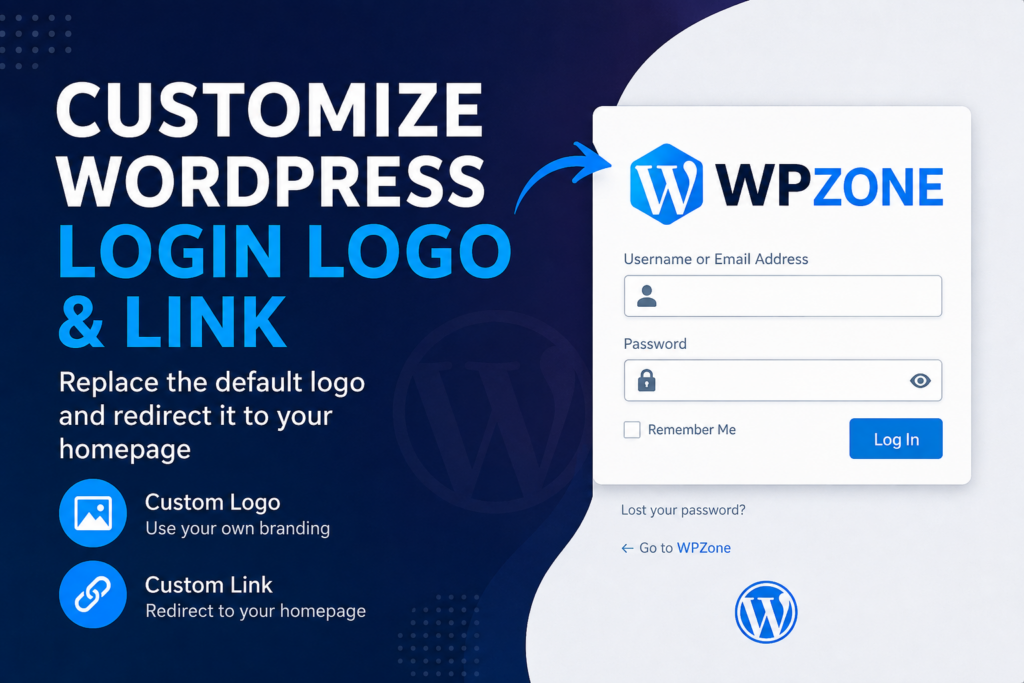
Learn how to replace the default WordPress login logo with your own branding and redirect the logo link to your homepage. This simple code snippet improves your website’s professional appearance, strengthens your brand identity, and creates a more polished login experience without installing additional plugins.
Give Your WordPress Login Page a Professional Look
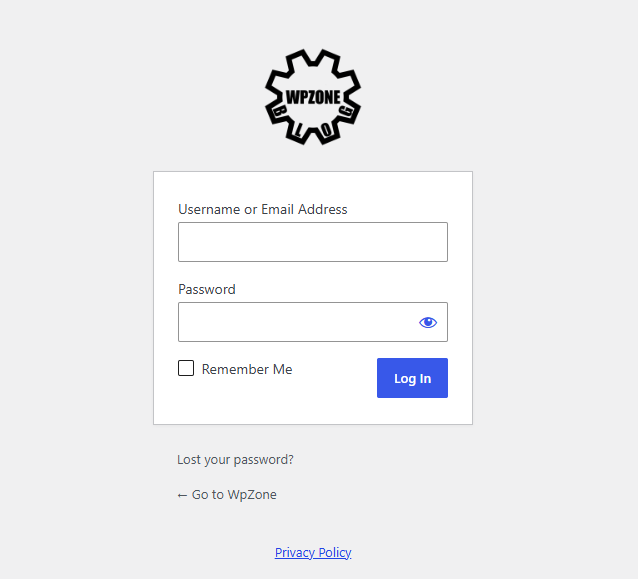
The default WordPress login page displays the familiar WordPress logo that links to WordPress.org. While this is perfectly fine for a new installation, it does little to promote your own website or business.
If you manage a professional website, client projects, membership platform, or company portal, replacing the default logo with your own brand instantly creates a more polished experience.
The good news is that you don’t need another plugin to accomplish this. With a few lines of PHP code added to your theme or a custom plugin, you can completely customize the login page branding.
This tutorial explains exactly how the code works, where to place it, and how you can safely modify it for your own website.
Why Customize the WordPress Login Page?
The WordPress login screen is often the first page administrators, editors, authors, and clients see before accessing the dashboard.
Replacing the default branding provides several benefits:
- Creates a professional appearance
- Reinforces your brand identity
- Makes client websites look custom-built
- Removes unnecessary WordPress branding
- Redirects users back to your own website instead of WordPress.org
- Improves the overall user experience
Although it doesn’t improve SEO directly, it contributes to better branding and professionalism.
What This Code Does
The snippet performs two separate tasks.
It Replaces the Default Login Logo
Instead of displaying the standard WordPress logo, it loads your own image.
function custom_login_logo() {
    ?>
    <style type="text/css">
        #login h1 a {
            background-image: url('https://wpzone.blog/wp-content/uploads/2026/05/wpzone_icon.png');
            height: 100px;
            width: 300px;
            background-size: contain;
            background-repeat: no-repeat;
        }
    </style>
    <?php
}

add_action('login_enqueue_scripts', 'custom_login_logo');
This function injects custom CSS into the login page.
The CSS targets:
#login h1 awhich is the element containing the WordPress logo.
Instead of the default image, your custom logo is displayed.
How the CSS Works
background-image
background-image: url(...);Specifies the image that replaces the WordPress logo.
width
width:300px;Defines the maximum width of the logo container.
height
height:100px;Defines the height of the logo.
background-size
background-size: contain;Ensures the entire logo fits inside the container without distortion.
background-repeat
background-repeat:no-repeat;Prevents the image from repeating.
Redirect the Logo Link

By default, clicking the WordPress logo opens:
https://wordpress.orgMost website owners don’t want users leaving the login page to visit WordPress.org.
This function changes that behavior.
function custom_login_logo_url() {
    return home_url();
}

add_filter('login_headerurl', 'custom_login_logo_url');
Now clicking the logo redirects visitors to:
https://yourwebsite.comThis creates a more professional login page.
Where Should You Add This Code?
There are several safe locations.
Option 1 – Custom MU Plugin (Recommended)
The best solution is placing the code inside:
/wp-content/mu-plugins/custom-login-logo.phpAdvantages:
- Works independently of your theme
- Cannot be disabled accidentally
- Survives theme updates
- Loads automatically
Option 2 – Child Theme
Add the code to:
functions.phpinside your child theme.
This is a safe option if you already use a child theme.
Option 3 – Code Snippets Plugin
If you prefer not editing PHP files manually, you can use a snippets plugin to insert the code.
Choosing the Right Logo
For the best appearance:
- PNG format
- Transparent background
- High resolution
- Landscape orientation
- Optimized file size
- Sharp edges
Recommended size:
300 × 100 pixelsor
600 × 200 pixelsfor Retina displays.
Using SVG Instead
Modern browsers support SVG images.
Advantages include:
- Infinite scaling
- Smaller file size
- Crisp rendering
- Excellent for logos
Example:
background-image:url('/wp-content/uploads/logo.svg');Responsive Behavior
The code already includes:
background-size:contain;which makes the logo scale nicely.
For even better responsiveness, you can add:
max-width:100%;This prevents oversized logos on smaller screens.
Improve Accessibility
To improve accessibility, choose:
- high contrast
- readable branding
- optimized image size
- descriptive site title
Avoid oversized graphics that distract users.
Performance Considerations
The login page loads only for authenticated users, so performance impact is minimal.
Still, optimize the image by:
- compressing PNG files
- using WebP if supported
- limiting dimensions
- enabling browser caching
A small logo loads almost instantly.
Common Mistakes
Wrong Image URL
Always verify that the logo URL is accessible.
If the image returns a 404 error, the default WordPress logo may still appear.
Large Image
Huge images can look blurry or oversized.
Resize the logo before uploading.
Editing the Parent Theme
Never modify the parent theme directly.
Updates will overwrite your changes.
Incorrect CSS Dimensions
If the width and height don’t match your logo proportions, the image may appear stretched.
Adjust both values accordingly.
Advanced Customization Ideas
You can take the login page even further by adding:
Custom Background
Replace the default gray background with:
- gradients
- photos
- company branding
- abstract artwork
Change the Login Button Color
Customize:
- background
- hover effect
- border radius
- typography
to match your brand.
Custom Login Message
Display a welcome message such as:
Welcome back to the WPZone Dashboard!
Hide Login Shake Animation
Some administrators prefer removing the default shake effect after failed logins.
Add Dark Mode Styling
A dark login screen looks modern and matches many dashboard themes.
Custom Footer Text
Replace the default footer with:
Powered by Your Companyor
© 2026 Your WebsiteSecurity Considerations
Changing the logo does not improve security by itself.
For better login security, combine this customization with:
- Two-Factor Authentication (2FA)
- Login attempt limits
- Strong passwords
- reCAPTCHA
- Security plugins
- Regular WordPress updates
- Firewall protection
- Activity logging
Branding and security work well together.
Why Use Code Instead of a Plugin?
Many plugins can customize the login page, but a small code snippet offers several advantages.
Benefits include:
- No extra plugin
- Faster loading
- Fewer updates
- Complete control
- Lightweight implementation
- Easier maintenance
- Better long-term performance
For simple branding changes, code is often the cleaner solution.
Frequently Asked Questions
Can I use any image?
Yes. PNG, JPG, WebP, and SVG all work, although PNG and SVG are usually the best choices for logos.
Will this affect my website visitors?
No. The changes only appear on the WordPress login page.
Can I upload a larger logo?
Yes, but keep the CSS width and height proportional.
Does this survive WordPress updates?
Yes, if stored in an MU plugin or child theme.
Can I change the logo link to another website?
Yes. Simply replace:
return home_url();with any URL you prefer.
Does this improve SEO?
Not directly. It improves branding rather than search rankings.
Can I use multiple logos?
Only one logo is displayed at a time, but you can change it dynamically with additional PHP code.
Is a plugin necessary?
No. This snippet works perfectly without installing another plugin.
Will this slow down WordPress?
No. The code is extremely lightweight.
Can I customize the rest of the login page?
Absolutely. You can also change colors, fonts, backgrounds, buttons, forms, animations, and footer text.
Customizing
Customizing the WordPress login logo is one of the simplest improvements you can make to your website. It takes only a few minutes, requires very little code, and immediately makes your login page look more professional. By replacing the default WordPress branding with your own logo and homepage link, you create a consistent experience for yourself, your team, or your clients while keeping your website lightweight and free from unnecessary plugins.
⚠️ Disclaimer and Source Hygiene
This article is intended for educational purposes. Always create a full backup before editing WordPress files or adding custom PHP code. Test all changes on a staging environment whenever possible. The information provided is based on official WordPress functionality and established development best practices.
🔔 For more tutorials like this, consider subscribing to our blog.
📩 Do you have questions or suggestions? Leave a comment or contact us!
🏷️ Tags:
📢 Hashtags:
Sources and References
- WordPress Developer Resources – Hooks Reference
- WordPress Login Hooks Documentation
- WordPress Theme Handbook
Secondary Sources and Testimonials
- Experienced WordPress developers commonly recommend using MU Plugins or a child theme for persistent customizations because these methods survive theme updates and reduce dependency on additional plugins.
- Web agencies frequently customize the WordPress login page to provide a consistent brand experience for clients and internal teams.
Do you have questions or suggestions? Leave a comment or contact us!