
Table of Contents
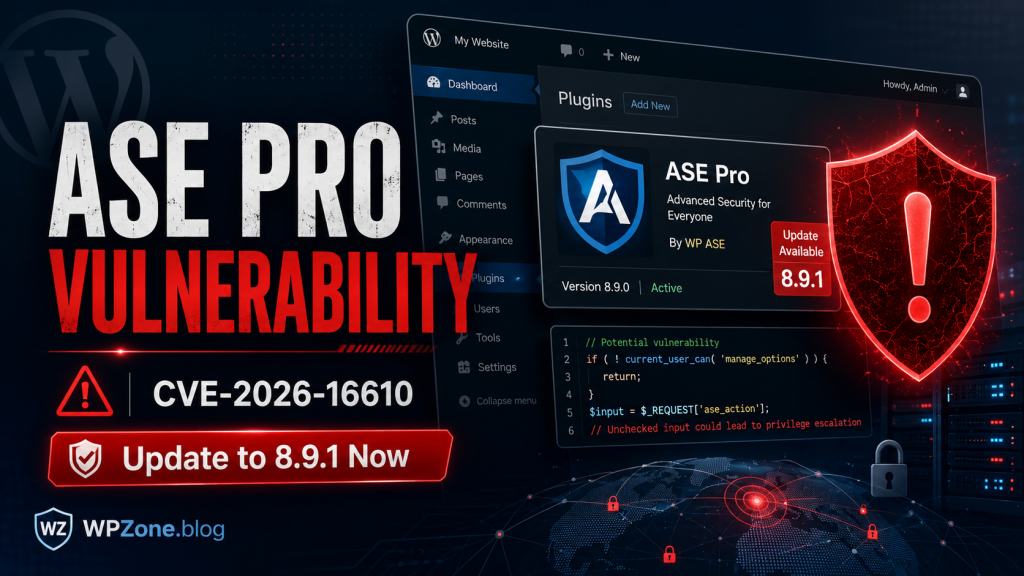
A critical vulnerability in ASE Pro allows unauthenticated attackers to execute PHP code on exposed WordPress sites. Learn which versions are affected, how the flaw works, how to locate the vulnerable shortcode, update safely, investigate possible compromise, and strengthen your website after applying the security patch.
WordPress Editorial Radar – July 31, 2026
The WordPress security landscape remained relatively quiet on July 31, 2026, with one major exception that demands immediate attention. A critical vulnerability affecting Admin and Site Enhancements Pro, commonly known as ASE Pro, may allow an unauthenticated attacker to execute PHP code on vulnerable WordPress websites.
The vulnerability is tracked as CVE-2026-16610 and carries a CVSS score of 9.8 out of 10. That rating places it in the critical category. Successful exploitation could allow an attacker to run commands on the server, upload malicious files, modify WordPress data, create administrator accounts, redirect visitors, steal sensitive information, or establish persistent access.
Not every website using ASE Pro is automatically exploitable. The vulnerable feature must be exposed through the [post_cf_form] shortcode on at least one publicly accessible page. However, site owners should not use that condition as a reason to postpone the update. Administrators may have forgotten about an older page, unpublished workflow, landing page, template, custom post type, or form created by a previous developer.
All ASE Pro versions up to and including version 8.9.0 are affected. The vulnerability was fixed in version 8.9.1. Website administrators should therefore update ASE Pro to version 8.9.1 or any newer patched release without delay.
This editorial radar also reviews the weekly Wordfence vulnerability report published on July 30, 2026. That report recorded 223 vulnerabilities affecting 175 plugins and six themes during the reporting period from July 20 through July 26. Nine vulnerabilities were critical, 42 were rated high severity, and 172 were rated medium severity.
No significant new WordPress Core or Google Search announcement identified during the monitored interval requires an immediate change to live websites. The priority for today is therefore clear: confirm whether ASE Pro is installed, update it, check for the vulnerable shortcode, and investigate the website if the public form was previously exposed.
The Immediate Action WordPress Administrators Should Take
Administrators responsible for one website can begin by signing in to WordPress and opening Plugins → Installed Plugins. Search for Admin and Site Enhancements Pro, ASE Pro, or the plugin slug admin-site-enhancements-pro.
Check the installed version before making any other changes. A website running version 8.9.0 or an older release should be treated as potentially vulnerable.
The recommended minimum version is 8.9.1. A newer official release is also acceptable, provided it includes the same security correction. Site owners should obtain the update through the official ASE account, the plugin’s supported update mechanism, or another source explicitly authorized by the developer.
Avoid downloading “nulled,” redistributed, modified, or unofficial copies of premium WordPress plugins. Such packages may be outdated or intentionally altered. A pirated package can contain malware even when its displayed version number appears current.
After confirming that a legitimate update is available, create a fresh backup of the database and website files. Apply the update immediately afterward. The backup protects against an unexpected compatibility problem, but it should not become an excuse for leaving the vulnerable version active.
Administrators who cannot update immediately should temporarily deactivate ASE Pro. If the site depends on ASE Pro features, removing the public page containing [post_cf_form] may reduce exposure, but it should only be considered temporary risk reduction. Updating remains the primary remediation.
What Is CVE-2026-16610?
CVE-2026-16610 is the identifier assigned to a remote code execution vulnerability in Admin and Site Enhancements Pro for WordPress.
A CVE identifier gives security researchers, software developers, hosting providers, firewall vendors, administrators, and incident-response teams a common reference. Instead of describing the same weakness using several different names, everyone can refer to CVE-2026-16610.
The vulnerability affects ASE Pro through version 8.9.0. According to the published technical record, the problem exists in the plugin’s front-end form processing and its recursive_html function.
The front-end save handler relied on a nonce that was publicly emitted rather than requiring an authenticated WordPress user. In addition, the CAPTCHA-related protection could reportedly be bypassed by omitting an attacker-controlled key. Unsanitized repeater row keys from cfgroup[input] could then reach an eval() operation.
That combination may allow an unauthenticated visitor to inject and execute PHP code on the server. The vulnerable path is reachable when a public page contains the [post_cf_form] shortcode because the page exposes the nonce and session information needed to interact with the save handler.
This is not merely a visual issue, a minor information leak, or a dashboard-only weakness. Remote code execution can cross the boundary between the WordPress application and the underlying hosting account.
Once arbitrary PHP code runs under the website’s server account, an attacker may be able to read configuration files, access database credentials, change plugin files, place backdoors in writable directories, create scheduled tasks, or tamper with every site sharing the same hosting account.
Understanding the CVSS 9.8 Critical Rating
The vulnerability has a CVSS 3.1 base score of 9.8, with the vector:
CVSS:3.1/AV:N/AC:L/PR:N/UI:N/S:U/C:H/I:H/A:H
This rating communicates several important characteristics.
The Attack Can Be Performed Over a Network
The AV:N component means the vulnerable functionality can be reached over a network. The attacker does not need physical access to the server or local access to the hosting account.
A public WordPress page can provide the necessary entry point when the vulnerable shortcode is present.
Attack Complexity Is Low
The AC:L component indicates low attack complexity. Exploitation does not depend on an unusual race condition, highly specific server configuration, or extensive interaction from an administrator.
That does not prove that every attacker can exploit the issue instantly. However, it suggests that the technical barriers are lower than they would be for a vulnerability marked as high complexity.
No Authentication Is Required
The PR:N component means no privileges are required. The attacker does not need a subscriber, customer, editor, administrator, or hosting account.
This characteristic significantly increases risk because the vulnerable endpoint may be reached by anyone capable of accessing the public page.
No User Interaction Is Required
The UI:N component means the attacker does not need to trick an administrator into clicking a malicious link or opening an attachment.
The vulnerable request can be sent directly to the website after the relevant public information has been obtained.
Confidentiality, Integrity, and Availability May Be Severely Affected
The final three high-impact values indicate potential harm to confidentiality, integrity, and availability.
Confidentiality damage may include exposure of database credentials, personal data, private content, API keys, email addresses, order information, or other secrets.
Integrity damage may include modified posts, injected advertisements, spam links, unauthorized administrator accounts, altered payment settings, or replaced plugin files.
Availability damage may include deleted files, broken pages, database corruption, resource exhaustion, or a completely unavailable website.
The National Vulnerability Database currently displays the 9.8 score supplied by Wordfence as the CVE numbering authority source. NVD had not yet supplied its own independent enrichment score in the record available on July 31, 2026.
Which ASE Pro Versions Are Affected?

All Admin and Site Enhancements Pro versions up to and including 8.9.0 are affected.
The patched version is 8.9.1. Administrators should update to 8.9.1 or a newer legitimate release.
The phrase “up to and including 8.9.0” is important. It means that version 8.9.0 is vulnerable, as are previous releases. Running 8.9.0 does not provide protection merely because it was a recent version when the vulnerability became public.
A website should not be considered remediated until the installed plugin version is at least 8.9.1.
Administrators can normally check the installed version from the Plugins screen. The version may also be visible inside the ASE settings page or within the main plugin file on the server.
When command-line access is available, WP-CLI can help identify the installed version:
wp plugin list --name=admin-site-enhancements-pro
Depending on how the premium plugin is packaged, the exact slug may differ. List all installed plugins when the targeted command returns no result:
wp plugin list
Administrators managing many websites can search across installation directories or use a centralized WordPress management platform. The important goal is to identify every active and inactive copy.
An inactive vulnerable plugin usually cannot expose the same active WordPress execution path. Nevertheless, outdated inactive plugins should not remain installed without a reason. Old files can create unnecessary uncertainty and may become active accidentally during troubleshooting or migration.
What Is Admin and Site Enhancements Pro?
Admin and Site Enhancements is a WordPress utility plugin designed to combine many administrative, content-management, security, optimization, and customization functions within one interface.
Its appeal comes from consolidation. Instead of installing several small plugins or adding many snippets to functions.php, website owners can enable selected modules inside ASE.
The Pro edition expands those capabilities and may be used by agencies, developers, publishers, membership websites, online stores, and site owners who need advanced workflow features.
The presence of a critical vulnerability does not mean that every feature in the plugin is unsafe. It also does not mean that the developer intentionally introduced insecure behavior.
Complex software can develop vulnerabilities when data passes through several layers of validation, storage, rendering, and execution. The correct response is not panic. It is a structured process involving identification, patching, investigation, recovery, and prevention.
Site owners should also avoid blaming WordPress Core for a vulnerability located in a third-party premium plugin. WordPress provides the platform, but plugins extend that platform with their own code and security responsibilities.
Under What Conditions Can the Website Be Exploited?
The published advisory describes a specific exploitation condition: the [post_cf_form] shortcode must appear on at least one publicly accessible page.
The shortcode exposes the front-end form functionality involved in the vulnerable request. It also makes a nonce and session identifier available to unauthenticated visitors.
A WordPress nonce is not the same as an authentication system. Nonces help verify that a request originated from an expected workflow, but they do not prove that the visitor is a trusted user unless authentication and authorization checks are also performed.
This distinction matters because developers sometimes treat the presence of a nonce as complete access control. A nonce can protect against certain cross-site request forgery scenarios, but a nonce printed on a public page is available to every visitor.
The ASE Pro issue also involved repeater row keys reaching an eval() call without adequate sanitization or identifier validation. PHP’s eval() function executes a string as PHP code. Any path that allows attacker-controlled input to influence that string requires extremely strict protection.
According to the advisory, the conditions allowed unauthenticated PHP code execution when the shortcode was publicly exposed.
Public Accessibility Is the Key Exposure Condition
A page is publicly accessible when a visitor can open it without signing in.
The page may be indexed by search engines, excluded from indexing, hidden from menus, or accessible only through a direct link. Search visibility does not determine exploitability.
A page marked noindex remains public when anyone can load it. Likewise, a page excluded from the XML sitemap may still be discovered through internal links, archives, cached pages, analytics records, browser history, or automated scanning.
Draft Pages Are Usually Not Public
A standard WordPress draft is not normally visible to anonymous visitors. Therefore, a shortcode located only in a properly protected draft would not meet the same public-page condition.
However, administrators should verify the real status rather than relying on memory. A page could have been published temporarily, duplicated, cached, included in a template, or exposed through a custom workflow.
Password Protection Requires Careful Evaluation
A WordPress password-protected page is not equivalent to a private server-side area. Its content is normally hidden until the page password is supplied, but administrators should not rely on password protection as the main remediation.
Check whether the vulnerable assets, nonce, session information, or form handler remain accessible before assuming the page is safe. The supported plugin update remains necessary.
Membership Restrictions May Reduce Exposure but Do Not Replace Patching
A page restricted to logged-in members may prevent ordinary anonymous access. Yet configuration mistakes, cache behavior, custom REST endpoints, template rendering, or plugin conflicts could weaken that restriction.
Furthermore, the vulnerable plugin remains installed. A future content change could expose the shortcode again.
How to Check Whether ASE Pro Is Installed
Begin inside the WordPress dashboard.
Open Plugins → Installed Plugins and search for:
- Admin and Site Enhancements
- Admin and Site Enhancements Pro
- ASE
admin-site-enhancements-pro
Record the version number and whether the plugin is active.
Some sites may use both a free and premium package. Confirm which package supplies the affected functionality rather than assuming that the visible free-plugin entry represents the entire installation.
Agencies should repeat this process across every managed website. A centralized inventory can save substantial time during critical vulnerability response.
When SSH access is available, the following command lists plugins and versions:
wp plugin list --fields=name,status,version,update
A multisite installation may require additional context. Run the command from the correct WordPress root and review both network-activated and site-level plugins.
Administrators who maintain manual copies, staging sites, old clones, migration archives, or backup restorations should include those environments in the inventory. A forgotten public staging site can still be attacked.
How to Find the Vulnerable Shortcode
Finding [post_cf_form] is the second critical task after checking the plugin version.
The shortcode may appear in post content, page content, reusable blocks, synced patterns, custom post types, templates, widgets, metadata, or content created by a page builder.
Search WordPress Pages Manually
Open Pages → All Pages and use the search field to look for:
post_cf_form
Repeat the search in Posts → All Posts and any public custom post types.
This method is easy, but WordPress dashboard search may not locate shortcode text stored in page-builder metadata, reusable blocks, theme options, or custom database tables.
Search the Database With WP-CLI
WP-CLI provides a broader way to check standard WordPress content:
wp db query "
SELECT ID, post_type, post_status, post_title
FROM wp_posts
WHERE post_content LIKE '%[post_cf_form%';
"
Replace wp_ when the database uses another table prefix.
The opening bracket and shortcode name are usually sufficient. Searching for [post_cf_form% can find shortcodes that include attributes.
A more general search can inspect the options and post metadata tables:
wp db query "
SELECT post_id, meta_key
FROM wp_postmeta
WHERE meta_value LIKE '%post_cf_form%';
"
wp db query "
SELECT option_name
FROM wp_options
WHERE option_value LIKE '%post_cf_form%';
"
These queries may return serialized data. Avoid editing serialized values directly in a text editor because incorrect string lengths can corrupt the stored option.
Search With a Database Administration Tool
Administrators without SSH can use phpMyAdmin from cPanel or another hosting panel.
Select the WordPress database, open the Search function, and search for:
post_cf_form
Start with the following tables:
wp_postswp_postmetawp_options
Use the real table prefix shown in wp-config.php.
Create a database backup before changing anything through phpMyAdmin.
Check Reusable Blocks and Synced Patterns
The block editor may store reusable content as the wp_block post type.
A shortcode placed in a synced pattern can appear on several pages even when it is not visible directly inside each page’s content.
Use WP-CLI to search all post types:
wp post list
  --post_type=any
  --post_status=any
  --s=post_cf_form
  --fields=ID,post_type,post_status,post_title,url
The effectiveness of --s depends on the content and WordPress search behavior. The direct SQL query remains more reliable for exact text searches.
Check Page-Builder Templates
Elementor, Beaver Builder, Bricks, Divi, WPBakery, and other builders may store content in post metadata or structured data.
Open global templates, popups, headers, footers, landing pages, and saved sections. Search the builder interface for the shortcode name.
A shortcode may also be inserted through a generic Shortcode widget or HTML module.
Inspect Theme and Plugin Files
Although the public exposure condition concerns rendered content, custom code may insert the shortcode programmatically.
Search the WordPress content directory:
grep -Rni --exclude-dir=cache --exclude-dir=upgrade
"post_cf_form" wp-content/
A result inside a backup directory or plugin source does not automatically mean the shortcode is rendered publicly. Review the surrounding code before drawing conclusions.
How to Update ASE Pro Safely
Security updates should be applied quickly, but a disciplined process reduces the risk of downtime.
Create a Fresh Backup
Back up both the database and files.
The database contains content, options, users, settings, and plugin configuration. The file backup should include wp-content, wp-config.php, server configuration files, and any custom code.
Confirm that the backup completed successfully. A backup listed in a dashboard is not useful when the archive is incomplete, inaccessible, or stored only on the compromised server.
Confirm the Update Source
Use the official ASE Pro update channel or download the release from the account associated with the license.
Do not install a package received through an unknown forum, unofficial mirror, instant-message attachment, or file-sharing service.
Use a Maintenance Window When Necessary
A small brochure website may tolerate an immediate update with minimal preparation. A busy WooCommerce, membership, publishing, or learning website may require a short maintenance window.
Critical security risk should still take priority. Keep the window as short as practical.
Apply the Update
From the WordPress dashboard, open Plugins → Installed Plugins and choose the available update.
WP-CLI users may run:
wp plugin update admin-site-enhancements-pro
The exact plugin slug must match the installed directory.
Verify the Installed Version
Do not assume that clicking Update completed the process.
Refresh the Plugins page and confirm that the displayed version is 8.9.1 or newer.
WP-CLI users can verify with:
wp plugin get admin-site-enhancements-pro
  --fields=name,status,version
Clear Caches
Clear relevant page caches, object caches, CDN caches, and PHP opcode cache when your hosting environment requires it.
Caching does not normally keep an old PHP plugin version active after its files have been replaced. However, clearing caches helps prevent stale front-end output and makes testing easier.
Test Important Features
Check the home page, login process, editor, forms, menus, custom fields, checkout process, user dashboard, and any ASE-dependent functionality.
Review the browser console and PHP error log for new warnings or fatal errors.
What to Do When the Update Is Not Available
Some administrators may see no update even though they are running a vulnerable version.
The cause may be an expired license, disconnected update service, blocked outbound connection, incorrectly installed package, modified plugin folder, disabled update checks, or a caching problem.
Sign in to the official plugin account and download the patched package manually.
Before replacing the plugin, create a backup. WordPress can normally update a plugin from an uploaded ZIP by replacing the existing version, depending on the dashboard and server configuration.
Administrators can also upload the files through SFTP or SSH. Avoid deleting configuration data unless the plugin’s documentation explicitly requires it.
When the website cannot be updated safely, deactivate the plugin until the patched package is available. A temporary loss of convenience is preferable to leaving a known remote code execution path active.
Why Removing the Shortcode Is Not Enough
Removing [post_cf_form] from every public page reduces the specific exposure described in the advisory. Nevertheless, it does not provide the same assurance as installing the patch.
Several uncertainties remain:
- The shortcode could still exist in a forgotten template.
- A cached version of the page may remain public.
- Another site in the same multisite network may expose it.
- A staging or development copy may remain accessible.
- The vulnerable functionality may be enabled again later.
- The site may already have been compromised.
A patched plugin corrects the vulnerable code path. Content removal only tries to prevent access to one known trigger.
The best response combines both actions: update the plugin and confirm where the shortcode has been used.
How to Determine Whether the Site May Have Been Compromised
A successful plugin update closes the known vulnerability, but it does not remove malware that an attacker may already have installed.
Sites that exposed [post_cf_form] publicly while running ASE Pro 8.9.0 or older deserve additional investigation.
Absence of obvious symptoms does not prove that a website is clean. Skilled attackers often avoid changing the home page or displaying visible messages. Persistence can remain hidden in a plugin, cron event, administrator account, server configuration file, or database option.
Review WordPress Administrator Accounts
Open Users → All Users and filter by the Administrator role.
Look for:
- Unknown usernames
- Recently created administrators
- Email addresses you do not recognize
- Unexpected changes to existing accounts
- Generic names such as
support,wpadmin,backup, ordeveloper - Accounts created outside normal working hours
Do not delete a suspicious account before recording its username, email address, registration date, and user ID. Those details may help the investigation.
After documenting it, remove unauthorized access and reset passwords for legitimate administrators.
With WP-CLI, list administrators:
wp user list
  --role=administrator
  --fields=ID,user_login,user_email,user_registered
Check Recently Modified Files
Search for PHP files modified around the suspected exposure period:
find wp-content -type f -name "*.php" -mtime -14 -print
This example lists PHP files modified during the previous 14 days. Adjust the period to match the timeline.
A recent modification is not automatically malicious. Plugin updates, theme edits, cache regeneration, and deployment systems also change files.
Compare suspicious files against known-clean plugin and theme packages.
Verify WordPress Core Files
WP-CLI can verify Core checksums:
wp core verify-checksums
Unexpected Core modifications require investigation.
This command does not verify premium plugin files or custom themes. It also does not prove that uploads, configuration files, or database content are clean.
Verify Public WordPress.org Plugins
For plugins distributed through WordPress.org, use:
wp plugin verify-checksums --all --strict
Premium plugins may not have WordPress.org checksum data. Compare them with fresh official packages instead.
Inspect the Uploads Directory for PHP Files
WordPress media uploads normally contain images, documents, videos, and similar files. PHP files inside uploads are suspicious unless a known application intentionally created them.
Run:
find wp-content/uploads -type f
( -name "*.php" -o -name "*.phtml" -o -name "*.phar" ) -print
Also inspect files with misleading double extensions:
find wp-content/uploads -type f |
grep -Ei '.(jpg|jpeg|png|gif|webp|pdf).(php|phtml|phar)$'
Do not execute or open suspicious PHP files through the browser.
Inspect Must-Use Plugins
Attackers sometimes place persistence in wp-content/mu-plugins because must-use plugins load automatically and do not appear in the ordinary active plugin list.
List the directory:
find wp-content/mu-plugins -maxdepth 2 -type f -print
Compare each file with your documented custom code.
A custom MU plugin is not suspicious merely because WordPress loads it automatically. The concern is an unknown or unexpectedly modified file.
Review wp-config.php
Inspect wp-config.php for unfamiliar code before the standard WordPress bootstrap line.
Look for:
- Encoded strings
- Unexpected
includeorrequirestatements - Remote URLs
- Obfuscated variable names
- Calls to
eval() - Suspicious uses of
base64_decode() - Unexpected scheduled actions
- Altered database credentials
Some legitimate tools use encoding functions, so context matters.
Review .htaccess and Server Configuration
Attackers may place redirects, PHP handlers, access rules, or hidden rewrites inside .htaccess.
Check the document root and writable subdirectories for recently modified .htaccess files:
find . -name ".htaccess" -type f -print
Compare the main file with the expected WordPress rules and hosting-specific configuration.
Nginx users should review the active virtual-host configuration with appropriate server access.
Inspect WordPress Cron Events
Persistent malware may register scheduled events.
List WordPress cron events:
wp cron event list
Investigate unfamiliar hook names, especially events running unusually often.
Do not delete unknown hooks blindly. Plugins frequently register legitimate scheduled tasks. Identify the responsible plugin or code first.
Review Server and Access Logs
Search web-server logs for unusual requests involving the vulnerable page, repeated POST requests, long encoded parameters, unexpected file uploads, or traffic from unfamiliar sources.
On cPanel, logs may be available through Metrics, Raw Access, ModSecurity, or the hosting provider’s security interface.
Common server locations include:
/var/log/apache2/
/var/log/httpd/
/var/log/nginx/
The exact path depends on the operating system and hosting configuration.
Focus on the interval before and after the vulnerability became publicly known, but remember that attackers may have discovered the issue independently before publication.
Review PHP Error Logs
Malicious payloads, failed exploitation attempts, and incompatible backdoors may generate PHP warnings or fatal errors.
Search for references to:
recursive_htmlpost_cf_formeval- Unknown PHP files
- Unexpected temporary paths
- Failed includes
- Syntax errors in recently modified files
Error logs alone cannot confirm or exclude compromise.
Review Outbound Connections and Email Activity
Compromised sites may send spam, contact command-and-control infrastructure, download additional payloads, or redirect visitors.
Check:
- Unexpected email volume
- New SMTP settings
- Mail queue growth
- Hosting abuse notices
- Unknown outbound requests
- Unusual DNS lookups
- Unexpected webhook destinations
- Modified form recipients
A sudden reputation warning or email-delivery problem may indicate misuse.
Common Signs of a Compromised WordPress Site
Some compromises become visible quickly. Others remain silent.
Potential warning signs include:
- Unknown administrator accounts
- New PHP files in uploads
- Modified plugin or theme files
- Redirects to gambling, adult, pharmaceutical, or fake support pages
- Spam pages appearing in Google
- Unexpected scheduled tasks
- Changed home or site URL settings
- Disabled security plugins
- New plugins with generic names
- Altered
.htaccessrules - Suspicious JavaScript injected into posts
- Unauthorized advertisements
- Increased CPU or memory usage
- A large number of outgoing emails
- Search Console security warnings
- Browser malware warnings
- Unexpected database users or hosting accounts
None of these signs is exclusive to CVE-2026-16610. They are general indicators that require investigation.
What Attackers Could Do After Remote Code Execution
Remote code execution is dangerous because it may allow an attacker to perform actions beyond the original plugin feature.
Create Persistent Backdoors
The attacker may write a small PHP file that accepts commands or restores access after the vulnerable plugin has been updated.
Backdoors can be placed in plugins, themes, uploads, MU plugins, cache directories, language folders, or server configuration files.
Steal Database Credentials
WordPress stores database connection details in wp-config.php.
An attacker who reads those credentials may access the WordPress database, depending on network restrictions and database permissions.
Create Administrator Accounts
Unauthorized administrators provide an easier path back into WordPress.
The account may appear legitimate and use an email address similar to the website’s domain.
Modify Content and SEO Signals
Attackers may insert hidden links, doorway pages, spam posts, JavaScript redirects, or structured data.
The visible website can appear normal while search engines receive altered content.
Steal Personal or Commercial Data
WooCommerce stores, membership websites, contact forms, directories, and learning platforms may contain personal information.
The amount of accessible data depends on the website, installed extensions, database design, and server permissions.
Attack Other Websites on the Same Account
Weak hosting isolation can allow a compromise to spread between websites owned by the same cPanel account.
Administrators should therefore inspect every site sharing the affected account, not only the domain where ASE Pro was installed.
Consume Server Resources
Malware may send spam, participate in denial-of-service activity, perform unauthorized scanning, or run cryptocurrency-mining processes.
Resource abuse can slow the website, trigger suspension, and affect neighboring services.
Incident Response When Compromise Is Suspected
When evidence suggests that exploitation may have occurred, treat the problem as an incident rather than a routine plugin update.
Preserve Evidence
Before deleting suspicious files, preserve relevant logs, database copies, file timestamps, and malware samples.
Evidence helps determine what happened, when access began, what data may have been affected, and whether the attacker established persistence.
Restrict Public Access
Place the site behind maintenance mode, HTTP authentication, a hosting-level access rule, or another controlled barrier when active compromise is suspected.
A WordPress maintenance plugin alone may not stop direct access to malicious PHP files.
Rotate Credentials
Change:
- WordPress administrator passwords
- Hosting-panel passwords
- SFTP and SSH passwords
- Database passwords
- API keys
- SMTP credentials
- CDN credentials
- Backup service credentials
- Payment-related secrets
- WordPress security salts
Update dependent configuration immediately after rotating credentials.
Replace WordPress Core
Replace Core with a clean official copy while preserving wp-content and the required configuration.
WP-CLI may reinstall Core:
wp core download --force --skip-content
Verify the expected WordPress version before running commands on production.
Replace Plugins and Themes With Clean Copies
Delete and reinstall public plugins from trusted sources.
Replace premium plugins using fresh packages from their developers.
Review custom themes and custom plugins manually. Do not overwrite custom code until a clean copy or version-control history has been preserved.
Clean the Database
Search for malicious administrators, injected scripts, spam posts, altered options, unknown scheduled tasks, and modified widget content.
Database cleaning requires care because serialized data and page-builder structures can break when edited incorrectly.
Recheck the Entire Hosting Account
Inspect other domains, subdomains, staging installations, cron jobs, SSH keys, FTP accounts, mail forwarders, and server users.
A clean WordPress folder does not guarantee a clean hosting account.
Notify Relevant Parties When Required
Depending on the data involved and the applicable law, a confirmed breach may require notification to customers, partners, processors, insurers, or data-protection authorities.
Obtain advice from an incident-response specialist or qualified legal professional when personal data may have been accessed.
Wordfence Firewall Protection
Wordfence reported that a dedicated firewall rule for the ASE Pro vulnerability was deployed to Premium, Care, and Response customers.
Users of the free Wordfence version receive the enhanced rule after a 30-day delay.
This firewall protection is helpful, especially when patch deployment is delayed by operational constraints. However, it should not replace the plugin update.
A web application firewall reduces exposure by recognizing and blocking known malicious request patterns. It may also provide valuable logging.
Nevertheless, security rules can be affected by configuration, disabled firewall modes, hosting conflicts, alternative request paths, newly modified payloads, or future vulnerabilities.
The correct priority remains:
- Update ASE Pro.
- Remove or review the vulnerable shortcode.
- Investigate possible prior compromise.
- Keep the firewall enabled as a defensive layer.
Users should confirm that the Wordfence firewall is actually optimized and active. Installing the plugin without completing firewall configuration may provide less protection than expected.
Free Wordfence Users Should Not Wait 30 Days
The delayed firewall rule does not mean free users should leave ASE Pro unpatched for 30 days.
The patched ASE Pro release is already available. Updating removes the known vulnerable behavior and does not depend on the firewall tier.
Free users should update immediately, review public shortcode exposure, and perform the same security checks recommended for every affected site.
The firewall delay only concerns the timing of the dedicated Wordfence rule. It does not change the availability or importance of the vendor’s patch.
The Weekly WordPress Vulnerability Picture
Wordfence’s report for July 20 through July 26, published on July 30, recorded 223 vulnerabilities affecting 175 plugins and six themes.
The report included:
- 9 critical vulnerabilities
- 42 high-severity vulnerabilities
- 172 medium-severity vulnerabilities
- 155 patched vulnerabilities
- 68 unpatched vulnerabilities
These figures describe vulnerabilities added to the Wordfence Intelligence database for that weekly reporting period. They should not be interpreted as 223 vulnerabilities discovered only during the final 24 hours before publication.
The report also stated that 88 vulnerability researchers contributed disclosures during the week. This illustrates both the scale of the WordPress ecosystem and the value of coordinated security research.
A large vulnerability count does not mean WordPress itself suddenly became unsafe. The ecosystem contains tens of thousands of plugins and themes maintained by different developers. A weekly report aggregates issues from many separate products.
The useful question is not whether the number sounds alarming. The useful question is whether any affected product appears in your website inventory.
Patched and Unpatched Vulnerabilities
Of the 223 vulnerabilities in the weekly report, 155 had patches and 68 remained unpatched.
A patched vulnerability has a corrected release available. Administrators can generally remediate it by installing the fixed version, although post-update investigation may still be necessary for severe issues.
An unpatched vulnerability has no confirmed corrected version in the report at that time.
When an active extension has a serious unpatched vulnerability, the safest response may include:
- Deactivating the extension
- Removing the extension
- Disabling the affected feature
- Restricting access to the vulnerable function
- Replacing the extension
- Applying a virtual patch through a firewall
- Monitoring the vendor’s advisory
- Reviewing logs for attempted exploitation
The correct choice depends on severity, exploitability, site configuration, business impact, and whether active attacks have been observed.
Simply hiding an unpatched plugin from the Plugins screen does not protect the site. Its code must be deactivated or removed from the reachable application path.
The Most Common Vulnerability Categories
The weekly Wordfence report identified cross-site scripting, missing authorization, and SQL injection as the most frequent categories.
The detailed totals included 70 cross-site scripting vulnerabilities, 59 missing-authorization vulnerabilities, and 25 SQL injection vulnerabilities.
Cross-Site Scripting
Cross-site scripting, often shortened to XSS, occurs when untrusted input is displayed without adequate escaping or sanitization.
An attacker may inject JavaScript into a page viewed by administrators or visitors.
The impact depends on where the script executes and which user views it. Stored XSS affecting an administrator can sometimes lead to account takeover or unauthorized settings changes.
Missing Authorization
Missing authorization occurs when code checks that a request is valid but fails to confirm that the user has permission to perform the requested action.
A nonce may be present while a capability check is missing. Developers should use both request validation and role or capability verification.
For example, a request to modify plugin settings should normally confirm that the user has an appropriate capability such as manage_options.
SQL Injection
SQL injection occurs when untrusted data influences a database query without proper parameterization.
WordPress developers should use $wpdb->prepare() correctly and avoid concatenating raw request data into SQL statements.
Successful SQL injection may expose, modify, or delete database information, depending on the query and database privileges.
Why Plugin Inventory Matters
Administrators cannot respond efficiently to security alerts when they do not know which extensions are installed.
A useful WordPress inventory should include:
- Website domain
- Hosting account
- WordPress version
- PHP version
- Active theme
- Parent theme
- Active plugins
- Inactive plugins
- Plugin versions
- Update source
- License status
- Responsible administrator
- Last backup date
- Last security scan date
- Staging-site location
- Custom code and MU plugins
Agencies can store the inventory in a secured spreadsheet, management platform, configuration repository, or asset-management system.
The inventory should be updated whenever a plugin is installed, removed, replaced, or transferred between developers.
During an alert such as CVE-2026-16610, the administrator can search the inventory for ASE Pro instead of signing in to every site blindly.
A Practical Vulnerability Response Workflow
A repeatable process prevents panic and missed steps.
Identify
Confirm whether the affected plugin or theme exists on the website.
Record its version, status, license source, and where the affected feature is used.
Assess Exposure
Determine whether the vulnerable conditions exist.
For ASE Pro, check whether [post_cf_form] appears on a publicly accessible page.
Protect
Apply the fixed release immediately.
Use a firewall, access restriction, feature deactivation, or plugin deactivation as additional temporary protection when necessary.
Investigate
Review users, files, logs, scheduled tasks, configuration, and database content.
The investigation depth should reflect the vulnerability’s severity and the site’s exposure.
Recover
Remove malicious artifacts, reinstall clean software, rotate credentials, restore trusted data when necessary, and test the site.
Monitor
Watch logs, file changes, administrator accounts, outbound email, Search Console alerts, security scans, and server usage after recovery.
Document
Record the timeline, actions taken, affected systems, findings, and final status.
Documentation improves future response and may be important for legal, contractual, or insurance requirements.
Additional Security Measures After Updating
A critical plugin update should trigger a broader review of basic WordPress security.
Remove Unused Plugins and Themes
Unused software increases maintenance work and creates additional code that must be monitored.
Keep one default WordPress theme for troubleshooting when desired, but remove unnecessary inactive themes and plugins.
Enable Automatic Security Updates Carefully
Automatic updates can reduce the time between patch availability and installation.
Critical business sites should combine automation with backups, uptime monitoring, error monitoring, and rollback capabilities.
Use Least-Privilege Accounts
Authors, editors, customers, and support workers should not receive administrator access unless their tasks require it.
Review user roles regularly.
Protect Administrator Authentication
Use strong unique passwords and multifactor authentication.
Limit failed login attempts and remove abandoned accounts.
Disable Dashboard File Editing
Add the following to wp-config.php when compatible with your workflow:
define( 'DISALLOW_FILE_EDIT', true );
This prevents administrators from editing plugin and theme files through the built-in dashboard editors.
It does not stop attackers who already have server-level write access, but it removes one common abuse path after account takeover.
Restrict PHP Execution in Uploads
Where the server configuration allows it, block PHP execution inside wp-content/uploads.
The exact rule differs between Apache, Nginx, LiteSpeed, and managed hosting platforms.
Test carefully because some specialized plugins may use executable files in unusual locations.
Maintain Off-Site Backups
Store backups outside the production server.
Use retention periods that allow restoration from before a compromise was discovered.
A backup copied after malware entered the site may also contain the malware.
Monitor File Changes
File-integrity monitoring can reveal unexpected changes to Core, plugins, themes, and configuration files.
Treat alerts as investigation signals rather than automatic proof of an attack.
Use a Web Application Firewall
A firewall adds protection against known exploit patterns, automated scanning, malicious uploads, and abusive traffic.
Keep the firewall updated and verify that it is running in its strongest supported configuration.
Review Hosting Isolation
Avoid placing unrelated high-value websites under one weakly isolated hosting user.
A compromise on one site can become more damaging when the same account owns several writable document roots.
WordPress Core and SEO Status for July 31, 2026
No major new WordPress Core or Google Search announcement identified during the monitored interval requires website owners to change their SEO strategy or modify live production sites immediately.
This status does not mean that no minor development discussions, tickets, documentation edits, experiments, or community conversations occurred. It means no verified announcement reviewed for this editorial radar justified urgent intervention comparable to the ASE Pro security issue.
Website owners should avoid changing technical SEO settings because of unconfirmed social-media claims, screenshots without context, or rumors about search ranking systems.
A good editorial radar separates three categories:
- Confirmed urgent security action
- Important but non-urgent product development
- Unverified speculation
Today’s ASE Pro vulnerability belongs in the first category. No comparable WordPress Core or SEO alert was included because no verified announcement met that threshold.
Why Security Updates Can Affect SEO
Security and SEO are often discussed separately, but a compromised website can damage search visibility.
Attackers may create spam URLs, inject hidden links, alter canonical tags, replace structured data, redirect mobile visitors, or serve different content to search crawlers.
Google may display a hacked-site warning, remove pages, reduce trust in compromised URLs, or report security problems in Search Console.
Even after malware is removed, recovery can require:
- Deleting spam pages
- Returning correct HTTP status codes
- Restoring canonical URLs
- Cleaning sitemaps
- Removing injected links
- Requesting validation in Search Console
- Monitoring indexed pages
- Rebuilding domain reputation
Updating ASE Pro promptly is therefore not only a server-security task. It protects content integrity, visitor trust, advertising eligibility, email reputation, and organic-search performance.
Guidance for WooCommerce Websites
WooCommerce sites should treat this vulnerability with particular urgency when ASE Pro and the vulnerable shortcode were publicly exposed.
An attacker with server-level code execution may potentially access WordPress configuration, database content, customer details, order records, API keys, payment integration settings, or administrative sessions.
The exact impact depends on the environment. Modern payment gateways often prevent the WordPress database from storing complete card details, but other sensitive commercial data may still be present.
After patching, WooCommerce administrators should review:
- Administrator and shop-manager accounts
- Payment gateway settings
- Webhook URLs
- API keys
- Recent orders
- Refund activity
- Product prices
- Coupon creation
- Checkout scripts
- SMTP settings
- Customer exports
- Scheduled actions
- Database changes
Rotate WooCommerce REST API keys and payment-related secrets when unauthorized access is suspected.
Guidance for Multisite Networks
WordPress Multisite requires a network-wide assessment.
Check whether ASE Pro is:
- Network activated
- Activated only on selected sites
- Installed but inactive
- Exposed through a shortcode on any public subsite
- Present in staging or archived sites
A vulnerability on one subsite may affect the broader network because sites share WordPress Core files and often share the same database credentials and filesystem permissions.
Network administrators should search the entire database for post_cf_form, review super administrator accounts, verify network plugins, and inspect all writable directories.
Updating only the main site’s dashboard view may not be enough when the plugin remains active elsewhere in the network.
Guidance for WordPress Agencies
Agencies should avoid sending a vague message that merely says, “A vulnerability was discovered.”
Clients need a clear status.
A useful notification should state:
- Whether ASE Pro is installed
- Which version was found
- Whether
[post_cf_form]was public - When the update was applied
- Whether evidence of compromise was found
- Which additional checks were completed
- Whether any client action is required
Agencies should also document who approved emergency changes and whether maintenance affected any business feature.
Centralized management, version control, off-site backups, and plugin inventories can reduce response time across large portfolios.
Guidance for Managed Hosting Customers
Managed WordPress hosts may automatically patch, block, or notify customers about critical vulnerabilities. Do not assume that this has happened.
Check the installed plugin version yourself.
Ask the hosting provider:
- Was ASE Pro automatically updated?
- Is CVE-2026-16610 blocked by the platform firewall?
- Are relevant access logs available?
- Does the provider offer malware scanning?
- Can it identify modified files?
- Were any exploitation attempts detected?
- Are clean restore points available?
A hosting firewall provides another protective layer, but the plugin should still be updated.
Mistakes to Avoid During the Response
Waiting for Visible Symptoms
A compromised website may look completely normal.
Do not postpone the update because the home page still works.
Assuming the Site Is Safe Because the Shortcode Is Not in the Menu
A page does not need a menu link to be publicly accessible.
Search the database and templates.
Relying Only on a Security Plugin Scan
Automated scanners may miss customized, encrypted, newly created, or database-only malware.
Combine scanning with manual review and clean-file comparison.
Restoring a Backup Without Closing the Vulnerability
A restored site running ASE Pro 8.9.0 remains vulnerable.
Patch the restored environment before making it public.
Deleting Logs Too Early
Cache-clearing or cleanup scripts can remove evidence.
Preserve logs before beginning destructive remediation.
Rotating Only the WordPress Password
Remote code execution may expose hosting, database, SMTP, API, or CDN credentials.
Rotate credentials according to the likely access level.
Editing Malware Directly on Production
Manual editing can leave fragments behind and change timestamps.
Preserve evidence and replace affected components with clean packages whenever possible.
Frequently Asked Questions
What is the ASE Pro vulnerability?
The ASE Pro vulnerability is an unauthenticated remote code execution issue tracked as CVE-2026-16610. It may allow an attacker to execute PHP code when a vulnerable ASE Pro version is installed and [post_cf_form] appears on a publicly accessible page.
Which versions of ASE Pro are vulnerable?
All versions up to and including ASE Pro 8.9.0 are affected. Version 8.9.1 contains the security fix. A newer official patched version is also acceptable.
Is ASE Pro 8.9.0 safe?
No. Version 8.9.0 is included in the affected range. Update to version 8.9.1 or newer.
Can the vulnerability be exploited without a WordPress account?
Yes. The published advisory classifies it as unauthenticated remote code execution. The attacker does not need a subscriber or administrator account when the required public shortcode condition exists.
Is every website using ASE Pro exploitable?
The published exploitation condition requires [post_cf_form] to be present on at least one publicly accessible page. However, every site running an affected version should update because the shortcode may exist in forgotten content or become public later.
Does deleting the shortcode completely solve the problem?
Removing the shortcode can reduce the known exposure, but it does not replace the plugin patch. Update ASE Pro and investigate whether the site may have been exposed before the shortcode was removed.
Does Wordfence block the vulnerability?
Wordfence deployed a dedicated firewall rule to Premium, Care, and Response customers. Free users receive the enhanced protection after a 30-day delay. The ASE Pro update remains the primary remediation.
Should I deactivate ASE Pro when I cannot update it?
Yes. Deactivation is a reasonable temporary response when the patched version cannot be installed immediately. Review whether deactivation affects important site functionality, but do not leave a known critical vulnerable version active unnecessarily.
Does updating remove an existing backdoor?
No. Updating closes the known vulnerability but does not automatically remove files, accounts, scheduled tasks, or database changes created during an earlier compromise.
What should I inspect after updating?
Check administrator accounts, recently modified files, PHP files inside uploads, MU plugins, WordPress cron events, access logs, error logs, .htaccess, wp-config.php, outbound email, redirects, and other websites sharing the hosting account.
The Security Priority for This Week
CVE-2026-16610 is the most important actionable WordPress alert in this editorial radar.
The issue combines several high-risk characteristics: remote network access, low attack complexity, no required account, no required user interaction, and the possibility of complete confidentiality, integrity, and availability impact.
The response should be direct:
Confirm whether ASE Pro is installed. Update every affected copy to version 8.9.1 or newer. Search for [post_cf_form] across public content, templates, metadata, and custom code. Investigate sites that exposed the shortcode. Rotate credentials and perform full incident response when suspicious evidence appears.
The broader weekly Wordfence figures also reinforce a practical lesson. WordPress security cannot depend on occasional dashboard visits. Administrators need accurate software inventories, reliable backups, vulnerability monitoring, rapid patching, access controls, and a documented response process.
A quiet day in WordPress Core does not mean that every WordPress site is safe. Third-party plugins remain an important part of the attack surface. The fastest administrators are not those who react emotionally to every headline. They are those who can quickly determine whether an alert affects their own systems and take the correct action.
⚠️ Disclaimer and Source Hygiene
This article is based on publicly available information, including official reports, post-event interviews, and media coverage. It is provided for informational and entertainment purposes only and should not be considered medical, legal, or professional advice. Any opinions mentioned belong to the individuals quoted or are part of general journalistic analysis. Details such as results, injuries, and future developments may change and are subject to official confirmation.
🔔 For more tutorials like this, consider subscribing to our blog.
📩 Do you have questions or suggestions? Leave a comment or contact us!
🏷️ Tags: ASE Pro vulnerability, CVE-2026-16610, WordPress security, WordPress plugin vulnerability, remote code execution, ASE Pro update, Wordfence Intelligence, WordPress malware cleanup, critical WordPress vulnerability, WordPress security audit
📢 Hashtags: #WordPressSecurity, #ASEPro, #CVE202616610, #WordPress, #CyberSecurity, #PluginSecurity, #Wordfence, #WebsiteSecurity, #MalwareCleanup, #WordPressUpdate
Sources and References
Wordfence Intelligence Vulnerability Record
Wordfence Intelligence documents CVE-2026-16610 as an unauthenticated remote code execution vulnerability affecting Admin and Site Enhancements Pro through version 8.9.0. It identifies version 8.9.1 as the patched release and describes the public [post_cf_form] shortcode as a required exploitation condition.
National Vulnerability Database
The National Vulnerability Database records the affected versions, technical description, CVSS vector, and CVE publication history. The record notes that the 9.8 CVSS score was supplied by Wordfence and that NVD enrichment had not yet provided an independent score at the time reviewed.
Wordfence Weekly Vulnerability Report
The Wordfence weekly report published July 30, 2026, covers July 20 through July 26. It lists 223 vulnerabilities across 175 plugins and six themes, including nine critical, 42 high, and 172 medium-severity issues. It also reports 155 patched and 68 unpatched vulnerabilities.
Secondary Sources and Testimonials
Security experiences shared by WordPress administrators consistently support a layered response to critical vulnerabilities. Updating closes the known weakness, but administrators should also review logs, accounts, files, backups, and server configuration when exposure existed.
Community reports and testimonials can help identify operational symptoms, yet they should not replace authoritative vulnerability records, official vendor patches, forensic evidence, or professional incident-response advice. Claims about active exploitation should be verified before publication, particularly when they originate from anonymous posts, copied screenshots, or promotional security content.