
Table of Contents
A critical WooCommerce Wholesale Lead Capture vulnerability is being actively exploited to upload dangerous files to WordPress servers. Store owners should update immediately, inspect upload directories for suspicious PHP webshells, review administrator accounts and logs, and treat previously exposed installations as potentially compromised.
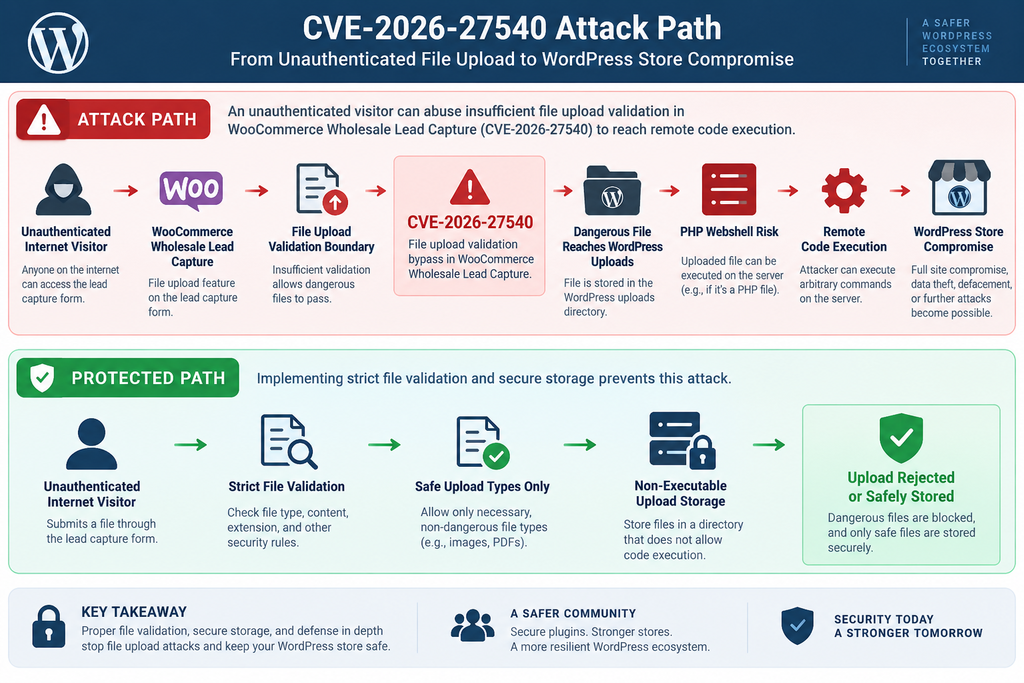
A serious WordPress security issue deserves immediate attention from WooCommerce store owners using Wholesale Lead Capture. The vulnerability, tracked as CVE-2026-27540, affects WooCommerce Wholesale Lead Capture versions up to and including 2.0.3.1. It involves insufficient validation of uploaded files and can allow an unauthenticated attacker to place dangerous files on an affected WordPress server. Because authentication is not required, attackers can potentially target vulnerable stores without first stealing a password or gaining access to a legitimate WordPress account.
This is not a situation where installing the update should automatically end the investigation. A security update closes the known vulnerable path, but it cannot tell you whether someone exploited that path before the update was installed. If an attacker successfully uploaded a PHP webshell or another backdoor, that file may remain on the server after the vulnerable plugin has been patched. For administrators whose stores were exposed while running an affected version, the safest response therefore has two parts: patch the vulnerability and investigate the website for evidence of compromise.
That second step matters because a webshell can turn an apparently simple plugin vulnerability into a much larger incident. Depending on server permissions and configuration, malicious PHP running through a web-accessible directory may allow an intruder to manipulate WordPress files, access information available to the web process, create persistence, modify store content, interfere with orders, or plant additional backdoors. The practical question is no longer simply, “Is my plugin updated?” It becomes, “Was anything uploaded or changed before I updated?”
This guide focuses on that practical response. It explains what CVE-2026-27540 means, why file validation matters, what active exploitation changes for site owners, how to update safely, where defenders should look for suspicious PHP files, and what to do when a WooCommerce installation may already have been compromised.
What Is CVE-2026-27540
CVE-2026-27540 is an arbitrary file upload vulnerability affecting the WooCommerce Wholesale Lead Capture plugin for WordPress. Public vulnerability information identifies versions through 2.0.3.1 as affected and version 2.0.3.2 as the patched release. The issue received a critical severity assessment because exploitation does not require an authenticated WordPress account and may ultimately allow remote code execution when an attacker manages to place executable server-side code where the web server can run it.
The vulnerable component is not WooCommerce core itself. That distinction is important. A store can run a fully updated copy of WooCommerce and still be exposed if the separate Wholesale Lead Capture extension remains vulnerable. WordPress administrators should therefore verify the installed version of the specific plugin rather than assuming that updating WordPress or WooCommerce automatically addresses this issue.
Why an Arbitrary File Upload Is So Dangerous
Normal WordPress upload functionality needs strict boundaries. A website may legitimately accept images, PDFs, spreadsheets, or other documents. However, the application must determine which file types are acceptable, where they should be stored, how they are named, and whether the web server is allowed to execute them. Those controls create the boundary between an ordinary upload feature and a potentially dangerous remote-code-execution path.
CVE-2026-27540 is particularly serious because the vulnerable upload process lacked sufficient file-type validation. In practical terms, an attacker could potentially submit a file that should never have been accepted by a public-facing registration or lead-capture process. If the resulting file contains executable server-side code and lands in an executable web-accessible location, the consequences can extend well beyond the plugin itself.
Why Authentication Requirements Matter
Many WordPress vulnerabilities require an attacker to possess an account with a particular role. That requirement creates at least one additional barrier. CVE-2026-27540 does not provide that comfort. Security databases classify the flaw as unauthenticated, meaning a remote attacker does not need legitimate WordPress credentials before attempting exploitation.
This characteristic also makes automated exploitation more practical. Attackers can scan large numbers of WordPress websites looking for potentially vulnerable installations rather than manually compromising accounts first. A small WooCommerce store is not protected simply because it receives little traffic or appears uninteresting. Automated campaigns can target vulnerable software at scale, making the presence of the affected plugin more relevant than the popularity of the individual website.
CVE-2026-27540 and CVE-2026-27542
Administrators should also be aware of another critical vulnerability associated with affected versions of the same plugin. CVE-2026-27542 concerns unauthenticated privilege escalation and has also been reported for versions through 2.0.3.1. That issue creates a different route toward serious compromise because an attacker may be able to gain administrator-level privileges.
The existence of both vulnerabilities strengthens the case for a broader investigation when an outdated installation is discovered. Checking only for uploaded files may not provide a complete picture. Administrators should also inspect WordPress user accounts, administrator privileges, recent account creation, password changes, active sessions, installed plugins, modified themes, scheduled tasks, and other persistence opportunities.
Quick Risk Summary
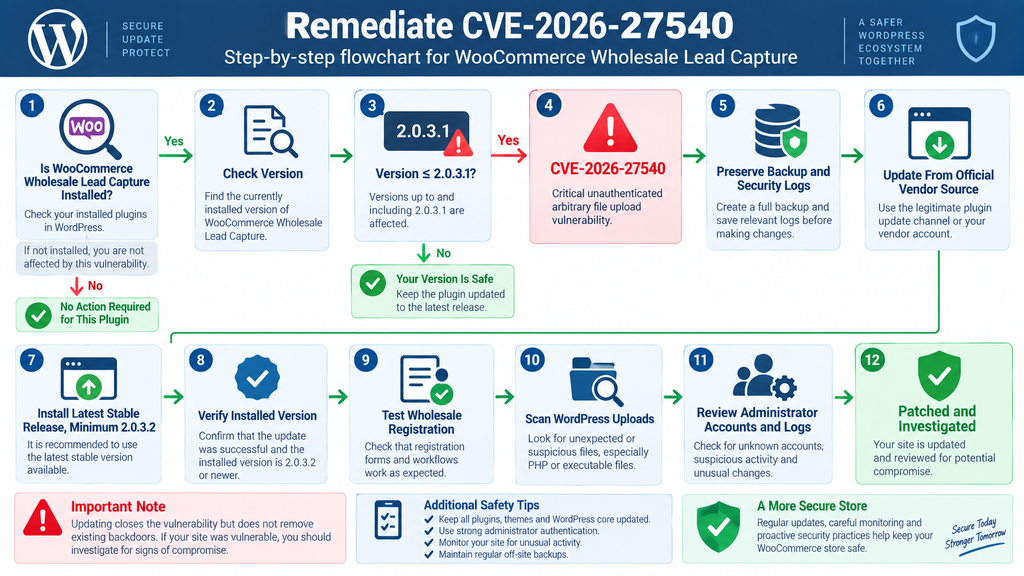
For store owners, the important facts are straightforward. WooCommerce Wholesale Lead Capture 2.0.3.1 and earlier should be considered vulnerable to CVE-2026-27540. The vulnerability can be attacked without authentication. Successful exploitation can permit dangerous file uploads and potentially remote code execution. Version 2.0.3.2 contains the security fix, while later stable versions include subsequent fixes and hardening.
Therefore, 2.0.3.2 should be treated as the minimum security baseline rather than a preferred long-term target. If a newer stable release is available and compatible with your store, installing the current supported version is generally the better maintenance decision.
How Attackers Bypass File-Type Restrictions
Understanding the weakness does not require publishing an exploit. The defensive lesson is much simpler: applications should never trust an uploaded filename, browser-supplied content type, extension, or user-controlled metadata as sufficient proof that a file is safe. A secure upload process needs several checks working together, especially when uploaded content can become publicly accessible.
In a properly protected system, the application validates the file against an explicit allowlist, confirms its expected format, applies safe naming rules, controls its storage destination, and prevents server-side execution where appropriate. WordPress also provides APIs that plugin developers can use when handling uploads. Problems arise when an upload handler accepts untrusted input without enforcing the necessary restrictions before moving the file into storage.
File Extensions Are Only One Layer
Store administrators sometimes assume that blocking .php is enough to secure an upload feature. In reality, secure upload handling requires more than checking a visible extension. File names and metadata come from an untrusted client, and server configurations differ. Developers need to validate uploads consistently and avoid relying on assumptions about what the browser claims a file contains.
From a defensive perspective, administrators should think in layers. The plugin must reject unauthorized file types. WordPress should handle files through secure APIs. The upload destination should have appropriate permissions. The web server should not execute scripts from directories intended only for user content whenever the site’s architecture permits that restriction.
Why Upload Directories Deserve Attention
The standard WordPress media directory is wp-content/uploads. Under normal conditions, this area contains images, documents, video, audio, generated thumbnails, and files created by plugins. Finding a PHP file there does not automatically prove malicious activity because some legitimate plugins may create PHP files for specific purposes. However, unexpected executable PHP inside an uploads directory is unusual enough to justify investigation.
Administrators should be especially cautious when unfamiliar PHP files appear inside temporary, randomly named, or plugin-created subdirectories. Do not open a suspicious PHP file through a browser to “see what it does.” That action could execute it. Investigation should instead happen through a trusted file manager, secure shell session, hosting security scanner, offline copy, or assistance from an experienced incident-response professional.
What a Webshell Changes
A webshell is server-side code that gives an attacker a way to interact with the compromised server remotely. Its capabilities vary dramatically. Some are tiny command interfaces, while others provide file management, database access, credential collection, persistence functions, or tools for installing additional malicious components.
The important defensive principle is that discovering one webshell should not lead to the assumption that removing one file solves the incident. If an attacker successfully executed code, they may have had enough access to create another backdoor elsewhere. They might modify a plugin, add a WordPress administrator, alter a theme file, create scheduled persistence, or place additional files outside the directory where the initial compromise occurred.
Defense Should Not Depend on Obscurity
Renaming directories or hiding WordPress version information can reduce casual fingerprinting, but these measures should never replace patching. Automated attackers can identify vulnerable behavior through several methods, and public vulnerability information often makes targeted scanning easier over time.
A better defensive strategy combines rapid updates, limited permissions, reliable backups, server-side restrictions, security monitoring, file-integrity checks, strong administrator authentication, and careful incident response. No single layer needs to be perfect if several independent controls can prevent or detect compromise.
Avoid Testing Exploits on a Production Store
Store owners may encounter public proof-of-concept material related to CVE-2026-27540. Running exploit scripts against a live WooCommerce store is unnecessary and can introduce additional risk. A failed or poorly understood test can create files, alter accounts, damage data, trigger security controls, or make later forensic analysis harder.
Instead, determine exposure through version information and trusted vulnerability databases. If the store ran an affected version, preserve logs and investigate the filesystem. If controlled security testing is necessary, use an isolated staging environment that contains no production customer information and is legally authorized for testing.
Evidence of Active Exploitation
The risk around CVE-2026-27540 is no longer theoretical. Current threat reporting describes active attempts to exploit vulnerable WooCommerce Wholesale Lead Capture installations. Wordfence’s vulnerability database also shows ongoing attack activity against the flaw, while Patchstack identifies the vulnerability as known to be exploited.
That changes how administrators should prioritize the issue. Before exploitation becomes widespread, patching quickly may be the central task. Once attacks are occurring in the wild, administrators who operated an affected version should also consider whether compromise may have happened before the update.
Why Automated Attacks Change the Risk
An attacker does not need to know your company, your customers, or your website beforehand. Automated scanners can search the internet for vulnerable WordPress installations and attempt exploitation whenever they identify a promising target. Consequently, “Nobody would target my small store” is not a reliable security assumption.
Attack campaigns frequently care about access rather than brand recognition. A compromised website can potentially be used for spam, redirects, malicious pages, credential theft, SEO manipulation, malware distribution, persistence infrastructure, or attacks against additional systems. E-commerce websites may also contain valuable customer and operational information, increasing the potential impact.
An Updated Site May Still Have Been Compromised Earlier
Imagine a store ran version 2.0.3.1 for several months and updated today. The vulnerable code is now patched, which is important. However, an attacker who successfully uploaded a backdoor yesterday does not necessarily lose access simply because the plugin changed today.
The backdoor exists independently of the original vulnerability once it has been written to disk. The attacker may even have established another persistence method before the update occurred. This is why security professionals distinguish between vulnerability remediation and incident remediation. Patching addresses the vulnerability. Incident response addresses what may have happened while the vulnerability was available.
Signals That Deserve Investigation
Unexpected PHP files in wp-content/uploads deserve attention, especially when their creation time overlaps with suspicious traffic. Administrators should also look for recently created administrator accounts, unexplained role changes, unfamiliar plugins, modified active-theme files, unusual scheduled tasks, changes to WordPress configuration files, unknown redirects, unexpected JavaScript, unexplained checkout behavior, and abnormal server activity.
One indicator alone may have a legitimate explanation. Several indicators appearing together increase concern considerably. A new administrator combined with an unfamiliar executable file and unusual server requests should be treated differently from a single cache file generated by a known plugin.
Preserve Evidence Before Cleaning
When compromise is suspected, immediately deleting every suspicious file can destroy useful evidence. Before making extensive changes, preserve a copy of the relevant files, database, access logs, error logs, security-plugin logs, authentication records, and hosting logs when possible.
Evidence can help establish when the attack occurred, which files were touched, what accounts were used, whether additional persistence exists, and what information may have been exposed. For a commercial WooCommerce store, those answers can matter for technical recovery, customer communication, insurance requirements, contractual obligations, and possible regulatory reporting.
Do Not Rely Exclusively on a Security Plugin
A WordPress security plugin is valuable, but no security product can guarantee that an installation was never compromised. Detection depends on signatures, behavior, configuration, visibility, timing, and what an attacker changed.
Combine malware scanning with manual filesystem review, file-integrity comparisons, user-account auditing, server-log analysis, database review, and hosting-level investigation. When the business impact is substantial or customer information may have been exposed, involving a qualified incident-response professional is a sensible step.
Updating to Version 2.0.3.2
The immediate remediation for CVE-2026-27540 is to move away from every affected version. Public vulnerability records identify 2.0.3.2 as the patched version. The vendor changelog describes that release as containing security fixes and hardening. Later releases have subsequently been published, so administrators should normally use the latest stable supported version rather than deliberately stopping at the minimum patched release.
Before updating a production WooCommerce store, create or verify a recent backup of the database and site files. However, if you suspect compromise, do not overwrite your only pre-update backup. Preserve it separately. An older backup can contain valuable evidence and may provide a clean recovery point if its creation date predates the intrusion.
Verify the Installed Version
Open the WordPress administration area and inspect the installed plugins. Locate WooCommerce Wholesale Lead Capture and record the installed version. If you use centralized WordPress management, hosting automation, WP-CLI, or another maintenance platform, verify the version there as well.
Do not rely on memory or assume automatic updates handled the problem. Premium plugins may use their own licensing and update channels. Updates can also fail because of expired licenses, filesystem permissions, maintenance errors, incompatible PHP versions, or disabled automatic updates.
Update From a Trusted Source
Install the update through the legitimate plugin update mechanism or obtain the package from the official vendor. Avoid downloading “nulled,” repackaged, or unofficial copies of premium plugins. A security incident is exactly the wrong time to introduce software from an unknown source.
After updating, confirm that WordPress actually reports the expected version. Then clear relevant application and server caches so stale code is not unexpectedly retained by an unusual deployment or caching configuration.
Minimum Patched Does Not Mean Latest
Version 2.0.3.2 fixes the vulnerabilities discussed here, but it is no longer the newest release listed by the vendor. The changelog includes later versions with additional fixes and security hardening. Therefore, use 2.0.3.2 as a minimum reference for CVE-2026-27540, not as a recommendation to downgrade or remain permanently on that specific build.
Compatibility still matters. On a high-value production store, test major plugin updates on staging when practical. Nevertheless, active exploitation changes the balance between update risk and security risk. Leaving a remotely exploitable critical vulnerability exposed because testing is inconvenient can be considerably more dangerous than scheduling an urgent controlled update.
Test Wholesale Registration After Updating
Once the plugin has been updated, test the normal business functions it provides. Check wholesale registration forms, approval workflows, login behavior, email notifications, custom registration fields, and any legitimate file-upload fields your business uses.
Use harmless test data. Confirm that expected file types are accepted and inappropriate types are rejected. Also verify that customer and wholesale roles remain correct. Functional testing helps ensure the emergency security update has not created an operational problem that causes someone to roll back to a vulnerable version.
Never Roll Back to a Vulnerable Release
If the update introduces a compatibility issue, do not simply restore version 2.0.3.1 and leave the site publicly accessible. Temporarily disabling the affected feature or plugin is safer while you investigate compatibility.
A rollback to a known vulnerable version restores the attack surface. If business requirements make temporary deactivation difficult, contact the plugin vendor, hosting provider, or WordPress developer and implement appropriate temporary protections while a permanent solution is prepared.
Searching WordPress Uploads for PHP Webshells

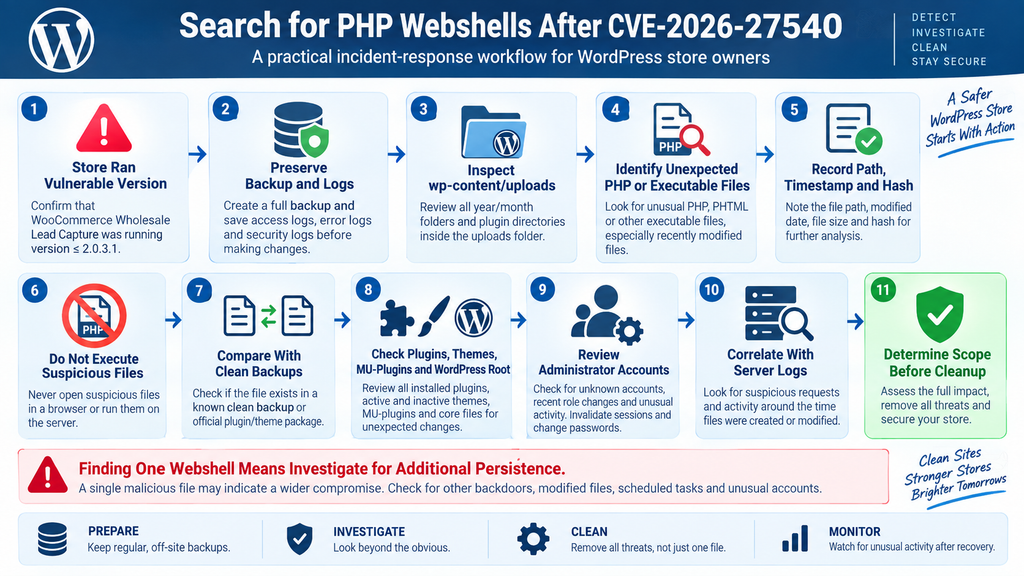
This is the step administrators should not skip after discovering that a store ran a vulnerable release. Start by treating wp-content/uploads as an investigation area. In a typical WordPress installation, this directory primarily stores media and other uploaded content rather than executable application logic.
A PHP file inside uploads is therefore worth reviewing, although its presence alone does not prove compromise. Some legitimate plugins create small PHP files, including defensive index files or special processing components. Context matters. The goal is not to delete everything ending in .php. The goal is to identify files that do not belong there and determine how they arrived.
Start With a Backup or Snapshot
Before changing files, create a filesystem snapshot or backup when possible. If the hosting platform offers account snapshots, server backups, or immutable backup points, preserve one before cleanup.
Also record the current time, plugin version, WordPress version, active theme, active plugins, administrator accounts, and any obvious symptoms. A simple incident timeline becomes extremely useful when comparing file timestamps with server logs later.
Inspect the Uploads Directory
Use your hosting file manager, SFTP, SSH, malware scanner, or another trusted administrative method to inspect wp-content/uploads. Look through year and month directories as well as directories created by plugins.
Pay attention to unexpected executable extensions and unusual directory names. Files created recently or around periods of suspicious traffic deserve additional scrutiny. Also compare them against known files from earlier clean backups when those backups are available.
A Defensive SSH Search
Administrators with legitimate SSH access to their own server can perform a basic search for PHP-family files inside WordPress uploads. For example:
find wp-content/uploads -type f ( -name "*.php" -o -name "*.phtml" -o -name "*.php5" ) -print
This command does not execute the files. It only lists matching filenames. Run it from the correct WordPress document root and review every result carefully.
A result is an investigation lead, not automatic proof of malware. Record the path, timestamp, ownership, permissions, and file size before making changes.
Search by Recent Modification Time
If you know approximately when the site may have been attacked, filesystem timestamps can help narrow the investigation. Hosting control panels often allow sorting files by modification date. SSH users can also use standard filesystem tools to identify recently modified files.
Timestamps are useful but not conclusive. Attackers may alter timestamps, deployments can rewrite legitimate files, caches can regenerate content, and backups can change metadata. Use time information alongside logs and file-content analysis rather than treating it as definitive evidence.
Never Execute a Suspicious File
Do not paste the suspicious file’s URL into a browser. Do not run it with PHP from the command line. Do not include it in another script. A malicious file may perform destructive or persistent actions when executed.
Inspect suspicious content as plain text through a safe administrative environment. If you are not experienced with malware analysis, preserve the file and send it to your hosting security team or a qualified professional instead of experimenting with it on the live server.
What Suspicious PHP May Look Like
Malicious PHP frequently attempts to hide its purpose through obfuscation, encoded strings, dynamically assembled functions, unusually long unreadable lines, or combinations of functions that transform and execute data. However, legitimate software can also use encoding or complex generated code.
Therefore, avoid using a single string as a definitive malware detector. Security scanners can identify many known patterns, but manual context remains valuable. Ask whether the file belongs to an installed plugin, whether the vendor ships it, whether the same file exists in a clean package, and whether its hash matches a trusted copy.
Compare WordPress Core Files
The WordPress core directories should be compared with a known-good copy corresponding to the exact installed WordPress version. WP-CLI provides integrity verification capabilities that can help identify unexpected modifications to core files.
Modified core files deserve attention because attackers sometimes hide persistence inside legitimate filenames. A clean core verification does not prove the whole website is safe, since plugins, themes, uploads, configuration files, and the database remain outside that narrow check.
Compare Plugins With Clean Packages
Review installed plugins against trusted vendor copies. This is especially important for plugins that should not normally change after installation.
A malicious modification may be inserted into an otherwise legitimate plugin file, making filename-based scans less effective. File-integrity monitoring and comparisons with clean packages can reveal modifications that a quick directory review might miss.
Premium plugins require additional care because public repositories may not contain the exact package. Obtain clean comparison files directly from the legitimate vendor account or deployment repository used by your organization.
Inspect Themes Too
Attackers frequently target writable theme files because WordPress loads them during normal requests. Examine active and inactive themes for unexpected modifications, especially files that changed around the suspected compromise window.
If your site uses a custom child theme, compare it against your source-control repository or a known clean backup. Do not blindly replace custom code unless you understand which changes are legitimate.
Check the WordPress Root
Do not limit the investigation to uploads. Once remote code execution becomes possible, the attacker may create files elsewhere within the permissions available to the web process.
Review the WordPress document root for unfamiliar PHP files and unexpected changes. Check wp-config.php, .htaccess, web-server configuration accessible to the account, wp-content/mu-plugins, ordinary plugins, themes, cache directories, and other writable locations.
Inspect MU-Plugins
The wp-content/mu-plugins directory deserves special attention because must-use plugins load automatically and do not behave exactly like ordinary plugins in the WordPress Plugins screen. A malicious file placed there can provide persistence while remaining less visible to an administrator who only checks standard plugins.
Compare every MU-plugin with your documented configuration or a known clean backup. If your website legitimately uses custom MU-plugins, maintain a source-controlled copy so unauthorized changes become easier to identify.
Review Administrator Accounts
Filesystem investigation should happen alongside a WordPress account audit. List all administrators and confirm that each account belongs to a known person or service.
Look for unfamiliar usernames, recently created accounts, unexpected email changes, role modifications, and accounts that no longer need administrator privileges. Remember that CVE-2026-27542, another critical issue affecting the same vulnerable plugin versions, involves privilege escalation. This makes user-account review particularly relevant.
Invalidate Active Sessions
If compromise is confirmed or strongly suspected, force active WordPress sessions to expire after securing legitimate administrator credentials. Change administrator passwords from a trusted device and rotate relevant authentication secrets as part of the recovery process.
Do not perform sensitive credential changes from a computer you suspect may itself be compromised. WordPress recovery is much harder when the administrator workstation remains an attacker-controlled entry point.
Review Server Logs
Web access logs can help identify suspicious requests around the time files were created. Preserve the logs before retention policies rotate them out.
Look for unusual POST activity, unexpected requests to newly created PHP files, repeated probes, unfamiliar administrative access, and requests that align with suspicious filesystem timestamps. Security plugins and web application firewalls may also retain useful events.
Do not focus solely on a single attacker address. Attack campaigns may use many hosts, proxies, compromised servers, or rotating infrastructure. Behavioral patterns and timestamps can be more useful than one isolated IP address.
Examine the Database
A WordPress compromise may include database persistence. Review administrator records, active plugins, important options, scheduled behavior, injected content, widgets, and other settings for unexplained changes.
WooCommerce administrators should also review orders, payment-related settings, checkout behavior, webhook configurations, API credentials, and integration settings when compromise is confirmed. Do not assume that an attacker interested in filesystem access ignored the store’s application data.
Check Scheduled Tasks
WordPress cron events and server-level cron jobs can provide persistence. Review unexpected scheduled actions, especially entries that reference unfamiliar files or functions.
On managed hosting, ask the provider whether account-level scheduled tasks changed during the incident window. On a VPS or dedicated server, inspect cron configuration according to your server-management procedures.
Look Beyond One Webshell
Finding one malicious file is evidence of compromise, not necessarily the entire compromise. Preserve it, identify its likely creation time, and expand the search around that timestamp.
Check neighboring files, other writable directories, user accounts, database changes, scheduled tasks, configuration files, access logs, and outbound behavior. Attackers commonly establish redundancy because they expect defenders to remove obvious artifacts.
Responding to a Compromised WooCommerce Store
If you discover a confirmed webshell, unauthorized administrator, unexplained malicious modification, or convincing evidence of remote code execution, treat the WordPress installation as compromised. At this point, simply deleting the suspicious file is not sufficient.
The attacker may have obtained access to credentials, configuration information, database contents, WooCommerce information, API secrets, or additional parts of the hosting account. Your objective changes from vulnerability management to containment, investigation, eradication, recovery, and monitoring.
Contain the Incident
Containment should reduce the attacker’s ability to continue interacting with the environment while preserving enough evidence to understand what happened. The exact approach depends on the importance of the store and the hosting architecture.
For a small store, temporary maintenance mode or restricted access may be appropriate. A larger business may isolate the affected server, place traffic behind emergency controls, or move service to a clean environment. Avoid destructive cleanup until relevant evidence has been preserved.
Preserve a Forensic Copy
Save copies of the affected filesystem, database, web-server logs, security logs, WAF events, authentication information, and relevant hosting records.
Keep the suspected compromised copy separate from your clean recovery environment. Do not restore it over a clean server simply because the site appears to work. A forensic copy is evidence, not necessarily a safe production backup.
Determine the Exposure Window
Establish when the vulnerable plugin version was installed and when it was updated. Then compare that period with suspicious files and log events.
A site that installed the patched version immediately after the vulnerable release may have a much smaller exposure window than a site that remained vulnerable for months. However, absence of obvious evidence is not absolute proof that exploitation never occurred.
Identify the Earliest Reliable Clean Backup
Backups become especially valuable during incident response, but “the newest backup” is not automatically the best recovery source. If an attacker established persistence two weeks ago, yesterday’s backup may contain the same backdoor.
Try to identify a backup from before the earliest evidence of compromise. Verify that backup rather than assuming it is clean. Then bring WordPress core, themes, plugins, and extensions fully up to date before placing the recovered store back online.
Consider Rebuilding Instead of Cleaning
For a serious compromise, rebuilding from trusted components is often safer than manually deleting files until scanners stop reporting malware. Start with a clean server or clean hosting environment when possible. Install WordPress from an official package, obtain plugins and themes from legitimate sources, restore carefully reviewed content and data, and apply hardened configuration.
This approach reduces the chance of overlooking a hidden backdoor in an old plugin, theme, root file, or obscure writable directory. It also provides a clear point from which future file-integrity monitoring can begin.
Rotate WordPress Credentials
Reset passwords for WordPress administrators and other privileged accounts. Remove accounts that should not exist and reduce excessive privileges.
For a confirmed server compromise, consider all credentials accessible to the affected application potentially exposed until proven otherwise. That can include database credentials, application passwords, API credentials, deployment credentials, and other secrets stored in configuration files or the database.
Rotate WordPress Security Keys
WordPress authentication keys and salts help secure login cookies and sessions. During recovery from a serious compromise, rotating these secrets can invalidate existing sessions and prevent previously stolen session material from remaining useful.
Perform the rotation as part of a controlled recovery process and verify that legitimate administrators can log in again afterward.
Review Database Credentials
If an attacker achieved code execution under the web server’s context, they may have been able to read wp-config.php, depending on filesystem permissions. That file normally contains the credentials WordPress uses to access its database.
For confirmed compromise, changing the database password can therefore be appropriate. Update the corresponding WordPress configuration securely and test database connectivity before returning the site to normal operation.
Review WooCommerce API Keys
WooCommerce stores may use REST API keys and external integrations for accounting, fulfillment, inventory, CRM systems, mobile applications, shipping, or custom automation.
Review active keys and remove anything unfamiliar. For a serious confirmed compromise, rotate sensitive integration credentials according to the procedures of each connected service. Coordinate carefully because changing keys can interrupt legitimate order processing.
Review Payment Integrations
A compromised WooCommerce server deserves careful examination of payment configuration. The exact exposure depends on the payment gateway architecture. Many modern gateways tokenize sensitive payment information and keep card details away from the merchant’s WordPress database, but compromise can still create serious risks.
Verify that payment gateway plugins came from trusted sources, account identifiers remain correct, checkout pages contain no unauthorized scripts, webhook settings are expected, and administrative payment settings have not changed.
If you identify evidence that payment-related information or checkout behavior was altered, contact the payment provider and an appropriate security professional promptly.
Inspect WooCommerce Orders
Review orders created during the suspected compromise period for unusual activity. Look for unexpected administrator edits, unexplained status changes, suspicious refunds, abnormal coupon use, unfamiliar customer-account modifications, or other anomalies.
This review does not prove whether server compromise affected transactions, but it can identify operational issues requiring separate investigation.
Review Customer Accounts
Check for unusual customer-account creation, unexpected role changes, bulk password-reset behavior, or accounts with privileges they should not possess.
Do not force unnecessary customer actions without evidence or professional guidance. If personal data may have been accessed, legal and regulatory obligations can depend on jurisdiction, data type, and the circumstances of the incident.
Check Other Websites on the Same Hosting Account
Shared hosting environments and multi-site server accounts deserve special attention. Depending on permissions and isolation, compromise of one website may potentially affect neighboring installations.
If several WordPress websites share the same Unix account, document root hierarchy, database credentials, or writable directories, inspect those sites too. A clean WooCommerce installation does not help if another compromised site can rewrite its files.
Ask the Hosting Provider for Help
Hosting providers may possess information unavailable inside WordPress, including web-server logs, process records, malware-detection events, account snapshots, firewall events, filesystem history, and backup metadata.
Tell the provider that you are investigating possible remote code execution associated with CVE-2026-27540. Ask what logs remain available and whether they detected suspicious PHP execution or unexpected file creation.
Harden Upload Execution
Where compatible with your website and server architecture, preventing PHP execution inside user-upload directories can provide a valuable additional security boundary. The exact configuration differs between Apache, NGINX, LiteSpeed, managed WordPress hosting, and other environments.
Do not blindly paste server directives from random tutorials into production. Incorrect configuration can break legitimate functionality or create unexpected behavior. Ask your hosting provider or server administrator to implement the appropriate rule for your environment.
Reduce Filesystem Write Permissions
WordPress needs write access in certain locations for uploads, caching, updates, and plugin functionality. It does not need unrestricted write permissions everywhere.
Review ownership and permissions according to your hosting model. Avoid broad permissions such as world-writable directories unless a specific platform absolutely requires them. Least-privilege filesystem access limits what compromised application code can modify.
Add File-Integrity Monitoring
Once the store is clean, establish a trusted baseline for WordPress core, plugins, themes, MU-plugins, and important configuration files. Automated monitoring can then alert administrators when executable files change unexpectedly.
File-integrity monitoring is particularly useful for stores because many application files should remain unchanged between planned deployments and updates.
Keep Security Logs Long Enough
Short log retention makes investigations much harder. If logs disappear after only a few days, administrators may discover a compromise after the evidence needed to reconstruct it has already been deleted.
Choose retention appropriate for the business and available storage. Consider web-server logs, authentication records, WAF events, WordPress security logs, hosting logs, and administrative audit records.
Use Strong Administrator Authentication
Enable multi-factor authentication for WordPress administrators where practical. Use unique passwords and avoid sharing administrator accounts between multiple people.
MFA would not directly prevent an unauthenticated arbitrary file upload vulnerability, but it can protect other entry points and reduce the value of stolen passwords. WordPress security works best when different controls protect different failure scenarios.
Maintain a WordPress Incident Plan
The middle of an active compromise is a poor time to decide where backups live, who controls the hosting account, how payment credentials are rotated, or who can access DNS.
Document these procedures before the next incident. Include hosting contacts, backup locations, domain and DNS access, security-plugin information, payment-provider contacts, developer contacts, and recovery steps.
Monitor After Recovery
A recovered store should receive increased monitoring for a period after the incident. Watch for unexpected file changes, new administrators, unusual authentication, suspicious outbound connections, unexplained cron events, changes to checkout pages, and reappearance of previously removed artifacts.
If the same malware returns, assume that an overlooked persistence mechanism or compromised credential remains active. Do not repeatedly delete the visible file without investigating why it keeps coming back.
Frequently Asked Questions
What is the WooCommerce Wholesale Lead Capture vulnerability?
The WooCommerce Wholesale Lead Capture vulnerability tracked as CVE-2026-27540 is an unauthenticated arbitrary file upload flaw. It affects plugin versions up to and including 2.0.3.1. An attacker may be able to upload dangerous files without first logging into WordPress, potentially leading to remote code execution.
Which version fixes CVE-2026-27540?
Version 2.0.3.2 is identified as the patched release for CVE-2026-27540. Administrators should install 2.0.3.2 or, preferably, the latest stable supported version available from the legitimate vendor.
Is WooCommerce itself vulnerable?
This specific CVE concerns the WooCommerce Wholesale Lead Capture plugin rather than WooCommerce core. Updating WooCommerce alone does not fix an outdated vulnerable copy of Wholesale Lead Capture.
Does updating the plugin remove a webshell?
No. Updating fixes the vulnerable plugin code but does not automatically remove malicious files uploaded before the update. Sites that ran an affected version should investigate the filesystem, accounts, database, and logs for signs of compromise.
Where should I look for suspicious PHP files?
Begin with wp-content/uploads, including plugin-created subdirectories. Then inspect plugins, themes, MU-plugins, the WordPress root, configuration files, cache directories, and other writable locations. Unexpected PHP inside uploads deserves investigation but is not automatically proof of malware.
Should I delete every PHP file inside uploads?
No. Preserve suspicious files and determine their purpose first. Some legitimate plugins create PHP files. Record paths, timestamps, ownership, hashes, and relevant logs before deleting suspected malware, particularly when a serious compromise may require forensic analysis.
Is a malware scan enough?
A malware scan is useful but should not be your only investigation method after suspected remote code execution. Combine scanning with file-integrity checks, clean-package comparisons, administrator-account auditing, database review, server-log analysis, and examination of scheduled tasks.
What should I do if I find a webshell?
Treat the website as compromised. Preserve evidence, contain the site, investigate additional persistence, rotate relevant credentials, verify WooCommerce and payment settings, and consider rebuilding from trusted components or a verified clean backup.
Should I change WooCommerce and WordPress passwords?
If compromise is confirmed, privileged WordPress credentials should be changed from a trusted device. Depending on the scope of the incident, database passwords, API credentials, WordPress security keys, hosting credentials, and connected-service secrets may also require rotation.
Can I safely keep using WooCommerce Wholesale Lead Capture?
The vulnerability has been patched. Sites that require the plugin should use a current stable version from the legitimate vendor and maintain normal WordPress security practices. The critical issue is continuing to operate an affected release or failing to investigate a previously exposed installation.
From Emergency Patch to a Trusted Store Again
CVE-2026-27540 is a useful reminder that a WordPress security update sometimes marks the beginning of incident response rather than the end. WooCommerce Wholesale Lead Capture versions through 2.0.3.1 contain a critical arbitrary file upload vulnerability that can be attacked without authentication. Version 2.0.3.2 fixes the reported issue, and administrators should use the latest stable supported release available.
For a store that remained vulnerable, the most important follow-up is checking whether exploitation occurred before patching. Inspect uploads for unexpected executable files, but do not stop there. Review WordPress core, plugins, themes, MU-plugins, administrator accounts, scheduled tasks, configuration files, server logs, database changes, WooCommerce integrations, and other websites sharing the same hosting environment.
Finding a webshell means the security boundary has already been crossed. Removing the visible file does not establish that the server is clean. Preserve evidence, determine the scope, rotate exposed credentials, rebuild from trusted components when appropriate, and monitor the recovered environment carefully.
For WooCommerce stores, that additional work is worth the effort. A shop is more than a collection of WordPress files. It may connect customers, orders, payment services, inventory systems, email platforms, APIs, and business operations. Recovery should restore confidence in the entire environment, not merely make the homepage load normally again.
⚠️ Disclaimer and Source Hygiene
This article is intended for defensive cybersecurity education and WordPress administration. It does not provide exploit payloads or instructions for attacking vulnerable websites. Security incidents vary significantly according to server configuration, hosting architecture, plugin versions, permissions, available logs, and attacker activity.
The vulnerability information in this article is based on publicly available security research, vulnerability databases, vendor information, and current threat reporting. Technical details can change as researchers, vendors, hosting providers, and security companies publish new findings. Administrators should verify current information through authoritative sources before making production security decisions.
If you discover evidence of unauthorized access, malware, remote code execution, customer-data exposure, or payment-system interference, consider consulting a qualified WordPress security specialist, hosting provider, incident-response professional, payment provider, or legal/privacy professional as appropriate.
🔔 For more tutorials like this, consider subscribing to our blog.
📩 Do you have questions or suggestions? Leave a comment or contact us!
🏷️ Tags: WooCommerce Wholesale Lead Capture vulnerability, CVE-2026-27540, WooCommerce security, WordPress vulnerability, WordPress webshell, WooCommerce malware, WordPress security, arbitrary file upload, WordPress incident response, WooCommerce security update
📢 Hashtags: #WooCommerce, #WordPress, #WordPressSecurity, #WooCommerceSecurity, #CVE202627540, #CyberSecurity, #WebSecurity, #WordPressVulnerability, #WebsiteSecurity, #IncidentResponse
📚 Sources and References
Wordfence Threat Intelligence
Wordfence classifies CVE-2026-27540 as a critical unauthenticated arbitrary file upload vulnerability affecting WooCommerce Wholesale Lead Capture versions through 2.0.3.1. Its vulnerability database identifies 2.0.3.2 as the patched release and reports active attempts targeting the vulnerability.
Patchstack Vulnerability Database
Patchstack identifies WooCommerce Wholesale Lead Capture versions through 2.0.3.1 as vulnerable and version 2.0.3.2 as patched. Its database categorizes the issue as an arbitrary file upload vulnerability and indicates that the vulnerability is known to be exploited.
Wholesale Suite Changelog
The official Wholesale Suite changelog records security fixes and hardening in version 2.0.3.2. It also documents subsequent releases, reinforcing the recommendation to use the latest stable supported version rather than treating 2.0.3.2 as the permanent target version.
Rapid7 Vulnerability Database
Rapid7 documents CVE-2026-27540 as an unrestricted upload of a file with a dangerous type affecting WooCommerce Wholesale Lead Capture through version 2.0.3.1 and notes that unauthenticated attackers may be able to upload arbitrary files that can lead to remote code execution.
🕊️ Secondary Sources and Testimonials
Current independent security reporting also describes exploitation activity targeting CVE-2026-27540 and emphasizes the risk of PHP backdoors being placed on vulnerable WordPress servers. These reports support the central defensive recommendation in this article: administrators who operated an affected version should not limit their response to installing an update.
No anonymous testimonials or unverifiable claims have been used as evidence for the vulnerability itself. Version ranges, severity, remediation information, and technical risk should be checked against established vulnerability databases and the plugin vendor whenever possible.
2 thoughts on “Critical WooCommerce Wholesale Lead Capture Vulnerability”