
Table of Contents
A newly addressed All-in-One WP Migration vulnerability highlights why restoring an untrusted WordPress archive can carry unexpected security risks. Learn what CVE-2026-19949 means, how second-order SQL injection can emerge during restoration, why secret values matter, and why administrators should update before importing backups.
All-in-One WP Migration Vulnerability Explained
All-in-One WP Migration is one of the most widely installed migration and backup tools in the WordPress ecosystem. According to its official WordPress.org listing, the plugin has more than five million active installations. Its main attraction is simple: administrators can package a WordPress website into an archive and later import that archive into another installation. The archive can contain the database, themes, plugins, uploads, configuration-related data, and other information required to reproduce a website.
That convenience also means the restoration process handles unusually powerful data. Restoring a migration archive is fundamentally different from uploading an ordinary image or importing a few blog posts. The plugin must read database records, transform stored values, replace URLs and paths, write files, and reconstruct large parts of the destination website. Consequently, weaknesses inside that processing pipeline deserve special attention.
The All-in-One WP Migration vulnerability associated with CVE-2026-19949 is especially relevant because the security concern occurs around data that may already be stored inside an archive before dangerous processing takes place. This pattern is commonly described as second-order injection. Instead of malicious input necessarily causing an immediate problem when first stored, it can become dangerous when another operation later retrieves and processes it.
For WordPress administrators, the practical lesson matters more than the technical label. Update All-in-One WP Migration before restoring or importing an archive, not afterward. Once a potentially dangerous archive has already passed through vulnerable restoration code, installing a patched release cannot undo whatever occurred during that previous processing.
What Is CVE-2026-19949?
CVE-2026-19949 is associated with a security issue involving the way All-in-One WP Migration processes certain values during its migration workflow. The official plugin changelog for version 7.110 confirms a security-relevant fix involving find-and-replace processing for values ending in a backslash. The developer also credits Jack Taylor for responsible disclosure.
The wording in the public changelog is intentionally concise. It does not provide administrators with an exploit recipe, nor does it state that every installation automatically becomes remotely exploitable. That distinction is important. Vulnerabilities involving migration data often require several conditions to line up before the theoretical worst-case impact becomes practical.
Administrators should therefore avoid two opposite mistakes. The first is dismissing the issue because exploitation may require a specially prepared archive or particular secret information. The second is assuming that every site running an older version has already been compromised. Neither conclusion follows automatically from the existence of the vulnerability.
The sensible response is straightforward. Sites using an affected release should move to All-in-One WP Migration 7.110 or newer before processing additional migration archives. Administrators who recently restored archives using an older release should also perform post-restoration security checks.
Why Migration Vulnerabilities Deserve Extra Attention
A conventional WordPress vulnerability might affect a form, REST endpoint, AJAX action, or administrative page. Migration plugins operate differently because administrators intentionally give them permission to make broad changes.
During a full restoration, the plugin may replace the existing database and restore themes, plugins, uploads, users, options, and other site information. That gives the import pipeline significant influence over the final WordPress installation.
An archive should therefore be treated more like executable deployment material than an ordinary document.
A .wpress backup obtained from an unknown website, public download, old compromised server, third-party contractor, or unverified storage location should never receive automatic trust merely because its filename looks legitimate.
How Second-Order SQL Injection Works
Most people think of SQL injection as an attacker entering malicious text into a form and immediately manipulating a database query. Second-order SQL injection works differently.
The potentially dangerous value can enter the system during one stage without immediately triggering the vulnerable SQL operation. The application stores, exports, transfers, or otherwise preserves that value. Later, another process retrieves it and uses it in a context where the original assumptions about its safety are no longer valid.
A migration workflow is a useful example because it naturally separates data creation from data processing.
Imagine Site A contains a specially constructed database value. An export operation packages that value into a migration archive. Nothing necessarily happens while the archive sits on disk.
An administrator then imports the archive into Site B.
During restoration, the migration software reads the stored value and performs transformations such as search-and-replace operations. If the application constructs SQL incorrectly while processing that value, information that appeared harmless during storage can influence a database query during restoration.
That delayed activation is why the term second-order matters.
Why Backslashes Can Matter
Backslashes have special significance in many string-processing and database contexts. Escaping rules determine whether quotation marks and other characters are interpreted as literal data or as part of query syntax.
Migration software faces an unusually difficult version of this problem. It must manipulate large amounts of database content without corrupting serialized data, paths, URLs, escaped characters, and application-specific values.
The official All-in-One WP Migration changelog for version 7.110 specifically states that the release fixes find-and-replace handling for values ending in a backslash.
That small-looking edge case can matter because security bugs often appear at boundaries between escaping, string transformation, and SQL query construction.
Secure code should never assume that previously stored data is automatically trustworthy. Values retrieved from a database, backup, cache, file, or migration archive can still contain attacker-controlled content.
When Archive Restoration Becomes Dangerous
The most important part of this vulnerability is the timing.
A vulnerable plugin sitting idle does not necessarily produce the same exposure as a vulnerable plugin actively processing a specially prepared migration archive. The restoration step is where previously stored information can reach sensitive processing logic.
That makes archive provenance extremely important.
A backup created personally from a known-clean production website presents a very different risk profile from an archive downloaded from an unknown source. Likewise, an archive recovered from a server that was previously compromised deserves additional scrutiny.
The danger increases when an administrator imports a migration package without first updating the migration plugin.
This creates an unusual security lesson: the order of operations matters.
Do not restore the archive and then update the plugin.
Update the plugin first.
Only after the patched version is running should you begin importing or restoring archives.
A Safer Restoration Order
Before performing a migration, verify that the destination WordPress installation itself is trustworthy. Update WordPress core where practical, install the current migration plugin release, and check that required extensions are also current.
Next, verify the origin of the archive. Confirm that it came from the expected server or backup repository. If hashes are available from your own backup system, compare them before importing.
Take a separate backup of the destination environment before beginning the restore. This may sound unnecessary on a fresh installation, but it provides a known baseline for forensic comparison and rollback.
After those steps, perform the import using the patched migration software.
Finally, inspect the restored environment rather than immediately assuming success because the front page loads.
Why the Secret Key Matters

Some vulnerability scenarios depend on more than possession of a crafted archive. Secret values used by a plugin can act as part of the trust or authentication model surrounding migration operations.
This changes how administrators should assess practical exploitability.
Knowing that a vulnerability exists is not the same as proving that an arbitrary unauthenticated visitor can exploit it remotely. An attacker may need additional knowledge, control over archive contents, access to a migration operation, a secret value, or another prerequisite.
That distinction is particularly important when discussing potential remote code execution.
SQL injection is not automatically equivalent to PHP code execution. Moving from database manipulation to executable server-side code generally requires additional conditions. Those conditions depend on the application, database permissions, server configuration, available functionality, and the attacker’s ability to influence subsequent processing.
Therefore, administrators should interpret RCE as a potential high-impact outcome under the necessary conditions, rather than assuming that every vulnerable installation provides a simple one-request route to server takeover.
A Leaked Secret Changes the Risk
Secrets should nevertheless be treated seriously.
A value does not remain secret merely because WordPress does not display it on a normal administration page. Backup archives, debug logs, database dumps, staging copies, accidentally exposed files, support packages, and previous compromises can all disclose sensitive information.
Administrators investigating a potentially affected website should therefore consider whether relevant secrets may have been exposed previously.
If there is credible evidence of exposure, rotate affected credentials and keys where the application supports rotation. Do not simply delete the suspicious archive and assume the risk has disappeared.
This principle applies beyond All-in-One WP Migration. Backup systems routinely contain some of the most sensitive material associated with a website.
Updating to Version 7.110
Updating should happen before another archive is imported.
Open the WordPress administration dashboard and navigate to Plugins → Installed Plugins. Locate All-in-One WP Migration and inspect the installed version.
If the installation is older than 7.110, update it to version 7.110 or a newer available release.
The official WordPress.org changelog confirms that version 7.110 fixes find-and-replace handling for values ending in a backslash. It also identifies Jack Taylor as the researcher responsible for disclosure.
Because newer releases may become available after this article is published, administrators should not deliberately downgrade to 7.110 when a later stable release exists. Version 7.110 should be treated as the relevant fixed baseline for this issue, while the newest stable release is normally the preferable target.
Do Not Restore First and Patch Later
This point deserves repeating because it is easy to reverse the order accidentally.
Suppose you have an old .wpress backup and need to recover a broken website. A natural reaction might be to install whatever plugin version is already available in an old deployment package, restore the site, and update everything afterward.
That workflow can expose the restoration operation itself to vulnerabilities already fixed in newer releases.
Instead, build or prepare the destination environment, install the patched migration software, and only then feed the archive into it.
The restoration engine should be trusted before the archive is trusted.
Check All-in-One WP Migration Extensions Too
Some websites use commercial extensions or integrations alongside the core plugin. These can provide cloud storage, larger upload support, scheduled backups, multisite functionality, or other features.
Review those components during the same maintenance window.
The core plugin being current does not automatically prove that every associated extension is current. Likewise, compatibility problems can appear when an old extension interacts with a newer core plugin.
Keep a record of the versions installed before and after the migration. This makes troubleshooting much easier if unexpected behavior appears after restoration.
Post-Restore Security Checks
A successful restore message proves that the migration operation finished. It does not prove that the restored website is clean. Start by reviewing administrator accounts.
Navigate to Users → All Users and inspect every account with Administrator privileges. Confirm that each account belongs to a recognized person or service. Look for unfamiliar usernames, unusual email addresses, recently created privileged accounts, or existing users whose roles changed unexpectedly.
Then inspect plugins and themes. A malicious or compromised archive could restore components that were not present in your expected baseline.
Pay special attention to inactive plugins as well. Inactive code cannot normally execute through standard plugin loading, but abandoned files can still become relevant if another vulnerability accesses them directly.
Inspect WordPress Core Files
WordPress core integrity checks can identify modified or unexpected files.
If WP-CLI is available, administrators can use the standard WordPress checksum mechanism to compare core files with official releases. Unexpected modifications deserve investigation.
Remember that core verification covers WordPress core. It does not automatically prove that plugins, themes, uploads, or custom code are clean.
Review the root directory for unfamiliar PHP files. Also inspect wp-content/uploads for executable PHP content, because normal media directories usually should not contain arbitrary server-side scripts.
Check wp-content/mu-plugins as well. Must-use plugins load automatically and can easily be overlooked from the normal Plugins screen.
Review wp-config.php
Inspect wp-config.php after restoring a questionable archive.
Look for unexpected include, require, or remote-loading logic. Check for unfamiliar constants, unusual PHP inserted before or after the normal configuration, and unexplained modifications.
Do not publish the contents of this file while asking for support.
wp-config.php normally contains database credentials and security-sensitive configuration. Screenshots or copied versions should have credentials and secret values removed before sharing.
Examine Database Users and Options
Attackers often seek persistence rather than an obvious visual defacement.
Review administrator users, active plugins, scheduled events, important WordPress options, and unfamiliar autoloaded options. Compare them against a known-good backup whenever possible.
If the restored archive came from a site that was previously compromised, assume the database may contain persistence mechanisms until inspection suggests otherwise.
Changing passwords alone is not enough if malicious code or database modifications remain.
What to Do If You Already Restored an Archive
Do not panic simply because you performed a restoration using an older plugin release. Vulnerable software does not prove successful exploitation.
First, update All-in-One WP Migration to the current patched release.
Next, establish exactly when the restoration occurred and where the archive originated. A backup generated by your own known-clean website is less concerning than a file received from an unknown party.
Review administrator accounts, plugins, themes, must-use plugins, scheduled tasks, recently modified PHP files, server access logs, and security logs.
If evidence suggests compromise, preserve logs before cleaning the environment. They can help determine what happened and which credentials require rotation.
For a high-value production website, rebuilding from a known-clean source can sometimes provide greater confidence than attempting to identify every possible persistence mechanism manually.
Frequently Asked Questions
What is the All-in-One WP Migration vulnerability?
CVE-2026-19949 concerns security-sensitive processing associated with the migration workflow. The official version 7.110 changelog confirms a fix involving find-and-replace processing of values ending in a backslash. Administrators should update before importing additional archives.
Which All-in-One WP Migration version should I install?
Use version 7.110 or newer for the issue discussed here. If a later stable release is available, installing the newest supported release is generally preferable.
Should I update before restoring a backup?
Yes. This is the most important operational recommendation. Update the migration plugin before importing or restoring an archive because vulnerable processing may occur during the restoration itself.
Does the vulnerability automatically give attackers remote code execution?
No. A vulnerability involving SQL processing should not automatically be described as universal RCE. Reaching code execution can require additional prerequisites and depends on the environment and attack chain.
What is second-order SQL injection?
It occurs when potentially malicious input is stored or transferred first and becomes dangerous later when another operation retrieves and uses it in an unsafe SQL context.
Are old .wpress archives unsafe?
Not automatically. Their risk depends heavily on their origin and integrity. Archives from known-clean systems are different from unknown downloads or backups produced after a suspected compromise.
Can I trust a backup because I created it myself?
Usually it provides stronger provenance, but a backup can preserve an existing compromise. If the source website was already infected when the archive was created, restoring it can restore malicious content too.
What should I inspect after a restoration?
Check administrator accounts, WordPress core integrity, plugins, themes, must-use plugins, uploads, wp-config.php, scheduled tasks, database options, and server/security logs.
Should I delete All-in-One WP Migration?
There is no general reason to remove a maintained plugin solely because a vulnerability was discovered and patched. Keeping software updated and controlling archive provenance are more meaningful security measures.
Is updating enough after a suspicious restore?
Not necessarily. Updating prevents future processing through the vulnerable code path, but it cannot reverse actions that may already have occurred. A suspicious previous restoration warrants an integrity and compromise review.
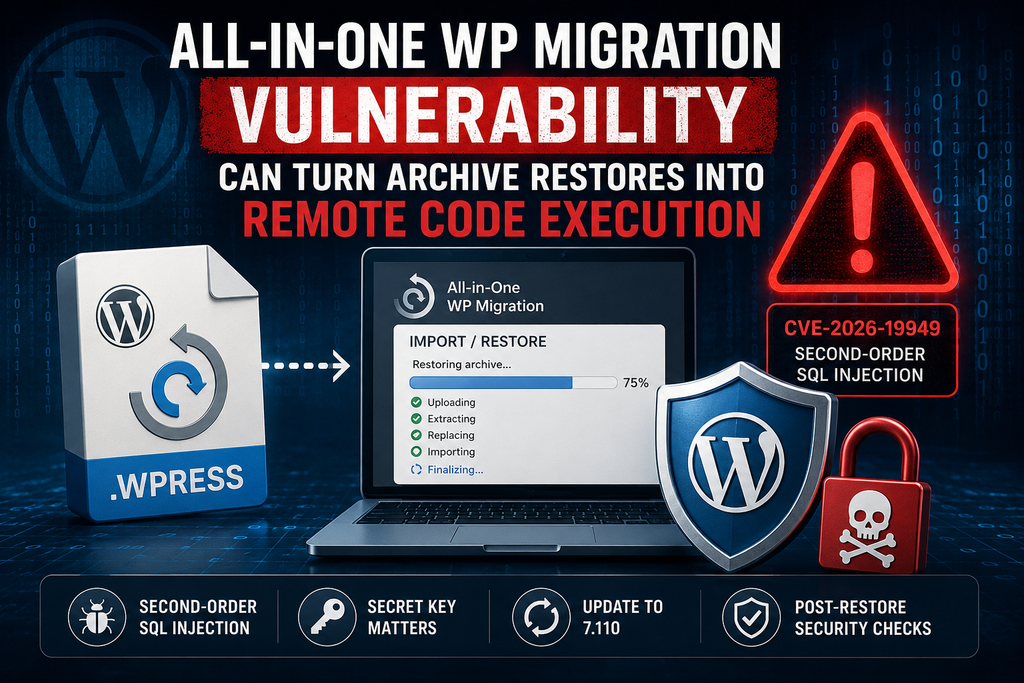
The Most Important Lesson for WordPress Restores
The All-in-One WP Migration vulnerability demonstrates an easily overlooked security principle: backups are not passive objects once restoration begins.
A migration archive can contain database information, plugins, themes, media, user accounts, options, and other site state. Restoring it gives that data enormous influence over the destination installation.
That is why the safest order is simple: patch first, verify the archive second, restore third, and audit afterward.
Administrators should update All-in-One WP Migration to version 7.110 or a newer stable release before importing another archive. They should also treat backups from unknown, compromised, or poorly controlled sources with the same caution they would apply to other powerful deployment packages.
A backup can save a website. However, a trustworthy restoration depends on both a trustworthy archive and a trustworthy restoration engine.
⚠️ Disclaimer and Source Hygiene
This article is provided for educational and defensive WordPress security purposes. Vulnerability details can change as researchers, vendors, CVE authorities, and security databases publish additional information. Administrators should verify current plugin versions and vendor advisories before making production security decisions. The technical discussion intentionally avoids exploit instructions. Potential impacts such as remote code execution depend on the conditions required by the vulnerability and the configuration of the affected environment. Consult a qualified WordPress security professional or incident-response specialist if you suspect an actual compromise.
🔔 For more tutorials like this, consider subscribing to our blog.
📩 Do you have questions or suggestions? Leave a comment or contact us!
🏷️ Tags: All-in-One WP Migration vulnerability, CVE-2026-19949, WordPress security, All-in-One WP Migration, WordPress migration security, WordPress backup security, second-order SQL injection, WordPress vulnerabilities, WordPress restore security, WordPress plugin updates
📢 Hashtags: #WordPress, #WordPressSecurity, #AllInOneWPMigration, #CVE202619949, #CyberSecurity, #WordPressVulnerability, #SQLInjection, #WebsiteSecurity, #WordPressBackup, #WordPressMigration
Sources and References
WordPress.org Plugin Directory
The official All-in-One WP Migration and Backup listing provides the current release information, installation statistics, plugin documentation, and public changelog. At the time of research, WordPress.org lists version 7.110 and more than five million active installations.
The version 7.110 changelog states that the release fixes find-and-replace processing involving values ending in a backslash and credits Jack Taylor for responsible disclosure.
Primary Source Priority
For version and patch decisions, administrators should prioritize the official WordPress.org plugin listing, the plugin developer’s documentation, CVE records, and established vulnerability databases. Security articles and community reports can provide useful context but should not replace primary sources when deciding whether a production installation is patched.
Secondary Sources and Testimonials
Community vulnerability reports can help administrators understand how a technical flaw may affect real WordPress workflows. However, secondary reports sometimes describe theoretical maximum impact without clearly separating it from confirmed exploit prerequisites.
For CVE-2026-19949, administrators should pay particular attention to that distinction. The confirmed defensive action is clear: update the plugin before processing additional migration archives and investigate any restoration that involved an untrusted archive or potentially compromised source.
Sign in with a Subscriber account to vote.
3 thoughts on “All-in-One WP Migration Vulnerability: Restore RCE Risk”