
Table of Contents
Some Rank Math SEO PRO downloads contained malware, raising an important question for website owners: what happens after updating? This guide explains how to assess exposure, preserve evidence, investigate suspicious changes, restore trusted files, replace exposed credentials, and verify recovery without assuming that one successful scan proves everything is safe.
What Happened to Rank Math SEO PRO 3.0.123
Finding out that a trusted plugin download contained malware can leave you wondering where to begin. Your website may still load normally. The dashboard might show no obvious warning. You may even have installed the replacement version already. However, the most useful question is whether the affected code ran and what it could have changed afterward. A plugin update can replace the plugin’s files, but incident recovery must also examine the website, accounts, database, and surrounding hosting environment.
Rank Math confirms that certain PRO 3.0.123 packages downloaded between October 15, 2026, at 20:02 UTC and October 16, 2026, at 07:12 UTC contained malware. It released 3.0.124 as a clean replacement. Owners who activated an affected package should treat their websites as compromised. The version number alone does not establish exposure; the package’s download history matters. rankmath.com
Understanding the Difference Between an Update and Recovery
Think of a plugin as one room inside a larger building. Replacing damaged furniture in that room does not tell you whether someone copied the building’s keys or entered other rooms. Website security works in a similar way. If malicious code executed with the website’s permissions, investigating only its original folder leaves important questions unanswered. You need to establish what the code could access, which changes occurred, and whether another route into the website remains available.
This guide explains a practical response for website owners, including people who rarely use a terminal. The incident details reflect information checked on October 17, 2026. The examples describe general investigation and recovery practices rather than findings from a forensic examination of your website. Follow the vendor’s current instructions alongside your hosting provider’s advice. If new evidence changes the scope of the incident, adjust your recovery plan instead of relying permanently on an earlier checklist.
Which Downloads and WordPress Sites Are Affected
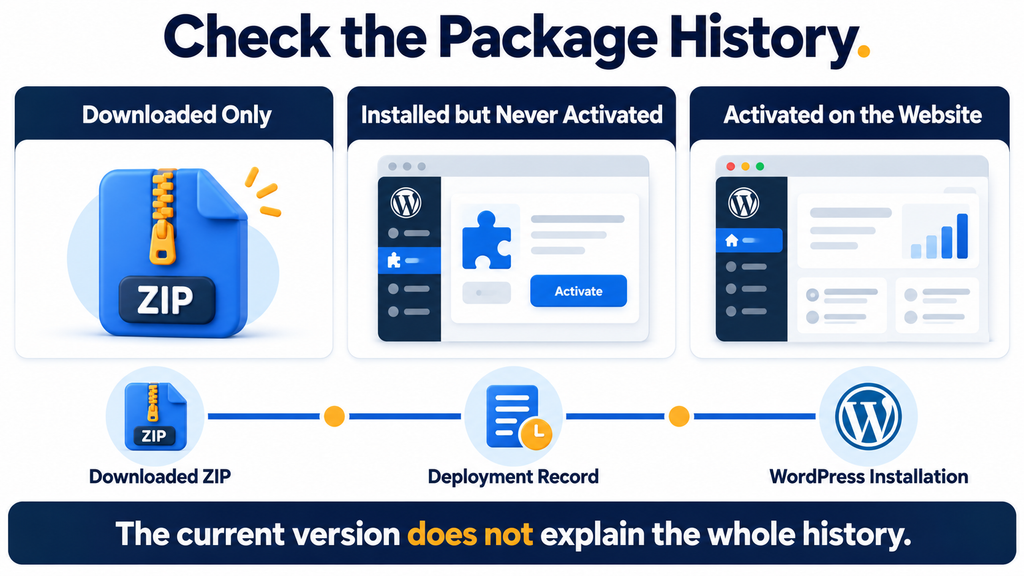
Start with the history of the downloaded package, rather than guessing from your current dashboard. Open WordPress → Plugins → Installed Plugins and record the PRO version you see. Then collect information about when that package reached your website. Useful records include hosting deployment logs, plugin management reports, backup inventories, and update notifications. These records answer different questions. A notification may show when an update completed, while a deployment log may identify which stored ZIP supplied the files.
Distinguish three situations: an affected package was activated, installed but never activated, or downloaded without installation. These situations require different responses under the vendor’s guidance. If the history remains uncertain, ask Rank Math support to help establish whether your download was affected. Preserve any original ZIP separately for investigation, and clearly mark it so nobody installs it accidentally. Do not activate a questionable package to see whether a security warning appears. rankmath.com
Check Every Installation That Could Have Received the Package
An agency or website owner may reuse one downloaded ZIP across several installations. For example, you might download a premium plugin once, install it on a test website, and later upload the same file to a production website. The production installation date would then differ from the original download date. That distinction matters when an incident concerns particular distributed packages. Record both dates when possible, along with the package’s source and whether the plugin ever ran.
Include staging websites, development copies, and forgotten installations in your review. A staging website may contain a copied production database, administrator accounts, or working email credentials. Its public visibility does not determine its security importance. Create a simple inventory with each domain, hosting account, package source, activation history, and investigation status. If two websites share a hosting user, tell your provider. Shared permissions may affect the scope of the review, even when the websites use separate WordPress databases.
Use Timestamps Carefully
Convert all relevant times to one reference zone before comparing records. Hosting panels, email systems, and WordPress dashboards may display different time zones. A screenshot showing an update at “09:00” means little unless you know which zone it uses. Write the original timestamp beside its converted value, so another person can check your reasoning. When a log omits the time zone, ask the provider rather than making an assumption that could incorrectly exclude a website.
File modification dates provide supporting evidence, but they do not reliably establish the original download time. Uploading, extracting, restoring, or deploying files can alter those dates. An attacker may also modify timestamps. Similarly, the current plugin version cannot reconstruct every earlier installation. If your records are incomplete, document the uncertainty. A careful exposure assessment should explain what you know, what you inferred, and what remains unresolved instead of presenting an uncertain history as a confirmed clean result.
Why Updating to Version 3.0.124 Is Not Enough
A successful update answers a narrow question: did the update process install the replacement plugin package? It does not establish that every other part of the website remains trustworthy. WordPress stores information across many locations. Plugin files sit alongside themes, uploaded media, configuration files, and database records. Hosting accounts also have settings and scheduled tasks outside the WordPress dashboard. Recovery needs to account for these separate areas, using the suspected execution permissions to determine the appropriate scope.
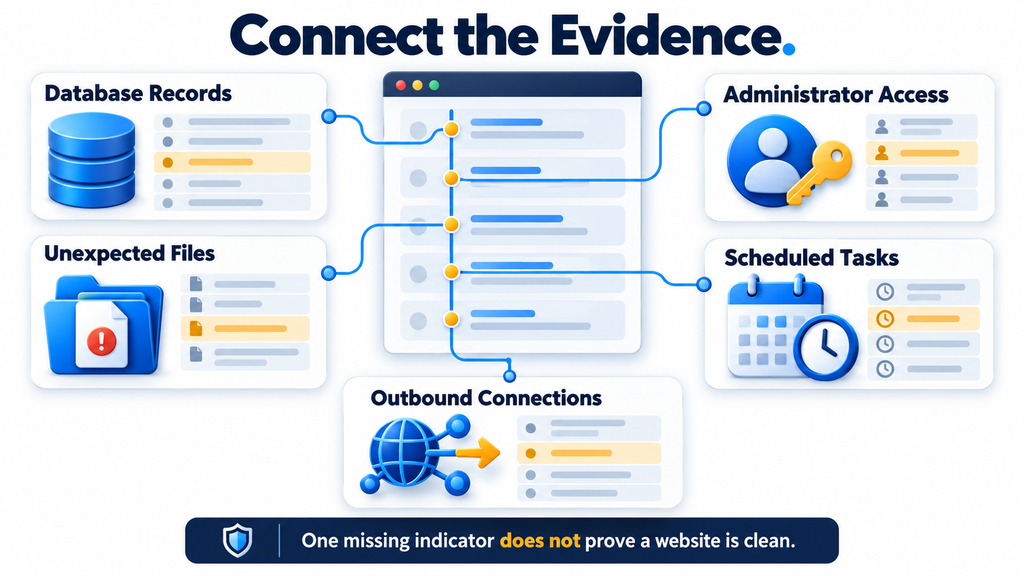
Consider a general example. An unauthorized administrator account remains a database record even after an unrelated plugin folder changes. A copied service credential may remain usable at the external service until someone revokes it. A modified theme file belongs to a different directory and may survive a plugin replacement. These examples explain why “updated” and “recovered” describe different outcomes. They do not mean that every affected website experienced every possible change or that every stored credential was demonstrably stolen.
Why a Working Website Can Still Need Investigation
Most website owners first look for visible damage. They check whether the homepage opens, articles display correctly, and the login page still works. Those checks are useful for availability, but they reveal little about unauthorized access. A website can serve its normal pages while an unwanted account or background task remains present. Therefore, avoid using normal appearance as the main reason to stop investigating. Recovery requires evidence about files, identities, configuration, and activity as well as appearance.
The opposite mistake also causes problems: interpreting every ordinary error as evidence of this incident. A slow dashboard, expired license, failed email, or sitemap warning can have unrelated causes. Record symptoms and investigate them, but connect conclusions to supporting evidence. For example, a new administrator with an unexplained creation history deserves direct attention. A single failed contact form requires troubleshooting before you attribute it to malware. This approach keeps the response focused and prevents routine faults from obscuring stronger evidence.
Why Recovery Order Matters
Make a recovery plan before deleting individual findings. First establish control over the environment, preserve useful evidence, and restrict unnecessary execution. Next remove or replace the compromised components and investigate other changes. Then complete credential replacement and verification in an environment you have brought back under control. Some urgent actions, such as revoking a clearly abused external token, may need to happen immediately. Record these exceptions so your final review confirms that every affected service received attention.
Changing a password while untrusted code still runs may expose the replacement password or fail to remove another access method. Similarly, restoring a backup while leaving the same compromised hosting access available can undermine the restoration. Treat the response as connected work rather than a collection of independent buttons. Assign responsibilities if several people help. The hosting provider might handle isolation and server review, while a developer restores application files and the owner coordinates service credentials and business checks.
Preserve Evidence and Contain the Website First
Before making extensive changes, ask your hosting provider to preserve the available logs and create an incident snapshot. Keep the snapshot separate from ordinary recovery backups, with restricted access and a clear warning that it may contain compromised material. Its purpose is investigation, not reuse as a clean installation. Record when you first learned about the issue, which websites you identified, and which actions have already occurred. Even a short written timeline helps prevent confusion when several people become involved.
Preserve the information you can obtain safely: relevant update records, security alerts, administrator lists, file findings, and the timestamps of unusual activity. Avoid placing database exports or log archives inside a publicly accessible website folder. These files can contain sensitive information. Ask your provider where to store them securely and how long the logs remain available. Preservation should happen promptly, but it should not delay urgent containment when there is evidence that unauthorized access or harmful activity is continuing.
Restrict Access Without Depending on WordPress Alone
If you need to take the website temporarily out of service, ask about a hosting-level restriction or a static maintenance page. A maintenance plugin may still require WordPress and its extensions to execute before displaying a message. Hosting-level controls can provide a more reliable boundary during investigation. Explain whether you need to restrict the entire website, selected administrative routes, or a particular hosting account. Your provider can choose an approach that matches the server configuration and the incident’s scope.
A useful support request gives facts and a clear objective. For example: “We are investigating a potentially affected premium plugin package. Please preserve access and error logs, restrict unnecessary website execution, and review the hosting account for unauthorized changes.” Include the domain, relevant timestamps, and actions already taken. Send sensitive evidence through the provider’s approved support channel. You do not need to publish configuration files, passwords, or complete logs in a public forum to receive initial guidance.
Keep an Action Log During Cleanup
Use one document to record each action, its time, and the person responsible. An entry might read: “14:20 UTC: provider restricted public traffic; incident snapshot stored outside the document root.” Another could record when a service token was revoked or which backup was selected. This history supports technical troubleshooting and business decisions. If an unexpected problem appears after restoration, the log helps you identify which change might explain it without repeating the entire investigation.
Separate observations from conclusions in that document. “Unrecognized administrator account found” describes an observation. “Attacker used that account to export customer records” requires additional evidence. Keep both kinds of statements precise. This distinction helps when you later assess customer impact or explain the incident to a client. It also prevents an early suspicion from becoming an accepted fact merely because several people copied it into their notes.
Rank Math Malware Indicators of Compromise

An indicator of compromise is a clue that helps investigators find suspicious activity. It may be a filename, database value, account pattern, or network destination. Treat indicators as search leads rather than a complete definition of the attack. Matching a documented indicator can justify urgent investigation. Failing to find it does not prove that no other modification occurred. A useful review combines incident-specific searches with broader checks of permissions, file integrity, accounts, and activity.
The vendor’s indicator list includes the options _uf6qdn2hmm, t8krdk990phb, and _np5pvf754c; the file wp-includes/class-wp-cache-util.php; account patterns wpsupport_ and wp-mail[.]net; the domain rank1cdn[.]com; and cron marker #ms6v46. Use the current advisory for the complete list and ordered remediation instructions. Keep suspicious domains defanged in reports to avoid accidental visits. rankmath.com
Examine Database Findings Without Guessing
If you use phpMyAdmin, begin by confirming which database belongs to the website. Hosting accounts often contain several databases with similar names. The database configuration identifies the relevant connection and table prefix, but it also contains secrets. Do not copy its contents into public support messages. Once you identify the correct tables, inspect the exact records under investigation. Export or preserve relevant evidence before approved removal, and avoid searching for a vaguely similar name and deleting everything that matches.
The common prefix wp_ is an example, not a guarantee. A website may use another prefix, and a Multisite installation can contain several related options tables. Your investigator should understand that structure before making changes. Direct database editing can bypass checks normally performed by WordPress. For beginners, the safest practical action is often to provide the exact indicator list to the hosting provider and request confirmation of what was found, preserved, and removed.
Review Administrators and Other Access Methods
Open the user list only when it is appropriate to use the application during the investigation. Compare privileged accounts with a trusted owner or agency roster. Check familiar accounts as well as unfamiliar ones: an existing account may have a changed email address or unexpected privileges. Ask whether each administrator still needs access. On a business website, former contractors and unused integrations deserve review even when they have no connection to the current incident.
When an account is confirmed unauthorized, decide how to handle any content assigned to it before removal. Deleting a user without considering ownership can affect legitimate posts. Also review application passwords, active sessions, and other access methods separately from the main login password. A password change should not become a substitute for an access inventory. For example, removing a former developer’s ordinary login while leaving an unnecessary integration credential active would leave the review incomplete.
Investigate Files, Scheduled Tasks, and Network Activity
File review should consider purpose and provenance. A PHP file inside a plugin may be legitimate, while an unfamiliar executable file in an unexpected location deserves closer examination. Likewise, a coding function that appears in a security search can also appear in ordinary software. Avoid deleting files based on one keyword alone. Compare them with trusted packages, check how they are loaded, and ask an experienced investigator to interpret suspicious combinations of code and behavior.
Review scheduled activity at both the WordPress and hosting levels. A hosting control panel may show tasks that never appear in the WordPress dashboard. Network review can provide another layer of evidence, although many shared hosting customers cannot access historical outbound connection records. Ask what your provider actually retains. Missing telemetry should be recorded as a visibility limitation. It should not be converted into a claim that no suspicious communication occurred.
Restoring the Site and Rotating Exposed Credentials
Restoration should return the website to a state you have reason to trust. That requires more than selecting the newest available backup. Review when the backup was created, what it includes, and whether its origin is reliable. A file backup and a database backup may have different timestamps. Your provider should explain how it will restore a consistent application state and how it will handle files already present in the destination.
Consider a shop that received legitimate orders after its last suitable backup. Restoring an earlier database may remove those orders from the website, even though the payment service still records the transactions. Preserve recent business records separately and plan a controlled reconciliation. Do not solve the problem by importing the entire suspect database over the recovered one. Selective recovery requires care, but it reduces the chance of restoring unwanted accounts, settings, or injected content alongside legitimate transactions.
Restore Into a Controlled Destination
Ask whether restoration replaces the destination or merely copies backup files over it. An overlay can leave extra files that were not part of the backup. A controlled rebuild or a properly emptied destination gives the team a clearer starting point, provided the work preserves the content and configuration you actually need. Keep the incident copy separate so investigators can still examine it. The recovered production website should not double as the storage location for suspect archives.
Check the boundary of the restore. A WordPress backup may include application files and database tables while excluding hosting-level scheduled tasks, SSH keys, or account settings. If the investigation suggests changes outside the application, address those areas separately. Restoring a website does not automatically rebuild the hosting account. When the provider cannot establish trust in the existing environment, discuss a fresh account or server environment and a controlled transfer of verified content.
Rebuild Carefully When a Suitable Backup Is Unavailable
Without a trustworthy backup, an experienced responder may need to rebuild the application from verified components and review retained content. Obtain WordPress, plugins, and themes from their official distribution sources. Preserve custom development separately for comparison and review. Do not assume an unknown file is malicious merely because it is custom, but do not carry an unexplained file into the rebuilt website without a reason. Record which components were replaced and which required manual assessment.
Uploaded media and database content need their own review. Reinstalling WordPress core does not replace those areas. A developer may need to examine suspicious posts, altered settings, unexpected scripts, or files that do not belong in the media collection. Keep the work specific to evidence and application behavior. Rebuilding should produce a documented inventory of trusted components and retained content, rather than a new installation that quietly imports every old file and setting.
Replace Credentials in a Planned Sequence
Create an inventory of credentials and connected services before making bulk changes. Include WordPress accounts, database access, hosting access, deployment tools, email delivery services, storage integrations, and any application tokens available to the website. For each item, record who owns it, where the replacement must be configured, and how you will verify the change. This reduces the risk of fixing security access while accidentally disabling important business functions without knowing why.
Use a trusted device and the service’s direct management interface when rotating external credentials. Generate a replacement, configure it in the recovered environment, confirm the intended function, and revoke the old credential. Some services require immediate revocation before replacement, especially when abuse is occurring. Others support a short overlap for a controlled change. Follow the service’s documented process and minimize that overlap. A token is not fully retired simply because the website stopped using it.
Update Database Access and WordPress Authentication
Database credential changes require coordination between the database server and WordPress configuration. If you change only one side, the website may lose its connection. Ask your provider to create or update an appropriately scoped database user, configure the recovered website, test the connection, and retire unnecessary access. Check any backup or deployment process that also depends on the old credentials. Avoid giving a website broader database permissions merely to make a connection error disappear.
Review WordPress authentication controls together. Replace relevant passwords, invalidate sessions where appropriate, regenerate security keys and salts, and review administrator two-factor settings. Treat application passwords and integration tokens as separate items. Test that authorized users can sign in through the intended process and that retired access no longer works. Keep recovery codes in an appropriate password manager or secure location. Do not distribute a shared administrator password as a shortcut for restoring team access.
Test Connected Services After Rotation
Email, payment, storage, and automation integrations can fail quietly after a credential change. Create a short functional test for each important service. Send a controlled test message, verify an authorized storage operation, and use a payment provider’s supported testing process. Avoid unnecessary live transactions. If the website receives webhooks, review their authentication or signing configuration as well. Successful outbound requests do not establish that inbound callbacks remain correctly protected and operational.
Separate technical restoration from any assessment of affected information. A website can function correctly while questions about earlier access remain open. Preserve the evidence needed to investigate those questions. If customer, employee, or payment-related information may be involved, bring in the appropriate business and privacy specialists. They can evaluate the evidence and applicable obligations. Avoid declaring either a confirmed data theft or a confirmed absence of access solely because the application has been restored.
Verifying That WordPress Is Clean After Recovery
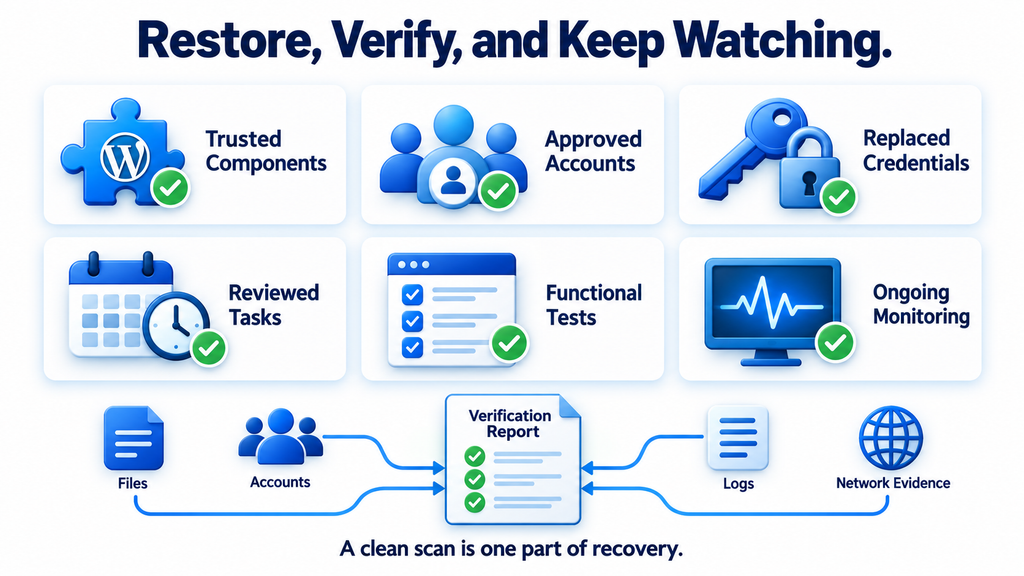
Verification works best as several checks that answer different questions. File comparisons assess whether components match trusted references. Account review assesses who can enter. Configuration review examines how the application and server behave. Monitoring looks for renewed activity. Functional testing checks whether the recovered website still serves its legitimate purpose. None of these checks should be used to claim more than it actually establishes, but together they provide a stronger basis for returning to normal operation.
Set clear recovery acceptance criteria before reopening the website fully. For example, require resolved file findings, approved administrator access, completed credential changes, reviewed scheduled tasks, and a record of remaining visibility limitations. Assign an owner to each unresolved item. This approach makes the final decision reviewable. “The scanner looks fine” is difficult to assess later; a documented set of findings, corrections, and checks gives the owner and provider a shared explanation of the recovery status.
Verify WordPress Core Files
An administrator with appropriate command-line access can use the following command from the correct installation directory. WordPress documents it as a comparison against official core checksums, and it avoids loading WordPress during that check. Use a trusted WP-CLI installation and confirm the target path before running it. Developer.WordPress.org
wp core verify-checksums --include-rootInterpret every warning rather than treating the final line as a complete security verdict. A mismatch needs investigation, while an extra root file may be legitimate or unwanted. Core verification does not inspect the entire database, all uploaded content, or every server setting. It also does not demonstrate that an external credential was never copied. Record the command output with the incident notes, explain unresolved findings, and replace altered core components from an official source when the investigation calls for it.
Check Plugins and Understand Premium Checksum Limits
For plugins distributed through WordPress.org, WP-CLI provides a corresponding comparison command. Run it in a controlled environment with appropriate technical support, since command behavior and application loading differ between operations. A checksum service error means verification could not complete for that component; it does not establish the component’s condition. Developer.WordPress.org
wp plugin verify-checksums --allPremium and custom plugins may lack checksum data in the WordPress.org service. WordPress explicitly explains this limitation. For those components, use verified vendor packages and a suitable file comparison or replacement process. Keep custom modifications available for review, rather than mixing them silently into a supposedly untouched package. WordPress Developer Blog
Combine Scanning With Manual Review
Run an appropriately configured security scan and read the results carefully. Confirm what the tool inspected: local files, externally visible pages, database content, or some combination. An external website scan has a different view from a scanner operating inside the hosting account. Review exclusions and inaccessible directories. If you use more than one tool, compare their coverage instead of assuming that two green dashboards automatically provide twice the assurance.
Resolve findings individually. A scan may flag an unfamiliar custom file that proves legitimate after comparison, or it may identify a modification requiring replacement and further investigation. Document why each finding was accepted, corrected, or escalated. Do not repeatedly dismiss the same warning without recording the reason. Conversely, avoid deleting a business-critical file merely to make the report green. The objective is a trustworthy website with understood findings, not a visually perfect scanner score.
Monitor Activity After Reopening
Establish a new baseline after recovery. Record the approved administrator list, component inventory, scheduled tasks, and relevant file state. Then monitor for unexpected changes, authentication activity, and unusual service usage. Decide who receives alerts and who checks them. Monitoring has little value if notifications reach an unattended mailbox. For a small website, a simple daily review can be practical, provided it covers meaningful evidence and has a clear escalation route.
If a removed file or unauthorized account returns, reopen the investigation immediately. Preserve the new evidence and compare it with the earlier timeline. Repeatedly deleting the returning item does not explain what recreated it. Possible causes include an overlooked component, another compromised installation, retained access, or an external process. These are investigation possibilities, not automatic conclusions. Your provider should use the new activity to narrow the source and reassess whether the current environment remains a suitable recovery destination.
Confirm Normal Website and SEO Behavior
Test representative pages as both a logged-out visitor and an authorized administrator. Check navigation, forms, media, search, and important business workflows. For SEO, inspect page titles, canonical links, indexing settings, sitemap responses, and expected redirects. Recovery work can accidentally change legitimate settings even when malware removal succeeds. A temporary indexing restriction introduced during staging, for example, should not remain on the public website without a deliberate reason.
Review search platform access and security notifications through the platform’s direct interface. Investigate unexpected ownership changes, unfamiliar indexed pages, or unauthorized content where evidence supports concern. Search results may take time to reflect a corrected website, so distinguish delayed search updates from renewed compromise. Keep a record of submitted reviews or removal requests when relevant. The security team should confirm the technical condition, while the website owner tracks whether public search presentation returns to its intended state.
Frequently Asked Questions
Does Seeing Version 3.0.123 Prove My Website Was Infected?
The displayed version does not identify the complete history of a package. Establish where the installed files came from and compare that history with the vendor’s notice. Preserve update records and ask support when evidence is incomplete. Avoid turning a missing log into a confident conclusion about exposure.
Is the Free Plugin the Same as the PRO Package?
They are separate distributed components, so identify precisely which package your website used. Read the incident’s stated scope instead of extending it to every product with a similar name. Also keep ordinary update maintenance separate from the question of whether a particular downloaded package reached your installation.
Can I Stop Investigating After Installing a Replacement?
A replacement package addresses its own component. Recovery must also account for activity and changes outside that component, according to the permissions involved. Use a documented review of files, access, settings, and connected services before deciding that the incident response is complete.
What If the Website Looks Completely Normal?
Normal appearance confirms that certain public functions still work. It does not reveal every account, configuration change, or background operation. Continue the evidence review appropriate to your exposure. At the same time, avoid assuming that every unrelated website error proves additional malicious activity.
Should I Delete Every Suspicious Search Result?
No. Preserve relevant evidence and have findings interpreted before removal. Legitimate software can contain terms that also appear in security searches. Confirm the file’s purpose, source, and behavior. Use trusted comparisons and professional review when a mistaken deletion could damage the website.
Will a Backup Restore Replace Every Server Setting?
That depends on the backup’s scope and restoration method. Ask the provider what it includes and whether extra destination files remain. Application restoration may leave hosting-level configuration untouched. Any relevant changes outside the backup need separate review and remediation.
Why Replace Credentials If I Restored Earlier Files?
An external service does not automatically revoke access because you restored a website. A previously usable secret can remain valid until it is changed or revoked. Coordinate replacement with service owners, update the recovered configuration, and verify that retired access no longer works.
What Does a Missing Premium Plugin Checksum Mean?
It means the verification service could not provide the reference needed for that comparison. It is neither proof of malware nor proof of safety. Obtain a trusted official package and use an appropriate comparison or replacement process for the component.
When Is It Reasonable to Reopen the Website?
Use agreed acceptance criteria rather than an arbitrary waiting period. Relevant findings should be resolved or explicitly understood, access reviewed, credentials addressed, and important functions tested. Continue monitoring afterward. If significant uncertainty remains, document it and involve the provider before deciding how to proceed.
What If I Cannot Perform Technical Recovery Myself?
Ask your hosting provider or a qualified WordPress incident responder to take ownership of the technical work. Supply the domain, package history, alerts, and actions already taken. Request a written account of findings, remediation, verification, and remaining limitations so you can understand the result.
Build Confidence Through Evidence
Recovering a WordPress website takes more than reaching the latest version number. You need a clear history, controlled restoration, reviewed access, and verification that covers the parts of the environment involved. Each step should answer a specific question. That makes the work easier to understand and helps prevent important details from disappearing beneath a broad statement that everything has been fixed.
Keep the final recovery record somewhere accessible to the people responsible for the website. Include the trusted backup or rebuild source, completed credential changes, resolved findings, and monitoring responsibilities. Use what you learned to improve deployment records and backup testing. These practical habits make future incidents easier to assess and give you a more reliable basis for protecting the website’s content, visitors, and business operations.
⚠️ Disclaimer and Source Hygiene
This article provides educational guidance and does not certify any individual website as clean. Consult your hosting provider or a qualified security professional before making unfamiliar database, filesystem, or server changes. Information is based on authoritative vendor guidance and official WordPress documentation checked on October 17, 2026. Examples illustrate general recovery decisions; they are not claims about observed activity on your website.
The article distinguishes the vendor’s incident statement from broader recovery advice. It does not claim an affected website necessarily experienced every possible consequence. No scan, package, or website was independently examined for this article. Consult the current advisory before acting, since incident details and remediation guidance can change as investigations progress.
📚 Sources and References
- Rank Math: PRO 3.0.123 security incident and recovery instructions
- Rank Math: Official changelog
- WordPress: WP-CLI core checksum verification
- WordPress: WP-CLI plugin checksum verification
- WordPress Developer Blog: Website security checks with WP-CLI
🕊️ Secondary Sources and Testimonials
Community reports can help identify questions worth investigating, but they should not replace vendor instructions or evidence from your own environment. No community testimonial is used here to establish affected-site counts, confirmed data theft, or the technical condition of an individual website.
Sign in with a Subscriber account to vote.