
Table of Contents
Help readers flag broken images, outdated instructions, and other article problems with Post Issue Reporter for WordPress. This practical guide explains installation, five supported languages, dashboard reports, cache handling, privacy considerations, and everyday troubleshooting, with clear examples that help you turn short reader messages into useful improvements.
Give Readers a Simple Way to Report Article Problems
You can check an article carefully before publishing and still miss something readers notice immediately. An image may stop loading after a media cleanup. A download button might lead to an old file. Instructions that worked last month may no longer match a software interface. These problems do not always appear in routine checks, especially when a website contains hundreds of posts. Readers encounter the content in different browsers, on different phones, and at different moments. Giving them a small reporting form provides a direct way to tell you where their experience broke down.
Post Issue Reporter adds that form beneath individual WordPress posts. Visitors can describe a problem in a short message without creating an account. An administrator can then review the collected reports inside the WordPress Dashboard. The plugin does not diagnose the website or correct content automatically. Its purpose is more practical: connect a reader’s observation with the article that needs attention. Instead of receiving a vague message saying that something on your website is broken, you receive a short report together with the relevant post title and link.
This guide follows the supplied version 1.4.1 package, whose WordPress plugin header names HelpZone as its author. The explanations below describe features visible in that source code. They are not claims of a completed production test or independent security certification. We will walk through installation, reporting, languages, caching, administrator review, and common difficulties. Along the way, examples will show how to turn brief messages into sensible editorial actions. The goal is a manageable maintenance habit that fits an ordinary blog, rather than another complicated system you rarely open.
Understand What Post Issue Reporter Actually Includes
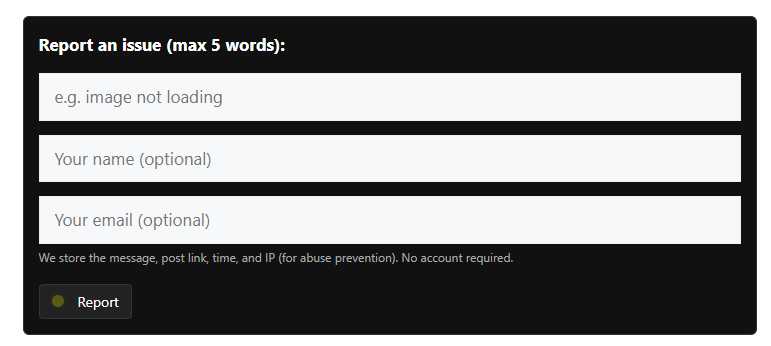
The visitor-facing form contains a short problem field, an optional name field, and an optional email field. Its heading asks for a maximum of five words. The message input also has an 80-character browser limit, although the server separately enforces the word limit rather than that same character limit. A dark container surrounds the form, and a yellow animated light appears inside the Report button. The form is appended through WordPress content filtering on a single-post view in the main query. The intended location is therefore below an article’s content, rather than a separate contact page or sitewide floating popup.
On the administration side, the plugin adds a Dashboard widget for accounts with the manage_options capability. It stores the latest 50 reports and shows the newest entries first. Each entry includes the report text, article title, article link, reporting time, and available reporter details. Administrators also see a small red issue-count indicator in the admin area when stored reports exist. That number represents retained reports, not verified bugs or unresolved support tickets. There is no individual resolved status, assignment system, export button, or built-in email alert in this package.
Five built-in language dictionaries cover English, Romanian, French, Italian, and Spanish. The plugin reads the configured site language and falls back to English when it finds an unsupported language. Other features include a hidden honeypot field, a short submission limit based on IP address and post, and a fresh-token request before JavaScript submits the form. These features make the plugin useful for a focused task. They do not make it a full helpdesk, an automatic link scanner, a translation service, or a guarantee against unwanted submissions.
Decide Where This Reporting Form Fits Your Website
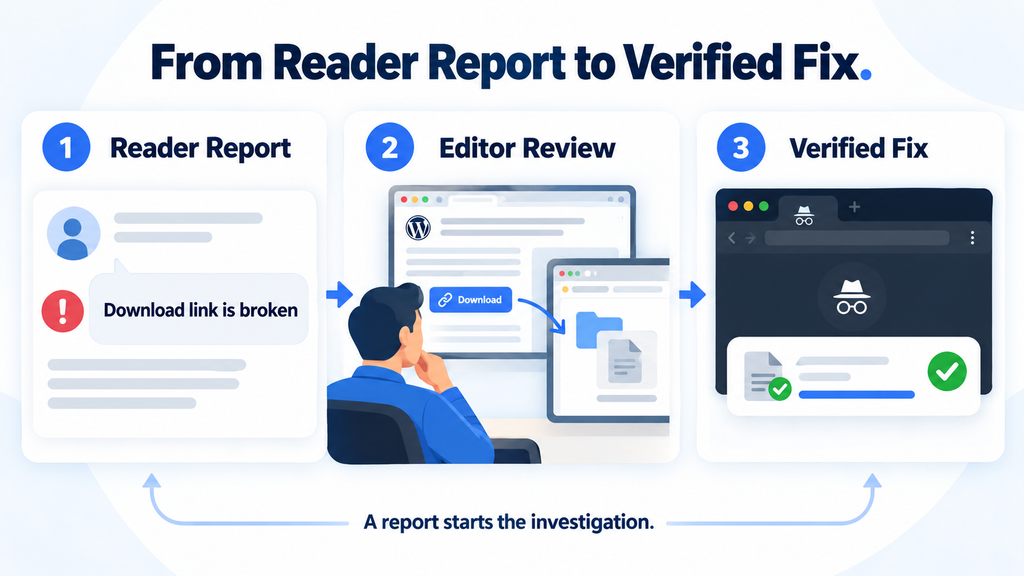
A reporting form is especially useful on tutorial blogs, reference articles, software guides, and resource collections. Imagine an article explaining how to change a WordPress setting. A reader follows the instructions and discovers that the menu label has changed. A message such as “Settings menu has changed” gives you an immediate starting point. The associated post link removes the need to ask which guide they meant. On another article, “Download link is broken” can direct you toward a missing file or outdated destination before more readers encounter the same interruption.
The short format works best when the article itself supplies most of the context. It is less suitable for detailed technical support requiring screenshots, several reproduction steps, or private account information. A report saying “Checkout fails after address change” may identify a concern, but it cannot explain every condition involved. Keep a separate contact or support channel for those conversations. You can mention that channel near your normal contact information and reserve this form for concise observations about the current article. That gives readers a clear route without asking a five-word field to carry an entire support request.
Consider your own review capacity before enabling the form across a large archive. A report queue becomes valuable when someone checks it and investigates relevant messages. If you rarely open the Dashboard, establish a small routine first, such as checking reports when you update existing articles. The plugin does not send reminders or emails to bring you back. On a small publication, one owner may handle every report. On a team website, a nominated administrator can collect useful findings and pass them to an editor through the team’s existing workflow.
Prepare Your WordPress Site Before Installation
Start with a current backup of your WordPress files and database using your existing backup process. Confirm that you know how to restore it, rather than assuming a successful backup notification is enough. If you have a staging site, install the plugin there first and choose one published test article. That gives you a place to inspect the form, send a sample report, and review the administrator widget. A staging test is particularly useful when a theme changes content output or a security plugin applies strict rules to public forms and administrative AJAX requests.
Next, check whether an earlier copy of the same feature is already running. This matters when you previously added the reporting code through a snippets plugin, a theme customization, a regular plugin, or a must-use plugin. Version 1.4.1 declares named global PHP functions. Loading another copy of those definitions can cause a function redeclaration error. Review the normal Plugins screen, your active code snippets, and any known must-use plugin you created for this purpose. Disable the older implementation before activating the ZIP version. Keep a backup of that older code until the replacement has been verified.
Choose a published standard post for your first check, and note which cache layers serve it. Your website might use a WordPress cache plugin, host-level caching, a reverse proxy, or a content delivery network. You do not need to disable all of these permanently. However, knowing which layers exist makes later troubleshooting much easier. Also record your configured site language so you can predict the form labels. For example, a Romanian site should display Romanian reporting text, even when the administrator personally uses an English interface.
Install the ZIP and Activate One Copy of the Plugin

In WordPress administration, open Plugins, choose Add New Plugin, and select Upload Plugin. Depending on your installation and interface translation, the menu wording may differ slightly. Select the supplied post-issue-reporter-v1.4.1(1).zip archive, click Install Now, and wait for WordPress to finish extracting the package. The archive contains a post-issue-reporter folder with the PHP plugin file inside. The extra number in the downloaded ZIP filename does not create another feature or change the plugin version. WordPress identifies the installed plugin through its folder, file, and header information.
If WordPress detects an existing destination, inspect the replacement screen before continuing. Confirm that you are updating the intended plugin and have a backup available. Activate the plugin when installation completes, then return to the Installed Plugins list and confirm that its status is active. Its displayed name is “Post Issue Reporter (All Users) + Yellow Light Button.” There is no separate onboarding wizard in the reviewed package. You also should not expect a new settings menu with switches for messages, colors, retention, or email notifications. Those controls are not implemented in this version.
Now open your chosen published article in another browser tab. Scroll past the article text and look for the reporting box. If an old page appears, purge that article from the relevant page caches and load it again. Keep the administration tab open because you will use it to confirm the first submission. This installation method follows the normal WordPress ZIP upload workflow. On managed or multisite installations where plugin installation is restricted, ask the person responsible for plugin management to perform the equivalent authorized installation.
Check Placement, Styling, and Mobile Usability
The form is added through the_content rather than by inserting a block into every article. That means you normally do not edit each published post to make the reporting box appear. On a conventional single-post template that renders the main post content, it should appear after that content. Other plugins may also append related posts, author information, advertisements, or subscription boxes through content filters. Their final order depends on the surrounding setup. Look at an actual article to see where the form lands rather than assuming it will always be the final element before the comments.
The default design uses a dark background, light text, and a small animated yellow light. On a light-colored website, the box may be visually prominent. Check whether the text remains easy to read and whether your theme overrides input or button styles. On mobile, the optional name and email fields use a wrapping layout, but the real result still depends on available width and theme styling. Try typing a short report with the phone keyboard visible. A form that looks reasonable in a desktop screenshot can still become awkward when a narrow viewport or large text setting changes the layout.
Also check keyboard navigation and the clarity of field instructions. The package relies heavily on placeholders for the visible fields, and the animation does not include a built-in reduced-motion preference rule. These are useful areas for a developer to improve if your accessibility requirements call for stronger labeling or motion controls. The supplied version does not include a visual styling panel. If you want different colors or field labels, arrange a maintained customization and verify it after updates. Avoid promising readers a particular accessible experience until you have checked it in your own theme.
Send a Useful Report Without Creating an Account
To test the reader experience, open the article in a private browsing window where you are not signed in to WordPress. Scroll to the reporting form and enter a specific observation. “Image not loading” is a good first test because it contains three words and describes a recognizable problem. Leave the name and email fields empty if you want to verify the guest workflow. Click Report once and allow the process to finish. With JavaScript running, the plugin first requests a fresh security token, then submits the form and redirects the browser back to the article.
The expected success message thanks the visitor for submitting the report. However, page caching can affect whether that message becomes visible after the redirect. A missing thank-you message alone does not prove that the report was lost. Check the administrator widget to confirm storage. Conversely, a generic confirmation is not evidence that someone has already reviewed or fixed the problem. The plugin records a submission; it does not create an automatic conversation with the visitor. Keeping that distinction clear helps you describe the feature honestly in your website’s reader guidance.
When testing again, remember the submission limit. The same server-observed IP address cannot immediately submit another report for the same post while the short limit is active. Wait at least two minutes before repeating a successful submission on that article. Avoid filling the live queue with dozens of tests. One guest report, one language check, and a carefully timed repeat test usually reveal the basic workflow. If you include a test name, use something recognizable, such as “Form Test,” so the administrator can distinguish it from genuine reader feedback.
Write Five-Word Reports That Give Editors a Starting Point
The five-word limit encourages a reader to identify the symptom quickly. Useful examples include “Screenshot shows old settings,” “Download link is broken,” “Second image will not load,” and “Instructions mention missing option.” Each message points toward something an editor can inspect. By comparison, “Bad” or “Does not work” gives much less direction. Because the plugin already records the article link, readers do not need to spend words repeating its title. They can use the available space to describe the particular element or step that caused difficulty.
Word counting in this version is based on whitespace-separated pieces of text. That is a technical approximation, rather than a sophisticated language-aware writing check. The practical advice is to use a short plain sentence with clear spaces between words. There is also an 80-character limit in the normal browser input, so a five-word message with very long words may still be awkward to enter. Avoid including URLs, passwords, personal identifiers, or lengthy error logs in this field. A short description is more suitable, and a separate support channel can handle additional details when necessary.
Do not intentionally submit an overlong or empty message several times during a test. The code sets the temporary submission limit before checking whether the message is empty or exceeds five words. As a result, a rejected attempt can be followed by a wait message when you immediately try again. If that happens, wait for the two-minute window to pass, then submit one clear message. This behavior is worth understanding because it can otherwise look like a broken form. A future version could change the validation order, but this guide describes the supplied release.
Use Optional Contact Fields Without Creating False Expectations
Readers may provide a name and email address, but neither field is required for the normal guest reporting flow. That lowers the effort needed to flag a simple issue. A visitor who notices a missing screenshot can send a report without choosing a password or opening a support account. When a guest provides no name, the plugin uses a translated guest label. When someone is signed in, the stored identity uses the WordPress user’s display name and includes the user ID. The optional typed name is therefore not always the displayed identity for an authenticated submission.
The email field does not automatically send a message to the visitor or notify the administrator. It stores a valid submitted address with the report so an administrator can see it. The source contains no outgoing email function for this reporting workflow. If your site plans to respond, explain that through your usual contact practices and handle the address responsibly. An optional address is also not a verified identity. A reader can mistype it, and the plugin does not confirm ownership through a verification link or authentication process.
For example, a guest might submit “Download link is broken” with a contact address. You can first repair the download and then decide whether a brief personal response is appropriate under your site’s practices. Another guest might submit the same useful observation with no contact information. That report still gives you enough context to inspect the article. Avoid making an email address mandatory merely because you prefer complete records. The current plugin is designed around brief article feedback, and many straightforward corrections do not require an ongoing exchange.
Set the Form Language Through WordPress Site Language
To change the reporting labels, open Settings and then General in WordPress administration. Find Site Language, choose a supported language, and save the change. This is a sitewide WordPress setting, so consider its broader effect before changing it purely for a form demonstration. Version 1.4.1 reads the WPLANG site option, normalizes the locale prefix, and selects its built-in dictionary. English, Romanian, French, Italian, and Spanish are supported. Regional variants with those language prefixes are mapped to the corresponding dictionary rather than requiring a separate translation for every region.
Automatic detection here means following the configured site language. It does not mean choosing a language from the visitor’s browser, country, IP address, or personal WordPress profile. For example, a site configured in French should show French reporting labels to an English-speaking visitor as well. An unsupported configured language falls back to English. If you run a multilingual website where individual articles have different languages, test each route carefully. This package does not include an integration that selects a dictionary independently for every translated article through a multilingual plugin’s current-language API.
After changing the site language, purge cached article pages before evaluating the form. Existing cached HTML may still contain the previous labels even though the database setting has changed. Check the front-end reporting box and the administrator widget because both use the translation helper. You should not see a language chooser inside the form itself. For a practical verification, select Romanian on a staging site, save the setting, clear the test article’s cache, and confirm that the heading and button change. Restore your intended site language once the demonstration is complete.
Find and Understand Reports in the WordPress Dashboard
Sign in with an account that has the manage_options capability and open Dashboard, then Home. Locate the widget titled “User Reported Issues (All Users),” or its translated equivalent. If it is hidden, inspect Screen Options where your WordPress administration interface provides those controls. When reports exist, the widget title includes a red count. A separate red indicator can also appear near the lower-right corner of administration pages. Neither feature sends an external alert. Their usefulness depends on an administrator visiting the WordPress back end and noticing the stored items.
Read the message first, then open the linked article. The entry also shows the submission time, reporter identity information, and available technical context. Treat a guest’s chosen name as a label rather than proof of identity. Browser user-agent text can help suggest which browser or device family to test, but it is not a complete diagnostic record. A report containing “Menu covers article text” may be worth checking on a small phone display even if the article looks normal on your desktop. Use the stored context to narrow your investigation, rather than to draw conclusions about the person reporting it.
The plugin keeps the latest 50 entries in a WordPress option and places newer reports at the top. When additional reports push the list beyond that limit, older entries fall outside the retained list. That makes the widget a recent feedback queue rather than a durable incident archive. If a report requires a larger follow-up, record a concise task in your normal maintenance system before it disappears from this queue. Avoid copying unnecessary personal details when you do so. The useful task is usually the article link, observed symptom, and next action.
Turn Short Reader Messages Into Reliable Editorial Fixes
Begin by reproducing the reported problem whenever possible. Open the article while signed out, follow the relevant instruction, and inspect the affected element. If a report says “Download link is broken,” click the actual article link rather than opening a file you already have saved locally. Check whether the destination exists, whether access permissions are appropriate, and whether a redirect points somewhere unexpected. If the file moved, update the article to use its intended current destination. Then repeat the reader’s journey so you verify the published experience, not just an editor-side change.
For an outdated screenshot, compare the article’s instructions with the current interface you can verify. A changed button label may require a sentence adjustment rather than a complete rewrite. If a screenshot is missing, check the media item and the article’s image markup before replacing it. A broken image URL, a lazy-loading conflict, and an unavailable source file require different remedies. The report gives you a lead, not a diagnosis. Taking a moment to identify the cause helps prevent a quick cosmetic edit from leaving the underlying problem untouched.
After making a correction, update the article where appropriate and purge the affected page’s cache. Test the same URL in a private window and, when relevant, on the reported device type. Keep a short internal note if the correction is significant or part of a recurring issue. For example, repeated reports about an old download directory may justify checking other articles that link there. You do not need to treat every message as confirmed evidence. Some reports reflect temporary connectivity problems, misunderstandings, or missing context, so verify before making broad changes.
Understand the Fresh-Token Improvement for Cached Articles
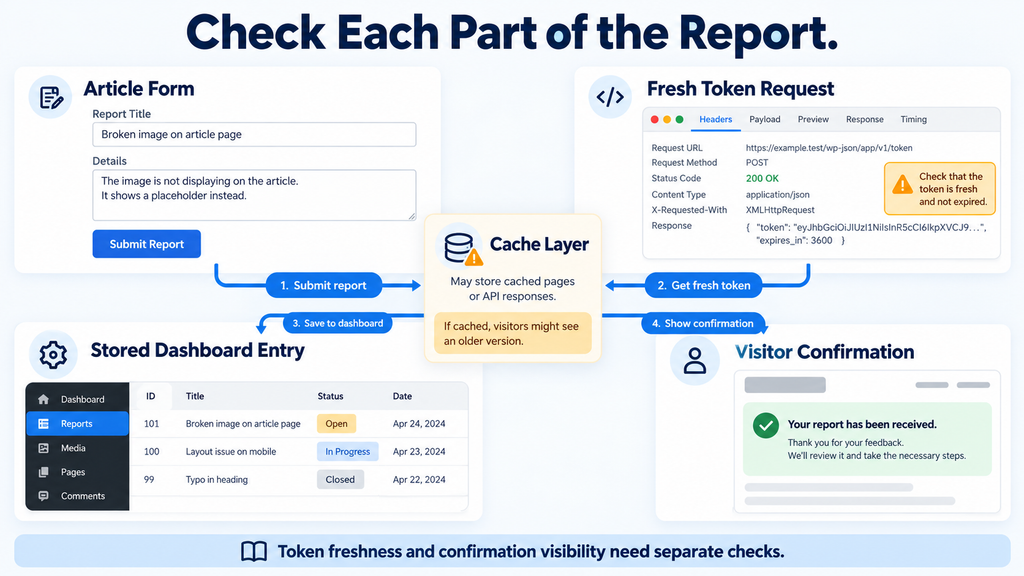
A cached article can retain an old hidden security token after that token stops being valid. Version 1.4.1 addresses this particular problem by requesting a fresh nonce when the visitor submits the form. The request goes to WordPress admin-ajax.php through a dedicated action. The handler accepts a POST request, checks the requested post, and returns a new token for an eligible published standard post. It also sends no-cache headers. This separates token freshness from the age of the article HTML, allowing an older cached page to obtain a current token immediately before submission.
The browser then replaces the form’s hidden token and performs a regular form submission. This is not a completely AJAX-based report workflow: the token refresh uses AJAX, while the final report still uses a normal POST followed by a redirect. The script also disables the button during the refresh request and applies a 15-second timeout. If the request fails, it shows a security-check message and lets the visitor try again. A working refresh endpoint and functioning JavaScript are therefore part of the improved cached-page behavior.
WordPress documents nonces as expiring tokens, not authentication or one-time guarantees. Here, refreshing the token reduces one cause of submission failure; it does not prove the sender is human. Without JavaScript, the form can still submit using the token embedded in the page, but an expired cached token can still fail. A firewall, optimizer, or proxy can also interfere with the refresh request. Test the feature with your real cache configuration before describing it as reliable on your site. Do not assume every cache-related symptom has been eliminated by this improvement.
Keep Confirmation Messages Separate From Submission Storage
The fresh-token improvement does not change how success and error notices are stored. The plugin uses temporary values associated with the post, then attempts to display and delete them while rendering the article. Those notice values are not separately keyed to an individual visitor. This matters when several visitors use the same article around the same time. It also matters when a page cache returns HTML without running the normal content-rendering code. Depending on timing and cache behavior, a notice may be missing, delayed, or included in a cached response another visitor later receives.
For that reason, the Dashboard entry is the more useful check when you are verifying whether a test report was stored. If the report appears there but the visitor did not see a thank-you notice, investigate the confirmation path rather than assuming the database write failed. Begin with one controlled test on a staging article. Submit a report, check the widget, and compare the response after the redirect. If necessary, use your cache system’s documented tools to bypass or purge that individual page while you inspect the difference.
Avoid disabling all page caching indefinitely as a first reaction. Identify whether the problem involves the token request, the submission POST, the redirect, or the resulting notice. These are different parts of the workflow. A developer can improve visitor-specific confirmation handling in a later version, but that functionality is not present in the supplied package. Describing the limitation clearly helps you test intelligently. The practical outcome you want is a stored report plus understandable visitor feedback, and each part deserves its own check.
Know What the Abuse Controls Can and Cannot Do
The form includes a hidden honeypot field that ordinary visitors should leave empty. If a submission fills that field, the plugin silently redirects without storing the report. It also applies a temporary limit based on the combination of the server-observed IP address and the reported post. The intended interval is one report per two minutes for that combination. These controls can reduce some repetitive or basic automated submissions. They do not provide a CAPTCHA, verified identity, a global submission quota, or protection against every distributed spam pattern.
IP-based limits can behave differently behind shared networks and proxies. Several readers may appear under one address at a workplace or on a shared connection. A reverse proxy can also affect what the web server exposes as REMOTE_ADDR. The reviewed code uses that server value rather than implementing its own trusted-proxy resolution. If legitimate readers repeatedly hit the wait message, have the site operator inspect the hosting configuration. Do not simply trust arbitrary forwarded headers or remove safeguards without understanding the actual network path and the source of the observed addresses.
The report text and several other values are sanitized or escaped during processing and display. That is useful implementation detail, but it does not establish that the entire plugin has passed a security audit. Guest nonces are also not individual identity credentials, and the public refresh route is available to visitors by design. Keep WordPress, the hosting environment, and your other plugins maintained. If report volume grows far beyond a small blog workflow, consider a reporting system with stronger validation, moderation, and operational controls appropriate to that volume.
Review Stored Data and Set a Practical Retention Routine
The reporting form explains that it stores the message, post link, time, and IP address for abuse prevention. The reviewed code also records the post title, user ID when signed in, reporter display information, optional valid email, a shortened browser user-agent string, and the HTTP referrer when available. These details help an administrator investigate the report, but they also mean the form is not data-free or fully anonymous. Leaving the name and email blank does not prevent the plugin from storing technical information associated with the request.
Review your site’s privacy information before inviting visitors to use the form. Describe the actual information collected and how your team uses it. For site-specific legal wording or obligations, consult an appropriately qualified professional rather than treating a plugin tutorial as legal advice. WordPress provides privacy tooling guidance for plugin developers, but this package does not register dedicated personal-data exporter or eraser integrations. It also does not automatically add its own detailed policy text to your privacy page. Those omissions are relevant when you decide whether the plugin fits your existing privacy processes.
The 50-report cap is a count limit, not a time-based deletion policy. On a quiet site, an old report can remain until someone clears the list or enough new reports displace it. Establish a review and deletion routine that fits your needs, including how relevant backup copies are handled under your existing practices. Keep reports available only to people who need them. Avoid publishing widget screenshots containing visitor addresses, emails, or other identifying details. When you need to discuss a recurring problem publicly, summarize the technical issue without exposing the reporter’s information.
Clear Reports Carefully and Understand the Counter
The Dashboard widget includes a Clear All Reports button when stored entries exist. Before using it, review the current queue and transfer any unfinished work into your normal task system. The button removes the stored report option for the whole list; it does not offer a per-report selection or an archive screen. The interface asks for confirmation, and the server checks the administrator capability and a clearing-action nonce. Once you confirm, expect the report collection to be cleared rather than moved to a recoverable trash folder inside the plugin.
After clearing, reload the Dashboard if the count or floating indicator looks outdated. Parts of the page may have calculated their display before the clearing action completed during widget rendering. A fresh request helps you verify the current state. Remember that the displayed number is the count of reports currently retained. It does not decrease automatically when you repair a broken link, because the plugin has no connection between your content edit and a report’s resolution status. Ten reports can include repeated observations about one problem, several test entries, or already corrected issues.
Deactivating the plugin stops its reporting hooks from running, but the supplied file contains no uninstall cleanup routine for its stored report option. Do not assume that disabling or deleting the plugin automatically erases the saved reports. If you are retiring the feature, review and clear its report list while the plugin is still available, then follow your normal removal process. If you need selective deletion, export, or a documented historical archive, choose a tool that provides those features or arrange a reviewed enhancement before relying on that workflow.
Troubleshoot Missing Forms, Failed Requests, and Conflicts
When the form is missing, start with the simplest checks. Confirm that the plugin is active and that you are viewing an individual published standard post rather than a static page, archive, or search result. Verify that the template outputs the main content through the usual WordPress content pipeline. A heavily customized builder or template may behave differently. Purge the article cache and inspect another standard post. If the form appears twice, look for duplicate implementations or repeated content rendering before adding CSS to hide one copy, because hiding the symptom can leave the underlying conflict in place.
For a security-check error, inspect the browser’s Network panel while submitting a harmless test report. Look for the token-refresh request to admin-ajax.php and check whether it returns valid JSON. A blocked request, a login page, an HTML error, or a timeout points toward different causes. Security rules, script-delay settings, consent configurations, or a moved inline script can disrupt the flow. Temporarily adjust one relevant setting on staging and test again. The inline script locates its form relative to its own script element, so optimizers that relocate scripts deserve particular attention.
If activation produces a PHP error, restore access using your normal recovery method and check for an older copy of the same reporting functions. If a submission never appears in the widget, check the honeypot, message length, temporary rate limit, and whether you are viewing the correct site’s Dashboard. On multisite, keep the current site context in mind. Do not claim broad compatibility based only on successful activation. The useful test is an end-to-end guest report on your actual template, with your cache and security setup, followed by a confirmed administrator entry.
Frequently Asked Questions
Can visitors report a problem without a WordPress account?
Yes. The normal reporting form accepts guest submissions, and the optional name and email fields can remain empty. A guest still needs to provide a short message that passes the plugin’s checks. The report includes technical information such as the server-observed IP address, so “no account required” should not be described as complete anonymity.
Does the plugin work on pages and archive listings?
Its intended placement is beneath individual posts through the single-post content filter. The token-refresh handler explicitly accepts published content of the standard post type. Do not expect equivalent support for static pages, product pages, or custom post types without changes and testing. A form that happens to appear on another singular content type does not establish that its complete submission workflow is supported.
Which five languages are included?
The built-in dictionaries cover English, Romanian, French, Italian, and Spanish. Selection follows the WordPress site-language option, including supported regional prefixes. Unsupported languages fall back to English. The plugin does not select a different language for each visitor based on browser settings, and it does not provide its own front-end language switcher.
Will the administrator receive an email for each report?
No. Version 1.4.1 stores reports in WordPress and displays them through the Dashboard widget and administration indicator. The optional visitor email field does not enable notification delivery. If immediate alerts are essential to your process, you need an additional reviewed implementation or a different reporting solution with that feature.
How many reports does the plugin retain?
It keeps the latest 50 reports, with newer items first. That limit controls the number of entries rather than their age. There is no built-in long-term archive, individual resolved status, or export interface. Move important maintenance tasks into your normal work system before clearing the list or allowing newer entries to replace older ones.
Does version 1.4.1 support cached article pages?
It includes a specific improvement that fetches a fresh nonce before the browser submits a report. This reduces failures caused by an expired token inside cached article HTML when JavaScript and the refresh request work. It does not guarantee compatibility with every cache or firewall configuration, and post-submit notices still require separate verification.
Why do I see a message asking me to wait?
The plugin applies a two-minute limit using the combination of the server-observed IP address and the post. Wait for that interval before trying again. In this release, the limit is set before the empty-message and five-word checks, so even a rejected short-form attempt can lead to a temporary wait on the next attempt.
Does it repair images, links, or article instructions automatically?
No. A report is an observation for an administrator to investigate. You still need to reproduce the issue, identify its cause, make an appropriate correction, and verify the published article. The feature helps readers point you toward possible problems; it does not replace link testing, editorial review, backups, or normal WordPress maintenance.
Will installing this plugin improve rankings or guarantee AdSense approval?
No such result is established. Useful reader feedback may help you discover and correct content problems, but the plugin does not contain an SEO ranking mechanism or an AdSense approval feature. Evaluate it for the reporting workflow it provides. Advertising eligibility and search performance depend on broader site factors and applicable platform requirements.
Can I customize the design or delete one report at a time?
The supplied release has no visual settings panel and no individual report-deletion control. Its administrator action clears the whole stored list. Design changes or selective report management require code changes or a different tool. Keep customizations maintained and test them when updating the plugin, especially if the changes affect submission handling or personal information.
Build a Small Habit That Keeps Articles Useful
The real value of a reporting form appears after installation, when you make room to act on what readers send. A short weekly review can be enough for a modest blog. Open the Dashboard, read the newest messages, check the linked articles, and correct problems you can reproduce. Group repeated observations when they describe the same underlying issue. A handful of “Screenshot is outdated” reports across related tutorials may reveal a wider documentation update you can plan efficiently. A single vague report may simply need a cautious check before you decide whether anything should change.
Post Issue Reporter version 1.4.1 provides a direct, limited way to collect those observations. Its guest form, five language dictionaries, recent-report widget, and fresh-token request can support a practical maintenance workflow. Its limits are equally relevant: no automatic repairs, no notification emails, no individual resolution states, and confirmation behavior that still needs cache testing. Use the plugin when those tradeoffs fit your site. Keep the form understandable, handle stored information thoughtfully, and verify each correction through the experience an ordinary reader actually sees.
⚠️ Disclaimer and Source Hygiene
This article describes the supplied Post Issue Reporter version 1.4.1 source package and uses official WordPress documentation for general installation, token, and privacy-tooling context. It does not report a live compatibility test, a security audit, legal approval, or measured performance results. Themes, hosting configurations, cache layers, and future plugin versions can change the observed behavior. Test on staging and consult a qualified WordPress developer when you need changes beyond the included feature set.
For legal, privacy, or regulatory decisions, consult an appropriately qualified professional who can assess your own website and practices. Educational or original wording alone cannot guarantee advertising approval, search visibility, or revenue. The guide avoids invented testimonials, unsupported performance claims, and promises that installing a reporting form will improve rankings. Check the current requirements of any advertising platform you use and assess the website as a whole before making publication or monetization decisions.
Sources and References
Primary plugin source: The supplied post-issue-reporter-v1.4.1(1).zip archive, containing post-issue-reporter/posts_report_issue_all_users.php. Its plugin header identifies version 1.4.1 and author HelpZone. Plugin-specific statements in this guide come from that file rather than from a public product listing. The package is not presented as a WordPress.org directory submission, and no external download URL has been invented.
Official WordPress installation reference: Manage Plugins. Used for the general plugin-upload and administration context. Official WordPress security reference: Nonces. Used for the limited role of expiring tokens. Official WordPress privacy reference: Privacy in the Plugin Handbook. Used for context about developer-facing privacy integrations. References checked on October 18, 2026.
Secondary Sources and Testimonials
No secondary reviews or customer testimonials were used to establish this plugin’s features. Report messages, reader situations, and maintenance scenarios in the guide are illustrative examples. They do not represent verified customer experiences or measured outcomes. For a custom plugin, source inspection and a controlled end-to-end test on your own website provide a more useful starting point than unsupported promotional claims.
Sign in with a Subscriber account to vote.