
Table of Contents
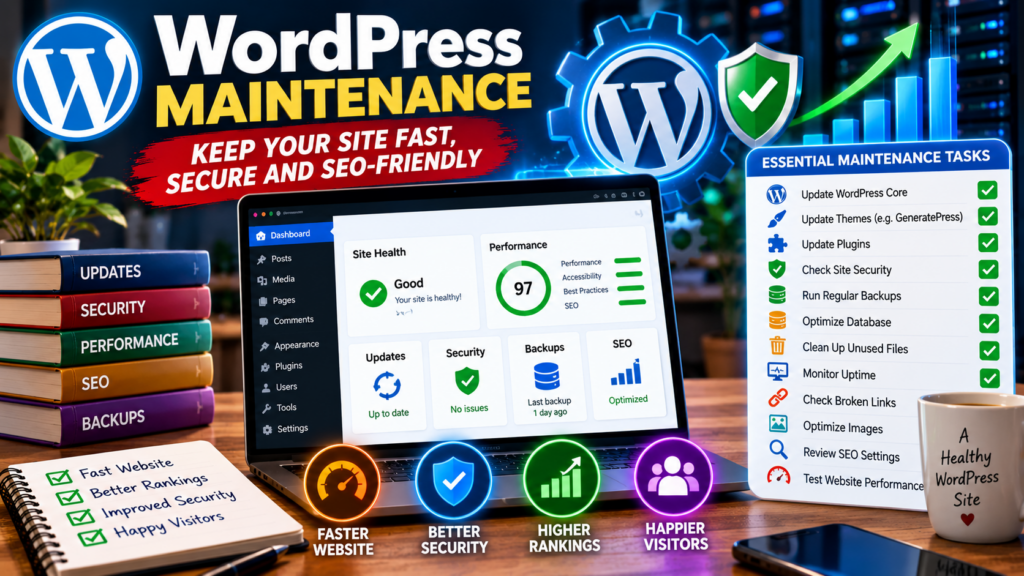
A fast and well-maintained WordPress website can improve user experience, search engine rankings, and overall performance. Discover the essential WordPress maintenance tasks you should perform regularly to keep your site optimized, secure, and SEO-friendly.
Keeping Your WordPress Website Fast and SEO-Friendly
Running a successful WordPress website involves more than publishing new content. Every website accumulates unnecessary data over time. Old revisions, expired cache files, spam comments, unused images, and abandoned plugins can gradually slow down your website and negatively affect search engine rankings.
Regular maintenance helps ensure that your website remains fast, secure, and easy for search engines to crawl. A clean WordPress installation can also improve user experience, reduce server load, and increase the likelihood of ranking higher in search results.
This guide explains the most important WordPress maintenance tasks you should perform regularly to maintain top-level speed and SEO performance.
Why Website Maintenance Matters
Many website owners focus heavily on creating content but overlook technical maintenance. Search engines evaluate several factors when ranking websites, including page speed, user experience, crawlability, and technical health.
A neglected website often develops problems such as:
- Slow page loading times
- Database bloat
- Broken links
- Crawl errors
- Security vulnerabilities
- Poor user experience
Regular maintenance prevents these issues from becoming major obstacles.
Clean Up Post Revisions
Every time you save or update a post, WordPress stores a revision. While revisions can be useful for restoring previous versions, they can quickly accumulate and create unnecessary database bloat. A website with hundreds of posts may contain thousands of revisions that are no longer needed.
Benefits of Cleaning Revisions
- Smaller database size
- Faster database queries
- Improved website performance
- Easier database management
Most websites only need to keep a few recent revisions per article.
Remove Spam Comments
Spam comments can fill your database and create unnecessary clutter. Even if they are not publicly visible, they still consume resources.
Review and delete:
- Spam comments
- Trashed comments
- Old pending comments
Maintaining a clean comments section improves database efficiency and keeps your website professional.
Delete Expired Transients

Many WordPress plugins create temporary database entries called transients. These are designed to expire automatically, but expired entries sometimes remain in the database.
Over time, thousands of expired transients can accumulate.
Why Transients Matter
Expired transients may:
- Increase database size
- Slow database queries
- Reduce overall performance
Regular cleanup helps keep the database lean and efficient.
Optimize Your Database
The WordPress database is the heart of your website. Every post, page, setting, comment, and plugin configuration is stored there. Over time, databases become fragmented and less efficient.
Database Optimization Benefits
- Faster page loading
- Improved backend performance
- Better server resource usage
- Reduced database size
Monthly optimization is usually sufficient for most blogs.
Remove Unused Plugins
Many WordPress users install plugins for testing purposes and forget about them later.
Inactive plugins can:
- Create security risks
- Leave unnecessary database entries
- Consume server resources
If a plugin is no longer needed, remove it completely instead of simply deactivating it.
Delete Unused Themes
WordPress websites often contain several inactive themes. Keeping one default WordPress theme as an emergency backup is a good practice, but additional unused themes should be removed.
Benefits include:
- Reduced security risks
- Less disk space usage
- Easier maintenance
Clean Up Unused Images
Media libraries often contain hundreds of images that are no longer attached to any content.
Unused images increase:
- Storage usage
- Backup sizes
- Server load
Review your media library periodically and remove files that are no longer needed.
Remove Unnecessary Thumbnail Sizes
WordPress automatically generates multiple thumbnail sizes for every uploaded image.
Depending on your theme and plugins, dozens of image variations may be created.
Problems Caused by Excessive Thumbnails
- Increased storage usage
- Larger backup files
- More files for search engines to crawl
Cleaning unused thumbnails can significantly reduce storage requirements.
Check for Broken Links
Broken links create a poor user experience and may negatively affect SEO. Search engines prefer websites that provide a smooth browsing experience.
Regularly scan for:
- Internal broken links
- External broken links
- Missing images
- Incorrect redirects
Fixing these issues helps maintain website quality and trust.
Review Your Sitemap
Your XML sitemap helps search engines discover and index your content.
An outdated sitemap may contain:
- Deleted pages
- Broken URLs
- Redirect chains
- Non-indexable content
Review your sitemap regularly to ensure it accurately reflects your website structure.
Monitor Google Search Console
Google Search Console is one of the most valuable tools for website owners.
It helps identify:
- Crawl errors
- Indexing issues
- Mobile usability problems
- Core Web Vitals issues
- Security warnings
Checking Search Console at least once per month can help detect problems before they affect rankings.
Manage Your Website Cache
Caching improves website speed, but outdated cache files can sometimes cause issues after updates.
If you use technologies such as:
- Redis
- Cloudflare
- LiteSpeed Cache
- WP Rocket
clear the cache after major changes to ensure visitors receive the latest version of your content.
Remove Old Backup Files
Backup plugins often store copies of your website directly on the server.
Popular backup solutions can create large archives over time.
Review backup folders and remove outdated backups while ensuring recent backups remain available.
Benefits include:
- Reduced disk usage
- Faster backups
- Improved server efficiency
Monitor Debug Logs
WordPress debugging can generate large log files.
The debug log may grow to hundreds of megabytes or even several gigabytes if errors occur frequently.
Regularly inspect and clean debug logs to avoid unnecessary storage consumption.
Review Orphaned Database Tables
- When plugins are removed, they sometimes leave behind database tables that are never used again.
- These orphaned tables increase database size and complexity.
- Before deleting any table, verify that it is no longer required by an active plugin or feature.
Improve Core Web Vitals
Google’s Core Web Vitals remain an important ranking factor.
Focus on:
Largest Contentful Paint (LCP)
Optimize images and server response times.
Interaction to Next Paint (INP)
Reduce JavaScript execution and improve responsiveness.
Cumulative Layout Shift (CLS)
Ensure elements do not move unexpectedly while pages load.
Regular maintenance supports improvements across all Core Web Vitals metrics.
Security Maintenance and SEO
Security and SEO often work together.
A hacked website can:
- Lose rankings
- Receive malware warnings
- Be removed from search results
- Damage brand reputation
Regular maintenance should include:
- Updating WordPress core
- Updating themes
- Updating plugins
- Removing unused software
- Monitoring suspicious activity
Recommended WordPress Maintenance Schedule
Daily Tasks
- Check website uptime
- Monitor security alerts
- Review spam comments
Weekly Tasks
- Update plugins
- Check broken links
- Review website speed
- Verify backups
Monthly Tasks
- Clean revisions
- Remove expired transients
- Optimize database
- Review sitemap
- Check Google Search Console
Quarterly Tasks
- Remove unused images
- Delete outdated backups
- Audit plugins and themes
- Review orphaned database tables
Frequently Asked Questions
What is the most important WordPress maintenance task?
Database cleanup and regular updates are among the most important tasks because they directly affect performance and security.
How often should I optimize my database?
Most websites benefit from monthly database optimization.
Can too many plugins slow down WordPress?
Yes. Poorly coded or unnecessary plugins can significantly impact performance.
Should I delete inactive plugins?
Yes. Unused plugins should be removed to reduce security risks and database clutter.
How often should I check Google Search Console?
At least once per month, although weekly checks are ideal for active websites.
Do spam comments affect performance?
Yes. Large numbers of spam comments can increase database size and reduce efficiency.
Why are broken links bad for SEO?
Broken links create poor user experiences and can waste crawl budget.
What are WordPress transients?
Transients are temporary database entries used by plugins and themes for caching and temporary storage.
Does cleaning images improve website speed?
Removing unused images reduces storage usage and simplifies backups, indirectly improving performance.
Can website maintenance improve rankings?
Yes. Better speed, cleaner site architecture, and fewer technical errors can positively impact SEO performance.
Essential Takeaways for Long-Term Success
WordPress maintenance is not a one-time task. It is an ongoing process that helps maintain website speed, security, and SEO performance. By regularly cleaning your database, removing unnecessary files, monitoring search engine reports, and optimizing your website’s technical health, you create a stronger foundation for long-term growth.
A fast website provides a better experience for visitors and sends positive signals to search engines. Consistent maintenance ensures your WordPress blog remains competitive, efficient, and ready for future success.
⚠️ Disclaimer and Source Hygiene
The information provided in this article is intended for educational and informational purposes only. WordPress environments vary depending on hosting providers, themes, plugins, and server configurations. Always create a complete backup before making major changes to your website. Information in this guide is based on established WordPress best practices and recommendations from authoritative sources.
🔔 For more tutorials like this, consider subscribing to our blog.
📩 Do you have questions or suggestions? Leave a comment or contact us!
🏷️ Tags: WordPress Maintenance, WordPress Speed Optimization, WordPress SEO, Database Optimization, Website Performance, WordPress Tips, Technical SEO, Core Web Vitals, WordPress Security, Website Maintenance Checklist
📢 Hashtags: #WordPress #WordPressSEO #WebsiteSpeed #CoreWebVitals #TechnicalSEO #WordPressTips #WebPerformance #Blogging #SEOOptimization #WordPressMaintenance
📚 Sources and References
- Official WordPress Documentation
- Google Search Central Documentation
- Google PageSpeed Insights Documentation
- Google Search Console Help Center
- WordPress Hosting Best Practices
- Core Web Vitals Documentation
🕊️ Secondary Sources and Testimonials
- Long-term website maintenance experiences from professional WordPress administrators
- WordPress developer community recommendations
- Website performance case studies
- SEO industry best practices
- Managed WordPress hosting optimization guides