
Table of Contents
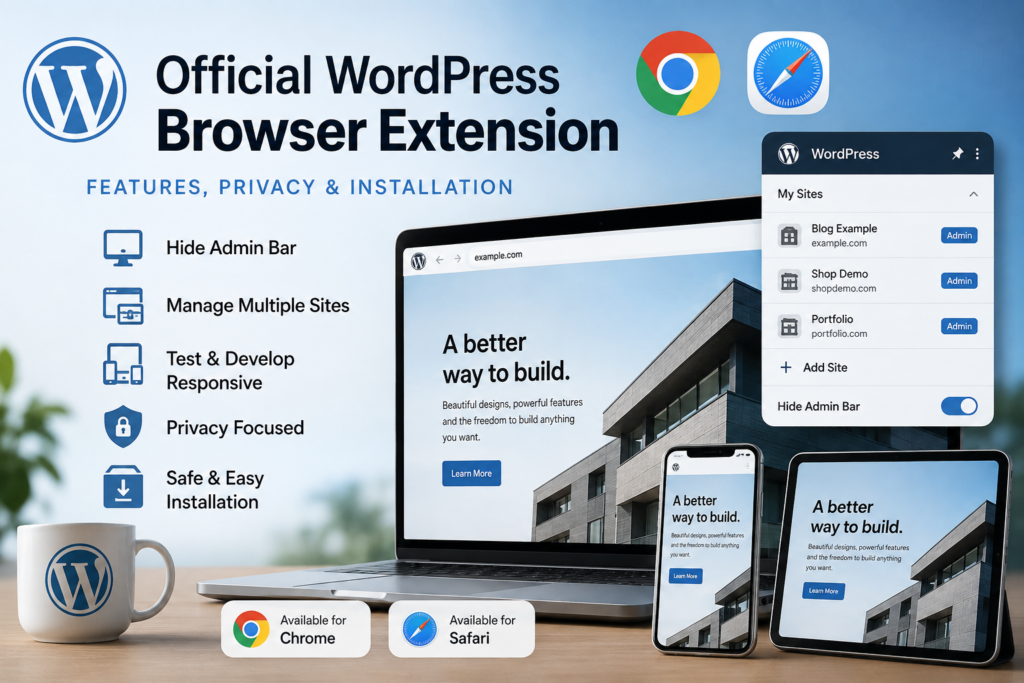
The official WordPress browser extension brings site management, admin shortcuts, responsive testing, developer tools, and multi-site access directly into Chrome and Safari. This guide explains how it works, what information it stores, its privacy model, and how WordPress administrators can install and use it safely.
WordPress administrators spend a surprising amount of time moving between the public side of a website and the WordPress dashboard. That routine becomes even more noticeable when you maintain several websites. You open a page, check its design, return to wp-admin, edit something, preview it again, and repeat the process. Developers have an additional problem: the WordPress admin bar changes the visible page and can interfere with accurate front-end testing.
The official WordPress Browser Extension is designed to reduce that friction. It places useful WordPress shortcuts and development tools directly inside the browser toolbar instead of forcing everything into the website itself. The project has reached version 1.0 and is officially available for Chrome and Chromium-based browsers through the Chrome Web Store, while Safari users on macOS can obtain it through the Mac App Store. The official repository states that the store versions are published by the WordPress Foundation.
This makes the extension particularly interesting for administrators responsible for several WordPress installations, developers testing responsive layouts, agencies reviewing client websites, and publishers who frequently move between the front end and dashboard. It is not another WordPress plugin installed on your server. Instead, it works at browser level and recognizes WordPress websites as you visit them.
What Is the Official WordPress Browser Extension?
The WordPress Browser Extension is an open-source browser tool designed to detect WordPress-powered websites and provide WordPress-related actions from the browser toolbar. According to the project’s official repository, Chrome is the primary platform, while Safari support is provided for macOS.
The idea is simple. Normally, when you are logged into WordPress, the familiar admin toolbar appears across the top of the website. It provides useful shortcuts such as editing the current page, opening the dashboard, creating content, viewing your account, and accessing features added by plugins.
That toolbar is convenient while working. However, it also occupies part of the browser viewport.
For everyday content editing, this rarely matters. For developers and designers, however, those extra pixels can become surprisingly important.
A sticky header may behave differently when the admin toolbar exists. A full-height hero section based on 100vh can look different. Scroll effects may trigger at slightly different positions. Fixed navigation can overlap the toolbar. Responsive layouts may also behave differently from what ordinary visitors actually see.
The browser extension addresses this problem by moving several frequently used WordPress controls into the browser interface.
The result is an interesting compromise: you can keep convenient WordPress shortcuts without permanently displaying the front-end admin bar.
How the Extension Detects WordPress
The extension does not depend on you manually registering every WordPress website before using it.
Instead, it can automatically recognize WordPress installations using several common signals. These include REST API references, generator information, WordPress asset paths, and body classes.
The browser toolbar icon then helps indicate what the extension has detected.
On a recognized WordPress site, the icon can distinguish between situations where you appear to be logged in and situations where you are viewing the site without an authenticated WordPress session. Non-WordPress websites receive a different visual state.
That sounds like a small feature, but it becomes useful when researching websites.
Developers frequently inspect websites to determine whether WordPress powers them. The extension effectively turns that detection into part of the normal browsing experience.
It Is Not a WordPress Plugin
This distinction is important.
You do not install the WordPress Browser Extension through:
Plugins → Add New
It is installed in your web browser.
Therefore, installing it does not add another PHP plugin to every WordPress website you manage.
This architecture has several practical benefits. One browser extension can work across multiple WordPress installations, while a traditional plugin would need to be installed separately on every website.
It also means the extension can provide browser-level tools that would be awkward to implement inside a normal WordPress plugin.
Who Will Benefit Most?
The extension is useful for several groups of WordPress users, but its strongest advantages appear when you regularly work with more than one site.
A blogger managing a single website may appreciate the editing shortcuts and hidden admin bar.
An agency administrator can benefit even more because several client sites can become accessible from one browser interface.
Developers gain responsive testing and debugging conveniences.
Designers can inspect the real front-end layout without the WordPress toolbar changing the viewport.
Site maintenance professionals can quickly move between websites and dashboards.
For casual WordPress users, the extension is optional. For people who spend several hours each day working inside WordPress, however, saving a few clicks hundreds of times can noticeably improve the workflow.
How It Hides the WordPress Admin Bar
One of the original motivations behind the extension was the WordPress admin toolbar.
When you log into WordPress and visit the front end, WordPress normally displays an administrative bar at the top of the screen. It gives you immediate access to editing and management features.
The problem is that this toolbar becomes part of the visible viewport.
If you are simply reading a post, this is not particularly important. If you are testing a design, it can be.
Why the Admin Bar Can Affect Design Testing
Imagine that your website uses a large hero area filling the entire browser window.
Its CSS might include something similar to:
min-height: 100vh;
A normal visitor sees that design without the WordPress toolbar.
An administrator may see the same page with additional interface space at the top. Depending on the theme and CSS, the experience may no longer perfectly represent the visitor’s view.
The same problem can appear with:
- sticky navigation;
- fixed headers;
- full-screen menus;
- parallax sections;
- scroll-triggered animations;
- full-height landing pages;
- sticky sidebars;
- anchor navigation;
- elements positioned relative to the top of the viewport.
The official project specifically describes the admin bar as potentially interfering with sticky navigation, parallax designs, and full-height layouts.
The Traditional WordPress Solution
WordPress already allows users to disable the toolbar.
You can normally visit your WordPress user profile and change the option controlling whether the toolbar appears while viewing the site.
That solves the visual problem.
Unfortunately, it creates another inconvenience.
Once the toolbar disappears, you also lose its convenient front-end shortcuts. Editing the page you are currently viewing may require navigating manually to the dashboard or locating the corresponding content.
For people who constantly switch between viewing and editing, this becomes frustrating.
The Extension’s Better Compromise
The browser extension allows the front-end admin bar to be hidden or shown on a per-site basis.
According to the official documentation, the toggle respects the WordPress profile setting and provides an indication when WordPress itself has disabled the bar.
Therefore, you can hide the toolbar while preserving convenient administrative actions through the extension.
This is especially useful during visual testing.
Open the website while logged in, hide the toolbar, and you get a view much closer to what normal visitors experience.
When you need administrative controls again, they remain available from the browser extension.
Hide the Admin Bar by Default
There is also a global preference.
The extension’s options include a Hide admin bar by default setting.
When enabled, hiding becomes the default behavior. However, individual site preferences take priority over that global setting.
That approach makes sense for developers.
You might generally prefer websites without the toolbar but keep it visible on a particular development environment.
Instead of constantly modifying your WordPress user profiles, you manage the preference from your browser.
A Practical Testing Workflow
A useful workflow might look like this:
- Log into the WordPress website.
- Open the public homepage.
- Use the extension to hide the admin bar.
- Inspect the desktop layout.
- Open important landing pages.
- Test sticky elements and navigation.
- Use the mobile preview tool.
- Make your changes in WordPress.
- Preview the updated page.
- Repeat until the design behaves correctly.
This workflow keeps development tools nearby while reducing the visual differences between your administrator session and a visitor session.
Managing Multiple WordPress Sites From the Browser
The My Sites feature may become one of the most valuable parts of the extension for administrators who maintain several WordPress installations.
Anyone responsible for multiple websites knows how quickly browser bookmarks become messy.
You may have:
example.com/wp-admin
shop.example.com/wp-admin
client-one.com/wp-admin
client-two.com/wp-admin
staging.client-two.com/wp-admin
development.example.com/wp-admin
After a while, finding the correct dashboard becomes another small administrative task.
The WordPress Browser Extension provides another approach.
How My Sites Works
When the extension detects that you are signed into a WordPress website, it can remember that site.
The saved sites then appear inside the extension’s global My Sites area.
According to the project’s documentation, these sites can be accessed from the extension even while you are browsing another webpage. Each remembered site can provide quick access to its WordPress administration area.
This effectively turns the extension into a lightweight WordPress site launcher.
Site Icons Make Identification Easier
The extension can also display a website’s configured WordPress Site Icon.
This is more useful than it may initially sound.
If you manage ten sites, a list containing only domain names requires you to read every entry carefully. Site icons provide immediate visual identification.
That becomes especially helpful when production, staging, and development environments use similar domain names.
Renaming Saved Sites
The My Sites interface allows remembered entries to be renamed.
For example, instead of:
staging123.hosting-example.com
you could use something clearer such as:
Client Store – Staging
A production installation could be labeled:
Client Store – LIVE
Clear naming reduces the chance of making changes on the wrong website.
For agencies and developers, distinguishing staging from production should always be a priority.
Removing Sites You No Longer Manage
Saved entries can also be removed. That is useful when a client relationship ends, a staging site disappears, or a temporary development installation is deleted.
Keeping the list clean makes the feature more valuable over time.
Quick Editing From the Current Page
Site switching is only part of the workflow.
When viewing WordPress content, the extension can provide an Edit this page action.
The feature supports posts, pages, categories, tags, authors, and custom post types. On block themes, template-backed areas such as archive pages can lead into the Site Editor.
That can remove several steps from everyday editing.
Instead of thinking:
“Which site is this? Open wp-admin. Find Pages. Search for this page. Open it.”
you can move directly from the public page to its editor.
Keyboard Shortcut for Faster Editing
Power users can go even further.
The documented shortcut is:
Windows/Linux: Alt + Shift + E
macOS: Option + Shift + E
Chrome users can customize extension shortcuts through Chrome’s extension shortcut settings.
If you regularly proofread published pages and make corrections, this shortcut can become extremely convenient.
Creating New Content
The extension also includes a + New menu inspired by the WordPress admin toolbar.
It displays content types your current WordPress user role is allowed to create.
For example, depending on the site configuration and permissions, you may have shortcuts for creating:
- posts;
- pages;
- custom post types;
- other supported content.
This makes the extension feel less like a WordPress detector and more like a small remote control for the site you are viewing.
Viewing and Previewing Content
The workflow also works in the opposite direction.
When you are editing content inside wp-admin, the extension can provide access to the published page or a draft preview.
Draft previews can use the necessary WordPress nonce, allowing unpublished content to be previewed appropriately. The feature is documented as working across post types.
This creates a convenient loop:
View → Edit → Preview → Edit → Publish → View
The browser extension reduces the navigation required between those stages.
Tools for Testing and Development
The official WordPress Browser Extension is not only an administrative shortcut tool. It also includes several features aimed specifically at developers, designers, and people responsible for troubleshooting WordPress websites.
These tools are especially interesting because they operate from the browser.
Mobile Preview
Responsive testing is one of the extension’s most practical development features.
The extension can open a mobile preview window using an iPhone-sized viewport.
This does not replace testing on actual phones and tablets. Real devices still matter because touch behavior, browser UI, device pixel ratios, fonts, and operating-system differences can affect the final experience.
However, a quick browser-based mobile preview is excellent for catching obvious problems.
You can rapidly check:
- navigation wrapping;
- oversized headings;
- horizontal scrolling;
- images exceeding containers;
- broken grids;
- buttons that are too wide;
- padding problems;
- sticky elements;
- mobile typography;
- responsive spacing.
That makes the feature useful during routine content publishing as well as full development projects.
Why Responsive Testing Matters
A page can look perfect on a 27-inch desktop monitor and still perform poorly on a smartphone.
Common problems include titles breaking into awkward lines, tables extending beyond the screen, ads pushing content sideways, menus overlapping text, and large images creating unexpected layout shifts.
Opening a mobile preview immediately after publishing an important page can catch many of these mistakes.
For WordPress publishers, that makes responsive checking part of content quality control rather than something reserved only for developers.
Bypass Page Cache
Caching creates another common WordPress development problem.
You modify CSS.
You refresh the page.
Nothing changes.
You modify the CSS again.
Still nothing.
Eventually you discover that the original change was correct, but a cached page kept showing the old version.
The extension includes a bypass page cache developer tool.
This can make troubleshooting easier when testing changes on websites that use page caching.
However, remember that WordPress caching can exist at several layers.
A site may simultaneously use:
- browser cache;
- WordPress page cache;
- object cache;
- server cache;
- reverse proxy cache;
- CDN cache;
- hosting platform cache.
Therefore, a cache bypass tool is useful, but it cannot magically control every possible caching layer.
Clear Cookies and Site Data
The extension can clear cookies and site data while preserving the WordPress login session.
That is particularly useful during debugging.
Developers often need to test behavior influenced by cookies or local browser storage. Clearing everything manually can also log you out of WordPress, forcing another authentication cycle.
Preserving the WordPress login makes repeated testing less disruptive.
Even so, use this function deliberately. Clearing browser data can reset site preferences or application states that you may want to inspect first.
Highlight WordPress Blocks
Block-based WordPress websites can contain deeply nested structures.
A Group block may contain Columns. A Column may contain another Group. That group may contain a Query Loop. The Query Loop may contain Post Template blocks and several child blocks.
Looking at the page alone does not always make that hierarchy obvious.
The extension’s Highlight Blocks feature can outline elements using WordPress wp-block-* classes and provide breadcrumb-style information.
This can help developers understand which block structure produces a particular visual element.
It may also help when diagnosing CSS selectors.
Instead of guessing which block controls an area, highlighting can reveal the underlying WordPress structure.
Query Monitor Integration
Developers who use Query Monitor receive another convenience.
When Query Monitor is installed, the browser extension can expose a Query Monitor toggle.
Query Monitor remains a separate WordPress development tool. The browser extension does not replace it.
Instead, the extension provides easier access when the environment supports it.
This reflects the overall philosophy of the browser extension: reduce interface friction rather than recreate every WordPress development tool.
Hosting Detection
The extension can attempt to identify several popular WordPress hosting environments.
The official feature list includes detection for platforms such as WordPress VIP, WordPress.com, WP Engine, Pantheon, Kinsta, Flywheel, Cloudways, Pressable, and local development environments.
Hosting information can be cached per origin.
For developers who inspect many WordPress sites, this provides useful context without immediately opening external detection services.
Still, hosting detection should be treated as helpful information rather than definitive infrastructure documentation. Reverse proxies, CDNs, migrations, custom configurations, and white-label environments can make hosting detection complicated.
Experimental Site Information Panel
The options include an experimental site information panel.
When enabled, it can surface information such as:
- active theme;
- installed plugins;
- site name;
- REST namespaces.
However, the project’s own documentation warns that detection is heuristic and may produce duplicate or incorrect plugin information when relying on asset-path inference. For that reason, the feature is disabled by default.
That warning is important.
The panel is useful for investigation, but you should not treat every detected item as guaranteed fact.
If you are auditing your own WordPress installation, confirm plugin and theme information directly from wp-admin, WP-CLI, or the server.
What Data Does the Extension Store?

Browser extensions deserve careful privacy scrutiny because they can potentially interact with pages you visit.
The WordPress Browser Extension takes a relatively straightforward approach.
The project’s official privacy statement says there is no telemetry, no analytics, and no third-party tracking. Its operations happen locally, while administrator-level site information may be obtained from the WordPress site’s own REST API.
This is an important distinction.
The extension needs information about the WordPress site you are currently using to provide its functionality. That does not automatically mean that information is being transmitted to an unrelated analytics platform.
Local Storage
Some information must persist for features such as My Sites and per-site preferences to work.
For example, the extension remembers detected logged-in WordPress sites so they can appear inside My Sites.
The documentation states that this list is saved locally.
Per-site preferences also need to be remembered.
If you tell the extension to hide the WordPress admin bar on one domain but display it on another, those choices must be stored somewhere.
The extension’s local browser storage provides that persistence.
Cached WordPress Detection
The extension can also cache WordPress detection information.
That prevents it from having to rediscover the same information unnecessarily every time you visit a familiar website.
Hosting detection, for example, can be cached per origin for 90 days according to the official feature documentation.
Caching is normal for this type of tool and helps keep the interface responsive.
WordPress REST API Access
When you are signed in with appropriate administrative access, the extension may call the WordPress site’s own REST API to obtain theme or plugin information.
The key privacy point is where that request goes.
According to the official project documentation, the extension performs its work locally and does not send that information to an outside service beyond the WordPress site you are already visiting.
This design reduces the privacy concerns associated with extensions that rely heavily on external analytics or cloud-processing servers.
No Telemetry or Analytics
The official privacy statement explicitly says:
- no telemetry;
- no analytics;
- no third-party tracking.
That means the extension is not described as collecting usage statistics about how you interact with it for external analytics purposes.
For administrators managing client sites, this is particularly relevant.
Browser extensions can potentially have broad permissions, so understanding what happens to data should always be part of the installation decision.
Clearing Stored Data
The options page provides a Clear all data function.
According to the documentation, this removes per-site preferences, global defaults, cached WordPress detection information, and the saved My Sites list.
- This is useful in several situations.
- You may want to start from a clean configuration.
- You may be troubleshooting unusual behavior.
- You may have stopped managing several client sites.
- Or you may simply want to remove all locally stored extension information.
- Having a clear reset mechanism is good practice for a browser tool that remembers websites.
Privacy Still Depends on Your Browser Environment
The extension’s privacy model does not eliminate every security consideration.
Your browser remains a highly sensitive application.
If your browser profile is compromised, your saved WordPress sessions may also be exposed. The same applies whether or not this particular extension is installed.
Administrators should therefore protect the browser itself.
Use a strong operating-system password, keep Chrome or Safari updated, avoid suspicious extensions, enable WordPress two-factor authentication where possible, and do not leave an administrator session open on shared computers.
The extension can simplify administration, but it should never replace normal account security.
How to Install It Safely
The safest installation method for most people is the official browser store.
Version 1.0 of the extension is available through the Chrome Web Store for Chrome and compatible Chromium browsers and through the Mac App Store for Safari on macOS. The official repository says these releases are published by the WordPress Foundation.
Store installation also provides an important practical advantage: signed packages and automatic updates.
Installing on Chrome
For Chrome, use the official Chrome Web Store listing linked from the WordPress project’s repository.
Official WordPress Browser Extension repository
From the official repository, follow the Chrome Web Store link rather than searching randomly for extensions with similar names.
Then:
- Confirm that you are viewing the correct WordPress Browser Extension.
- Check the publisher information.
- Review the requested permissions.
- Select Add to Chrome.
- Confirm the browser permission prompt.
- Pin the extension to the toolbar if you want permanent access.
- Open one of your WordPress websites.
- Log into WordPress.
- Click the WordPress extension icon.
- Verify that the site is detected correctly.
The store build is the recommended installation method because it is signed and can update automatically.
Installing on Chromium-Based Browsers
The Chrome release is intended for Chrome and Chromium browsers.
Depending on the browser and its extension compatibility, the Chrome Web Store version may also be usable in Chromium-based environments.
However, Firefox and Edge have been tracked separately in the project’s roadmap, so users should check the current official documentation rather than assuming every browser has a dedicated store release.
Installing on Safari
Safari installation works differently because Safari extensions are distributed as part of macOS applications.
The recommended version is available through the Mac App Store.
After installing it:
- Launch the WordPress Browser Extension application once.
- Open Safari.
- Open Safari → Settings.
- Select Extensions.
- Locate the WordPress Browser Extension.
- Enable it.
- Visit a WordPress website.
- Test the extension from Safari’s toolbar.
These are the installation steps documented by the official project.
Why Store Installation Is Better for Normal Users
GitHub also provides development and testing builds.
However, most WordPress administrators should use the browser store versions.
Store releases provide:
- signed installation packages;
- simpler installation;
- automatic updates;
- fewer manual steps;
- less chance of installing the wrong build.
Development installation is more appropriate for contributors, testers, or developers who need to inspect upcoming changes.
Installing a Development Build in Chrome
Advanced users can download a release from the project’s GitHub repository.
The documented Chrome development process involves downloading the latest ZIP archive, extracting it, opening Chrome’s extension management screen, enabling Developer Mode, and using Load unpacked to select the extracted directory.
This is useful for testing.
It is not necessary for normal daily use.
Developer Mode also places more responsibility on you to understand what you are loading into the browser.
Installing a Testing Build on Safari
The GitHub project also documents ad-hoc Safari builds.
These require more manual handling than the Mac App Store release, including downloading the Safari archive, moving the application to Applications, manually opening it through macOS Gatekeeper, and then enabling the Safari extension.
Again, this path is aimed at development and testing.
If your goal is simply to use the extension, choose the Mac App Store version.
Recommended Settings for WordPress Administrators
After installing the extension, resist the temptation to enable everything immediately.
A simple configuration works well for most administrators.
Hide Admin Bar by Default
If you frequently inspect your sites’ front ends, consider enabling Hide admin bar by default.
This gives you a cleaner representation of what visitors see while retaining WordPress actions through the browser toolbar.
Individual site choices override this default, so you can still keep the toolbar visible on selected installations.
Keep Experimental Site Information Disabled Initially
The site information panel is experimental and disabled by default.
That is a sensible default.
Enable it if you specifically need theme, plugin, site, or REST namespace information.
Do not rely on inferred plugin information for a security audit because the project’s documentation acknowledges that heuristic detection may produce duplicates or false positives.
Organize My Sites Carefully
If you maintain several WordPress installations, give them descriptive names.
For example:
- WPZone – Production
- WPZone – Staging
- Client A – Production
- Client A – Development
- Store – Production
- Store – Test
This small organizational step can prevent confusion.
Production and staging sites often look almost identical, and accidentally editing the wrong installation is easier than many administrators expect.
Pin the Extension
If WordPress administration is part of your daily work, pinning the extension to the browser toolbar makes sense.
Otherwise, you may simply replace the inconvenience of navigating WordPress with the inconvenience of searching through the browser’s extension menu.
The value comes from immediate access.
Keep Browser and Extension Updates Automatic
The official store builds update automatically.
Leave automatic updates enabled whenever possible.
Browser extensions operate inside an important security boundary. Running outdated versions unnecessarily increases risk.
The same rule applies to the browser itself.
Keep Chrome, Safari, macOS, and your operating system updated.
A Practical Multi-Site Administrator Test
Consider a WordPress administrator managing six websites.
Without the extension, the workflow might involve bookmarks for six dashboards, several open tabs, repeated navigation through wp-admin, and a visible admin bar on every front-end inspection.
With the extension, the administrator can gradually build a My Sites list as authenticated WordPress installations are detected.
Opening a website can immediately provide access to editing controls.
The administrator can hide the WordPress toolbar when checking the design.
A page can be inspected using the mobile preview.
Blocks can be highlighted during layout debugging.
Cache can be bypassed when a recent change does not appear.
The administrator can then switch to another remembered WordPress installation from the extension.
None of these individual features is revolutionary.
Their value comes from reducing dozens of small interruptions throughout the working day.
That is where productivity tools often make the biggest difference.
A Practical Responsive Development Test
The extension is equally interesting for front-end developers.
Imagine you have changed the header of a WordPress site.
The desktop version looks correct while you are logged in.
First, hide the admin toolbar.
Check whether the sticky header still sits at the correct position.
Next, use the mobile preview.
Check the navigation, logo size, menu button, heading width, and spacing.
Then activate block highlighting if the header or page contains block-based structures you need to identify.
If your CSS changes do not appear, try the cache bypass tool.
When Query Monitor is installed and relevant to your investigation, use the available integration.
Finally, test the page in a private browser window and on a physical smartphone.
The extension speeds up the development cycle, while real-device and logged-out testing remain the final verification steps.
What the Extension Does Not Replace
The WordPress Browser Extension is useful, but understanding its limitations is important.
- It does not replace your WordPress security plugin.
- It does not replace backups.
- It does not replace a staging environment.
- It does not replace Chrome or Safari developer tools.
- It does not replace PageSpeed Insights or performance profiling.
- It does not replace Query Monitor.
- It does not replace real mobile-device testing.
- It does not replace WP-CLI.
Instead, it connects several everyday WordPress actions to the browser.
Think of it as a productivity layer between your browser and the WordPress sites you already manage.
Security Recommendations Before Using It on Client Sites
Administrators working with client websites should apply stricter security habits because their browser may contain authenticated sessions for several valuable WordPress installations.
Install the extension only from the official store or the project’s official repository.
Verify the publisher before installation.
Review permissions when your browser displays them.
Do not install copies from random download websites.
Keep automatic updates enabled.
Protect your computer account.
Enable two-factor authentication on administrator accounts when possible.
Avoid storing unrestricted WordPress administrator sessions on shared computers.
Review your browser’s installed extensions regularly.
Remove extensions you no longer use.
Use separate browser profiles when you need stronger separation between personal browsing and professional WordPress administration.
These precautions are not specific accusations against the WordPress Browser Extension. They are sensible practices for any browser used to administer production websites.
Frequently Asked Questions
Is the WordPress Browser Extension official?
Yes. The project resides under the official WordPress GitHub organization, and its documentation states that version 1.0 store releases are published by the WordPress Foundation.
Is the WordPress Browser Extension available for Chrome?
Yes. Version 1.0 is available through the Chrome Web Store for Chrome and Chromium browsers. The official project recommends installing the signed store version.
Is there a Safari version?
Yes. Safari support is available on macOS through the Mac App Store. After installing the application, launch it once and enable the extension under Safari’s extension settings.
Does the extension work with several WordPress websites?
Yes. Its My Sites feature remembers WordPress websites where it detects an authenticated session and provides a launcher for returning to their administration areas. The saved list is stored locally.
Can it hide the WordPress admin bar?
Yes. You can hide or show the front-end WordPress admin toolbar per site. There is also a global option to hide it by default, while per-site settings take priority.
Does the extension collect analytics?
The official privacy documentation states that the extension uses no telemetry, analytics, or third-party tracking. Its work is performed locally, with relevant requests going to the WordPress website you are already visiting when needed.
What information does My Sites store?
The extension remembers detected WordPress sites where you are signed in so they can appear in the My Sites launcher. According to the official documentation, this information is stored locally.
Can developers use it for responsive testing?
Yes. The developer tools include an iPhone-sized mobile preview, cache bypass functionality, site-data clearing, WordPress block highlighting, and Query Monitor integration when Query Monitor is installed.
Can it identify WordPress themes and plugins?
An experimental information panel can show active theme, plugin, site, and REST information. However, the developers warn that heuristic asset detection may produce duplicate or false-positive results, so the feature should not replace a proper site audit.
Should I install the GitHub version or the store version?
Most users should install the official store version. The Chrome Web Store and Mac App Store packages are signed and receive automatic updates. GitHub builds are more appropriate for development, contribution, and testing.
Point
The most important point for everyday WordPress users is simple: this extension does not change how WordPress itself works. Your site continues running normally on the server. The extension adds browser-side conveniences for detecting WordPress, navigating to administration areas, editing content, managing remembered sites, hiding the admin bar, and performing several development checks.
Administrators should therefore view it as an optional productivity tool rather than a required WordPress component. If you manage only one simple blog, the improvement may be modest. If you maintain several sites, review client work, publish frequently, or test responsive designs every day, the saved navigation and cleaner front-end testing can become much more valuable.
A Small Tool That Can Save Many WordPress Clicks
The official WordPress Browser Extension solves a very ordinary problem: WordPress administrators spend too much time moving between the website, dashboard, editor, preview, development tools, and other WordPress installations.
Its strongest feature may actually be its simplicity.
You can hide the WordPress admin bar without losing convenient administrative shortcuts. You can jump directly from a public page to its editor. You can keep several authenticated WordPress sites accessible through My Sites. Developers receive mobile preview, cache bypass, site-data controls, block highlighting, hosting detection, and optional Query Monitor integration.
Privacy is another important part of the design. The official project states that the extension has no telemetry, analytics, or third-party tracking and that saved site information remains local.
For most users, installation should come directly from the official Chrome Web Store or Mac App Store release linked by the WordPress project. Development builds should remain primarily for developers and testers.
The extension will not replace professional WordPress development tools. It does something more focused: it removes small pieces of friction from tasks WordPress administrators already perform every day.
For someone managing one website, that may save a few clicks.
For someone managing twenty WordPress installations, those saved clicks can add up quickly.
⚠️ Disclaimer and Source Hygiene
This article is provided for educational and informational purposes. Browser extensions, WordPress features, permissions, and supported platforms can change through future releases. Always verify current functionality, permissions, compatibility, and installation instructions through official WordPress resources before deploying new tools in a production or client environment.
Technical details in this guide were checked against the official WordPress Browser Extension repository and current project documentation available in August 2026. Experimental functionality should not be treated as a replacement for server-level, WordPress dashboard, WP-CLI, security, or professional development diagnostics.
🔔 For more tutorials like this, consider subscribing to our blog.
📩 Do you have questions or suggestions? Leave a comment or contact us!
🏷️ Tags: WordPress browser extension, WordPress Chrome extension, WordPress Safari extension, WordPress admin tools, WordPress developer tools, WordPress responsive testing, WordPress admin bar, manage multiple WordPress sites, WordPress development, WordPress tools
📢 Hashtags: #WordPress, #WordPressTips, #WordPressDevelopment, #ChromeExtension, #SafariExtension, #WebDevelopment, #WordPressAdmin, #ResponsiveDesign, #WebDesign, #WordPressTools
📚 Sources and References
The primary technical source for this article is the official open-source WordPress Browser Extension repository maintained under the WordPress GitHub organization. It documents the current version, installation methods, privacy approach, WordPress detection, admin-bar controls, My Sites feature, development tools, experimental options, Safari implementation, security practices, and project roadmap.
WordPress Browser Extension – Official GitHub Repository
The project documentation confirms that version 1.0 has launched for Chrome/Chromium through the Chrome Web Store and for Safari on macOS through the Mac App Store. The store builds are signed, automatically updated, and identified as releases published by the WordPress Foundation.
🕊️ Secondary Sources and Testimonials
Independent WordPress coverage has also documented the project’s development and its focus on moving useful WordPress administrative functionality out of the page viewport. The WP Minute reported on the extension before its final release, including its admin-bar replacement concept, development workflow, Chrome and Safari testing, and evolution into an official WordPress project.
As with any rapidly evolving WordPress tool, readers should give priority to the official project repository and official browser-store listings when checking current features, supported browsers, permissions, security information, and installation procedures.
Sign in with a Subscriber account to vote.