
Table of Contents
Discover WPZone Server Monitor FREE v1.1.0, a lightweight WordPress plugin that helps administrators check hosting disk space, PHP performance, database response times, object cache status, and server resources. Learn how to install it, understand its measurements, and identify potential hosting problems without complicated server management tools.
- Plugin version: 1.1.0
- Developer: WPZone
- License: GPLv2 or later
- Price: Free
- Minimum PHP version: 7.4
- Category: WordPress Performance, Hosting Diagnostics, Server Monitoring
After Installation: Dashboard → Tools → WPZone Server Monitor
Meet WPZone Server Monitor FREE v1.1.0
Running a WordPress website involves much more than publishing articles, uploading images, and keeping plugins updated. Behind every page, your hosting environment handles PHP requests, database queries, file storage, and several other operations. Most of these activities remain invisible until something starts going wrong. A website may suddenly feel slower, uploads may fail, or the hosting account may run short of storage. Understanding where to look can save hours of unnecessary troubleshooting.
That is where WPZone Server Monitor FREE v1.1.0 comes in. Developed by WPZone, this free WordPress plugin brings useful hosting and performance measurements into a single administration dashboard. Instead of switching between different hosting panels for every basic check, administrators can review important technical information directly inside WordPress. The interface uses readable cards, straightforward labels, and a responsive layout that also works on mobile devices.
The plugin is designed for website owners, bloggers, developers, and administrators who want a clearer picture of their hosting environment. It does not require advanced server administration knowledge to get started. More importantly, it focuses on observation rather than automatic changes. You can inspect the available measurements, compare results over time manually, and decide whether further investigation is necessary without giving the plugin permission to modify your server configuration.
A Free Tool Designed for Everyday WordPress Administration
Many website owners only open their hosting control panel when they encounter an error. Perhaps an image upload fails, a plugin update stops halfway through, or the WordPress dashboard becomes unusually slow. At that moment, knowing whether storage is running low or database response times are increasing can help narrow down the investigation. WPZone Server Monitor provides a convenient starting point for these checks.
Version 1.1.0 brings together filesystem capacity, PHP diagnostics, database measurements, object cache checks, directory sizes, and selected operating system readings. Some measurements depend on the permissions and capabilities provided by the hosting company. The plugin displays unavailable information when it cannot obtain a value, rather than pretending every server exposes the same details. This distinction matters because shared hosting, virtual private servers, dedicated machines, and local WordPress installations work differently.
What Makes WPZone Server Monitor FREE Different?
WPZone Server Monitor is intentionally focused on one WordPress installation and the hosting environment accessible to that installation. It is not a centralized infrastructure platform that connects to every machine in a network. Instead, it collects measurements from the PHP process running the current website. This approach makes it easier to install on common WordPress hosting arrangements, without needing to configure external monitoring agents or provide SSH credentials.
The plugin also separates useful information into visual sections. Its main dashboard highlights disk space, PHP performance, database response time, and object cache status. Additional panels display WordPress directory sizes and other server measurements. Administrators who need more detail can expand a complete metrics table. This combination makes the interface approachable for beginners while still offering useful figures for more experienced WordPress users.
The Main Features at a Glance
| Feature | What it provides |
|---|---|
| Disk space | Total, used, and free space reported by the accessible filesystem |
| PHP performance | Request elapsed time and peak PHP memory |
| Database response | Timing for a simple MySQL/MariaDB query |
| Database size | Approximate storage used by WordPress-prefixed tables |
| Object cache | Checks whether an external WordPress object cache responds |
| WordPress directories | Sizes of uploads, plugins, and themes |
| CPU-related load | Operating system load averages, when available |
| Server RAM | Total and available host memory, when readable |
| Refresh | Administrator-protected measurement refresh |
| Responsive dashboard | Desktop, tablet, and mobile-friendly layout |
| Privacy | No built-in transmission of diagnostic data to WPZone |
| Licensing | Free software under GPLv2 or later |
The goal is not to replace professional server monitoring software. WPZone Server Monitor provides a convenient diagnostic snapshot that helps you understand what your WordPress environment reports at a particular moment. It does not collect continuous background measurements, maintain historical performance graphs, or send automatic outage notifications. These are important boundaries to understand before relying on any lightweight monitoring plugin.
A Modern Dashboard That Works on Mobile
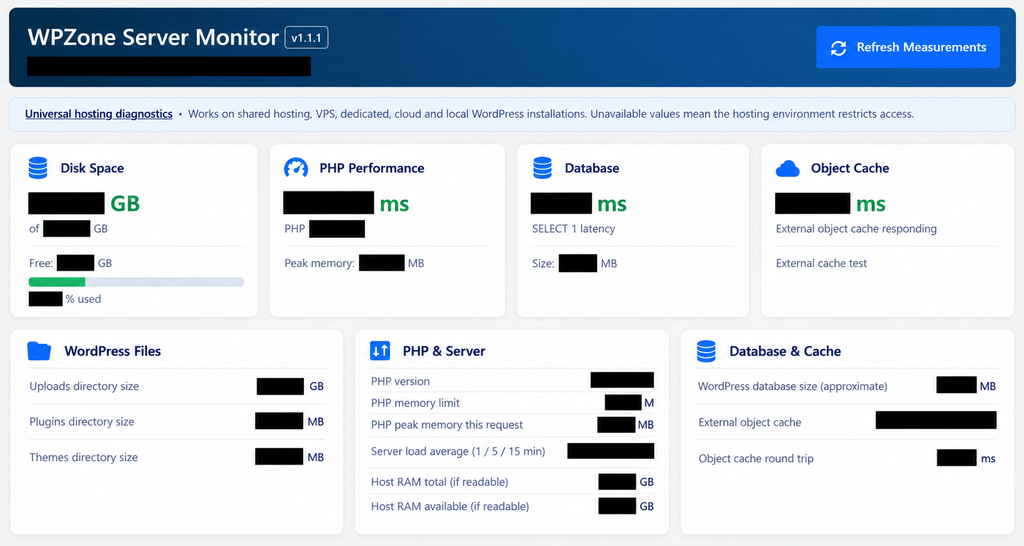
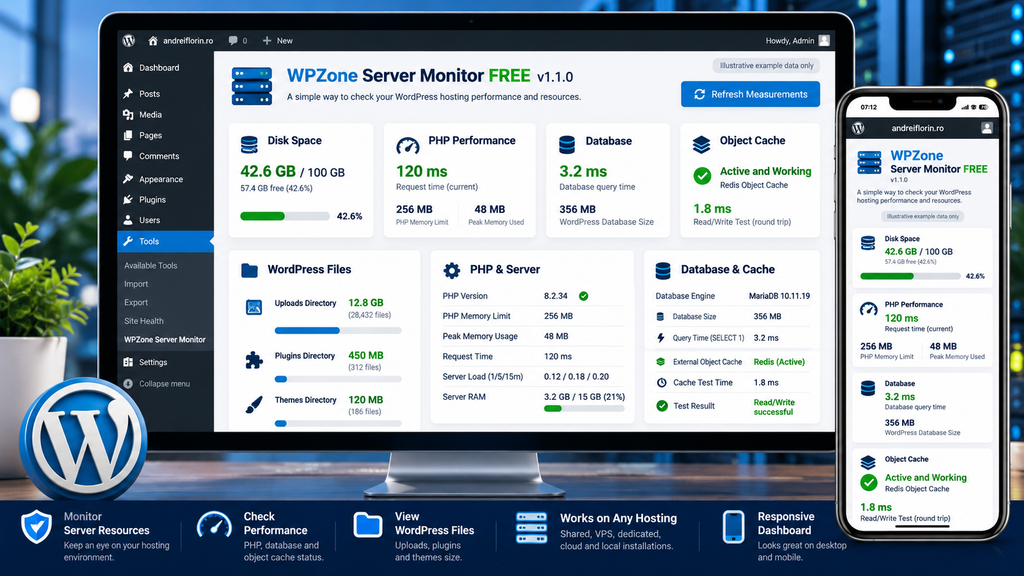
The plugin includes a custom WordPress administration interface with a dark blue header, white information cards, green metric highlights, and a visual disk usage bar. The layout adapts to different screen widths. On wider desktop displays, administrators can review several cards together. On smaller devices, the cards stack vertically so their values remain easier to read.
This design is particularly useful when you need to check a website from your phone. For example, you might receive a message that an upload failed while you are away from your computer. You can sign in to WordPress, open the monitor, and review the available disk measurements. The plugin does not automatically explain every problem, but it can provide a useful clue before you contact your hosting provider.
What Does WPZone Server Monitor Actually Monitor?
Understanding the individual measurements is the most valuable part of using this plugin. A number on a dashboard only becomes useful when you know what it represents, how it was collected, and what might cause it to change. WPZone Server Monitor provides several categories of information, but they do not all measure the same thing. Some describe filesystem capacity, others describe the current PHP request, and others provide a limited view of operating system resources.
The distinction between site-level measurements and host-level measurements is especially important. A shared hosting server may run many websites, and a filesystem can contain files that do not belong to your WordPress installation. Similarly, server load and RAM figures may reflect activity from other applications. The plugin includes an explanatory note about these limitations. Reading the numbers in context helps prevent unnecessary concern and incorrect conclusions.
1. Hosting Disk Space: Total, Used, and Available
The disk space section reports the total capacity, used space, and free space for the filesystem containing the WordPress installation. It also calculates a percentage of used capacity and displays a progress bar. These measurements come from PHP filesystem functions, which means they reflect what the hosting environment allows the WordPress process to see.
For example, imagine the plugin reports a filesystem with 100 GB of total capacity, 72 GB used, and 28 GB available. The dashboard would show 72% usage. That information tells you how full the reported filesystem is, but it does not necessarily mean your WordPress website occupies 72 GB. On shared hosting, the same filesystem may hold data belonging to other customers. A hosting account quota can also be smaller than the reported filesystem capacity.
How Disk Space Monitoring Helps Prevent Problems
Running out of usable storage can interfere with several ordinary WordPress activities. Image uploads may fail, backups may stop, and updates may be unable to extract their temporary files. In more serious cases, applications that need to write files can encounter errors. Monitoring the reported available space gives administrators another clue when diagnosing these problems.
Consider a blog that publishes several large image galleries each week. Over time, its uploads directory may become substantial. If the filesystem also reports little available space, the administrator has a reason to investigate storage consumption. However, the plugin cannot determine the hosting account’s contractual quota or identify every file responsible for filesystem usage. The hosting control panel remains the authoritative place to check account-specific limits.
2. PHP Performance and Request Processing Time
PHP is the programming language responsible for much of WordPress’s server-side functionality. When you open an administration page, WordPress runs PHP code, communicates with the database, and prepares the resulting page. WPZone Server Monitor reports the PHP version, configured PHP memory limit, peak memory usage for the current request, and elapsed request time at the point measurements are collected.
These readings are useful for basic diagnostics, but they are not full website speed tests. For example, the elapsed time reflects the administration request that generates the monitoring dashboard. It does not measure how quickly a visitor’s browser displays an article. Browser rendering, network conditions, page caching, images, JavaScript, and many other factors affect real visitor performance. A low PHP request time on the monitoring screen cannot guarantee that every public page loads quickly.
Understanding the PHP Memory Limit
WordPress plugins and themes need memory while executing PHP code. The PHP memory limit sets an important boundary for how much memory a PHP script can allocate, subject to the environment’s configuration. WPZone Server Monitor displays the value returned by PHP and reports the peak memory allocated during the current request.
Imagine a site with a PHP memory limit of 256 MB and a reported peak of 48 MB while loading the monitor. That does not mean the entire website always uses 48 MB. An image processing task, WooCommerce operation, backup, or import may require substantially more memory. The measurement simply describes the current request. If your website experiences memory exhaustion errors, inspect the affected operation and its logs before increasing limits.
3. MySQL and MariaDB Database Response Time
WordPress stores posts, pages, settings, comments, users, and other structured information in a relational database. Most installations use MySQL or MariaDB. Whenever WordPress needs stored information, it may send database queries and wait for responses. Slow database operations can contribute to sluggish administration pages and dynamic website requests.
WPZone Server Monitor measures the elapsed time of a simple SELECT 1 query through WordPress’s database connection. This provides a lightweight indication of database round-trip responsiveness at that moment. For example, an illustrative result of 2.5 milliseconds means that the simple test completed in approximately that time. It does not measure the execution speed of every WordPress query, nor does it analyze complex SQL statements.
How to Interpret Database Latency
A database test is most useful when you compare measurements taken under similar conditions. If a simple query usually completes quickly but suddenly takes much longer, you may want to investigate temporary server load, connection problems, or database responsiveness. One unusual result is not enough to identify the cause.
Suppose the monitor reports 3 milliseconds in the morning and 45 milliseconds during a busy period. That difference may justify further testing, especially if administrators also notice slower pages. However, you should examine database logs, slow queries, resource utilization, and real application performance before concluding that MySQL or MariaDB is overloaded. The plugin performs a small diagnostic query, not a complete database benchmark.
4. External Object Cache Availability
WordPress uses object caching to temporarily store data that would otherwise need to be generated or retrieved again. Some hosting environments provide persistent object caching through technologies such as Redis or Memcached. These systems can reduce repeated database work when configured correctly.
WPZone Server Monitor checks whether WordPress reports an external object cache. When one is active, the plugin creates a temporary test key, writes a value, reads it back, and deletes it. The dashboard reports whether this simple round trip succeeds and how long it takes. This is a practical way to confirm that basic object cache operations respond through the WordPress cache API.
What the Cache Test Does Not Prove
A successful object cache test does not establish that the website’s caching configuration is optimal. It does not identify Redis specifically, verify the amount of cached data, measure cache hit rates, or prove that persistent cache entries survive between separate requests. It also does not replace application-specific testing.
For example, a website using Redis might pass the test while still experiencing poor performance from expensive uncached database queries. Conversely, a site without an external object cache may work perfectly well if it is small, efficiently configured, or uses effective page caching. Treat the result as a basic availability check rather than a complete cache performance assessment.
5. WordPress Database Size
Over time, WordPress databases accumulate information. Published articles, revisions, plugin settings, metadata, and other records can increase the amount of stored data. WPZone Server Monitor estimates database size by retrieving MySQL or MariaDB table status information and adding the reported data and index lengths for tables whose names begin with the configured WordPress table prefix.
This approach provides a useful approximation of database storage. However, the result depends on the database engine’s reported statistics and the table naming convention. Tables belonging to a plugin but using an unexpected prefix may not be included. Other databases and unrelated tables are not part of the estimate. The number is therefore best understood as an approximate size for matching WordPress tables, not a complete account-wide database storage audit.
When Database Size Becomes Important
Imagine a website that has published hundreds of tutorials over several years. Its database may contain post revisions, transient records, abandoned plugin tables, and metadata from older features. A growing database is not automatically a problem, but unexpected increases may justify further investigation.
WPZone Server Monitor can help establish the approximate size before you use a specialized database inspection tool. It does not identify which tables are unnecessarily large, delete revisions, optimize tables, or remove orphaned records. Database cleanup requires additional care because deleting the wrong information can damage a website. Always create and verify a backup before making database changes.
6. Uploads, Plugins, and Themes Directory Sizes
Files also contribute to WordPress storage usage. The uploads directory commonly contains images, documents, and other media. Plugin and theme directories contain installed software files. WPZone Server Monitor calculates the sizes of these three areas separately, allowing administrators to see how much space each category occupies within the directories it can read.
This feature can be especially helpful for media-heavy websites. Suppose the uploads directory is approximately 8 GB, plugins occupy 450 MB, and themes occupy 120 MB. The results suggest that media deserves attention if you are investigating WordPress file storage. However, these figures do not include every possible WordPress directory, database content, backups stored elsewhere, or all files on the hosting account.
The 30,000-Entry Scan Safety Limit
Directory size calculations can be expensive when a website contains a very large number of files. To reduce excessive filesystem scanning, WPZone Server Monitor limits each directory traversal to 30,000 entries. If a directory exceeds that limit or cannot be read successfully, its size may appear as unavailable.
This is a deliberate safeguard, not necessarily a plugin malfunction. A large WordPress media library can contain numerous image variants and thumbnail files. Counting them all during every administration page load could create unnecessary work. The plugin also caches directory sizes for 15 minutes to reduce repeated scanning. These safeguards help keep the diagnostic process lightweight, although the first scan can still consume resources on large installations.
7. Server Load Average
On supported systems, the plugin displays load averages for the previous 1, 5, and 15 minutes. These values come from the operating system through PHP’s sys_getloadavg() function. They can provide context about the workload experienced by the accessible server environment.
Load average is not the same as CPU usage percentage. It reflects the average number of tasks running or waiting for certain resources, with interpretation depending on the operating system and available CPU capacity. A load average of 4 may mean something very different on a two-core machine than on a sixteen-core machine. WPZone Server Monitor does not display the number of CPU cores alongside this metric, so avoid treating any single load value as an automatic warning.
8. Available Host RAM
Where Linux memory information is readable, the plugin reports total system RAM and available memory using /proc/meminfo. These values describe the accessible host or operating system environment. They are not the same as PHP’s memory limit, and they may not reflect the resource quota assigned to a particular hosting account or container.
For example, a shared hosting server might have 64 GB of physical RAM, while your account is restricted to a much smaller allocation. Seeing 64 GB in the dashboard does not mean your WordPress installation can use all of it. Similarly, a container may expose host-level memory information that differs from its actual memory limit. Always compare these readings with the resource limits documented by your hosting provider.
Which Hosting Environments Are Supported?
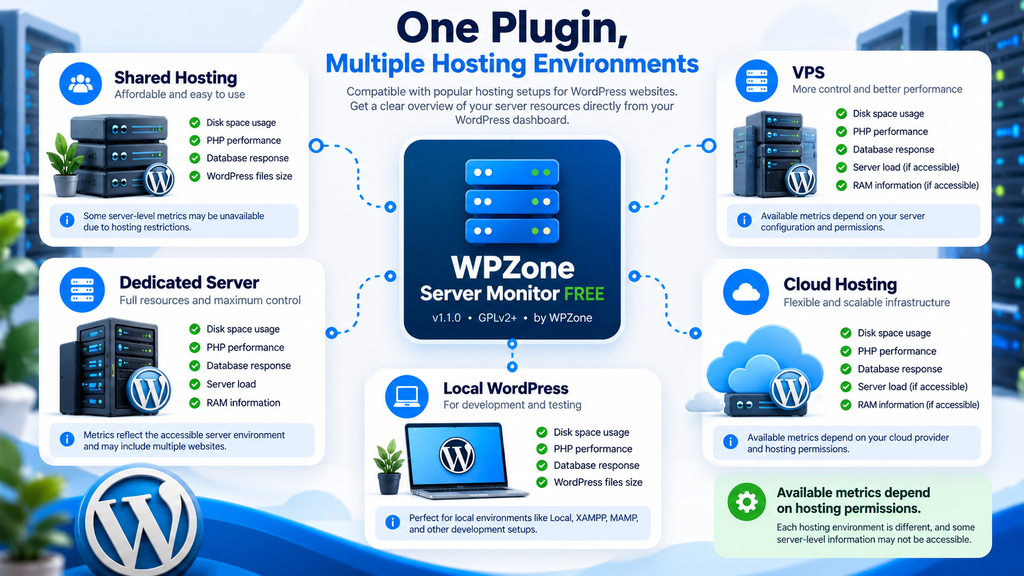
One of the most useful characteristics of WPZone Server Monitor FREE is its flexible design. The plugin does not require a specific hosting brand or control panel. Instead, it relies on WordPress APIs and PHP functions that are available across many standard hosting environments. This makes it suitable for a broad range of WordPress installations, from a personal blog on shared hosting to a larger website running on a dedicated machine.
However, universal compatibility does not mean identical measurements everywhere. Hosting companies configure their systems differently, and some restrict access to operating system information. The plugin handles missing measurements by displaying an unavailable status. Its core dashboard can still be useful even when certain server-level readings cannot be collected.
Shared Hosting
Shared hosting is popular because it is affordable and relatively easy to manage. Several websites may share the same physical server, while the hosting provider controls the underlying infrastructure. WPZone Server Monitor can display PHP diagnostics, database response time, WordPress directory sizes, and available filesystem information in this environment.
The main limitation involves resource visibility. Filesystem capacity may describe a shared partition, and RAM or load readings may describe the host rather than your individual account. Some providers also disable functions or restrict filesystem access. For account-specific CPU, memory, inode, and disk quotas, use the resource information provided by your hosting company.
VPS Hosting
A virtual private server gives administrators more control over their hosting environment. Depending on its configuration, a VPS may expose operating system load averages, memory information, and filesystem capacity more consistently than shared hosting. WPZone Server Monitor can make these measurements accessible from WordPress without requiring administrators to open an SSH terminal for every routine check.
For example, a WordPress administrator using a VPS with cPanel, WHM, or another hosting panel could use the plugin to check database latency and directory sizes from the WordPress dashboard. However, detailed process monitoring, CPU usage analysis, memory pressure investigation, and disk I/O measurements still require appropriate server-level tools.
Dedicated Servers
Dedicated hosting typically provides access to an entire physical server, although permissions still depend on the configuration. WPZone Server Monitor can report host-level information when the relevant PHP functions and operating system files are accessible.
On a dedicated server running multiple websites, the plugin’s filesystem, RAM, and load measurements may represent resources shared across those websites. Installing the plugin on one WordPress site does not isolate its resource usage from every other application on the machine. The tool is useful for a quick overview, but administrators should use operating system monitoring when they need process-level attribution.
Cloud Hosting
Cloud hosting includes several different infrastructure models, from managed WordPress services to virtual machines and container-based deployments. WPZone Server Monitor can run on compatible WordPress environments as long as the required PHP and WordPress functionality is available.
Some cloud platforms expose only a limited view of the underlying host. Others provide detailed virtual machine statistics. The plugin reports what the current PHP environment makes available. It does not connect directly to cloud provider APIs or retrieve billing, instance utilization, storage quotas, or cloud-specific performance metrics.
Local WordPress Installations
Developers often use local WordPress installations to test plugins, themes, and updates before publishing them. Tools such as Local, XAMPP, MAMP, and other local development environments can provide suitable PHP and database configurations for running WPZone Server Monitor.
On a local installation, the plugin can help developers inspect PHP memory usage, database response time, and WordPress directory sizes. The exact readings depend on whether WordPress runs directly on the computer, inside a virtual machine, or within a container. Local performance measurements should not be treated as predictions of how the website will behave on production hosting.
How to Install WPZone Server Monitor FREE v1.1.0

Installing WPZone Server Monitor is similar to installing most standard WordPress plugins. You do not need to create an external account, enter an API key, or configure a remote monitoring service. The supplied package contains the plugin’s PHP file and a WordPress readme file. After activation, the plugin registers its dashboard under the Tools menu in WordPress administration.
Before installing any new plugin on an important website, create a recent backup and confirm that you can restore it. Although WPZone Server Monitor is designed to be read-only, a sensible backup policy applies to all WordPress changes. You should also confirm that your WordPress installation meets the minimum requirements and that you are installing the package from a trusted source.
Step 1: Download the Free Plugin
- WPZone Server Monitor FREE
- Version 1.1.0 · ZIP package · GPLv2+
- Provided plugin archive Download ZIP
Download the plugin ZIP file and save it to your computer or mobile device. Keep the package compressed because WordPress can install it directly. You do not need to extract the archive before using the WordPress upload installer.
If you publish the plugin on WPZone.blog, place the download link on the article or an appropriate plugin download page. Visitors should be able to identify the version, author, and license before downloading. Avoid linking to an unrelated ZIP file or an unverified third-party copy.
Step 2: Open the WordPress Plugin Installer
Sign in to your WordPress administration dashboard using an administrator account. From the left navigation menu, open Plugins → Add New Plugin. Depending on the WordPress interface and language, the wording may vary slightly.
Select Upload Plugin near the top of the page. WordPress will display a file selection area. Choose the ZIP package named wpzone-server-monitor-free-v1.1.0.zip from your device. After selecting the file, click Install Now and wait for WordPress to finish extracting and installing the plugin.
Step 3: Activate WPZone Server Monitor
When WordPress confirms that installation has completed, click Activate Plugin. Activation registers the plugin’s administration page. It does not create a public monitoring page for website visitors or require a separate account with WPZone.
If WordPress displays an installation error, read the complete message before trying again. Common causes include insufficient filesystem permissions, upload restrictions, or an existing installation with the same plugin folder. Avoid deleting an existing plugin folder without confirming what it contains and whether its data or settings need to be preserved.
Step 4: Open the Monitoring Dashboard
After activation, navigate to Tools → WPZone Server Monitor. The dashboard should display the website address, plugin version, and a collection of diagnostic cards. The first row contains disk space, PHP performance, database response time, and object cache information.
Below these cards, you will find sections for WordPress files, PHP and server information, and database and cache details. The page also includes an expandable section labeled All Detailed Metrics. Open it when you want to review every available measurement in a simple table.
Dashboard → Tools → WPZone Server Monitor
Step 5: Check the First Results
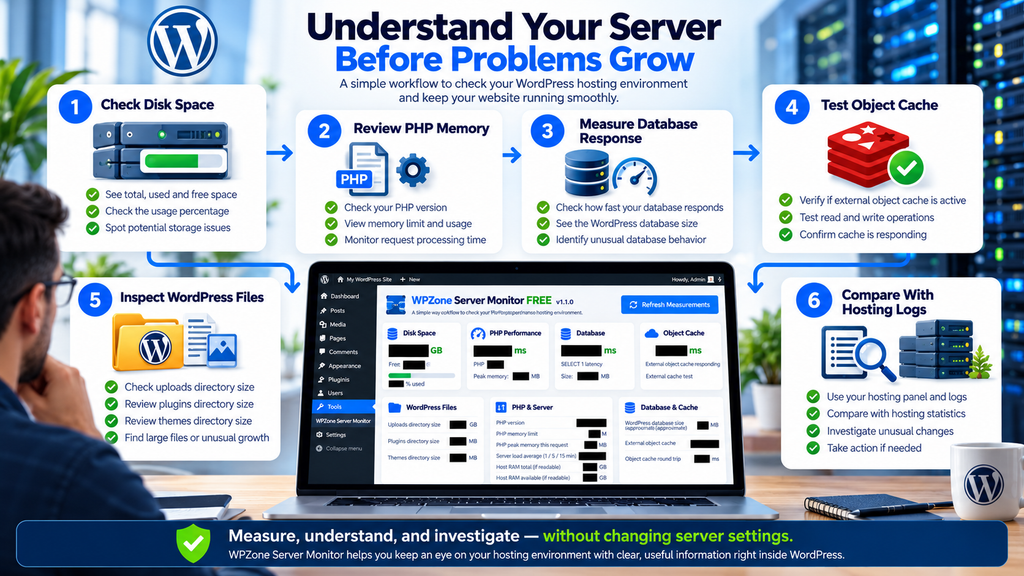
Start with the disk space section and confirm whether the plugin can read the hosting filesystem. Next, review PHP version and memory settings. Then examine database query latency and object cache status. Finally, inspect the sizes of your uploads, plugins, and themes directories.
Some values may display Unavailable. This does not automatically indicate an installation problem. It may mean the hosting provider restricts the necessary information, the directory cannot be read, or the relevant functionality is not active. Record the available results and compare them with your hosting control panel if you need to verify their meaning.
Step 6: Refresh the Measurements
The dashboard includes a Refresh Measurements button. Clicking it performs an administrator-protected refresh flow and clears the cached directory size measurements. WordPress then redirects back to the monitoring page, where the plugin collects the available metrics again.
The refresh action uses a WordPress nonce to protect the request, along with an administrator capability check. It does not restart PHP, clear your entire WordPress object cache, optimize the database, or change server settings. Because refreshing directory sizes may trigger filesystem scans, avoid clicking repeatedly on websites with extremely large file collections.
How to Use the Dashboard to Diagnose WordPress Problems
A monitoring dashboard becomes valuable when it helps you make a better troubleshooting decision. WPZone Server Monitor is not designed to repair problems automatically, but it can help you decide where to investigate. The key is to connect the reported measurements with the symptoms experienced by administrators or visitors.
For example, a slow website can have many causes. It may be affected by an overloaded hosting environment, inefficient database queries, excessive plugins, uncached requests, large images, or external services. A single diagnostic value cannot identify every possibility. Instead, use the monitor as an initial observation tool and combine its results with logs, hosting statistics, and real-world performance testing.
Scenario 1: Your WordPress Dashboard Suddenly Becomes Slow
Imagine that your WordPress dashboard usually opens quickly but begins taking several seconds to load. You open WPZone Server Monitor and notice that the simple database query is taking longer than expected. The server load average also appears higher than during previous checks.
These observations suggest that further investigation may be useful, but they do not establish a specific cause. First, check whether the slowdown affects every administration page or only certain plugin screens. Next, inspect the hosting provider’s resource statistics and relevant logs. If the database appears responsible, use a query profiling tool to identify expensive operations. Compare results at different times before making changes.
Scenario 2: Image Uploads Start Failing
Suppose your website begins rejecting image uploads. The first instinct might be to increase PHP memory or disable plugins. However, storage availability and filesystem permissions are also worth checking. WPZone Server Monitor can show the free space reported by the accessible filesystem and the approximate size of the uploads directory.
If the reported free space is very low, investigate your hosting account quota and storage usage. Check for large backups, temporary files, logs, and accumulated media. Do not delete files simply because they appear large. Some may be required by WordPress or installed plugins. If filesystem space looks healthy, investigate upload size limits, permissions, PHP errors, and security rules.
Scenario 3: You Want to Check Whether Object Caching Responds
A WordPress site may use a persistent object cache to reduce repeated database work. After installing or changing a caching solution, you can open WPZone Server Monitor and inspect the external object cache section. A successful response confirms that a basic write, read, and delete sequence worked through the WordPress cache API during the test.
If the test fails, review the cache plugin’s configuration and any available service logs. Confirm that the cache service is reachable and that the WordPress object cache integration is active. Avoid assuming that a successful test means every cache setting is correct. Application-level performance testing remains necessary to determine whether caching improves your actual workload.
Scenario 4: You Want to Understand WordPress Storage Growth
A website that has operated for several years may contain thousands of media files, multiple installed themes, and a substantial database. WPZone Server Monitor separates several of these areas into readable measurements, making it easier to see which categories deserve closer attention.
For example, if uploads occupy much more space than plugins and themes, you might inspect image dimensions, thumbnail generation, unused media, and backup storage practices. If the database estimate is unusually large, you could examine table sizes with a database administration tool. Neither situation automatically requires cleanup. The objective is to understand storage usage before deciding whether optimization is worthwhile.
Scenario 5: You Are Preparing to Update WordPress
Major WordPress maintenance often involves core updates, plugin updates, theme updates, and sometimes PHP version changes. Before starting, administrators can use WPZone Server Monitor to review PHP settings, filesystem free space, and general database responsiveness.
These measurements do not replace a compatibility test or a complete backup. However, they provide additional context. If the filesystem is almost full, it may be sensible to resolve that issue before attempting an update that needs temporary storage. After maintenance, open the dashboard again and compare the available measurements. Use the hosting logs and actual website functionality to verify that the update succeeded.
Understanding the Difference Between Server Monitoring and Website Speed Testing
Website speed and server health are related, but they are not identical. A server can have plenty of available memory while a WordPress page remains slow because it loads oversized images or excessive JavaScript. Likewise, a website may appear fast to visitors because it serves cached pages, even while uncached administration requests experience delays.
WPZone Server Monitor measures selected conditions within the WordPress hosting environment. It does not calculate Core Web Vitals, simulate browser loading, or test network latency from different countries. To evaluate the experience of real visitors, use dedicated website performance tools alongside the plugin’s diagnostic information.
What WPZone Server Monitor Measures
The plugin measures local PHP request timing, a simple database query, object cache operations, filesystem capacity, directory sizes, and selected host resource information. These values help describe the environment available to WordPress at the moment the dashboard loads.
What PageSpeed Tools Measure
Tools such as Google PageSpeed Insights and Lighthouse examine different aspects of website performance. They can help identify rendering delays, layout shifts, resource loading issues, and opportunities to improve the visitor experience. Depending on the tool and available data, results may include laboratory simulations or real-user performance information.
Why Both Types of Tools Matter
Imagine that PageSpeed Insights reports a poor Largest Contentful Paint result. WPZone Server Monitor might show normal database latency and plenty of available storage. That combination suggests you should not immediately blame the database or disk capacity. Instead, inspect the page’s largest content element, image delivery, CSS, and rendering behavior.
In another case, uncached pages may respond slowly while server load and database timing also appear elevated. This provides a reason to investigate hosting resources and backend processing. Neither tool independently proves the cause, but using them together can make troubleshooting more focused.
How WPZone Server Monitor Protects Your Website
Server diagnostic tools should be designed carefully because they can expose information about the hosting environment. PHP versions, memory limits, filesystem capacity, and database characteristics may be useful to administrators, but they do not belong on a public-facing monitoring page.
WPZone Server Monitor registers its interface as a WordPress administration page and requires the manage_options capability to access it. In a standard WordPress installation, this capability is generally available to administrators. The plugin does not create a public dashboard shortcode or visitor-facing endpoint.
Administrator-Only Access
The monitoring page is registered through the WordPress administration menu system. The plugin also performs a capability check before rendering its dashboard. This helps ensure that ordinary subscribers, contributors, and other users without the necessary permission cannot view the diagnostic information through the page.
On WordPress Multisite installations or websites with custom role configurations, capability assignments can differ. Administrators should verify that access matches their security policy. The plugin is intended for users who already have permission to manage important website settings.
Secure Manual Refresh
The refresh action is protected by a WordPress nonce, which helps prevent unauthorized cross-site requests. The plugin also verifies the user’s administrative capability before processing the refresh. Once the cached directory measurements are cleared, WordPress redirects back to the monitoring page.
A nonce is not a replacement for authentication or permission checks, but it provides an additional layer of protection for sensitive administration actions. The plugin uses these mechanisms together rather than relying only on the presence of a refresh URL.
Read-Only Diagnostic Behavior
The plugin’s main purpose is to inspect and display information. It does not offer buttons to delete files, change PHP settings, modify database tables, or restart services. This reduces the risk of an administrator accidentally making a destructive server change while checking performance.
There are two small operational details worth understanding. The object cache test temporarily writes and removes a diagnostic cache key. The directory scanning feature also stores its calculated sizes in a WordPress transient for 15 minutes. These are limited diagnostic operations, not modifications to your website’s published content or hosting configuration.
Privacy and Data Collection
The reviewed version does not contain a built-in remote reporting endpoint or code that sends monitoring results to WPZone. The measurements are generated locally and displayed inside the WordPress administration dashboard.
This is useful for administrators who prefer tools that do not require external monitoring accounts. However, the plugin still runs within the existing WordPress and hosting environment. Hosting providers, security systems, and other installed software may independently log administration activity. The absence of WPZone telemetry should not be confused with a guarantee that no other system records website operations.
Why the 15-Minute Directory Cache Matters
Calculating directory sizes can involve examining many individual files. A small WordPress website might contain only a few hundred files in its uploads directory, while a busy publishing site can contain tens of thousands. Repeating a complete directory scan every time an administrator opens a monitoring page could create unnecessary filesystem activity.
WPZone Server Monitor addresses this by caching uploads, plugins, and themes directory measurements for 15 minutes. When the cached values are available, the plugin can reuse them instead of scanning the directories again. This helps reduce repeated work while keeping the displayed information reasonably useful for routine administration.
When Cached Results May Be Outdated
Suppose you upload a large collection of images immediately after opening the monitor. The displayed uploads directory size may still reflect the previous scan until the transient expires. This is normal behavior for a cached measurement.
If you need an updated result immediately, use Refresh Measurements. The refresh clears the stored directory size data and allows the next collection to recalculate it. Remember that this operation is limited to the plugin’s directory size cache. It does not clear your site’s page cache, Redis cache, or other caching systems.
Why Very Large Directories May Show Unavailable
The plugin also limits directory scanning to 30,000 entries per directory traversal. This helps prevent a very large directory from causing excessive scanning work. If the limit is reached, the plugin returns an unavailable value rather than presenting an incomplete size as if it were accurate.
For websites with very large media libraries, this means the monitor may not be able to calculate every directory size. Administrators can use hosting control panel tools or server commands for a more comprehensive storage audit. This limitation is preferable to treating an incomplete scan as a trustworthy total.
How to Interpret WPZone Server Monitor Results Correctly
The biggest advantage of a diagnostic dashboard is not the number of measurements it displays. It is the opportunity to recognize unusual behavior before making unnecessary changes. However, administrators should avoid treating every number as a strict performance target. Different hosting configurations, workloads, and server architectures produce different results, even when websites operate normally.
A better approach is to establish a baseline. Open WPZone Server Monitor when your website is functioning correctly and record the important measurements. Repeat the check after major updates or when performance changes. This allows you to compare the current environment with previously observed conditions. The plugin does not save a historical measurement timeline, so comparisons require your own notes or records.
Disk Usage: What Should Concern You?
A filesystem with substantial available capacity is generally less likely to encounter storage exhaustion problems than one that is nearly full. However, there is no universal percentage that guarantees safety. Some environments require additional space for backups, temporary files, database operations, and software updates.
For example, a filesystem showing 90% usage may deserve closer investigation, particularly if available capacity continues to decrease. Yet that percentage alone does not establish that your WordPress hosting account is approaching its quota. Check the provider’s account-level storage statistics before deleting files or purchasing additional space.
Database Response: When Is It Too Slow?
A simple database query normally requires relatively little work. Nevertheless, its measured duration can vary with hosting architecture, server activity, and database connection conditions. The plugin’s test is too limited to establish a universal acceptable response threshold for every installation.
If the query time increases significantly compared with your usual readings, investigate whether the change coincides with slower WordPress requests. Look for relevant database errors, slow query logs, and resource pressure. A single elevated result may be temporary. Repeated changes combined with real performance problems provide stronger evidence that additional investigation is justified.
PHP Memory: Does More Always Mean Better?
Increasing PHP memory limits can help operations that genuinely require additional memory. However, allocating a higher limit does not automatically make WordPress faster. A plugin that executes inefficient code can remain slow regardless of the memory available.
Use the monitor to understand the configured limit and the peak allocation for the current dashboard request. If another operation encounters memory exhaustion, examine that operation specifically. Check PHP logs, identify the responsible process, and review hosting restrictions before changing configuration values.
Server Load: Why Context Is Essential
Load average becomes more meaningful when you know the server’s CPU capacity and workload. On a multi-core system, a load average that looks large to a beginner may be perfectly manageable. On a smaller system, the same value may indicate sustained resource contention.
WPZone Server Monitor displays the load averages but does not calculate CPU utilization or show per-process activity. It also does not distinguish between workloads belonging to different websites on the same host. Use the figures as contextual information rather than definitive proof of CPU overload.
What WPZone Server Monitor FREE Does Not Include
A trustworthy plugin description should explain its limitations as clearly as its features. WPZone Server Monitor FREE v1.1.0 is designed for manual diagnostics, not continuous infrastructure management. It provides a useful snapshot of selected hosting measurements when an administrator opens the dashboard.
The current version does not provide automatic email alerts, scheduled checks, historical graphs, remote monitoring agents, or a centralized dashboard for multiple WordPress websites. It also does not measure disk read/write throughput, individual process CPU usage, network bandwidth, database query performance across an entire workload, or real visitor loading speeds.
Free Monitoring Features Compared With Advanced Monitoring Needs
| Monitoring capability | WPZone Server Monitor FREE v1.1.0 |
|---|---|
| Manual hosting diagnostics | Included |
| Responsive WordPress dashboard | Included |
| Disk filesystem measurements | Included when accessible |
| PHP memory and timing | Included |
| Database query latency | Included |
| Approximate database size | Included |
| External object cache test | Included |
| WordPress directory sizes | Included, subject to scan limits |
| Host load and RAM | When accessible |
| Scheduled monitoring | Not included |
| Automatic alerts | Not included |
| Historical performance charts | Not included |
| Multiple-server management | Not included |
| Automatic server optimization | Not included |
| Real-user performance monitoring | Not included |
These boundaries do not make the plugin less useful. They define its purpose. A small blog may only need an occasional look at available storage and database responsiveness. A business running several production servers may need additional tools for uptime monitoring, alerting, process analysis, and infrastructure reporting.
Best Practices for Using WPZone Server Monitor
A useful monitoring routine does not need to be complicated. For a personal blog, opening the dashboard periodically may be enough to notice changes in filesystem capacity or database size. Larger websites may benefit from more frequent checks, particularly after software updates, hosting migrations, or significant increases in traffic.
The most important habit is to interpret measurements alongside actual website behavior. A number that changes slightly may be normal. A sudden difference combined with upload failures, database errors, or unusually slow administration pages deserves more attention. Documenting what changed makes it easier to identify patterns and explain problems to a hosting provider.
Check Your Website Before and After Major Updates
Before updating WordPress core, PHP, or an important plugin, review the available diagnostics and create a backup. Record the PHP version, memory limit, database response time, and filesystem availability. After completing the update, open the monitor again and compare the measurements.
You should also test the website itself. Open important pages, submit a test form where appropriate, verify login functionality, and check relevant plugin features. Diagnostic measurements cannot confirm that every application function still works. Combining monitoring with functional testing provides a more complete maintenance process.
Compare Plugin Results With Your Hosting Control Panel
If you use cPanel, Plesk, DirectAdmin, or a managed hosting dashboard, compare its resource statistics with those shown by WPZone Server Monitor. Differences may be expected because the tools can measure different scopes.
For example, the hosting panel may show your account’s storage quota, while the plugin displays the capacity of the underlying filesystem. Neither value is necessarily incorrect. Understanding the measurement scope helps you avoid confusing total server capacity with your own available account resources.
Avoid Unnecessary Refreshing
The manual refresh button is useful when you need updated directory measurements. However, repeated refreshes are not necessary for ordinary administration. Each new directory scan may involve substantial filesystem work, especially on media-heavy websites.
Use the default 15-minute caching behavior for routine checks. Refresh when you have a specific reason, such as verifying storage changes after removing old media files. If a directory exceeds the plugin’s scan limit, use a more appropriate filesystem analysis tool rather than repeatedly requesting the same calculation.
Keep the Plugin Updated
Like any WordPress plugin, WPZone Server Monitor should be maintained as WordPress and PHP evolve. New versions may improve compatibility, address reported issues, or expand diagnostic functionality. Install updates from a trusted distribution source and review the changelog before upgrading.
Because the plugin is distributed under GPLv2 or later, users can inspect and modify its code under the license terms. However, the license does not guarantee compatibility with every future WordPress release. Test updates on a staging installation when operating an important production website.
Frequently Asked Questions
1. Is WPZone Server Monitor FREE Really Free?
Yes. WPZone Server Monitor FREE v1.1.0 is distributed under the GNU General Public License version 2 or later. The reviewed package does not include a license activation system, subscription requirement, or paid account registration. You can install it on compatible WordPress websites and use its diagnostic features without purchasing a premium license.
2. Does the Plugin Work on Shared Hosting?
It is designed to work on typical shared hosting environments, provided WordPress and PHP meet the requirements. Some server-level measurements may be unavailable because hosting providers restrict access to system information. Disk capacity and RAM figures may also represent shared infrastructure rather than your individual hosting account.
3. Can WPZone Server Monitor Measure My Website’s Speed?
It measures selected PHP and database timings, but it is not a complete website speed testing tool. It does not measure Core Web Vitals, browser rendering, or real visitor loading times. Use Google PageSpeed Insights, Lighthouse, or another suitable performance testing tool for those measurements.
4. Does the Plugin Support Redis Object Cache?
The plugin can test the WordPress external object cache interface, which may be backed by Redis, Memcached, or another implementation. A successful test confirms that basic cache operations responded. It does not identify Redis specifically or verify the complete configuration of the caching service.
5. Can the Plugin Monitor Multiple WordPress Websites?
Each installation monitors the WordPress environment where it is installed. You can install it separately on multiple compatible websites, but version 1.1.0 does not provide a centralized dashboard that combines their results. Measurements are collected locally within each installation.
6. Does It Automatically Fix Server Performance Problems?
No. The plugin is a diagnostic tool rather than an automatic optimization system. It does not delete files, modify database tables, change PHP limits, or restart services. Its purpose is to display useful information that can guide further investigation and informed maintenance decisions.
7. Is WPZone Server Monitor Safe to Use?
The reviewed code includes administrator capability checks, a nonce-protected refresh action, escaped dashboard output, and no built-in remote telemetry to WPZone. These are positive design choices. However, a source code review and PHP syntax check are not substitutes for comprehensive security testing. Test the plugin on staging before deploying it to an important production website.
8. Why Does the Dashboard Display Unavailable for Some Metrics?
An unavailable value may indicate that the hosting environment restricts access to the required information. It may also appear when a directory cannot be read or exceeds the plugin’s 30,000-entry scan limit. This does not automatically mean the server is unhealthy or the plugin is broken.
9. Does WPZone Server Monitor Slow Down WordPress?
The plugin does not run continuous background benchmarks or scheduled monitoring tasks. It collects measurements when the administration dashboard is opened. Directory scanning can require additional resources, which is why the plugin caches results for 15 minutes and limits the number of scanned entries. Actual overhead depends on the hosting environment and file collection size.
10. Can I Use the Plugin on a Local WordPress Installation?
Yes, provided the local installation meets the WordPress and PHP requirements. Developers can use it to inspect local PHP settings, database response time, and directory sizes. Some system measurements may vary depending on whether WordPress runs directly on the computer, inside a virtual machine, or within a container.
A Practical Way to Understand Your WordPress Hosting
WPZone Server Monitor FREE v1.1.0 brings useful technical information into a place that WordPress administrators already know. Instead of treating the server as an invisible component, website owners can review storage availability, PHP diagnostics, database responsiveness, object cache behavior, and selected system measurements from one organized dashboard.
Its strongest features are simplicity, a responsive interface, administrator-only access, and a focus on read-only diagnostics. The plugin does not promise to repair every hosting problem or replace professional monitoring platforms. Instead, it helps users recognize which parts of their environment deserve closer attention. For bloggers, small businesses, developers, and WordPress enthusiasts, that can be a valuable addition to a regular website maintenance routine.
The most effective approach is to use WPZone Server Monitor alongside backups, WordPress updates, hosting resource statistics, and dedicated website performance testing. Together, these practices provide a clearer picture of how a website behaves and help administrators make better decisions when problems appear.
⚠️ Disclaimer and Source Hygiene
This article describes WPZone Server Monitor FREE v1.1.0 based on an inspection of the supplied plugin ZIP package, including its PHP source code and WordPress readme. The package was also checked for PHP syntax errors, with no syntax errors reported. The review identified the implemented monitoring functions, access controls, caching behavior, and hosting compatibility claims.
Important: The plugin has not been comprehensively tested across shared hosting, VPS, dedicated servers, cloud platforms, and local WordPress installations. Compatibility descriptions explain the intended design and are not guarantees of successful operation on every provider. Performance measurements are diagnostic snapshots, not definitive evidence of server health or website speed. Consult your hosting provider or a qualified WordPress professional before making significant server configuration changes.
Download WPZone Server Monitor FREE v1.1.0
- WPZone Server Monitor FREE v1.1.0
- Original ZIP package supplied for this article.
- Download the WordPress plugin ZIP
Stay Connected With WPZone
For more tutorials like this, consider subscribing to our blog.
Do you have questions or suggestions? Leave a comment or contact us!
Visit WPZone Download Zone for more WordPress tutorials, plugin information, and website management resources.
Sources and References
The primary source for this article is the supplied wpzone-server-monitor-free-v1.1.0.zip package, containing wpzone-server-monitor.php and readme.txt. Its implementation was inspected to verify the described capabilities and limitations.
Additional authoritative references for the underlying WordPress and PHP concepts:
- WordPress Developer Resources – External Object Cache
- WordPress Developer Resources – Transients
- WordPress Developer Resources – User Capabilities
- WordPress Plugin Handbook
- PHP Manual – disk_free_space
- PHP Manual – sys_getloadavg
- GNU General Public License Version 2
Secondary Sources and Testimonials
No independent user testimonials, published benchmark results, or multi-provider compatibility test reports were supplied for version 1.1.0. The examples throughout this article are illustrative scenarios intended to explain how the plugin’s measurements can support WordPress troubleshooting. They should not be interpreted as verified customer experiences or measured performance improvements.
Sign in with a Subscriber account to vote.