
Table of Contents
Learn why WordPress accessibility audits report “Links must have discernible text,” how linked featured images cause the warning, and how to fix it correctly. This guide explains WordPress image alt text, accessible link names, GeneratePress settings, PHP solutions, testing methods, and practical accessibility improvements.
What “Links Must Have Discernible Text” Means
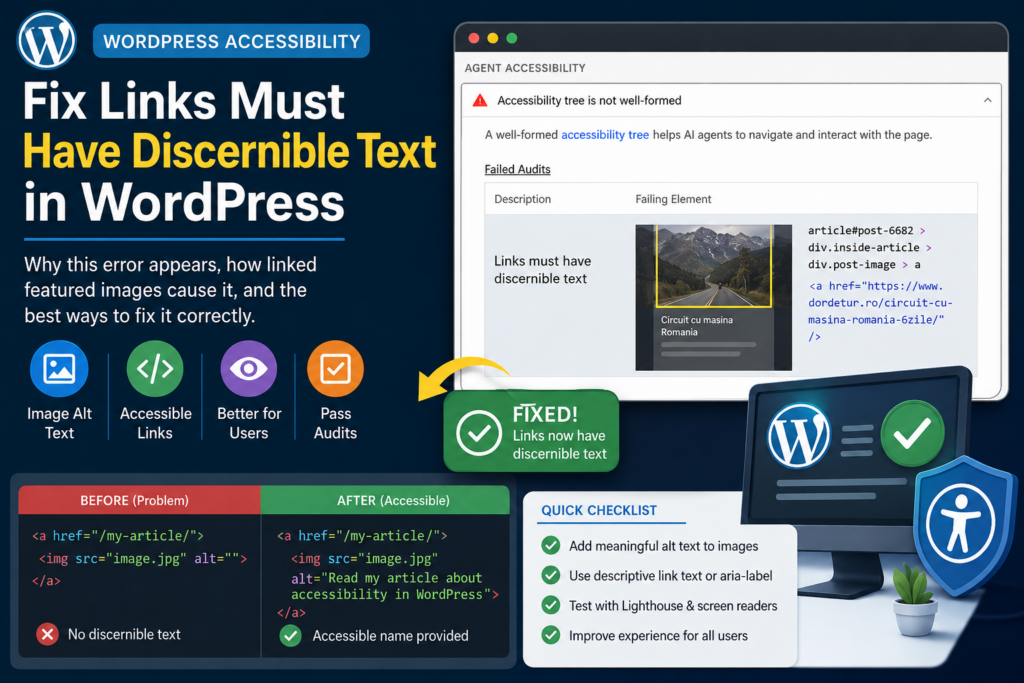
Running an accessibility test on a WordPress website can sometimes produce a warning that looks more serious than the underlying problem. One common example is “Links must have discernible text” or “Links have a discernible name.” The screenshot shown in this guide is a typical example. The accessibility test identifies a linked featured image inside a WordPress post archive and reports that assistive technology cannot determine what the link represents. This does not necessarily mean that the link is visually broken. A visitor using a mouse may see the featured image, click it, and reach the article normally. The problem appears when software needs to understand that link without relying on the image itself.
The Web Content Accessibility Guidelines explain that users should be able to determine the purpose of a link from its link text or from programmatically available context. This requirement appears in WCAG Success Criterion 2.4.4, Link Purpose (In Context). A screen reader therefore needs an accessible name that explains where the link goes.
The warning in the screenshot is particularly interesting because the problematic element is not a normal text link. The failing structure resembles this:
<article id="post-6682">
    <div class="inside-article">
        <div class="post-image">
            <a href="https://www.example.com/article/">
                <img src="featured-image.jpg" alt="">
            </a>
        </div>
    </div>
</article>
Visually, nothing seems wrong. The visitor sees an image and understands that clicking the picture opens an article. However, the anchor element contains no visible text. If the image also has an empty alt attribute, the accessible name of the link may become empty. Automated testing tools then report that the link has no discernible text.
Chrome Lighthouse includes this type of problem among its accessibility checks. Its accessibility scoring documentation specifically includes an audit for links that have a discernible name. Fixing this issue therefore improves accessibility and can also clean up Lighthouse and other automated reports.
Why This Warning Appears on WordPress Websites
WordPress websites frequently use images as links. Featured images on blog archives are one of the most common examples. A theme may display an article card containing the image, title, excerpt, date, and category. Both the title and image can link to the same article.
Consider what happens for a visual visitor. The visitor sees a photograph above the article title. Moving the pointer over the image may change the cursor, clearly suggesting that the image is clickable. Clicking it opens the full article.
A screen reader sees something different. It processes the HTML structure and accessible names rather than interpreting the page visually. If the link contains an image with useful alternative text, the image can provide the accessible name for the link. If the alternative text is empty, there may be nothing useful for the assistive technology to announce.
WordPress accessibility documentation recommends giving image elements an alt attribute and using meaningful alternative text when the image conveys information. Decorative images should normally use an empty alt="" attribute instead. This distinction becomes particularly important when an image is placed inside a link.
A decorative image may correctly have:
<img src="decoration.jpg" alt="">
However, when that same image becomes the only content inside an important navigation link, the surrounding link still needs an accessible purpose.
That difference explains why simply saying “all images need alt text” is incomplete. Accessibility depends on context.
Understanding the Exact Error in the Screenshot
The screenshot shows an Agent Accessibility audit with the message:
Accessibility tree is not well-formed
The failing audit underneath identifies:
Links must have discernible text
The highlighted element follows a structure similar to:
article#post-6682
> div.inside-article
> div.post-image
> a
This tells us something useful. The audit is not primarily complaining about the <article> element or the .post-image container. It points directly to the <a> element surrounding the featured image.
The structure is typical of WordPress blog archive layouts and closely matches the featured-image markup commonly used by GeneratePress. GeneratePress documents a generate_featured_image_output filter specifically for changing the HTML used by featured images on blog and archive pages. Its documentation also shows a .post-image wrapper around the featured image.
Consequently, there are several possible causes:
The image has no alt attribute.
The image has alt="".
The image is inserted as a linked decorative image.
A custom theme filter removed the image alternative text.
A performance plugin changed the image markup.
A custom featured-image function replaced WordPress output.
JavaScript modified the link after page rendering.
On a normal WordPress installation, the most likely reason is much simpler: the featured image has no useful Alternative Text value in the Media Library.
How Accessible Link Names Work
A link does not always need visible text between <a> and </a>. What matters is whether assistive technology can determine an accessible name.
This is obviously accessible:
<a href="/wordpress-security/">
    WordPress Security Guide
</a>
The accessible name is “WordPress Security Guide.”
A linked image can also work:
<a href="/wordpress-security/">
    <img
        src="wordpress-security.jpg"
        alt="WordPress Security Guide"
    >
</a>
Here, the alternative text of the image helps provide the meaning of the link.
Another valid approach is an explicit ARIA label:
<a
    href="/wordpress-security/"
    aria-label="Read the WordPress Security Guide"
>
    <img
        src="wordpress-security.jpg"
        alt=""
    >
</a>
The image remains decorative from the screen reader’s perspective, while the link itself has a descriptive name.
W3C accessibility guidance explains that links should communicate their purpose to users, while WCAG techniques include methods such as descriptive anchor content and ARIA labelling when appropriate.
ARIA should not become the first solution for every accessibility issue. Proper semantic HTML is generally preferable when it can express the same information clearly.
Why Empty Alt Text Can Cause the Featured Image Link to Fail

WordPress allows you to leave the Alternative Text field empty. In many situations, that is completely correct.
Suppose your article contains this decorative divider:
<img src="blue-wave-divider.svg" alt="">
The image exists purely for appearance. A screen reader does not need to announce “blue decorative wave.” Leaving the alternative text empty prevents unnecessary noise.
Now consider a blog archive:
<a href="/my-wordpress-guide/">
    <img src="wordpress-guide.jpg" alt="">
</a>
There is no textual information inside the anchor.
The image is intentionally ignored by screen readers because of alt="". The anchor therefore has nothing meaningful left to announce.
That is why an automated accessibility tool may identify the link as unnamed.
The solution depends on what the image represents. If the featured image meaningfully represents the article, descriptive alternative text is usually appropriate. If the image is purely decorative, keeping alt="" can still make sense, but the surrounding link should receive its own accessible name.
The Simplest WordPress Fix: Add Alternative Text
For most WordPress websites, start with the Media Library before adding PHP code.
Open the WordPress dashboard and navigate to:
Media
→ Library
→ Select the featured image
→ Alternative Text
Enter a short description that communicates the image’s content or purpose.
For an article titled:
How to Speed Up WordPress Without Plugins
an appropriate alternative text might be:
WordPress performance dashboard showing page speed improvements
Another possible value could be:
Illustration for a guide to speeding up WordPress
Avoid stuffing keywords into the field.
A poor example would be:
WordPress WordPress speed optimize WordPress fast WordPress SEO hosting
That does not improve accessibility. It creates an unnatural experience and provides little useful information.
WordPress accessibility guidance recommends describing the image’s content and purpose when alternative text is required.
How to Add Alt Text Through the WordPress Post Editor
You can also edit alternative text while editing the article.
Open:
Posts
→ All Posts
→ Edit
Locate the Featured Image panel. Click the image to open its media details.
Look for:
Alternative Text
Enter an appropriate description and save the media item.
After updating the post, clear any caching layers that may serve the previous HTML.
Depending on the site configuration, those layers could include:
WordPress page cache
Server cache
Cloudflare cache
CDN cache
Browser cache
Optimization plugin cache
Then reload the page and inspect the image.
The final HTML should ideally resemble:
<a href="https://example.com/my-article/">
    <img
        src="article-image.webp"
        alt="WordPress accessibility audit showing a link warning"
    >
</a>
Run the accessibility audit again after the updated markup reaches the browser.
How to Check Whether WordPress Is Actually Outputting the Alt Text
Changing the Media Library field does not automatically prove that the front end uses it.
The theme or a plugin could modify the output.
Open the affected archive page in Chrome.
Right-click the featured image and select:
Inspect
Find the <img> element.
You may see:
<img
    width="768"
    height="432"
    src="example.webp"
    class="attachment-medium_large size-medium_large wp-post-image"
    alt=""
>
If alt="" appears despite having entered alternative text in the Media Library, something is altering the markup.
A correct output could look like:
<img
    width="768"
    height="432"
    src="example.webp"
    class="attachment-medium_large size-medium_large wp-post-image"
    alt="WordPress accessibility report in Chrome"
>
Next, inspect the surrounding anchor.
You may find:
<a href="https://example.com/article/">
That is perfectly acceptable when the image inside it supplies a useful accessible name.
Alternatively:
<a
    href="https://example.com/article/"
    aria-label="Read WordPress accessibility report in Chrome"
>
Now the anchor itself explicitly contains an accessible name.
Why WordPress Image Title and Alt Text Are Different
A common mistake is assuming that the WordPress image Title automatically serves the same purpose as Alternative Text.
It does not.
WordPress Media Library records can contain several pieces of information:
Title
Alternative Text
Caption
Description
File name
They serve different purposes.
- The Title primarily identifies the media item inside WordPress.
- The Caption may appear visually beneath the image.
- The Description can store longer information about the media item.
- The Alternative Text is specifically intended to provide a textual alternative when appropriate.
- WordPress documentation identifies Alt Text as information used for accessibility.
Therefore, this is not sufficient:
Title: wp-accessibility-featured-image
Alt Text:
Fill the Alternative Text field when the image requires an accessible description.
GeneratePress and the .post-image Element
The structure visible in the supplied accessibility report strongly resembles GeneratePress archive featured-image markup.
GeneratePress commonly wraps archive featured images inside:
<div class="post-image">
The image may then link to the single article.
GeneratePress provides controls for featured images under its blog-related layout configuration, depending on the installed GeneratePress and GP Premium setup. Its documentation covers archive image display, alignment, location, attachment sizes, width, and height.
However, visual featured-image options do not replace accessible text.
Changing:
Image width
Image height
Image alignment
Image position
Thumbnail size
will not fix a missing accessible link name.
The problem is semantic HTML, not CSS dimensions.
Recommended GeneratePress Featured Image Settings
When configuring an archive layout, a practical setup might use:
Display featured images: Enabled
Media Attachment Size: Medium Large or custom optimized size
Image alignment: Center or Left
Image link: Single post
Alternative Text: Descriptive value in Media Library
The ideal image size depends on the site design. GeneratePress documentation notes that using an appropriate Media Attachment Size is preferable to merely resizing a larger image through CSS when a suitable image size already exists.
For accessibility, however, focus on two questions:
Does the image need a textual description?
Can the destination of its link be determined by assistive technology?
If the answer to the second question is no, the accessibility warning remains.
Option One: Use Meaningful Featured Image Alt Text
For most editorial WordPress sites, this is the best starting point.
Imagine the article title is:
How to Fix WordPress Accessibility Errors
The featured image shows a Lighthouse accessibility report.
Use:
Chrome accessibility report showing WordPress link errors
Avoid simply copying a long headline when it does not describe the image.
However, copying the article title can sometimes be reasonable when the featured image primarily functions as a visual representation of that article.
For example:
How to Fix WordPress Accessibility Errors
is much better than an empty accessible name if the image links directly to that post.
Option Two: Add an aria-label to the Featured Image Link
Sometimes a site owner deliberately wants featured images treated as decorative.
In that case, the image can retain:
alt=""
while the link receives:
aria-label="Read How to Fix WordPress Accessibility Errors"
The resulting markup looks like:
<a
    href="/fix-wordpress-accessibility-errors/"
    aria-label="Read How to Fix WordPress Accessibility Errors"
>
    <img
        src="accessibility.webp"
        alt=""
    >
</a>
- This approach separates the two meanings clearly.
- The image itself is decorative.
- The anchor still communicates its destination.
W3C guidance recognizes ARIA labelling techniques as possible methods for supplying accessible labels in situations where suitable visible text is unavailable.
Option Three: Remove the Link From the Featured Image
Another valid solution is to stop making the image clickable.
This works particularly well when the article title already appears immediately below the image as a clear link.
Instead of:
<a href="/article/">
    <img src="article.webp" alt="">
</a>

<h2>
    <a href="/article/">Article Title</a>
</h2>
you can output:
<img src="article.webp" alt="">

<h2>
    <a href="/article/">Article Title</a>
</h2>
GeneratePress officially documents using the generate_featured_image_output filter to alter the featured-image markup and provides an example that removes the surrounding link.
This can simplify accessibility because the image is no longer functioning as a navigation control.
However, it changes the site’s user experience. Many visitors naturally expect archive thumbnails to be clickable.
For most blogs, keeping the image link and giving it an accessible name provides a better balance.
GeneratePress PHP Fix Using an aria-label
If you use GeneratePress and want a robust programmatic fix, the featured-image output can be customized.
Before adding any PHP code, create a backup and preferably use a child theme, custom plugin, or MU plugin rather than editing the GeneratePress parent theme.
A practical example is:
<?php
/**
 * Add an accessible label to linked GeneratePress featured images.
 */
add_filter( 'generate_featured_image_output', function( $output ) {

    if ( is_singular() ) {
        return $output;
    }

    $post_id = get_the_ID();

    if ( ! $post_id ) {
        return $output;
    }

    $permalink = get_permalink( $post_id );
    $title     = get_the_title( $post_id );

    if ( ! $permalink || ! $title ) {
        return $output;
    }

    $image = get_the_post_thumbnail(
        $post_id,
        apply_filters( 'generate_page_header_default_size', 'full' ),
        array(
            'itemprop' => 'image',
        )
    );

    if ( ! $image ) {
        return $output;
    }

    return sprintf(
        '<div class="post-image">
            <a href="%1$s" aria-label="%2$s">
                %3$s
            </a>
        </div>',
        esc_url( $permalink ),
        esc_attr( sprintf( 'Read %s', $title ) ),
        $image
    );
} );
The important part is:
aria-label="%2$s"
The label becomes something similar to:
aria-label="Read How to Fix WordPress Accessibility Errors"
Assistive technology can now identify the destination of the image link.
The official GeneratePress documentation confirms that generate_featured_image_output is designed for altering featured-image HTML on blog and archive views.
A Simpler WordPress-Wide Alt Text Fallback
Another strategy is to ensure featured images never accidentally receive an empty alternative text value when they represent article content.
For example:
<?php
/**
 * Use the post title as a fallback alt value
 * for featured images when no alt text exists.
 */
add_filter(
    'wp_get_attachment_image_attributes',
    function( $attr, $attachment, $size ) {

        if (
            ! empty( $attr['alt'] )
            || ! is_admin()
        ) {
            return $attr;
        }

        $post_id = get_the_ID();

        if ( ! $post_id ) {
            return $attr;
        }

        $thumbnail_id = get_post_thumbnail_id( $post_id );

        if ( ! $thumbnail_id || (int) $thumbnail_id !== (int) $attachment->ID ) {
            return $attr;
        }

        $title = get_the_title( $post_id );

        if ( $title ) {
            $attr['alt'] = $title;
        }

        return $attr;
    },
    10,
    3
);
This code checks whether an image already has an alt value.
If it does, the code leaves it alone.
If the image is the current post’s featured image and no alternative text exists, the post title becomes a fallback.
The advantage is consistency.
The disadvantage is that the post title may not always be the best description of the visual image.
For that reason, carefully written manual alternative text remains preferable for important content.
Why You Should Not Automatically Fill Every Empty Alt Attribute
It can be tempting to install code that converts every empty alt="" into the post title.
That can actually reduce accessibility quality.
Remember that some images are decorative.
For example:
<img src="divider.svg" alt="">
is intentionally ignored by screen readers.
A global function that changes it into:
<img
    src="divider.svg"
    alt="How to Optimize the WordPress Database Sensibly"
>
would make the screen reader announce something unrelated to the decorative image.
That is unnecessary noise.
Good accessibility does not mean maximizing the amount of spoken information. It means providing useful information in the correct context.
WordPress accessibility guidance specifically recognizes empty alt attributes as appropriate for decorative images.
A Better Strategy for WordPress Featured Images
A more sensible policy separates images into several categories.
Informational Featured Images
Use descriptive alternative text.
Example:
WordPress dashboard displaying accessibility settings
Article Cover Images
If the image serves mainly as the visual representation of an article, using the post title or a concise version of it can work.
Example:
Fix Links Must Have Discernible Text in WordPress
Decorative Images
Use:
alt=""
but make sure any surrounding link receives its own accessible name.
Images Containing Important Text
Include the meaningful information contained in the image, although repeating every decorative word is usually unnecessary.
Logos
Use the organization or website name when that information identifies the logo’s purpose.
The context always matters more than a rigid formula.
Fixing the Problem Without Editing PHP
Many users should try a no-code approach first.
Follow this process.
Step 1: Identify the Affected Post
The failing HTML contains something like:
article#post-6682
The number 6682 is the WordPress post ID.
You can use that value to identify the affected article.
Step 2: Edit the Featured Image
Open that post inside WordPress.
Select its featured image and edit the Alternative Text value.
Step 3: Write Meaningful Alt Text
Describe either the relevant image content or its purpose.
Step 4: Update the Post
Save the changes.
Step 5: Purge Cache
Clear any cache used by the WordPress site, server, or CDN.
Step 6: Reload the Archive
Use a private browser window if necessary.
Step 7: Inspect the HTML
Confirm that the featured image now contains:
alt="Useful description"
Step 8: Run the Audit Again
Run Lighthouse, PageSpeed Insights, or the accessibility tool that originally reported the failure.
If the warning disappears, no PHP modification is necessary.
Testing With Chrome Lighthouse
Lighthouse is an automated tool included in Chrome developer tooling and can evaluate performance, accessibility, SEO, and other page-quality areas.
Open the page you want to test.
Press:
F12
or right-click and choose:
Inspect
Open:
Lighthouse
Select:
Accessibility
Then run the analysis.
After the report finishes, look for:
Links have a discernible name
A passing audit means Lighthouse can identify accessible names for the links it tested.
Automated tools are useful, but they cannot evaluate every accessibility issue. Manual testing remains important, particularly for context, language quality, keyboard navigation, and screen reader usability.
Testing Through Chrome’s Accessibility Tree
Chrome DevTools can show more than HTML.
Select the problematic link in the Elements panel and open its accessibility information.
Look for a property similar to:
Name
Before the fix, it may appear empty.
After adding useful image alt text or aria-label, you may see:
Name: Read How to Fix WordPress Accessibility Errors
This is a valuable test because it reveals what assistive technology is likely to receive from the browser’s accessibility representation.
The goal is not simply to make a red audit indicator turn green. The goal is to provide meaningful navigation information.
Testing With Keyboard Navigation
Accessibility is broader than alternative text.
After fixing the link name, test the page using only the keyboard.
Press:
Tab
repeatedly.
You should be able to move through interactive elements logically.
A linked featured image should receive focus if it remains clickable.
Check whether the focus indicator is visible.
Do not remove focus outlines with CSS like:
a:focus {
    outline: none;
}
unless you provide an equally clear replacement.
Keyboard users need to know which interactive element currently has focus.
What Discernible Text Does Not Mean
The phrase can cause confusion because it sounds like every link must visibly contain text.
That is not the requirement.
A link may have a useful accessible name through appropriate semantics.
For instance:
<a href="/search/" aria-label="Search">
    <svg>...</svg>
</a>
can communicate the purpose of an icon-only link.
Similarly:
<a href="/article/">
    <img src="article.webp" alt="Read the WordPress accessibility guide">
</a>
can provide a useful accessible name through the image’s alternative text.
The important point is that users who cannot visually interpret the graphic should still understand what activating the control will do.
WCAG 2.4.4 requires the purpose of links to be determinable from their text or programmatically established context, subject to the criterion’s exceptions.
Why “Click Here” Is Not a Good Replacement
Another tempting fix would be:
<a href="/article/">Click here</a>
Technically, it gives the link text.
However, it does not clearly describe the destination.
Chrome’s Lighthouse guidance for descriptive link text specifically recommends replacing generic phrases such as “click here” with wording that explains what users will receive after following the link.
Prefer:
<a href="/wordpress-accessibility/">
    WordPress Accessibility Guide
</a>
over:
<a href="/wordpress-accessibility/">
    Click here
</a>
Likewise, an image-link label should be meaningful:
aria-label="Read the WordPress Accessibility Guide"
rather than:
aria-label="Click image"
Should You Put the SEO Keyword in Every Image Alt Attribute?
No.
Alternative text is not a keyword storage field.
Search engines can use image-related information, but accessibility should remain the primary reason for writing alt text.
If the target keyphrase naturally describes the image, it may appear in the alternative text.
For example, the focus keyphrase for this article is:
links must have discernible text WordPress
An image showing the actual accessibility warning could reasonably use:
Links must have discernible text warning on a WordPress archive
That description is useful and relevant.
Avoid:
links must have discernible text WordPress accessibility WordPress SEO
WordPress fix accessibility link text WordPress tutorial
Keyword stuffing makes the description worse for human users.
Why the WordPress Featured Image Is Often the First Element Flagged
Archive pages can contain many repeated cards.
Each article may include:
Featured image
Article title
Author
Date
Excerpt
Read More link
If ten posts appear on the archive, the browser may process ten linked images.
If all ten featured images use empty alt text, the audit can potentially encounter the same accessibility pattern repeatedly.
That makes archive templates especially important.
Fixing the template or developing a reliable image policy can remove the issue across dozens or hundreds of articles.
This is more efficient than treating each Lighthouse warning as an unrelated problem.
Check Your Custom WordPress Code
Customizations are another common cause.
Search your child theme, MU plugins, Code Snippets plugin, or custom plugins for functions involving:
get_the_post_thumbnail()
You may find something like:
echo get_the_post_thumbnail(
    get_the_ID(),
    'medium',
    array(
        'alt' => '',
    )
);
This explicitly forces an empty alternative text value.
A better implementation might use:
echo get_the_post_thumbnail(
    get_the_ID(),
    'medium',
    array(
        'alt' => get_the_title(),
    )
);
However, once again, automatic title-based alt text should only be used when appropriate.
You should also search for filters involving:
post_thumbnail_html
wp_get_attachment_image_attributes
generate_featured_image_output
the_content
render_block
Any of these can alter image HTML.
Check Performance Plugins and CDN Rewrites
Performance plugins sometimes modify image markup to implement:
Lazy loading
WebP conversion
AVIF delivery
Responsive images
Placeholder images
CDN URLs
Preloading
Fetch priority
Image dimensions
Most well-designed optimization plugins preserve accessibility attributes.
Still, if the WordPress Media Library contains correct alternative text but the final browser HTML does not, temporarily disable the image optimization feature and retest.
Compare the source.
Before optimization:
<img
    src="photo.jpg"
    alt="WordPress dashboard accessibility report"
>
After optimization:
<img
    src="photo.webp"
    alt=""
>
If the second result appears, the optimization process deserves investigation.
Do not assume the theme is responsible until you inspect the final HTML.
Source HTML Versus Rendered HTML
Modern WordPress sites can be modified by JavaScript after the server sends the original page.
For this reason, compare two views.
First use:
View Page Source
Then use:
Inspect
Page Source shows the original server response.
Inspect shows the current Document Object Model after scripts have run.
If the correct accessible name exists in the page source but disappears in the rendered DOM, JavaScript may be changing the element.
If it is missing from both, the issue probably originates on the server side.
This distinction can save a lot of debugging time.
A Practical Accessibility Configuration for WordPress Blogs
For a standard WordPress editorial website, I recommend the following baseline.
Featured Images
Keep them enabled when they add visual value.
Linked Featured Images
Keep them clickable if that improves usability, but ensure every linked image has a useful accessible name.
Alternative Text
Write meaningful descriptions for informational images.
Decorative Images
Use alt="".
Article Titles
Use descriptive titles as normal text links.
Read More Links
Prefer descriptive context instead of dozens of identical ambiguous links.
Focus Indicators
Keep them visible.
Heading Hierarchy
Use headings in a logical order.
Forms
Give every form control an understandable label.
Icon-Only Controls
Provide accessible names.
Testing
Use automated tools and occasional manual keyboard testing.
Accessibility works best as part of the normal publishing workflow rather than a task performed only after problems appear.
A WordPress Publishing Checklist for Images
Before publishing an article, inspect its featured image.
Ask:
Does this image convey information?
Does the Alternative Text describe that information?
Is the image inside a link?
Can the link purpose be understood by a screen reader?
Does the alt text avoid unnecessary keyword stuffing?
Is the image decorative instead?
For content images, repeat the same reasoning.
A few additional seconds during publishing can prevent hundreds of accessibility warnings later.
Does This Error Hurt SEO?
The audit shown in the screenshot is primarily an accessibility issue.
It should not be treated as a direct guarantee of higher or lower search rankings.
However, accessibility, understandable navigation, semantic HTML, and descriptive links all contribute to a better website experience.
Chrome even separates Lighthouse into different audit categories, including accessibility and SEO. Lighthouse is designed as an automated quality auditing tool rather than a single search-ranking score.
Therefore, fix the problem because it improves the page for users and produces cleaner markup, not because you expect an instant ranking increase.
Does This Error Affect AI Agents?
The screenshot specifically mentions an accessibility tree helping AI agents navigate and interact with the page.
This is increasingly relevant because accessibility semantics provide a machine-readable description of the interface.
A button called:
Search
is easier for software to understand than an unnamed icon.
A link called:
Read WordPress Accessibility Guide
communicates more information than an unnamed anchor around an image.
Good accessibility semantics therefore benefit more than traditional screen readers. They create a clearer structure for browsers, accessibility APIs, automated testing tools, and software interacting with the page.
That is another reason to correct the underlying HTML instead of simply hiding the audit message.
Do Not Hide the Error With CSS
CSS cannot properly solve this problem.
You might try:
.post-image a {
    display: block;
}
or another visual adjustment.
That changes appearance, not accessible semantics.
Likewise:
.post-image {
    visibility: hidden;
}
would simply hide useful content.
The required information needs to exist in the HTML or accessibility tree.
Use suitable:
Link text
Image alt text
aria-label
aria-labelledby
Semantic structure
rather than visual tricks.
Do Not Add Random aria-label Values
ARIA labels are powerful, but poor labels can be almost as confusing as missing labels.
Avoid:
aria-label="image"
or:
aria-label="link"
or:
aria-label="click"
Those values do not communicate the destination.
Prefer:
aria-label="Read the guide to fixing WordPress accessibility errors"
The user should understand what will happen before activating the link.
Avoid Duplicating Too Much Information
Suppose you output:
<a
    href="/guide/"
    aria-label="WordPress Accessibility Guide"
>
    <img
        src="guide.webp"
        alt="WordPress Accessibility Guide"
    >
</a>
This may work, but duplicate naming mechanisms can become unnecessary.
A cleaner implementation might use either meaningful image alternative text:
<a href="/guide/">
    <img
        src="guide.webp"
        alt="WordPress Accessibility Guide"
    >
</a>
or a labelled link with a decorative image:
<a
    href="/guide/"
    aria-label="WordPress Accessibility Guide"
>
    <img
        src="guide.webp"
        alt=""
    >
</a>
Choose the approach that best describes the role of the image.
How I Would Fix the Exact Problem Shown in the Screenshot
For the specific structure visible in the supplied audit, I would use this troubleshooting order.
First Fix the Media Library Alt Text
Find the featured image belonging to the affected post and add meaningful Alternative Text.
Then clear cache and retest.
Inspect the Final HTML
Check whether the new value appears inside:
<img alt="...">
Retest the Anchor
Confirm that the accessibility audit now recognizes the link.
Only Add PHP If Necessary
If the image should remain decorative or the theme continues producing unnamed links, add an accessible label to the linked featured image.
Use a Theme-Specific Filter When Available
For GeneratePress archive featured images, its documented generate_featured_image_output filter is preferable to manipulating finished HTML with JavaScript.
Test More Than One Post
Do not verify only the originally flagged article.
Check:
Homepage
Blog archive
Category archive
Tag archive
Search results
Author archive
Pagination
Infinite-scroll content
The same template may appear in multiple places.
Frequently Asked Questions
What does “Links must have discernible text” mean in WordPress?
It means an anchor element exists but assistive technology cannot determine a meaningful accessible name for it. A common WordPress example is a featured image wrapped inside a link while the image has empty alternative text. Visual visitors can understand the link, but screen readers or accessibility tools may not.
Is missing alt text always the cause?
No. Missing or empty image alternative text is common, but the link may also lack visible text, aria-label, aria-labelledby, or another valid accessible naming mechanism. Custom theme markup, optimization plugins, or JavaScript can also modify the final HTML.
Can adding Alt Text in the WordPress Media Library fix the issue?
Yes, very often. If a linked featured image receives meaningful alternative text, that text can provide useful information for the accessible link. After changing it, clear caches and inspect the final HTML before running the audit again.
Should every WordPress image have descriptive alt text?
Every image should have an alt attribute, but not every image needs descriptive text. Decorative images normally use alt="". WordPress accessibility guidance explicitly recognizes empty alternative text for decorative images.
What if my featured image is decorative?
Keep alt="" if that accurately represents the image’s role, but make sure the link around it still has an accessible name. An aria-label such as “Read Article Title” can provide that information.
Is aria-label better than image alt text?
Not automatically. Use normal semantic HTML whenever possible. If the image itself conveys meaningful information, suitable alternative text is usually natural. If the image is decorative but the surrounding anchor needs a name, an ARIA label can be appropriate.
Can I fix the warning with CSS?
No. CSS changes visual presentation. The warning concerns the semantic accessibility information associated with the link. Fix the HTML by supplying meaningful link text, alternative text, or an appropriate accessible label.
Does GeneratePress cause this accessibility error?
GeneratePress is not inherently the problem. The warning can arise when an archive featured image is linked but lacks an accessible name. GeneratePress offers a documented filter for modifying featured-image output when customization is required.
Will fixing discernible link text improve my Lighthouse score?
If the page currently fails the corresponding Lighthouse accessibility audit and your change resolves all affected elements, the accessibility result can improve. Lighthouse includes “Links have a discernible name” among its accessibility audits.
Should I use the post title automatically as image alt text?
It can be a practical fallback for linked article cover images, but it should not become a universal rule. Some images need a visual description, while decorative images should remain empty. Manual, context-aware alternative text normally provides a better result.
A Cleaner Accessibility Tree Starts With Better HTML
The warning shown in the screenshot looks technical, but the underlying idea is simple: every interactive element should communicate its purpose.
On WordPress archive pages, the most common cause is a linked featured image with no useful accessible name. Start with the easiest fix. Add meaningful Alternative Text to the featured image, clear the site’s caches, inspect the final HTML, and rerun the audit.
If the image is intentionally decorative, label the surrounding anchor instead. GeneratePress users can modify archive featured-image markup through the theme’s documented filter when a code-level solution is necessary.
Do not chase a perfect audit score by adding meaningless labels everywhere. Accessibility works best when you consider what a person using assistive technology actually needs to know. A label such as “image” provides almost no value. A label such as “Read How to Fix WordPress Accessibility Errors” clearly communicates the action.
The result is a cleaner accessibility tree, more understandable navigation, better semantic HTML, and a WordPress site that works for a wider range of visitors.
⚠️ Disclaimer and Source Hygiene
This article provides general WordPress, accessibility, and web-development information for educational purposes. Website configurations, themes, plugins, accessibility requirements, and applicable legal obligations can vary. Test PHP changes on a staging site and create a reliable backup before modifying production code. For formal accessibility compliance or legal requirements, consult a qualified accessibility or legal professional.
Technical recommendations in this guide are based on current WordPress accessibility guidance, W3C Web Content Accessibility Guidelines, Chrome Lighthouse documentation, and official GeneratePress documentation. Automated accessibility testing should complement, rather than completely replace, appropriate manual testing.
🔔 For more tutorials like this, consider subscribing to our blog.
📩 Do you have questions or suggestions? Leave a comment or contact us!
🏷️ Tags: WordPress accessibility, links must have discernible text, WordPress alt text, accessibility tree, GeneratePress accessibility, featured image accessibility, Lighthouse accessibility, WCAG WordPress, accessible links, WordPress featured images
📢 Hashtags: #WordPress, #WordPressAccessibility, #Accessibility, #WCAG, #GeneratePress, #Lighthouse, #WebAccessibility, #WordPressTips, #AltText, #WebDevelopment
Sources and References
W3C Web Content Accessibility Guidelines
The W3C WCAG 2.2 specification defines Link Purpose (In Context) under Success Criterion 2.4.4 and explains that users should be able to determine link purpose through link text or appropriate programmatic context.
WordPress Accessibility Handbook
The WordPress Accessibility Team recommends providing alt attributes for images, using descriptive alternatives for meaningful images, and empty alternative text for decorative images.
Chrome Lighthouse Documentation
Chrome describes Lighthouse as an automated auditing tool for web page quality and includes accessible link naming among its accessibility tests.
GeneratePress Documentation
GeneratePress documents its generate_featured_image_output filter for customizing featured-image HTML on blog and archive pages. The theme also documents featured-image configuration options available through its blog layout controls.
Secondary Sources and Testimonials
W3C accessibility material emphasizes understandable link purpose as an important component of navigable web content. Chrome’s developer guidance similarly recommends meaningful descriptive links rather than vague wording such as “click here.”
WordPress’s own accessibility resources reinforce the importance of context when writing image alternatives. An informational photograph, decorative graphic, article cover, logo, and linked featured image do not necessarily require identical treatment.
For the specific WordPress archive pattern visible in the supplied screenshot, the safest workflow is therefore to check the featured image Alternative Text first, inspect the rendered <a> and <img> elements, and only add custom PHP when the existing WordPress or theme settings cannot provide a meaningful accessible name.
Sign in with a Subscriber account to vote.