
Table of Contents
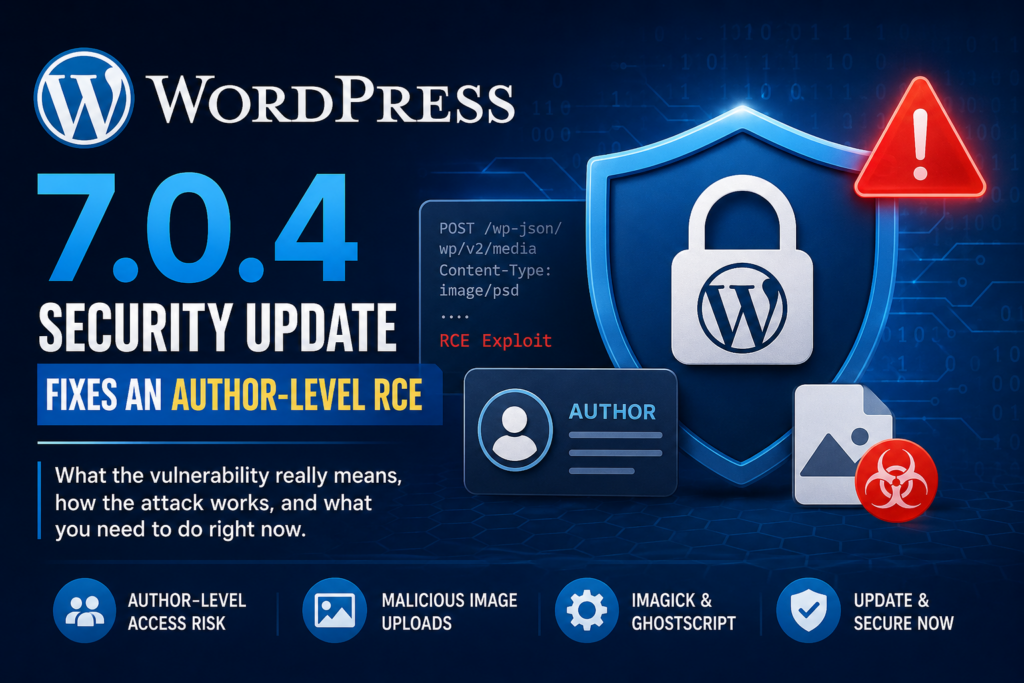
WordPress 7.0.4 addresses a serious remote code execution risk involving malicious image-like uploads, Imagick, and Ghostscript. This guide explains the real exploitation requirements, why Author accounts matter, which WordPress sites deserve immediate attention, and the practical security checks administrators should perform after updating.
WordPress security updates sometimes arrive with alarming descriptions such as “remote code execution,” “malicious file upload,” or “Author-level attack.” Those phrases deserve attention, but they can also create confusion when the technical conditions behind an attack are left unexplained.
The WordPress 7.0.4 security update is a good example. The important point is that WordPress 7.0.4 is the fix, not the vulnerable release administrators should avoid. The security concern affects certain configurations where a logged-in user with sufficient media-upload permissions can submit specially crafted content that reaches an image-processing stack involving Imagick and Ghostscript.
That distinction changes the practical risk considerably. This is not simply a case where every anonymous visitor can open a WordPress website and instantly execute commands on its server. Several conditions need to line up.
However, those conditions are realistic on publishing platforms with multiple Authors, guest writers, editorial teams, membership workflows, or accounts that may have weak or reused passwords. For those websites, updating should receive particularly high priority.
This guide explains what the vulnerability means, how the processing chain creates the risk, which WordPress roles deserve attention, and what administrators should check after installing the security release.
What WordPress 7.0.4 Fixes
The WordPress 7.0.4 security update addresses a security issue that can potentially lead to remote code execution when specially crafted uploaded content reaches a vulnerable server-side image-processing path.
Remote code execution, usually shortened to RCE, belongs to the most serious classes of web application vulnerabilities. An RCE can allow an attacker to make the server execute instructions that were never intended by the website owner.
However, severity and exploitability are not exactly the same thing.
A vulnerability may have severe consequences after successful exploitation while still requiring several prerequisites before an attacker can reach the vulnerable code. Understanding those prerequisites is essential when deciding which WordPress installations need the fastest response.
For this issue, administrators should think about four major conditions:
- The attacker needs an authenticated WordPress account with appropriate upload capabilities.
- The account must be able to submit media that reaches the relevant processing path.
- The server needs a compatible image-processing configuration involving Imagick and Ghostscript.
- The malicious file must successfully reach the vulnerable processing chain.
Therefore, a simple brochure website with one trusted Administrator does not present exactly the same exposure as a magazine with 40 Author accounts.
Both should update.
The second website simply has a larger attack surface because more accounts can potentially reach media-upload functionality.
WordPress 7.0.4 closes the vulnerable path at the WordPress level, which makes installing the security update the correct response rather than relying entirely on workarounds.
WordPress 7.0.4 Is the Patch, Not the Problem
This distinction deserves emphasis because security headlines can easily be misread.
When you see a headline such as “WordPress 7.0.4 RCE,” it may sound as though installing WordPress 7.0.4 introduces the vulnerability. In this case, the opposite is true.
WordPress 7.0.4 contains the security fix.
Administrators running an affected older WordPress branch should install the corresponding patched security release made available for that branch rather than assuming that every site must perform a major-version migration without preparation.
The broader security lesson is equally important. A WordPress core security release should normally be treated differently from a feature release.
Feature releases can justify longer staging and compatibility testing. Security releases require a much shorter decision cycle because delaying the update preserves a known attack surface.
You should still create a backup and perform basic checks. However, leaving a security vulnerability exposed for days simply because you want extensive cosmetic testing usually creates the wrong balance of risk.
Why Remote Code Execution Gets Immediate Attention
RCE is dangerous because successful exploitation can potentially move the attacker beyond ordinary WordPress permissions.
Imagine a malicious Author account.
Normally, that Author operates inside WordPress’s permission system. WordPress determines what the account can publish, edit, upload, or delete.
An RCE can potentially cross that boundary.
Instead of asking WordPress for permission to perform an action, malicious input may cause another server component to execute unintended instructions. At that point, the effective limits can depend on the web server’s operating-system permissions rather than the original WordPress role.
Possible consequences of successful server-side code execution can include unauthorized file creation, modification of WordPress files, credential theft, persistence mechanisms, database access, malicious redirects, spam distribution, or installation of additional malware.
The exact consequences depend on the hosting environment and privileges available to the affected process.
This is why an Author-level prerequisite reduces the number of possible attackers but does not make an RCE harmless.
How the Malicious Image Attack Works
The easiest way to understand this security issue is to stop thinking of an uploaded image as something WordPress merely stores.
Uploading an image often starts a processing workflow.
When an Author uploads a normal JPEG photograph, WordPress may read its metadata, determine its dimensions, create several thumbnail sizes, rotate it when necessary, optimize certain operations, and store attachment information in the database.
Depending on the server, WordPress can use different image-processing libraries to perform this work.
One common option is Imagick, the PHP extension that provides access to ImageMagick functionality.
The processing chain becomes more complicated when ImageMagick encounters formats that it delegates to another program.
That is where Ghostscript becomes important.
An Uploaded File Can Trigger Server-Side Processing
Consider the normal workflow:
User upload → WordPress Media Library → image validation → Imagick/ImageMagick → format processing → generated media files
Most of the time, nothing dangerous happens. Millions of ordinary WordPress images pass through similar workflows.
The security concern appears when a specially crafted file causes the server to interpret content in an unsafe way.
The dangerous file does not necessarily behave like the photograph its appearance, extension, or upload context might suggest. What matters is how the server identifies and processes the underlying content.
PostScript deserves particular attention because it is more than a simple static collection of pixels. It is a page-description language with programming-like capabilities.
If malicious PostScript content reaches Ghostscript through the image-processing chain under unsafe conditions, the impact can become far more serious than a broken thumbnail.
That difference explains why administrators should not dismiss the vulnerability as “just an image upload bug.”
The Simplified Attack Chain
At a high level, the exploitation path can be understood without reproducing weaponized instructions.
An attacker first gains control of a WordPress account that can upload media.
The attacker then prepares specially crafted content designed to reach the relevant image-processing path.
WordPress accepts the upload under the conditions required by the vulnerable version.
The server passes the media into its image-processing system.
Imagick or ImageMagick encounters content requiring delegated processing.
Ghostscript becomes involved in interpreting the relevant content.
If all required vulnerable conditions exist, the crafted input may cause unintended server-side execution.
The important security boundary is therefore not only the WordPress upload directory.
The boundary extends into the programs WordPress calls when processing uploaded media.
Why File Extensions Are Not a Complete Security Boundary
A common misconception is that WordPress remains safe as long as dangerous extensions such as .php cannot be uploaded.
Blocking executable PHP uploads is extremely important, but it does not solve every file-processing vulnerability.
A file can become dangerous because of what processes it, not because the web server directly executes that file as PHP.
For example, a seemingly media-related upload might trigger:
WordPress → PHP extension → ImageMagick → Ghostscript
The attacker does not necessarily need the web server to treat the original upload as a PHP script.
Instead, the attack targets the software interpreting the uploaded content.
This concept appears throughout application security. PDF processors, archive extractors, video transcoders, XML parsers, document converters, and image libraries have all created similar classes of vulnerabilities over the years.
For WordPress administrators, the practical lesson is simple: secure upload handling requires both permission controls and safe server-side processing.
Why Imagick and Ghostscript Matter
Imagick and Ghostscript are related to this vulnerability, but they perform different jobs.
Understanding the difference helps administrators determine whether their hosting environment matches the configuration described in the security issue.
What Is Imagick?
Imagick is a PHP extension that provides an interface to ImageMagick.
WordPress can use Imagick for media operations when the extension is available. Depending on the hosting environment, these operations may include resizing, cropping, rotating, format conversion, and generating different image sizes.
WordPress can also use the GD library as an image editor.
Therefore, not every WordPress installation uses the exact same image-processing stack.
You can inspect information about your environment from:
Tools → Site Health → Info → Media Handling
The information displayed depends on your server and WordPress configuration. Look for details concerning the active image editor, ImageMagick, Imagick, supported formats, and Ghostscript where available.
Do not treat the absence of obvious Ghostscript information as proof that your website is safe. Hosting configurations differ, and some details may not appear clearly through WordPress.
Updating WordPress remains the primary response.
What Is Ghostscript?
Ghostscript is software commonly used to interpret PostScript and PDF-related content.
Other applications can invoke it when they need to render or convert supported document formats.
In a WordPress environment, Ghostscript may sit deeper in the media-processing chain. The administrator may never install a “Ghostscript WordPress plugin” or interact with Ghostscript directly.
It may simply exist as a server package.
That is an important distinction.
Checking your WordPress Plugins page will not tell you whether Ghostscript exists on the operating system.
On managed hosting, your provider controls much of this infrastructure. On a VPS or dedicated server, the system administrator may be able to inspect installed packages and ImageMagick delegates directly.
Why the Combination Changes the Risk
Think of WordPress as the front desk of a building.
WordPress receives the package.
Imagick takes it to the processing department.
ImageMagick determines what needs to happen to it.
Ghostscript may then be asked to interpret particular content.
Security problems become possible when malicious input passes through those layers and reaches an interpreter in a way developers did not intend.
This is also why a WordPress vulnerability can depend on server configuration.
Two websites running the same WordPress version may have different practical exposure because their underlying media stacks differ.
One server might use GD.
Another might use Imagick without the relevant Ghostscript path.
A third might have the complete processing chain required for exploitation.
Nevertheless, administrators should not use those differences as an excuse to postpone WordPress 7.0.4.
A server configuration can change later. Hosting providers can install packages, PHP modules can change after upgrades, and websites can migrate between servers.
Installing the core fix removes the WordPress-side vulnerability rather than depending on environmental luck.
How to Check Your WordPress Image Environment
Start with WordPress Site Health.
Open:
WordPress Dashboard → Tools → Site Health → Info
Expand the Media Handling section.
Depending on your server, you may see information similar to:
- Active image editor
- ImageMagick version
- Imagick version
- GD version
- Supported file formats
- Upload limits
- Ghostscript availability or version
On a VPS, administrators with shell access can perform additional server-side checks.
For example, checking whether the PHP Imagick module is loaded can be done with:
php -m | grep -i imagick
ImageMagick information can commonly be inspected with:
magick -version
or on environments using the older command layout:
convert -version
Ghostscript can commonly be checked with:
gs --version
These commands are diagnostic only. They do not determine whether a site is compromised.
They simply help you understand the server environment.
If you use shared or managed WordPress hosting, contact your provider when you need confirmation about the image-processing stack.
Which WordPress Roles Can Exploit It
This is arguably the most important practical section of the WordPress 7.0.4 security update.
The vulnerability is particularly relevant because exploitation requires a user capable of reaching the affected upload workflow. Reports surrounding the issue describe the important threshold as Author-level access or higher under relevant configurations.
That dramatically changes how administrators should prioritize websites.
Understanding the Default WordPress Roles
A standard WordPress installation includes five primary roles:
Subscriber → Contributor → Author → Editor → Administrator
On Multisite installations, additional network-level permissions exist.
These roles are not merely labels. WordPress assigns capabilities to them.
A Subscriber normally has very limited access.
A Contributor can create and edit their own posts but does not normally have the same media-upload capabilities as an Author.
An Author can normally publish and manage their own posts and upload files.
An Editor has broader publishing permissions across content.
An Administrator controls almost every site-level setting.
The key transition for this vulnerability is the ability to upload files into the media workflow.
Why Author Is the Important Threshold
By default, Authors have the upload_files capability.
That makes an Author fundamentally different from a Contributor when analyzing an upload-based vulnerability.
An Author is intentionally trusted to add media to posts. On a normal editorial website, that permission is useful and expected.
Unfortunately, legitimate functionality can become an attack surface when a vulnerability exists in media processing.
An attacker therefore does not necessarily need Administrator credentials.
If an attacker compromises an Author account, the account may already possess enough legitimate WordPress permissions to reach the vulnerable upload path.
That is why multi-author websites deserve priority.
Subscriber Accounts Are Normally Different
A default Subscriber does not normally have permission to upload files.
Therefore, an ordinary Subscriber account should not automatically satisfy the same exploitation requirement.
However, administrators should never assume role names tell the complete story.
WordPress capabilities can be changed.
Membership plugins, LMS platforms, community plugins, marketplace systems, role editors, frontend posting tools, and custom code can grant additional permissions to normally restricted users.
A website might label someone “Subscriber” while a plugin separately grants that user upload functionality.
The safest approach is to inspect capabilities, not merely visible role names.
The capability to pay particular attention to is:
upload_files
If untrusted users have this capability, they deserve closer examination.
Why Multi-Author Sites Have Higher Priority
Suppose Site A has:
- 1 Administrator
- no other accounts
- strong password
- two-factor authentication
Now consider Site B:
- 3 Administrators
- 6 Editors
- 45 Authors
- several former freelance writers
- old accounts that have not been reviewed recently
Both sites should install WordPress 7.0.4.
However, Site B has many more possible credential paths leading to the relevant upload capability.
An attacker might not attack the vulnerability directly at first.
Instead, the attacker could compromise an Author through password reuse, phishing, stolen browser sessions, malware, or leaked credentials.
After gaining access, the attacker could use the legitimate account to reach media functionality.
This pattern demonstrates an important security principle:
A low-privileged account can become highly valuable when another vulnerability turns one of its legitimate capabilities into a path toward greater access.
Audit Accounts With Upload Permission
After updating, review your users.
Navigate to:
Users → All Users
Pay particular attention to:
- Authors who no longer contribute
- temporary freelancer accounts
- former employees
- unknown accounts
- duplicated accounts
- Editors who no longer need editorial access
- Administrators who only need content access
- accounts using generic names
- accounts shared between several people
Delete unnecessary accounts or downgrade their permissions.
For custom environments, WP-CLI can help administrators review users and roles.
For example:
wp user list --fields=ID,user_login,user_email,roles
This produces a concise account inventory.
You can then investigate anything unexpected.
Do not delete an unfamiliar account immediately on a production site if you are unsure why it exists. First determine whether a plugin, integration, agency, developer, or automated service legitimately created it.
How to Update WordPress Safely

Security updates should happen quickly, but “quickly” should not mean “carelessly.”
A sensible process can reduce both security exposure and the chance of unnecessary downtime.
Step 1: Confirm Your Current WordPress Version
Log in to WordPress and check:
Dashboard → Updates
You can also look at:
Dashboard → At a Glance
Administrators with WP-CLI access can run:
wp core version
If your installation has not yet received the patched release appropriate to its supported branch, treat the update as a priority.
Step 2: Create a Fresh Backup
Before changing WordPress core, create a backup containing both:
- WordPress files
- WordPress database
A database-only backup is not enough for every recovery scenario.
Likewise, copying only wp-content does not preserve all database content and configuration.
Ideally, use a backup stored outside the production server.
This protects you if the update exposes an unrelated compatibility problem.
Step 3: Verify the Backup
A backup that cannot be restored is not much protection.
You do not necessarily need to perform a complete restore before every minor security update. However, confirm that the backup completed successfully, has a reasonable file size, and includes the expected database and files.
For business-critical websites, periodic restoration tests should be part of normal maintenance.
Step 4: Update WordPress Core
From the dashboard, open:
Dashboard → Updates
Install the available WordPress security release.
Administrators using WP-CLI can update core with:
wp core update
Afterward, verify the installed version:
wp core version
Do not interrupt the update process unless it clearly fails.
Step 5: Clear Relevant Caches
After the update, clear the caching layers used by your website.
Depending on your stack, these may include:
- WordPress page cache
- server cache
- object cache
- CDN cache
- reverse proxy cache
Security fixes generally do not require aggressively purging every external resource, but clearing normal page caches can prevent confusion during post-update testing.
Step 6: Test Critical Functions
Open the website in a private browser window and check several important pages.
Test:
- Homepage
- Single posts
- Important landing pages
- Login page
- Contact forms
- Search
- Checkout if using WooCommerce
- Account pages
- Media uploads
- Block editor
- Publishing workflow
For multi-author websites, test with an appropriate non-administrator test account as well.
This confirms that the editorial workflow still behaves normally after the security update.
Step 7: Update the Rest of the Stack
WordPress core is only one component.
Check for updates to:
- plugins
- themes
- PHP packages
- operating-system packages
- ImageMagick
- Ghostscript
- web server software
Do not randomly upgrade production server packages without understanding dependencies. Managed hosting customers can ask their provider whether relevant image-processing packages are maintained with current security patches.
Updating WordPress 7.0.4 should remain the immediate WordPress-side priority.
Post-Update Security Checks
Installing the WordPress 7.0.4 security update closes the known WordPress vulnerability, but patching does not prove that an older vulnerable installation was never attacked.
That distinction matters.
If a website had realistic exposure before updating, perform several checks afterward.
Verify WordPress Core Integrity
WP-CLI provides a useful core integrity check:
wp core verify-checksums
A healthy standard WordPress installation should generally return confirmation that the core files verify against official checksums.
Unexpected modifications deserve investigation.
Remember that checksum verification primarily helps identify modified WordPress core files. It does not prove that every file elsewhere on the server is clean.
Malware can live inside plugins, themes, uploads, MU plugins, temporary directories, or locations outside WordPress.
Inspect Administrator Accounts
Go to:
Users → All Users → Administrator
Confirm that every Administrator is legitimate.
Look for:
- unfamiliar usernames
- unexpected email addresses
- recently created administrators
- role changes you did not approve
- dormant accounts suddenly becoming active
If you discover an unknown Administrator, do not simply delete the account and assume the incident is over.
Treat it as a possible compromise.
The attacker may have created additional persistence elsewhere.
Review Author and Editor Accounts
Because the vulnerability involves authenticated upload access, Authors and Editors deserve special attention.
Ask yourself:
Who actually needs upload permission today?
A writer who contributed one article three years ago probably does not need a permanent Author account.
Reduce unnecessary permissions.
For occasional contributors, consider using a lower-privileged workflow whenever practical.
This follows the principle of least privilege: every account receives only the permissions required for its current job.
Inspect Recently Uploaded Files
Review the Media Library for unexpected uploads around the period before the update.
Look for:
- files uploaded by unfamiliar users
- unexpected document types
- suspicious filenames
- uploads at unusual times
- media unrelated to published content
Do not open suspicious files casually on your personal computer.
If compromise is suspected, preserve evidence and investigate using appropriate security tools.
Server logs can provide much more reliable evidence than visual inspection alone.
Check the Uploads Directory
A typical WordPress uploads directory is:
/wp-content/uploads/
Ordinary media files belong there.
Executable PHP files usually do not.
Administrators with shell access can search carefully for PHP files:
find wp-content/uploads -type f -name "*.php"
Finding a PHP file does not automatically prove compromise because unusual plugins can create files in unexpected places.
However, unexplained PHP inside uploads deserves immediate investigation.
Do not execute or open suspicious scripts through a browser.
Check MU Plugins
Persistent malware sometimes uses the Must-Use Plugins directory because MU plugins load automatically.
Inspect:
/wp-content/mu-plugins/
Compare the files against what you intentionally installed.
Administrators often forget this directory because MU plugins do not behave exactly like normal plugins in the dashboard.
Unknown files deserve investigation.
Review Recently Modified Files
On servers where you control the filesystem, recent modification times can help identify anomalies.
For example:
find wp-content -type f -mtime -7
This displays files modified during approximately the last seven days.
Expect legitimate results if you recently updated plugins, changed themes, regenerated caches, or uploaded media.
The goal is not to assume every modified file is malicious.
Instead, look for changes that do not match known administrative activity.
Examine Authentication Logs
Review available security, web server, hosting, or WordPress logs for suspicious logins.
Pay attention to:
- unusual IP addresses
- successful logins to dormant Author accounts
- repeated authentication attempts
- login activity immediately before strange uploads
- unexpected password resets
- unusual REST API activity
A compromised Author account may leave clues before the attacker attempts exploitation.
Rotate Credentials When Compromise Is Suspected
If evidence suggests that an account or website was compromised, change relevant credentials.
That can include:
- WordPress Administrator passwords
- affected Author or Editor passwords
- hosting panel passwords
- SSH credentials
- SFTP/FTP credentials
- database credentials when appropriate
- API keys
- application passwords
Also regenerate WordPress security salts when conducting incident recovery.
Do not treat password rotation alone as malware removal.
If attackers already achieved server-side execution, they may have persistence that remains after credentials change.
Enable Two-Factor Authentication
Two-factor authentication cannot patch an RCE.
However, it can make the prerequisite step of compromising a legitimate Author, Editor, or Administrator account substantially harder.
Prioritize 2FA for:
- Administrators
- Editors
- Authors
- WooCommerce managers
- support staff with privileged access
A multi-author website should consider 2FA part of its standard security baseline rather than an optional luxury.
Practical Security Settings After WordPress 7.0.4
The update provides the essential patch, but administrators can use this event to improve several broader WordPress settings.
Keep Minor Core Security Updates Enabled
WordPress normally supports automatic background updates for minor and security releases.
Administrators should have a strong reason before disabling that behavior.
A common configuration is:
define( 'WP_AUTO_UPDATE_CORE', 'minor' );
Before adding anything to wp-config.php, check whether your hosting provider or management platform already controls updates.
Duplicating update logic across WordPress, hosting tools, and external management services can make maintenance harder to understand.
Restrict File Uploads to Users Who Need Them
Do not give users Author or Editor access merely because it is convenient.
Ask what each person actually needs to do.
If someone only needs to submit text for review, Contributor-level permissions may be enough in a standard WordPress workflow.
If an Author stops working with your website, downgrade or remove the account.
This single habit reduces the number of credentials capable of reaching sensitive publishing functionality.
Avoid Shared Accounts
Do not let an editorial team share one Author or Administrator login.
Individual accounts provide accountability.
If something suspicious happens, logs can tell you which account performed the action.
Shared accounts make incident investigation considerably harder.
Individual accounts also allow you to revoke access for one person without disrupting everyone else.
Keep Server Components Updated
WordPress security does not end with WordPress.
Your stack may include:
Linux → web server → PHP → database → ImageMagick → Ghostscript → WordPress → plugins → theme
Every layer can contain vulnerabilities.
On managed hosting, the provider handles many of those layers.
On a VPS, the responsibility increasingly belongs to you or your server administrator.
Keep operating-system security updates current and monitor packages that process untrusted content.
Common Misconceptions About the WordPress 7.0.4 Security Update
Security news spreads quickly, and important technical details can disappear as headlines get shorter.
Several misconceptions are worth correcting.
“Anyone on the Internet Can Instantly Hack Every WordPress Site”
That description is misleading for this specific issue.
The important reported attack path requires authenticated access with sufficient upload capabilities plus a relevant server configuration and processing path.
That is very different from a universal unauthenticated RCE.
Nevertheless, compromised Author credentials are realistic enough that administrators should not dismiss the issue.
“My Site Has Only Trusted Authors, So I Do Not Need the Update”
Trusting your writers does not eliminate account compromise.
An Author can be completely trustworthy while their password, email account, browser session, or computer becomes compromised.
Security controls should assume credentials can eventually leak.
Install the update.
“I Do Not Know Whether Ghostscript Is Installed, So I Can Ignore It”
No.
Uncertainty about your hosting stack is a reason to patch, not a reason to delay.
Installing WordPress 7.0.4 removes the relevant WordPress-side exposure regardless of whether you fully understand every server package.
“Updating Means My Site Was Compromised”
No.
Installing a security patch is preventive maintenance.
The existence of a vulnerability does not prove exploitation.
However, websites with significant exposure should perform reasonable post-update checks because patching cannot retroactively undo an earlier compromise.
“A Security Plugin Makes the Core Update Unnecessary”
No WordPress security plugin should be considered a replacement for installing a vendor security patch.
A firewall or security plugin can provide valuable additional protection, logging, login controls, malware detection, and blocking.
The correct strategy is defense in depth:
Patch + least privilege + strong authentication + server security + backups + monitoring.
Which Sites Should Treat This Update as Highest Priority?
Every supported WordPress installation should remain patched, but some environments deserve immediate attention.
The highest-priority group includes websites with many users who can upload media.
Examples include:
- online magazines
- news websites
- community publishing platforms
- guest blogging websites
- large company blogs
- educational publishing portals
- agency-managed editorial sites
- membership sites with custom upload permissions
- sites with frontend content submission
- installations with many dormant Author accounts
These websites have a larger credential attack surface.
A small company site with one Administrator should still update. It simply has fewer accounts that can satisfy the reported role prerequisite.
Frequently Asked Questions
Is WordPress 7.0.4 vulnerable to the Author-level RCE?
WordPress 7.0.4 is the security update intended to fix the relevant WordPress vulnerability. Administrators should not avoid 7.0.4 because of headlines describing the flaw. The release is part of the solution.
Can a normal WordPress Subscriber exploit this vulnerability?
A standard Subscriber normally lacks the upload_files capability required to reach ordinary media-upload functionality. However, plugins and custom role configurations can change capabilities. Administrators should inspect actual permissions rather than relying only on role names.
Why are Authors important?
WordPress Authors normally have permission to upload media. That capability can allow an authenticated Author account to reach the affected media-processing workflow under the required vulnerable conditions.
Does the attacker need to be an Administrator?
No. That is one reason the issue deserves attention. The relevant reported threshold can be Author-level access rather than full Administrator privileges.
Does every WordPress server use Imagick?
No. WordPress environments vary. Some use Imagick/ImageMagick, while others may use GD. You can inspect media information under Tools → Site Health → Info → Media Handling.
Does every server have Ghostscript?
No. Ghostscript availability depends on the server configuration and installed packages. Managed hosting users can ask their provider. VPS administrators can inspect installed software directly.
Should I uninstall Imagick or Ghostscript?
Removing server components is not the primary fix for this WordPress issue and may break legitimate functionality. Install the appropriate WordPress security update first. Server hardening should be performed carefully by someone who understands the dependencies.
Should I disable image uploads?
Most patched websites do not need to disable normal uploads permanently. Instead, update WordPress and ensure only trusted users who genuinely require upload functionality possess that capability.
How can I check whether WordPress core files were modified?
Administrators with WP-CLI can run:
wp core verify-checksums
Unexpected checksum failures should be investigated. Remember that a successful core check does not verify every plugin, theme, upload, or server file.
What should I do if I find suspicious files after updating?
Avoid simply deleting one suspicious file and declaring the website clean. Preserve useful evidence, inspect accounts and logs, scan the complete environment, rotate compromised credentials, and restore from a known-clean backup when appropriate. For a business-critical compromise, consider professional incident-response assistance.
The Important Lesson From WordPress 7.0.4
The most useful takeaway from the WordPress 7.0.4 security update is not that every WordPress website was equally easy to compromise.
It is that permissions and server-side processing can interact in unexpected ways.
An Author is intentionally allowed to upload media. Imagick is intentionally designed to process images. Ghostscript is intentionally designed to interpret particular document formats. Each component performs a legitimate job.
A vulnerability can turn that legitimate chain into something dangerous.
That is why multi-author WordPress websites deserve particularly fast attention. They naturally expose media-upload capabilities to more accounts, increasing the chance that compromised credentials can satisfy the first requirement of an attack.
Install the patched WordPress release appropriate to your branch, review users who can upload files, inspect your media-processing environment, and perform basic post-update security checks.
Most importantly, do not confuse a serious vulnerability with universal exploitability. Good security decisions come from understanding both impact and conditions.
WordPress 7.0.4 should be treated as a security fix that administrators want installed, not as a version they should fear.
⚠️ Disclaimer and Source Hygiene
This article provides general WordPress security and administration information. It does not replace professional cybersecurity, hosting, system-administration, or incident-response advice. Commands and configuration changes should be tested and adapted to your environment before being used on a production website.
Security information can also change as researchers, WordPress contributors, hosting companies, and security vendors publish additional technical details. The guidance in this article is based on available authoritative documentation, WordPress security information, established WordPress capability behavior, and public reporting about the WordPress 7.0.4 security release.
If you suspect an actual compromise, preserve logs and backups before making extensive changes. A qualified security professional can help determine whether an attacker gained server access and whether persistence remains after patching.
🔔 For more tutorials like this, consider subscribing to our blog.
📩 Do you have questions or suggestions? Leave a comment or contact us!
🏷️ Tags: WordPress 7.0.4, WordPress 7.0.4 security update, WordPress security, WordPress RCE, Author-level RCE, WordPress vulnerability, Imagick security, Ghostscript security, WordPress security update, WordPress media security
📢 Hashtags: #WordPress, #WordPressSecurity, #WordPress704, #CyberSecurity, #WordPressUpdate, #WebsiteSecurity, #WordPressRCE, #Imagick, #Ghostscript, #WebSecurity
Sources and References
For publication, prioritize primary and authoritative sources when adding external references. The official WordPress release announcement and WordPress security documentation should take precedence over social-media summaries. Public discussion around the release also emphasizes that WordPress 7.0.4 is the fix and describes the affected scenario as involving malicious PostScript uploads by an Author-level user or higher on certain installations using Imagick and Ghostscript.
Useful authoritative references include the official WordPress website and WordPress documentation. Administrators should also consult their hosting provider’s current security notices when determining which versions of ImageMagick, Imagick, and Ghostscript are installed.
Secondary Sources and Testimonials
Community discussion following the release has focused heavily on the unusually frequent security-update cycle and the importance of installing patches promptly. Administrators also noted an important wording distinction: WordPress 7.0.4 should not be described as though it introduced the RCE because the release contains the fix for the reported issue.
Community reports are useful for understanding administrator experiences, but they should not replace official WordPress advisories, hosting-provider documentation, CVE records when available, or direct technical analysis. Security claims should be updated if WordPress or the researchers publish additional exploitation details.
Sign in with a Subscriber account to vote.