
Table of Contents
Learn how the WordPress database works, how data is stored, and how to safely manage, optimize, back up, and query your database to keep your WordPress website running smoothly and efficiently.
Database
Every WordPress website relies on a database to store and retrieve information. While themes control the design and plugins add functionality, the database acts as the brain of your website. It stores posts, pages, users, comments, settings, and much more.
Understanding how the WordPress database works can help you troubleshoot issues, optimize performance, create custom functionality, and manage your website more effectively.
In this guide, you’ll learn everything you need to know about using the WordPress database, from basic concepts to advanced techniques.
What Is the WordPress Database?
A database is an organized collection of data that can be easily accessed, managed, and updated.
WordPress uses MySQL or MariaDB databases to store website content and settings.
Instead of storing information in static files, WordPress saves data inside database tables. Whenever someone visits your site, WordPress retrieves the required information from the database and displays it on the page.
For example:
- Blog posts
- Pages
- Categories
- Tags
- Comments
- User accounts
- Plugin settings
- Theme settings
- Site configuration
All of these are stored in the database.
Why Is the WordPress Database Important?
The database is essential because it:
- Stores website content
- Saves user information
- Maintains settings
- Handles comments
- Supports plugins
- Improves content management
- Makes dynamic websites possible
Without the database, WordPress would not function.
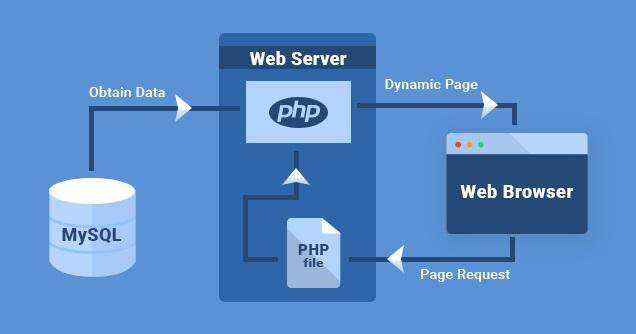
How WordPress Uses the Database
When a visitor opens a page:
- The browser sends a request.
- WordPress loads its core files.
- WordPress connects to the database.
- The required content is retrieved.
- The theme displays the content.
- The page is sent back to the visitor.
This process happens in milliseconds.
Understanding WordPress Database Tables

A fresh WordPress installation creates several default tables.
The exact number may vary depending on the WordPress version.
wp_posts
Stores:
- Posts
- Pages
- Attachments
- Revisions
- Navigation items
Example:
| ID | post_title |
|---|---|
| 1 | Hello World |
| 2 | About Us |
wp_postmeta
Stores additional information about posts.
Examples:
- Featured images
- SEO settings
- Custom fields
wp_users
Stores registered users.
Examples:
- Username
- Password hash
- Registration date
wp_usermeta
Stores additional user information.
Examples:
- Roles
- Permissions
- Preferences
wp_comments
Stores all comments left on your website.
wp_commentmeta
Stores metadata related to comments.
wp_terms
Stores:
- Categories
- Tags
wp_term_relationships
Links posts to categories and tags.
wp_options
One of the most important tables.
Stores:
- Site URL
- Plugin settings
- Theme settings
- Active plugins
Database Prefix Explained
By default, WordPress uses:
wp_
Example:
wp_posts
wp_users
wp_options
Many website owners change this prefix for additional security:
wzp_
mysite_
abc123_
Example:
wzp_posts
wzp_users
wzp_options
Accessing the WordPress Database
There are several ways to access the database.
Method 1: phpMyAdmin
The most common method.
Steps:
- Log in to hosting control panel.
- Open phpMyAdmin.
- Select your database.
- View tables.
Advantages:
- Beginner friendly
- Visual interface
- Easy management
Method 2: Adminer
A lightweight alternative to phpMyAdmin.
Benefits:
- Faster
- Simpler
- Single-file application
Method 3: WP-CLI
Advanced users can use:
wp db query
Example:
wp db query "SELECT * FROM wp_posts LIMIT 10;"
Method 4: MySQL Command Line
Connect directly:
mysql -u username -p database_name
Useful for VPS and dedicated servers.
Finding Your Database Credentials
WordPress stores database credentials inside:
wp-config.php
Example:
define('DB_NAME', 'wordpress_db');
define('DB_USER', 'db_user');
define('DB_PASSWORD', 'password');
define('DB_HOST', 'localhost');
Never share these credentials publicly.
Viewing Posts in the Database
You can view posts by running:
SELECT ID, post_title
FROM wp_posts
WHERE post_status='publish';
This returns all published posts.
Finding WordPress Users
Example query:
SELECT ID, user_login, user_email
FROM wp_users;
This displays registered users.
Changing the Site URL
Sometimes after migration, URLs need updating.
Example:
UPDATE wp_options
SET option_value='https://example.com'
WHERE option_name='siteurl';
And:
UPDATE wp_options
SET option_value='https://example.com'
WHERE option_name='home';
Always create a backup first.
Creating Database Backups
Backups are critical.
A database failure can destroy:
- Posts
- Pages
- Comments
- Settings
Backup Using phpMyAdmin
- Open phpMyAdmin.
- Select database.
- Click Export.
- Choose SQL.
- Download file.
Backup Using WP-CLI
wp db export backup.sql
Backup Using Hosting Tools
Many hosts provide:
- Automatic backups
- Daily snapshots
- One-click restores
Restoring a Database Backup
Using phpMyAdmin:
- Open database.
- Click Import.
- Upload SQL file.
- Execute import.
Your database will be restored.
Optimizing the WordPress Database
Over time databases accumulate:
- Revisions
- Spam comments
- Expired transients
- Plugin leftovers
Optimization improves performance.
Using phpMyAdmin
Select all tables.
Choose:
Optimize Table
Using WP-CLI
wp db optimize
Cleaning Post Revisions
WordPress saves revisions automatically.
Too many revisions can increase database size.
Limit revisions:
define('WP_POST_REVISIONS', 10);
Inside:
wp-config.php
Removing Spam Comments
Spam comments consume space.
SQL example:
DELETE FROM wp_comments
WHERE comment_approved='spam';
Be careful when running deletion queries.
Understanding WordPress Relationships
WordPress uses relationships between tables.
Example:
Post
Stored in:
wp_posts
Category
Stored in:
wp_terms
Relationship
Stored in:
wp_term_relationships
Together they create the category system.
Querying the Database in WordPress
Use the global database object:
global $wpdb;
Example:
$posts = $wpdb->get_results(
    "SELECT * FROM {$wpdb->posts} LIMIT 5"
);
Getting a Single Value
Example:
$count = $wpdb->get_var(
    "SELECT COUNT(*) FROM {$wpdb->posts}"
);
Using Prepared Statements
Always sanitize user input.
Safe example:
$post_id = 10;

$post = $wpdb->get_row(
    $wpdb->prepare(
        "SELECT * FROM {$wpdb->posts}
        WHERE ID = %d",
        $post_id
    )
);
This prevents SQL injection.
Inserting Data
Example:
$wpdb->insert(
    $wpdb->posts,
    [
        'post_title' => 'New Post'
    ]
);
Updating Data
Example:
$wpdb->update(
    $wpdb->posts,
    [
        'post_title' => 'Updated Title'
    ],
    [
        'ID' => 5
    ]
);
Deleting Data
Example:
$wpdb->delete(
    $wpdb->posts,
    [
        'ID' => 5
    ]
);
Always test before deleting.
Database Security Best Practices
Use Strong Passwords
Weak credentials can expose your website.
Change Default Prefix
Instead of:
wp_
Use:
wpzone_
or another custom prefix.
Limit Database Access
Only trusted users should have database access.
Use SSL Connections
Encrypted database connections improve security.
Keep WordPress Updated
Updates often fix database-related vulnerabilities.
Common Database Errors
Error Establishing a Database Connection
Possible causes:
- Incorrect credentials
- Database server down
- Corrupted database
Database Corruption
Repair database:
define('WP_ALLOW_REPAIR', true);
Then visit:
/wp-admin/maint/repair.php
Remove the line afterward.
Missing Tables
Can happen after failed migrations.
Restore from backup.
Useful WP-CLI Database Commands
Check database:
wp db check
Repair database:
wp db repair
Optimize database:
wp db optimize
Export database:
wp db export
Import database:
wp db import backup.sql
Search and replace:
wp search-replace oldsite.com newsite.com
Advantages of Learning the WordPress Database
Understanding the database allows you to:
- Troubleshoot faster
- Create advanced plugins
- Build custom features
- Improve website performance
- Perform safe migrations
- Recover from errors
- Manage data efficiently
For WordPress developers, database knowledge is one of the most valuable skills to master.
Essential Takeaways
- The WordPress database stores all content and settings.
- MySQL and MariaDB are the most common database systems used by WordPress.
- phpMyAdmin is the easiest way to manage a database.
- The
wp_posts,wp_users, andwp_optionstables are among the most important. - Always back up your database before making changes.
- Use
$wpdb->prepare()to prevent SQL injection. - Regular optimization improves performance.
- Understanding database structure helps with troubleshooting and development.
- WP-CLI provides powerful database management tools.
- A healthy database is essential for a fast, secure, and reliable WordPress website.
FAQ
What database does WordPress use?
WordPress primarily uses MySQL and MariaDB databases.
Is it safe to edit the WordPress database directly?
Yes, but only if you know what you’re doing and have a backup.
What is phpMyAdmin?
phpMyAdmin is a web-based interface used to manage MySQL and MariaDB databases.
Which table stores WordPress posts?
The wp_posts table stores posts, pages, attachments, and custom post types.
Where are WordPress settings stored?
Most settings are stored in the wp_options table.
What is $wpdb?
$wpdb is WordPress’s built-in database access class.
How do I back up my WordPress database?
You can use phpMyAdmin, WP-CLI, hosting backups, or backup plugins.
Why should I optimize my database?
Optimization improves performance and removes unnecessary overhead.
What causes “Error Establishing a Database Connection”?
Usually incorrect credentials, server issues, or database corruption.
Can I use SQL queries in WordPress?
Yes. Developers commonly use SQL queries through the $wpdb class.
⚠️ Disclaimer and Source Hygiene
This article is intended for educational and informational purposes only. Database modifications can affect the functionality, security, and integrity of your WordPress website. Always create a full backup before making any changes to your database. The author and publisher are not responsible for any data loss, website downtime, or other issues resulting from the use of the information provided in this guide.
🔔 For more tutorials like this, consider subscribing to our blog.
📩 Do you have questions or suggestions? Leave a comment or contact us!
🏷️ Tags: WordPress Database, MySQL, MariaDB, WP-CLI, phpMyAdmin, WordPress Development, Database Optimization, WordPress Security, WordPress Tutorial, WordPress Guide
📢 Hashtags: #WordPress #WordPressDatabase #MySQL #MariaDB #PHP #WebDevelopment #WPCLI #WordPressTutorial #DatabaseManagement #WordPressTips