
Table of Contents
Learn how cPanel backups work, what partial backups include, how to download your WordPress files and database, and how to restore them safely when something goes wrong.
cPanel Backups
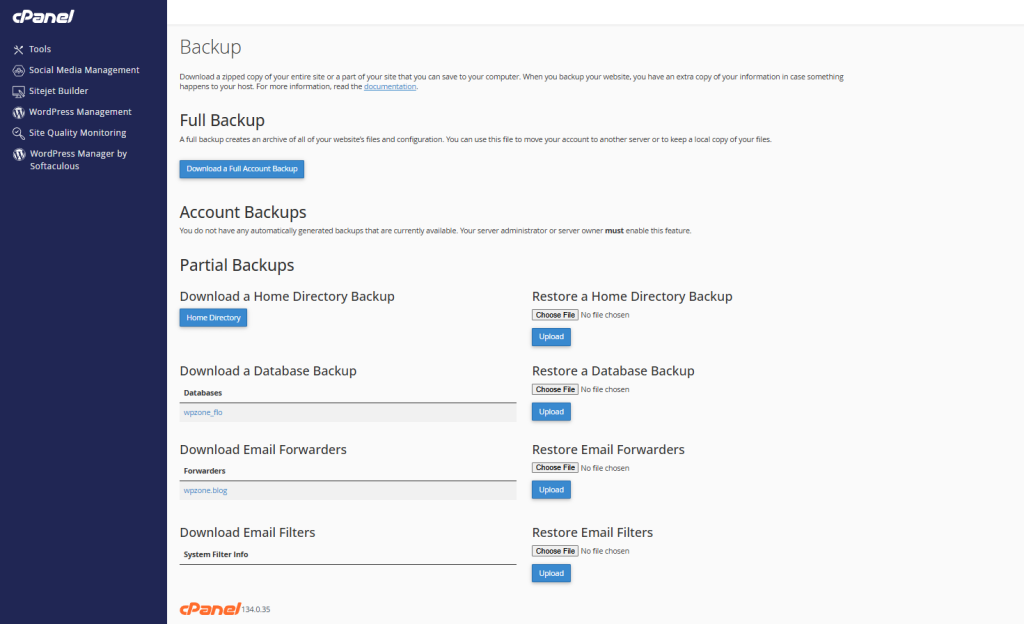
If you run a WordPress website, backups are not optional. They are your safety net when something breaks, when a plugin update fails, when a migration goes wrong, or when a database error destroys part of your content. The screenshot shows the cPanel Account Backups page, where you can download and restore different parts of a hosting account.
In cPanel, backups are usually divided into two main categories: full account backups and partial backups. According to cPanel documentation, the Backup interface lets users download and store site backups, while some backup options depend on what the hosting provider enables on the server. Full backups may require administrator or WHM access for restoration, while partial backups can usually be restored directly from cPanel. (cPanel & WHM Documentation)
What You See on the cPanel Backups Page
The page in the screenshot has two important areas:
Account Backups
This section normally shows automatically generated full account backups. In the screenshot, cPanel says that there are no automatically generated backups available. That means the server administrator or hosting provider has not enabled automatic account backups for this cPanel user.
Partial Backups
This section lets you download or restore specific parts of the account:
- Home Directory Backup
- Database Backup
- Email Forwarders
- Email Filters
For a WordPress website, the two most important items are usually the Home Directory Backup and the Database Backup.
Why WordPress Needs Both Files and Database
A WordPress website is not stored in one single place. It has two major parts.
The first part is the file system. This includes WordPress core files, themes, plugins, uploaded images, custom PHP files, cache folders, and other website files. These files are usually inside public_html, but they can also be inside another folder if WordPress is installed on a subdomain or addon domain.
The second part is the database. This is where WordPress stores posts, pages, comments, users, settings, menus, plugin options, WooCommerce orders, form entries, and many other dynamic elements.
This is why downloading only the Home Directory is not enough for a complete WordPress backup. It protects your files, but not your posts and settings. Downloading only the database is also not enough, because it does not include images, themes, plugins, or custom files.
For a safe WordPress backup, you should download both:
- Home Directory Backup
- Database Backup
What Is a Home Directory Backup?
The Home Directory Backup saves the files from your hosting account. cPanel explains that a home directory backup includes files owned by the account, including files inside public_html, and may also include accessible files from the account home directory. (cPanel & WHM Documentation)
For WordPress, this usually includes:
wp-adminwp-contentwp-includeswp-config.php.htaccess- Themes
- Plugins
- Uploads
- Custom folders
- Cache files
- Error logs
- Other files stored in the account
The most important folder is:
wp-content
Inside wp-content, you have:
themes
plugins
uploads
The uploads folder is especially important because it contains your media library: images, PDFs, documents, and other uploaded files.
How to Download a Home Directory Backup

On the cPanel Backups page, go to:
Partial Backups → Download a Home Directory Backup
Then click:
Home Directory
Your browser will download a compressed backup file. Keep this file somewhere safe, preferably outside the server. You can store it on your computer, an external drive, Google Drive, Dropbox, OneDrive, or another backup location.
Do not leave your only backup inside the same hosting account. If the server account becomes corrupted, suspended, hacked, or deleted, that backup may disappear too.
What Is a Database Backup?
The database backup contains the MySQL or MariaDB database used by WordPress. In the screenshot, the database name appears as:
helpzone_wp_ma32f
That is the database connected to the WordPress installation.
A WordPress database includes:
- Posts
- Pages
- Categories
- Tags
- Comments
- Users
- Password hashes
- WordPress settings
- Theme settings
- Plugin settings
- WooCommerce data
- SEO plugin metadata
- Custom post types
- Shortcodes stored in posts
- Menu structure
This is the heart of your WordPress website. Without the database, WordPress cannot display your content correctly.
How to Download a Database Backup
On the cPanel Backups page, go to:
Partial Backups → Download a Database Backup
Then click the database name.
Example:
helpzone_wp_ma32f
cPanel will download a compressed database backup, usually with a .sql.gz or .gz extension.
Save it together with your Home Directory Backup. For a WordPress backup to be useful, the file backup and database backup should be from the same date or as close as possible.
What Are Email Forwarders Backups?
Email forwarders are rules that send messages from one email address to another.
For example:
contact@example.com → yourname@gmail.com
The Email Forwarders backup stores these forwarding rules. It does not necessarily store mailbox messages. It stores the forwarding configuration.
If your website uses domain emails, this backup can be useful before moving hosting accounts.
What Are Email Filters Backups?
Email filters are rules that control how incoming mail is handled.
For example:
- Move messages with certain words to a folder
- Delete spam-like messages
- Redirect specific emails
- Apply filters based on sender or subject
cPanel notes that Email Filters backup files store account-level email filters from Global Email Filters, not necessarily user-level filters from individual email accounts. (cPanel & WHM Documentation)
For a normal WordPress website without custom email filtering, this section may not be very important. But for business websites, it can save time during migration.
What Does “No Automatically Generated Backups Available” Mean?
The message at the top says:
You do not have any automatically generated backups that are currently available.
Your server administrator or server owner must enable this feature.
This means your hosting account does not currently have visible automatic full backups in cPanel.
It does not always mean there are no backups anywhere. Your hosting provider may have backups in another system, or backups may only be available through support. But from your cPanel account, there are no automatic backups ready to download.
This is why you should not depend only on the hosting provider. You should create your own backups regularly.
Full Backup vs Partial Backup
A full backup usually includes the entire cPanel account. This can include files, databases, email settings, DNS-related account data, and other hosting information.
A partial backup includes only one part of the account.
For WordPress, partial backups are often enough if you download:
Home Directory + Database
cPanel documentation says full backup restoration cannot normally be done automatically from inside cPanel and may require WHM or hosting provider support. Partial backups, however, are designed for downloading and restoring specific account parts from cPanel. (cPanel & WHM Documentation)
When Should You Create a Backup?
You should create a backup before:
- Updating WordPress core
- Updating many plugins
- Updating your theme
- Editing
functions.php - Editing
.htaccess - Changing PHP version
- Migrating to another host
- Importing a database
- Installing a large plugin
- Cleaning malware
- Changing permalink structure
- Running search and replace in the database
- Deleting many posts or media files
- Making WooCommerce changes
A good rule is simple: before any major change, make a backup.
Best Backup Routine for WordPress
For a normal WordPress blog, a good backup routine is:
Daily database backup
Your content changes often, so the database should be backed up frequently.
Weekly full files backup
Files do not always change daily unless you upload many images or install plugins often.
Monthly external archive
Keep one monthly backup outside the server for long-term protection.
Before every major update
Always create a manual backup before important technical changes.
How to Restore a Home Directory Backup
On the right side of the screenshot, you can see:
Restore a Home Directory Backup
To restore:
- Click Choose File
- Select the home directory backup file from your computer
- Click Upload
- Wait until cPanel finishes the restore
Be careful: restoring a Home Directory Backup may overwrite existing files. If your current site has newer uploads or changes, they may be replaced by older versions from the backup.
How to Restore a Database Backup
To restore the database:
- Go to Restore a Database Backup
- Click Choose File
- Select the database backup file
- Click Upload
- Wait for cPanel to restore it
This can overwrite the current database. If your backup is old, you may lose newer posts, comments, orders, settings, or users.
For WooCommerce websites, be extremely careful. Restoring an old database can remove recent orders and customer data.
Important Safety Tips Before Restoring
Before restoring anything, do this:
- Download the current files first
- Download the current database first
- Check the backup date
- Make sure the backup belongs to the correct website
- Make sure the database name matches the WordPress installation
- Avoid restoring during high traffic hours
- Put the site in maintenance mode if needed
- Contact hosting support if you are unsure
Restoring without checking can make the problem worse.
How to Check Which Database WordPress Uses
Open the file:
wp-config.php
Look for this line:
define( 'DB_NAME', 'your_database_name' );
The value of DB_NAME tells you which database belongs to that WordPress installation.
Example:
define( 'DB_NAME', 'helpzone_wp_ma32f' );
This should match the database shown in cPanel backups.
Where Should You Store Backups?
Do not store backups only inside cPanel.
Use at least one external location:
- Your computer
- External hard drive
- Google Drive
- Dropbox
- OneDrive
- Amazon S3
- Remote FTP server
- Another VPS
- Encrypted cloud storage
A backup is only useful if you can access it when the website is broken.
Common Mistakes Beginners Make
One common mistake is downloading only the database and thinking the whole site is safe. The database does not include images, themes, or plugins.
Another mistake is downloading only the Home Directory. That protects files, but not posts, pages, users, comments, or settings.
A third mistake is keeping backups on the same server. If the server fails, the backup may fail with it.
Another dangerous mistake is restoring an old database on a live WooCommerce store. This can delete new orders.
Pro & Contra
| Option | Pro | Contra |
|---|---|---|
| Home Directory Backup | Saves WordPress files, themes, plugins, uploads | Does not save posts or settings from database |
| Database Backup | Saves posts, pages, users, settings | Does not save images or files |
| Full Backup | Best for migration and full account archive | Usually cannot be restored directly by normal cPanel users |
| Email Forwarders Backup | Saves forwarding rules | Does not replace full email mailbox backup |
| Email Filters Backup | Saves filter rules | Not always needed for basic WordPress sites |
Quick WordPress Backup Checklist
Before making important changes, download:
✅ Home Directory Backup
✅ WordPress Database Backup
✅ wp-config.php copy
✅ .htaccess copy
✅ wp-content folder copy
For extra safety, also export your WordPress content from:
WordPress Dashboard → Tools → Export
This export is not a full backup, but it can help recover posts and pages.
cPanel backups are one of the simplest ways to protect a WordPress website. The most important backups are the Home Directory Backup and the Database Backup. Together, they protect both the files and the content of your website.
If cPanel shows no automatic account backups, do not ignore the warning. Create your own manual backups and store them outside the server. A good backup routine can save your website after failed updates, plugin conflicts, hacks, migration errors, or accidental deletions.
FAQ
1. Is a Home Directory Backup enough for WordPress?
No. It saves files, but not the WordPress database. You also need a database backup.
2. Is a Database Backup enough?
No. It saves posts and settings, but not images, themes, plugins, or uploaded files.
3. Can I restore a full cPanel backup myself?
Usually not from normal cPanel. Full backup restoration often requires WHM or hosting support. (cPanel & WHM Documentation)
4. What should I download before updating WordPress?
Download both the Home Directory Backup and the Database Backup.
5. Where is my WordPress database name?
You can find it in wp-config.php, inside the DB_NAME line.
6. What happens if I restore an old database?
You may lose newer posts, comments, users, WooCommerce orders, and settings.
7. Should I keep backups on the same server?
No. Always keep at least one backup outside the hosting account.
8. Are email forwarders included in the database backup?
No. Email forwarders are separate cPanel settings.
9. How often should I back up WordPress?
For active sites, database backups should be daily or weekly. File backups can be weekly or monthly, depending on how often the site changes.
10. What is the safest backup method?
Use multiple backups: cPanel backups, a WordPress backup plugin, and external storage.
⚠️ Disclaimer and Source Hygiene
The information provided in this article is for educational and informational purposes only. While every effort has been made to ensure accuracy, hosting environments, cPanel versions, and server configurations may vary between providers. Always create a complete backup of your website and database before making changes, restoring backups, updating WordPress, or modifying server settings. The author and publisher are not responsible for any data loss, website downtime, configuration errors, security issues, or other damages resulting from the use of the information presented in this article. If you are unsure about any procedure, consult your hosting provider or a qualified WordPress professional before proceeding.
🔔 For more tutorials like this, consider subscribing to our blog.
📩 Do you have questions or suggestions? Leave a comment or contact us!
🏷️ Tags: WordPress backup, cPanel backup, WordPress database, home directory backup, restore WordPress, website backup, cPanel tutorial, WordPress security, hosting backup, backup guide
📢 Hashtags: #WordPress #cPanel #WordPressBackup #WebsiteBackup #WordPressTutorial #Hosting #DatabaseBackup #WpZone