
Table of Contents
Learn how to automatically add relevant WordPress tags based on article titles, excerpts, and content. This complete guide includes a lightweight must-use plugin, weighted keyword matching, safety checks, customization options, installation steps, testing advice, and practical methods for improving content organization without relying on external services.
Automatically Adding Relevant Tags to WordPress Posts
Tags can make a WordPress website easier to explore, especially when a blog contains hundreds or thousands of articles. However, writers often forget to add them before publishing. Some posts receive several useful tags, while others remain completely untagged.
That inconsistency can make content management more difficult. It may also reduce the usefulness of tag archives, related-post systems, internal search tools, and editorial filters.
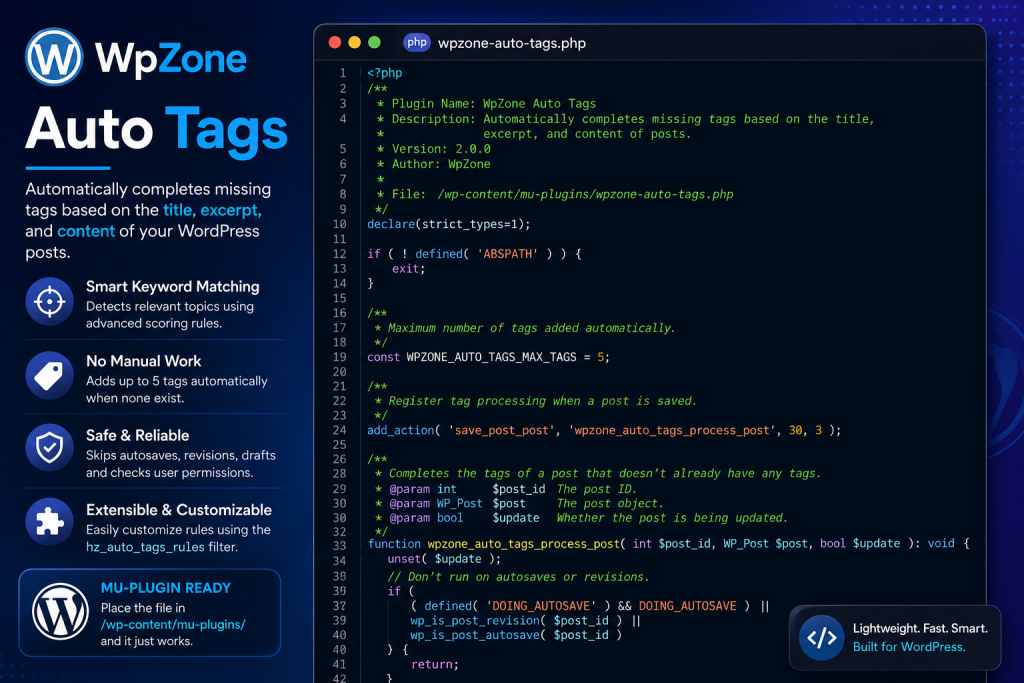
The WpZone Auto Tags plugin solves this problem with a controlled, rule-based system. It examines the title, excerpt, and article content whenever a standard WordPress post is saved. When the post has no existing tags, the plugin searches for predefined keywords and assigns the most relevant matching tags.
Unlike an external artificial intelligence service, this solution does not send article content to another server. It does not require an API key, monthly subscription, JavaScript library, database table, or background service.
Everything runs inside WordPress using standard PHP and native taxonomy functions.
The plugin also avoids replacing tags that an editor has already chosen. This makes the automation helpful without allowing it to take control away from the website owner.
What the WpZone Auto Tags Plugin Does
The plugin automatically completes missing post tags based on a list of keyword rules.
When an article is saved, it performs several checks before changing anything. It ignores autosaves, revisions, temporary drafts, trashed posts, inherited content, unsupported post types, and posts that already contain at least one tag.
After those checks, the plugin reads three areas:
The Post Title
The title receives the strongest importance because it usually describes the central subject of the article.
A keyword found in the title adds five points to the corresponding tag score.
For example, a title such as “How to Improve WordPress Security” strongly suggests that the article relates to WordPress, WordPress tutorials, and how-to content.
The Post Excerpt
The excerpt often contains a condensed description of the article. It receives a medium importance level.
A matching keyword in the excerpt adds three points.
This allows the plugin to identify a subject even when the title uses broader wording.
The Post Content
The article body provides additional context. It receives one point for every matching keyword rule.
Content matches receive a lower value because long articles may mention many unrelated subjects. A small score prevents a passing reference from outweighing the main topic.
The final score determines whether a tag should be assigned.
Why Automatic Tagging Can Be Useful
Manual tagging works well when every author follows the same editorial rules. In practice, however, tagging often becomes inconsistent.
One writer may use the tag “WordPress,” another may use “WordPress Tips,” and another may forget tags entirely. Over time, this creates fragmented archives and duplicated terminology.
A rule-based plugin provides a consistent starting point. It does not need to replace editorial judgment. Instead, it can act as a safety net for posts that would otherwise remain untagged.
The plugin can be especially useful for:
Large WordPress Blogs
A large publication may contain content from several authors. Automatic tagging helps maintain a basic taxonomy standard across the entire editorial team.
Frequently Updated Websites
News websites, tutorial blogs, and content-heavy publications often publish several articles each day. Authors may focus on the article itself and overlook smaller organizational details.
Imported Content
Content imported through scripts, feeds, migration tools, or WP-CLI may not include tags. The plugin can process saved posts even when no normal editor session exists.
Custom Editorial Workflows
Some websites create posts as drafts, update them through automation, and publish them later. The plugin can assign tags during the normal save process without requiring a separate tagging step.
Related-Post Systems
Many related-post plugins use categories, tags, or both to find similar content. Consistent tags can provide additional signals for these systems.
However, tags should remain relevant and limited. Automatically attaching dozens of broad tags to every article would create clutter instead of improving organization.
Why This Plugin Uses the Must-Use Directory
The recommended file location is:
/wp-content/mu-plugins/WpZone-auto-tags.php
A must-use plugin is loaded automatically by WordPress. It does not need to be activated through the normal Plugins screen.
WordPress loads PHP files placed directly inside the wp-content/mu-plugins directory. These plugins appear in a separate Must-Use section and cannot be disabled through the regular plugin interface. Removing or renaming the PHP file is normally required to disable one.
This behavior makes the MU-plugin format suitable for small site-specific features that should remain active.
Automatic tags are a good example. The functionality belongs to the website’s content workflow rather than to its visual theme. Moving to another theme should not disable tagging.
The must-use approach also reduces the possibility that an administrator will accidentally deactivate the feature.
However, MU plugins have an important maintenance consideration. WordPress does not provide normal update notifications for custom files in the must-use directory. The website owner must maintain, test, and back up the code manually.
How the Save Hook Starts the Process

The plugin registers this action:
add_action( 'save_post_post', 'wpz_auto_tags_process_post', 30, 3 );
WordPress provides the dynamic save_post_{$post->post_type} hook for code that should run after a particular post type has been saved. For the standard WordPress post type, the resulting hook name is save_post_post.
This approach is more focused than using the general save_post action.
The general action may run for posts, pages, attachments, custom post types, WooCommerce products, and other content. The specific hook limits the initial execution to standard blog posts.
The three accepted parameters are:
The Post ID
$post_id identifies the post that WordPress has saved.
The Post Object
$post is a WP_Post object containing the title, excerpt, content, post type, status, author, and other saved information.
The Update Value
$update indicates whether WordPress updated an existing post or created a new one.
The current plugin does not need to distinguish between new and updated posts, so it deliberately removes the unused value with:
unset( $update );
This makes the intention clear and avoids leaving an unused parameter without explanation.
Why the Plugin Uses Priority 30
The action uses a priority of 30.
WordPress hooks use priorities to decide when callback functions run. Lower numbers normally run earlier, while higher numbers run later.
Using priority 30 gives WordPress and many standard save operations time to complete before the auto-tag function evaluates the post.
This does not guarantee that every third-party plugin has already finished its own processing. Another plugin may use an even higher priority. However, priority 30 provides a reasonable position for a site-specific taxonomy process.
When a website has another plugin that modifies tags during post saving, the correct priority may depend on that plugin’s behavior.
Testing remains important whenever several plugins modify the same taxonomy.
Safety Check for Direct File Access
The plugin starts with:
if ( ! defined( 'ABSPATH' ) ) {
	exit;
}
WordPress defines the ABSPATH constant during a normal WordPress request.
If someone attempts to open the PHP file directly through a URL, the constant will normally be unavailable. The script exits before running the rest of the code.
This check does not replace server security, correct file permissions, input validation, capability checks, or secure coding. It is simply a standard defensive measure for WordPress plugin files.
Strict Types and Predictable PHP Behavior
The plugin includes:
declare(strict_types=1);
Strict typing instructs PHP to enforce scalar type declarations more carefully within calls made from strictly typed files.
The plugin also defines parameter and return types such as:
function wpz_auto_tags_normalize_text( string $text ): string
These declarations make the expected data easier to understand. They can also reveal programming mistakes earlier.
The code expects a compatible modern PHP environment. Website owners should test custom strict-typed plugins after PHP upgrades and before moving them to production.
Strict types improve predictability, but they do not automatically make a plugin secure or error-free.
Preventing Autosave Processing
WordPress can save editing progress automatically while an author works on an article.
The plugin checks:
defined( 'DOING_AUTOSAVE' ) && DOING_AUTOSAVE
When WordPress performs an autosave, the plugin returns without assigning tags.
This is important because an autosave may contain incomplete content. The author may still be changing the title, removing paragraphs, or rewriting the excerpt.
Waiting for a normal save reduces unnecessary taxonomy operations and avoids making decisions from unfinished material.
Ignoring Revisions and Autosave Records
WordPress revisions preserve earlier versions of content. Autosave records may also exist as separate database entries.
The plugin uses:
wp_is_post_revision( $post_id )
and:
wp_is_post_autosave( $post_id )
If either check identifies the saved object as a revision or autosave record, the callback stops.
Tags should belong to the main article, not to an internal revision record. Processing those records would create unnecessary work and could produce confusing results.
Restricting the Plugin to Standard Posts
The specific save_post_post action already targets the standard post type.
Even so, the plugin includes an additional check:
if ( 'post' !== $post->post_type ) {
	return;
}
This extra condition is intentionally defensive.
It documents the plugin’s purpose and prevents unexpected processing if the callback is called manually or reused elsewhere.
Pages, attachments, products, and custom post types remain untouched.
A developer who wants to support another content type should add a separate hook and review whether that content type uses the standard post_tag taxonomy.
Ignoring Temporary and Invalid Post Statuses
The plugin does not process posts with the following statuses:
'auto-draft',
'trash',
'inherit',
Auto-Draft
WordPress may create an automatic draft when an author opens the new-post screen. It can exist before the author has entered meaningful content.
Trash
A trashed post does not need newly generated tags.
Inherit
The inherit status is commonly associated with revisions and attachments. It is not a normal editorial status for a standard article.
The plugin can still process regular drafts, pending posts, private posts, scheduled posts, and published posts.
This behavior is useful because tags may be needed before publication. Editors can review them while the article remains a draft.
Checking User Capabilities Without Blocking Automation
The plugin includes this permission check:
if (
	is_user_logged_in() &&
	! current_user_can( 'edit_post', $post_id )
) {
	return;
}
When a logged-in user saves a post, the code confirms that the user can edit that specific article.
The WordPress Plugin Handbook recommends capability checks as part of secure plugin development.
However, the plugin does not require a logged-in user in every situation.
Cron tasks, WP-CLI commands, import tools, and background processes may save posts without a normal authenticated browser session. Rejecting every request without a logged-in user could prevent legitimate automation from working.
Therefore, the permission condition applies only when WordPress reports an authenticated user.
This design is practical for a site-controlled MU plugin. Nevertheless, website owners should ensure that no untrusted system can create or update posts through an insecure endpoint.
Protecting Existing Editorial Tags
One of the most important safeguards appears before the keyword analysis:
$existing_tag_ids = wp_get_post_terms(
	$post_id,
	'post_tag',
	array(
		'fields' => 'ids',
	)
);
The plugin asks WordPress for the IDs of tags already connected to the post.
When one or more tags exist, the function returns immediately.
This means the plugin does not:
- Replace manually selected tags.
- Add extra tags to an already tagged post.
- Remove existing tags.
- Recalculate tags every time an editor updates the article.
- Override decisions made by another tagging system.
The automatic process only fills a completely empty tag field.
This behavior makes the plugin conservative. Human choices always take priority.
It also means that removing all tags and saving the article may trigger automatic tagging again.
Handling Taxonomy Errors Safely
wp_get_post_terms() may return a WP_Error object when WordPress encounters a problem.
The plugin checks:
is_wp_error( $existing_tag_ids )
When an error occurs, the function stops instead of assuming that the post has no tags.
This is the safer behavior.
If WordPress cannot read the current taxonomy state, assigning new terms could create unexpected results. Returning without a change preserves the existing content until the underlying issue can be investigated.
Preparing the Title for Analysis
The title is processed with:
$title = wpz_auto_tags_normalize_text( $post->post_title );
The normalization function removes accents, converts letters to lowercase, strips HTML, removes most punctuation, combines repeated whitespace, and trims the final string.
For example:
How to Secure WordPress: A Beginner’s Guide!
may become:
how to secure wordpress a beginner s guide
Normalizing the text allows keyword rules to use a consistent lowercase format.
Without normalization, separate rules might be needed for “WordPress,” “wordpress,” and “WORDPRESS.”
Preparing the Excerpt
The excerpt uses the same normalization function:
$excerpt = wpz_auto_tags_normalize_text( $post->post_excerpt );
A manually written excerpt can be highly valuable because it usually summarizes the article’s main purpose.
When the excerpt is empty, the plugin simply skips excerpt scoring.
It does not automatically generate an excerpt from the article body. That decision keeps the plugin focused and predictable.
Preparing the Article Content
The content receives additional cleanup before normalization:
$content = wpz_auto_tags_normalize_text(
	wp_strip_all_tags(
		strip_shortcodes( $post->post_content ),
		true
	)
);
First, strip_shortcodes() removes registered shortcode structures.
Next, wp_strip_all_tags() removes HTML and related markup.
Finally, the custom normalization function prepares the remaining text for phrase comparison.
This prevents HTML tags, block comments, shortcode syntax, and formatting characters from interfering with keyword detection.
The process does not execute shortcodes. It analyzes the stored article text after removing shortcode syntax.
Why Empty Posts Are Ignored
The plugin checks whether all three text sources are empty:
if ( '' === $title && '' === $excerpt && '' === $content ) {
	return;
}
A post without a title, excerpt, or usable body text provides no evidence for selecting tags.
Instead of guessing, the plugin exits.
This follows an important principle for content automation: making no decision is better than making an unsupported decision.
Understanding the Weighted Scoring System
The plugin assigns different values based on where a keyword appears:
Title Match: Five Points
A title match provides the strongest evidence.
When “WordPress” appears in the title, the WordPress tag quickly reaches its required score.
Excerpt Match: Three Points
The excerpt is an important summary, but it receives less weight than the title.
Content Match: One Point
The body may mention many topics. Therefore, each body match contributes only one point.
The plugin loops through every keyword associated with a tag and adds the relevant points.
Suppose an article has this information:
Title: How to Improve WordPress Security
Excerpt: A practical WordPress security tutorial for beginners
Content: This WordPress guide explains several security settings.
For the WordPress tag, the word “wordpress” appears in all three areas:
Title: 5 points
Excerpt: 3 points
Content: 1 point
Total: 9 points
Because the default minimum score for WordPress is two, that tag qualifies easily.
The WordPress Tutorials rule may also qualify because phrases such as “WordPress security” and “WordPress guide” appear in important locations.
The How-To tag may qualify from “how to” in the title.
The plugin then ranks all qualifying tags by score.
Why Different Tags Use Different Minimum Scores
Every rule includes a min_score value.
For example:
'WordPress' => array(
	'keywords' => array(
		'wordpress',
		'wordpress plugin',
		'wordpress theme',
	),
	'min_score' => 2,
),
A low minimum works for a precise and important term such as “WordPress.”
A broader tag may need a higher threshold.
For example, the People rule uses a minimum score of four. A single mention of “actor” deep inside a long article would add only one point and would not qualify.
However, “actor” in the title adds five points, which provides stronger evidence that the article is genuinely about a person.
Minimum scores allow each tag to have its own sensitivity.
How Complete-Phrase Matching Prevents False Results
Simple substring searches can produce poor matches.
For example, searching for man with a basic substring function could also match woman. Searching for wp could match characters inside a longer unrelated string.
The plugin avoids this by using a Unicode-aware regular expression:
$pattern = '/(?<![p{L}p{N}])'
	. preg_quote( $phrase, '/' )
	. '(?![p{L}p{N}])/u';
The negative lookbehind ensures that the phrase does not begin immediately after another letter or number.
The negative lookahead ensures that the phrase does not end immediately before another letter or number.
Therefore, the phrase must appear as a complete textual unit rather than as an accidental fragment.
Hyphens, spaces, and punctuation can act as boundaries.
This method also supports phrases containing several words, such as:
wordpress tutorial
complete guide
latest update
human behavior
Why preg_quote() Is Important
Keyword rules may eventually contain characters that have special meanings in regular expressions.
The plugin passes each phrase through:
preg_quote( $phrase, '/' )
This escapes regular-expression characters so the keyword is interpreted as literal text.
Without escaping, a keyword containing a dot, parenthesis, plus sign, or another special character could change the meaning of the pattern.
Although the current default keywords are simple, escaping them makes future customization safer.
How Text Normalization Works
The normalization function performs several transformations in a fixed order.
Empty Input Check
An empty string returns immediately.
Accent Removal
The plugin calls:
remove_accents( $text );
This improves matching across accented and unaccented versions of many words.
Lowercase Conversion
When the Multibyte String extension is available, the plugin uses:
mb_strtolower( $text, 'UTF-8' );
Otherwise, it falls back to:
strtolower( $text );
This makes matching case-insensitive after normalization.
HTML Removal
The function calls wp_strip_all_tags() to remove remaining markup.
Punctuation Cleanup
This pattern keeps Unicode letters, numbers, spaces, ampersands, and hyphens:
'/[^p{L}p{N}s&-]+/u'
Other characters become spaces.
Whitespace Cleanup
Repeated spaces, tabs, and line breaks become one space.
The final result is trimmed before being returned.
How Matching Tags Are Ranked
Qualifying tags are stored with their calculated scores:
$matched_tags[ $tag_name ] = $score;
The plugin then sorts them:
arsort( $matched_tags, SORT_NUMERIC );
Tags with the highest scores appear first.
The tag names are extracted, and only the first results are retained:
$matched_tags = array_slice(
	array_keys( $matched_tags ),
	0,
	WPZ_AUTO_TAGS_MAX_TAGS
);
The default maximum is defined at the top:
const WPZ_AUTO_TAGS_MAX_TAGS = 5;
Limiting the result prevents an article from receiving every loosely related tag in the rule list.
Five is a reasonable default for many blogs. A highly focused website may prefer three, while a broad magazine may use five or six.
The correct number depends on the site’s taxonomy strategy.
How WordPress Creates or Reuses the Tags
The plugin assigns the final terms with:
$result = wp_set_post_terms(
	$post_id,
	$matched_tags,
	'post_tag',
	false
);
The fourth argument is false, which means the supplied terms replace the current terms rather than being appended.
In this specific plugin, replacement is safe because the function has already confirmed that the article contains no existing tags.
When a matching tag already exists, WordPress connects it to the post.
When the tag name does not yet exist, WordPress can create the corresponding term as part of the taxonomy operation.
The result is checked with:
if ( is_wp_error( $result ) ) {
	return;
}
The plugin fails quietly if WordPress cannot assign the terms.
A production website may optionally add error logging for administrators, but public error output should not be displayed during normal post saving.
Complete PHP Code
Save the following code as:
/wp-content/mu-plugins/WpZone-auto-tags.php
<?php
/**
 * Plugin Name: WpZone Auto Tags
 * Description: Automatically completes missing tags based on the title, excerpt, and content of WordPress posts.
 * Version: 2.0.0
 * Author: WpZone
 *
 * File:
 * /wp-content/mu-plugins/WpZone-auto-tags.php
 */

declare(strict_types=1);

if ( ! defined( 'ABSPATH' ) ) {
	exit;
}

/**
 * Maximum number of tags added automatically.
 */
const WPZ_AUTO_TAGS_MAX_TAGS = 5;

/**
 * Registers the automatic tag process when a post is saved.
 */
add_action( 'save_post_post', 'wpz_auto_tags_process_post', 30, 3 );

/**
 * Completes the tags of a post that does not already have tags.
 *
 * @param int     $post_id The post ID.
 * @param WP_Post $post    The post object.
 * @param bool    $update  Whether the post is being updated.
 */
function wpz_auto_tags_process_post(
	int $post_id,
	WP_Post $post,
	bool $update
): void {

	unset( $update );

	/*
	 * Do not process autosaves or revisions.
	 */
	if (
		( defined( 'DOING_AUTOSAVE' ) && DOING_AUTOSAVE ) ||
		wp_is_post_revision( $post_id ) ||
		wp_is_post_autosave( $post_id )
	) {
		return;
	}

	/*
	 * The save_post_post hook should already limit execution
	 * to the standard post type, but we keep this check
	 * as an additional safety measure.
	 */
	if ( 'post' !== $post->post_type ) {
		return;
	}

	/*
	 * Do not process temporary, trashed, or inherited posts.
	 */
	if (
		in_array(
			$post->post_status,
			array(
				'auto-draft',
				'trash',
				'inherit',
			),
			true
		)
	) {
		return;
	}

	/*
	 * Check the user's permission during manual saves.
	 *
	 * Do not block cron jobs, WP-CLI commands, or imports,
	 * because an authenticated user may not exist.
	 */
	if (
		is_user_logged_in() &&
		! current_user_can( 'edit_post', $post_id )
	) {
		return;
	}

	/*
	 * If the post already has at least one tag,
	 * the plugin does not modify anything.
	 */
	$existing_tag_ids = wp_get_post_terms(
		$post_id,
		'post_tag',
		array(
			'fields' => 'ids',
		)
	);

	if (
		is_wp_error( $existing_tag_ids ) ||
		! empty( $existing_tag_ids )
	) {
		return;
	}

	$title   = wpz_auto_tags_normalize_text( $post->post_title );
	$excerpt = wpz_auto_tags_normalize_text( $post->post_excerpt );
	$content = wpz_auto_tags_normalize_text(
		wp_strip_all_tags(
			strip_shortcodes( $post->post_content ),
			true
		)
	);

	if ( '' === $title && '' === $excerpt && '' === $content ) {
		return;
	}

	/*
	 * The rules are ordered from the most specific
	 * to the most general.
	 *
	 * The min_score value defines the minimum required score.
	 *
	 * Weight:
	 * - title: 5 points;
	 * - excerpt: 3 points;
	 * - content: 1 point.
	 */
	$rules = wpz_auto_tags_get_rules();

	$matched_tags = array();

	foreach ( $rules as $tag_name => $rule ) {

		$keywords  = $rule['keywords'] ?? array();
		$min_score = isset( $rule['min_score'] )
			? (int) $rule['min_score']
			: 2;

		if ( empty( $keywords ) ) {
			continue;
		}

		$score = 0;

		foreach ( $keywords as $keyword ) {
			$keyword = wpz_auto_tags_normalize_text(
				(string) $keyword
			);

			if ( '' === $keyword ) {
				continue;
			}

			if ( wpz_auto_tags_contains_phrase( $title, $keyword ) ) {
				$score += 5;
			}

			if (
				'' !== $excerpt &&
				wpz_auto_tags_contains_phrase( $excerpt, $keyword )
			) {
				$score += 3;
			}

			if (
				'' !== $content &&
				wpz_auto_tags_contains_phrase( $content, $keyword )
			) {
				$score += 1;
			}
		}

		if ( $score >= $min_score ) {
			$matched_tags[ $tag_name ] = $score;
		}
	}

	if ( empty( $matched_tags ) ) {
		return;
	}

	/*
	 * Keep the tags with the highest scores first.
	 */
	arsort( $matched_tags, SORT_NUMERIC );

	$matched_tags = array_slice(
		array_keys( $matched_tags ),
		0,
		WPZ_AUTO_TAGS_MAX_TAGS
	);

	if ( empty( $matched_tags ) ) {
		return;
	}

	$result = wp_set_post_terms(
		$post_id,
		$matched_tags,
		'post_tag',
		false
	);

	if ( is_wp_error( $result ) ) {
		return;
	}
}

/**
 * Returns the automatic tag rules.
 *
 * @return array<string,array{keywords:array<int,string>,min_score:int}>
 */
function wpz_auto_tags_get_rules(): array {

	$rules = array(
		'WordPress' => array(
			'keywords' => array(
				'wordpress',
				'wordpress plugin',
				'wordpress theme',
				'wordpress seo',
				'wordpress website',
				'woocommerce',
				'wp cli',
				'mu plugin',
				'gutenberg',
				'generatepress',
			),
			'min_score' => 2,
		),

		'WordPress Tutorials' => array(
			'keywords' => array(
				'wordpress tutorial',
				'wordpress guide',
				'how to use wordpress',
				'wordpress settings',
				'wordpress configuration',
				'wordpress optimization',
				'wordpress security',
			),
			'min_score' => 3,
		),

		'How-To' => array(
			'keywords' => array(
				'how to',
				'step by step',
				'tutorial',
				'instructions',
				'complete guide',
				'how do i',
				'how can i',
			),
			'min_score' => 4,
		),

		'Psychology' => array(
			'keywords' => array(
				'psychology',
				'psychological',
				'human behavior',
				'mental health',
				'emotional health',
				'emotions',
				'overthinking',
				'anxiety',
				'personality',
			),
			'min_score' => 3,
		),

		'People' => array(
			'keywords' => array(
				'famous person',
				'public figure',
				'celebrity',
				'actor',
				'actress',
				'singer',
				'footballer',
				'politician',
				'entrepreneur',
				'biography',
			),
			'min_score' => 4,
		),

		'Most Loved' => array(
			'keywords' => array(
				'most loved',
				'fan favorite',
				'fan favourite',
				'most popular',
				'beloved',
				'people love',
				'best rated',
			),
			'min_score' => 4,
		),

		'Curiosity' => array(
			'keywords' => array(
				'did you know',
				'interesting facts',
				'unknown facts',
				'curious facts',
				'unusual facts',
				'surprising facts',
				'strange facts',
			),
			'min_score' => 3,
		),

		'Most Dangerous' => array(
			'keywords' => array(
				'most dangerous',
				'deadliest',
				'major threat',
				'serious danger',
				'high risk',
				'life threatening',
				'lethal',
			),
			'min_score' => 3,
		),

		'News & Trends' => array(
			'keywords' => array(
				'breaking news',
				'latest news',
				'latest update',
				'new development',
				'current trend',
				'trending now',
				'recently announced',
			),
			'min_score' => 3,
		),

		'WpZone Insights' => array(
			'keywords' => array(
				'WpZone insight',
				'WpZone analysis',
				'WpZone editorial',
				'editorial opinion',
				'expert analysis',
				'in depth analysis',
			),
			'min_score' => 3,
		),
	);

	/**
	 * Allows another plugin or the active theme
	 * to modify the automatic tag rules.
	 */
	$rules = apply_filters(
		'wpz_auto_tags_rules',
		$rules
	);

	return is_array( $rules ) ? $rules : array();
}

/**
 * Checks whether the text contains a complete word or phrase.
 *
 * This prevents situations such as:
 * - "man" being found inside "woman";
 * - "wp" being found inside a longer string;
 * - "trend" being found inside "trending"
 *   unless it is defined separately.
 */
function wpz_auto_tags_contains_phrase(
	string $text,
	string $phrase
): bool {

	if ( '' === $text || '' === $phrase ) {
		return false;
	}

	$pattern = '/(?<![p{L}p{N}])'
		. preg_quote( $phrase, '/' )
		. '(?![p{L}p{N}])/u';

	return 1 === preg_match( $pattern, $text );
}

/**
 * Normalizes text for keyword comparisons.
 */
function wpz_auto_tags_normalize_text( string $text ): string {

	if ( '' === $text ) {
		return '';
	}

	$text = remove_accents( $text );

	if ( function_exists( 'mb_strtolower' ) ) {
		$text = mb_strtolower( $text, 'UTF-8' );
	} else {
		$text = strtolower( $text );
	}

	$text = wp_strip_all_tags( $text, true );

	$text = preg_replace(
		'/[^p{L}p{N}s&-]+/u',
		' ',
		$text
	);

	$text = preg_replace(
		'/s+/u',
		' ',
		(string) $text
	);

	return trim( (string) $text );
}
How to Install the Plugin
Create the MU-Plugins Directory
Open the WordPress installation through cPanel File Manager, SFTP, SSH, or another trusted file-management method.
Navigate to:
/wp-content/
Look for a directory named:
mu-plugins
Create it when it does not already exist.
The complete path should become:
/wp-content/mu-plugins/
WordPress only loads main MU-plugin PHP files located directly inside this directory. It does not automatically scan nested folders in the same way as the normal plugins directory.
Create the PHP File
Inside the directory, create:
WpZone-auto-tags.php
Paste the complete English code into the file.
Save it using UTF-8 encoding without adding unrelated characters before the opening <?php tag.
Do Not Add a Closing PHP Tag
The supplied file intentionally does not end with:
?>
Leaving out the closing tag is common for PHP-only WordPress files. It helps prevent accidental whitespace from being sent to the browser before HTTP headers.
Confirm That WordPress Loaded It
Open the WordPress dashboard and navigate to:
Plugins → Must-Use Plugins
You should see:
WpZone Auto Tags
No activation button is required.
A plugin header needs at least a plugin name for WordPress to recognize the main plugin file correctly. The supplied code also includes a description, version, and author.
How to Test the Plugin Safely
Testing should begin on a staging website or with a full backup available.
Test a Post Without Tags
Create a draft with this title:
How to Improve WordPress Security
Add a short article containing terms such as:
WordPress tutorial
WordPress security
complete guide
Make sure the Tags field is empty.
Save the post and check the assigned tags.
Depending on the exact text, likely matches include:
WordPress
WordPress Tutorials
How-To
Test a Post That Already Has a Tag
Create another post and manually add:
Manual Editorial Tag
Save the article.
The plugin should leave that tag unchanged and should not add automatic tags.
Test an Unrelated Post
Create an article that does not contain any defined keywords.
The plugin should save the post without assigning tags.
Test a Draft
The plugin supports normal drafts. A meaningful draft without tags may receive automatic tags when saved.
Test a Trashed Post
Move a post to the Trash.
The plugin should not generate tags during the trash operation.
Test a Revision
Update a published article several times.
The revision records should not receive independent taxonomy processing.
How to Add a New Automatic Tag Rule
Suppose the website publishes many articles about website performance.
Add this rule inside the $rules array:
'Website Performance' => array(
	'keywords' => array(
		'website performance',
		'page speed',
		'pagespeed insights',
		'core web vitals',
		'largest contentful paint',
		'cumulative layout shift',
		'interaction to next paint',
		'wordpress speed',
		'cache optimization',
	),
	'min_score' => 3,
),
A phrase in the title adds five points and qualifies immediately.
A phrase in the excerpt adds three points and also qualifies.
A phrase appearing only once in the body adds one point and does not qualify by itself.
Several different matching body phrases can combine to reach the threshold.
How to Add a WordPress Security Rule
A specialized security rule may look like this:
'WordPress Security' => array(
	'keywords' => array(
		'wordpress security',
		'security plugin',
		'malware scanner',
		'brute force attack',
		'xml rpc',
		'xmlrpc',
		'firewall',
		'two factor authentication',
		'login security',
		'wordpress vulnerability',
	),
	'min_score' => 3,
),
Place specialized rules before broad rules when you want the file to remain logically organized.
The scoring system does not depend on insertion order when scores differ. However, clear ordering makes future maintenance easier.
When two tags receive exactly the same score, their existing array order may influence the final selection after sorting. Therefore, placing more important rules earlier can provide a useful editorial preference.
How to Add a Search Engine Optimization Rule
A practical SEO rule could use:
'SEO' => array(
	'keywords' => array(
		'search engine optimization',
		'seo',
		'technical seo',
		'on page seo',
		'seo audit',
		'keyword research',
		'meta description',
		'canonical url',
		'robots txt',
		'google search console',
	),
	'min_score' => 3,
),
Be careful with short keywords such as seo.
A title match is usually reliable. A body match alone adds only one point, so the tag will not qualify unless additional evidence exists.
This demonstrates why weighted scoring is safer than assigning a tag after any single keyword occurrence.
How to Change the Maximum Number of Tags
The default limit is:
const WPZ_AUTO_TAGS_MAX_TAGS = 5;
To allow only three automatic tags, change it to:
const WPZ_AUTO_TAGS_MAX_TAGS = 3;
Avoid setting an excessively high value.
A long list of weak tags can produce thin tag archives and make navigation less useful. Each tag should represent a meaningful topic that appears across multiple articles.
A focused taxonomy is usually easier to maintain than hundreds of rarely used terms.
How to Change a Minimum Score
Consider this rule:
'Psychology' => array(
	'keywords' => array(
		'psychology',
		'psychological',
		'human behavior',
		'mental health',
		'emotions',
	),
	'min_score' => 3,
),
With a threshold of three:
- One title match qualifies with five points.
- One excerpt match qualifies with three points.
- One content match does not qualify.
- Three different content matches may qualify.
- One excerpt match plus body matches qualifies.
To make the rule stricter, use:
'min_score' => 5,
Then a title match qualifies, while a single excerpt match does not.
To make it more permissive, use:
'min_score' => 2,
However, low thresholds can increase false matches.
How to Extend the Rules Without Editing the Main File
The plugin applies this filter:
apply_filters( 'wpz_auto_tags_rules', $rules );
Another plugin or theme can modify the rules.
For example:
add_filter(
	'wpz_auto_tags_rules',
	function ( array $rules ): array {

		$rules['Web Hosting'] = array(
			'keywords' => array(
				'web hosting',
				'wordpress hosting',
				'vps hosting',
				'cpanel',
				'whm',
				'almalinux',
				'apache server',
				'hosting provider',
			),
			'min_score' => 3,
		);

		return $rules;
	}
);
This method keeps custom additions separate from the main plugin.
It is useful when several websites share the same base plugin but require different keyword sets.
The filter also allows a child theme, site-specific extension, or another MU plugin to remove, rename, or reorganize rules.
How to Remove a Default Rule with the Filter
Use:
add_filter(
	'wpz_auto_tags_rules',
	function ( array $rules ): array {

		unset( $rules['People'] );

		return $rules;
	}
);
The People rule will no longer participate in matching.
This is cleaner than repeatedly editing the original code after every update.
How to Modify an Existing Rule
Use:
add_filter(
	'wpz_auto_tags_rules',
	function ( array $rules ): array {

		if ( isset( $rules['WordPress'] ) ) {
			$rules['WordPress']['keywords'][] = 'wordpress maintenance';
			$rules['WordPress']['keywords'][] = 'wordpress development';
			$rules['WordPress']['min_score']   = 3;
		}

		return $rules;
	}
);
This adds two keywords and raises the threshold.
The original plugin remains unchanged.
Performance Considerations
The plugin performs its work only when a standard post is saved.
It does not run on every front-end page view. Therefore, visitors do not repeatedly trigger the keyword analysis while reading posts.
The main processing cost depends on:
- The number of rules.
- The number of keywords in each rule.
- The size of the post content.
- The number of posts being imported or updated at once.
- Other plugins attached to the save process.
For a normal blog with a modest rule list, the work should remain lightweight.
A large importer that saves thousands of long articles may perform many regular-expression checks. In that situation, testing and monitoring become more important.
The plugin normalizes the title, excerpt, and content once per save. It also normalizes each configured keyword during processing.
A highly optimized large-scale version could normalize static rules once and cache them. That added complexity is usually unnecessary for a small or medium publication.
Why the Plugin Does Not Use Artificial Intelligence
Artificial intelligence can generate contextual tags, but it also introduces additional requirements.
An AI-based tagging system may need:
- An external API.
- An API key.
- Usage fees.
- Network requests.
- Error handling for failed requests.
- Rate-limit management.
- Privacy review.
- Prompt management.
- Protection against unexpected output.
- A fallback when the provider is unavailable.
The WpZone plugin uses deterministic rules instead.
The same article text and the same rules produce the same scoring logic. Editors can see exactly why a tag matched.
This transparency is valuable for websites that prefer predictable automation.
The trade-off is that the rule list requires maintenance. New topics need new keywords, and ambiguous phrases may require threshold adjustments.
Taxonomy Quality Matters More Than Tag Quantity
Automatic tagging should not become a method for generating hundreds of archives.
Before adding a new rule, ask whether the tag will help readers find several related articles.
A useful tag usually has these characteristics:
- It represents a recognizable subject.
- Several existing or planned articles cover that subject.
- The tag does not duplicate a category unnecessarily.
- Its archive can provide meaningful navigation.
- The wording is consistent.
- The term is not excessively broad.
- The term is not so narrow that only one article will use it.
For example, WordPress Security can be useful when the website publishes many security guides.
A tag such as WordPress Security Plugin Error on Tuesday would be too specific for most sites.
Tags and Categories Serve Different Purposes
Categories usually define broad content sections.
Tags normally describe more specific subjects, technologies, people, features, or recurring themes.
For example:
Category: WordPress
Tags: WordPress Security, XML-RPC, Firewall, Login Protection
Another example could be:
Category: Psychology
Tags: Overthinking, Anxiety, Human Behavior, Emotional Health
The exact structure depends on the website.
The plugin does not modify categories. It only works with the standard post_tag taxonomy.
Keeping those responsibilities separate reduces the chance of unexpected editorial changes.
Does Automatic Tagging Directly Improve SEO?
Tags are not a guaranteed ranking shortcut. Their value depends on how the website uses them.
A well-maintained tag archive can support internal navigation and help readers discover related articles. A poor tag system can create many weak archive pages with little unique value.
The plugin should be viewed as an organizational tool rather than a promise of higher rankings.
Search performance depends on many factors, including content quality, crawlability, technical health, page experience, internal linking, relevance, originality, and user value.
Automatic tags may support a broader strategy, but they cannot replace it.
Common Mistakes to Avoid
Adding Too Many Broad Keywords
A keyword such as best may appear in many unrelated articles.
Using it for a tag could classify a large portion of the website incorrectly.
Prefer phrases such as:
best rated
most popular
fan favorite
Using Very Low Thresholds
A minimum score of one allows a single body mention to create a tag.
That may be appropriate for an extremely precise term, but it is risky for broad words.
Creating Duplicate Tag Names
WordPress may already contain similar terms such as:
How To
How-To
How To Guides
Tutorials
Guides
Choose one editorial standard and remove unnecessary duplicates.
Forgetting Singular and Plural Forms
The complete-phrase matcher treats different words separately.
A rule containing plugin does not automatically represent plugins as the same complete word.
Add both forms when necessary.
Expecting Partial-Word Matching
The plugin intentionally prevents partial matches.
The keyword trend does not match trending.
Add trending or trending now as a separate phrase.
Editing the File Without a Backup
A missing comma, bracket, or quotation mark can cause a PHP syntax error.
Back up the working file before changing rules.
Testing Directly on a Busy Production Site
A staging test is safer, especially after large rule changes.
Troubleshooting the Plugin
The Plugin Does Not Appear in the Dashboard
Confirm that the file exists directly at:
/wp-content/mu-plugins/WpZone-auto-tags.php
Do not place it only inside:
/wp-content/mu-plugins/WpZone-auto-tags/WpZone-auto-tags.php
WordPress does not automatically scan nested MU-plugin directories for main PHP files. A loader file would be required for that structure.
No Tags Are Added
Check whether the post already has a tag.
The plugin intentionally stops when any existing tag is present.
Next, verify that the title, excerpt, or content contains a complete keyword from the rules.
Also check the rule’s minimum score.
A keyword appearing only once in the content adds one point. A rule requiring three points will not qualify from that match alone.
Tags Appear Only After Removing Existing Tags
That is expected.
The plugin is designed to complete an empty tag field, not supplement an existing one.
A Keyword Does Not Match
Review the normalized wording.
A singular phrase may not match a plural form. A hyphenated term may differ from a version written as two words. Add the variations that appear naturally in your articles.
The Wrong Tag Is Added
Raise the rule’s minimum score, remove the ambiguous keyword, or replace it with a more specific phrase.
For example, replace:
security
with:
wordpress security
website security
security plugin
The Plugin Causes a PHP Error
Restore the last working version.
Then check:
- Missing commas.
- Unclosed parentheses.
- Unclosed arrays.
- Incorrect quotation marks.
- Duplicate function names.
- Unsupported PHP versions.
- Code pasted before
<?php. - Hidden characters introduced by an editor.
Use the hosting error log or WordPress debugging log to identify the exact file and line.
Optional Debug Logging
The production version fails quietly when term assignment returns an error.
During testing, an administrator may temporarily replace:
if ( is_wp_error( $result ) ) {
	return;
}
with:
if ( is_wp_error( $result ) ) {
	error_log(
		'WpZone Auto Tags error for post '
		. $post_id
		. ': '
		. $result->get_error_message()
	);

	return;
}
This writes the error to the configured PHP or WordPress error log.
Do not display technical error messages to public visitors.
Remove unnecessary debug logging after the problem is resolved, especially on a high-traffic website.
Optional Filter for the Maximum Tag Limit
The current version uses a constant:
const WPZ_AUTO_TAGS_MAX_TAGS = 5;
Constants are simple and fast, but another plugin cannot change this value after it is defined.
A more extensible version could use:
$max_tags = (int) apply_filters(
	'wpz_auto_tags_max_tags',
	WPZ_AUTO_TAGS_MAX_TAGS,
	$post_id
);

$max_tags = max( 1, min( 10, $max_tags ) );
Then the slicing operation would use $max_tags.
A separate plugin could modify the limit:
add_filter(
	'wpz_auto_tags_max_tags',
	function ( int $max_tags, int $post_id ): int {
		unset( $post_id );

		return 3;
	},
	10,
	2
);
This enhancement is optional. The supplied production code keeps the configuration straightforward.
Optional Support for Custom Post Types
The current plugin supports only standard posts.
To support a custom post type named reviews, register another action:
add_action(
	'save_post_reviews',
	'wpz_auto_tags_process_post',
	30,
	3
);
However, the existing callback also contains:
if ( 'post' !== $post->post_type ) {
	return;
}
That condition would need to be changed:
if (
	! in_array(
		$post->post_type,
		array( 'post', 'reviews' ),
		true
	)
) {
	return;
}
The custom post type must also support the standard tag taxonomy.
Registering the hook alone is not enough when the post type does not use post_tag.
Test custom post-type support carefully because products, listings, reviews, and other content may have their own taxonomies.
Optional Processing Only When a Post Is Published
The current plugin also tags drafts and scheduled articles.
To process only published posts, add:
if ( 'publish' !== $post->post_status ) {
	return;
}
Place the condition after the existing status check.
This may be useful when editors want to manage drafts without automatic taxonomy changes.
However, it also means tags will not appear for editorial review until publication.
Optional Processing for Drafts and Published Posts Only
A balanced condition could use:
if (
	! in_array(
		$post->post_status,
		array(
			'draft',
			'pending',
			'future',
			'publish',
		),
		true
	)
) {
	return;
}
This explicitly defines the accepted editorial statuses.
The existing code already excludes the most inappropriate states, so this stricter list is not required unless the website uses custom statuses.
Frequently Asked Questions
What does the WpZone Auto Tags plugin do?
It analyzes the title, excerpt, and content of a standard WordPress post when the post is saved. When the article has no existing tags, it calculates matching scores from predefined keywords and assigns up to five relevant tags.
Does the plugin replace tags added manually?
No. The plugin checks whether the post already has at least one tag. When a tag exists, the function returns without adding, removing, or replacing anything.
Does the plugin use artificial intelligence?
No. It uses local PHP rules and weighted keyword matching. It does not contact an external AI service, send article content to a third party, or require an API key.
Will the plugin slow down the front end?
The automatic analysis runs during post saving, not during every public page view. Visitors do not repeatedly trigger the tagging process while opening articles. Large imports or extremely large keyword lists should still be tested for save-time performance.
Can the plugin tag old posts automatically?
Not merely by installing it. The function runs when a post is saved. An old untagged article can receive tags when an editor updates it. A separate WP-CLI or batch process would be required to resave or directly process many existing posts.
Can it add more than five tags?
Yes. Change WPZ_AUTO_TAGS_MAX_TAGS to another value. Keep the number reasonable so that each post receives only genuinely useful tags.
Can I add my own keywords?
Yes. Edit the $rules array or use the wpz_auto_tags_rules filter from another plugin or theme. The filter is preferable when you want to preserve the original file.
Why was no tag added after a keyword appeared in the content?
Content matches add only one point. The rule may require three or more points. Add the phrase to the title or excerpt, include several relevant rule phrases, or lower the minimum score carefully.
Does the plugin work with pages and WooCommerce products?
Not in its current form. It uses save_post_post, checks for the standard post type, and assigns the post_tag taxonomy. Custom support requires code changes and a compatible taxonomy configuration.
Is an MU plugin safer than a normal plugin?
An MU plugin is automatically loaded and cannot be disabled through the normal Plugins screen. That makes it reliable for site-specific functionality, but it does not automatically make the code safer. Quality, maintenance, permissions, testing, backups, and secure development still matter.
A Smarter and More Consistent Tagging Workflow
The WpZone Auto Tags plugin provides a practical middle ground between completely manual tagging and unpredictable automated generation.
It does not attempt to understand every nuance of an article. Instead, it follows rules that the website owner can inspect, test, and adjust.
The weighted scoring system gives titles the strongest influence, excerpts a supporting role, and article content a lower contextual value. Complete-phrase matching reduces accidental substring results, while minimum scores prevent weak body mentions from creating unrelated tags.
Most importantly, the plugin respects editorial decisions. Existing tags remain untouched.
This makes the system suitable as a fallback for missing taxonomy rather than a replacement for human judgment.
Start with a small collection of precise rules. Test them on real articles, monitor the results, and adjust ambiguous phrases. Over time, the rule set can reflect the website’s actual content strategy.
A carefully maintained tagging system can improve internal organization, support related-post features, and make large content libraries easier to manage.
⚠️ Disclaimer and Source Hygiene
This article provides general WordPress development and website-management information. Custom PHP code can behave differently depending on the WordPress version, PHP version, active theme, hosting environment, database configuration, security rules, and installed plugins.
Create a full backup and test custom code on a staging website before using it on a live production site. Consult a qualified WordPress developer or hosting professional when working on a business-critical website or when you are uncertain about PHP errors, permissions, security, or database behavior.
The technical explanations in this guide are based on the supplied plugin code and authoritative WordPress developer documentation. WordPress features and recommended development practices may change, so review current official documentation when maintaining the plugin.
🔔 For more tutorials like this, consider subscribing to our blog.
📩 Do you have questions or suggestions? Leave a comment or contact us!
🏷️ Tags: WordPress auto tags, WordPress tagging plugin, automatic post tags, WordPress MU plugin, WordPress PHP tutorial, WordPress taxonomy, custom WordPress plugin, post automation, WordPress development, content organization
📢 Hashtags: #WordPress, #WordPressPlugin, #WordPressTutorial, #PHP, #WebDevelopment, #WordPressTips, #MUSTUsePlugin, #BloggingTips, #ContentManagement, #WpZone
Sources and References
WordPress Must-Use Plugins Documentation
The official WordPress Advanced Administration Handbook explains how MU plugins are loaded, where they must be stored, how they appear in the dashboard, and which limitations developers should consider.
WordPress Dynamic Save Hook Reference
The official hook reference documents save_post_{$post->post_type}, including the save_post_post variation and the callback parameters used by this plugin.
WordPress General Save Hook Reference
The general save_post documentation explains that the action runs when content is created or updated through several WordPress workflows.
WordPress Plugin Developer Handbook
The official Plugin Developer Handbook covers plugin structure, actions, filters, capabilities, validation, security practices, taxonomies, and other APIs relevant to custom plugin development.
WordPress Plugin Header Requirements
The official documentation explains the header information used to identify a WordPress plugin’s primary PHP file.
Secondary Sources and Testimonials
Practical WordPress development experience consistently shows that small, site-specific MU plugins can be easier to control than adding a large general-purpose plugin for a single task. However, every production environment is different.
Before adopting an automatic taxonomy workflow, site owners should compare the generated results with their editorial standards. Authors, editors, SEO specialists, and developers may interpret useful tags differently.
The strongest validation comes from testing the plugin against a representative sample of real articles. Review which tags are added, which rules fail to match, and which phrases produce incorrect classifications. Use those observations to refine the keyword list and score thresholds.