
Table of Contents
Choosing the right place to insert JavaScript in WordPress can improve website speed, SEO, Core Web Vitals, and user experience. This guide explains where to add scripts, which locations to avoid, and the best practices for modern WordPress websites.
Understanding JavaScript in WordPress
JavaScript powers many of the interactive features visitors expect from a modern website. Image sliders, contact forms, cookie banners, search filters, popups, analytics, live chat, and many other elements rely on JavaScript to function correctly.
However, simply adding JavaScript anywhere inside your WordPress theme is rarely the best approach. Incorrect placement can slow your website, increase Largest Contentful Paint (LCP), delay First Input Delay (INP), reduce SEO performance, and negatively affect the overall user experience.
Modern search engines reward websites that load quickly. Therefore, understanding where JavaScript should be placed is one of the easiest ways to improve your site’s performance without changing hosting or buying expensive optimization plugins.
Why JavaScript Placement Matters
Every JavaScript file must be downloaded, parsed, and executed by the browser.
If this happens before important page content is displayed, visitors wait longer before seeing anything useful.
Poor JavaScript placement can lead to:
- Slow page loading
- Render-blocking resources
- Poor Core Web Vitals
- Lower Lighthouse scores
- Higher bounce rates
- Reduced crawl efficiency
- Lower search rankings
Proper placement allows the browser to display your content first and execute scripts only when necessary.
How Browsers Load JavaScript
When a browser encounters a JavaScript file, it normally stops rendering the page until the script finishes loading.
For example:
HTML
↓

CSS
↓

JavaScript
↓

Continue rendering
Large JavaScript files therefore block rendering.
Modern optimization techniques reduce this problem by loading scripts after the page content or delaying execution until the visitor interacts with the page.
The Best Position for Most JavaScript Files
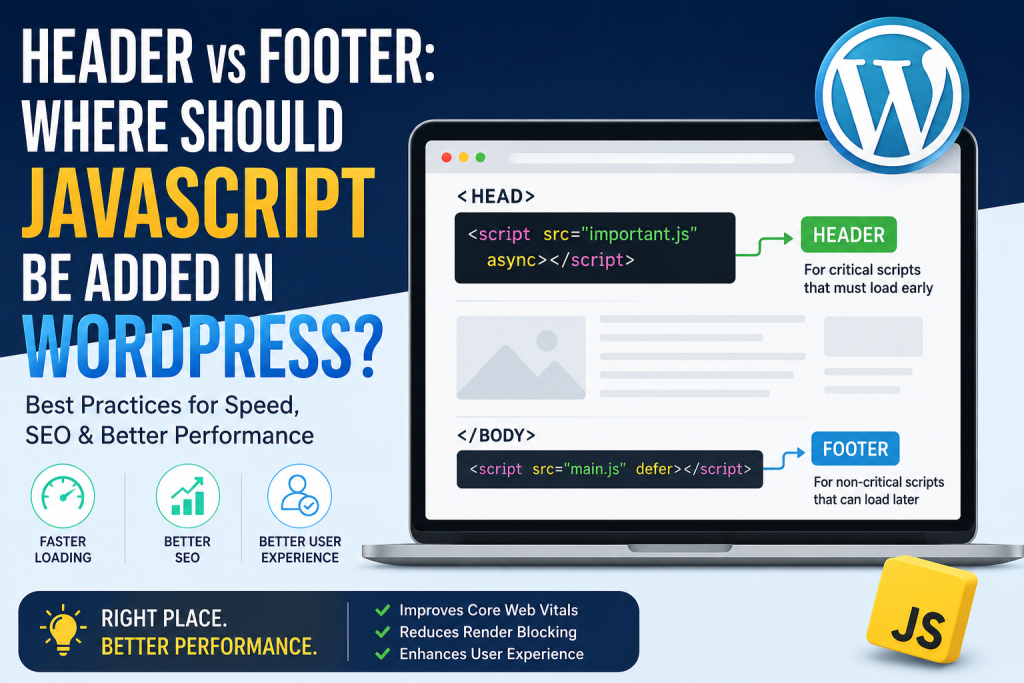
For nearly every WordPress website, the best place is:
Immediately before the closing </body> tag.
Example:
...
<script src="custom.js"></script>
</body>
</html>
This allows:
- HTML to load first
- CSS to render
- Images to appear
- Text to become readable
- JavaScript to execute afterward
Visitors perceive the website as much faster because meaningful content appears almost immediately.
Why Loading Scripts in the Footer Is Better

Footer loading offers several advantages.
Faster First Paint
Visitors see content sooner.
Better Core Web Vitals
Metrics like:
- LCP
- FCP
- INP
typically improve.
Reduced Render Blocking
JavaScript no longer interrupts page rendering.
Improved User Experience
Users can begin reading before interactive scripts finish loading.
Which Scripts Should Stay in the Header?
Some JavaScript must execute before the page renders.
Examples include:
Critical Theme Functions
Navigation systems that require immediate initialization.
Dark Mode Detection
Scripts that prevent flashing between light and dark themes.
Cookie Consent Detection
If required before analytics run.
Security Scripts
- Bot protection
- Firewall verification
- Anti-spam validation
- Cloudflare Turnstile initialization
- These scripts are usually very small.
Scripts That Should Always Be Loaded in the Footer
Most third-party scripts belong here.
Examples include:
- Google Analytics
- Google Tag Manager (container loading)
- Facebook Pixel
- Microsoft Clarity
- Chat widgets
- Newsletter popups
- Review widgets
- Affiliate tracking
- Live chat
- Social media widgets
- Sliders
- Galleries
- Animation libraries
- Lazy loading libraries
These are not required for displaying the initial page content.
The Best Way to Add JavaScript in WordPress
Avoid editing theme files directly.
Instead, use WordPress hooks.
Example:
function wpzone_custom_script() {
    wp_enqueue_script(
        'custom-js',
        get_stylesheet_directory_uri() . '/js/custom.js',
        array(),
        '1.0',
        true
    );
}
add_action('wp_enqueue_scripts', 'wpzone_custom_script');
Notice the last parameter:
trueThis tells WordPress to load the script in the footer.
This is considered the recommended method.
Understanding wp_enqueue_script()
WordPress provides a built-in function called wp_enqueue_script().
Benefits include:
- Prevents duplicate loading
- Handles dependencies
- Supports versioning
- Allows cache busting
- Improves compatibility
- Works with plugins
- Supports footer loading
Never hardcode dozens of <script> tags inside your theme.
Should You Use defer or async?
Modern browsers support two important attributes.
defer
Example:
<script defer src="script.js"></script>The browser:
- Downloads while parsing HTML
- Waits until HTML finishes
- Executes afterward
For most websites, defer is the preferred option.
async
Example:
<script async src="analytics.js"></script>The browser:
- Downloads immediately
- Executes immediately when ready
- May interrupt HTML parsing
This is useful for:
- Analytics
- Advertising
- Tracking scripts
Not ideal for scripts with dependencies.
JavaScript Placement for Google AdSense
AdSense scripts are a special case.
The global AdSense script should generally remain in the <head> section because Google recommends early loading.
Example:
<script async src="https://pagead2.googlesyndication.com/pagead/js/adsbygoogle.js"></script>Individual ad units can then be placed within your page content where ads should appear.
This approach balances ad loading with overall page performance.
JavaScript Placement for Google Analytics
Google Analytics works well with:
- async
- defer
- Google Tag Manager
Most websites experience no issues placing analytics asynchronously.
JavaScript Placement for Google Tag Manager
Google recommends:
- Container script: Inside
<head> - Noscript fallback: Immediately after
<body> - This allows Tag Manager to initialize early while preserving functionality for users with JavaScript disabled.
Where Should Cookie Banner Scripts Go?
Cookie banners often need to appear before tracking scripts execute.
A common setup is:
- Small initialization script in the header
- Main banner logic loaded in the footer
This ensures compliance while minimizing render-blocking resources.
Avoid These Common Mistakes
Many WordPress websites suffer from performance issues because of simple JavaScript errors.
Avoid:
- Loading every script in the header
- Adding duplicate libraries
- Including multiple versions of jQuery
- Inlining large JavaScript blocks
- Editing
header.phpdirectly - Loading scripts on every page unnecessarily
- Forgetting dependencies
- Ignoring caching
Small improvements here can significantly boost loading speed.
Load Scripts Only Where Needed
Not every page requires every script.
Examples:
- Contact Form JavaScript
- Only load on the Contact page.
- WooCommerce Scripts
- Only load on shop-related pages.
- Gallery Libraries
- Only load on gallery pages.
- Slider Scripts
- Only load where a slider is actually displayed.
- Conditional loading reduces unnecessary downloads and improves performance across the site.
JavaScript Optimization Tips
To maximize performance:
- Minify JavaScript files.
- Remove unused libraries.
- Delay non-essential scripts.
- Use
deferwhen appropriate. - Use
asyncfor independent third-party scripts. - Load scripts only where needed.
- Combine small custom scripts when practical.
- Enable browser caching.
- Use a CDN.
- Regularly audit scripts with performance tools.
Even a few optimizations can noticeably improve load times and Core Web Vitals.
Testing Your JavaScript Performance
After changing script placement, test your website using trusted performance tools.
Check:
- Largest Contentful Paint (LCP)
- First Contentful Paint (FCP)
- Interaction to Next Paint (INP)
- Total Blocking Time (TBT)
- Speed Index
- Overall Performance Score
Compare results before and after making changes to verify that the optimization has a positive effect.
JavaScript Best Practices for Modern WordPress
For most WordPress websites, follow these recommendations:
| JavaScript Type | Recommended Location |
|---|---|
| Theme scripts | Footer |
| Custom JavaScript | Footer |
| Analytics | Header (async) or via GTM |
| Google Tag Manager | Head |
| AdSense Loader | Head |
| Ad Units | Content |
| Sliders | Footer |
| Galleries | Footer |
| Chat Widgets | Footer |
| Popups | Footer |
| Social Widgets | Footer |
| Animations | Footer |
| Cookie Initialization | Header |
| Cookie Logic | Footer |
Frequently Asked Questions
Is it always better to load JavaScript in the footer?
No. Most scripts benefit from footer loading, but critical scripts such as Tag Manager, security checks, or small initialization scripts may need to load in the header.
What does the true parameter in wp_enqueue_script() do?
It tells WordPress to place the script before the closing </body> tag, helping improve page rendering speed.
Should I use async or defer?
Use defer for most custom scripts and async for independent third-party services like analytics or advertising.
Can too much JavaScript hurt SEO?
Yes. Excessive or poorly optimized JavaScript can slow rendering, negatively affecting Core Web Vitals and search rankings.
Is it safe to edit header.php or footer.php?
Direct edits are discouraged because updates may overwrite your changes. Use hooks or a child theme instead.
Can plugins load JavaScript only on specific pages?
Yes. Well-coded plugins conditionally enqueue scripts, reducing unnecessary resource loading.
Does footer loading break JavaScript?
Properly written scripts usually work without issues. Test interactive features after making changes to ensure compatibility.
How do I identify render-blocking scripts?
Use performance auditing tools such as Lighthouse or PageSpeed Insights to detect scripts that delay rendering.
Should jQuery always be loaded?
Only if your theme or plugins depend on it. Avoid including multiple versions or loading it unnecessarily.
Does removing unused JavaScript improve performance?
Absolutely. Eliminating unused scripts reduces download size, lowers processing time, and can significantly improve page speed metrics.
Optimizing JavaScript Placement
The location of your JavaScript files plays a significant role in how quickly your WordPress site loads and how users experience it. While loading most scripts in the footer is a reliable default, every website should be evaluated based on its own functionality and third-party integrations. By using WordPress enqueue functions, loading scripts conditionally, and taking advantage of modern attributes like defer and async, you can build a faster, cleaner, and more SEO-friendly website that performs well across all devices.
⚠️ Disclaimer and Source Hygiene
This article is intended for educational purposes only. WordPress themes, plugins, and hosting environments vary, so always test JavaScript changes on a staging site before applying them to a live website. The information presented here is based on established web performance practices and guidance from authoritative sources.
🔔 For more tutorials like this, consider subscribing to our blog.
📩 Do you have questions or suggestions? Leave a comment or contact us!
🏷️ Tags: WordPress JavaScript, WordPress Performance, Core Web Vitals, JavaScript Optimization, wp_enqueue_script, WordPress Speed, WordPress SEO, Defer JavaScript, Async JavaScript, WordPress Development
📢 Hashtags: #WordPress #JavaScript #WebPerformance #CoreWebVitals #SEO #PageSpeed #WebDevelopment #WordPressTips #Coding #Blogging
Sources and References
- WordPress Developer Documentation
- Google Search Central
- Google PageSpeed Insights Documentation
- web.dev – Core Web Vitals
- MDN Web Docs
- HTML Living Standard
- W3C Web Performance Recommendations
Secondary Sources and Testimonials
Recommendations throughout this guide reflect common best practices adopted by experienced WordPress developers, performance engineers, hosting providers, and optimization specialists. Real-world performance gains will vary depending on your theme, plugins, hosting environment, CDN configuration, and the number of third-party scripts installed.
2 thoughts on “Best Place to Add JavaScript in WordPress for Faster Loading”