
Table of Contents
Learn how the Clear Post Revisions Plugin helps you safely clean unnecessary WordPress revisions, improve database performance, and speed up your website. This detailed guide explains features, benefits, installation, usage, optimization tips, and includes complete plugin source code for developers and WordPress users.
Why WordPress Post Revisions Become a Problem
WordPress automatically stores revisions every time you update a post or page. This feature protects your work because you can restore earlier versions whenever needed. However, over time, revisions pile up inside the database.
A small blog may collect thousands of revisions within months. Large websites often store hundreds of thousands of unnecessary revision entries. As the database grows, WordPress becomes slower.
Database bloat affects:
- Admin dashboard speed
- Website backups
- Database optimization
- Search queries
- Hosting storage limits
- Migration processes
Many WordPress users never realize revisions are consuming valuable resources until performance issues appear.
That is where the Clear Post Revisions Plugin becomes extremely useful.
What Is the Clear Post Revisions Plugin?
Plugin Overview
The Clear Post Revisions Plugin is a lightweight WordPress cleanup tool designed to safely remove unnecessary post revisions from your database.
Instead of manually deleting revision entries through phpMyAdmin or complex SQL commands, this plugin automates the cleanup process with a simple interface.
The plugin focuses on:
- Safety
- Speed
- Database optimization
- User-friendly controls
- Lightweight performance
Unlike bulky optimization plugins, this plugin performs one task extremely well.
How WordPress Stores Revisions
Understanding Revision Entries
Each revision is stored as a separate row inside the wp_posts table.
When you edit a post:
- WordPress saves a revision copy
- A new database row is created
- The old version remains stored
For example:
| Action | Database Result |
|---|---|
| Create new post | 1 row |
| Edit post 5 times | 5 additional rows |
| Update again | Another revision added |
A single article edited 100 times creates 100 revision entries.
Multiply that across hundreds of posts, and the database grows rapidly.
Why Database Cleanup Matters
Performance Benefits
Cleaning revisions improves multiple areas of WordPress performance.
Faster Database Queries
Smaller tables respond more quickly. WordPress queries execute faster when unnecessary rows disappear.
Reduced Backup Size
Database backups become smaller and quicker.
Improved Hosting Efficiency
Shared hosting environments especially benefit from reduced database usage.
Better Admin Dashboard Speed
The WordPress admin panel loads faster when database overhead decreases.
Lower Risk of Database Corruption
Oversized databases can create maintenance complications.
Key Features of the Clear Post Revisions Plugin

Safe Revision Removal
The plugin only deletes revision entries. Your published posts remain untouched.
One-Click Cleanup
Users can clean revisions instantly from the WordPress dashboard.
Lightweight Architecture
No unnecessary scripts or heavy assets.
Fast Database Processing
Efficient SQL queries minimize server load.
Beginner-Friendly Interface
Simple settings make cleanup easy for non-technical users.
Supports Large Databases
Optimized for websites with thousands of revisions.
When You Should Clean Post Revisions
Signs Your Database Needs Optimization
You should consider revision cleanup when:
- WordPress admin feels slow
- Database backups take longer
- Hosting storage usage increases
- Website migration becomes difficult
- Database tables become very large
Large content websites benefit the most from regular cleanup.
How to Install the Plugin
Method 1: Upload ZIP File
Step 1: Download the Plugin
Download the plugin ZIP package.
Step 2: Open WordPress Dashboard
Go to:
Plugins → Add New
Step 3: Upload Plugin
Click:
Upload Plugin
Choose the ZIP file.
Step 4: Activate Plugin
After installation, activate the plugin.
How to Use the Plugin
Running a Cleanup
After activation:
- Open the plugin settings page
- Click the cleanup button
- Wait for the process to complete
The plugin instantly removes revision entries from the database.
Complete Plugin Source Code
Main Plugin File
Create a folder named:
clear-post-revisions
Inside the folder, create:
clear-post-revisions.php
Add the following code:
<?php
/*
Plugin Name: Clear Post Revisions
Plugin URI: https://wpzone.blog
Description: Safely remove unnecessary WordPress post revisions and optimize database performance.
Version: 1.0
Author: wpzone
License: GPL2
*/

if (!defined('ABSPATH')) {
    exit;
}

class ClearPostRevisions {

    public function __construct() {
        add_action('admin_menu', array($this, 'menu_page'));
    }

    public function menu_page() {
        add_menu_page(
            'Clear Revisions',
            'Clear Revisions',
            'manage_options',
            'clear-post-revisions',
            array($this, 'plugin_page'),
            'dashicons-trash',
            80
        );
    }

    public function plugin_page() {

        global $wpdb;

        if (isset($_POST['clear_revisions'])) {

            $deleted = $wpdb->query(
                "DELETE FROM $wpdb->posts WHERE post_type = 'revision'"
            );

            echo '<div class="updated notice">';
            echo '<p>' . intval($deleted) . ' revisions deleted successfully.</p>';
            echo '</div>';
        }

        ?>
        <div class="wrap">
            <h1>Clear Post Revisions</h1>

            <p>
                Remove unnecessary post revisions to optimize your WordPress database.
            </p>

            <form method="post">
                <input
                    type="submit"
                    name="clear_revisions"
                    class="button button-primary"
                    value="Delete Revisions"
                >
            </form>
        </div>
        <?php
    }
}

new ClearPostRevisions();
?>
How the Plugin Works
Understanding the SQL Query
The plugin uses a direct SQL query:
DELETE FROM $wpdb->posts WHERE post_type = 'revision'
This query removes all rows where the post type equals revision.
Published posts, pages, and media files remain safe.
Adding Security Improvements
Nonce Verification
For improved security, add nonce verification.
Replace the form section with:
<form method="post">
    <?php wp_nonce_field('clear_revisions_nonce'); ?>

    <input
        type="submit"
        name="clear_revisions"
        class="button button-primary"
        value="Delete Revisions"
    >
</form>
Then validate the nonce:
if (
    isset($_POST['clear_revisions']) &&
    check_admin_referer('clear_revisions_nonce')
) {
This protects against unauthorized requests.
How to Limit Future Revisions
Editing wp-config.php
You can limit stored revisions permanently.
Open:
wp-config.php
Add:
define('WP_POST_REVISIONS', 5);
This keeps only 5 revisions per post.
You can also disable revisions entirely:
define('WP_POST_REVISIONS', false);
However, disabling revisions completely is not always recommended.
Best Practices Before Cleanup
Create a Database Backup
Always create a full backup before database optimization.
Use tools such as:
- UpdraftPlus
- All-in-One WP Migration
- cPanel backups
- phpMyAdmin export
Backups provide protection against accidental data loss.
How Often Should You Clean Revisions?
Recommended Cleanup Schedule
The ideal schedule depends on website activity.
| Website Type | Recommended Cleanup |
|---|---|
| Small blog | Monthly |
| News website | Weekly |
| WooCommerce store | Every 2 weeks |
| Large content site | Weekly |
Frequent editors generate more revisions.
Comparing Manual vs Plugin Cleanup
Manual SQL Cleanup
Advantages:
- Full control
- No plugin needed
Disadvantages:
- Risky for beginners
- Easy to make mistakes
- Requires database knowledge
Plugin Cleanup
Advantages:
- Safe interface
- Beginner-friendly
- Faster workflow
Disadvantages:
- Requires plugin installation
For most users, plugins are the safer option.
Why Lightweight Plugins Matter
Avoiding Plugin Bloat
Many optimization plugins include dozens of unnecessary features.
Heavy plugins may:
- Slow admin pages
- Increase memory usage
- Add excessive scripts
- Create conflicts
The Clear Post Revisions Plugin stays lightweight and focused.
Can Deleting Revisions Harm SEO?
SEO Impact Explained
Removing revisions does not affect:
- Published URLs
- Content indexing
- Search rankings
- Metadata
- Internal links
Search engines never index revision entries.
Therefore, cleanup is completely safe for SEO.
How Revision Cleanup Improves Hosting Performance
Shared Hosting Optimization
Shared hosting servers often limit:
- CPU usage
- Database resources
- Disk space
Large databases increase resource consumption.
Smaller databases improve:
- Query speed
- Backup generation
- Restore operations
- Site migration
Adding Automatic Cleanup
Using WP-Cron
You can automate cleanup with WordPress cron jobs.
Example:
if (!wp_next_scheduled('clear_revisions_cron')) {
    wp_schedule_event(time(), 'weekly', 'clear_revisions_cron');
}

add_action('clear_revisions_cron', 'delete_post_revisions');

function delete_post_revisions() {
    global $wpdb;

    $wpdb->query(
        "DELETE FROM $wpdb->posts WHERE post_type = 'revision'"
    );
}
This runs cleanup weekly.
Improving the Plugin Further
Possible Advanced Features
You can extend the plugin with:
- Scheduled cleanup
- Revision count display
- Database optimization
- Auto-backup integration
- Email notifications
- Revision limits by post type
Advanced developers can easily expand functionality.
Common Mistakes to Avoid
Deleting Database Tables Directly
Never manually delete database tables without understanding WordPress structure.
Skipping Backups
Always create backups before optimization.
Using Unsafe SQL Queries
Poorly written queries can damage data.
Installing Too Many Cleanup Plugins
Multiple optimization plugins may conflict.
Who Should Use This Plugin
Ideal Users
This plugin works well for:
- Bloggers
- WooCommerce stores
- News publishers
- Agencies
- Developers
- Business websites
Any WordPress site with frequent edits benefits from revision cleanup.
Database Optimization Beyond Revisions
Additional Cleanup Tasks
You can further optimize WordPress by cleaning:
- Spam comments
- Trash posts
- Expired transients
- Auto drafts
- Pingbacks
- Trackbacks
However, revisions are often the biggest source of unnecessary growth.
How to Monitor Database Size
Useful Monitoring Tools
You can track database size using:
- phpMyAdmin
- Hosting dashboards
- Query Monitor plugin
- WP-Optimize
- cPanel MySQL tools
Monitoring helps prevent excessive database growth.
Security Considerations
Protecting Database Operations
Database cleanup plugins should always:
- Validate user permissions
- Use nonce verification
- Restrict admin access
- Escape inputs properly
Security must remain a priority.
Plugin Performance Tips
Best Optimization Practices
To maximize WordPress performance:
- Use caching plugins
- Optimize images
- Limit revisions
- Update PHP versions
- Remove unused plugins
- Use fast hosting
Revision cleanup is only one part of overall optimization.
Troubleshooting Common Issues
Plugin Does Not Delete Revisions
Possible causes:
- Database permissions
- Security plugins
- Hosting restrictions
- Corrupted tables
White Screen Error
Usually caused by:
- PHP memory limits
- Plugin conflicts
- Syntax errors
Enable debugging:
define('WP_DEBUG', true);
Why Developers Prefer Custom Cleanup Plugins
More Control and Flexibility
Custom plugins provide:
- Cleaner code
- Better performance
- Tailored functionality
- Easier maintenance
Developers often avoid large all-in-one optimization plugins.
Frequently Asked Questions
Does deleting revisions remove published posts?
No. The plugin only removes revision entries. Published content remains untouched.
Is the plugin safe for beginners?
Yes. The plugin is designed for safe and simple cleanup.
Can revision cleanup improve website speed?
Yes. Smaller databases usually improve query performance and admin responsiveness.
Should I disable revisions completely?
Not always. Revisions provide useful recovery options for content editing.
How many revisions should WordPress keep?
Most websites work well with 3 to 10 revisions per post.
Can I restore deleted revisions?
No. Once revisions are deleted, recovery requires a database backup.
Does cleanup affect SEO rankings?
No. Search engines do not index revision entries.
Will this plugin work with WooCommerce?
Yes. WooCommerce stores can safely clean post revisions.
Do I need coding knowledge to use the plugin?
No. Installation and cleanup are beginner-friendly.
Can large websites use this plugin safely?
Yes. The plugin works well for websites with large databases.
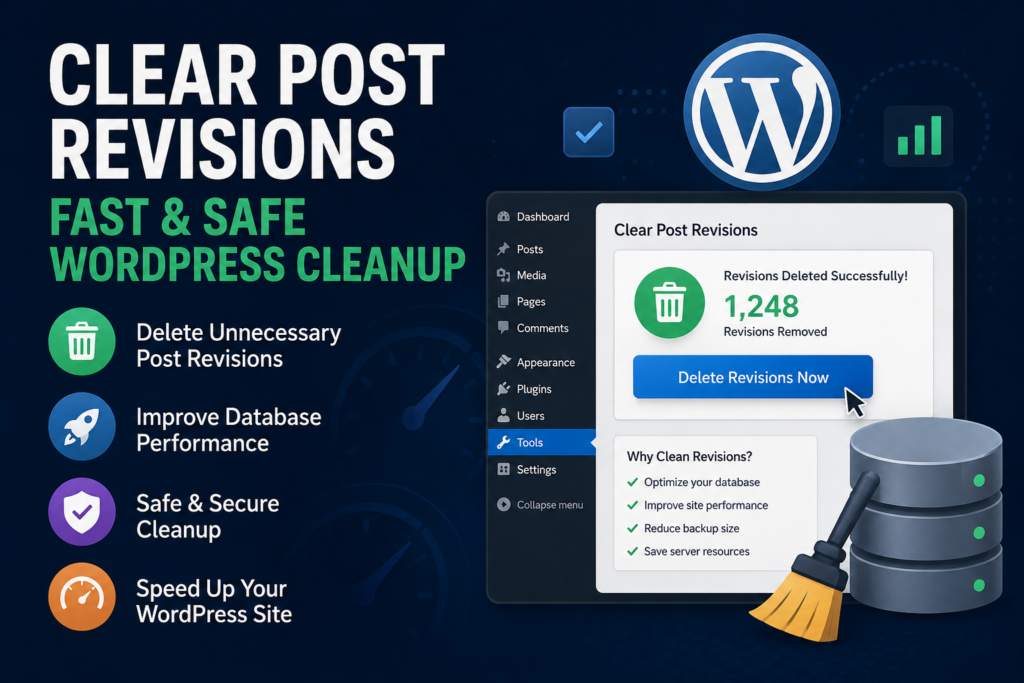
WordPress Database Optimization
Keeping your WordPress database clean is essential for long-term website performance. Post revisions may seem harmless at first, but they eventually create unnecessary database bloat that slows your site and increases maintenance complexity.
The Clear Post Revisions Plugin offers a fast, safe, and lightweight solution for removing unwanted revision entries without affecting published content.
Whether you run a personal blog or a large business website, regular database cleanup helps improve speed, reduce storage usage, and simplify backups.
A lightweight cleanup strategy often delivers better results than installing massive optimization suites filled with unnecessary features.
⚠️ Disclaimer and Source Hygiene
This article is for educational and informational purposes only. Always create a full database backup before modifying WordPress files or running database cleanup operations. Information in this guide is based on WordPress development practices and research from authoritative WordPress documentation and community resources.
🔔 For more tutorials like this, consider subscribing to our blog.
📩 Do you have questions or suggestions? Leave a comment or contact us!
🏷️ Tags: WordPress plugin, WordPress cleanup, clear revisions plugin, WordPress optimization, database cleanup, WordPress speed optimization, post revisions, WordPress performance, custom WordPress plugin, WordPress database
📢 Hashtags: #WordPress #WordPressPlugin #DatabaseOptimization #WordPressTips #WebDevelopment #SEO #WordPressPerformance #WPDeveloper #BloggingTips #WebsiteSpeed
📚 Sources and References
- WordPress Developer Documentation
- WordPress Codex
- PHP Official Documentation
- MySQL Documentation
- WP-CLI Documentation
🕊️ Secondary Sources and Testimonials
- WordPress community forums
- Independent WordPress developers
- Hosting optimization guides
- Website performance case studies
1 thought on “Clear Post Revisions Plugin: Safe & Fast WP Cleanup”