
Table of Contents
WordPress database tools may report table overhead or Data_free, but that number does not automatically mean space is wasted. Learn what database overhead actually means, how to investigate it safely, when optimization makes sense, and why a verified backup and maintenance window should always come first.
Database maintenance sounds simple until a WordPress health report displays something such as “Table Overhead: 450 MB” or highlights several database tables because they contain Data_free.
The natural reaction is often immediate: something must be wrong, hundreds of megabytes are being wasted, and those tables need to be optimized.
That conclusion can be misleading.
Data_free is useful information, but it should be treated as an estimate and diagnostic indicator rather than proof of wasted database space. The meaning of that value depends on the storage engine, tablespace configuration, database activity, and the way MySQL or MariaDB manages allocated pages.
This distinction matters even more on modern WordPress installations because most sites use InnoDB tables. InnoDB manages storage differently from older MyISAM tables. Some unused capacity inside an InnoDB table can be completely normal and may later be reused when new records are inserted.
Therefore, seeing overhead should normally start an investigation. It should not automatically start an optimization operation.
This guide explains how to interpret WordPress database table overhead safely, inspect Data_free, identify tables that deserve attention, create and verify a backup, choose an appropriate maintenance window, and optimize only when there is a sensible reason to do so.
What Is WordPress Database Table Overhead?
A WordPress database is constantly changing. Publishing posts, editing pages, saving settings, processing comments, updating plugins, creating sessions, running scheduled tasks, and deleting temporary data can all produce database operations.
These operations do not always leave the physical structure of a database table perfectly compact.
Imagine a storage room containing shelves. Removing ten boxes does not necessarily cause the shelves themselves to disappear. The empty shelf positions may simply remain available for future boxes.
Database storage can behave in a similar way.
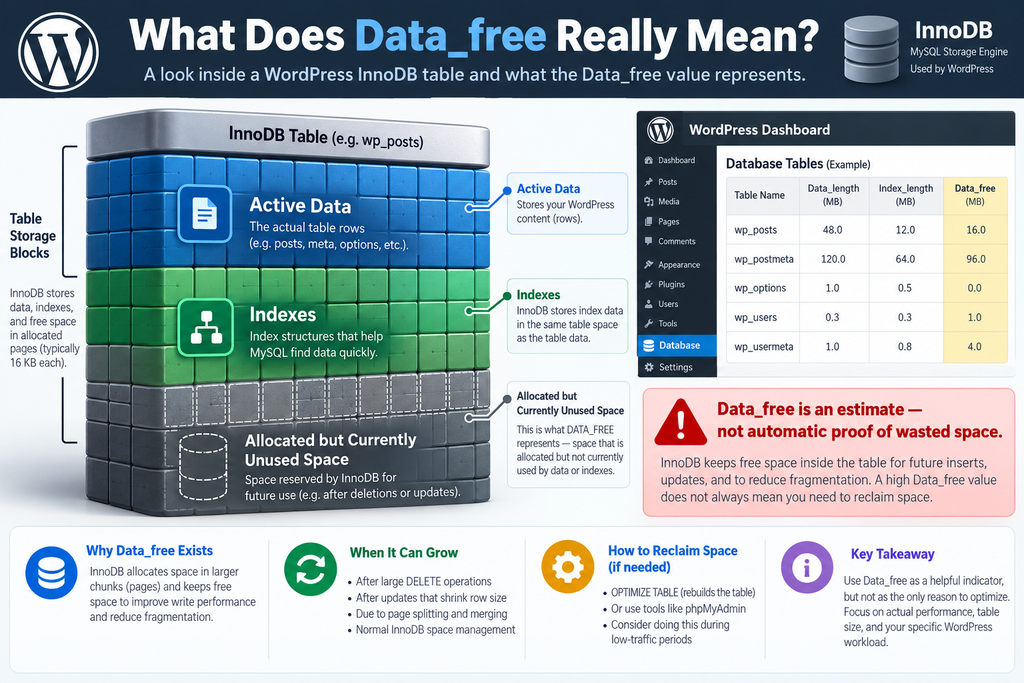
A table can contain allocated storage that is not currently occupied by active data. Database administration tools may describe some of this capacity as overhead, free space, or Data_free.
However, calling every byte of Data_free “waste” oversimplifies what is happening.
With InnoDB in particular, free capacity can exist because rows were deleted, indexes changed, pages were reorganized, or space remains available for future database operations. The database engine may be able to reuse some of this capacity without requesting additional storage.
That is why an administrator should interpret overhead in context.
A table reporting 20 MB of Data_free is not automatically damaged. A 5 GB table reporting several hundred megabytes deserves investigation, but even that does not automatically mean optimization is required.
The useful question is not:
“Does this table have overhead?”
A better question is:
“Why does this table report free allocated space, is the amount significant for this workload, and would rebuilding the table provide a meaningful benefit?”
That change in perspective prevents unnecessary maintenance.
What Does Data_free Actually Mean?
In MySQL database metadata, DATA_FREE represents allocated but unused bytes. However, its exact interpretation depends on how the table and its tablespace are configured.
This is one reason database scanners should avoid presenting Data_free as an exact measurement of recoverable disk space.
For an InnoDB table stored in its own tablespace, the reported free space relates to that table. When tables share a tablespace, however, the value can represent free space associated with the shared tablespace rather than something uniquely attributable to one WordPress table.
Partitioned tables introduce another complication because the reported value can be an estimate.
Consider a scanner that reports:
wp_posts - Data_free: 32 MB
It would be tempting to display:
32 MB wasted
That wording is too strong.
A more responsible message would be:
Estimated free allocated space: 32 MB
Or:
Data_free: 32 MB - review before optimization
The second interpretation tells the administrator what the database reports without claiming that all 32 MB can or should be recovered.
That difference may appear small, but it is technically important.
Data_free should therefore function as a signal for investigation, especially when building WordPress health tools, database scanners, or maintenance dashboards.
Why Data_free Is an Estimate, Not Proof of Waste
Database storage is more complicated than a simple calculation of file size minus active content.
InnoDB organizes information into pages and extents. It deliberately manages available capacity so inserts and updates can happen efficiently. Completely filling every possible page would not necessarily produce the best-performing database.
Some amount of unused capacity can therefore be part of normal database operation.
Suppose a WordPress site has a large wp_postmeta table. A plugin previously created hundreds of thousands of metadata rows. After the plugin was removed, its cleanup routine deleted many of those records.
The table might now contain considerable free capacity.
That situation is worth investigating.
However, imagine another site where wp_postmeta grows continuously because WooCommerce, custom fields, SEO plugins, and other systems frequently add metadata.
In that case, free capacity could soon be reused naturally.
Immediately rebuilding the table simply because a scanner reports Data_free could consume server resources without providing a lasting advantage.
The number alone cannot tell you which situation applies.
You need context.
Why InnoDB Changes the Meaning of Traditional “Overhead”
Older WordPress database advice frequently treated table overhead almost like disk fragmentation: find overhead, optimize the table, and repeat periodically.
Modern InnoDB databases require a more nuanced approach.
InnoDB uses page-based storage and intentionally leaves some room available within its structures. Deletes can leave gaps, updates can change page utilization, and high levels of concurrent database activity can gradually affect how efficiently pages are packed.
This does not mean fragmentation never matters.
Large-scale deletion or extensive changes can create situations where rebuilding an InnoDB table makes sense. MySQL documentation specifically identifies substantial insert, update, or delete activity as one situation where optimization may be useful.
The key word is substantial.
Deleting five expired transients from wp_options is very different from deleting several million records from a logging table.
Likewise, seeing 4 MB of Data_free on a healthy WordPress database is very different from discovering that a 20 GB plugin table retained several gigabytes of allocated capacity after a massive historical cleanup.
Database maintenance should be proportional to the actual condition.
A Practical WordPress Example

Imagine that your database scanner produces the following report:
wp_posts - 180 MB data - 24 MB Data_free
wp_postmeta - 1.8 GB data - 310 MB Data_free
wp_options - 35 MB data - 2 MB Data_free
wp_comments - 90 MB data - 6 MB Data_free
wp_security_logs - 4.2 GB data - 1.7 GB Data_free
The worst approach would be to automatically optimize all five tables simply because each has a non-zero value.
Instead, investigate the pattern.
The wp_options result may be insignificant. Two megabytes of reported free capacity rarely justifies disruptive maintenance by itself.
The wp_postmeta table deserves more attention because it is large and contains a meaningful amount of reported free space. Even then, you should investigate recent cleanup operations and expected future growth.
The security logging table is especially interesting. If millions of historical log entries were recently deleted and the table has shrunk dramatically at the logical level, rebuilding it may potentially reclaim substantial storage.
That is the type of situation where optimization becomes a reasonable maintenance candidate.
The decision came from context, not simply from seeing Data_free > 0.
New post: Google AI Content Guidelines: What Changed in 2026
How to Check Table Overhead in phpMyAdmin
phpMyAdmin provides one of the easiest ways for a WordPress administrator to inspect a database without working entirely from the command line.
Start by opening your hosting control panel. In cPanel environments, locate phpMyAdmin and open it.
Select the database used by your WordPress installation.
If you are unsure which database WordPress uses, check the DB_NAME value inside wp-config.php. Do not modify anything in that file simply to discover the database name.
Once the correct database is selected, phpMyAdmin displays its tables.
Typical WordPress tables include:
wp_posts
wp_postmeta
wp_options
wp_users
wp_usermeta
wp_comments
wp_commentmeta
wp_terms
wp_termmeta
wp_term_taxonomy
wp_term_relationships
Your prefix might not be wp_.
For example, a security-conscious installation could use:
tb_posts
tb_options
tb_postmeta
Plugins can also create their own tables.
A WooCommerce, statistics, security, backup, forms, caching, or logging plugin may create numerous additional database tables.
Review the table information and look for values related to size and overhead.
Do not immediately click Optimize table.
First identify which tables account for most of the reported free space.
A database containing 100 tables may show small amounts across many tables, while only one or two tables account for nearly all meaningful overhead.
Those are usually the tables worth investigating first.
How to Inspect Data_free With SQL
Administrators comfortable with SQL can query INFORMATION_SCHEMA.TABLES.
A useful inspection query is:
SELECT
    TABLE_NAME,
    ENGINE,
    TABLE_ROWS,
    DATA_LENGTH,
    INDEX_LENGTH,
    DATA_FREE
FROM information_schema.TABLES
WHERE TABLE_SCHEMA = 'your_database_name'
ORDER BY DATA_FREE DESC;
Replace:
your_database_name
with the actual database name.
For example:
WHERE TABLE_SCHEMA = 'wordpress_db'The result provides useful context.
TABLE_NAME identifies the table.
ENGINE shows whether it uses InnoDB, MyISAM, or another storage engine.
TABLE_ROWS provides row information, although administrators should remember that row counts can themselves be estimates for some engines.
DATA_LENGTH indicates data storage.
INDEX_LENGTH shows index storage.
DATA_FREE provides the reported allocated but unused space.
Sorting by DATA_FREE DESC places tables with the largest reported values at the top.
This makes investigation much easier than blindly optimizing every table.
Convert Data_free Into Human-Readable Megabytes
Raw byte values are not particularly friendly when reviewing database health.
You can modify the query:
SELECT
    TABLE_NAME,
    ENGINE,
    ROUND(DATA_LENGTH / 1024 / 1024, 2) AS data_mb,
    ROUND(INDEX_LENGTH / 1024 / 1024, 2) AS index_mb,
    ROUND(DATA_FREE / 1024 / 1024, 2) AS data_free_mb
FROM information_schema.TABLES
WHERE TABLE_SCHEMA = 'your_database_name'
ORDER BY DATA_FREE DESC;
A result might look conceptually like this:
wp_postmeta        InnoDB    1420.50    510.30    286.00
wp_security_logs   InnoDB    3200.80    740.20    192.00
wp_posts           InnoDB     230.40     65.10     18.00
wp_options         InnoDB      42.70     10.20      3.00
Now the report becomes easier to interpret.
Still, resist turning the final column into:
“Wasted MB.”
Call it:
“Data_free MB”
or:
“Estimated Free Allocated Space.”
That terminology is much more accurate.
Do Not Judge a Table by Data_free Alone
Suppose two tables each report 200 MB of Data_free.
They do not necessarily require the same action.
Table A might be 20 GB and actively growing every day.
Table B might have been 2 GB yesterday, but administrators deleted 90% of its historical records during a cleanup.
For Table A, 200 MB could be relatively minor and likely reusable.
For Table B, the value could be evidence worth investigating because a major deletion recently occurred.
Several questions should therefore accompany every meaningful Data_free result.
Ask what created the table.
Check whether the table is still actively used.
Determine whether a large cleanup recently occurred.
Look at the total table size.
Check available disk space.
Consider whether the table grows rapidly.
Identify whether the server has enough temporary storage for a rebuild.
Finally, determine whether reclaiming storage would actually solve a current problem.
That process turns database optimization from routine button-clicking into informed administration.
Common WordPress Tables That Can Grow Large
The WordPress core database is relatively manageable on a normal publishing website, but certain tables can become large over time.
wp_postmeta is a common example.
Every post can have many metadata records. Page builders, custom fields, WooCommerce, SEO plugins, membership systems, and custom functionality can significantly increase its size.
wp_options deserves attention for different reasons.
It stores WordPress options, plugin configuration, transient data, and other values. A large wp_options table can sometimes indicate abandoned plugin options or excessive transient storage.
However, table size alone does not justify deleting records.
An administrator should never delete unknown options simply because their names look unfamiliar.
wp_comments and wp_commentmeta can grow on sites with large comment volumes, spam history, or plugins that store additional information there.
WooCommerce websites may contain substantially more data because orders, customers, sessions, actions, analytics, and extension-specific information can generate considerable database activity.
Logging plugins are another frequent source of large tables.
Security logs, analytics, broken-link history, email logs, activity logs, redirects, search statistics, and audit trails can accumulate millions of rows if retention is not controlled.
In those situations, improving retention policies can be more valuable than repeatedly running OPTIMIZE TABLE.
Fix the Cause Before Optimizing the Result
Imagine a security plugin stores every request indefinitely.
Its table reaches 8 GB.
You delete six months of old records and optimize the table. Disk usage falls substantially.
Excellent.
However, if the plugin continues storing unlimited records, the same problem will return.
The real solution is not monthly table rebuilding.
The better solution is configuring an appropriate log-retention period.
For example:
Keep detailed security logs for 30 days.
Keep summarized information longer when necessary.
Automatically remove expired records.
Monitor table growth.
Optimize only after unusually large cleanups when there is a practical reason.
The same principle applies to revisions, sessions, transients, abandoned plugin tables, analytics records, and temporary data.
Database optimization can reorganize storage.
It does not correct poor data-retention policies.
When Database Optimization May Make Sense
There are legitimate situations where optimizing a table can be useful.
One of the clearest examples occurs after deleting a very large proportion of a table.
Suppose a logging table contains 12 million records and occupies several gigabytes.
After changing your retention policy, you delete 10 million obsolete records.
The active dataset is now much smaller, but the physical table may still retain substantial allocated storage.
This is a reasonable moment to investigate whether rebuilding the table can reclaim space.
Another situation occurs when disk capacity is genuinely constrained.
If a server is approaching its storage limit and a large amount of recoverable database space has been identified, optimization may become worthwhile.
A third case involves tables that experienced heavy insert, update, and delete activity over a long period.
Even here, measure first.
Do not create a scheduled task that rebuilds every database table every night simply because optimization sounds beneficial.
Maintenance itself has a cost.
When You Probably Should Not Optimize
A healthy WordPress site does not need tables rebuilt simply because Data_free is greater than zero.
Small values are usually poor reasons for intervention.
For example:
wp_posts: 3 MB Data_free
wp_options: 1 MB Data_free
wp_comments: 2 MB Data_free
If the website performs normally, disk capacity is healthy, and there was no unusual cleanup event, rebuilding these tables may provide no noticeable benefit.
Optimization is also questionable during periods of high traffic.
An e-commerce site processing orders at noon is not the ideal environment for experimental database maintenance.
Neither is a membership site while hundreds of users are logged in.
Similarly, do not optimize a table merely because a WordPress plugin displays a red warning.
Understand what the warning measures.
Good health tools provide context.
Poor tools sometimes convert any non-zero number into an alarming status.
Why a Verified Backup Must Come First
Before intentionally rebuilding or optimizing important WordPress database tables, create a backup.
More importantly, create a verified backup.
There is an important difference between these statements:
“My backup plugin says the last job completed.”
and:
“I have a recent backup, I know where it is stored, it contains the expected database, and I understand how I would restore it.”
The second statement represents meaningful protection.
WordPress documentation recommends backing up the database regularly and before operations where recovery might become necessary.
A database backup typically produces an SQL dump, often stored as:
.sql
.sql.gz
or another compressed format.
For complete disaster recovery, remember that a database backup is not the same thing as a full WordPress backup.
The database contains posts, settings, comments, users, metadata, and plugin-generated data.
Your filesystem contains themes, plugins, uploads, WordPress core files, configuration files, and custom code.
Ideally, important maintenance should be protected by a consistent backup set containing both.
How to Create a Database Backup in phpMyAdmin
Open phpMyAdmin and select the correct WordPress database.
Choose Export.
For smaller installations, the Quick export method can be sufficient.
Select SQL as the export format and download the database.
For larger or more important sites, Custom export provides more control.
Confirm that all necessary tables are included.
Choose an appropriate compression method if the database is large.
Save the resulting file somewhere outside the web server whenever possible.
For example, if the website is hosted on Server A and the only backup also exists on Server A, a serious server failure could affect both copies.
A better backup strategy maintains additional copies elsewhere.
After downloading the backup, verify that the file is not zero bytes and has a plausible size.
For an especially important production website, restoration testing on a staging environment provides much stronger evidence that the backup is usable.
Example: Creating a Backup With WP-CLI
WP-CLI provides a convenient option for administrators with SSH access.
From the WordPress installation directory, you can export the database with:
wp db export before-database-maintenance.sqlThe command creates a database dump.
A safer operational workflow could use a timestamped filename:
wp db export database-before-optimize-2026-10-06.sqlThis immediately tells you why and when the backup was created.
You can then verify that the file exists:
ls -lh database-before-optimize-2026-10-06.sqlDo not leave sensitive database dumps indefinitely inside a publicly accessible web directory.
Database exports can contain usernames, email addresses, configuration information, password hashes, plugin settings, tokens, order information, and other sensitive site data.
Move the backup to protected storage and remove temporary server copies when they are no longer needed.
What Does “Verified Backup” Mean in Practice?
A backup becomes more trustworthy when several conditions are satisfied.
First, it completed without reported errors.
Second, the resulting file exists.
Third, its size appears reasonable.
Fourth, it contains the expected database structures.
Fifth, it is stored somewhere you can access if the production site becomes unavailable.
Sixth, you know the restoration procedure.
For critical sites, the strongest verification is a successful test restoration.
For example, restore the database to a staging environment and confirm that WordPress loads correctly.
Check several posts.
Open the WordPress administration area.
Inspect plugin settings.
If the site uses WooCommerce or memberships, verify representative records.
You do not need to perform a complete disaster-recovery drill before every tiny maintenance operation. However, important database work should never depend entirely on a backup process that nobody has ever tested.
Why You Should Use a Maintenance Window
Optimization can involve significantly more work than the word “optimize” suggests.
For InnoDB, OPTIMIZE TABLE can result in a table rebuild. MySQL can perform many InnoDB operations using online DDL techniques, reducing disruption, but that does not mean every environment or table can be treated as completely interruption-free.
Large tables require time.
They consume I/O.
They can use CPU resources.
They may need temporary disk space.
Metadata locking can matter.
Unusual server configurations, indexes, or workloads can change behavior.
That is why production optimization should preferably happen during a maintenance window.
A maintenance window is simply a planned period when traffic and business activity are low and administrators are prepared to monitor the site.
For a small blog, that might be early in the morning.
For a WooCommerce store, choose a period based on actual order activity rather than guessing.
For a global site, finding a completely quiet period may be impossible. In that case, choose the lowest-risk interval and optimize selectively.
What to Check Before the Maintenance Window
Before starting, record the current database condition.
Note the size of the tables you intend to optimize.
Record their Data_free values.
Check available disk capacity.
Confirm the database backup.
Check the site front end.
Open WordPress administration.
Review scheduled tasks if relevant.
For WooCommerce, note whether orders are currently being processed.
For membership sites, consider active sessions.
For forums or community sites, consider current user activity.
Also inspect server health.
If the server is already under heavy CPU or disk load, postpone non-essential maintenance.
The goal is to establish a baseline.
Without a baseline, you cannot confidently determine whether the operation improved anything.
Check Available Disk Space Before Optimizing
This step is easy to overlook.
A table rebuild may temporarily require additional disk capacity.
Therefore, optimizing because the disk is almost completely full can be particularly dangerous.
On a Linux server with SSH access, you might check filesystem capacity using:
df -hReview the filesystem containing the MySQL or MariaDB data directory.
Do not assume that having 2 GB available is sufficient simply because the table itself is 1 GB.
Temporary requirements depend on the operation and server configuration.
For large production databases, consult your hosting provider or database administrator when available storage is tight.
Creating a backup and then exhausting the server’s disk during optimization is not an improvement.
Storage capacity should be part of the pre-maintenance checklist.
How OPTIMIZE TABLE Works
The SQL syntax itself looks deceptively simple:
OPTIMIZE TABLE wp_posts;For multiple tables:
OPTIMIZE TABLE wp_posts, wp_postmeta;However, the internal operation depends on the storage engine.
For InnoDB, MySQL can map OPTIMIZE TABLE to a table rebuild operation, effectively reorganizing the table and its indexes.
This explains why optimization can potentially reclaim storage after extensive changes.
It also explains why it should not be treated like clicking a harmless “clear cache” button.
A cache can usually be regenerated.
A database contains persistent site data.
The risk profile is different.
Example: Investigating wp_postmeta Before Optimization
Suppose wp_postmeta reports:
Data: 2.4 GB
Indexes: 1.1 GB
Data_free: 650 MB
At first glance, optimization seems attractive.
Before doing anything, investigate.
Was a major plugin recently removed?
Did you delete thousands of products?
Did a cleanup tool remove millions of orphaned metadata records?
Is wp_postmeta still growing rapidly?
How much disk capacity remains?
How large is the table compared with the overall database?
If you discover that a migration removed 70% of the old metadata and the table is now relatively stable, optimization may be worth considering.
If the table is actively growing by hundreds of megabytes every week, the free capacity might soon be reused.
The same 650 MB figure can therefore lead to different decisions.
Context determines the appropriate action.
Example: A Large Plugin Log Table
Consider a table named:
wp_activity_log
Assume it grew to 6 GB because a plugin retained several years of records.
You change the retention period to 90 days and safely delete obsolete entries.
The logical dataset falls dramatically, but the physical table still occupies substantial storage.
Now you have a stronger case for optimization.
Your workflow could be:
Create and verify a database backup.
Confirm that the plugin’s retention policy is now correct.
Check free server storage.
Schedule a low-traffic maintenance period.
Record the table’s current size.
Optimize that specific table.
Check the result.
Test the plugin.
Check the WordPress front end and administration area.
Monitor server logs.
This targeted operation is far more sensible than rebuilding every WordPress table.
Using WP-CLI to Optimize the WordPress Database
WP-CLI provides the command:
wp db optimizeAccording to WordPress developer documentation, this command runs the database optimization through mysqlcheck using the database credentials defined by WordPress.
It is convenient.
Convenience, however, should not replace preparation.
Do not interpret:
wp db optimizeas something that should automatically run every night.
Before using it on production, follow the same process:
Inspect the database.
Determine whether optimization is justified.
Create a verified backup.
Check storage.
Select a maintenance window.
Run the operation.
Review the output.
Test the website afterward.
The command makes execution easier. It does not make analysis unnecessary.
Should You Automatically Optimize WordPress Every Day?
Usually, no.
A daily optimization task can generate unnecessary database work.
WordPress websites continuously create, update, and delete records. Some level of changing page utilization is part of normal database operation.
Rebuilding tables repeatedly can consume resources without delivering measurable performance improvements.
A better strategy is event-driven or evidence-driven maintenance.
For example, review database health periodically.
Investigate unusual table growth.
Clean obsolete data according to sensible retention policies.
Consider optimization after unusually large deletions.
Monitor disk capacity.
Measure results.
This approach reduces unnecessary work and makes maintenance more predictable.
Database Cleanup and Database Optimization Are Not the Same Thing
These terms are often mixed together, but they describe different operations.
Database cleanup removes data you no longer need.
Examples include deleting expired transients, removing old revisions according to your policy, clearing obsolete plugin logs, removing spam comments, or deleting known orphaned records after careful verification.
Database optimization reorganizes storage structures.
Optimization does not automatically decide which WordPress records are obsolete.
Consider a 5 GB table containing 4.5 GB of unnecessary logs.
Optimizing it before deleting those logs would still leave you with a table containing enormous amounts of unnecessary information.
The better sequence is:
Identify unnecessary data.
Confirm that it can safely be removed.
Back up.
Remove the data.
Verify the application.
Then evaluate whether rebuilding the table provides enough benefit to justify the operation.
Cleanup addresses content.
Optimization addresses storage organization.
Never Delete Unknown WordPress Database Rows Blindly
Database cleanup becomes dangerous when administrators rely on assumptions.
An option beginning with an unfamiliar prefix is not automatically abandoned.
A postmeta key that appears thousands of times is not automatically unnecessary.
A plugin table belonging to a deactivated plugin may still contain information needed if that plugin is reactivated.
Before deleting data, identify its owner and purpose.
For example, suppose you discover:
wp_oldplugin_logs
The plugin is no longer active.
Do not immediately run:
DROP TABLE wp_oldplugin_logs;First determine whether the plugin was intentionally removed.
Check whether the data has legal, operational, financial, or historical importance.
Confirm that another plugin does not depend on it.
Back up the database.
Only then decide whether removal is appropriate.
Optimization should never become an excuse for indiscriminate deletion.
Why Database Size Does Not Equal Database Performance
Another common misconception is that making a database smaller automatically makes WordPress significantly faster.
Sometimes reducing unnecessary data helps.
However, WordPress performance depends on many factors.
Poorly indexed queries can be slow even on modest tables.
A badly written plugin can generate hundreds of queries per page.
Large autoloaded options can affect request processing.
External API calls can delay page generation.
Slow PHP execution can dominate response time.
Object caching can dramatically change database load.
Storage latency can matter.
Server memory and buffer configuration also affect database performance.
Therefore, reclaiming 100 MB from a database does not guarantee a measurable improvement in page speed.
Optimization should solve a specific problem or address a meaningful maintenance condition.
How to Measure Whether Optimization Helped
Always compare before and after.
Before optimization, record:
Table size.
Index size.
Data_free.
Overall database size.
Available disk capacity.
Relevant query or page performance if performance is the goal.
After optimization, collect the same measurements.
Suppose you begin with:
Table: wp_activity_log
Data: 4.8 GB
Indexes: 900 MB
Data_free: 1.6 GB
After cleanup and optimization, perhaps you observe:
Data: 2.9 GB
Indexes: 610 MB
Data_free: 20 MB
That represents a meaningful change.
Now consider another table:
Before:
Data: 320 MB
Data_free: 12 MB

After:
Data: 318 MB
Data_free: 5 MB
The difference is tiny.
If rebuilding that table consumed significant server resources, repeating the operation every week would probably make little sense.
Measurement turns maintenance into evidence-based administration.
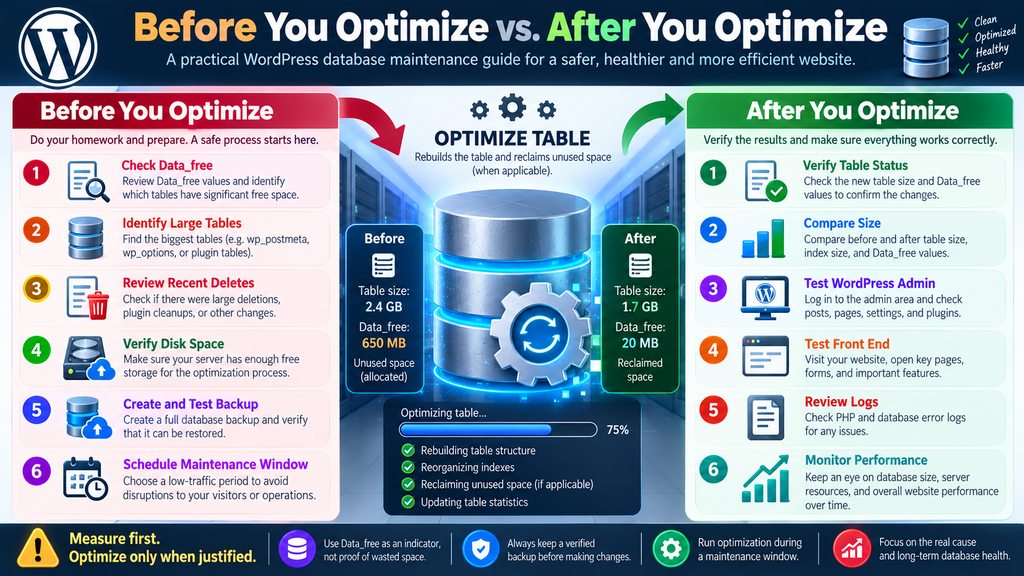
What to Test Immediately After Optimization
Do not assume success simply because MySQL reports OK.
Open the website.
Load the homepage.
Open several posts and pages.
Log into WordPress administration.
Edit a test post if appropriate.
Confirm that saving works.
Check comments if your site uses them.
Test search.
Check contact forms.
For WooCommerce, inspect products, cart functionality, account pages, and administrative order screens.
For membership systems, check login and account functions.
For multilingual sites, test representative pages in each language.
Review PHP and database error logs.
If the optimized table belongs to a specific plugin, test that plugin’s important functions directly.
Technical maintenance is complete only after application-level verification.
What If Data_free Returns After Optimization?
Do not immediately assume the optimization failed.
A production database is dynamic.
WordPress continues inserting, updating, and deleting information.
Plugins continue running scheduled jobs.
WooCommerce continues processing sessions and orders.
Caching systems update records.
Logs grow.
Transients expire.
Metadata changes.
Some free capacity appearing again is therefore normal.
The goal should not be maintaining Data_free = 0 permanently.
That would be an unrealistic maintenance target for many active databases.
Instead, monitor trends.
If one table repeatedly develops enormous amounts of free space, investigate the workload responsible.
Perhaps a plugin repeatedly inserts and deletes temporary records.
Maybe a logging table has an unsuitable retention strategy.
Perhaps scheduled cleanup jobs perform huge deletions.
The recurring pattern is more informative than the isolated number.
Building Better Database Health Alerts
If you operate a WordPress health scanner, avoid alarming messages such as:
CRITICAL: 500 MB DATABASE WASTE DETECTED
unless you have strong evidence supporting that conclusion.
A technically safer report would say:
NOTICE: Estimated Table Free Space
Data_free indicates allocated but currently unused space. This value can be approximate and does not by itself prove that disk space is wasted. Review the affected tables, storage engine, recent database activity, and available disk capacity before considering optimization.
That message educates the administrator instead of pressuring them into immediate action.
A higher severity could be justified when additional evidence exists.
For example:
The table is extremely large.
A large cleanup recently occurred.
Disk capacity is critically low.
The table is no longer actively growing.
The administrator has confirmed that reclaiming storage is necessary.
Combining signals produces better health reporting than using a single metadata field.
A Safer Severity Model for WordPress Scanners
A useful scanner could classify Data_free observations into contextual levels.
Informational could mean that free allocated space exists but is small relative to the database and no immediate action is recommended.
Review could indicate a larger value worth investigating.
Maintenance Candidate could apply when a large table has significant estimated free space and evidence suggests substantial historical deletion.
Critical should generally be reserved for situations involving an actual operational risk, such as dangerously low disk capacity combined with large database growth.
This approach avoids turning routine database characteristics into false emergencies.
A health scanner should help administrators make better decisions.
It should not merely make every number look frightening.
Example Maintenance Scenario for a Small WordPress Blog
Consider a content site with 1,500 published posts.
Its database occupies 600 MB.
A scanner reports 45 MB of total Data_free.
The website performs normally.
Disk usage is only 30%.
There were no major data deletions.
Most tables use InnoDB.
In this scenario, there may be little reason to do anything.
Record the observation and monitor it.
At the next maintenance review, compare the numbers.
If the database remains healthy, leave it alone.
The existence of a maintenance tool does not mean every available maintenance operation needs to be performed.
Sometimes the safest database action is no action.
Example Maintenance Scenario for a Large Logging Table
Now consider another WordPress site.
A security plugin accumulated 15 GB of request history.
The administrator changes the retention policy and safely removes 12 GB of obsolete logical records.
The server has sufficient free disk capacity.
A verified backup exists.
Traffic is lowest between 03:00 and 04:00.
This is a very different situation.
The administrator could schedule maintenance for that period, inspect the table, optimize it if appropriate, and measure the storage afterward.
The operation has a clear purpose:
Reclaim storage after a substantial deletion.
That is much stronger justification than:
“phpMyAdmin displayed overhead.”
Example Maintenance Scenario for WooCommerce
WooCommerce requires additional caution because database activity may represent live business transactions.
Suppose a large extension table reports substantial Data_free.
Do not start optimization during peak shopping hours.
Check current order activity.
Confirm backups.
Review extension documentation.
Determine whether background jobs are active.
Consider temporarily reducing maintenance-sensitive activity if appropriate.
Choose the lowest-traffic period.
Afterward, test:
Product pages.
Cart.
Checkout.
Customer accounts.
Order administration.
Payment-related workflows should be tested carefully without creating unintended real transactions.
The more important the database workload, the more conservative maintenance should become.
MariaDB and WordPress Table Overhead
Many WordPress hosting environments use MariaDB instead of Oracle MySQL.
The same broad principle remains important: metadata about free space needs interpretation in the context of the storage engine and server configuration.
Do not assume that a number shown by phpMyAdmin means exactly the same thing in every hosting environment.
Shared hosting, VPS installations, managed WordPress hosting, and dedicated database servers can use different configurations.
This is why generic instructions such as:
“If overhead is greater than 10 MB, optimize immediately.”
are unreliable.
A fixed threshold ignores database size, workload, storage engine, tablespace configuration, disk capacity, and recent activity.
Ratios and trends can provide additional context, but even those should not automatically trigger destructive or expensive operations.
Should You Use a WordPress Database Optimization Plugin?
Database optimization plugins can be useful, especially for administrators without command-line access.
However, understand exactly what the plugin does before allowing it to modify the database.
Some tools combine several operations under one “Optimize” button.
They may remove revisions.
Delete transients.
Clear spam.
Remove orphaned metadata.
Optimize database tables.
Clean scheduled actions.
Delete plugin-specific data.
Those are not equivalent operations.
Read each option individually.
Avoid selecting everything simply because the interface recommends maximum cleanup.
Create a backup first.
If the plugin offers a preview or dry-run mode, use it.
For large or business-critical sites, manual review is preferable to aggressive one-click cleanup.
Should You Use WP_ALLOW_REPAIR?
WordPress includes built-in database repair functionality that can be enabled temporarily through wp-config.php:
define( 'WP_ALLOW_REPAIR', true );This exposes WordPress database repair functionality through its maintenance interface.
However, this feature should not remain enabled unnecessarily.
WordPress documentation specifically warns that the repair page can be accessed without normal login while the option is enabled because it is intended for situations where database problems may prevent authentication.
Therefore, if you enable it for a specific repair operation, disable it afterward.
Also remember that repair, cleanup, and optimization solve different categories of problems.
Do not enable repair functionality merely because Data_free is non-zero.
A Practical Maintenance Checklist
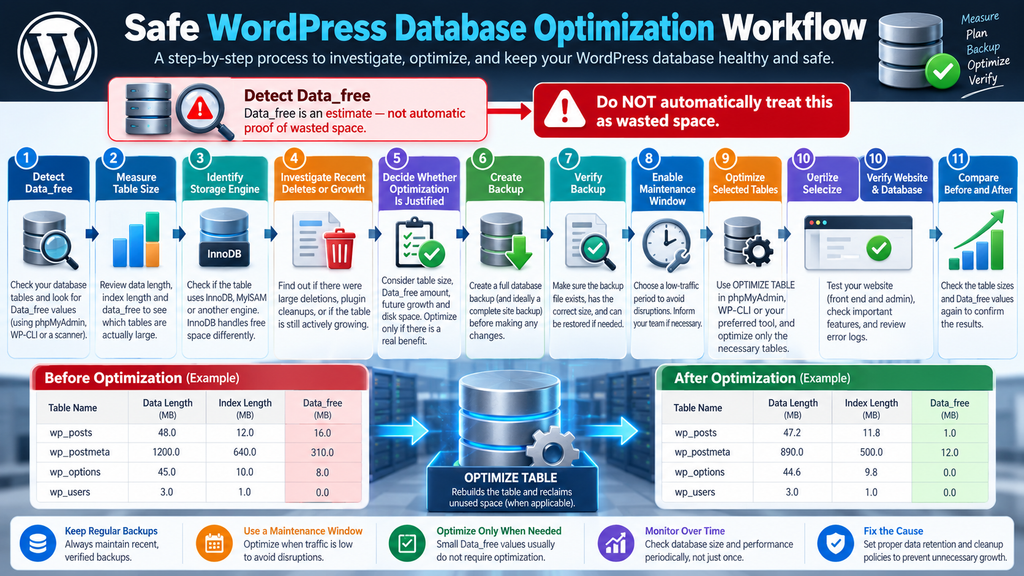
Before optimizing WordPress database tables, work through a simple decision process.
Identify the tables reporting significant Data_free.
Confirm their storage engines.
Compare free space with the total table size.
Investigate recent large deletions.
Check whether the tables are actively growing.
Identify the plugins or WordPress features responsible for the data.
Review disk capacity.
Decide whether reclaiming storage provides a real benefit.
Create a current database backup.
Verify the backup.
Preferably maintain a complete site backup as well.
Choose a low-traffic maintenance window.
Record baseline table sizes.
Optimize only the tables that have a justified reason.
Review the database operation output.
Test the WordPress front end.
Test WordPress administration.
Test important plugin functionality.
Check server and PHP logs.
Compare database and disk usage afterward.
Document the result.
This process takes longer than clicking an Optimize button.
It is also considerably safer.
Database Overhead Is a Signal, Not a Verdict
The most important lesson is simple.
A database health report should help you investigate.
It should not make the decision for you.
Data_free is useful because it can draw attention to tables whose physical storage deserves examination.
It can reveal interesting patterns after large deletion operations.
It can help identify unusually large plugin tables.
It can support storage-capacity investigations.
What it cannot do alone is prove that every reported byte is useless waste.
That requires context.
Treat the metric as one piece of evidence.
Frequently Asked Questions
What is database table overhead in WordPress?
Database table overhead generally refers to allocated database storage that is not currently occupied by active table data in the way an administrator might expect. Tools such as phpMyAdmin can expose values such as Data_free. The exact meaning depends on the database engine and tablespace configuration, so overhead should be investigated rather than automatically classified as wasted disk space.
Is Data_free wasted disk space?
Not necessarily. Data_free represents allocated but unused space according to database metadata, but the interpretation varies by storage configuration. InnoDB may reuse free capacity for future operations. Therefore, Data_free should be treated as an estimate or diagnostic indicator rather than proof that the reported amount can or should be reclaimed.
Is database overhead dangerous?
Normally, the existence of some overhead is not dangerous. It becomes more interesting when a table is extremely large, free storage is significant, disk capacity is constrained, or a major deletion recently occurred. A small non-zero Data_free value on an otherwise healthy WordPress database is not automatically a problem.
Should I optimize every table showing overhead?
No. Investigate the affected tables first. Determine their size, storage engine, recent activity, expected growth, and the reason for the free capacity. Optimization makes more sense after substantial database changes than as an automatic response to every non-zero value.
Can OPTIMIZE TABLE damage WordPress?
OPTIMIZE TABLE is a standard database maintenance operation, but any production database operation deserves caution. Large table rebuilds can consume storage, CPU, memory, and I/O resources and may affect application activity. Always maintain a verified backup and schedule significant maintenance appropriately.
Should I back up WordPress before database optimization?
Yes. A current database backup should exist before important database maintenance. For stronger disaster recovery, keep a complete backup set that also includes WordPress files, themes, plugins, uploads, configuration, and other important filesystem content.
What is a verified backup?
A verified backup is more than a successful notification. Confirm that the backup file exists, has a reasonable size, contains the expected database, is stored somewhere accessible, and can be restored. For important production websites, a successful test restoration to staging provides much stronger verification.
Can I optimize the WordPress database with WP-CLI?
Yes. WP-CLI provides wp db optimize. It is convenient for administrators with command-line access, but the same precautions apply. Inspect the database first, create a backup, check disk capacity, use an appropriate maintenance period, review the command output, and test WordPress afterward.
How often should I optimize my WordPress database?
There is no universal schedule. Optimization should be based on actual database conditions rather than an arbitrary daily or weekly routine. Review table growth periodically and consider optimization after substantial data deletion or when there is a measurable storage or maintenance reason.
Will database optimization make WordPress faster?
Possibly, but not automatically. Performance depends on queries, indexes, PHP execution, plugins, caching, server resources, storage performance, autoloaded options, external requests, and many other factors. Reclaiming free database storage does not guarantee a noticeable improvement in page speed.
A Better Way to Think About Database Maintenance
A well-maintained WordPress database does not need to display zero overhead at every moment.
It needs to remain reliable, appropriately sized, backed up, monitored, and capable of supporting the website’s workload.
That is a much more useful goal.
When Data_free appears in a health report, treat it as the beginning of a question rather than the answer.
Find out which table generated the number.
Understand what that table does.
Look at its total size.
Consider recent insertions and deletions.
Check whether it is growing.
Measure available storage.
Then decide whether optimization has a clear purpose.
If optimization is justified, protect the site first with a verified backup and schedule the operation during an appropriate maintenance window.
Afterward, measure the result instead of assuming the operation helped.
That approach may be less exciting than a one-click “Fix All Database Problems” button, but it is much closer to responsible WordPress administration.
⚠️ Disclaimer and Source Hygiene
This article provides general educational information about WordPress, MySQL, MariaDB, InnoDB, and database maintenance. Database configurations differ between hosting environments, and operations that are safe on one server may require additional planning on another.
Always create and verify appropriate backups before modifying, rebuilding, deleting, repairing, or optimizing production database data. Large or business-critical websites should consider consulting their hosting provider, database administrator, or qualified WordPress professional before significant database maintenance.
The technical guidance in this article is based on established WordPress documentation and official MySQL database documentation. Commands and procedures should still be reviewed against the versions and configuration running on your own server.
🔔 For more tutorials like this, consider subscribing to our blog.
📩 Do you have questions or suggestions? Leave a comment or contact us!
🏷️ Tags: WordPress database, database overhead, Data_free, WordPress optimization, MySQL optimization, MariaDB, InnoDB, OPTIMIZE TABLE, WordPress maintenance, database backup
📢 Hashtags: #WordPress, #WordPressDatabase, #DatabaseOptimization, #MySQL, #MariaDB, #InnoDB, #WordPressMaintenance, #DataFree, #WPCLI, #WordPressTips
Sources and References
WordPress Developer Resources – Backing Up Your Database
WordPress documentation explains database backup procedures through tools such as cPanel, phpMyAdmin, and direct MySQL/MariaDB methods. It recommends maintaining regular backups and creating a backup before important changes or upgrades.
WordPress Developer Resources – WordPress Backups
The official administration documentation explains the distinction between WordPress database data and filesystem content. A complete recovery strategy should account for both.
WordPress Developer Resources – WP-CLI wp db optimize
The official WP-CLI documentation describes wp db optimize and explains that it invokes database optimization using the database configuration associated with the WordPress installation.
MySQL Reference Manual – OPTIMIZE TABLE
The MySQL documentation explains how OPTIMIZE TABLE reorganizes physical table and index storage. For InnoDB tables, optimization can involve rebuilding the table, and MySQL specifically discusses its use following substantial insert, update, or delete activity.
MySQL Information Schema – TABLES and DATA_FREE
MySQL documents DATA_FREE as allocated but unused bytes while also explaining important differences involving tablespaces and partitioned tables. This is one reason the value should not automatically be described as precisely recoverable waste.
Secondary Sources and Testimonials
You may also be interested in: FluentCart Vulnerability Can Delete Critical WordPress Files
WordPress hosting dashboards, phpMyAdmin installations, performance plugins, security tools, and database optimization plugins may present database overhead differently. Some display raw Data_free, while others convert the value into megabytes or present a combined overhead total.
These interfaces can be useful for identifying tables that deserve investigation, but their labels should not replace database-level interpretation.
Real-world WordPress databases also vary enormously. A personal blog with a few hundred posts has very different maintenance requirements from a WooCommerce store, membership platform, news website, or high-traffic installation generating millions of log records.
For that reason, the safest general rule remains straightforward:
Treat Data_free as an estimate, not proof of waste. If you later optimize tables, first create a verified backup and schedule the work during a maintenance window.