
Table of Contents
A critical Hummingbird vulnerability can turn Page Cache debug logging into a remote code execution risk on affected WordPress sites. Site owners should update Hummingbird immediately, disable unnecessary debug logging, inspect the existing log file, and investigate the website for signs of unauthorized PHP execution.
What Is CVE-2026-83627
CVE-2026-83627 is a serious security vulnerability affecting the Hummingbird WordPress performance plugin. The issue is particularly dangerous because an attacker does not necessarily need an authenticated WordPress account to reach the vulnerable behavior. Security reporting describes the flaw as unauthenticated remote code execution through a cookie name that can reach Hummingbird’s Page Cache debug logging mechanism. Public vulnerability information identifies Hummingbird versions up to and including 3.21.0 as affected.
The vulnerability deserves attention because remote code execution, usually shortened to RCE, represents one of the most serious outcomes a WordPress security flaw can produce. Instead of merely exposing information or disrupting a page, successful code execution may allow unauthorized instructions to run within the context of the web server. What an attacker could ultimately accomplish depends on hosting permissions, PHP configuration, filesystem access, and other security controls.
However, there is an important condition that WordPress administrators need to understand. This Hummingbird vulnerability revolves around the Page Cache debug logging feature. It should not be interpreted as meaning that every WordPress installation running Hummingbird can automatically be compromised in exactly the same way.
The configuration of the plugin matters.
That distinction is important for both accurate reporting and incident response. Administrators should avoid assuming that an unaffected configuration is compromised simply because Hummingbird is installed. At the same time, they should not dismiss the vulnerability merely because the affected feature sounds like a troubleshooting option.
A debugging feature can become security-sensitive when information influenced by an external request is written into a file that the server may process as PHP. In that situation, what appears to be harmless diagnostic data can cross an important trust boundary.
According to WPMU DEV’s Hummingbird documentation, Local Page Cache includes an Enable debug log option. The documentation explains that the log contains troubleshooting information and identifies its location as wp-content/debug.log. That detail is especially important when assessing this vulnerability because administrators have a specific file they can inspect instead of performing a blind search across the entire installation.
The immediate response should therefore involve three separate actions: update the plugin, determine whether Page Cache debug logging was enabled, and inspect the existing debug log before simply deleting it. The last step matters because a suspicious log may provide useful evidence about what happened.
Deleting evidence too early can make a later investigation more difficult.
The current WordPress.org plugin listing identifies Hummingbird 3.21.2 as the available version. Its September 1, 2026 changelog includes a security-hardening fix. WordPress administrators running an older installation should update rather than relying only on disabling logging as a permanent workaround.
Why Remote Code Execution Changes the Response
Some WordPress vulnerabilities primarily expose data. Others allow settings to be modified or stored content to be manipulated. RCE deserves a more cautious response because it can potentially move the incident beyond the vulnerable plugin itself.
Once unauthorized PHP code executes with the web server’s permissions, an attacker may attempt to create persistence elsewhere. That persistence could potentially appear as a modified plugin file, an unfamiliar PHP file, a rogue administrator account, an altered scheduled task, or another server-side change.
This does not mean those actions occurred on every vulnerable website.
It means administrators should not stop their investigation immediately after updating Hummingbird if they discover evidence that suspicious content reached the affected log. Patching closes the known vulnerable path, but a patch cannot automatically undo every modification that may have occurred before installation of the update.
That principle applies to WordPress incident response generally: patching and compromise assessment are two different tasks.
The First File Administrators Should Check
For this particular vulnerability, the Page Cache debug log deserves immediate attention.
Hummingbird’s official documentation states that enabling the Local Page Cache debug log creates diagnostic information in:
wp-content/debug.log
The file should be handled carefully. If possible, preserve a copy before modifying or deleting it, especially when investigating a production website that may have received suspicious requests. Record its modification time, size, ownership, and permissions when those details are available through the hosting environment.
Do not execute suspicious content found inside the file. Do not copy unknown PHP fragments into a browser-accessible test file. Inspection should remain defensive.
Administrators who are not comfortable reviewing PHP or server logs should provide a preserved copy to their hosting security team or an experienced WordPress security professional.
Why the Page Cache Log Is Executable
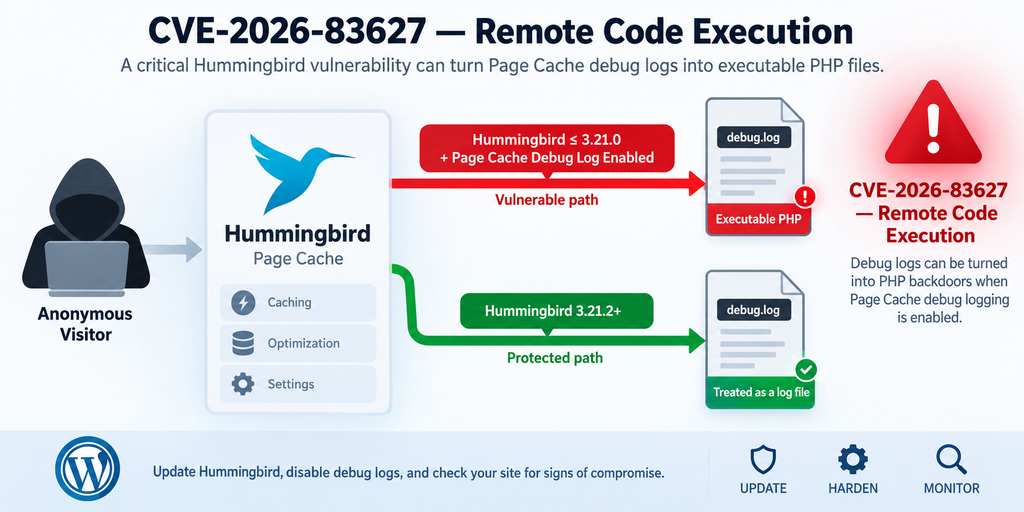
The unusual part of this Hummingbird vulnerability is not simply that information gets written to a log. Applications write request-related information to logs constantly. The security problem appears when attacker-influenced content can reach a file in a context where PHP may interpret that file rather than treating it exclusively as inert text.
This distinction explains why the title “cache logs into PHP backdoors” is more than a reference to ordinary log pollution. Public vulnerability reporting describes CVE-2026-83627 as unauthenticated remote code execution through a cookie name in the Page Cache debug log. The dangerous boundary lies between data that should remain diagnostic text and content that the PHP environment may execute.
Normally, a log should be boring from a security perspective. A request arrives, the application records diagnostic details, and an administrator later reads them. The recorded information should never become application logic.
The problem becomes much more serious when a log uses an executable file context.
PHP is a server-side programming language. When a web server is configured to process a particular file through PHP, recognizable PHP instructions inside that file may be interpreted rather than returned as plain text. Security controls must therefore prevent untrusted input from becoming executable instructions.
This concept is commonly called the separation of data and code.
The Hummingbird vulnerability is a useful example of why that separation matters. A cookie name should fundamentally be treated as request data. Diagnostic logging may record aspects of requests to help developers understand caching decisions. However, request-controlled data should never gain the ability to change the meaning of an executable file.
A Log File Should Not Become an Execution Boundary
Debugging tools are extremely useful. They help administrators understand why a page was excluded from cache, whether caching activated correctly, and what decisions the plugin made while processing requests.
WPMU DEV documents this exact troubleshooting purpose. Hummingbird’s Local Page Cache settings include an option to enable debug logging when something goes wrong. The same documentation places the resulting file in wp-content/debug.log.
That feature is not inherently unsafe. Logging is a normal development and troubleshooting practice.
The risk appears because of how data reaches the file and how the resulting file can be interpreted.
A useful way to understand the issue is to imagine three security zones. The first is the public internet, where request information cannot be trusted. The second is the logging system, which should convert that information into inert diagnostic text. The third is the PHP execution environment.
Those zones should have strict boundaries.
If attacker-controlled information crosses directly from the first zone through the second and becomes meaningful inside the third, the log is no longer merely recording an event. It can become part of the execution path.
Why a Cookie Can Matter
Cookies are often associated with login sessions, preferences, shopping carts, consent choices, and personalization. However, they are still part of an HTTP request and should therefore be considered untrusted input.
A website cannot safely assume that every cookie reaching the server was created by WordPress or by a trusted plugin.
Visitors control their own requests.
Security reporting for CVE-2026-83627 specifically identifies the cookie name as the request-controlled component involved in the Page Cache debug log issue. Administrators do not need to reproduce the attack to understand the defensive lesson: request metadata that reaches a log must be safely handled before it enters any executable context.
For safety, website owners should not attempt to verify the vulnerability by constructing suspicious cookie names on a production server. The appropriate validation method is to check the installed plugin version, determine whether the affected logging configuration was enabled, inspect the relevant file, and update the plugin.
Debug Logs Can Contain Valuable Evidence
A debug log may tell administrators more than whether an application experienced an error. Its timestamps can sometimes help establish when suspicious activity began. File metadata may reveal whether the log changed during an unusual traffic period. Entries surrounding suspicious content can also help correlate events with web server access logs.
That makes the log potentially valuable during incident response.
Before clearing it, consider creating a protected copy outside the public web root. If your hosting provider offers snapshots or backup tools, preserve relevant evidence before making major changes.
The objective is not to keep a dangerous file publicly accessible. The objective is to avoid destroying useful evidence before you understand whether exploitation occurred.
Which Hummingbird Configurations Are Vulnerable
Version numbers are the first part of the assessment, but they are not the whole story.
Public security information currently describes CVE-2026-83627 as affecting Hummingbird versions up to and including 3.21.0. The reported attack path involves the Page Cache debug log. Therefore, administrators should evaluate both the installed Hummingbird version and whether the relevant Page Cache logging functionality was active.
This configuration requirement is important because it prevents unnecessary panic while still encouraging fast remediation.
A WordPress site running an affected Hummingbird release deserves an update regardless of whether administrators remember enabling debug logging. Configuration histories are not always obvious. Sites change administrators, settings are imported, troubleshooting options are temporarily activated, staging copies move into production, and old configuration values can survive longer than expected.
Do not rely entirely on memory.
Open the Hummingbird settings and verify the actual state.
Local Page Cache and Debug Logging
WPMU DEV’s current documentation separates Page Caching into server and local caching configurations. Under Local Page Cache, administrators can configure caching behavior and enable the debugging feature. The documentation explicitly says that the debug log is useful when something goes wrong and identifies wp-content/debug.log as its location.
That gives administrators a practical checklist.
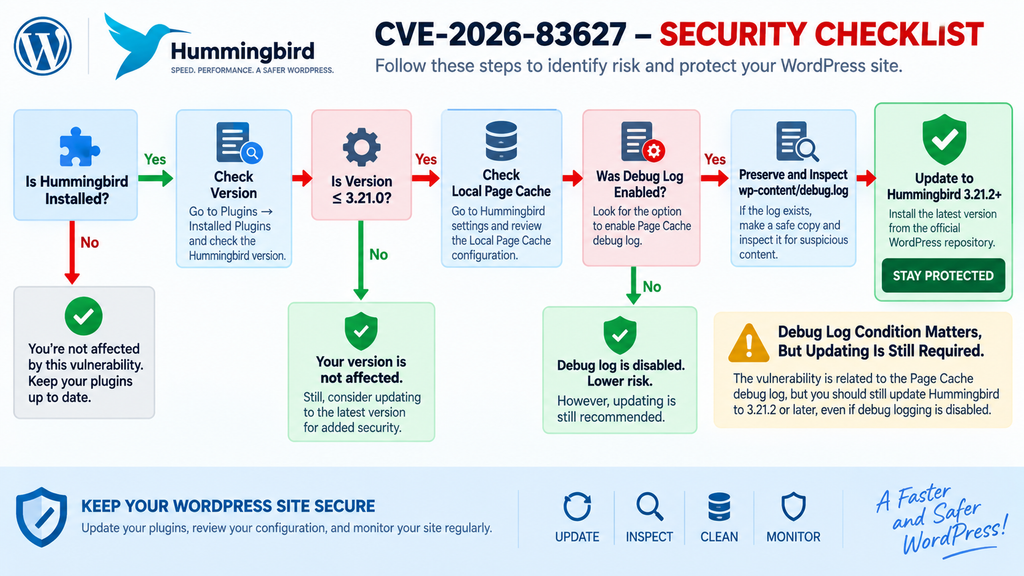
First, confirm the Hummingbird version.
Second, determine which Page Cache implementation is being used.
Third, check whether Page Cache debugging is or was enabled.
Fourth, inspect the corresponding log file.
Finally, update to the secure current release even when you believe the vulnerable configuration was never enabled.
These steps are more reliable than trying to infer exposure from website behavior.
A site can look completely normal while containing a security issue. Page speed scores, frontend appearance, cache headers, and normal visitor behavior cannot prove that a vulnerable logging path was never reached.
What About Hummingbird 3.21.1?
Administrators may notice an apparent version gap in current reporting.
Public CVE-2026-83627 information specifically describes affected versions through 3.21.0, while WordPress.org currently offers Hummingbird 3.21.2. Version 3.21.1 was also released on September 1, 2026, and the public WordPress.org changelog describes a separate fix involving a network-scoped option writable by a subsite administrator. Version 3.21.2 then lists additional “Security hardening.”
Because 3.21.2 is the current stable release, there is little practical reason to stop at 3.21.1.
Update directly to 3.21.2 or later.
This approach also avoids confusion with another Hummingbird security issue published around the same period. CVE-2026-19224 concerns a different privilege and multisite-related remote code execution scenario. It should not be confused with the unauthenticated Page Cache debug log vulnerability discussed here.
Keeping those vulnerabilities separate is important when reading advisories or documenting an incident.
Does Disabling Debug Logging Make an Old Version Safe?
Disabling the vulnerable feature can reduce exposure to the specific attack path, but it should not replace installing the security update.
Security mitigations and security patches serve different purposes.
A mitigation may temporarily remove a required condition. A patched release changes the software so administrators are no longer depending on a fragile configuration choice to prevent exploitation.
Settings can also change unexpectedly. Another administrator may re-enable debugging while troubleshooting. A configuration import may restore an older value. A staging configuration may be copied to production.
For those reasons, use disabling as an immediate defensive action when necessary, but complete the response by upgrading Hummingbird.
Shared Hosting and Managed WordPress
Managed hosting does not automatically eliminate plugin vulnerabilities. However, server configuration and security layers can affect the consequences of exploitation.
A managed WordPress provider may use web application firewalls, malware scanners, restricted PHP permissions, immutable filesystems, or other controls. Those protections can reduce risk, but administrators should not assume that hosting-level security makes the Hummingbird update unnecessary.
Ask the provider whether it detected suspicious activity related to the affected period.
If you use shared hosting, also remember that your WordPress account normally operates within a restricted filesystem context. That isolation is valuable, but code execution within your account could still affect your website’s files and data.
The correct response remains the same: patch, inspect, preserve evidence where appropriate, and investigate anomalies.
Updating Hummingbird to Version 3.21.2
Updating Hummingbird should be the first permanent remediation step.
WordPress.org currently lists Hummingbird version 3.21.2, released September 1, 2026. The changelog includes “Security hardening,” while the plugin page identifies 3.21.2 as the stable version.
Before updating a production website, create a reliable backup if your normal maintenance process allows it. A backup should ideally include both the database and WordPress files. This is not because the security update is expected to cause problems. It is standard change-management practice.
However, do not postpone a critical security update for days while waiting for a perfect maintenance window.
Security exposure changes the normal balance between update caution and update speed.
After creating the backup, open WordPress Dashboard → Plugins → Installed Plugins and locate Hummingbird. Confirm the installed version before making changes. Recording the original version can help later if you need to establish whether the site was exposed.
Run the update and verify that the installed version is 3.21.2 or newer.
Do not assume the update succeeded simply because WordPress displayed a progress message.
Refresh the Plugins page and check the version again.
Clear the Page Cache After Updating
Hummingbird’s documentation provides controls for manually clearing Page Cache. Clearing stale cached content after a security-related plugin update is sensible because it ensures that the site begins operating from newly generated cache data under the updated code.
After updating, clear the Hummingbird cache using the plugin’s normal interface.
Then test several representative pages while logged out. Check the homepage, a post, an archive, and any important WooCommerce or membership pages if those components exist.
The goal is to confirm two things at once: the patched plugin is active, and normal caching behavior still works.
Verify More Than the Frontend
A successful frontend test does not prove that the update completed correctly.
Check the Plugins page again.
If you manage WordPress with WP-CLI, you can also use your normal plugin inventory process to confirm the installed version. Avoid copying commands from unknown sources into a production shell. Administrators who already use WP-CLI can rely on its standard plugin-management functionality.
Also check whether WordPress reports another pending Hummingbird update.
Security releases can move quickly. If a later stable release becomes available, evaluate and install it rather than deliberately remaining on 3.21.2 forever.
Update Every WordPress Installation
A common mistake is updating the production website while forgetting staging, development, old subdomains, or secondary WordPress installations.
Attackers do not care whether a site appears in your primary navigation.
An old staging site can still contain credentials, database copies, uploads, API configuration, or links to production infrastructure.
Search your hosting account for every WordPress installation running Hummingbird. Update or remove unused installations.
For WordPress Multisite, check the plugin at the network level and confirm which sites inherit its settings. Multisite deserves additional care because Hummingbird has had a separate security issue around network-wide settings in the same release period.
Do Not Downgrade After Patching
Restoring an old full-site backup can accidentally restore the vulnerable plugin version.
If you later restore a backup created before the Hummingbird update, immediately verify the plugin version again. The same rule applies when cloning production into staging or deploying a filesystem snapshot.
Security state should be part of backup restoration procedures.
A backup is not automatically safe merely because it was created before an incident. It may contain vulnerable software or, worse, files created after an unnoticed compromise.
Safely Disabling and Clearing Debug Logs

Debug logs are valuable while diagnosing problems, but production logging should be intentional.
Hummingbird’s official documentation says that its Local Page Cache debug log can be enabled to collect information useful when something goes wrong. It places the file at wp-content/debug.log.
If you do not currently need Hummingbird Page Cache debugging, disable it.
For administrators responding specifically to CVE-2026-83627, however, the order of operations matters. Do not immediately delete the log before checking whether it contains evidence that deserves further investigation.
A safer process is to preserve, inspect, disable, and then clear.
Preserve the Existing Log First
Before deleting wp-content/debug.log, create a protected copy if the file exists and you have reason to believe the site may have been exposed.
Store the copy outside the publicly served directory whenever possible.
Record useful metadata such as the file’s modification timestamp and approximate size. On managed hosting, you can ask the provider to preserve the file and associated access logs.
Do not rename a suspicious executable file to another publicly accessible PHP filename.
The preserved copy should be treated as evidence, not as something to execute.
If your host offers malware analysis, ask whether it can inspect the file without running its contents.
Inspect the Log Defensively
The goal of inspection is to identify anomalies, not to reconstruct or reproduce the exploit.
Look for unusual entries around unexpected times, unexplained changes in file size, suspicious PHP-like content, or patterns that differ substantially from ordinary cache diagnostic messages.
Context matters.
A normal WordPress debug log can contain PHP warnings, notices, plugin paths, stack traces, deprecation messages, and other technical-looking text. Technical content alone does not prove compromise.
Likewise, the presence of the log file itself does not prove exploitation. Hummingbird intentionally creates diagnostic information when its debugging option is enabled.
The question is whether untrusted request content appears to have crossed into a form capable of code execution.
If you are unsure, preserve the evidence and escalate the review.
Disable Hummingbird Page Cache Debug Logging
Once evidence has been preserved, disable the Page Cache debug option unless you actively need it for troubleshooting.
The setting is documented under Hummingbird’s Local Page Cache controls.
After disabling it, clear the appropriate cache and verify that the website still works normally.
Do not confuse Hummingbird’s Page Cache debugging option with every other debugging mechanism in WordPress. WordPress core, plugins, themes, and hosting platforms may maintain different logs.
Disabling one setting does not necessarily disable all logging.
That distinction matters when cleaning up.
Clearing Is Not the Same as Remediation
Deleting debug.log removes the file’s current contents.
- It does not patch the vulnerable plugin.
- It does not prove that code execution never happened.
- It does not remove persistence an attacker may have established elsewhere.
- It does not invalidate stolen credentials.
Therefore, never treat “delete debug.log” as the entire security response.
Update Hummingbird first or as quickly as possible, disable unnecessary vulnerable logging, and investigate the broader WordPress environment if the log contains suspicious content.
Review File Permissions and Web Execution Rules
Hosting configuration can provide another defensive layer.
Ideally, log and upload locations should not execute PHP unless application functionality specifically requires it. The exact implementation varies between Apache, NGINX, LiteSpeed, managed WordPress platforms, and custom hosting stacks.
Do not blindly paste .htaccess or NGINX rules from an unrelated tutorial into production.
An incorrect server rule can take the website offline or interfere with legitimate WordPress functionality.
Instead, ask your hosting provider whether PHP execution can safely be restricted in locations that should contain only logs or uploaded media. This is defense in depth, not a substitute for updating Hummingbird.
Rotate Logs Rather Than Keeping Unlimited History
Long-running debug files can become large and expose unnecessary technical information.
Even without CVE-2026-83627, leaving verbose debugging enabled indefinitely on a production website is rarely ideal. Logs can reveal filesystem paths, plugin behavior, errors, and other operational details.
Use logging when necessary, restrict access, rotate it appropriately, and disable verbose troubleshooting modes when the investigation ends.
A production website should collect enough information to support monitoring and incident response without unnecessarily increasing its attack surface.
Searching WordPress for Signs of Remote Code Execution
A vulnerable configuration does not automatically mean a website was compromised.
Likewise, installing the patch does not automatically prove that a previously exposed website remained untouched.
If wp-content/debug.log contains suspicious content, or if server logs show unusual activity during the vulnerable period, expand the investigation beyond Hummingbird.
The objective is to determine whether unauthorized execution resulted in persistent changes.
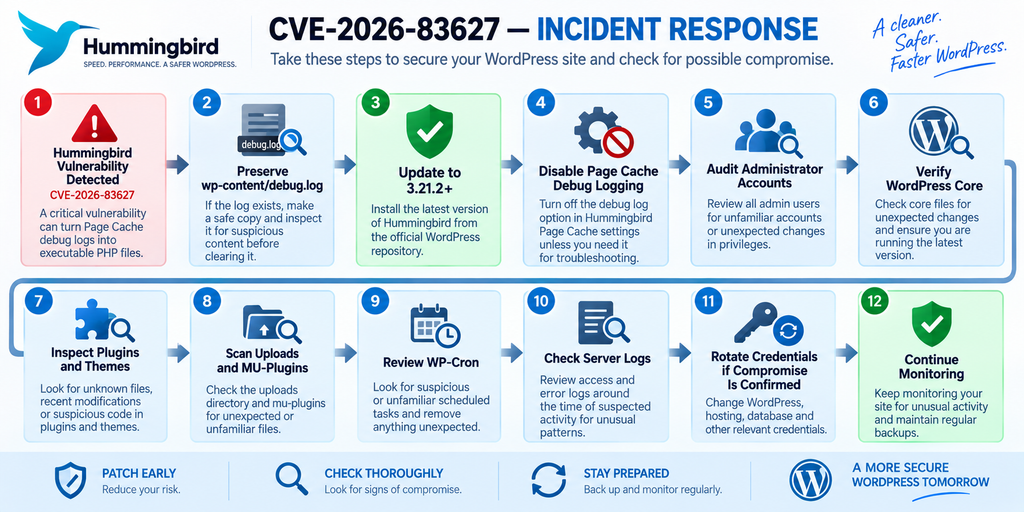
Start with the WordPress administrator accounts.
Open Users → All Users and review every account with the Administrator role. On Multisite, inspect Super Admin access separately. Look for unfamiliar accounts, unexpected email changes, recently created privileged users, or legitimate accounts whose privileges changed without explanation.
Do not delete a suspicious account immediately if you are conducting a formal incident investigation. Record the relevant details first.
Check WordPress Core Integrity
WordPress core files provide a useful baseline because official releases have known contents.
Unexpected modifications to core PHP files deserve investigation.
Administrators familiar with WP-CLI can use WordPress’s standard checksum functionality as part of an integrity review. Managed hosting platforms may offer equivalent integrity scans.
A checksum mismatch does not always prove malicious activity. Manual modifications, incomplete updates, hosting customizations, and unusual deployment workflows can also alter files.
Nevertheless, unexplained changes should not be ignored.
Replace compromised core files from trusted official packages rather than manually trying to remove individual suspicious lines.
Inspect Plugins and Themes
Attackers who obtain code execution may seek persistence in locations that survive cache clearing.
Review plugin and theme directories for unexpected PHP files, recently modified files, unfamiliar directories, and extensions that were not installed through your normal workflow.
Pay particular attention to inactive plugins and themes.
Inactive software may still exist on disk. Although WordPress does not normally load inactive plugins as plugins, malicious standalone PHP files can behave differently if directly reachable or loaded by another mechanism.
Remove software you no longer need after preserving anything relevant to an investigation.
For commercial plugins, compare files with a clean package downloaded from the legitimate vendor account.
For WordPress.org plugins, reinstalling from the official repository can provide a cleaner baseline when compromise is confirmed.
Inspect the Uploads Directory
The WordPress uploads directory normally contains media and related generated files.
Unexpected executable PHP files in ordinary media directories deserve immediate scrutiny.
Some legitimate plugins do create specialized files inside uploads, so do not automatically classify every unfamiliar file as malware. Evaluate the source and purpose.
Look for PHP extensions, unusual recently modified files, hidden files, unexpected nested directories, or files whose names imitate WordPress components.
Again, do not open suspicious PHP files through a browser.
Read them only in a safe text-viewing context or provide them to your security provider.
Review MU-Plugins and Drop-Ins
Standard plugin reviews are not enough.
WordPress supports must-use plugins under wp-content/mu-plugins, and several special drop-in files can exist directly under wp-content.
Legitimate caching systems commonly use drop-ins such as advanced-cache.php. Hummingbird itself interacts with WordPress caching infrastructure, so the existence of a cache-related drop-in is not automatically suspicious.
What matters is whether the file is expected and whether its contents match the legitimate software responsible for it.
Check unexpected modifications against clean versions or backups.
Attackers favor persistence mechanisms that administrators may overlook. MU-plugins are especially important because they do not behave exactly like ordinary plugins in the WordPress admin interface.
Review WP-Cron and Scheduled Actions
WordPress scheduled tasks can provide another persistence mechanism.
Review unusual cron hooks, unexpected recurring jobs, and tasks associated with plugins that are no longer installed.
WooCommerce and other plugins may also use Action Scheduler, so a busy scheduled-action list is not inherently malicious.
Focus on anomalies.
An unknown task executing an unfamiliar callback deserves more investigation than a recognizable WordPress maintenance event.
Check Recently Modified PHP Files
File modification times can help narrow an investigation, especially when you have an approximate incident window.
Search for PHP files modified around the same time as suspicious entries in debug.log or unusual web requests.
Timestamps are useful clues but not absolute proof.
Deployment systems, plugin updates, backup restoration, malware, and legitimate maintenance can all change modification times. Attackers may also manipulate timestamps.
Use filesystem metadata as one part of a larger evidence set.
Examine Web Server Access Logs
Access logs can help answer questions that WordPress itself cannot.
Look around the timestamps associated with suspicious debug-log activity. Identify unusual request volumes, repeated abnormal requests, unfamiliar user agents, or requests immediately followed by unexpected PHP file access.
Avoid focusing exclusively on one IP address.
Attackers can use proxies, cloud infrastructure, botnets, VPNs, or changing addresses. Blocking one source does not remediate the vulnerability.
Logs are most useful when correlated across multiple sources: web access logs, PHP logs, WordPress logs, security-plugin alerts, hosting events, and filesystem changes.
Review Security Plugin Alerts
If your website uses a WordPress security plugin or hosting malware scanner, review historical alerts rather than looking only at the current dashboard.
Useful events may include:
- unexpected administrator creation;
- modified plugin or theme files;
- suspicious executable files;
- failed or successful unusual logins;
- malware detections;
- unexpected changes to WordPress configuration;
- unusual requests blocked by the firewall.
A clean scan is reassuring but not conclusive.
No malware scanner detects every compromise.
Check wp-config.php and Sensitive Root Files
Review wp-config.php, the site’s root .htaccess file where applicable, and other important bootstrap files for unexplained changes.
Do not publish their contents when asking for help.
wp-config.php can contain database credentials, security keys, environment-specific configuration, and other sensitive values.
If unauthorized access is confirmed, consider rotating credentials and WordPress salts as part of the recovery plan.
Coordinate database credential changes carefully because incorrect values will break the site’s database connection.
Search the Database for Persistence
Not every compromise lives in a PHP file.
Review unexpected administrator records, suspicious options, unfamiliar active plugins, injected scripts in widgets or content, modified site URLs, and other database changes.
Avoid running broad search-and-replace operations against a production database without a backup.
Serialized WordPress data can be damaged by careless replacement.
When compromise is suspected, targeted inspection is safer than blindly deleting every unfamiliar value.
Consider Credential Rotation
If there is credible evidence of remote code execution, assume that secrets accessible to the WordPress process may have been exposed until an investigation shows otherwise.
Prioritize WordPress administrator passwords, hosting credentials, deployment credentials, database credentials where appropriate, API keys, and other secrets stored within accessible configuration files.
Use unique passwords and enable multi-factor authentication where supported.
Credential rotation should happen after containment planning so that an active attacker cannot simply capture newly issued credentials again.
Restore Only From a Known-Clean Backup
Restoring from backup can be effective, but only when the backup predates the compromise and does not contain the vulnerable configuration you are trying to remove.
After restoration:
- update Hummingbird immediately;
- update WordPress core;
- update other plugins and themes;
- remove unnecessary software;
- rotate relevant credentials;
- clear caches;
and scan the restored environment again.
A backup restores state. It does not automatically restore security.
Frequently Asked Questions
What is the Hummingbird vulnerability CVE-2026-83627?
CVE-2026-83627 is a reported remote code execution vulnerability involving Hummingbird’s Page Cache debug logging. Public vulnerability information describes an unauthenticated attack path involving a cookie name reaching the debug log in affected versions. The issue should be treated seriously because successful remote code execution can potentially allow unauthorized server-side actions.
Which Hummingbird versions are affected?
Current public reporting for CVE-2026-83627 identifies Hummingbird versions up to and including 3.21.0 as affected. WordPress.org currently lists version 3.21.2 as the stable release. Administrators should update directly to 3.21.2 or any later secure version available when they perform the update.
Do I need Page Cache Debug Log enabled to be exposed?
The reported vulnerability specifically involves the Page Cache debug logging mechanism, making that configuration an important exposure condition. Administrators should verify the actual setting rather than relying on memory. Even if debugging appears disabled, updating the affected plugin remains the recommended permanent response.
Where does Hummingbird store the Page Cache debug log?
WPMU DEV’s Hummingbird documentation identifies the Local Page Cache debug log as wp-content/debug.log. Administrators investigating CVE-2026-83627 should check this file carefully and preserve a protected copy before clearing it when suspicious activity may have occurred.
Should I delete debug.log immediately?
Not necessarily. If your site may have been exposed, first preserve a protected copy because the file could contain useful incident evidence. Then disable unnecessary Page Cache debugging, install the secure Hummingbird update, and clear the log when appropriate. Never execute suspicious content found inside the file.
Does updating Hummingbird remove an existing backdoor?
No. An update closes the known vulnerable path, but it cannot guarantee removal of persistence created before the patch. If you find credible evidence of unauthorized code execution, inspect administrator accounts, WordPress files, plugins, themes, uploads, MU-plugins, scheduled tasks, database changes, and server logs.
Is Hummingbird 3.21.2 safe to install?
WordPress.org currently identifies 3.21.2 as the stable Hummingbird release and lists “Security hardening” in its September 1, 2026 changelog. Administrators running affected versions should update to 3.21.2 or a newer secure release rather than remaining on an older build.
Is CVE-2026-83627 the same as CVE-2026-19224?
No. They concern different Hummingbird security issues. CVE-2026-83627 concerns the Page Cache debug-log RCE path discussed in this article. CVE-2026-19224 concerns network-wide settings and administrator privileges on WordPress Multisite installations. Administrators should avoid mixing the conditions of the two vulnerabilities.
How do I know whether my WordPress site was hacked?
The presence of an affected Hummingbird version does not prove compromise. Look for evidence such as suspicious content in the debug log, unexpected administrator accounts, modified PHP files, unknown files in uploads, unusual MU-plugins, unfamiliar scheduled tasks, malware alerts, or abnormal server-log activity. A professional incident-response review may be appropriate when strong indicators exist.
Can I simply disable Hummingbird instead of updating?
Deactivation may temporarily remove plugin functionality, but updating or replacing vulnerable software is the stronger long-term response. If Hummingbird remains installed for future use, ensure it is upgraded before reactivation. Also remember that deactivation does not remove changes that an attacker may already have made.
The Safe Path Forward for Hummingbird Users
CVE-2026-83627 demonstrates how a feature designed for troubleshooting can become security-sensitive when untrusted request data and an executable file context meet. For WordPress administrators, the most important lesson is not to panic but to respond methodically.
Check the Hummingbird version first. If the site is running an affected release, update it immediately to 3.21.2 or a later secure version. WordPress.org currently lists 3.21.2 as the stable release and records security hardening in that version.
Next, determine whether Local Page Cache debug logging was enabled. Hummingbird’s documentation identifies wp-content/debug.log as the relevant file. Preserve and inspect that file before clearing it if there is any reason to suspect exploitation.
Most importantly, separate vulnerability remediation from incident response.
Updating Hummingbird fixes the software side of the problem. Investigating suspicious log content determines whether the site may have been compromised before the update.
If evidence points toward unauthorized execution, widen the investigation. Review administrators, core integrity, plugins, themes, uploads, MU-plugins, cron jobs, database changes, credentials, and server logs.
WordPress security works best when each layer supports the next. A patched plugin, restricted execution permissions, careful logging, strong authentication, clean backups, file-integrity monitoring, and regular updates together create a much stronger defense than any single security control.
⚠️ Disclaimer and Source Hygiene
This article is provided for educational, defensive, and informational purposes. Vulnerability information can change as vendors, CVE authorities, hosting providers, and security researchers publish additional technical details.
The article intentionally avoids exploit payloads, malicious PHP examples, weaponized HTTP requests, and step-by-step exploitation instructions. Website owners should use the information to identify affected installations, patch Hummingbird, inspect their own systems, and improve defensive monitoring.
If you discover evidence of unauthorized code execution or cannot confidently determine whether a production website is clean, consult your hosting provider, a qualified WordPress security professional, or an incident-response specialist.
Technical claims in this article were checked against current WordPress.org plugin information, WPMU DEV Hummingbird documentation, and public vulnerability reporting available at the time of publication.
🔔 For more tutorials like this, consider subscribing to our blog.
📩 Do you have questions or suggestions? Leave a comment or contact us!
🏷️ Tags: Hummingbird vulnerability, CVE-2026-83627, Hummingbird security, WordPress vulnerability, WordPress remote code execution, Hummingbird Page Cache, WordPress debug log, WordPress security, Hummingbird 3.21.2, WordPress malware detection
📢 Hashtags: #Hummingbird, #WordPressSecurity, #CVE202683627, #WordPress, #CyberSecurity, #WebsiteSecurity, #RemoteCodeExecution, #WordPressVulnerability, #SecurityUpdate, #WordPressTips
Sources and References
WordPress.org – Hummingbird Performance
The official WordPress.org Hummingbird plugin page is the primary source for the current stable plugin version and public changelog. At the time of writing, WordPress.org lists Hummingbird 3.21.2 and records “Security hardening” for the September 1, 2026 release.
Hummingbird Performance on WordPress.org
WPMU DEV – Hummingbird Documentation
The official Hummingbird documentation explains Page Caching, Local Page Cache settings, cache clearing, and the Enable debug log option. It identifies the Page Cache debug-log location as wp-content/debug.log.
Official Hummingbird Documentation
CVE-2026-83627 Vulnerability Reporting
Current public vulnerability information describes CVE-2026-83627 as an unauthenticated remote code execution issue involving a cookie name and Hummingbird’s Page Cache debug log, with versions through 3.21.0 reported as affected.
Related Hummingbird Security Issue
CVE-2026-19224 is a separate Hummingbird vulnerability involving network-wide settings on WordPress Multisite. Public reporting identifies versions before 3.21.2 in the context of that separate issue. It should not be confused with CVE-2026-83627.
Secondary Sources and Testimonials
Historical Hummingbird support material confirms that Page Cache debugging has long been used to record caching decisions during troubleshooting. WPMU DEV support discussions describe administrators enabling the cache debug log specifically to determine why pages are or are not cached.
This historical context is useful because it reinforces an important point: debug logging itself is a legitimate operational feature. The security concern in CVE-2026-83627 is the unsafe interaction between externally influenced request information, the affected logging behavior, and an executable PHP context in vulnerable versions.
Website owners should therefore avoid treating every debug.log file as evidence of malware. Its presence can be completely legitimate. The investigation should instead focus on the installed Hummingbird version, whether Page Cache debugging was enabled, what the log contains, and whether other indicators suggest unauthorized code execution.