
Table of Contents
A critical SimpleForm vulnerability can let unauthenticated visitors create WordPress Administrator accounts through unsafe registration metadata handling. Learn how CVE-2026-104748 works, which versions are affected, how to update safely, and how to investigate suspicious accounts, preserve evidence, and recover control of a potentially compromised website.
What Is CVE-2026-104748
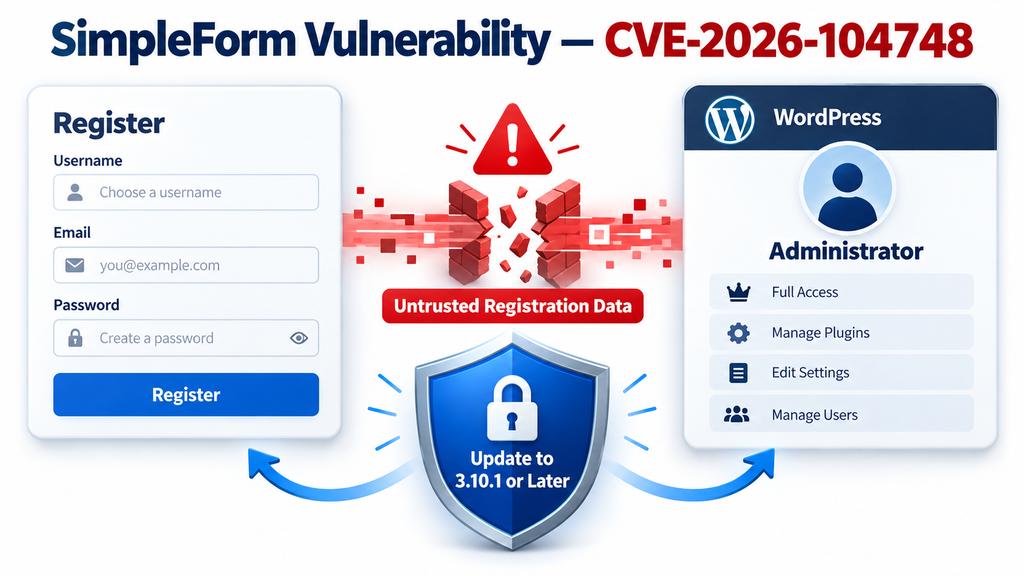
A registration form should give visitors a straightforward way to join your website. Someone enters a username, provides an email address, and creates an account with limited permissions. Behind that familiar process, however, the website must make several important security decisions. It must decide which information visitors may submit, which details belong in their profiles, and who controls their permissions. The SimpleForm vulnerability tracked as CVE-2026-104748 breaks that separation. A public registration request can influence sensitive account metadata, potentially turning an ordinary signup into an Administrator account.
The published vulnerability information identifies an unauthenticated privilege escalation affecting SimpleForm versions up to and including 3.10.0. Patchstack lists 3.10.1 as the patched version and assigns the issue a CVSS score of 9.8. “Unauthenticated” means an attacker does not need an existing WordPress account to reach the vulnerable registration behavior. For website owners, that makes prompt remediation especially important. The flaw concerns the affected plugin’s handling of registration data; it should not be described as a vulnerability in WordPress core itself. Patchstack
Why unauthorized Administrator creation matters
Consider a small business website that allows customers to register before downloading guides. Those customers should receive a limited role appropriate to that service. An Administrator account has a very different purpose. On a typical single-site installation, it can manage important settings, change other accounts, and perform powerful administrative operations. The exact capabilities depend on the installation and its restrictions. Nevertheless, allowing an unknown visitor to obtain that role crosses a major security boundary. WordPress documents capability checks as a central requirement for protecting privileged actions. Developer.WordPress.org
The immediate concern extends beyond an unfamiliar name appearing under Users. Unauthorized administrative access could allow changes to published content, account permissions, integrations, or site behavior. Depending on the environment, it may also create opportunities for persistent access. These are potential consequences of account takeover, rather than proof that every affected installation experienced them. A website can contain vulnerable software without having been compromised. That distinction matters because the response has two separate goals: close the vulnerable entry point, then determine whether anyone used it before the update.
What the available evidence does and does not establish
Security reporting benefits from careful language. A critical severity score describes the seriousness of a vulnerability under its scoring assumptions. It does not tell you how many websites have been attacked. Likewise, a published advisory does not establish that your own installation contains a malicious account. The sources reviewed for this article support urgent patching, but they do not establish a confirmed exploitation campaign against every affected site. Treat the exposure seriously while keeping your conclusions tied to evidence from your own users, logs, files, and hosting environment.
For example, discovering SimpleForm 3.10.0 should trigger an update and a security review. Discovering that version alongside an unexplained Administrator account should trigger a more urgent incident investigation. Finding an unfamiliar account, a suspicious registration event, and unexpected file changes would strengthen the concern further. Each observation adds context. None should be silently replaced with an assumption. This approach helps you explain the situation accurately to a developer or hosting provider and prevents an otherwise useful security article from becoming an exaggerated claim about confirmed website takeovers.
Which SimpleForm Versions Are Vulnerable
The affected product is SimpleForm – Form Maker to Chat Apps with Quiz, Poll and Multi Lead Notifications, listed in the WordPress plugin directory under the slug simple-form. Identifying the exact product matters because similarly named form plugins exist. A security notice about SimpleForm should not automatically be applied to every plugin containing “simple” or “form” in its name. Open the Installed Plugins screen, inspect the full plugin name, and follow its details link when necessary. Match the plugin identity before making decisions about exposure or removal.
For this CVE, the published affected range includes versions through 3.10.0, with 3.10.1 identified as the first patched release. That is the relevant minimum for addressing this specific issue. When maintaining a website later, choose the current supported release after checking its compatibility and release notes. A version newer than 3.10.1 may include additional fixes unrelated to this CVE. Installing the minimum patched version should therefore be understood as a vulnerability boundary, rather than a permanent recommendation to remain on that release indefinitely. Patchstack
Check the installed version and operational context
In WordPress, open Plugins → Installed Plugins and locate the affected plugin. Record its installed version and activation status. If you manage several websites, repeat this on each installation rather than assuming they share the same configuration. Production, staging, and development copies often drift apart over time. A staging copy restored from an older backup may still contain vulnerable code after production has been updated. Record the website address with each result so that a version number cannot become detached from the installation where you found it.
If you have authorized terminal access and WP-CLI is available, run the following command from the correct WordPress directory, using the appropriate site owner account:
wp plugin get simple-form --fields=name,status,versionThis command reads the plugin’s identity, status, and version. It does not update or deactivate anything. If WP-CLI reports that the plugin cannot be found, confirm that you selected the correct WordPress path. Do not interpret a path mistake as proof that the plugin is absent. On managed hosting, your provider may supply a terminal interface or a WordPress management panel that offers the same information without requiring direct shell access.
Do not judge exposure only by the visible registration page
A common assumption is that hiding a registration page makes its underlying functionality unreachable. That assumption needs verification. Removing a menu link, unpublishing a page, or changing a button does not necessarily disable the server-side handler used by that page. The vulnerability description identifies a registration AJAX action as part of the affected behavior. Therefore, the relevant question is whether vulnerable server-side code remains available, rather than whether a visitor can easily find a signup link. A developer or hosting provider can help assess that distinction.
The same caution applies to the standard WordPress registration setting. A plugin may implement its own registration workflow, so changing a general setting should not be treated as a verified fix for this CVE. Updating or deactivating the affected plugin is a clearer response than relying on an untested interface change. If the plugin is inactive and no other code loads its vulnerable functionality, its normal hooks generally will not run. Even so, remove unused outdated software when practical, and inspect other installations where the plugin may still be active.
How wp_capabilities Mass Assignment Works
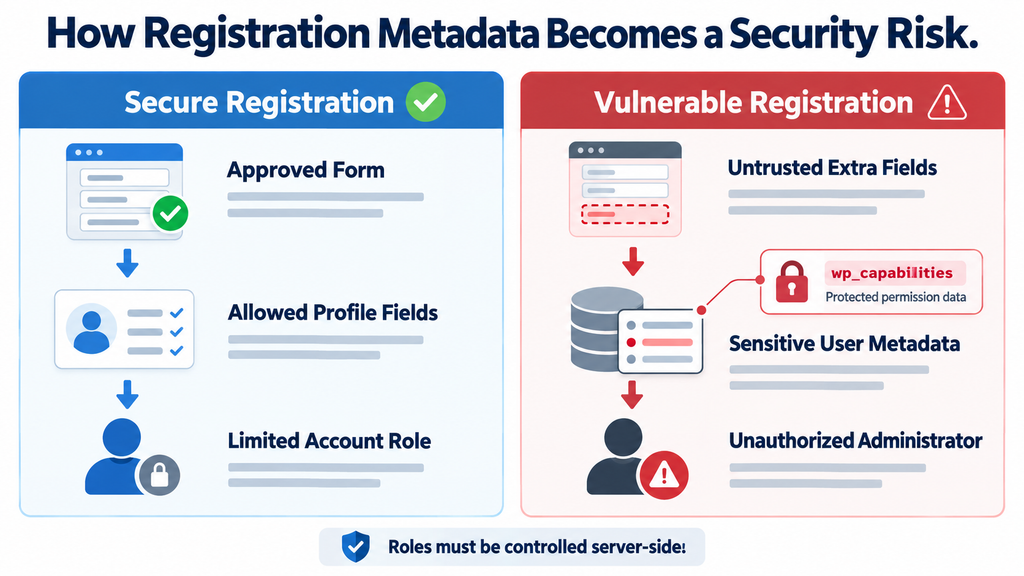
To understand this SimpleForm vulnerability, start with the difference between profile information and access-control information. A profile field might store a visitor’s preferred language, company name, or newsletter interests. Permission data serves a different purpose: it helps WordPress decide what an account may do. The vulnerability description identifies unsafe handling of custom registration fields that can reach sensitive user metadata, including wp_capabilities. The central failure occurs when information controlled by a public visitor can influence an account’s authority instead of remaining limited to approved profile data. Vulnerability-Lookup
“Mass assignment” describes a broad programming pattern. An application receives a collection of submitted values and copies them into an internal object or database record. That can be convenient when the fields are tightly controlled. It becomes dangerous when the application accepts unexpected properties alongside legitimate ones. Imagine a membership form that needs only a name, email address, and preferred language. If its backend also accepts a property affecting permissions, the application has given the visitor influence over a decision that should belong entirely to trusted server-side logic.
Why capabilities metadata requires special protection
On a conventional WordPress installation using the default database prefix, wp_capabilities is a user metadata key associated with site roles and directly assigned capabilities. The prefix can differ between installations, and multisite introduces additional site-specific context. Consequently, this key should not be treated as a harmless custom field or a universal literal covering every WordPress configuration. Its importance comes from its relationship to access control. A field containing a company name describes the user. A capabilities field helps determine the user’s authority inside the website.
A useful everyday comparison is a visitor registration desk. Guests may write their names and contact details on a form. They should not be able to add “building manager” and receive master access because the receptionist copies every line into the access system. The website equivalent is accepting an unexpected permission-related field during registration. The attacker does not need to defeat the intended password policy of an existing administrator if the vulnerable process can create a new account with administrative authority. That is why the trust boundary around registration metadata matters so much.
How the reported SimpleForm behavior crossed that boundary
The published description names wp_ajax_nopriv_simpleform_wp_register, an AJAX hook intended to handle requests from visitors who are not logged in. Public registration itself is a legitimate feature. The problem is allowing that public workflow to influence privileged role assignment or sensitive metadata. The description also identifies save_custom_fields_to_user_meta() as using an exclusion approach that failed to protect the capabilities key. It further describes get_form_settings() as returning defaults that enabled metadata writing independently of the supplied form identifier. Together, those behaviors explain the reported escalation path. Vulnerability-Lookup
The practical lesson is broader than any individual field name. A form identifier submitted by a browser is a claim that the server must validate. A list of fields sent by the browser is also untrusted. Even a form that visually displays only three inputs can receive additional properties in a request. The backend must determine which form exists, which fields belong to it, and which storage destinations are permitted. The browser’s visible layout cannot enforce those decisions. Security must remain intact when submitted data differs from the expected interface.
Why sanitization, hidden fields, and nonces are insufficient
Sanitization can make a value suitable for a particular format, but it does not establish permission to change that value. A perfectly formatted role name can still be unauthorized. Similarly, hiding a field from the page does not prevent someone from submitting a value with that name. A secure workflow must reject unauthorized properties before they reach sensitive storage. For example, a profile form may legitimately accept a preferred language while rejecting any attempt to influence roles, capabilities, account ownership, or other security-relevant attributes.
WordPress nonces address another part of the problem. They help protect certain actions against request misuse, including cross-site request forgery, but they are not a substitute for authentication or authorization. A public registration workflow still needs safe role selection and strict field handling even when it uses a nonce. CAPTCHA and rate limits also serve useful purposes, but they do not repair a backend that grants inappropriate authority. Each control has a distinct job, and none should be presented as a replacement for the plugin update. Developer.WordPress.org
Updating SimpleForm to Version 3.10.1
The immediate remediation is to install SimpleForm 3.10.1 or a later supported version. The official changelog describes several relevant changes: stricter validation of permitted form identifiers, validation against stored custom field definitions, and isolation of custom user metadata under a simpleform_ prefix. It also states that automatic login after registration and custom-field storage in user metadata are disabled by default. These changes address the boundaries between a public submission, an approved form configuration, and sensitive account information. WordPress.org
Before updating, take a backup of the database and website files when doing so will not create an unreasonable delay. Store it somewhere protected from public downloads. A backup taken during a suspected incident may contain malicious changes, so label it accurately. For example, “pre-update snapshot, compromise status unknown” is more useful than “clean backup.” The snapshot preserves the current state for investigation and recovery planning. It does not establish that the captured website is safe. If active unauthorized access is suspected, prioritize containment alongside evidence preservation.
Perform the dashboard update and verify the result
Open Plugins → Installed Plugins, find SimpleForm, and use the available update action. Wait for WordPress to finish, then reload the plugin screen and inspect the installed version. Do not rely exclusively on an update notification disappearing. Confirm the actual version displayed for the affected plugin. If the update fails, record the error before retrying. File permissions, interrupted downloads, or hosting restrictions can prevent a successful replacement. Your hosting provider can help resolve those problems without requiring you to leave vulnerable functionality active indefinitely.
If an update cannot be completed promptly, deactivate the affected plugin while arranging a fix. Deactivation can interrupt forms, registration, or related integrations, so check the pages that depend on it. A temporary explanatory message may help visitors understand why registration is unavailable. This is an operational tradeoff, but it is more concrete than assuming a hidden page or a generic security plugin has removed the risk. Avoid deleting the plugin impulsively during an investigation, because its configuration and files may help explain what happened.
Use WP-CLI only within the correct installation
Administrators comfortable with WP-CLI can update the plugin from the command line:
wp plugin update simple-formAfter the command finishes, run the version check again:
wp plugin get simple-form --fields=name,status,versionThe first command changes plugin files; the second confirms the resulting state. Run them from the intended website directory, using the hosting account appropriate to that installation. On a server hosting several WordPress sites, verify the path before executing any update. If the latest available version is newer than 3.10.1, review its release notes and compatibility requirements rather than deliberately downgrading to the first fixed release.
Afterward, test a normal registration using an email address you control. Check whether the expected confirmation message appears and whether the new account receives the intended limited role. Test any dependent login redirects, account pages, and notification emails. If a workflow relied on custom user metadata, confirm that the required values still appear where expected. Keep this validation focused on legitimate functionality. You do not need to submit an exploit payload to demonstrate that the installed version has changed or that ordinary registration still works.
Review integrations before restoring previous behavior
An update can expose assumptions in custom code. For example, a membership integration may have expected registration fields to appear under particular metadata keys. A developer should review that integration against the updated plugin behavior instead of immediately restoring unrestricted metadata writes. Compatibility work should preserve the security boundary introduced by the patch. Record which integration failed, which field it needs, and why it needs that field. That gives the developer a concrete problem to solve without reopening broad access to unrelated account properties.
Also check whether automatic login is necessary for your website. Some communities value immediate access after signup, while other services prefer email confirmation or manual approval. Choose the behavior deliberately and verify how the installed version implements it. Whatever you select, the assigned role must remain controlled by trusted configuration. A convenient signup experience does not require visitors to influence permissions. Finish the update by documenting the installed version, completion time, tests performed, and any remaining compatibility work so another administrator can understand the website’s current state.
Auditing Recently Created Administrator Accounts

Updating the plugin closes the reported entry point in the patched code, but it does not automatically remove accounts created beforehand. That makes an account review a separate task. Start by establishing who should have administrative access. For a personal blog, the list may contain only the owner and a trusted developer. An agency-managed website may have several legitimate administrators. Write down the expected people, their usernames, and their responsibilities. Without that baseline, an unfamiliar account can be difficult to distinguish from an authorized contractor or an old maintenance login.
Next, open Users → All Users and filter the list by Administrator where that filter is available. Review each account’s username, email address, and known owner. Contact the website owner or relevant team member through an established channel when verification is needed. Do not assume a professional-looking address proves legitimacy. Equally, avoid deleting an account merely because its username looks unusual. The purpose is to connect administrative access to a real authorization decision, then investigate anything that cannot be explained.
Build a useful account inventory
WP-CLI can provide a structured list with registration dates:
wp user list --role=administrator \
  --fields=ID,user_login,user_email,user_registered,roles \
  --format=table
The official command supports filtering users and choosing output fields. Use the result as an inventory, not a complete account history. Registration time indicates when an account record was created, but it does not show when an existing account was promoted. A compromised older account could therefore appear entirely ordinary in a list sorted by registration date. Review recent creations first, then widen the scope to every account with administrative or otherwise unusually powerful access. Developer.WordPress.org
For example, suppose a website normally has two administrators, but the inventory shows four. One extra account belongs to a developer hired last month, and the owner confirms it. The other has no known purpose and an email address nobody recognizes. Preserve its details, check related activity, and assess containment before deletion. The extra account is a meaningful warning sign, but its presence alone does not establish the exact entry point. It could relate to this vulnerability or another access problem that also needs investigation.
Review privileged access beyond the Administrator label
Custom roles and directly assigned capabilities can complicate an audit. A role called “Support Manager” might be appropriate for a service desk, or it might carry permissions far beyond that purpose. If your website uses role-management plugins or custom access code, have a developer inspect the effective permissions as well as the visible labels. This is especially important when an incident may involve changes to access-control data. Reviewing only accounts literally labeled Administrator can overlook other routes to sensitive settings or account management.
Multisite needs additional care. A site Administrator and a network Super Admin represent different levels of authority. Review each affected site in its own context and inspect network-level access separately. Do not infer network takeover solely from a vulnerability that creates an Administrator on one site. Conversely, do not assume the rest of the network is safe without checking its configuration and evidence. The appropriate scope depends on how accounts, plugins, hosting permissions, and administrative responsibilities are shared across that particular installation.
Correlate accounts with logs and other evidence
Collect relevant activity records before they rotate or expire. Useful sources may include web server access logs, hosting security events, application audit logs, firewall records, and registration notifications. Look for timing relationships between unexplained accounts and unusual registration activity. The reported registration action name can help a specialist narrow a search when the relevant request details were captured. Standard access logs often omit POST bodies, however. A log entry may show a request to a shared WordPress AJAX endpoint without revealing which action or fields it contained.
This limitation changes how you interpret results. Failing to find a sensitive field name in ordinary access logs does not prove that no request contained it. Similarly, an HTTP success status does not independently prove that registration succeeded or administrative access was granted. Correlate the request with account records, application events, and later activity where possible. Keep original logs protected and work from copies during analysis. Avoid enabling indiscriminate request-body logging on a live registration form, because that can expose passwords and other personal information.
Responding to a Suspected WordPress Takeover
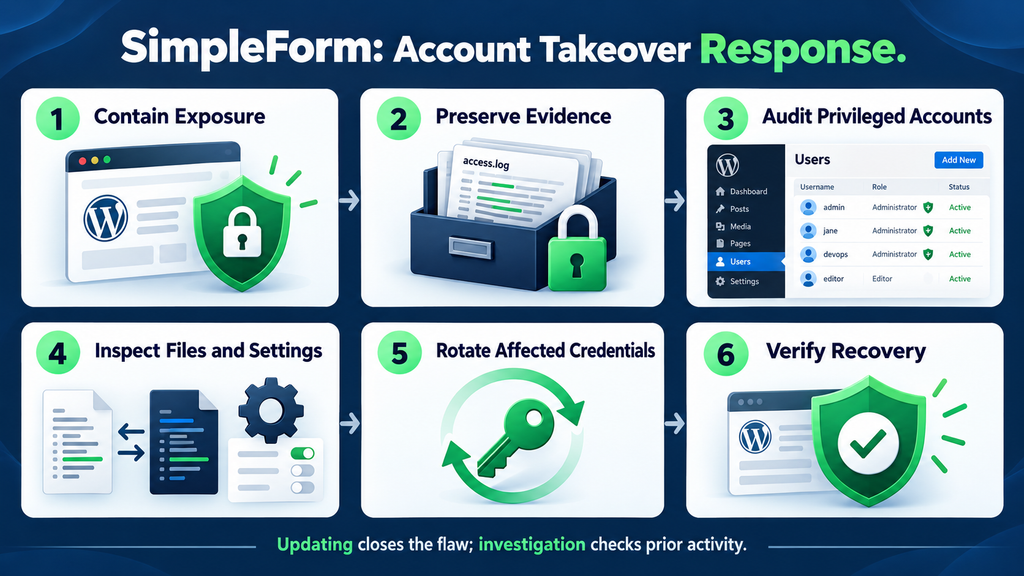
If an unexplained Administrator account appears alongside other suspicious activity, treat the situation as a potential security incident. Assign one person to coordinate the response and start a simple timeline. Record when the problem was discovered, which plugin version was installed, what evidence was preserved, and which containment steps were taken. This reduces confusion when several people are helping. It also prevents well-intentioned changes from obscuring the sequence of events. A clear incident record is useful even when the investigation eventually finds a legitimate explanation.
Containment should stop further unauthorized activity while preserving enough information to understand the problem. Depending on the evidence, that may involve deactivating the vulnerable plugin, restricting public access at the hosting layer, or isolating the affected installation. A maintenance page alone may leave backend endpoints reachable, so confirm what the chosen control actually blocks. If the dashboard itself may be compromised, coordinate through a trusted hosting account rather than relying exclusively on administrative screens served by the affected application.
Preserve evidence and revoke unauthorized access
Before removing a suspicious account, preserve its identifier, email address, roles, relevant timestamps, and any activity records. Then determine how to revoke its access safely. Removing only one visible symptom may leave active sessions, additional accounts, application passwords, or altered code behind. An experienced responder can choose the order that best fits the incident. On a smaller website, the hosting provider may be able to help preserve a snapshot and restrict access while you verify the legitimate administrators and arrange a more complete review.
WP-CLI includes a command for destroying a particular user’s WordPress sessions:
wp user session destroy 123 --allHere, 123 is an example account ID that must be replaced with the verified target. The command invalidates that user’s WordPress session tokens; it does not delete the account or remove other persistence. It also does not revoke every possible credential used by integrations. Treat session invalidation as one containment step within a broader response, and confirm you have selected the correct account before running a command that changes access. Developer.WordPress.org
Inspect files and understand checksum limitations
Review the installation for unexpected changes after preserving evidence. Areas worth examining include active plugins, themes, must-use plugins, configuration files, scheduled tasks, and executable files in locations that should normally contain uploads. Compare findings with known deployment records and trusted backups. A recently modified file is a lead, rather than an automatic malware verdict. Updates, image processing, and legitimate maintenance can also change files. The question is whether each important change has an explanation consistent with authorized activity.
For WordPress core, WP-CLI provides a checksum verification command:
wp core verify-checksumsIt compares covered core files with the expected checksums for the selected WordPress release. Investigate reported differences, taking account of language and version selection where relevant. A clean result is useful evidence about the files checked, but it is not a declaration that the entire website is clean. It does not inspect every plugin, uploaded file, database record, server setting, or persistence mechanism outside its scope. Developer.WordPress.org
Plugin verification can provide another comparison:
wp plugin verify-checksums --allThis relies on available WordPress.org checksums. Commercial plugins, custom code, or unavailable versions may not have a usable comparison source. A warning about missing checksums needs a different response from a confirmed mismatch. Obtain trusted packages for components that cannot be checked this way and compare them through an appropriate review process. Preserve legitimate customizations before replacing files, and avoid treating a single scanner or command as a complete investigation. Developer.WordPress.org
Review the database, secrets, and connected services
A takeover can affect stored content and settings without leaving an obvious change in core files. Review unexplained redirects, altered site addresses, unfamiliar scheduled events, new integrations, and unexpected changes to published pages. Inspect administrative email changes and authentication-related settings. For a business site, also review services connected through the WordPress dashboard. An integration token might permit access to mailing lists, external forms, or other systems. The response should follow the actual permissions exposed, rather than assuming every external service was necessarily accessed.
Rotate affected credentials from a trusted device after controlling the immediate exposure and checking for persistence. Depending on the findings, this may include administrator passwords, hosting credentials, database credentials, deployment keys, and integration secrets. Some situations justify immediate revocation during containment, followed by another rotation after cleanup. Coordinate changes carefully so the website can reconnect to essential services. Record what was rotated and verify the result. Changing passwords while malicious code still runs may allow replacement secrets to be captured again.
Recover deliberately and monitor the result
When the installation cannot be trusted, a controlled rebuild from verified software may provide more confidence than repeatedly removing individual suspicious files. Preserve the affected environment first when possible. Restore content and configuration from a backup that has been assessed, patch the vulnerable component before reopening access, and review the restored accounts. A backup date alone does not prove cleanliness. The unauthorized activity may have begun earlier than the first visible symptom, so the recovery decision should consider the investigation timeline.
After recovery, monitor for renewed privileged account creation, unexpected configuration changes, and recurrence of the original symptoms. Test important visitor journeys, including registration, login, checkout where applicable, and contact forms. Decide whether personal information may have been accessed and obtain appropriate professional advice about any resulting obligations. Avoid declaring that data was stolen without evidence, but do not dismiss the possibility solely because the homepage looks normal. The goal is to restore trustworthy operation and understand the remaining uncertainty clearly.
Strengthening Registration Security After the Update
Once the urgent work is complete, review the purpose of registration on your website. Many blogs do not need visitor accounts at all. Other websites need accounts only for subscribers, customers, or approved members. Write down that purpose and the lowest level of access required to support it. This creates a practical reference for future changes. If a new form or integration requests broader permissions, you can compare the request with an agreed requirement instead of making the decision under time pressure.
Review who can change registration settings and who receives security notifications. Alerts are more useful when someone is responsible for reading them. For a small team, one primary owner and one backup contact may be enough. Consider notifications for newly created privileged accounts and significant role changes, while avoiding unnecessary collection of personal data. Keep the review manageable. A short routine that someone performs consistently provides more value than a complicated process that nobody follows after the initial concern has passed.
Keep permission decisions separate from profile data
Developers maintaining custom registration code should define accepted fields explicitly and map them to intended storage locations. Profile preferences should remain separate from role assignment. Unknown fields should not gain meaning merely because they match an internal database key. The server should choose the permitted role from trusted policy, and privileged role changes should require authorization. These design choices reduce dependence on remembering every sensitive metadata name. They also make reviews easier because the allowed behavior is visible in a small, deliberate set of decisions.
Use different tests for different security responsibilities. A functional test can confirm that a new subscriber receives a welcome email. An authorization test should confirm that public input cannot change the account’s authority. Another check can verify that an invalid form identifier is rejected. These checks address distinct boundaries and should remain understandable to the people maintaining the code. The objective is not to reproduce an attack on a live website, but to verify in a controlled environment that unexpected input cannot override trusted configuration.
Maintain an inventory that supports faster decisions
A basic inventory can include each website’s owner, installed plugins, update status, hosting contact, and backup location. Add whether registration is public and which component handles it. When another advisory appears, this information lets you identify affected installations quickly. Without it, the first hour of a response may disappear into finding passwords and determining which plugin powers the signup page. An inventory also helps identify unused components that can be removed during routine maintenance, reducing the number of systems that require future attention.
Finally, protect legitimate administrative accounts with strong unique passwords, suitable multifactor authentication, and careful access management. These measures remain valuable even though this particular flaw does not depend on guessing an existing password. Security controls work best when each addresses the risk it can actually reduce. Keep software updates, safe registration logic, account protection, backups, and monitoring as complementary practices. That balanced approach makes the website easier to maintain and gives you several useful sources of evidence when something unexpected happens.
Frequently Asked Questions
What is the SimpleForm vulnerability?
The SimpleForm vulnerability discussed here is CVE-2026-104748, an unauthenticated privilege escalation involving registration data and sensitive user metadata. In affected versions, a public registration workflow can allow inappropriate influence over account permissions. The reported outcome is creation of an Administrator-level WordPress account. Website owners should identify the exact affected plugin, install a fixed release, and review privileged access. Having the vulnerable version installed establishes exposure to the reported flaw; it does not independently establish that an attacker successfully used it on that website.
Which SimpleForm versions need an update?
The published affected range covers versions up to and including 3.10.0, with 3.10.1 identified as the first patched version. Check the version on every relevant installation, including staging copies and older development sites. When updating, use a supported release from a trusted source and confirm the resulting installed version. If you cannot complete the update promptly, deactivate the affected plugin while arranging assistance. Review compatibility afterward, especially when custom registration code or integrations depend on the plugin’s user metadata behavior.
Does an attacker need an existing account?
The issue is described as unauthenticated, meaning exploitation does not require an existing WordPress account. That is one reason the vulnerability deserves prompt attention. The relevant entry point concerns a public registration workflow, rather than a legitimate administrator deciding to promote a user. Strong passwords on your existing accounts remain important, but they do not repair unsafe account creation logic. Address the vulnerable plugin directly and avoid assuming that a limited number of legitimate users makes the registration handler safe.
What does wp_capabilities mean?
On a typical installation using the default prefix, wp_capabilities is a user metadata key associated with roles and directly assigned capabilities. It belongs to the access-control side of an account, rather than ordinary profile information. Exact key names and site context can differ, particularly with custom prefixes and multisite. The security principle remains the same: public registration input must not determine sensitive permissions. Developers should use trusted role policy and explicit field handling instead of allowing submitted field names to select arbitrary metadata destinations.
Will changing my Administrator password fix this issue?
Changing an existing administrator’s password does not fix the vulnerable registration behavior. The reported risk concerns creation of a separate privileged account, so an attacker would not necessarily need your current password. Update or deactivate the affected plugin first as part of containment. If unauthorized access is suspected, review all privileged accounts, active sessions, application passwords, files, and settings. Credential rotation may still be necessary, but it belongs within an investigation and recovery process that also addresses the original entry point.
Does updating automatically remove malicious accounts?
You should not assume that updating removes accounts created before the fix. A plugin update changes the relevant software behavior, while existing user records remain a separate area to investigate. Review the expected administrators and examine unexplained additions or promotions. Preserve useful evidence before removing suspicious access. If an attacker had administrative control, also check for other changes that could survive account deletion. A clean user list after removing one account is encouraging, but it is not enough by itself to establish complete recovery.
Can I rely on CAPTCHA or a firewall instead?
CAPTCHA and firewall controls may reduce certain unwanted requests, but their protection depends on implementation and coverage. They should not replace the fixed plugin release. A provider may offer a rule for a known vulnerability, yet you still need confirmation that it is active on the affected installation and covers the relevant behavior. Use such controls as additional protection or temporary containment where appropriate. The clearest long-term response to this specific software flaw is installing a supported patched version and validating the website afterward.
How can I check for unauthorized administrators?
Begin in Users → All Users and compare privileged accounts with a verified list of authorized people. If WP-CLI is available, export or display administrator details with registration dates for easier review. Investigate unfamiliar accounts through established contact channels and correlate them with available logs. Remember that an older account could have been promoted recently, so creation dates alone are insufficient. Websites with custom roles also require a review of effective capabilities, because a powerful account may use a role name other than Administrator.
Can I prove the site is clean with one scan?
No single scan can establish that every relevant part of a website is clean. A file scanner, checksum comparison, account inventory, and log review each examine different evidence. Their results become more useful when considered together. For example, clean core checksums say little about malicious database settings or a stolen integration token. Use several appropriate checks and document their limits. If evidence suggests administrative compromise, involve a responder who can assess persistence, scope, recovery options, and the reliability of the environment.
Should I delete SimpleForm permanently?
Permanent removal depends on whether you still need the plugin and can maintain it safely. If its features remain important, a supported fixed version may meet your requirements after testing and review. If the plugin is unused, removing it reduces unnecessary maintenance. During an active investigation, preserve relevant files and configuration before deletion. Also check which pages, shortcodes, login flows, and integrations depend on it. A deliberate replacement plan avoids turning a security improvement into broken registration, missing forms, or an inaccessible account area.
Put Permission Boundaries Back Under Your Control
The central lesson of the SimpleForm vulnerability is straightforward: visitors may submit information about themselves, but the server must control what those submissions authorize. A normal registration process becomes dangerous when profile fields can reach sensitive permission metadata. Fixing that boundary requires more than a stronger password or a hidden signup page. Website owners need the patched plugin, a verified understanding of their account roles, and a clear distinction between ordinary registration data and privileged account decisions.
Start with the concrete steps that matter most. Confirm the affected plugin and installed version, update to a supported patched release, and test legitimate registration. Then inspect administrative access and investigate anything unexplained. If evidence points to a takeover, preserve records, contain access, and widen the review beyond the first suspicious account. These actions turn a worrying advisory into a manageable response. They also leave your website with clearer ownership, better documentation, and a stronger foundation for handling the next security update.
⚠️ Disclaimer and Source Hygiene
This article provides educational guidance for website owners and authorized administrators. It does not replace a security investigation tailored to your hosting environment, business requirements, or legal obligations. Consult a qualified WordPress security professional or hosting provider when you suspect unauthorized access. Commands should be run only on systems you own or are authorized to administer. Back up relevant information before making changes, verify the selected installation and account identifiers, and adapt the response to the evidence available.
The vulnerability details and remediation boundary were checked against available advisory information and the official plugin changelog on October 14, 2026. General defensive recommendations are the article’s practical guidance, rather than claims that every listed consequence occurred in this incident. No site-specific compromise, data theft, or universal exploitation campaign is asserted. Plugin versions and advisories may change after publication. This article uses an educational, non-sensational approach suitable for a general audience; AdSense approval remains subject to Google’s policies and review of the entire website.
Stay Informed and Join the Discussion
For more tutorials like this, consider subscribing to our blog.
Do you have questions or suggestions? Leave a comment or contact us! When asking for help, share the installed plugin version and a brief description of the symptom. Keep passwords, authentication tokens, private logs, and personal user information out of public comments.
Sources and References
Primary product and security references
- Official SimpleForm plugin page and changelog – product identity and the security changes documented for version 3.10.1.
- Patchstack advisory for CVE-2026-104748 – affected range, patched version, severity, and unauthenticated classification. The advisory currently displays the product name “FormFlow”; its plugin path identifies
simple-form. - WordPress: Checking User Capabilities – authorization principles for plugin developers.
- WordPress: Nonces – the purpose and limitations of WordPress request tokens.
Official administrative command references
- WP-CLI: List Users
- WP-CLI: Destroy User Sessions
- WP-CLI: Verify WordPress Core Checksums
- WP-CLI: Verify Plugin Checksums
Secondary Sources and Testimonials
The CVE record mirrored by CIRCL Vulnerability-Lookup provides the published technical description referenced in the mechanism discussion. It is identified here as a mirror rather than an independent investigation. No personal testimonials, invented victim accounts, or unverified recovery stories have been used. Examples involving membership websites, contractors, and unfamiliar accounts are hypothetical scenarios intended to explain defensive decisions.
Sign in with a Subscriber account to vote.