
Table of Contents
Learn how to optimize your website using the Compress Content feature in cPanel. This step-by-step guide explains Apache compression, MIME types, performance benefits, troubleshooting tips, and best practices to improve website speed, SEO, and user experience.
Understanding Website Compression in cPanel
Website speed matters more than ever. Visitors expect pages to load quickly, and search engines reward fast websites with better rankings. A slow-loading website can reduce conversions, increase bounce rates, and negatively impact user satisfaction.
One of the easiest ways to improve website speed is enabling website compression. In cPanel, the “Optimize Website” feature allows website owners to compress files before they are sent to visitors’ browsers.
This process reduces the size of website files such as HTML, CSS, JavaScript, and XML. Smaller files load faster, consume less bandwidth, and improve overall performance.
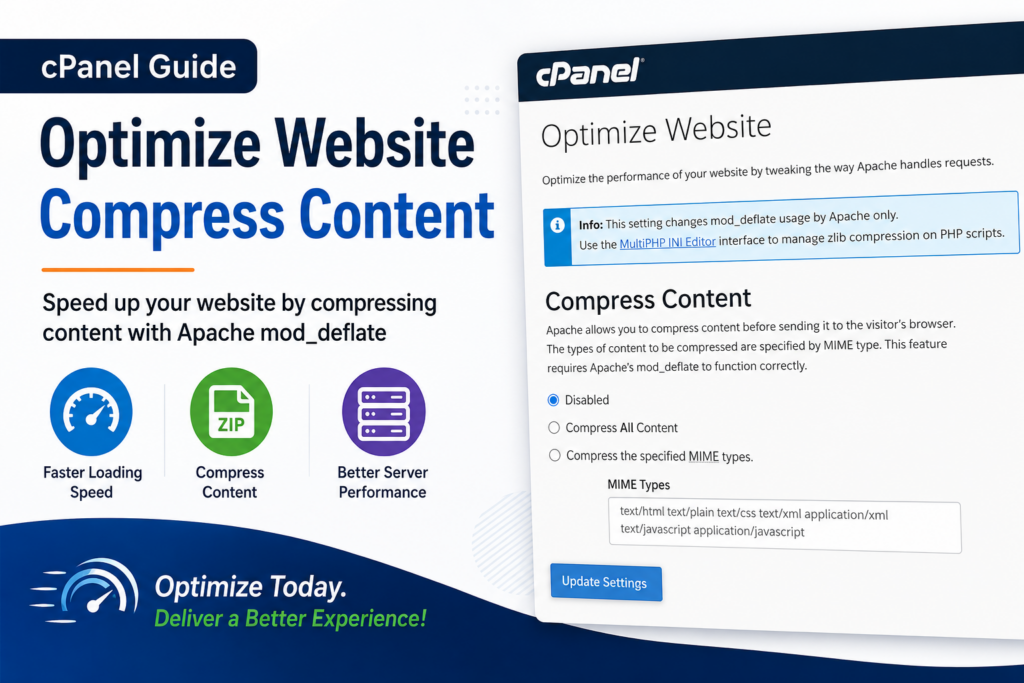
The screenshot above shows the “Optimize Website” section in cPanel where Apache’s mod_deflate module handles content compression.
What Is Website Compression?
Website compression is the process of reducing the size of website files before they are delivered to users. Compression works similarly to ZIP compression on a computer. When a browser requests a webpage, the server compresses the files and sends them to the browser. The browser then automatically decompresses the content and displays the webpage. This process happens within milliseconds and usually goes unnoticed by visitors.
Compression helps websites in several ways:
- Reduces page size
- Improves loading speed
- Saves server bandwidth
- Enhances mobile performance
- Improves SEO rankings
- Creates a better user experience
Most modern websites use GZIP or Brotli compression technologies.
How Apache Compression Works
Apache is one of the most widely used web servers in the world. It includes a module called mod_deflate that compresses files before sending them to users. In cPanel, the “Optimize Website” feature controls Apache compression.
When enabled, Apache compresses specific file types including:
- HTML files
- CSS files
- JavaScript files
- XML documents
- Plain text files
The server checks whether the browser supports compression. If supported, Apache sends compressed files automatically.
Why Website Compression Is Important
Many website owners focus only on design and content. However, performance optimization is equally important. A fast website improves nearly every aspect of online success.
Improved User Experience
Visitors dislike waiting for slow pages to load. Studies consistently show that users leave websites that take too long to open. Compression reduces loading time and keeps visitors engaged.
Better SEO Rankings
Google uses page speed as a ranking factor. Faster websites often perform better in search engine results. Compression helps improve Core Web Vitals and page performance metrics.
Reduced Bandwidth Usage
Compressed files consume less bandwidth. This is especially helpful for websites with high traffic.
Lower bandwidth usage can reduce hosting costs over time.
Faster Mobile Performance
Mobile users frequently browse websites on slower networks. Compression improves mobile loading speed and enhances responsiveness.
Higher Conversion Rates
Fast websites encourage visitors to stay longer and complete actions such as purchases, signups, or form submissions. Even small speed improvements can increase conversions.
Exploring the Optimize Website Feature in cPanel

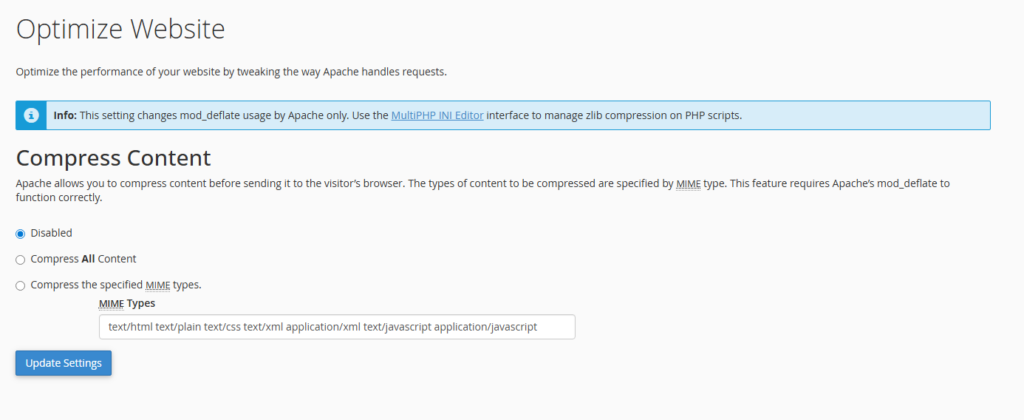
The Optimize Website tool in cPanel offers several options.
Disabled
This option turns compression off completely.
When disabled, Apache sends files without compression. Larger files require more bandwidth and load more slowly.
This setting is not recommended for most modern websites.
Compress All Content
This option compresses all supported website content.
For most websites, this is the easiest and most effective choice.
It automatically applies compression to compatible content types.
Compress the Specified MIME Types
This advanced option lets users manually choose which MIME types to compress.
The screenshot displays common MIME types including:
- text/html
- text/plain
- text/css
- text/xml
- application/xml
- text/javascript
- application/javascript
This option gives developers greater control over server behavior.
What Are MIME Types?
- MIME stands for Multipurpose Internet Mail Extensions.
- MIME types identify file formats sent between the server and browser.
- Browsers use MIME types to understand how to process files.
For example:
| MIME Type | Purpose |
|---|---|
| text/html | HTML webpages |
| text/css | CSS styling files |
| application/javascript | JavaScript files |
| application/xml | XML files |
| text/plain | Plain text documents |
Selecting MIME types ensures only suitable files are compressed.
Step-by-Step Guide to Enable Compression in cPanel
Enabling compression in cPanel is straightforward.
Step 1: Log Into cPanel
Access your hosting account and open cPanel.
Most hosting providers offer direct access through the hosting dashboard.
Step 2: Find the Optimize Website Tool
Scroll to the “Software” or “Software Services” section.
Click “Optimize Website.”
Step 3: Select a Compression Option
You will see three options:
- Disabled
- Compress All Content
- Compress the specified MIME types
For beginners, “Compress All Content” is usually the best option.
Step 4: Save Changes
Click “Update Settings.”
Apache compression becomes active immediately.
Step 5: Test Compression
Use online tools to confirm compression is working.
Popular tools include:
- GTmetrix
- Google PageSpeed Insights
- Pingdom Website Speed Test
- GiftOfSpeed GZIP Test
How to Verify GZIP Compression Is Enabled
After enabling compression, testing is essential.
Using Browser Developer Tools
Modern browsers include built-in developer tools.
In Chrome:
- Open your website
- Press F12
- Open the Network tab
- Reload the page
- Inspect response headers
Look for:
- content-encoding: gzip
This confirms compression is active.
Using Online Testing Tools
Several free online tools detect GZIP compression automatically.
These tools analyze server responses and provide performance recommendations.
Difference Between GZIP and Brotli Compression
Website compression often involves GZIP or Brotli.
GZIP Compression
GZIP is the most widely supported compression method.
Advantages include:
- Broad browser support
- Easy server configuration
- Reliable performance
- Good compression ratios
Brotli Compression
Brotli is newer and often achieves better compression rates.
Advantages include:
- Smaller file sizes
- Faster loading times
- Improved web performance
However, Brotli support depends on server configuration and hosting environment.
Best File Types for Compression
Not all files benefit equally from compression.
Highly Compressible Files
These files compress very effectively:
- HTML
- CSS
- JavaScript
- XML
- JSON
- Plain text
Files That Usually Should Not Be Compressed Again
Some file formats are already compressed.
Examples include:
- JPEG images
- PNG images
- MP4 videos
- ZIP archives
- PDF files
Compressing already compressed files may waste server resources.
How Compression Improves SEO
Search engines prioritize fast websites.
Compression directly impacts several SEO factors.
Core Web Vitals
Google measures website performance using Core Web Vitals.
Compression improves metrics such as:
- Largest Contentful Paint (LCP)
- First Contentful Paint (FCP)
- Time to First Byte (TTFB)
Lower Bounce Rates
Fast websites encourage visitors to stay longer.
Lower bounce rates send positive engagement signals to search engines.
Better Mobile Rankings
Google primarily uses mobile-first indexing.
Compression enhances mobile performance significantly.
Website Compression and WordPress
- WordPress websites benefit greatly from compression.
- Themes, plugins, CSS files, and JavaScript assets can increase page size rapidly.
- Compression helps reduce these performance issues.
WordPress Plugins That Support Compression
Many optimization plugins include compression features.
Popular options include:
- WP Rocket
- W3 Total Cache
- LiteSpeed Cache
- WP Fastest Cache
- Autoptimize
Some plugins automatically configure compression rules.
Server Requirements for Compression
Compression requires server support.
Apache mod_deflate
Apache servers use mod_deflate.
Most shared hosting providers enable it by default.
NGINX Compression
NGINX servers use gzip configuration directives.
Compression settings differ from Apache.
LiteSpeed Servers
LiteSpeed often includes built-in optimization features.
LiteSpeed Cache plugins can manage compression automatically.
Advantages of Using Compress All Content
Most website owners prefer the “Compress All Content” option.
Benefits include:
- Simple setup
- Automatic optimization
- Broad file coverage
- Faster performance improvements
- Reduced configuration errors
This option works well for blogs, business websites, and online stores.
Advantages of Selecting Specific MIME Types
Advanced users may prefer manual MIME selection.
Benefits include:
- Greater control
- Customized optimization
- Reduced server overhead
- Better compatibility management
Developers handling large applications sometimes choose this approach.
Common Compression Problems and Solutions
Compression usually works smoothly, but issues can occasionally occur.
Compression Not Working
Possible causes include:
- mod_deflate disabled
- Incorrect .htaccess rules
- Hosting restrictions
- CDN conflicts
Contact your hosting provider if compression fails.
Broken Website Layout
Sometimes compressed files may conflict with caching plugins.
Solutions include:
- Clearing cache
- Disabling conflicting plugins
- Testing MIME types individually
Double Compression Errors
If both the server and CDN compress content, problems may occur.
Disable duplicate compression settings.
Using .htaccess for Manual Compression
Advanced users can enable compression manually using .htaccess.
Example configuration:
<IfModule mod_deflate.c>
AddOutputFilterByType DEFLATE text/html text/plain text/xml text/css application/javascript
</IfModule>
This configuration tells Apache to compress specific file types.
Always create a backup before editing .htaccess.
Compression and Content Delivery Networks (CDNs)
Many websites use CDNs such as:
- Cloudflare
- BunnyCDN
- StackPath
- KeyCDN
Most CDNs include built-in compression.
Cloudflare Compression
Cloudflare automatically supports GZIP and Brotli compression.
Website owners can enable Brotli from the Cloudflare dashboard.
Why CDN Compression Matters
CDNs distribute content globally.
Compression further reduces latency and improves worldwide performance.
Compression vs Caching
Compression and caching are different technologies.
Compression
Compression reduces file size.
Caching
Caching stores preloaded content for faster delivery.
Both technologies work together to improve website speed.
How Compression Affects Hosting Performance
- Compression reduces bandwidth usage but may slightly increase CPU usage.
- However, modern servers handle compression efficiently.
- For most websites, performance benefits outweigh resource costs.
- Shared hosting users especially benefit from reduced bandwidth consumption.
Security Considerations of Compression
- Compression is generally safe.
- However, some older vulnerabilities such as BREACH attacks targeted compressed HTTPS traffic.
- Modern servers and browsers include protections against these risks.
- Keeping software updated remains essential.
Compression Best Practices for WordPress Websites
Following best practices ensures maximum performance.
Enable Compression Early
Compression should be one of the first optimizations applied.
Use a Caching Plugin
Caching plugins complement compression.
Optimize Images Separately
Compression helps text-based files more than images.
Use image optimization plugins such as:
- ShortPixel
- Imagify
- Smush
Minify CSS and JavaScript
Minification removes unnecessary characters from files.
Combined with compression, minification improves performance further.
Use Modern Hosting
Quality hosting providers offer optimized server environments.
Better hosting improves compression efficiency.
Performance Testing Before and After Compression
Website owners should compare performance results.
Metrics to Monitor
Key metrics include:
- Page size
- Load time
- Requests
- Time to First Byte
- Core Web Vitals
Expected Improvements
Compression can reduce page size by 60% to 80% for text-based content.
Actual results depend on website structure.
How Compression Helps E-Commerce Websites
Online stores often contain many scripts and stylesheets.
Compression helps product pages load faster.
Benefits include:
- Improved shopping experience
- Better mobile usability
- Increased conversions
- Reduced cart abandonment
WooCommerce websites particularly benefit from optimization.
Compression and Mobile Optimization
Mobile users often access websites using slower networks.
Compression significantly improves mobile browsing speed.
This leads to:
- Faster page loads
- Reduced data usage
- Better engagement
- Improved SEO performance
Can Compression Slow Down Servers?
- Some website owners worry about server load.
- Compression requires processing power, but modern servers handle it efficiently.
- For most websites, the impact is minimal.
- High-traffic websites may need advanced optimization strategies.
When Compression Should Be Disabled
Compression should rarely be disabled entirely.
However, exceptions may include:
- Debugging server issues
- Testing compatibility problems
- Already compressed content
- Specific legacy applications
Most websites benefit from keeping compression enabled.
Combining Compression With Other Optimization Techniques
Compression works best alongside additional performance improvements.
Browser Caching
Browser caching stores files locally for returning visitors.
Lazy Loading
Lazy loading delays image loading until needed.
Database Optimization
Cleaning unnecessary database entries improves WordPress performance.
Code Optimization
Removing unused scripts reduces page size.
Real-World Benefits of Compression
Many businesses experience noticeable improvements after enabling compression.
Common results include:
- Faster loading pages
- Better Google PageSpeed scores
- Improved search visibility
- Lower hosting bandwidth usage
- Better customer engagement
Even simple websites benefit from this optimization.
Frequently Asked Questions
What does Compress Content do in cPanel?
It enables Apache compression to reduce the size of website files before sending them to visitors.
Is GZIP compression safe for WordPress websites?
Yes. GZIP compression is widely supported and safe for modern WordPress websites.
Which option should I choose in Optimize Website?
Most users should select “Compress All Content” for easy and effective optimization.
Can compression improve SEO rankings?
Yes. Faster websites often perform better in search engine rankings.
How can I test if compression is working?
You can use tools like GTmetrix, Google PageSpeed Insights, or browser developer tools.
Does compression reduce image size?
Compression mainly helps text-based files. Images should be optimized separately.
What is mod_deflate?
mod_deflate is an Apache module that handles website compression.
Can compression break my website?
Compression rarely causes issues, but plugin conflicts or server misconfigurations may create problems.
Should I use compression with a CDN?
Yes. Compression and CDNs work together to improve performance.
What is the difference between caching and compression?
Compression reduces file size, while caching stores content for faster delivery.
Website Compression in cPanel
Website performance is no longer optional. Fast-loading websites improve SEO, enhance user experience, and increase conversions.
The Optimize Website feature in cPanel provides a simple way to enable compression using Apache’s mod_deflate module.
Whether you manage a WordPress blog, business website, or online store, enabling compression is one of the easiest performance upgrades available.
Combining compression with caching, image optimization, and quality hosting creates an even faster and more reliable website.
Website owners who prioritize performance often see long-term benefits in traffic, engagement, and search visibility.
⚠️ Disclaimer and Source Hygiene
This article is for educational and informational purposes only. Server configurations may vary depending on hosting providers and website environments. Always create backups before modifying server settings or .htaccess files. Information in this guide is based on industry best practices and research from authoritative hosting and web performance sources.
🔔 For more tutorials like this, consider subscribing to our blog.
📩 Do you have questions or suggestions? Leave a comment or contact us!
🏷️ Tags: website compression, cPanel optimization, Apache mod_deflate, GZIP compression, WordPress speed optimization, optimize website cPanel, MIME types, website performance, page speed SEO, WordPress caching
📢 Hashtags: #WordPress #cPanel #WebsiteOptimization #GZIP #SEO #PageSpeed #Apache #WebHosting #PerformanceOptimization #Blogging
📚 Sources and References
- Apache Official Documentation
- Google PageSpeed Insights Documentation
- Cloudflare Performance Documentation
- cPanel Official Documentation
- GTmetrix Performance Optimization Resources
- Mozilla Developer Network (MDN)
🕊️ Secondary Sources and Testimonials
Many web developers and hosting professionals recommend enabling GZIP compression as a foundational website optimization technique. Performance testing tools consistently show that compression reduces page sizes and improves loading speed across various website platforms, including WordPress.