
Table of Contents
Learn how to optimize Largest Contentful Paint in WordPress with practical basic settings. This guide explains image optimization, caching, fonts, CSS, JavaScript, lazy loading, server response time, and other simple changes that can improve LCP and Core Web Vitals without making your website unnecessarily complicated.
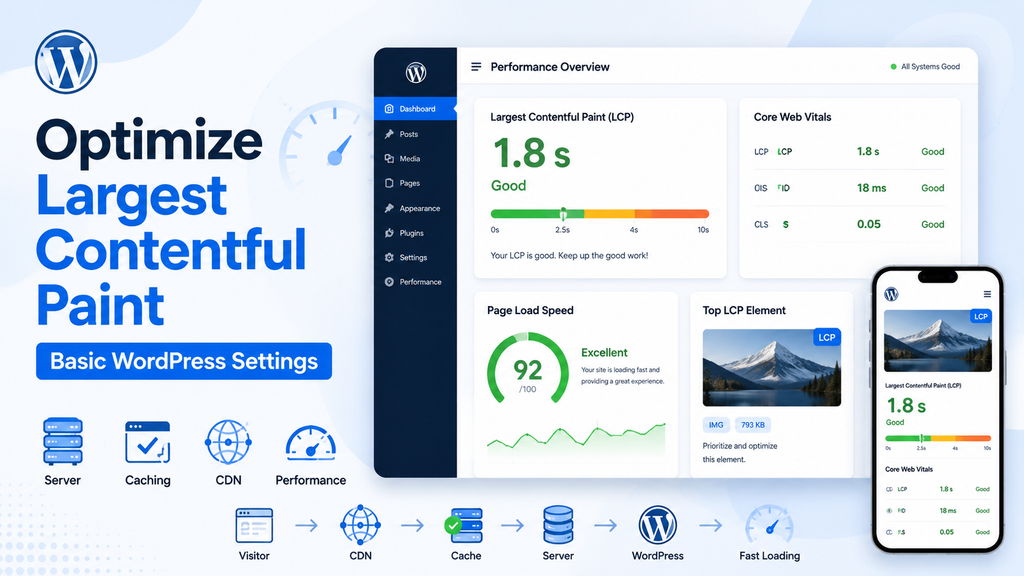
What Is Largest Contentful Paint?
Largest Contentful Paint, usually shortened to LCP, is one of the most important performance metrics used to evaluate how quickly a web page becomes useful to a visitor. It measures how long the browser takes to display the largest visible content element within the initial viewport.
On a WordPress website, that element is often a featured image, hero image, large heading, banner, or another prominent block near the top of the page. Because these elements dominate what visitors see first, their loading speed strongly affects the perceived speed of the website.
LCP is also part of Google’s Core Web Vitals. Therefore, improving it is useful for both visitors and technical SEO. However, LCP optimization should not become a race to remove every design feature from your website. The goal is to make important above-the-fold content available quickly while keeping the site functional and visually appealing.
For many WordPress websites, substantial improvements are possible with a relatively small collection of basic settings.
What Is a Good LCP Score?
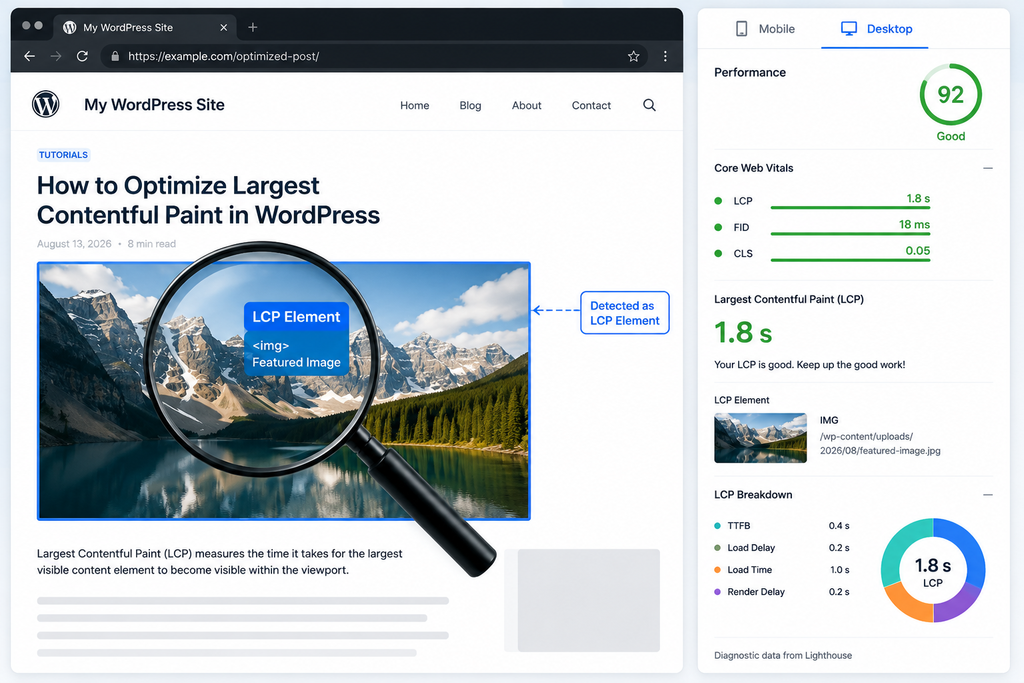
Google generally evaluates LCP using three performance ranges. A page that displays its largest content element within 2.5 seconds is considered good. An LCP between 2.5 and 4 seconds needs improvement, while anything above 4 seconds is considered poor.
These thresholds should not be treated as a guarantee that every visitor experiences exactly the same loading time. Real-world performance changes according to the visitor’s device, internet connection, geographical location, browser, cache status, and server conditions.
A powerful desktop computer connected to fast broadband may load a page almost instantly. The same page can perform very differently on a mid-range smartphone using a slower mobile connection.
That is why WordPress owners should look beyond a single laboratory test. Tools such as PageSpeed Insights can provide valuable diagnostic information, while real-user Core Web Vitals data gives a broader picture of actual visitor experiences.
The first objective is simple: identify the LCP element before trying to optimize it.
Find the LCP Element Before Changing WordPress
One of the most common performance mistakes is installing several optimization plugins before understanding what actually causes the problem. This approach can make WordPress more complicated without producing a meaningful improvement.
Start by testing the affected URL and identifying which element becomes the Largest Contentful Paint candidate.
For a typical blog post, it might be the featured image. On another website, the LCP element could be the article title. A business homepage might use a large hero banner containing text and a background image.
Once you know the element, the optimization strategy becomes much clearer.
For example, if the featured image causes poor LCP, concentrate on image delivery, dimensions, compression, caching, preload behavior, and lazy loading. If a text heading becomes the LCP element, web fonts, CSS, and server response time may deserve more attention.
This targeted approach is safer than applying every performance recommendation you find online.
Basic LCP Settings Every WordPress Site Should Check
Improving Largest Contentful Paint usually involves several stages of page loading. The server must respond quickly, HTML needs to arrive, CSS must allow the browser to render the page, and the LCP resource must be discovered and downloaded.
A delay at any one of these stages can increase LCP.
Fortunately, WordPress administrators do not always need advanced server engineering to improve the situation. Start with the fundamentals: caching, image optimization, lazy-loading configuration, CSS delivery, JavaScript execution, font loading, CDN configuration, and hosting performance.
These settings provide a solid foundation before more advanced optimization becomes necessary.
Enable Full-Page Caching
Page caching is one of the most effective basic optimizations for a WordPress website.
WordPress normally generates pages dynamically. PHP executes application code, WordPress queries the database, plugins perform their operations, and the theme builds the final HTML response. Although modern servers can perform these operations quickly, repeating them for every anonymous visitor wastes resources.
A page cache stores a generated version of the page and can serve it much faster to subsequent visitors.
Depending on your hosting environment, caching may happen at the WordPress plugin level, web-server level, reverse-proxy layer, or CDN edge.
The exact implementation matters less than the principle: public pages that rarely change should not require a complete WordPress execution cycle for every request.
After enabling caching, verify that pages actually return cached responses. Simply activating a caching plugin does not guarantee that caching works correctly.
Keep the Cache Configuration Simple
More optimization options do not automatically produce a faster website. In fact, aggressive configurations can introduce new problems.
A basic cache configuration is often sufficient:
Page caching: Enabled
Browser caching: Enabled
GZIP or Brotli compression: Enabled when supported
Cache preloading: Useful when properly configured
Minification: Test before enabling globally
Database caching: Not automatically necessary
Object caching: Useful for suitable dynamic workloads
Avoid enabling every checkbox simply because the option exists.
Some WordPress performance plugins overlap with functionality already provided by the server or CDN. Running several systems that perform the same optimization can create duplicate minification, conflicting cache headers, broken JavaScript, or difficult cache invalidation.
Start simple, test the site, and add optimization layers individually.
Optimize the LCP Image Correctly

Images frequently become the LCP element on WordPress websites because modern themes place large featured images or hero graphics near the top of pages.
If an image is the LCP element, reducing its file size can produce a noticeable improvement. However, compression alone is not enough.
The browser also needs to discover the image quickly.
A well-optimized 70 KB image can still produce poor LCP if JavaScript injects it late into the page. Meanwhile, a slightly larger image discovered immediately in the original HTML may render faster.
Therefore, image LCP optimization should consider four factors: file size, dimensions, format, and discovery priority.
Resize Images Before Uploading Them
Uploading extremely large images and relying entirely on WordPress or CSS to shrink them is inefficient.
Imagine that a featured image displays at approximately 1,200 pixels wide, but the original upload is 5,000 pixels wide. WordPress can generate alternative image sizes, but oversized source images still consume storage and can sometimes be served unnecessarily.
Prepare images close to the maximum dimensions required by your layout.
For blog featured images, the correct dimensions depend on the theme, content width, device breakpoints, and whether the image appears full-width.
WordPress responsive image functionality can then use srcset and sizes to help browsers choose an appropriate file for each screen.
Avoid choosing tiny images solely to reduce file size. An image that becomes visibly blurry on modern high-density screens is not a good optimization.
Use Modern Image Formats
WebP is a practical choice for many WordPress websites because it can significantly reduce file size while maintaining good visual quality.
AVIF can provide even better compression for certain images, although the final choice depends on your WordPress setup, image-processing tools, CDN, and compatibility requirements.
The format itself is not magical. A badly optimized WebP image can still be larger than a properly compressed JPEG.
Check the actual output files rather than assuming that converting everything automatically creates optimal images.
For many sites, an image optimization plugin or CDN can generate modern formats and serve them to compatible browsers automatically.
Compress Images Without Destroying Quality
Image compression should reduce unnecessary bytes without making photographs and graphics visibly poor.
For LCP images, a moderate compression level often provides the best balance. The image occupies a prominent area of the page, so visitors are more likely to notice compression artifacts.
Test several quality levels and inspect the result on both desktop and mobile devices.
The objective is not to obtain the smallest possible file. Instead, aim for the smallest file that still looks appropriate for your design.
This distinction matters because extreme optimization sometimes damages user experience while producing only a tiny additional performance gain.
Never Lazy Load the Main LCP Image
Lazy loading is extremely useful for images farther down a page. It prevents browsers from immediately downloading resources visitors cannot yet see.
However, applying lazy loading to the main above-the-fold image can work against LCP.
If the browser waits before requesting the most important visible image, the Largest Contentful Paint event may occur later than necessary.
For that reason, the primary featured or hero image should usually load normally when it appears immediately in the viewport.
Images farther down the article can continue using lazy loading.
A simple strategy looks like this:
Above-the-fold LCP image: Do not lazy load
Images below the fold: Lazy load
Thumbnails far down archive pages: Lazy load
Footer images: Lazy load
Some WordPress optimization plugins automatically exclude the first image from lazy loading. Others allow administrators to specify exclusions manually.
Always inspect the resulting HTML and performance test rather than assuming the setting works as expected.
Give Important Images Higher Fetch Priority
Modern browsers support the fetchpriority attribute, which can help indicate that an important resource deserves higher download priority.
For an LCP image, WordPress or an optimization solution may produce markup similar to:
<img
    src="featured-image.webp"
    width="1200"
    height="675"
    fetchpriority="high"
    alt="Example featured image"
>
The important part is:
fetchpriority="high"
This signal can help the browser prioritize an important above-the-fold image.
However, avoid assigning high priority to numerous images. Priority hints are useful because they help the browser distinguish critical resources from less important ones. If everything receives high priority, the signal becomes less useful.
Recent WordPress versions already contain performance logic around image loading. Therefore, inspect the generated markup before adding custom code that might duplicate native behavior.
Consider Preloading the LCP Image Carefully
Preloading can tell the browser about an important resource very early in the loading process.
A simplified image preload might look like this:
<link
    rel="preload"
    as="image"
    href="/wp-content/uploads/example.webp"
>
This technique can improve LCP when the browser would otherwise discover the image late.
Nevertheless, preloading every featured image is not automatically a good idea. Responsive images can involve multiple candidates, and incorrect preload configurations may cause browsers to download unnecessary resources.
Before adding a manual preload, determine whether the image is already discovered early and given appropriate priority.
If WordPress and the browser already prioritize the resource efficiently, additional preload instructions may offer little benefit.
Preloading is best used as a targeted solution rather than a universal performance setting.
Always Set Image Width and Height
Image dimensions help browsers reserve the correct amount of layout space before an image finishes downloading.
A basic image should contain dimensions similar to:
<img
    src="example.webp"
    width="1200"
    height="675"
    alt="Example image"
>
WordPress normally adds dimensions to images inserted through its media system. Problems are more likely to appear with custom templates, manually generated HTML, external widgets, or poorly designed plugins.
Although width and height attributes are especially important for preventing layout shifts, predictable image layout also helps the browser render pages efficiently.
This is a good example of one optimization supporting multiple Core Web Vitals at the same time.
Improve Server Response Time
A perfectly compressed LCP image cannot compensate completely for a server that takes several seconds to begin returning the HTML document.
The browser needs the initial document before it can discover many page resources. Consequently, slow server response can delay nearly every later stage of rendering.
For WordPress, server response time can be affected by hosting resources, PHP performance, database queries, plugin overhead, external API calls, cache misses, and traffic spikes.
Start with page caching because it can bypass much of the expensive dynamic processing for anonymous visitors.
If response times remain high after caching, investigate the WordPress installation itself.
Remove Plugins You No Longer Need
The total number of plugins is not the only factor that determines WordPress performance. Ten efficient plugins can perform better than one badly designed plugin.
Nevertheless, unnecessary plugins increase complexity.
Review the Plugins screen and ask whether each extension still serves a real purpose. Deactivate and remove plugins that are no longer required.
Pay particular attention to plugins that execute operations on every page request, make external requests, perform complicated database queries, or inject large amounts of frontend CSS and JavaScript.
Do not remove a plugin merely because a performance test lists one of its files. First determine whether the functionality is necessary and whether the resource actually causes a meaningful delay.
Use a Supported PHP Version
WordPress performance can benefit from modern supported PHP versions because newer releases generally include performance and efficiency improvements.
Before changing PHP versions, verify compatibility with your theme, plugins, and custom code.
Create a backup and test important website functionality after upgrading.
PHP improvements primarily affect server-side processing. Therefore, they will not directly fix an oversized hero image or render-blocking stylesheet. However, faster backend execution can improve the beginning of the loading chain, especially when uncached requests occur.
Configure Browser Caching
Browser caching allows static files to remain stored on a visitor’s device for a defined period.
Resources such as images, CSS, JavaScript, and fonts often do not need to be downloaded again during every page visit.
Effective cache headers can make repeat navigation considerably faster.
WordPress cache plugins, web servers, CDNs, and hosting platforms may all control browser cache headers. Avoid configuring several layers independently unless you understand which system ultimately determines the response.
Long cache lifetimes work particularly well for versioned static assets. When a file changes, its URL or query version can change as well, allowing visitors to receive the new resource.
Enable Brotli or GZIP Compression
Text-based resources such as HTML, CSS, JavaScript, JSON, and SVG can usually be compressed during transfer.
Brotli is widely used by modern hosting and CDN platforms, while GZIP remains an effective fallback.
Compression reduces the number of bytes transferred across the network and can improve loading speed, especially on slower connections.
Many modern hosting environments enable compression automatically. CDNs may also handle it at the edge.
Before installing another WordPress plugin solely for compression, check your response headers or hosting configuration. You may discover that compression already works correctly.
Avoid compressing already compressed formats unnecessarily. JPEG, WebP, AVIF, MP4, and similar binary formats generally receive little benefit from traditional HTTP text compression.
Reduce Render-Blocking CSS
CSS is critical to page rendering. The browser often needs stylesheets before it can correctly display visible content.
Large CSS files can therefore contribute to delayed rendering and poor LCP.
WordPress sites frequently accumulate CSS from the theme, page builders, block libraries, forms, icon libraries, optimization plugins, and third-party extensions.
The first objective should be reducing unnecessary CSS.
Removing unused functionality is usually safer than applying increasingly complicated optimization tricks to resources the website never needed in the first place.
Keep Above-the-Fold CSS Efficient
The browser needs styles for the visible portion of the page quickly.
Some optimization systems generate critical CSS containing the styles required for above-the-fold content. Remaining CSS can then load using less blocking methods.
This approach can work extremely well, but it requires testing.
Incorrect critical CSS can cause flashes of unstyled content, layout changes, missing menus, or design differences between the initial and final rendering states.
For a simple WordPress theme with relatively small stylesheets, aggressive critical CSS processing may provide less benefit than expected.
Measure before and after enabling it.
Remove Unused CSS Carefully
Unused CSS removal can reduce stylesheet size significantly on websites built with page builders or large multipurpose themes.
However, automatic tools do not always know which styles become necessary after user interaction.
Dropdown menus, popups, tabs, mobile navigation, sliders, forms, and dynamically generated content can require CSS that does not appear necessary during the initial scan.
After enabling unused CSS optimization, test more than the homepage.
Check single posts, pages, category archives, search pages, mobile navigation, forms, logged-out sessions, and interactive components.
Performance improvements are not valuable if visitors encounter a broken interface.
Delay Non-Critical JavaScript
JavaScript can consume browser resources while the page is trying to render its most important content.
WordPress websites commonly load scripts for analytics, advertisements, social sharing, consent management, forms, sliders, tracking, comments, and other interactive features.
Not all of these scripts need to execute before the LCP element appears.
Delaying non-critical JavaScript can therefore improve initial rendering.
The key phrase is non-critical.
Scripts required for navigation, layout, consent behavior, or essential functionality should not be delayed blindly.
Use Defer Where Appropriate
A deferred external script can use:
<script src="example.js" defer></script>
The browser can continue parsing the document while downloading the script, then execute it after HTML parsing.
This behavior can reduce unnecessary parser blocking.
Many WordPress optimization plugins offer automatic JavaScript defer functionality. Test it carefully because plugin and theme scripts sometimes depend on a particular execution order.
A single JavaScript error can break menus, sliders, forms, or other interactive components.
Delay Third-Party Scripts When Possible
Third-party scripts deserve special attention because your server does not control their response time or execution cost.
Examples include advertising platforms, analytics tools, embedded videos, social widgets, chat systems, external fonts, and marketing trackers.
Some are necessary. Others may provide little value.
Audit them periodically.
Removing an unnecessary third-party script is often better than attempting to optimize around it. Every external dependency introduces additional DNS resolution, connections, downloads, and browser processing.
For scripts that must remain, consider whether they truly need to execute before the visitor sees the main content.
Optimize Web Fonts
Fonts can have a surprisingly large effect on perceived loading performance.
When a custom web font is required for a large heading, the browser may need to download the font before displaying the text exactly as designed. Depending on the CSS configuration, this can delay visible content.
Use only the font families and weights that your design actually requires.
A website rarely needs regular, medium, semi-bold, bold, extra-bold, and several italic variants for every font family.
Each additional font file creates another resource.
Prefer Local Fonts When Practical
Locally hosted fonts can reduce dependence on third-party font servers and give you more direct control over caching and delivery.
This does not mean that local fonts are automatically faster in every situation. Configuration still matters.
Use modern font formats such as WOFF2 when appropriate, define proper caching headers, and avoid loading font files that the page never uses.
Local hosting can also simplify privacy considerations because the browser does not need to contact an external font provider simply to display the page.
Use font-display Correctly
A typical @font-face declaration might contain:
@font-face {
    font-family: "MyFont";
    src: url("/fonts/myfont.woff2") format("woff2");
    font-display: swap;
}
The important declaration is:
font-display: swap;
This setting allows the browser to show fallback text while the custom font loads.
Visitors can see content sooner rather than staring at invisible text.
The exact visual result depends on the fallback font, so choose fallback fonts with reasonably similar proportions to reduce noticeable changes when the custom font arrives.
Use a CDN When It Solves a Real Problem
A Content Delivery Network can serve cached resources from infrastructure closer to visitors.
For an international WordPress audience, this can reduce network latency and improve delivery of images, CSS, JavaScript, fonts, and sometimes HTML.
A CDN can also provide additional performance features such as Brotli compression, modern protocol support, image transformation, and edge caching.
However, a CDN cannot repair every WordPress performance issue.
If the original HTML takes four seconds to generate because of a slow plugin, simply putting a CDN in front of the site may not solve the underlying problem unless full-page edge caching is also involved.
Treat a CDN as part of the performance architecture rather than a magic speed button.
Do Not Overuse Preconnect
preconnect can establish an early connection to an external origin before the browser actually requests resources from it.
For example:
<link rel="preconnect" href="https://example.com">
This may be useful for a small number of important external origins.
However, each connection requires browser and network resources. Adding preconnect instructions for every external domain can therefore become counterproductive.
Use them sparingly.
Good candidates are external origins required very early for important fonts or other critical resources. Domains used much later on the page usually do not need an early connection.
The browser already performs sophisticated prioritization, so manual hints should solve identifiable problems rather than simply decorate the <head> section.
Keep the Above-the-Fold Area Simple
The first screen visitors see has a disproportionate influence on LCP.
A lightweight header, clear article title, optimized featured image, and simple navigation can render quickly.
A complex hero area containing video backgrounds, sliders, multiple external fonts, animations, large JavaScript libraries, and several marketing widgets creates much more work for the browser.
This does not mean every WordPress website must have a minimalist design.
Instead, decide which visual elements deserve to appear immediately.
Content located farther down the page can load later without affecting the visitor’s first impression as strongly.
Performance optimization becomes easier when design and technical decisions support each other.
Avoid Sliders Above the Fold
Homepage sliders remain popular, but they can create performance challenges.
A slider may require several large images, additional CSS, JavaScript libraries, animation code, navigation controls, and initialization logic.
Even when only the first slide is initially visible, the plugin may download several assets.
A static hero section is often simpler and faster.
If a slider is important to your website, optimize its first image aggressively and investigate whether later slides can be loaded on demand.
Do not assume a slider is responsible for poor LCP without measuring it, but treat complex above-the-fold components as strong candidates during a performance audit.
Be Careful With Background Images
CSS background images can sometimes be discovered later than standard HTML <img> elements because the browser must process the relevant stylesheet before discovering the image URL.
This can matter when a large hero background becomes the LCP element.
When the image represents meaningful content rather than decoration, using an actual image element may offer better semantic and performance characteristics.
If a background image must remain, make sure the associated CSS is available early and the image is appropriately optimized.
Preloading may help in specific situations, but first verify that resource discovery is actually the source of the delay.
Optimize the WordPress Database Sensibly
Database optimization is frequently recommended as a general speed solution, but its relationship with LCP depends on the situation.
A bloated database can increase backend processing time, particularly when plugins perform inefficient queries against large tables.
Common sources of unnecessary database data include old revisions, expired transients, abandoned plugin tables, accumulated logs, and oversized autoloaded options.
Cleaning these items can improve backend efficiency.
However, deleting a few revisions will not fix an LCP problem caused by a 2 MB hero image.
Database maintenance should be part of general WordPress housekeeping, while LCP troubleshooting should remain focused on the actual loading bottleneck.
Always back up the database before performing manual cleanup.
Check WordPress Autoloaded Options
WordPress loads certain options automatically on many requests. A large amount of autoloaded data can increase memory usage and processing time.
This problem sometimes appears after years of installing, testing, and removing plugins.
Old extensions may leave options behind even after deletion.
Advanced administrators can inspect the options table to identify unusually large autoloaded entries, but deletion requires caution. Removing an option without understanding its purpose can break plugin functionality or website settings.
Treat autoload optimization as a secondary server-side investigation after basic page caching and frontend LCP problems have been addressed.
Avoid Too Many Optimization Plugins
Installing five performance plugins rarely produces five times the performance improvement.
Multiple optimization plugins can attempt to perform the same operations:
- Page caching
- Browser caching
- CSS minification
- JavaScript minification
- Lazy loading
- Image optimization
- Font optimization
- Database cleanup
- Preloading
When their functionality overlaps, troubleshooting becomes difficult.
For example, one plugin may delay JavaScript while another combines it. A CDN may minify the same CSS already processed by WordPress. Two systems might lazy load images using different markup.
Choose a clear architecture.
Use one primary caching and frontend optimization solution, then add specialized tools only when they solve a requirement the primary system does not cover.
Test LCP on Mobile and Desktop
Desktop results alone do not represent the complete visitor experience.
Mobile devices generally have less processing power, and mobile networks can introduce higher latency. A page that feels instantaneous on a modern desktop computer may perform much worse on a typical smartphone.
Test important page templates rather than only the homepage.
At minimum, check:
Homepage
Single blog post
Static page
Category or archive page
Important landing pages
The LCP element can change between templates and screen sizes.
A desktop homepage might use a large hero image as its LCP element, while the mobile layout could identify the heading instead.
This is why template-level testing produces better decisions than optimizing one URL and assuming the entire WordPress installation is fixed.
Understand Lab Data and Real-World Data
Performance testing becomes confusing when two tools display different results.
This does not necessarily mean that one tool is wrong.
Laboratory testing runs the page under controlled simulated conditions. It is useful for diagnosing technical problems and comparing changes.
Field data represents experiences collected from real visitors over time. It reflects different devices, networks, locations, and browsing conditions.
Both are valuable.
Use lab tests when you are actively troubleshooting and need immediate feedback. Use field data to understand whether real visitors experience acceptable Core Web Vitals over a longer period.
Do not panic because one isolated test produces an unusually slow result. Look for repeatable patterns.
A Practical Basic LCP Configuration
For a typical WordPress blog, a sensible starting configuration is relatively straightforward.
Caching
Enable full-page caching for public pages. Configure browser caching for static assets and use server-level or CDN caching when available.
Compression
Enable Brotli when supported, with GZIP available as a fallback.
Images
Resize images appropriately before uploading them. Compress them and use WebP or AVIF where practical.
Featured Image
Do not lazy load the main visible featured image when it becomes the LCP element.
Image Priority
Allow WordPress or your optimization system to give the primary LCP image appropriate fetch priority. Avoid manually assigning high priority to many resources.
Below-the-Fold Images
Keep lazy loading enabled for images that are not immediately visible.
CSS
Minify only when testing shows a benefit. Remove genuinely unused CSS carefully and consider critical CSS when large stylesheets delay rendering.
JavaScript
Defer or delay scripts that are not required for the initial render. Test navigation, forms, advertisements, consent systems, and other interactive elements afterward.
Fonts
Use WOFF2 where possible, limit font families and weights, and configure an appropriate font-display strategy.
CDN
Use a CDN when visitors are geographically distributed or when its edge caching and optimization features provide measurable value.
Server
Use a supported PHP version, reliable hosting, sensible object caching when appropriate, and a properly maintained database.
This basic configuration can solve a surprising number of LCP problems without introducing complicated custom performance code.
What Not to Do When Optimizing LCP
Performance optimization can become counterproductive when administrators chase a perfect score rather than a better website.
Do not remove useful functionality simply because it adds a few milliseconds unless the performance cost is genuinely significant.
Avoid blindly preloading ten resources. Do not mark every image with high fetch priority. Never disable all JavaScript without understanding what depends on it.
Likewise, do not combine, defer, delay, minify, and rewrite every asset simultaneously and then wonder which change broke the site.
Make one significant change at a time.
Test performance after the change and verify functionality on both desktop and mobile.
This method takes slightly longer initially, but it makes troubleshooting dramatically easier.
Basic LCP Troubleshooting Workflow
A repeatable workflow is more valuable than a collection of random optimization tricks.
Start by testing the affected page and identifying the LCP element. Next, determine whether the delay comes primarily from server response, resource discovery, download time, or rendering.
If an image is responsible, inspect its dimensions, file size, format, lazy-loading status, and priority.
If text is responsible, investigate CSS and fonts.
When the initial HTML arrives slowly, concentrate on caching, PHP, database performance, plugins, hosting, and external server-side requests.
After each meaningful change, clear the appropriate caches and run another test.
Keep notes about what you changed. This prevents you from repeatedly applying the same experiments and makes it much easier to reverse an optimization that causes unexpected problems.
WordPress LCP Optimization Checklist
Before moving into advanced performance engineering, check these basic settings:
- Confirm which element is reported as LCP.
- Enable reliable full-page caching.
- Enable browser caching.
- Confirm Brotli or GZIP compression.
- Resize oversized featured images.
- Compress large images.
- Use WebP or AVIF where appropriate.
- Exclude the visible LCP image from lazy loading.
- Lazy load below-the-fold images.
- Verify image width and height attributes.
- Check whether the LCP image receives appropriate priority.
- Reduce unnecessary CSS.
- Defer or delay non-critical JavaScript.
- Reduce unnecessary third-party scripts.
- Optimize locally hosted or external fonts.
- Limit unnecessary font weights.
- Use
font-displayappropriately. - Review server response time.
- Remove plugins that no longer serve a purpose.
- Use a supported PHP version.
- Test mobile and desktop layouts separately.
- Avoid excessive preload and preconnect hints.
- Retest after every important change.
A site that handles these fundamentals correctly already has a strong performance foundation.
Frequently Asked Questions
What is Largest Contentful Paint in WordPress?
Largest Contentful Paint measures how long it takes the browser to display the largest visible content element within the initial viewport. On WordPress sites, this is commonly a featured image, hero image, heading, or banner.
What is considered a good LCP?
An LCP of 2.5 seconds or less is generally considered good. Between 2.5 and 4 seconds needs improvement, while an LCP above 4 seconds is considered poor.
Should I lazy load my WordPress featured image?
If the featured image appears above the fold and becomes the LCP element, it generally should not be lazy loaded. Lazy loading is more appropriate for images located farther down the page.
Does WebP improve LCP?
WebP can help because it often produces smaller image files than older formats at comparable visual quality. However, format conversion alone will not solve late resource discovery, slow servers, or render-blocking resources.
Does a caching plugin improve LCP?
It can. Full-page caching can reduce the time required to deliver the initial HTML document. This allows the browser to discover and render important resources sooner.
Can too many plugins cause poor LCP?
Yes, particularly when plugins increase server processing time or add unnecessary frontend CSS, JavaScript, fonts, and external requests. Plugin quality and behavior matter more than the raw number of installed plugins.
Should I preload my LCP image?
Preloading can help when an important image would otherwise be discovered late. However, it should be applied selectively. Incorrect or excessive preloading can compete with other critical resources.
Can Google Fonts affect Largest Contentful Paint?
Yes. Custom fonts can delay text rendering, especially when a large heading becomes the LCP element. Reducing font files, using WOFF2, hosting fonts efficiently, and configuring font-display can help.
Is a CDN necessary for good LCP?
No. A well-configured WordPress website can achieve good LCP without a CDN, particularly when visitors are close to the server. A CDN becomes more valuable for geographically distributed audiences and edge caching.
Why is my mobile LCP worse than desktop?
Mobile devices often have slower processors and network connections. Responsive layouts may also use different LCP elements. For these reasons, mobile performance should be tested and optimized separately.
LCP Optimization
Largest Contentful Paint optimization does not have to begin with complicated code or aggressive performance plugins. In many cases, the biggest gains come from basic decisions: cache pages correctly, deliver the main image quickly, optimize image size, reduce blocking resources, control fonts, and keep the above-the-fold area reasonably lightweight.
The most important principle is to optimize the actual bottleneck.
If the featured image is slow, work on the image. If HTML arrives late, investigate the server. If a heading waits for a font, optimize font delivery. This approach produces cleaner and more predictable results than enabling dozens of unrelated performance settings.
Once these fundamentals are working correctly, advanced techniques such as edge caching, critical CSS generation, selective resource unloading, and targeted preloading become much easier to evaluate.
A fast WordPress site is rarely created by one magic setting. It comes from making several small parts of the loading process work efficiently together.
⚠️ Disclaimer and Source Hygiene
This article provides general WordPress performance and website optimization information. Every WordPress installation is different, and a setting that improves one website may cause compatibility problems on another. Create a complete backup before changing caching, CSS, JavaScript, CDN, database, or server configurations.
Performance recommendations should also be tested against current browser and WordPress behavior because web performance technologies continue to evolve. Information in this guide is based on established WordPress practices, browser performance principles, Core Web Vitals documentation, and authoritative technical resources. Consult your hosting provider or a qualified WordPress professional when dealing with production server changes you are not comfortable performing yourself.
🔔 For more tutorials like this, consider subscribing to our blog.
📩 Do you have questions or suggestions? Leave a comment or contact us!
🏷️ Tags: Largest Contentful Paint, WordPress LCP, WordPress Performance, Core Web Vitals, WordPress Speed Optimization, PageSpeed Insights, Image Optimization, WordPress Caching, Website Performance, LCP Optimization
📢 Hashtags: #WordPress, #LCP, #CoreWebVitals, #WordPressPerformance, #WordPressSpeed, #PageSpeed, #WebPerformance, #SEO, #WebsiteOptimization, #WordPressTips
📚 Sources and References
For further technical research, consult official documentation from Google Search Central and web.dev concerning Core Web Vitals and Largest Contentful Paint. WordPress performance documentation and the WordPress Developer Resources are also useful when checking current image-loading, responsive-image, caching, and frontend optimization behavior.
Browser documentation, including MDN Web Docs, can provide additional technical information about fetchpriority, preload hints, lazy loading, font-display, responsive images, caching, and modern browser resource prioritization.
Because WordPress and browser performance features change over time, always verify advanced implementation details against current official documentation before deploying custom performance code on a production website.
🕊️ Secondary Sources and Testimonials
Real-world WordPress performance discussions can provide useful ideas, especially when troubleshooting unusual theme, plugin, hosting, or CDN combinations. However, community recommendations should be tested rather than copied automatically.
A technique that produces an excellent result on one website may perform differently on another because hosting infrastructure, themes, plugins, traffic patterns, advertisements, fonts, and page layouts vary considerably.
Use community experiences to identify potential solutions, then validate those solutions with your own performance tests and real-user Core Web Vitals data whenever available.
Sign in with a Subscriber account to vote.
1 thought on “How to Optimize Largest Contentful Paint: Basic Settings”