
Table of Contents
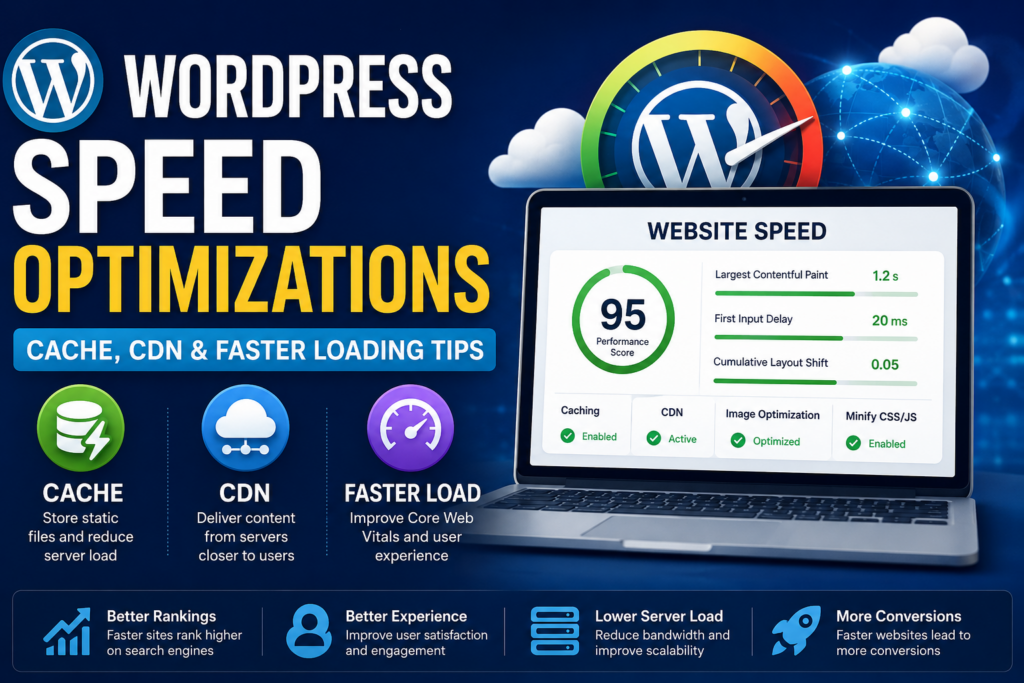
Learn how to improve WordPress speed with caching, CDN integration, image optimization, and performance best practices. This beginner-friendly guide explains practical methods to reduce loading times, improve Core Web Vitals, and create a faster user experience for visitors and search engines.
Why WordPress Speed Optimization Matters
Website speed affects nearly every part of a WordPress site. A slow website can reduce visitor engagement, lower search rankings, and decrease conversions. On the other hand, a fast-loading site improves user experience, SEO performance, and overall website reliability.
Modern visitors expect pages to load quickly. Even a small delay can increase bounce rates. Search engines also prioritize performance, especially after the introduction of Core Web Vitals as ranking signals.
WordPress is flexible and powerful, but poor hosting, heavy plugins, unoptimized images, and missing cache systems can slow it down significantly.
Fortunately, you can improve performance with several proven optimization methods.
Understanding WordPress Performance Basics
Before applying optimizations, it helps to understand what slows down a WordPress website.
Common causes include:
- Large images
- Too many plugins
- Slow hosting
- Heavy themes
- Missing caching systems
- No CDN integration
- Excessive JavaScript and CSS files
- Database bloat
- External scripts
Every page request requires server resources. When many files, scripts, and database queries load at once, the server takes longer to generate the page.
Performance optimization focuses on reducing this workload.
What Is Caching in WordPress
Caching stores a ready-made version of your website so visitors do not need to wait for WordPress to generate the page every time.
Without caching:
- A visitor opens a page
- WordPress loads PHP
- Database queries run
- Plugins execute
- The page is generated
With caching:
- The server delivers a prebuilt version instantly
This process significantly reduces loading time and server usage.
Types of WordPress Cache
Page Cache
Page caching creates static HTML versions of your pages.
Instead of dynamically generating pages repeatedly, visitors receive cached content immediately.
Benefits include:
- Faster loading
- Reduced server load
- Better scalability
- Improved SEO performance
Popular tools:
- LiteSpeed Cache
- WP Rocket
- W3 Total Cache
- WP Super Cache
Browser Cache
Browser caching stores website files locally on the visitor’s device.
These files include:
- Images
- CSS
- JavaScript
- Fonts
When the visitor returns, the browser loads local files instead of downloading them again.
This reduces bandwidth usage and improves repeat visit speed.
Object Cache
Object caching stores database query results temporarily.
This reduces repeated database processing and helps dynamic websites load faster.
Object caching works especially well for:
- WooCommerce
- Membership websites
- Large blogs
- High-traffic platforms
Redis and Memcached are common solutions.
Opcode Cache
- PHP opcode caching stores compiled PHP scripts in memory
- This prevents the server from recompiling PHP files repeatedly
- Most modern hosting providers enable OPcache by default
Best WordPress Cache Plugins

LiteSpeed Cache
LiteSpeed Cache is one of the most powerful free optimization plugins available.
Key features:
- Full-page cache
- Image optimization
- CSS and JavaScript minification
- QUIC.cloud CDN support
- Database optimization
- Lazy loading
It works best on LiteSpeed servers.
WP Rocket
WP Rocket is a premium caching plugin known for simplicity and strong performance.
Features include:
- Page caching
- Browser caching
- Delay JavaScript execution
- Lazy loading
- Database cleanup
- CDN integration
WP Rocket is beginner-friendly and works well on most hosting environments.
W3 Total Cache
W3 Total Cache offers advanced configuration options.
It supports:
- CDN integration
- Object caching
- Browser caching
- Database caching
Advanced users often prefer it because of its flexibility.
WP Super Cache
WP Super Cache is lightweight and simple.
It generates static HTML files and reduces PHP processing.
This plugin works well for smaller websites and beginners.
What Is a CDN
A CDN, or Content Delivery Network, distributes your website content across multiple servers worldwide.
Instead of loading files from one server location, visitors receive content from the nearest data center.
This reduces latency and improves loading speed.
How CDNs Improve Website Speed
CDNs improve performance in several ways.
Reduced Distance
Data travels shorter distances between server and visitor.
This lowers response times.
Lower Server Load
Static files are delivered through CDN servers instead of your hosting server.
This reduces bandwidth usage and server stress.
Faster Global Performance
International visitors experience better loading times.
Without a CDN, users far from the origin server may experience slower speeds.
Improved Availability
CDNs help distribute traffic during spikes.
This improves stability during high-traffic events.
Popular CDN Providers for WordPress
Cloudflare
Cloudflare is one of the most widely used CDN services.
Features include:
- Free CDN plan
- DDoS protection
- DNS management
- Edge caching
- SSL support
Cloudflare also improves website security.
QUIC.cloud
QUIC.cloud integrates directly with LiteSpeed Cache.
It provides:
- Dynamic caching
- Image optimization
- CDN acceleration
This combination works extremely well for LiteSpeed servers.
BunnyCDN
BunnyCDN is affordable and lightweight.
It offers:
- Global edge servers
- Fast file delivery
- Simple setup
- Pay-as-you-go pricing
Many WordPress users choose BunnyCDN for its performance-to-cost ratio.
KeyCDN
KeyCDN focuses on simplicity and performance.
It includes:
- HTTP/2 support
- Low latency
- Easy integration
- Real-time analytics
How to Configure a CDN in WordPress
Step 1: Create a CDN Account
Choose a provider like Cloudflare or BunnyCDN.
Step 2: Connect Your Domain
Update DNS settings according to the provider’s instructions.
Step 3: Enable SSL
Always use HTTPS.
Modern CDNs support free SSL certificates.
Step 4: Integrate with WordPress
Use your cache plugin or CDN plugin to connect the service.
Step 5: Test Website Speed
After setup, verify performance improvements using speed testing tools.
Image Optimization for Faster WordPress Loading
Large images are one of the biggest performance problems.
Optimizing images can dramatically improve loading speed.
Best Practices for Image Optimization
Use Modern Formats
Modern formats like WebP provide smaller file sizes compared to PNG and JPEG.
Benefits include:
- Faster loading
- Reduced bandwidth
- Better performance scores
Compress Images
Compression reduces file size while maintaining quality.
Tools include:
- ShortPixel
- Imagify
- Smush
- TinyPNG
Resize Images Properly
Do not upload oversized images.
If your content area is 1200px wide, avoid uploading 5000px images.
Enable Lazy Loading
Lazy loading delays image loading until users scroll near them.
This improves initial page speed.
WordPress includes native lazy loading support.
Minifying CSS and JavaScript
Minification removes unnecessary characters from code.
This includes:
- Spaces
- Comments
- Line breaks
Smaller files load faster.
Most cache plugins support automatic minification.
Combining CSS and JavaScript Files
Combining files reduces HTTP requests.
However, modern HTTP/2 servers sometimes perform better without aggressive file combining.
Testing is important.
Database Optimization in WordPress
Over time, WordPress databases accumulate unnecessary data.
This includes:
- Post revisions
- Spam comments
- Transients
- Expired cache
Cleaning the database improves efficiency.
How to Optimize the WordPress Database
Remove Post Revisions
Too many revisions increase database size.
You can limit revisions using wp-config.php.
Example:
define('WP_POST_REVISIONS', 5);Delete Spam Comments
Unused comments consume space unnecessarily.
Optimize Database Tables
Many plugins provide automatic optimization tools.
Examples:
- WP-Optimize
- LiteSpeed Cache
- Advanced Database Cleaner
Choosing Fast WordPress Hosting
Hosting quality affects speed more than most optimizations.
A poorly optimized server can slow down even lightweight websites.
Best Hosting Features for Performance
SSD or NVMe Storage
Modern storage improves read and write speed.
LiteSpeed Web Server
LiteSpeed often outperforms Apache in WordPress environments.
Latest PHP Versions
New PHP versions provide major performance improvements.
PHP 8.x is much faster than older versions.
Server-Level Cache
Hosting with built-in caching reduces plugin dependency.
Why Themes Affect Website Speed
Heavy themes load excessive scripts and animations.
A lightweight theme improves performance significantly.
Recommended Lightweight WordPress Themes
GeneratePress
Known for speed and clean code.
Astra
Flexible and optimized for performance.
Kadence
Modern lightweight theme with strong customization options.
Blocksy
Fast and optimized for Gutenberg.
Reducing Plugin Overload
Too many plugins increase processing time.
Inactive plugins may also create security and compatibility issues.
How to Manage Plugins Efficiently
Delete Unused Plugins
Remove plugins you no longer need.
Avoid Duplicate Functionality
Using multiple optimization plugins may cause conflicts.
Choose Quality Plugins
Poorly coded plugins reduce performance dramatically.
Optimizing Fonts and External Scripts
External requests slow down websites.
These requests often include:
- Google Fonts
- Ad scripts
- Tracking scripts
- Social media embeds
How to Reduce External Requests
Host Fonts Locally
Local fonts reduce DNS lookups and external dependencies.
Limit Third-Party Scripts
Only use essential tracking and advertising scripts.
Delay Non-Essential JavaScript
Delay scripts until user interaction when possible.
Using GZIP Compression
GZIP compresses website files before transfer.
This reduces bandwidth usage and improves loading speed.
Most cache plugins enable GZIP automatically.
Enabling Brotli Compression
Brotli is newer and often more efficient than GZIP.
Cloudflare supports Brotli compression.
Understanding Core Web Vitals
Core Web Vitals measure real-world user experience.
Important metrics include:
- Largest Contentful Paint (LCP)
- First Input Delay (FID)
- Cumulative Layout Shift (CLS)
Improving speed directly improves these metrics.
How to Improve Largest Contentful Paint
LCP measures loading performance.
Ways to improve it:
- Faster hosting
- Optimized images
- CDN usage
- Reduced render-blocking resources
How to Reduce Layout Shift
Layout shifts frustrate visitors.
Prevent them by:
- Setting image dimensions
- Avoiding dynamic ad resizing
- Preloading fonts
Reducing Time to First Byte
TTFB measures server response speed.
High TTFB often indicates:
- Slow hosting
- No caching
- Heavy plugins
Server optimization significantly improves this metric.
Using Performance Testing Tools
Testing helps identify bottlenecks.
Best WordPress Speed Testing Tools
Google PageSpeed Insights
Provides Core Web Vitals analysis and optimization suggestions.
GTmetrix
Offers waterfall analysis and performance scores.
Pingdom
Simple and beginner-friendly performance testing.
WebPageTest
Advanced testing with detailed diagnostics.
How to Interpret Speed Test Results
Do not focus only on scores.
Real-world loading experience matters more.
Pay attention to:
- Load time
- Page size
- Requests
- Largest Contentful Paint
- Server response time
Advanced WordPress Optimization Techniques
Preloading Important Resources
Preloading helps browsers prioritize critical files.
Examples include:
- Fonts
- Hero images
- CSS files
DNS Prefetching
DNS prefetching speeds up external domain lookups.
Useful for:
- Analytics
- CDN domains
- Font providers
Critical CSS
Critical CSS loads above-the-fold content faster.
This improves perceived performance.
WooCommerce Speed Optimization
WooCommerce websites require extra optimization.
E-commerce sites generate dynamic content constantly.
WooCommerce Optimization Tips
Use Object Cache
Redis improves database query performance.
Disable Cart Fragments
Cart fragments can increase server usage.
Disable them when unnecessary.
Optimize Product Images
Compressed product images improve loading speed significantly.
Use High-Performance Hosting
WooCommerce stores need stronger hosting resources.
Mobile Performance Optimization
Most traffic now comes from mobile devices.
Optimizing for mobile is essential.
Mobile Optimization Tips
Use Responsive Design
Ensure layouts adapt properly to smaller screens.
Reduce Large Elements
Oversized images and animations slow down mobile devices.
Limit Popups
Aggressive popups hurt mobile experience and SEO.
Security and Speed Relationship
Security issues can reduce performance.
Malware often consumes server resources.
Security Practices That Improve Performance
Use a Firewall
Cloudflare and security plugins help block malicious traffic.
Keep Plugins Updated
Outdated plugins may introduce vulnerabilities and inefficiencies.
Remove Malware Quickly
Compromised sites often become extremely slow.
Common WordPress Speed Mistakes
Many website owners accidentally reduce performance.
Mistakes to Avoid
Using Cheap Hosting
Low-quality hosting often causes slow response times.
Installing Too Many Plugins
More plugins increase complexity and resource usage.
Ignoring Image Optimization
Uncompressed images severely impact performance.
Not Using a CDN
Global visitors may experience slow loading without one.
Using Heavy Themes
Feature-packed themes often load unnecessary resources.
Real-World WordPress Speed Optimization Workflow
A practical optimization workflow may look like this:
- Upgrade hosting
- Install caching plugin
- Configure CDN
- Optimize images
- Minify CSS and JavaScript
- Remove unused plugins
- Optimize database
- Test performance
- Monitor Core Web Vitals
- Repeat regularly
How Often Should You Optimize WordPress
Optimization is not a one-time task.
Regular maintenance is essential.
Recommended schedule:
- Weekly cache checks
- Monthly database cleanup
- Quarterly plugin audits
- Continuous speed monitoring
The Future of WordPress Performance
Performance standards continue evolving.
Modern technologies include:
- HTTP/3
- Edge caching
- AI-powered optimization
- Improved browser compression
- Faster PHP versions
Keeping your WordPress installation updated ensures better compatibility and speed improvements.
Frequently Asked Questions
What is the best cache plugin for WordPress?
LiteSpeed Cache and WP Rocket are among the best options. The ideal choice depends on your hosting environment and technical needs.
Does a CDN really improve website speed?
Yes. A CDN reduces latency by delivering files from nearby global servers.
Can too many plugins slow down WordPress?
Yes. Poorly coded or excessive plugins increase server load and processing time.
What is the fastest WordPress hosting type?
Managed WordPress hosting with LiteSpeed, NVMe storage, and modern PHP versions typically offers the best performance.
Should I optimize images before uploading?
Yes. Compressing and resizing images before upload improves loading speed significantly.
What is lazy loading?
Lazy loading delays images and videos until users scroll near them, reducing initial page load time.
Is Cloudflare good for WordPress?
Yes. Cloudflare improves both speed and security with CDN and caching features.
How do I improve Core Web Vitals?
Use caching, optimize images, reduce JavaScript, improve hosting, and minimize layout shifts.
Does HTTPS affect website speed?
Modern HTTPS connections are optimized and usually do not slow websites significantly.
How often should I clean my WordPress database?
Monthly optimization is recommended for most websites.
Building a Faster WordPress Experience
WordPress speed optimization is essential for modern websites. Faster pages improve user experience, SEO rankings, conversions, and server efficiency.
Caching and CDN integration are among the most effective ways to improve loading times. Combined with image optimization, lightweight themes, and quality hosting, these techniques create a noticeably faster website.
Performance optimization should remain an ongoing process rather than a one-time setup. Regular monitoring and maintenance help ensure your WordPress site continues performing at its best as content and traffic grow.
⚠️ Disclaimer and Source Hygiene
This article is intended for informational and educational purposes only. Website performance results may vary depending on hosting environment, plugin configuration, traffic levels, and server resources. Always create backups before making major optimization changes. Information in this article is based on research from authoritative WordPress documentation, hosting providers, performance testing platforms, and industry best practices.
🔔 For more tutorials like this, consider subscribing to our blog.
📩 Do you have questions or suggestions? Leave a comment or contact us!
🏷️ Tags: WordPress speed optimization, WordPress cache, CDN for WordPress, LiteSpeed Cache, WP Rocket, WordPress performance, Core Web Vitals, WordPress SEO, website speed tips, WordPress hosting
📢 Hashtags: #WordPress #WordPressTips #WebsiteSpeed #CDN #Caching #CoreWebVitals #SEO #LiteSpeed #WPRocket #WebPerformance
📚 Sources and References
- WordPress.org Documentation
- Google PageSpeed Insights Documentation
- Cloudflare Learning Center
- LiteSpeed Technologies Documentation
- WP Rocket Documentation
- GTmetrix Performance Guides
- Google Core Web Vitals Documentation
- Mozilla Developer Network (MDN)
🕊️ Secondary Sources and Testimonials
- WordPress developer community discussions
- Hosting provider optimization tutorials
- Web performance engineering case studies
- Independent WordPress speed benchmark reports