
Table of Contents
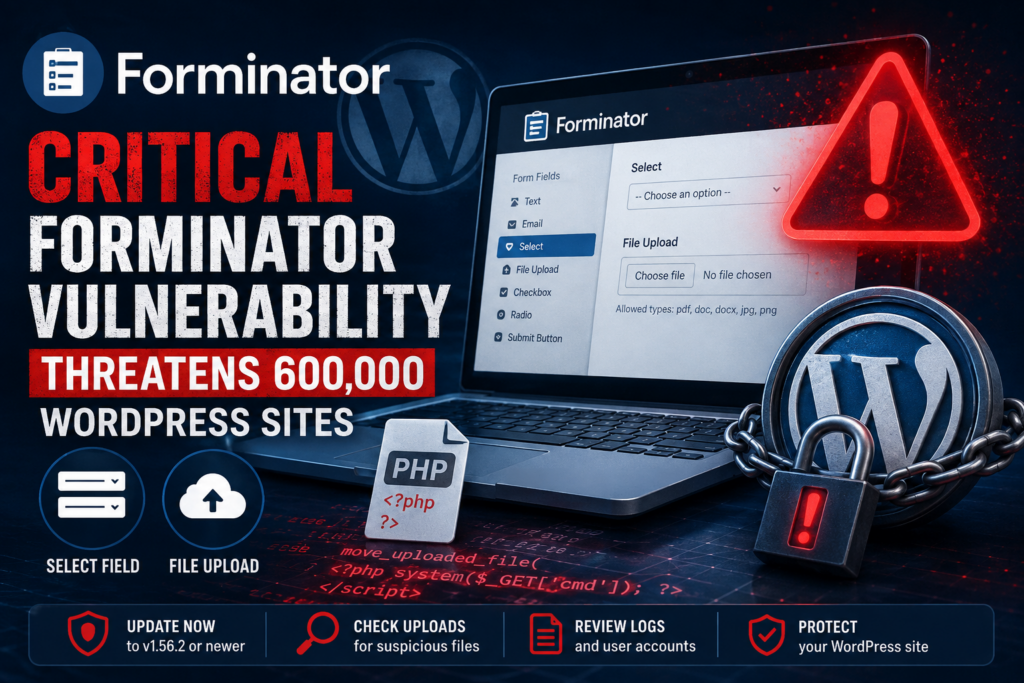
A serious Forminator vulnerability affecting file-upload handling could expose WordPress websites to malicious uploads and possible compromise. Administrators using Forminator forms with Select and File Upload fields should review their configurations, update immediately, inspect upload directories, and investigate their sites for suspicious PHP files or unauthorized changes.
Forminator is one of the most widely installed WordPress form builders. The official WordPress.org listing currently reports more than 600,000 active installations, which means a security weakness can potentially affect a very large number of websites.
The latest security situation deserves particular attention from administrators who allow visitors to upload files. Forminator 1.56.2, released on July 30, 2026, specifically includes a fix described by the developer as addressing an arbitrary file upload vulnerability. The official WordPress.org changelog and WPMU DEV’s own changelog both confirm that security fix.
There is an important clarification, however. Public sources available at the time of writing confirm the arbitrary file-upload flaw and its patch in Forminator 1.56.2, but I could not independently verify that CVE-2026-15748 is the correct identifier for this specific vulnerability. Administrators should therefore base remediation primarily on the affected Forminator versions and the vendor’s patched release rather than relying only on that CVE number.
What Is CVE-2026-15748?
The security issue being discussed involves Forminator’s handling and validation of uploaded files. An arbitrary file-upload vulnerability becomes particularly serious when an attacker can convince an application to accept a file type that should never be stored in a web-accessible location.
Forminator provides powerful frontend forms that can include text fields, Select fields, registration features, payments, conditional logic, and File Upload fields. Those features make the plugin useful for job applications, customer-support forms, document submissions, registration systems, and many other workflows. They also mean file validation must be extremely strict.
The official changelog confirms that version 1.56.2 contains a fix for an arbitrary file-upload vulnerability. WPMU DEV released that version on July 30, 2026.
This type of vulnerability should not be confused with a normal form-validation bug. If an attacker succeeds in placing executable PHP code somewhere the web server can execute it, the problem can move beyond Forminator itself.
At that stage, the attacker may potentially gain a foothold on the WordPress server.
The exact impact still depends on the site’s configuration, upload destination, server configuration, filesystem permissions, and whether uploaded files can be executed as PHP. Modern hosting protections can significantly reduce the impact. They should not, however, be treated as a replacement for updating the vulnerable plugin.
Why Arbitrary File Uploads Are Dangerous
A legitimate File Upload field might allow PDF documents, photographs, résumés, invoices, or other user-generated files. WordPress and its plugins normally verify extensions, MIME types, filenames, permissions, and other characteristics before accepting them.
Attackers attempt to bypass those controls.
A malicious file does not need to resemble traditional malware. A small PHP script may be enough to provide a remote command interface when the server executes it.
For example, an attacker who obtains executable server access could potentially attempt to modify WordPress files, steal configuration information, access database credentials, create administrator accounts, inject redirects, distribute spam, or establish another persistence mechanism.
That is why administrators should treat unexpected PHP files inside upload directories as an investigation priority.
Which Forminator Forms Are Vulnerable?
Administrators should pay particular attention to public Forminator forms that accept uploaded files.
The highest-priority audit should include forms containing a File Upload field, especially when those forms are available to visitors without authentication. Forms that combine uploads with Select fields or complex submission logic deserve additional review because user-controlled field values can interact with how a submission is processed.
Examples include job-application forms that accept résumés, support forms accepting screenshots, customer forms accepting documents, registration forms requesting identification files, competition submissions, property forms accepting photographs, and similar public upload workflows.
Forminator’s documentation confirms that the plugin supports numerous types of frontend forms and extensive form customization.
Administrators should not assume that a form is safe simply because its upload button is hidden behind conditional logic. Security validation must happen on the server. An attacker does not necessarily need to interact with the form exactly as a normal visitor would.
Check Every File Upload Field
Open the WordPress dashboard and navigate to your Forminator forms.
Review each active form individually.
Look for File Upload fields and determine why each one exists. If a form no longer requires uploads, removing the upload capability can immediately reduce the attack surface.
Next, review the file types that visitors genuinely need.
A résumé form, for example, probably does not need to accept dozens of formats. PDF may be sufficient. A photography submission form may only require JPEG, PNG, WebP, or another carefully selected image format.
Restricting accepted file types is useful defense in depth. However, changing those settings should not be considered a substitute for installing the security update.
Select Fields Also Deserve Attention
Forminator 1.56.0 included several changes involving Select fields, including improved validation for option values containing HTML tags and apostrophes. It also strips HTML tags from Select option values when counting submission limits.
This does not mean every form containing a Select field is automatically compromised.
Instead, administrators should treat forms combining complicated Select logic and uploads as higher-priority configurations to review after installing the patched version. Test the form normally afterward to ensure validation, conditional visibility, upload restrictions, and submission processing continue working correctly.
How Attackers Upload PHP Files
Understanding the risk does not require reproducing an exploit.
A normal upload process receives a file from the visitor, checks whether the file is allowed, generates or validates its destination, and stores it. Secure applications perform several independent checks instead of trusting only the filename supplied by the browser.
An arbitrary file-upload vulnerability appears when those safeguards can be bypassed.
An attacker may attempt to manipulate form submission data so that Forminator processes a malicious file differently from what the administrator intended. If validation is insufficient, a file that should have been rejected might reach storage.
The critical question then becomes whether that file is executable.
If an uploaded PHP file is stored somewhere PHP execution is enabled and the attacker can determine its URL, requesting that URL may cause the server to execute the code.
That could turn an upload-validation flaw into remote code execution under vulnerable configurations.
Upload Does Not Automatically Mean Remote Code Execution
This distinction is important.
The ability to place an arbitrary file on a server and the ability to execute arbitrary PHP code are related but not identical.
A properly hardened server can block PHP execution inside WordPress upload directories. Additional web-server rules, filesystem restrictions, security software, and hosting isolation can further reduce the consequences of a malicious upload.
Administrators should therefore avoid assuming either extreme.
Do not assume that every vulnerable site has already been remotely compromised. At the same time, do not assume that an update alone proves the site was never exploited before patching.
Updating closes the known vulnerable path. Investigation answers the separate question of whether someone used that path earlier.
Why Custom Upload Storage Increases the Risk
Custom upload storage deserves special attention because it can change the assumptions that normally protect WordPress uploads.
A standard WordPress installation generally stores media below:
/wp-content/uploads/
Plugins may create additional subdirectories or use alternative storage mechanisms.
Administrators and developers sometimes modify those locations for organizational, privacy, performance, integration, or workflow reasons. Form submissions might be moved to a dedicated directory, synchronized to another storage system, or processed by custom PHP code.
Every customization creates another security assumption that needs verification.
If files are moved into a web-accessible directory where PHP execution is permitted, the potential impact of an upload vulnerability can increase substantially.
Check Your Custom Code
Search custom plugins, theme functions, snippets, and MU-plugins for Forminator upload hooks or code that moves submitted files.
Pay particular attention to functions such as:
move_uploaded_file()
rename()
copy()
file_put_contents()
Also inspect custom code referencing Forminator submission hooks, uploaded file paths, or WordPress upload-directory functions.
The existence of these functions is not evidence of malware. They are perfectly legitimate PHP functions.
The goal is to identify custom logic that changes where uploaded files eventually reside.
If a developer configured Forminator uploads to be copied into another directory, verify that the destination does not unexpectedly allow PHP execution.
External and Cloud Storage
Cloud storage can sometimes reduce direct execution risk because an uploaded PHP file stored as an ordinary object is not automatically executed as server-side PHP.
However, cloud storage introduces its own security requirements.
Access permissions, public URLs, signed links, synchronization processes, API credentials, and automated file-processing pipelines must still be reviewed.
Forminator 1.56.0 specifically introduced improvements related to S3 and cloud-storage compatibility for attachment path validation.
Administrators using custom storage should therefore test their entire upload workflow after upgrading rather than checking only whether the plugin update completed successfully.
How to Update Forminator Safely

The most important action is straightforward: update Forminator to version 1.56.2 or newer.
Both WordPress.org and WPMU DEV identify version 1.56.2 as containing the arbitrary file-upload security fix.
Do not intentionally remain on an older release simply because an important form currently works.
Before updating a production website, create a current backup containing both the WordPress database and website files. Confirm that the backup can actually be restored.
Then open:
WordPress Dashboard → Plugins → Installed Plugins
Locate Forminator and check the installed version.
If an update is available, install it immediately. Administrators managing Forminator through WPMU DEV can also use the developer’s plugin-management system. WPMU DEV documents both dashboard-based installation and manual plugin installation methods.
Test Forms After Updating
Security updates sometimes modify validation behavior. Consequently, administrators should test every business-critical form after upgrading.
Submit a normal test entry.
Check Select fields, File Upload fields, conditional visibility, required fields, email notifications, integrations, redirects, payments where applicable, and submission storage.
Upload only safe test files representing the formats legitimate visitors normally use.
Verify that prohibited formats are rejected. Also inspect the WordPress error log and browser console if a complex form stops functioning after the update.
Do not downgrade to a vulnerable Forminator release merely to restore an older behavior. If you encounter a compatibility problem, use a staging environment and contact the plugin developer while keeping production protected.
Consider Automatic Security Updates
Websites with many plugins are difficult to maintain manually.
Automatic updates can shorten the period between publication of a security fix and installation on your website. However, administrators running mission-critical forms may prefer controlled updates combined with monitoring and automated backups.
Either approach can work.
The dangerous strategy is leaving a vulnerable plugin untouched for weeks because nobody regularly checks the dashboard.
WordPress Compromise Investigation Checklist
Installing Forminator 1.56.2 or newer addresses the known vulnerable code path, but administrators who previously ran an affected release should perform a basic compromise assessment.
Start with the filesystem.
Examine WordPress upload directories for unexpected PHP files. Standard media directories generally contain images, PDFs, videos, documents, and generated media files rather than executable PHP scripts.
A PHP file appearing inside an unusual uploads subdirectory deserves investigation.
Do not immediately execute or open suspicious files through the browser.
Inspect Recently Modified Files
Review files modified during the period when the vulnerable Forminator version was installed.
Pay particular attention to:
wp-content/uploads/wp-content/plugins/wp-content/themes/wp-content/mu-plugins/
the WordPress root directory.
Attackers often try to preserve access after obtaining an initial foothold. Therefore, finding and deleting one suspicious uploaded file may not completely clean a compromised site.
Look for unfamiliar PHP files, strangely named directories, unexpected modifications to wp-config.php, modified plugin files, unauthorized MU-plugins, and recently changed theme files.
File modification timestamps are useful clues, although they are not definitive evidence because attackers can sometimes manipulate timestamps.
Review WordPress Administrator Accounts
Open:
Users → All Users
Check every account with Administrator privileges.
Confirm that you recognize each administrator and that the email addresses are legitimate.
If you discover an unknown account, treat the website as potentially compromised rather than simply deleting the account and continuing normally.
An unauthorized administrator may indicate that an attacker already achieved persistence.
Change administrator passwords and review active sessions after investigating suspicious access.
Inspect Server and Access Logs
Server logs can provide some of the strongest evidence of exploitation.
Look for unusual POST requests directed at pages containing vulnerable Forminator forms. Then check for HTTP requests to unfamiliar files inside upload directories.
A suspicious pattern could involve a form submission followed shortly afterward by requests to a newly created PHP file.
Do not rely exclusively on HTTP status codes. A 200 response confirms that a resource returned successfully, but it does not automatically tell you what happened inside PHP.
Compare timestamps across access logs, security logs, Forminator submissions, filesystem changes, and WordPress user activity whenever possible.
Scan the WordPress Installation
Run a reputable WordPress malware scanner after updating.
A scan can identify known webshell signatures, modified WordPress core files, injected PHP, malicious JavaScript, suspicious administrator accounts, and other indicators.
Still, automated scanning should be one part of the investigation.
Sophisticated or newly created malicious files may not match known signatures. Manual review and server-level evidence remain valuable when there are signs of compromise.
Verify WordPress Core Integrity
WordPress core files should match official releases.
WP-CLI provides a convenient integrity check:
wp core verify-checksums
You can also inspect plugin integrity where trusted checksums are available.
A checksum mismatch does not automatically prove an attack because legitimate modifications or deployment systems can change files. Nevertheless, unexplained modifications deserve investigation.
Rotate Credentials After Confirmed Compromise
If you confirm unauthorized code execution, assume that credentials accessible to WordPress may have been exposed.
Change WordPress administrator passwords, hosting credentials, SFTP or SSH credentials where appropriate, database passwords, API credentials, and relevant integration secrets.
Generate fresh WordPress authentication salts in wp-config.php so existing sessions become invalid.
Do this as part of a controlled incident-response process.
Changing passwords before understanding persistence mechanisms can be insufficient because an active backdoor may simply allow the attacker to regain access.
Restore From a Known-Clean Backup When Necessary
A trustworthy backup from before the compromise can sometimes provide the safest recovery route.
However, restoration alone is not enough.
If you restore the same vulnerable plugin version, the website becomes vulnerable again.
Restore the clean backup, update Forminator and other vulnerable components, change compromised credentials, inspect administrator accounts, patch the original attack vector, and monitor the website afterward.
Frequently Asked Questions
Is Forminator currently safe to use?
The developer has released security fixes, and the official changelog lists Forminator 1.56.2 as fixing an arbitrary file-upload vulnerability. Administrators should use the latest supported release rather than an older vulnerable version.
How many WordPress sites use Forminator?
The official WordPress.org listing reports more than 600,000 active installations.
Which version fixes the arbitrary file-upload vulnerability?
Forminator 1.56.2, released July 30, 2026, specifically lists an arbitrary file-upload vulnerability as fixed.
Should I disable Forminator completely?
Normally, updating to the patched version is the first step. Temporarily disabling vulnerable upload forms may be appropriate if you cannot update immediately or if you suspect active compromise.
Are forms without File Upload fields safe?
Forms without upload functionality have less exposure to an arbitrary file-upload issue. However, administrators should still update Forminator because the plugin has received multiple security-related fixes and the installed code should remain current.
Does finding a PHP file in uploads prove my site was hacked?
Not automatically. Some legitimate plugins create PHP files for specific purposes. However, an unfamiliar PHP file inside an uploads directory is unusual enough that administrators should investigate its contents, origin, modification time, and related server requests.
Does updating Forminator remove malware?
No. Updating fixes vulnerable plugin code. It does not automatically remove malicious files, rogue administrators, injected code, stolen credentials, or persistence mechanisms created during an earlier compromise.
Should PHP execution be disabled inside uploads?
For many WordPress environments, preventing execution of uploaded PHP files provides valuable defense in depth. Implementation differs between Apache, Nginx, managed hosting platforms, and other server configurations, so administrators should apply rules appropriate to their environment.
Should I delete old Forminator submissions?
Not simply because a vulnerability existed. Submissions may contain legitimate business information and personal data. Instead, investigate suspicious submissions, uploaded files, and corresponding server activity while respecting your site’s privacy and retention policies.
Is CVE-2026-15748 confirmed for this Forminator flaw?
I could not independently verify that identifier against the authoritative public sources available while researching this article. What is independently confirmed is that Forminator 1.56.2 contains a fix for an arbitrary file-upload vulnerability. Administrators should prioritize the vendor’s patched release information rather than depending solely on an unverified CVE number.
The Security Fix Is Only the First Step
The Forminator vulnerability is a useful reminder that File Upload fields deserve more attention than ordinary contact-form inputs. They intentionally allow outside users to place data on your infrastructure, making strict validation and safe storage essential.
For administrators, the immediate priority is simple: verify the installed Forminator version and update to 1.56.2 or newer. Then test forms containing Select and File Upload fields, inspect custom upload-storage configurations, review suspicious files, and examine administrator accounts and logs when appropriate.
Most importantly, separate patching from incident investigation. Updating prevents continued exploitation of the known vulnerable code. It does not prove that an older installation was never attacked.
A well-maintained WordPress website combines timely updates, restricted upload permissions, backups, filesystem monitoring, strong authentication, server hardening, and regular security reviews.
⚠️ Disclaimer and Source Hygiene
This article is provided for educational and defensive WordPress security purposes. Vulnerability details, affected versions, and software behavior can change as researchers and developers publish additional information. Always verify critical security decisions against current vendor advisories and authoritative vulnerability databases.
The article intentionally avoids providing exploit payloads or instructions that could facilitate attacks. If you believe a production website has been compromised, preserve logs and evidence before making major changes and consider consulting an experienced WordPress security or incident-response professional.
Public sources available during research clearly confirm Forminator’s 600,000+ installations and the arbitrary file-upload security fix in version 1.56.2. However, the supplied CVE identifier CVE-2026-15748 could not be independently confirmed, so it should not be presented as established fact until an authoritative CVE record verifies the association.
🔔 For more tutorials like this, consider subscribing to our blog.
📩 Do you have questions or suggestions? Leave a comment or contact us!
🏷️ Tags: Forminator vulnerability, Forminator security, WordPress security, Forminator file upload, WordPress vulnerability, WordPress malware, arbitrary file upload, WordPress forms, WPMU DEV Forminator, WordPress security update
📢 Hashtags: #Forminator, #WordPress, #WordPressSecurity, #CyberSecurity, #WordPressVulnerability, #WebsiteSecurity, #WPMUDEV, #WordPressPlugins, #WebSecurity, #WordPressTips
📚 Sources and References
WordPress.org – Forminator Forms: The official plugin listing confirms more than 600,000 active installations and identifies version 1.56.2 as fixing an arbitrary file-upload vulnerability.
Official Forminator plugin page on WordPress.org
WPMU DEV – Forminator Changelog: The developer’s official product changelog confirms that version 1.56.2, released July 30, 2026, fixed an arbitrary file-upload vulnerability.
Official Forminator page at WPMU DEV
WPMU DEV Roadmap: The vendor’s roadmap records Forminator Pro 1.56.2 as released July 30, 2026, with an arbitrary file-upload vulnerability fix.
Patchstack Vulnerability Database: Patchstack currently lists Forminator with approximately 600,000 installations and maintains its historical vulnerability records.
Forminator vulnerability history at Patchstack
🕊️ Secondary Sources and Testimonials
Community discussions, hosting security logs, malware scanners, and WordPress support forums can provide useful supplementary information when investigating individual sites. They should not replace official developer releases, verified vulnerability databases, server logs, or direct forensic evidence when determining whether a particular WordPress installation has been compromised.
Sign in with a Subscriber account to vote.