
Table of Contents
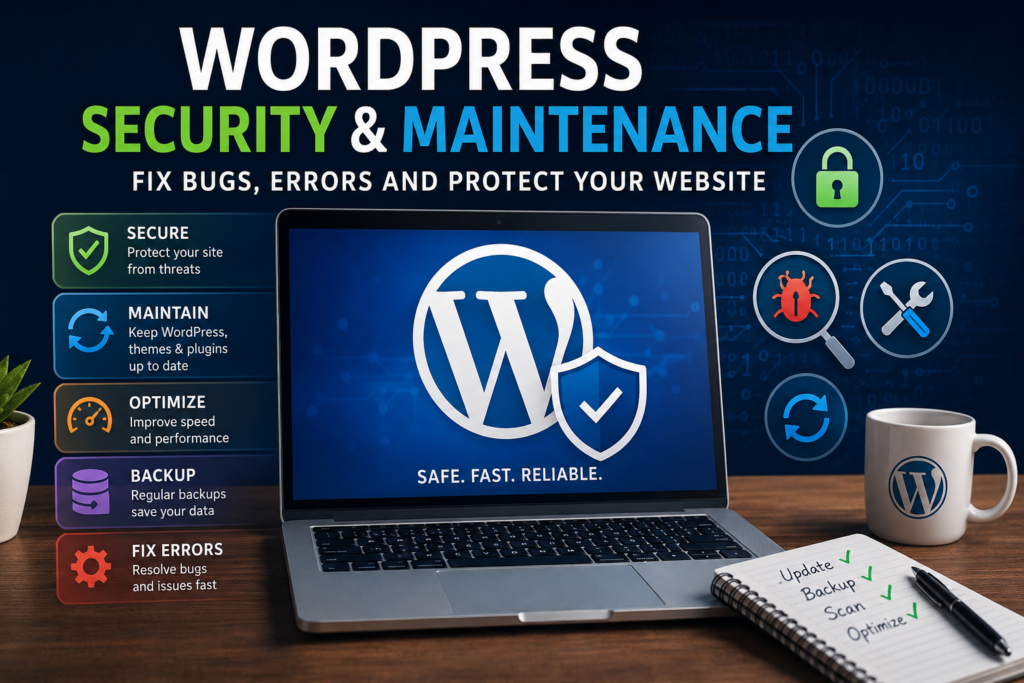
WordPress security and maintenance are essential for keeping your website safe, fast, and error-free. This guide explains how to protect your WordPress site, fix common bugs and errors, improve performance, reduce maintenance costs, and prevent hacking attempts with practical and beginner-friendly solutions.
Understanding WordPress Security and Maintenance
WordPress is one of the most popular content management systems in the world. Millions of websites rely on it for blogs, business websites, portfolios, and online stores. However, many website owners forget that WordPress requires regular maintenance and proper security protection.
A WordPress website is not something you build once and ignore forever. Plugins receive updates, themes evolve, and new security vulnerabilities appear regularly. Without proper maintenance, websites can become slow, unstable, or even hacked.
Security and maintenance work together. Security protects your website from attacks, while maintenance keeps everything running smoothly. Ignoring these areas can lead to expensive repairs, lost traffic, poor SEO rankings, and downtime.
Why WordPress Maintenance Matters
Regular maintenance helps prevent technical problems before they become serious issues.
Prevents Website Hacking
Hackers often target outdated plugins, weak passwords, and poorly configured websites. Regular updates and security monitoring reduce these risks significantly.
Improves Website Speed
Old plugins, database clutter, and unnecessary scripts slow down websites. Maintenance keeps performance optimized.
Reduces Downtime
Monitoring and regular testing help identify problems early before the website crashes.
Protects SEO Rankings
Google may penalize hacked or slow websites. Proper maintenance improves search engine visibility.
Prevents Data Loss
Backups protect your content if something goes wrong during updates or attacks.
Common WordPress Security Threats
Understanding common threats helps website owners build stronger protection strategies.
Brute Force Login Attacks
Brute force attacks use automated bots to guess usernames and passwords repeatedly.
How to Prevent Brute Force Attacks
Use Strong Passwords
Strong passwords should include:
- Uppercase letters
- Lowercase letters
- Numbers
- Symbols
Enable Two-Factor Authentication
Two-factor authentication adds an extra verification step during login.
Limit Login Attempts
Security plugins can block repeated failed login attempts automatically.
Malware Infections

Malware is harmful code inserted into website files.
Signs of Malware Infection
Common symptoms include:
- Redirects to suspicious websites
- Unexpected popups
- Slow performance
- Spam content
- Browser security warnings
How Malware Enters WordPress
Malware often appears through:
- Outdated plugins
- Pirated themes
- Weak passwords
- Insecure hosting
SQL Injection Attacks
SQL injection attacks target website databases through vulnerable forms or plugins.
Hackers may:
- Access sensitive information
- Delete website data
- Create administrator accounts
Cross-Site Scripting (XSS)
XSS attacks inject malicious scripts into web pages viewed by visitors.
This may expose:
- Login information
- Session cookies
- Personal data
Importance of Updating WordPress
Updates are essential for security, stability, and compatibility.
WordPress Core Updates
Core updates fix:
- Security vulnerabilities
- Bugs
- Performance issues
Always install official WordPress updates promptly.
Plugin Updates
Plugins are one of the most common causes of WordPress vulnerabilities.
Plugin Management Tips
Remove Unused Plugins
Inactive plugins can still create security risks.
Use Trusted Developers
Install plugins only from reputable sources.
Avoid Nulled Plugins
Pirated plugins often contain malware and hidden backdoors.
Theme Updates
Themes also require regular maintenance.
Outdated themes may:
- Break layouts
- Create compatibility issues
- Introduce security vulnerabilities
Use lightweight and frequently updated themes whenever possible.
Essential WordPress Security Practices
Install a Security Plugin
Security plugins help monitor and protect websites automatically.
Popular options include:
- Wordfence
- Sucuri
- iThemes Security
- All In One WP Security
These tools provide:
- Malware scanning
- Firewall protection
- Login protection
- File monitoring
Use Secure Hosting
Reliable hosting providers offer better protection against attacks.
Good hosting services usually include:
- Daily backups
- Firewalls
- Malware scanning
- Server monitoring
Managed WordPress hosting is often more secure than cheap shared hosting.
Enable SSL Certificates
SSL certificates encrypt communication between visitors and your website.
Benefits include:
- Better SEO rankings
- Secure transactions
- Visitor trust
- HTTPS protection
Change the Default Login URL
Most WordPress websites use:
/wp-admin
Hackers frequently target this page.
Changing the login URL helps reduce automated attacks.
Disable File Editing
WordPress allows administrators to edit plugin and theme files directly from the dashboard.
This can become dangerous if hackers gain access.
Add this code to wp-config.php:
define('DISALLOW_FILE_EDIT', true);Backup Strategies for WordPress
Backups are critical for website recovery.
Without backups, recovering lost data becomes difficult or impossible.
Types of Backups
Full Backups
Full backups include:
- WordPress files
- Themes
- Plugins
- Database
Incremental Backups
Incremental backups only save recent changes.
This reduces server load and storage usage.
Recommended Backup Frequency
Daily Backups
Best for:
- Online stores
- Active blogs
- Business websites
Weekly Backups
Suitable for small websites with fewer updates.
Backup Storage Recommendations
Never store backups only on your hosting server.
Use external storage services such as:
- Google Drive
- Dropbox
- Amazon S3
- External drives
Common WordPress Errors and Fixes
WordPress websites occasionally experience technical problems.
Learning how to fix them saves time and money.
White Screen of Death
This error displays a blank white screen.
Common Causes
Usually caused by:
- Plugin conflicts
- Theme issues
- PHP memory limits
How to Fix It
Disable Plugins
Rename the plugins folder through FTP temporarily.
Switch Themes
Activate a default WordPress theme for testing.
Increase PHP Memory
Add this code:
define('WP_MEMORY_LIMIT', '256M');Internal Server Error
The 500 Internal Server Error is very common in WordPress.
Main Causes
- Corrupted .htaccess file
- Plugin conflicts
- Server configuration problems
Solutions
Regenerate the .htaccess File
Rename the old file and create a new one through WordPress settings.
Disable Plugins
Test plugins individually to identify conflicts.
Database Connection Error
This error appears when WordPress cannot connect to the database.
Possible Reasons
- Incorrect database credentials
- Corrupted database
- Hosting server problems
Fix Methods
Verify wp-config.php Settings
Check:
- Database name
- Username
- Password
- Database host
Repair the Database
Add this line temporarily:
define('WP_ALLOW_REPAIR', true);404 Errors After Migration
404 errors often appear after migrating WordPress websites.
Quick Solution
Go to:
Settings → Permalinks → Save Changes
This refreshes permalink rules automatically.
WordPress Maintenance Budget
Website maintenance costs vary depending on complexity and traffic.
Small Blog Maintenance Costs
Typical monthly expenses:
- Hosting: $5–15
- Backup tools: $0–10
- Security plugins: $0–10
- Maintenance support: $20–50
Estimated total:
$25–85 monthly
Business Website Maintenance Costs
Business websites require stronger monitoring and security.
Typical monthly costs:
- Premium hosting: $20–50
- Security tools: $20–100
- Maintenance plans: $50–200
Estimated total:
$100–380 monthly
eCommerce Website Maintenance Costs
Online stores require advanced protection and performance optimization.
Estimated monthly budget:
$150–800+
These websites often need:
- PCI compliance
- Continuous monitoring
- Payment gateway support
- Advanced backups
How to Reduce Maintenance Costs
Proper planning can reduce expenses significantly.
Choose Quality Hosting
Reliable hosting prevents many technical problems.
Cheap hosting often creates more downtime and security issues.
Avoid Installing Too Many Plugins
Every plugin increases maintenance complexity.
Only install essential plugins.
Perform Regular Updates
Routine updates prevent costly emergency repairs later.
Schedule Monthly Website Audits
Regular audits should include:
- Malware scans
- Plugin reviews
- Speed testing
- Backup verification
Website Speed Optimization Tips
Website speed affects user experience, SEO, and security.
Use Caching Plugins
Caching improves loading speed and reduces server usage.
Popular caching plugins include:
- WP Rocket
- LiteSpeed Cache
- W3 Total Cache
Optimize Images
Large images slow websites dramatically.
Compress images before uploading.
Clean the Database
Databases collect unnecessary data over time.
Regular optimization improves:
- Performance
- Stability
- Speed
Monitor Website Uptime
Downtime damages trust and revenue.
Recommended Monitoring Tools
Popular uptime monitoring services include:
- UptimeRobot
- Pingdom
- Better Uptime
These services notify you when your website becomes unavailable.
Signs Your WordPress Website May Be Hacked
Early detection can prevent severe damage.
Sudden Traffic Drops
Google may remove infected websites from search results.
Unknown Administrator Accounts
Hackers often create hidden admin users.
Spam Content Appearing
Unexpected posts or links are warning signs.
Hosting Suspension Notices
Hosting providers may suspend infected websites automatically.
How to Recover a Hacked WordPress Website
Recovering quickly minimizes damage.
Put the Website Into Maintenance Mode
Prevent visitors from accessing infected pages.
Scan for Malware
Use professional security tools to locate malicious files.
Restore a Clean Backup
Restoring backups is often the fastest solution.
Change All Passwords
Update passwords for:
- WordPress accounts
- Hosting accounts
- FTP access
- Database users
- Email accounts
Update Everything
Ensure all components are updated:
- WordPress core
- Themes
- Plugins
- PHP version
Best WordPress Maintenance Checklist
A maintenance checklist helps keep websites stable and secure.
Daily Tasks
Check Website Availability
Ensure pages load correctly.
Review Security Notifications
Monitor suspicious activity.
Weekly Tasks
Update Plugins and Themes
Always test updates carefully.
Run Malware Scans
Check for infections regularly.
Create Website Backups
Verify backup integrity.
Monthly Tasks
Optimize the Database
Remove unnecessary clutter.
Check Broken Links
Fix invalid URLs.
Review User Accounts
Delete unused administrator accounts.
DIY vs Professional WordPress Maintenance
Website owners can manage maintenance themselves or hire professionals.
DIY Maintenance Advantages
- Lower costs
- Greater control
- Learning opportunities
DIY Maintenance Disadvantages
- Time-consuming
- Higher risk of mistakes
- Requires technical knowledge
Professional Maintenance Advantages
- Faster troubleshooting
- Better security protection
- Expert monitoring
Professional Maintenance Disadvantages
- Higher monthly costs
- Dependence on external providers
Future Trends in WordPress Security
Website security continues evolving rapidly.
AI-Powered Threat Detection
Artificial intelligence helps detect suspicious activity faster.
Cloud-Based Security Systems
Cloud firewalls block attacks before they reach websites.
Advanced Authentication Methods
Passwordless logins and biometric authentication may become more common.
Keeping Your WordPress Website Safe Long-Term
WordPress security and maintenance should never be ignored. Every website requires regular updates, monitoring, backups, and performance optimization.
Consistent maintenance prevents expensive repairs, improves SEO performance, increases visitor trust, and keeps websites stable over time.
Even simple actions like updating plugins, creating backups, and scanning for malware can prevent major disasters.
Whether you maintain your website yourself or hire professionals, investing in website security always saves money in the long run.
Frequently Asked Questions
What is WordPress maintenance?
WordPress maintenance includes updating plugins, themes, backups, security monitoring, and performance optimization.
How often should I update WordPress?
You should check for updates weekly and install security updates immediately.
Can WordPress websites get hacked?
Yes. Weak passwords, outdated plugins, and poor hosting increase hacking risks.
What is the best WordPress security plugin?
Popular options include Wordfence, Sucuri, and iThemes Security.
Why is my WordPress website slow?
Slow websites are often caused by poor hosting, large images, outdated plugins, or malware.
How much does WordPress maintenance cost?
Costs range from $25 monthly for small blogs to several hundred dollars for large business websites.
Are free WordPress themes safe?
Themes from the official WordPress repository are generally safe. Avoid pirated themes.
Why are backups important?
Backups help restore websites after hacking, crashes, or accidental data loss.
Can I maintain WordPress myself?
Yes, but technical knowledge is helpful for advanced troubleshooting and security.
What happens if I ignore website maintenance?
Ignoring maintenance increases the risk of hacking, downtime, slow performance, and SEO problems.
⚠️ Disclaimer and Source Hygiene
This article is for informational purposes only. Website security practices may vary depending on server configurations, plugins, themes, and hosting environments. Always consult experienced developers or cybersecurity professionals before making critical technical changes. The information provided is based on official WordPress documentation, cybersecurity recommendations, hosting provider guidelines, and industry best practices.
🔔 For more tutorials like this, consider subscribing to our blog.
📩 Do you have questions or suggestions? Leave a comment or contact us!
🏷️ Tags: WordPress security, WordPress maintenance, WordPress errors, website security, WordPress backups, WordPress troubleshooting, WordPress malware, WordPress optimization, WordPress fixes, WordPress support
📢 Hashtags: #WordPress #WebsiteSecurity #WordPressMaintenance #CyberSecurity #WPFix #WebDevelopment #SEO #Blogging #WebsiteOptimization #WordPressTips
📚 Sources and References
- WordPress.org Documentation
- Wordfence Learning Center
- Sucuri Security Blog
- OWASP Security Guidelines
- Google Search Central
- Cloudflare Documentation
🕊️ Secondary Sources and Testimonials
- WordPress developer case studies
- Hosting provider maintenance reports
- Website security expert recommendations
- WordPress community forums