
Table of Contents
Keeping your WordPress website secure is more important than ever. Discover the top 5 WordPress security tools, learn how they work, and follow step-by-step configuration guides to protect your site from hackers, malware, and unauthorized access.
WordPress Security
WordPress powers more than 40% of websites worldwide. Its popularity makes it an attractive target for cybercriminals. Every day, thousands of WordPress sites face attacks ranging from brute-force login attempts to malware infections and data theft.
Fortunately, modern security plugins can dramatically improve your website’s protection. The right security tool can block malicious traffic, monitor suspicious activity, scan for malware, and strengthen login security.
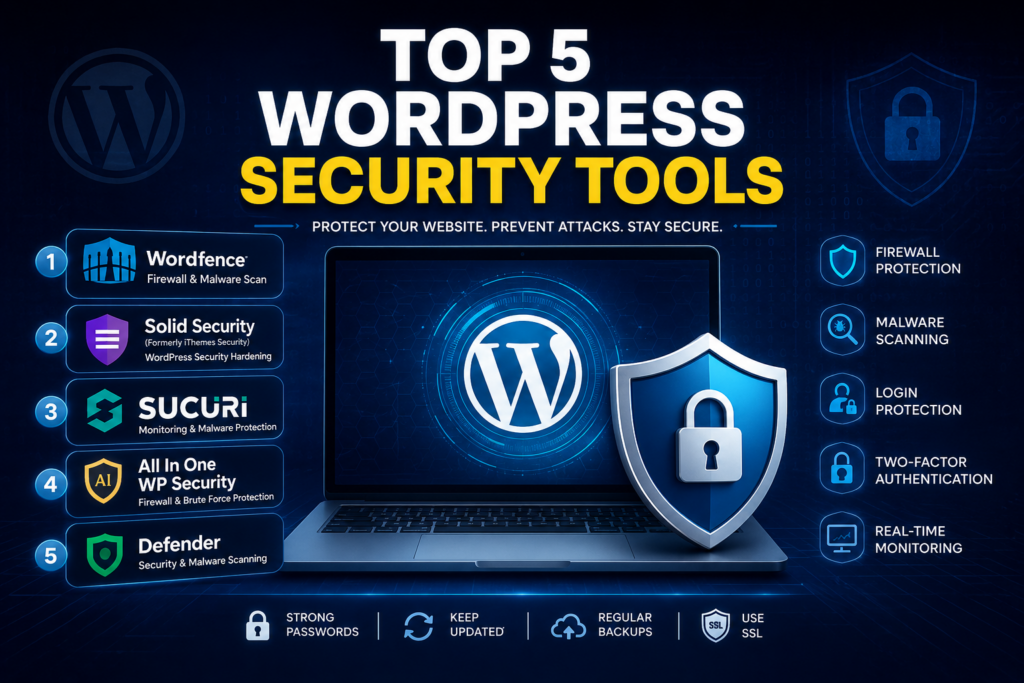
This guide explores the top 5 WordPress security tools, explains their key features, and provides recommended settings to maximize protection.
Why WordPress Security Matters
Common Threats Facing WordPress Sites
WordPress websites are often targeted by:
- Brute-force login attacks
- Malware injections
- SQL injection attacks
- Cross-site scripting (XSS)
- File modification attacks
- Spam bots
- DDoS attacks
- Vulnerable plugins and themes
Benefits of Using Security Tools
A quality security plugin helps you:
- Prevent unauthorized access
- Detect malware quickly
- Monitor website activity
- Block suspicious IP addresses
- Protect customer data
- Improve website reliability
- Reduce downtime
1. Wordfence Security
Why Wordfence Is Popular
Wordfence is one of the most trusted WordPress security plugins available. It combines a firewall, malware scanner, login protection, and real-time threat intelligence.
Key Features
- Web Application Firewall (WAF)
- Malware scanning
- Two-factor authentication (2FA)
- Login security monitoring
- Live traffic monitoring
- Country blocking (Premium)
Recommended Wordfence Settings
Firewall Protection
Navigate to:
Wordfence → Firewall
Configure:
- Firewall Status: Enabled and Protecting
- Protection Level: Extended Protection
- Learning Mode: Complete then switch to Enabled
Login Security
Navigate to:
Wordfence → Login Security
Enable:
- Two-Factor Authentication
- reCAPTCHA
- Login attempt limits
Recommended values:
- Lock out after 5 failed logins
- Lockout duration: 4 hours
Malware Scanning
Navigate to:
Wordfence → Scan
Enable:
- Scan core files
- Scan plugin files
- Scan theme files
- Scan public files
Schedule daily scans.
Best For
- Small business websites
- Blogs
- WooCommerce stores
- Membership websites
2. Solid Security (Formerly iThemes Security)
Overview
Solid Security focuses on hardening WordPress and preventing attacks before they happen.
Key Features
- Security hardening
- Brute-force protection
- File change detection
- Database backups
- Two-factor authentication
- Password policy enforcement
Recommended Solid Security Settings
Security Check Setup
After installation:
Security → Dashboard → Security Check
Enable:
- Local Brute Force Protection
- Network Brute Force Protection
- Two-Factor Authentication
File Change Detection
Navigate to:
Security → Settings → File Change Detection
Enable notifications.
Recommended scan frequency:
- Once per day
Strong Password Enforcement
Navigate to:
Security → User Security
Require:
- Strong passwords for all users
- Password expiration every 90 days
Best For
- Corporate websites
- Multi-user websites
- Agencies managing client sites
3. Sucuri Security

Why Sucuri Is Trusted
Sucuri offers comprehensive website monitoring and malware detection. It is widely used by website owners and security professionals.
Key Features
- Security auditing
- File integrity monitoring
- Malware scanning
- Blacklist monitoring
- Security activity logs
- Incident response tools
Recommended Sucuri Settings
Security Activity Monitoring
Navigate to:
Sucuri Security → Audit Logs
Enable:
- User login monitoring
- Plugin monitoring
- Theme monitoring
File Integrity Monitoring
Navigate to:
Sucuri Security → Settings
Enable:
- Core file monitoring
- Theme file monitoring
- Plugin file monitoring
Email Alerts
Configure alerts for:
- Administrator logins
- Plugin installations
- File modifications
- Failed login attempts
Best For
- Business websites
- High-traffic websites
- Professional blogs
4. All In One WP Security & Firewall
Overview
This plugin provides excellent security features while remaining lightweight and beginner-friendly.
Key Features
- Firewall protection
- Login security
- User account security
- Database security
- File system protection
- Spam prevention
Recommended Settings
User Account Security
Navigate to:
WP Security → User Accounts
Enable:
- Display Admin Username
- Detect Identical Login Names
Remove default usernames such as:
- admin
- administrator
Login Lockdown
Navigate to:
WP Security → Login Lockdown
Enable:
- Failed login detection
- Automatic lockout
Recommended settings:
- Lockout after 5 failed attempts
- Lockout duration: 60 minutes
Firewall Rules
Navigate to:
WP Security → Firewall
Enable:
- Basic Firewall Rules
- Additional Firewall Rules
- 6G Blacklist Firewall Rules
Best For
- Beginners
- Personal blogs
- Small business websites
5. Defender Security
Overview
Defender by WPMU DEV combines simplicity with powerful security tools.
Key Features
- Malware scanning
- Login protection
- Two-factor authentication
- Security recommendations
- Audit logging
- IP blocking
Recommended Defender Settings
Login Protection
Navigate to:
Defender → Tools → Login Protection
Configure:
- Maximum login attempts: 5
- Lockout duration: 30 minutes
Two-Factor Authentication
Navigate to:
Defender → Tools → 2FA
Enable:
- Administrator accounts
- Editor accounts
Use authentication apps such as:
- Google Authenticator
- Microsoft Authenticator
Malware Scanning
Navigate to:
Defender → Malware Scanning
Enable:
- Daily automated scans
- Core file checks
- Plugin vulnerability checks
Best For
- Website owners seeking simplicity
- Small businesses
- WooCommerce stores
Additional Security Settings Every WordPress Site Should Enable
Use Strong Passwords
Always use passwords with:
- At least 12 characters
- Uppercase letters
- Lowercase letters
- Numbers
- Symbols
Enable Two-Factor Authentication
2FA adds an additional security layer beyond passwords.
Keep WordPress Updated
Regularly update:
- WordPress Core
- Plugins
- Themes
Use SSL Certificates
Ensure your website loads via:
https://
Benefits include:
- Encrypted connections
- Better SEO
- Improved trust
Perform Regular Backups
Recommended backup frequency:
- Daily for active websites
- Weekly for low-traffic websites
Popular backup plugins:
- UpdraftPlus
- BlogVault
- JetBackup
Remove Unused Plugins
Inactive plugins can become security risks. Delete anything you no longer use.
Comparing the Top 5 Security Tools
| Plugin | Firewall | Malware Scan | 2FA | Free Version |
|---|---|---|---|---|
| Wordfence | Yes | Yes | Yes | Yes |
| Solid Security | Partial | Limited | Yes | Yes |
| Sucuri | Yes | Yes | No | Yes |
| All In One WP Security | Yes | Basic | Limited | Yes |
| Defender | Yes | Yes | Yes | Yes |
How to Choose the Right Security Plugin
Choose Wordfence If
You want comprehensive protection with advanced scanning and firewall features.
Choose Solid Security If
You need extensive WordPress hardening and user management tools.
Choose Sucuri If
You want strong monitoring and professional malware detection.
Choose All In One WP Security If
You are new to WordPress and need a free, easy-to-use solution.
Choose Defender If
You prefer a clean interface with modern security features.
Frequently Asked Questions
Which WordPress security plugin is best?
Wordfence is often considered the most complete free security solution due to its firewall, malware scanning, and login protection.
Do I need more than one security plugin?
Usually no. Running multiple security plugins may cause conflicts and performance issues.
Is WordPress secure without plugins?
WordPress core is secure, but plugins add essential protection against modern threats.
Can security plugins slow down a website?
Some advanced scans may use resources, but most modern plugins are optimized for performance.
What is two-factor authentication?
2FA requires a second verification step beyond a password, making unauthorized access much harder.
How often should malware scans run?
Daily scans are recommended for most websites.
Do security plugins stop all attacks?
No plugin can guarantee complete protection, but they significantly reduce risk.
Should I enable login lockouts?
Yes. Login lockouts help prevent brute-force attacks.
Are free security plugins enough?
For many websites, free versions provide strong protection. Premium plans offer additional features.
How often should I update WordPress?
Install security updates immediately and keep plugins and themes updated regularly.
Building a Strong Security Foundation
WordPress security should never be an afterthought. A single vulnerability can lead to malware infections, stolen data, lost revenue, and damaged reputation. The good news is that modern security tools make protection easier than ever.
For most website owners, Wordfence offers the best all-around protection. However, Solid Security, Sucuri, All In One WP Security, and Defender are also excellent choices depending on your needs and technical experience.
The most effective strategy combines a trusted security plugin, strong passwords, two-factor authentication, regular updates, and reliable backups. Together, these measures create a robust defense against the majority of WordPress threats.
⚠️ Disclaimer and Source Hygiene
This article is intended for educational and informational purposes only. Security recommendations may vary depending on your hosting environment, website configuration, and business requirements. Always consult your hosting provider or a qualified cybersecurity professional before implementing critical security changes. Information presented here is based on research from official plugin documentation and authoritative WordPress security resources.
🔔 For more tutorials like this, consider subscribing to our blog.
📩 Do you have questions or suggestions? Leave a comment or contact us!
🏷️ Tags: WordPress Security, Wordfence, Sucuri Security, Defender Security, Solid Security, WordPress Firewall, Malware Protection, Website Security, WordPress Plugins, Cybersecurity
📢 Hashtags: #WordPressSecurity, #Wordfence, #Sucuri, #WebsiteSecurity, #CyberSecurity, #WordPressPlugins, #MalwareProtection, #WPAdmin, #WordPressTips, #OnlineSecurity
📚 Sources and References
- WordPress.org Plugin Repository
- Wordfence Official Documentation
- SolidWP Security Documentation
- Sucuri Security Documentation
- WPMU DEV Defender Documentation
- OWASP Security Guidelines
- WordPress Security Handbook
🕊️ Secondary Sources and Testimonials
- Security best practices from OWASP
- WordPress community forums
- Managed hosting security recommendations
- Developer case studies and user reviews from WordPress.org plugin pages
- Industry security reports from website security providers