
Table of Contents
Protecting a WordPress website does not have to be complicated. Discover how WPZone IP Spam Blocker FREE helps manage failed login attempts, comment spam, temporary IP bans, and permanent blocks. This beginner-friendly guide explains installation, configuration, dashboard features, custom login compatibility, and important security limitations.
Why Your WordPress Website Needs Better Protection
Running a WordPress website comes with responsibilities that go beyond publishing articles, uploading images, and choosing a beautiful theme. Even a small personal blog can receive unwanted login attempts, automated comments, and suspicious requests. Some of this activity comes from automated programs rather than actual visitors. You might never notice these attempts unless you examine your website logs or install a tool that records them. Fortunately, you do not need to become a cybersecurity expert to understand the basics of website protection. A few carefully chosen security measures can help reduce unwanted activity while keeping your website accessible to legitimate visitors.
One practical approach involves temporarily restricting IP addresses associated with repeated suspicious behavior. That is where WPZone IP Spam Blocker FREE comes in. This lightweight WordPress plugin focuses on failed login attempts, comments marked as spam, and administrator-controlled IP restrictions. Instead of overwhelming beginners with dozens of complicated options, it provides a focused dashboard for managing these activities. In this guide, we will explore the actual features included in version 1.1.0, explain how they work, and walk through realistic examples. We will also cover the plugin’s limitations, because understanding what a security tool cannot do is just as important as knowing what it can do.
What Is WPZone IP Spam Blocker FREE?
WPZone IP Spam Blocker FREE is a WordPress security plugin designed to identify repeated failed login attempts and certain comment spam events. When an IP address reaches a configured threshold within a specified period, the plugin can temporarily block that address from accessing WordPress-handled pages. Administrators can also manually restrict an address, either temporarily or permanently. The plugin includes a responsive dashboard that displays active bans, permanent restrictions, recent spam signals, and security events. Its primary goal is straightforward: give website owners a manageable way to respond to repeated unwanted activity without needing to edit firewall configuration files.
The plugin operates inside WordPress rather than directly at the network firewall. This distinction matters because it determines which requests the plugin can intercept. For example, a request that reaches WordPress can be checked against the plugin’s active ban records. However, traffic that never loads WordPress remains outside its control. WPZone IP Spam Blocker is therefore best understood as an additional application-level protection layer. It does not replace hosting security, server firewalls, reliable backups, or secure account management. Combining these measures offers a more sensible approach than relying on a single plugin.
Key Features Included in Version 1.1.0
The uploaded version includes automatic temporary IP bans, manual permanent bans, failed login monitoring, comment spam monitoring, a trusted IP list, recent security events, and administrator controls. Automatic bans can last 1, 3, 6, 12, or 24 hours. Administrators can set the number of detected events needed to trigger a ban and choose the observation window. The plugin also recognizes standard WordPress login hooks and offers a developer integration hook for custom authentication systems. Its interface is built for WordPress administrators and includes responsive styling, making it more convenient to review information on smaller screens.
Another useful detail is the separation between automatic and permanent restrictions. The plugin does not automatically create permanent bans when someone repeatedly enters an incorrect password. Instead, permanent bans require an administrator’s action. This reduces the risk of an innocent user being permanently excluded because of a temporary problem. At the same time, IP addresses can belong to shared networks, mobile connections, or businesses, so even short bans need thoughtful configuration. A security rule should discourage unwanted behavior without unnecessarily blocking genuine readers, customers, or team members.
1. How Automatic IP Blocking Works
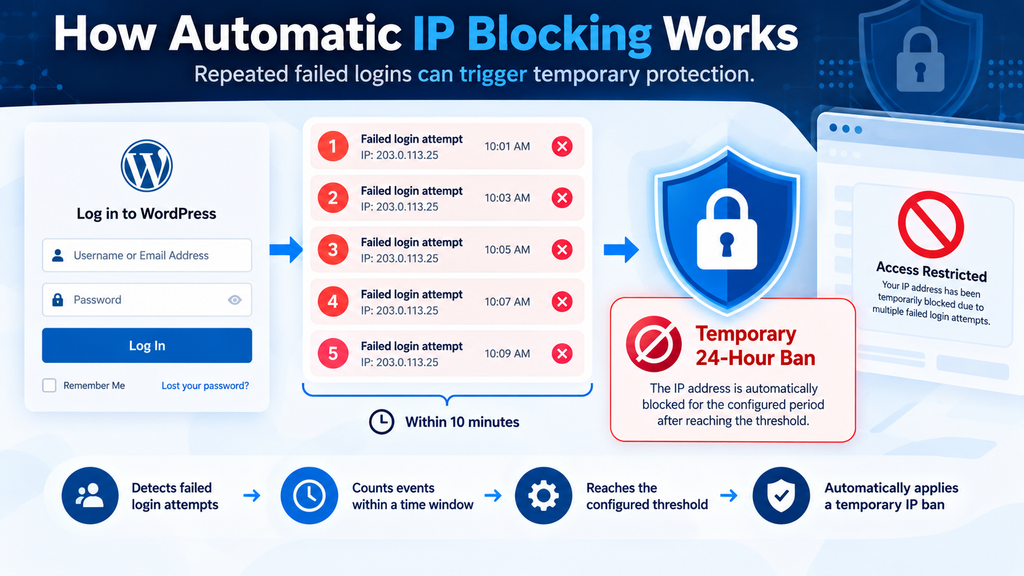
Automatic IP blocking is based on a simple principle: repeated security-related events from the same address can indicate behavior worth restricting. In WPZone IP Spam Blocker FREE, the administrator chooses an event threshold and a time window. When the plugin records enough events of the same type from one IP address during that window, it creates a temporary ban. By default, the plugin uses five events within ten minutes and a 24-hour restriction. These are configurable settings rather than universal recommendations. Different websites have different traffic patterns, audiences, and security needs.
Imagine someone trying to sign in to your WordPress dashboard with an incorrect password. One mistake is perfectly normal. A second mistake might happen because the person forgot their credentials. However, repeated failures within a short period can also be associated with automated password guessing. The plugin counts qualifying failures for the originating IP address. Once the threshold is reached, it records a temporary ban. Subsequent requests that pass through the protected WordPress execution path can receive an HTTP 403 response, indicating that access has been restricted.
Example: Five Failed Logins Within Ten Minutes
Illustrative Default Configuration
Example only. All five failures must be recorded within the configured observation window.
Consider a fictional address, 203.0.113.25, generating five failed login events in eight minutes. With the default configuration, the fifth recorded event meets the threshold and triggers a 24-hour ban. The address is added to the active blocklist, and the administrator can inspect the associated security event. A visitor using that address may then see an access restriction message on WordPress-handled requests. After the ban expires, the restriction stops applying, even if the scheduled cleanup has not yet removed its database record. This process helps reduce repeated requests from a particular address, although it cannot identify the person behind that address or guarantee that the activity was malicious.
2. Installing WPZone IP Spam Blocker FREE
Installing the plugin follows the familiar process used for manually uploaded WordPress plugins. You do not need command-line access, SSH, or advanced server knowledge. Before installing any new security plugin, however, create a recent backup of your website. Ideally, this backup should include both WordPress files and the database. If your website supports customer accounts, online purchases, or important contact forms, consider testing the plugin on a staging copy first. A staging website allows you to examine the security settings without risking accidental restrictions on real visitors. This is particularly important when your website uses custom login pages or a reverse proxy.
For this tutorial, we are using the supplied ZIP package named wpzone-ip-spam-blocker-free-v1.1.0.zip. It contains the plugin’s PHP files, administration styling, and a readme describing compatibility requirements. According to that readme, the plugin requires WordPress 6.0 or later and PHP 7.4 or later. These are declared minimum requirements, not proof of compatibility with every hosting configuration or plugin combination. Testing remains important, especially on heavily customized websites.
Step-by-Step Plugin Installation
- Sign in to your WordPress administration dashboard with an administrator account.
- Open Plugins → Add New Plugin and select Upload Plugin.
- Choose the supplied ZIP archive from your computer.
- Click Install Now and wait for WordPress to process the package.
- Select Activate Plugin after installation succeeds.
- Locate WPZone IP Blocker in the WordPress administration menu.
- Open the dashboard and review the default protection settings before relying on them.
After activation, the plugin creates database tables for its ban records and security events. It also registers a scheduled cleanup task. The task removes expired temporary ban records and deletes event records older than 30 days when WordPress runs the scheduled job. This is a useful maintenance feature because security logs can grow over time. However, WordPress scheduling depends on WP-Cron execution or an appropriately configured external cron service. The actual cleanup time may therefore differ from the scheduled time on websites with limited traffic or disabled WP-Cron.
How to Verify the Installation
Once the plugin is active, open its administration page and check whether the dashboard loads correctly. You should see the statistics area, protection settings, manual ban controls, and sections for blocked addresses and recent events. A new installation may display zero active bans and zero recorded spam signals. That is normal. It does not necessarily mean that the plugin is malfunctioning. Instead, it may simply mean that no qualifying events have been recorded since activation. Avoid deliberately entering incorrect passwords repeatedly on your live website just to force a ban. Such testing can interrupt legitimate access, particularly when multiple users share the same public IP address.
3. Understanding the WordPress Security Dashboard

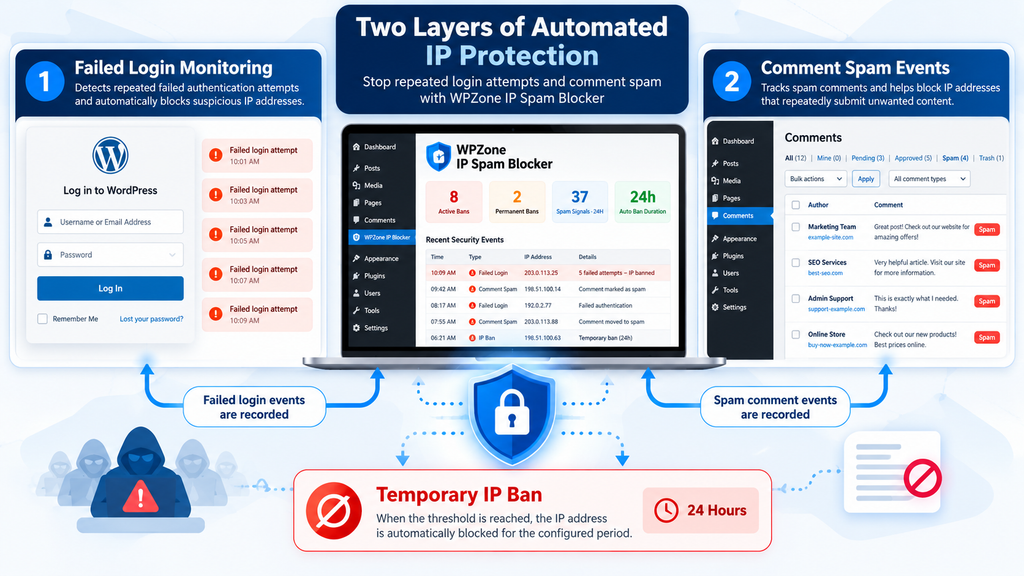
The dashboard brings together the information needed to understand the plugin’s current protection state. At the top, four statistics summarize active bans, permanent bans, recorded spam signals over the previous 24 hours, and the configured automatic ban duration. These figures answer different questions. Active bans tell you how many restrictions currently apply, while permanent bans identify restrictions that will remain until an administrator removes them. The recent spam signals count helps show the volume of qualifying login failures and spam events recorded during the last day. The duration figure describes your selected policy rather than the age of any particular ban.
For example, suppose the dashboard displays eight active bans, two permanent bans, 37 spam signals, and a 12-hour automatic ban duration. This would mean that eight IP restrictions are currently active, including two permanent restrictions, and that 37 qualifying events were logged in the preceding 24 hours. It would not mean that 37 separate attackers targeted the website. One address could generate several events, and legitimate users can occasionally trigger failed logins. Treat dashboard statistics as operational indicators that help you decide what to investigate, rather than definitive evidence of a cyberattack.
Understanding Each Dashboard Statistic
| Dashboard item | What it tells you |
|---|---|
| Active Bans | Total currently active temporary and permanent restrictions |
| Permanent Bans | Addresses manually blocked without an expiration date |
| Spam Signals · 24H | Recorded login failure and comment spam events in the last 24 hours |
| Auto Ban Duration | Number of hours selected for automatic restrictions |
The dashboard also contains settings for adjusting protection behavior and a section for manually restricting IP addresses. Below these controls, administrators can review currently blocked addresses and recent security events. Version 1.1.0 displays up to 100 active ban entries and the latest 20 events in the relevant tables. This makes the interface suitable for quick checks, but it is not a full security investigation system or an unlimited reporting platform. If you need long-term incident analysis, you should also retain appropriate hosting and server logs under a clear data retention policy.
4. Configuring Automatic Ban Duration
Automatic ban duration determines how long a qualifying IP address remains restricted after reaching the configured threshold. WPZone IP Spam Blocker FREE offers five choices: 1 hour, 3 hours, 6 hours, 12 hours, and 24 hours. The default is 24 hours, which is also the maximum automatic duration available in this version. A shorter restriction can reduce inconvenience for users who accidentally trigger protection. A longer restriction may discourage repeated activity from the same address, but it also increases the potential impact on legitimate visitors sharing that address.
To change the duration, open the plugin dashboard and find Protection Settings. Locate the Automatic ban duration dropdown menu, choose your preferred interval, and click Save Settings. The selected duration applies when new temporary bans are created. It does not automatically recalculate the expiration timestamps of existing restrictions. For example, if an IP address was blocked for 24 hours before you changed the setting to 3 hours, the existing record keeps its original expiration time unless you manually remove the restriction. This is worth remembering when adjusting policies on a live website.
Choosing the Right Ban Duration
| Duration | Possible use case | Consideration |
|---|---|---|
| 1 hour | Initial testing or cautious deployment | Lower disruption if a legitimate user is blocked |
| 3 hours | Small blogs with occasional login failures | Moderate restriction period |
| 6 hours | Websites experiencing recurring unwanted attempts | Longer impact on shared addresses |
| 12 hours | Sites needing a stricter temporary policy | Review false positives carefully |
| 24 hours | Default configuration | Longest automatic restriction |
There is no single perfect duration for every WordPress website. A personal blog with one administrator has different requirements from a membership platform where hundreds of people sign in every day. If your website has many legitimate users, consider beginning with a shorter duration and reviewing the event records before increasing it. Also remember that the plugin counts events by IP address rather than by individual account. Several people using the same office, school, hotel, or mobile network may appear under one public address. This can make an overly aggressive ban policy inconvenient for people who have done nothing wrong.
5. Setting the Failed Login Threshold and Time Window
Two settings work together to decide when an automatic ban is triggered: Attempts before ban and Within (minutes). The first specifies how many qualifying events must be recorded. The second defines how far back the plugin looks when counting them. Version 1.1.0 accepts thresholds from 3 to 30 and observation windows from 1 to 60 minutes. The default combination is five attempts within ten minutes. These settings give administrators flexibility without requiring them to write complicated security rules or configure a separate server service.
To understand the relationship, imagine two configurations. The first bans an IP after three failed logins within five minutes. The second waits for ten failures within thirty minutes. The first responds quickly to repeated mistakes or suspicious activity, but it is also more likely to affect a legitimate user who forgets their password. The second allows more failures before acting, but observes activity across a longer period. Neither is universally better. Your ideal settings depend on whether visitors log in regularly, how frequently users forget credentials, and whether the site has other protections such as multifactor authentication.
Interactive Example: Configure Your Protection Policy
Your Simulated Rule
This simulator explains the settings. It does not change your WordPress website.
How the Plugin Counts Different Events
The plugin keeps separate event categories for failed logins and comment spam. This means that the threshold applies independently to each type rather than automatically combining unrelated activity. For example, with a threshold of five, three failed login events and two spam comment events do not add up to five events of the same category. The login failures are counted together, while the spam comments are counted separately. This distinction is helpful because it makes the rule more predictable. However, it also means the dashboard’s overall spam signal count should not be interpreted as the number of times a single threshold has been reached.
6. Protecting WordPress Against Failed Login Attempts
The WordPress login page is one of the most familiar parts of any website. Administrators use it to publish content, editors manage articles, and subscribers access their accounts. Unfortunately, public login forms can also attract automated password-guessing attempts. WPZone IP Spam Blocker FREE monitors failed authentication events reported through WordPress’s standard login system. When the failed login protection option is enabled, these events contribute to the automatic restriction threshold. This allows the plugin to react to repeated failures without requiring administrators to inspect every individual login attempt manually.
To enable this feature, open WPZone IP Blocker → Protection Settings and locate Failed login protection. Make sure the option is enabled, then save your settings. The plugin registers the WordPress wp_login_failed action, which allows it to record failed authentication attempts reported through that hook. It is important to understand that a failed login does not automatically prove an attack. People mistype passwords, use outdated credentials saved in their browsers, or accidentally enter the wrong email address. The plugin responds to repeated events, not to confirmed malicious intent.
Example: A Visitor Forgets Their Password
Imagine a subscriber returning to your website after several months. They try to log in with an old password and receive an error. They try again, but the password is still incorrect. After another unsuccessful attempt, they decide to reset their credentials. With the default threshold of five failures within ten minutes, these three attempts alone would not trigger a ban. However, if several users share the same public IP address, their failed attempts may be counted together. This is why websites with large membership communities should evaluate their thresholds carefully before enabling stricter restrictions.
For administrators, a good security policy combines reasonable login limits with strong authentication practices. Use unique passwords, enable multifactor authentication where possible, and remove accounts that no longer need access. A login-blocking plugin can reduce repeated unwanted requests, but it cannot protect an account if someone already knows valid credentials. It also cannot reliably distinguish a human visitor from an automated client based solely on an IP address. Treat the plugin as one useful part of a broader WordPress security strategy.
7. How Comment Spam Protection Works
Comment spam is a familiar problem for WordPress bloggers. Unwanted comments may advertise unrelated websites, contain misleading links, or repeat generic messages across many articles. Besides making a blog look poorly maintained, large volumes of unwanted submissions can consume moderation time and database resources. WPZone IP Spam Blocker FREE includes a comment spam monitoring option that records certain comment moderation events. When an IP address repeatedly generates qualifying spam events within the configured observation window, the plugin can apply the same temporary restriction mechanism used for failed login attempts.
The implementation is more specific than simply counting every comment submission. Version 1.1.0 monitors comments initially recorded with a spam or trash status, along with comments that transition into the spam status. Ordinary comments awaiting moderation do not automatically count as spam events. This matters because WordPress moderation queues frequently contain legitimate comments from new visitors. Similarly, the plugin does not perform advanced content analysis to determine whether a comment is deceptive. It relies on the relevant WordPress comment status events and uses those signals to apply its IP-based restriction rules.
Example: Repeated Spam Comments on a Blog
Suppose a WordPress article receives several unrelated promotional comments from the same IP address. An existing spam filter identifies those comments and marks them as spam. With comment spam protection enabled, WPZone IP Spam Blocker can record the qualifying events. If five such events occur within ten minutes under the default settings, the plugin creates a temporary ban for the originating IP. Future WordPress-handled requests from that address can then be restricted while the ban remains active. This reduces repeated activity from the same address, although a sender using different addresses may not be affected by the existing ban.
For better results, combine IP-based restrictions with WordPress’s built-in comment moderation settings and a reputable anti-spam solution. You can also require manual approval for first-time commenters or close comments on older articles where discussion is no longer useful. These measures serve different purposes. Comment filtering evaluates submissions, while WPZone IP Spam Blocker responds to repeated recorded events. Together, they can reduce unwanted activity without treating every unfamiliar visitor as suspicious. Regularly review your spam folder because automated filtering systems can occasionally classify legitimate comments incorrectly.
8. Manually Blocking Suspicious IP Addresses
Automatic protection is useful, but there are situations where a website administrator may want to restrict a particular IP address manually. For example, hosting logs might show repeated unwanted requests from an address that does not trigger the plugin’s login or comment spam thresholds. WPZone IP Spam Blocker FREE provides a dedicated Manual IP Ban section for this purpose. Administrators can enter an IPv4 or IPv6 address and apply either a temporary ban using the currently configured duration or a permanent restriction. This feature provides direct control without requiring manual changes to web server configuration files.
Before blocking an address, verify that it is associated with the activity you want to restrict. IP addresses are not permanent personal identifiers. Internet providers may reassign them, and many people can share a single public address. Blocking a shared address could prevent innocent visitors from accessing your WordPress website. You should therefore review relevant logs, confirm the address, and choose the least disruptive restriction that reasonably addresses the problem. A temporary ban is often a more cautious first response, particularly when the available evidence is limited.
How to Add a Temporary IP Ban
Open the plugin dashboard and find the Manual IP Ban section. Enter the address you want to restrict into the field labeled IPv4 or IPv6 address. For a harmless documentation example, we can use 203.0.113.10, which belongs to an address range reserved for examples. In a real situation, you would enter an address identified through legitimate administrative logs. After checking the value, click Ban for 24h, or the corresponding button reflecting your chosen automatic duration. The plugin validates the IP address, checks whether it is protected by your trusted list, and attempts to create the ban record.
If the operation succeeds, the address appears in the active blocklist. The record includes the reason, creation time, expiration time, and restriction type. The reason for a manually created ban is recorded as an administrator action. You can remove the restriction later through the dashboard. Note that a manual temporary ban uses the same duration setting as an automatic ban. There is no separate per-address duration selector in version 1.1.0. If you need a different temporary interval for a particular address, that flexibility is not currently provided by the plugin’s interface.
How to Add a Permanent IP Ban
Permanent restrictions work similarly, but they do not receive an expiration timestamp. Enter the address into the manual ban field and select Permanent Ban. The interface asks you to confirm the action before submitting it. Once recorded, the ban remains active until an administrator explicitly removes it. This option is intended for situations where the administrator has a clear reason to maintain an ongoing restriction. It should not be used casually against every address that appears in a failed login log, because legitimate visitors may eventually receive an IP address previously associated with unwanted activity.
A permanent IP ban is not the same as a server firewall rule. WPZone IP Spam Blocker FREE stores the restriction in the WordPress database and checks it when the relevant WordPress code runs. The blocked address may still connect to the web server, and certain resources or endpoints outside the protected execution path can remain accessible. The plugin also does not automatically synchronize its blocklist with hosting firewalls, network devices, or content delivery network security rules. For infrastructure-level restrictions, you need separately configured hosting or firewall controls.
9. Managing Blocked IP Addresses and Removing Bans
A security tool should make it easy to correct mistakes. WPZone IP Spam Blocker FREE includes a Blocked IP Addresses table where administrators can review active restrictions and remove them when appropriate. Each displayed record contains the IP address, reason for restriction, ban type, creation timestamp, expiration timestamp, and available actions. Temporary bans have an expiration time, while permanent bans are labeled accordingly. The interface displays up to 100 currently active restrictions, ordered by creation time. If your website has more than 100 active bans, the table will not show every record at once.
To remove a restriction, locate the relevant address and click Unban. The plugin deletes the corresponding ban record and writes an unban event to its security log. If the address generates additional qualifying events afterward, it can be banned again under the configured rules. Removing a ban does not automatically erase the earlier login failure or comment spam events from the event log. This is useful for maintaining a limited history of what occurred. However, it also means that administrators should consider whether the original threshold conditions may still be met during the active observation window.
Converting a Temporary Ban Into a Permanent Ban
The blocklist includes a Permanent action for temporary bans. This allows an administrator to change an existing restriction into one without an expiration date. For example, suppose a temporary ban was created after repeated login failures, and a separate review of hosting logs reveals a sustained pattern of unwanted requests. An administrator may decide to maintain the restriction for a longer period. Selecting the permanent action replaces the existing temporary ban with a permanent record. This is a manual decision rather than an automatic escalation feature.
Before making that change, check whether the IP address belongs to a shared service, a legitimate monitoring provider, or an important customer network. An incorrect permanent ban can remain unnoticed for a long time, particularly on websites where visitors rarely contact the administrator directly. Keeping a simple record of why an address was blocked can help future troubleshooting. The plugin records a generic manual administrator reason, so any more detailed justification should be maintained separately if your operational or compliance requirements call for it.
10. Using the Trusted IP Address List
The trusted IP list allows administrators to exclude selected addresses from the plugin’s blocking rules. This is useful when a website has a known administrative network or a trusted service that must not be interrupted by automatic restrictions. In version 1.1.0, the settings interface includes a field labeled Trusted IP addresses (one per line). Administrators can enter valid IPv4 or IPv6 addresses, save the settings, and have the plugin recognize those addresses as protected. The list supports individual IP addresses rather than CIDR network ranges, and it does not provide wildcard matching.
To configure the list, open Protection Settings, find the trusted address field, and enter one address per line. Use only addresses that you control or have verified. The plugin removes invalid entries when settings are saved. For example, 192.0.2.10 and 2001:db8::10 are valid documentation-format examples, although they should not be used as actual trusted addresses. On your website, replace them with genuine verified addresses. After saving, the plugin excludes those addresses from its ban creation and active restriction checks. This makes accurate configuration particularly important.
Why You Should Be Careful With Trusted Addresses
Adding an address to the trusted list effectively exempts it from this plugin’s IP-based restrictions. If you accidentally trust an address used by an unwanted visitor, the plugin will not block it through its normal rules. Another common problem involves dynamic public IP addresses. A home or mobile connection may receive a different address over time, meaning yesterday’s trusted address might not belong to the same connection tomorrow. For this reason, a trusted list should remain small, documented, and regularly reviewed. Avoid adding broad collections of addresses simply because they belong to a familiar provider.
The trusted list is also not a replacement for administrator authentication. A request originating from a trusted address does not automatically receive permission to access the WordPress dashboard. Normal WordPress authentication and authorization still apply. Similarly, adding your own address does not protect your account from password theft or malicious software. It only prevents the plugin from applying its own IP bans to that address. Continue using strong passwords, multifactor authentication, secure devices, and properly assigned WordPress roles.
11. Compatibility With Custom WordPress Login Pages
Many WordPress websites use customized login experiences. Membership portals, subscriber dashboards, learning platforms, and online stores often replace the default login page with branded forms. WPZone IP Spam Blocker FREE supports many of these setups because it listens for WordPress authentication events rather than depending exclusively on the visual appearance of the default login screen. If a custom login form uses WordPress authentication functions that trigger the standard failed-login hook, the plugin can record those failures through its normal mechanism.
However, custom login compatibility is not universal or automatic in every implementation. Some developers create authentication handlers that bypass the standard WordPress login failure hook. In those situations, WPZone IP Spam Blocker cannot count failed attempts unless the custom code explicitly reports them. Version 1.1.0 provides a dedicated action hook for developers who need this integration. This is particularly useful for custom subscriber portals, but it requires knowledge of how the site’s authentication process works. The presence of a custom login page alone does not prove that the plugin will capture its failed attempts.
Example: Integrating a Fully Custom Login Handler
If your custom login system does not trigger the standard WordPress failed-login action, a developer can call the plugin’s dedicated hook after a confirmed failed authentication attempt:
<?php
// Call only after a genuine failed authentication attempt.
// Use this only if the standard WordPress failure hook
// is NOT already triggered by your login handler.

do_action('wzib_custom_login_failed');
This example is an integration point, not a complete authentication system. It should be placed only in the failure-handling branch of a properly implemented custom login workflow. Do not call it on successful logins, ordinary page loads, or password reset requests. Most importantly, do not call it in addition to the standard WordPress failed-login hook for the same attempt. Doing so could count one failure twice and trigger bans earlier than intended. If you use a membership or login plugin developed by another company, test compatibility on staging before modifying its behavior.
AJAX and REST API Considerations
The plugin checks active restrictions during WordPress initialization and also registers a guard for REST API authentication requests. This helps it respond to blocked addresses on requests that pass through the appropriate WordPress hooks. AJAX requests handled through WordPress can also be checked, depending on their execution path. However, this does not mean that every custom API, external authentication endpoint, or standalone PHP script is protected. Code that operates entirely outside WordPress may never load the plugin. In those cases, protection must be implemented separately at the application, hosting, or network level.
12. Understanding IP Detection and Reverse Proxy Compatibility
Correct IP detection is essential for any IP-based security feature. WPZone IP Spam Blocker FREE uses the server-provided REMOTE_ADDR value to identify the source address associated with a request. It validates that value before using it in its blocking logic. The plugin deliberately avoids directly trusting arbitrary forwarding headers supplied by visitors. This is an important design choice because headers such as X-Forwarded-For can be manipulated unless a properly configured trusted proxy controls how they are processed.
On a straightforward hosting setup, REMOTE_ADDR may represent the visitor’s public IP address. However, websites using reverse proxies, load balancers, or certain content delivery network configurations can behave differently. In those environments, WordPress may see the proxy address rather than the original visitor address. If that happens, multiple visitors could appear to originate from the same IP. An automatic ban could then affect legitimate traffic passing through the proxy. This is not a problem that should be solved by blindly trusting incoming HTTP headers inside a WordPress plugin.
What to Check When Using a CDN or Reverse Proxy
If your website uses a reverse proxy, ask your hosting provider or server administrator whether the web server correctly restores the visitor’s address from trusted proxy information. The restoration should happen at the server level and accept forwarded address information only from explicitly trusted proxy sources. Once configured, verify that WordPress receives the intended address through REMOTE_ADDR. Do not make untested changes to a production server’s proxy configuration, especially if you are unfamiliar with the hosting architecture. An incorrect setup can interfere with security logging and affect other applications.
A practical verification process involves comparing a known test request with the web server access log and the IP address recorded by the plugin. The addresses should make sense for your network arrangement. If every visitor appears under the same proxy address, automatic IP blocking should not be treated as safely configured until the issue is resolved. This is particularly important for websites using shared hosting gateways or sophisticated caching infrastructure. Correct source identification matters more than aggressive blocking thresholds.
13. Reading Recent Security Events
The Recent Security Events section provides a compact record of activity captured by the plugin. Version 1.1.0 displays the latest 20 events and retains event records for approximately 30 days through its scheduled cleanup process. These events can include failed logins, qualifying comment spam activity, temporary bans, permanent bans, and manual unban actions. The event history helps administrators understand why an address may have been restricted and whether certain patterns deserve closer attention.
For example, imagine reviewing the dashboard and noticing several login failure events associated with one IP address, followed by a temporary ban event. That sequence indicates that the plugin recorded enough failures to activate the configured rule. It does not prove that the website was compromised or that the requests came from a specific person. Likewise, an absence of recorded events does not prove that the website received no suspicious traffic. The plugin only records the categories of activity it is designed to monitor. Hosting access logs and other security tools may contain additional information.
How to Investigate a Suspicious Event
Begin by identifying the event type, timestamp, and associated IP address. Then compare that information with relevant hosting logs if you have access to them. Look for repeated authentication failures, unusual request patterns, or activity involving accounts that should not be active. If you notice unexpected successful logins or account changes, investigate those separately because this plugin is not a complete authentication audit system. You should also review administrator accounts, recently installed plugins, and unexpected file modifications when there is credible evidence of a broader security incident.
Avoid assuming that every unfamiliar IP address is malicious. Search engines, uptime monitors, legitimate customers, and external services can generate unusual-looking requests. The safest response is based on evidence and proportional action. A short temporary restriction may be appropriate when the available information is uncertain. If the investigation suggests an actual account compromise, prioritize credential resets, session invalidation, multifactor authentication, and professional incident response where necessary. Blocking one address cannot reverse unauthorized changes that have already occurred.
14. How Automatic Cleanup and Log Retention Work
Security logs are useful, but keeping every event indefinitely can create unnecessary database growth. WPZone IP Spam Blocker FREE includes an hourly scheduled cleanup task designed to remove expired temporary bans and delete event records older than 30 days. This helps maintain the plugin’s database tables over time. The cleanup task is registered when the plugin activates and is also checked during initialization. When the plugin is deactivated, its scheduled cleanup hook is cleared.
It is important to distinguish expiration from cleanup. A temporary ban stops being considered active once its expiration timestamp has passed. This check happens independently of whether the old database record has already been deleted. The scheduled cleanup removes expired records afterward, helping keep the database organized. Therefore, a delayed WordPress cron execution should not, by itself, extend an expired ban. However, old event records may remain longer than the nominal retention period if the scheduled cleanup does not run promptly.
Example: A Ban Expires Before the Next Cleanup
Suppose an address receives a one-hour ban at 2:15 PM. Its expiration time is 3:15 PM. If the cleanup task next runs at 4:00 PM, the restriction should already be inactive after 3:15 PM because the plugin checks the expiration time when evaluating active bans. At 4:00 PM, the cleanup process can remove the expired database record. This separation between enforcement and housekeeping is useful because it prevents the cleanup schedule from being the sole mechanism controlling access restoration.
Administrators should still monitor WordPress scheduled tasks, particularly on low-traffic websites or installations that rely on external cron jobs. If WP-Cron is disabled without a replacement, cleanup tasks may not execute as expected. Also remember that the plugin’s 30-day event retention is a technical behavior, not a complete privacy policy. IP addresses can be personal data under applicable privacy laws, depending on context. Website operators should explain relevant logging practices in their privacy documentation and evaluate retention requirements according to their legal obligations.
15. Security Limitations You Should Understand
No WordPress security plugin can eliminate every risk, and WPZone IP Spam Blocker FREE is no exception. Its primary function is to apply IP-based restrictions after certain recorded events or manual administrator actions. It is not a malware scanner, vulnerability scanner, web application firewall, intrusion detection platform, or complete account security solution. It does not automatically identify every malicious request, detect all compromised accounts, or guarantee protection against distributed attacks. Its effectiveness depends on the request reaching the relevant WordPress execution path and on the accuracy of the recorded IP address.
A particularly important limitation involves requests handled before WordPress executes. For example, a web server may serve a cached HTML page or a static image without loading WordPress PHP code. In those situations, the plugin may not have an opportunity to evaluate the active blocklist. Similarly, requests to standalone scripts or services outside WordPress are not necessarily covered. The plugin’s blocking response is an application-level HTTP restriction rather than a network-level rejection. This distinction explains why server firewalls, secure hosting configurations, and content delivery network protections remain valuable.
What This Plugin Does and Does Not Provide
| Security function | Included in v1.1.0? |
|---|---|
| Failed login event monitoring | Yes |
| Comment spam event monitoring | Yes |
| Automatic temporary IP bans | Yes |
| Manual permanent IP bans | Yes |
| Trusted IP address list | Yes |
| Recent security event dashboard | Yes |
| Support for standard WordPress login hooks | Yes |
| Integration hook for custom login handlers | Yes |
| Malware scanning | No |
| Two-factor authentication | No |
| Network-level firewall blocking | No |
| Automatic country-based blocking | No |
| Complete bot detection | No |
| Guaranteed protection of cached or non-WordPress endpoints | No |
Understanding these boundaries helps you use the plugin appropriately. For example, if your hosting provider already operates a server-level firewall, you do not need to disable it when installing WPZone IP Spam Blocker. The two systems can serve different purposes. The server firewall may filter traffic before WordPress loads, while the plugin responds to application-specific events such as failed WordPress logins. Likewise, a dedicated anti-spam plugin can evaluate comment content while WPZone IP Spam Blocker counts qualifying spam events. The goal is complementary protection rather than unnecessary duplication.
16. Best Practices for WordPress Website Owners
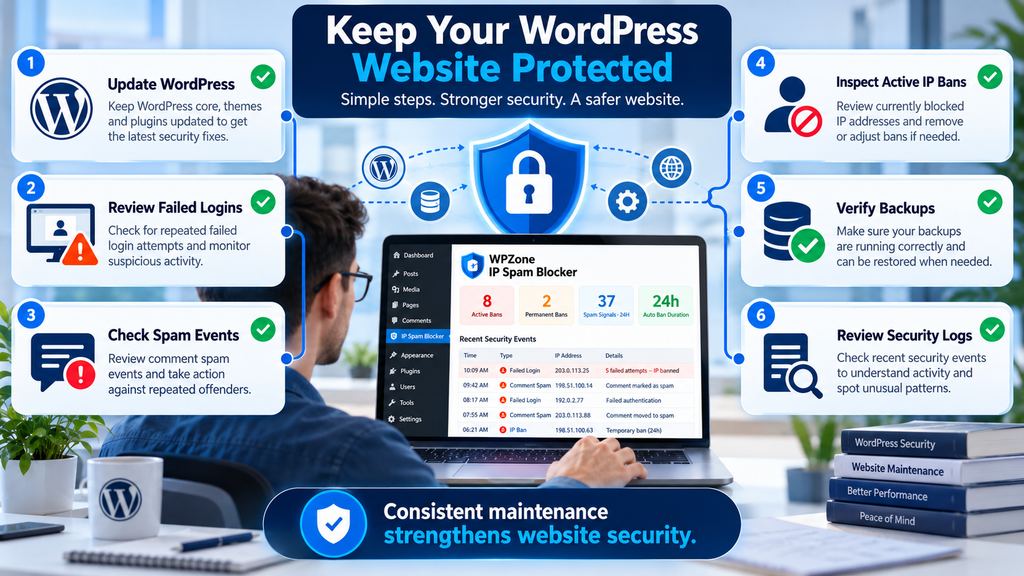
A secure WordPress website depends on several habits working together. Start by keeping WordPress core, themes, and plugins updated from trusted sources. Remove software you no longer use, especially abandoned plugins that may contain unresolved vulnerabilities. Use unique administrator passwords and enable multifactor authentication when available. Assign the minimum necessary permissions to editors, authors, contributors, and subscribers. Maintain reliable backups and periodically test whether those backups can actually restore your website. These basic practices are often more important than adding another complicated security dashboard.
After installing WPZone IP Spam Blocker FREE, review its settings and establish a reasonable monitoring routine. Check the dashboard periodically for unexpected increases in failed logins or comment spam signals. Confirm that your trusted IP list remains accurate and remove permanent bans that no longer have a clear justification. If you run a membership website, pay special attention to reports from legitimate users who cannot access their accounts. Security settings should protect the website without creating unnecessary obstacles for the people who use it.
A Practical Weekly Security Review
A weekly review does not need to take hours. Begin by checking whether WordPress, plugins, and themes have pending security updates. Next, open the WPZone IP Blocker dashboard and inspect active restrictions, recent event patterns, and any permanent bans. Review unexpected administrator accounts or permission changes through appropriate account management tools. Finally, confirm that backups are completing successfully and that your hosting environment has enough available resources. If you notice something unusual, investigate before making major configuration changes. This measured approach is more useful than reacting aggressively to every isolated failed login event.
For busy website owners, the most sustainable security routine is one that remains simple enough to follow consistently. You do not need to inspect every technical detail every day, but you should know where to find essential information when a problem occurs. WPZone IP Spam Blocker can contribute to that process by making certain IP restrictions and events visible inside the familiar WordPress dashboard. Its greatest value comes from using it with sensible settings, accurate server configuration, and a broader maintenance plan.
17. Troubleshooting Common WPZone IP Spam Blocker Problems
Even a straightforward plugin can behave unexpectedly when combined with caching systems, reverse proxies, customized login forms, or unusual hosting configurations. The first step in troubleshooting is to identify exactly what is happening rather than immediately changing multiple settings. For example, if a failed login does not appear in the event history, the problem may involve a custom authentication handler that never triggers the standard WordPress hook. If many unrelated visitors appear under the same IP address, the problem may involve reverse proxy configuration. These situations require different solutions, so a careful diagnosis can save time and prevent unnecessary disruptions.
Before investigating a problem, record your current plugin settings and create a backup if you expect to make significant changes. Test with a separate account and a controlled environment whenever possible. Avoid disabling important security measures on a live website without understanding the consequences. If the issue appears related to hosting configuration, contact the hosting provider rather than experimenting with unfamiliar server directives. Remember that the plugin itself cannot repair incorrect reverse proxy settings, external firewall rules, or authentication code that operates outside WordPress.
Problem: Failed Logins Are Not Being Recorded
If failed login attempts do not appear in the recent events table, first confirm that Failed login protection is enabled. Next, determine whether the login form uses the standard WordPress authentication system. A customized visual design does not necessarily cause a problem, but a completely separate authentication handler may bypass the hooks the plugin monitors. Also check whether the originating IP address is on the trusted list, because trusted addresses are excluded from event counting. For custom authentication systems, a developer may need to integrate the dedicated wzib_custom_login_failed action.
Problem: Legitimate Visitors Are Being Blocked
When a genuine visitor reports an access restriction, identify their public IP address through an appropriate support process and compare it with the active blocklist. If the address is listed, review the reason and recent events before removing the ban. Consider whether the visitor shares an address with other users or whether your observation window is too aggressive. You may decide to increase the failed login threshold or shorten the temporary ban duration. Avoid permanently adding every affected visitor to the trusted list, because that could weaken the protection rules over time.
Problem: The Dashboard Shows the Wrong IP Address
If different visitors appear under the same address, investigate the hosting network configuration. A reverse proxy or load balancer may be forwarding requests without properly restoring the original client IP at the web server level. WPZone IP Spam Blocker uses REMOTE_ADDR, so it depends on that value being accurate. Ask your hosting provider to verify trusted proxy configuration and compare the resulting addresses with server access logs. Do not modify the plugin to trust arbitrary visitor-supplied forwarding headers. Such a workaround can create additional security problems.
Problem: An IP Ban Does Not Block Every Resource
This behavior may reflect the difference between WordPress-level restrictions and server-level filtering. A static image, cached HTML page, or standalone endpoint might be served without running the WordPress code that checks the ban. Test whether the restriction applies to the relevant WordPress-handled request rather than assuming it should block every network connection. If your security requirements include comprehensive network-level filtering, consider a properly configured hosting firewall or content delivery network security service. WPZone IP Spam Blocker is not designed to replace those controls.
Problem: Old Security Events Are Still Visible
The plugin uses a scheduled cleanup task to delete event records older than 30 days. If records remain longer than expected, check whether WordPress scheduled tasks are running. A low-traffic website or an incorrectly configured external cron service may delay housekeeping. The cleanup task is intended to run hourly, but WordPress scheduling does not always execute at an exact clock time. Also remember that temporary bans become inactive according to their expiration timestamps, independently of the database cleanup. Old records remaining in storage do not necessarily mean the associated addresses are still blocked.
Frequently Asked Questions
Is WPZone IP Spam Blocker FREE really free?
Yes. The supplied plugin identifies itself as WPZone IP Spam Blocker FREE, version 1.1.0, and declares the GPLv2-or-later license. The reviewed package contains its core security functionality without an activation key or paid license requirement. The package does not establish whether other editions or optional services may be offered separately.
Does the plugin automatically block suspicious IP addresses?
It automatically creates temporary bans when the configured threshold is reached for supported event types. These include failed WordPress login events and qualifying comment spam events. It does not automatically identify or block every suspicious request, and its restrictions apply at the WordPress application level.
Can I permanently block an IP address?
Yes. Administrators can enter a valid IPv4 or IPv6 address in the manual ban section and choose Permanent Ban. Permanent restrictions do not expire automatically. They remain active until an administrator removes them, so they should be used carefully.
What is the maximum automatic ban duration?
Version 1.1.0 supports automatic ban durations of 1, 3, 6, 12, or 24 hours. The maximum automatic duration is 24 hours. Permanent bans are available separately through manual administrator actions.
Will the plugin work with a custom WordPress login page?
It can work with custom login pages that use standard WordPress authentication hooks. If a custom authentication system bypasses those hooks, a developer may need to call the plugin’s dedicated failure-reporting action. Compatibility should be tested rather than assumed.
Can I prevent my own IP address from being blocked?
Yes. You can add a verified address to the trusted IP list. Trusted addresses are excluded from the plugin’s ban checks and event counting. Use this feature carefully, especially if your public IP changes frequently.
Does WPZone IP Spam Blocker replace a firewall?
No. The plugin operates inside WordPress and does not directly block network connections at the server firewall. It can complement existing hosting security, but it does not replace a properly configured firewall or other infrastructure protections.
Does the plugin protect against comment spam?
It monitors qualifying comment spam events and can temporarily restrict addresses that repeatedly generate them. However, it is not a complete comment content filtering system. Using WordPress moderation features and a reputable anti-spam tool remains advisable.
How long are security events stored?
The plugin includes a scheduled cleanup process that deletes event records older than 30 days. The actual removal time depends on the scheduled task running successfully. The dashboard displays the latest 20 recorded events.
Can the plugin guarantee that my website will never be hacked?
No. No single WordPress plugin can provide that guarantee. WPZone IP Spam Blocker focuses on specific IP-based restrictions. Secure passwords, updates, backups, multifactor authentication, appropriate hosting protection, and regular monitoring remain essential.
Building a Safer WordPress Website, One Step at a Time
WPZone IP Spam Blocker FREE offers a focused way to manage repeated failed login attempts, comment spam signals, and IP-based restrictions directly from WordPress. Its dashboard keeps essential controls accessible, while configurable thresholds and temporary ban durations allow administrators to adapt the protection to their websites. Manual permanent bans provide additional control when a restriction is justified. The trusted IP list and custom login integration hook add flexibility, particularly for websites with specialized authentication requirements.
The most important lesson is that effective WordPress security depends on understanding how each protection works. IP blocking can reduce repeated unwanted activity from particular addresses, but it cannot replace good account security, reliable backups, or server-level defenses. Start with sensible settings, verify compatibility, and review security events regularly. As your website grows, revisit the configuration to make sure it still suits your audience. With careful maintenance and realistic expectations, WPZone IP Spam Blocker can become a useful component of your broader WordPress security routine.
⚠️ Disclaimer and Source Hygiene
This article is an educational guide based primarily on an inspection of the supplied WPZone IP Spam Blocker FREE version 1.1.0 plugin package, including its PHP implementation and bundled documentation. Feature descriptions reflect the reviewed version and may change in future releases. The examples use fictional scenarios and documentation-reserved IP addresses. They do not represent actual attacks, real visitors, or verified security incidents.
The plugin was reviewed at the source-code level for this article. Its behavior has not been independently validated through a complete live hosting environment, penetration test, or third-party security audit. Compatibility and effectiveness can vary according to WordPress configuration, hosting infrastructure, caching, reverse proxies, and other installed plugins. Consult a qualified WordPress developer, hosting administrator, cybersecurity professional, or legal adviser when your circumstances require specialist guidance. For security incidents, privacy compliance, and infrastructure changes, rely on appropriate professional assessment.
📚 Sources and References
Primary Source: WPZone IP Spam Blocker FREE v1.1.0
The primary technical source for this guide is the supplied plugin archive, wpzone-ip-spam-blocker-free-v1.1.0.zip. Its main plugin file establishes the version, plugin name, author, license, and WordPress integration. The includes/class-wzib.php file contains the ban logic, event monitoring, settings, administrator dashboard, cleanup routines, and custom authentication integration. The bundled readme.txt describes minimum requirements and compatibility considerations.
The information in this article reflects those files rather than unsupported assumptions about features not present in the reviewed package.
Authoritative WordPress Documentation
- WordPress Plugin Developer Handbook – Official guidance for WordPress plugin development and integration.
- WordPress wp_login_failed Hook – Documentation of the standard failed-login event used by the plugin.
- WordPress Cron Handbook – Explains scheduled tasks and their execution behavior.
- WordPress Security APIs – Guidance for secure WordPress development practices.
- Hardening WordPress – Official recommendations for improving WordPress website security.
🕊️ Secondary Sources and Testimonials
Additional security context can be found in the OWASP Web Security Testing Guide and CISA Secure Our World resources. These provide broader educational guidance on authentication, secure configuration, and online safety.
No independent customer testimonials, external plugin performance benchmarks, or verified deployment statistics were supplied for this article. Accordingly, no testimonials or performance claims have been invented.
Sign in with a Subscriber account to vote.