
Table of Contents
A critical LearnPress vulnerability affects older plugin versions and requires prompt attention. Learn what PHP object injection means, why it does not automatically guarantee code execution, how to update safely, and which sessions, files, accounts, and logs deserve review after securing your WordPress learning platform.
Research checked: October 18, 2026. The title and excerpt above belong in the WordPress title and excerpt fields. The article body starts below.
A Clear Plan for Protecting Your LearnPress Website
A security alert can arrive at the worst possible moment. Students are finishing lessons, a new course is about to launch, and your checkout needs to keep working. Then you see the words “critical vulnerability” beside a plugin your business depends on. The useful response is a clear plan: establish which software is installed, apply the available correction, and examine any evidence that deserves attention. You do not need to understand every PHP function before acting. However, understanding what the alert actually establishes will help you avoid both unnecessary panic and dangerous delays.
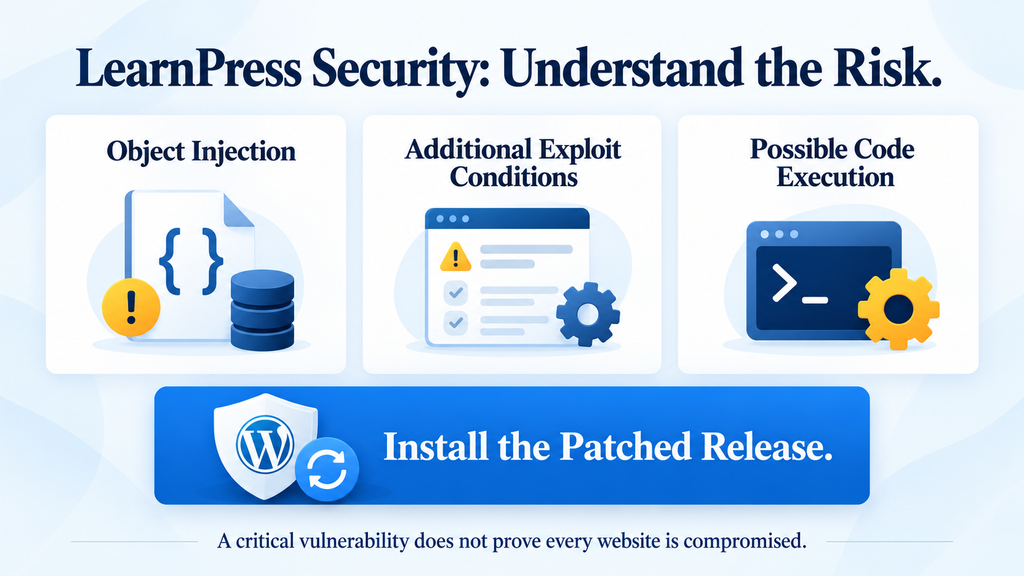
This guide explains the LearnPress vulnerability in everyday language, then walks through a practical response for an online school. The central distinction is straightforward: PHP object injection describes a security weakness; successful code execution describes a possible outcome that requires additional conditions. Treating those terms as interchangeable makes an article more dramatic but less helpful. Equally, using that distinction as a reason to postpone maintenance would miss the point. A serious weakness deserves prompt correction even when you have not demonstrated its worst possible consequence on your own installation.
The update and review workflow below is an editorial recommendation for administrators, not a claim that every affected website has been compromised. Examples use fictional situations and ordinary maintenance tasks. Nothing here requires sending attack payloads to your live checkout. If you find signs of an actual intrusion, involve your hosting provider or a qualified incident responder before making broad changes. For a busy course business, protecting current student records and preserving useful evidence can matter just as much as completing the plugin update itself.
What Is CVE-2026-104736
CVE-2026-104736 identifies an unauthenticated PHP object injection issue in LearnPress. Wordfence assigns it a critical CVSS score of 9.8 and identifies Wordfence PRISM as the researcher. Its advisory names 4.4.11 as the patched release. These are the essential facts to record in your maintenance ticket. “Unauthenticated” means an attacker does not need a WordPress account for the reported entry point. A strong administrator password remains useful, but it does not address this particular weakness. The correction belongs in the affected plugin. [1]
Think of the CVE identifier as a reference number that keeps everyone discussing the same issue. Your developer, hosting company, and security provider may use different article titles, but the identifier connects their work. For example, a support request that says “Please assess CVE-2026-104736 on our course website” is more precise than “Our learning plugin has a security problem.” Add your domain, installed version, and the time you noticed the alert. Those details give the recipient a useful starting point without requiring you to diagnose the underlying code.
The severity score helps prioritize work; it does not measure the percentage of websites already attacked. It also does not tell you whether a particular student record was accessed. Keep these questions separate in your notes: Is our software affected? Have we installed the correction? Do we have evidence of suspicious activity? Has anyone confirmed unauthorized changes? Each question needs different evidence. A version check can answer the first two. It cannot, by itself, settle the last two, which require a review of the website and its available records.
Why Careful Language Helps You Respond Faster
Suppose two administrators receive the same alert. One assumes the website is certainly taken over and immediately deletes unfamiliar database entries. The other assumes the issue is harmless because nobody has proved code execution on that installation. Both responses create avoidable problems. The first may remove evidence or disrupt legitimate sessions. The second leaves an acknowledged weakness in place. A better maintenance note would say that the site requires an urgent update, while any past impact remains under review. That wording is accurate, actionable, and easier to communicate to colleagues.
For a small training business, assign one person to own the response. That person should record the starting version, coordinate the backup, confirm the update, and collect the results of basic functionality checks. A separate developer or host can handle deeper investigation if necessary. Without an owner, several people may assume that somebody else has already clicked the update button. Ownership does not require a complicated incident process. A short ticket with a responsible person and a completion time is enough to make the next action clear.
Which LearnPress Versions Are Vulnerable
The published affected range includes LearnPress versions through 4.4.10. The remediation is 4.4.11 or a newer patched release. Check the main LearnPress plugin, rather than assuming that an updated theme or add-on means the learning platform is current. The official WordPress directory dates release 4.4.11 to October 16, 2026, and lists security fixes in its changelog. That release information supports the update workflow, while the vulnerability advisory provides the specific CVE-to-fix mapping. Use both when documenting why the maintenance is necessary. [1] [2]
To inspect your installation, sign in to the correct WordPress dashboard and open Plugins → Installed Plugins. Locate LearnPress and read the version shown beneath its name. Record that number before you update anything. If you manage several websites, confirm the address in the browser as well. A staging site and a live site can look almost identical. Taking a screenshot for your private maintenance record can prevent confusion later, especially when another administrator asks which environment you checked and whether the work covered the public website.
Check additional installations that belong to the same business. An old demonstration site, temporary migration copy, or forgotten subdomain may still be reachable from the internet. Make a small inventory containing the site address, owner, plugin version, and next action. For example, the public school might need an immediate update while an abandoned demonstration site can be retired. The important part is to make a deliberate decision for each copy. Updating one installation does not automatically change separate WordPress directories or independently hosted test environments.
What to Do When the Version Is Difficult to Confirm
If a developer manages updates for you, ask for the installed version and the completion time rather than a general reassurance that “everything is current.” Request confirmation for the live domain specifically. A useful response would identify the plugin, the version now installed, and whether checkout was tested afterward. This makes the work reviewable without requiring access to the server. If the plugin was bundled with a theme, explain that you need confirmation of the plugin files themselves, not just the theme package or the theme’s own version number.
A disabled plugin presents a different operational situation from an active one, but leaving outdated software around is poor housekeeping. Decide whether you need it. If you do, update it before reactivation. If you do not, check the vendor’s uninstall behavior and preserve any needed course data before removing it. Do not assume deletion is a harmless substitute for deactivation on a learning platform. Uninstall routines and administrator cleanup choices can affect stored data. The safest maintenance decision takes both exposure and the business value of the information into account.
On a WordPress network or a hosting account with many sites, involve the person responsible for shared plugin files. They should confirm which sites use the common installation and which have separate copies. Avoid inferring coverage from a single dashboard screenshot. For example, two domains may share one network, while a third runs from an entirely different folder. Your maintenance record should reflect that distinction. This inventory work also creates a useful foundation for future updates, because the next alert will be easier to address when the installation map already exists.
How the Checkout Email Parameter Reaches Unserialize
The advisory describes this path: the checkout AJAX request supplies checkout-email; sanitize_text_field() processes the value; LearnPress stores it in a session table; a later request retrieves it through LP_Session_Handler::get(); and LP_Helper::maybe_unserialize() reaches PHP’s unserialize() without an allowed_classes restriction. That delayed handling matters. The request that introduces a value and the request that interprets it may be different events. An investigation should therefore consider related activity across time, rather than examining only one checkout response. [1]
In ordinary language, serialization packages structured information into a form that software can store. Unserialization rebuilds that information later. The security question is what the program is willing to rebuild and who controlled the original input. An email address should remain ordinary text with an expected purpose. It should not become a way for a visitor to influence the kinds of PHP objects an application reconstructs. This is why the name printed beside a form field does not determine the safety of everything that eventually happens to its value.
A useful analogy is a reception desk storing visitor notes in a filing cabinet. Filing a note does not prove that its instructions are trustworthy. If someone later treats the note as an authorized instruction sheet, the original trust problem returns. Database storage can create the same false sense of reassurance for application data. The storage location tells you where a value has been kept, not who originally supplied it. For administrators, the practical lesson is to consider both incoming requests and stored records when reviewing a reported weakness of this kind.
Why General Text Cleaning Is Not Email Validation
WordPress documents sanitize_text_field() as a general text-cleaning function. It handles matters such as tags, invalid UTF-8, line breaks, and extra whitespace. Those jobs are useful, but they do not establish that a value is an acceptable email address or safe input for every later operation. A developer must choose validation and handling rules for the actual data type and context. “We sanitized the field” is therefore an incomplete security explanation. The relevant questions include what was accepted, what was stored, and how the application used it afterward. [3]
Consider a normal customer entering learner@example.com. Your application expects an address it can use in the checkout process. A secure design should reject values that do not satisfy the required format, rather than treating every cleaned string as suitable. This is a design example, not a recommendation to paste a custom replacement function into LearnPress. Plugin internals may have compatibility requirements that a small snippet overlooks. For site owners, installing the maintained correction is more dependable than trying to repair one visible field while leaving the rest of the data path unchanged.
Browser checks are also only part of the experience. A form can display an email-specific input and still require server-side enforcement. Likewise, a tidy checkout error message does not tell you which operations happened before that message appeared. When explaining the issue to nontechnical colleagues, focus on that sequence: the application must validate and safely handle information wherever it travels. This avoids the misleading suggestion that changing the field’s appearance, hiding checkout from a menu, or adding a stronger login password repairs the underlying processing problem.
When PHP Object Injection Can Become Code Execution

PHP object injection does not automatically mean that arbitrary code has run. In the broader vulnerability class, harmful behavior can depend on available classes, their methods, and the application’s execution path. OWASP describes how certain magic methods and combinations of existing behavior can form a property-oriented programming chain, often shortened to a POP chain. Required classes must be available or loadable when the relevant processing occurs. These are general exploitation conditions, not evidence that a working code-execution chain has been established on every LearnPress installation. [4]
Imagine that a software object is a package containing information with instructions for how that kind of package behaves. Some instructions may run automatically at particular moments. The concern is whether an attacker can influence a package in a way that reaches an unsafe action. Reconstructing an object and reaching that action are related but distinct steps. This analogy simplifies a technical subject, but it helps explain the editorial distinction: a vulnerability report can establish an unsafe entry point without proving that every deployment exposes the same complete route to a damaging outcome.
PHP’s own manual warns against passing untrusted input to unserialize(), even when class restrictions are configured. It recommends safer data-interchange approaches, such as JSON, for appropriate use cases. That guidance should prevent another misunderstanding: adding one option is not a universal endorsement of deserializing arbitrary visitor input. Application design, validation, and the entire data flow still matter. The recommendation here remains to use the vendor’s maintained update, rather than inventing a local patch based on one line from an article. [5]
Why Conditional Impact Still Requires Urgent Action
Your website contains more than the learning plugin. Themes, add-ons, custom integrations, and bundled libraries create a combination of code that can differ from another school’s installation. Without a careful technical review, you cannot reliably infer your exact exposure from someone else’s test result. That uncertainty supports prompt patching. It does not require you to demonstrate a complete attack first. An administrator should not have to become an exploit researcher before approving a security update that the responsible advisory already identifies as necessary.
For example, a course owner may ask, “Can we wait until Friday if nobody has proved code execution here?” A practical answer is to schedule a short, controlled update as soon as possible and handle compatibility checks efficiently. Keep the question about past impact open until the evidence supports an answer. In this way, uncertainty does not become either a reason for inaction or a reason to claim that a breach certainly occurred. You can take the vulnerability seriously while describing the state of your particular website honestly.
Possible outcomes discussed for PHP object injection as a class should not become a list of confirmed consequences for this CVE. A report about an entry point does not establish stolen payment details, altered grades, or administrator access on your site. If you later discover any unauthorized changes, document them independently and investigate their cause. Correlation is useful, but timing alone does not prove the route an attacker used. Accurate incident notes should distinguish the known software weakness, observed suspicious events, verified changes, and questions that remain unresolved.
Updating LearnPress to Version 4.4.11
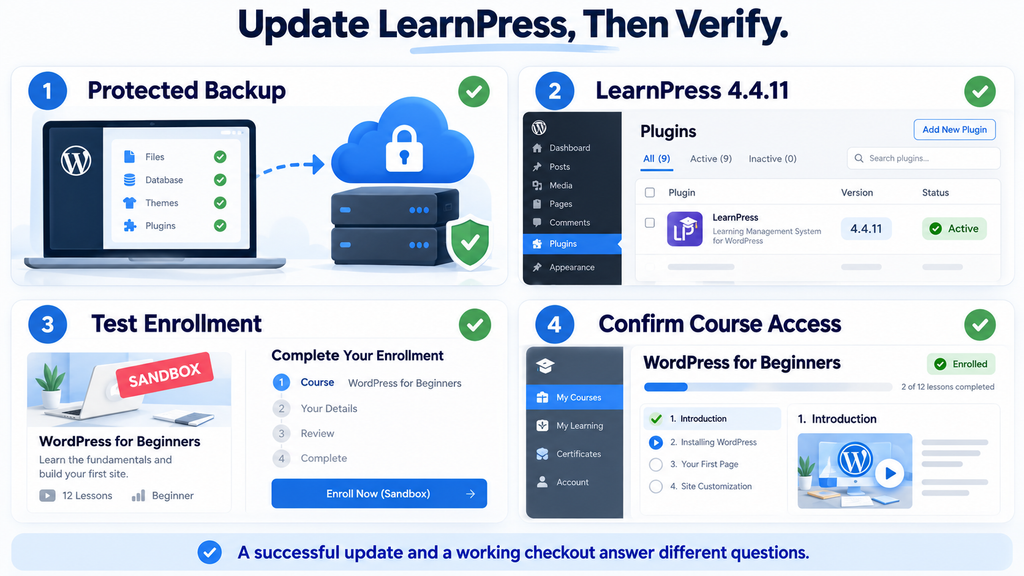
Start by identifying the person who can restore your website if maintenance fails. For some businesses, that is the hosting provider. For others, it is a developer with access to backups and the server. Confirm that you can reach that person before changing a revenue-generating checkout. This should be a short preparation step, not an excuse for a lengthy delay. If your environment already has a reliable update process, use it. The goal is to apply the correction promptly while preserving the ability to recover from an ordinary compatibility problem.
Create a current backup covering both files and the database. Course content, student progress, orders, settings, and uploaded resources may live in different places. A copy of the plugin folder alone is not a complete recovery plan. Check that the backup finished and that its timestamp matches the intended maintenance window. Store the backup somewhere protected rather than placing an exposed archive in a public website directory. WordPress’s security guidance emphasizes keeping dependable backups and obtaining software from trusted sources; those principles are especially useful during urgent maintenance. [6]
If you already have a staging environment, perform a brief compatibility check there using a current copy of the website. Keep it access-controlled, disable outbound student emails, and use payment sandbox settings. Do not send real transactions or messages from a copied production database. Concentrate on the functions your business actually uses: opening a lesson, enrolling a test learner, and completing the relevant checkout flow. A staging test should answer concrete questions quickly. Avoid turning an urgent security update into an open-ended redesign or a complete review of unrelated website features.
Install the Official Update and Confirm the Result
In the live WordPress dashboard, open Plugins → Installed Plugins, find LearnPress, and select its update link when available. Wait for WordPress to finish before navigating away or starting another installation. Then reload the plugin list and confirm the displayed version. Save the completion time in your maintenance note. If there is no update notice, check Dashboard → Updates and refresh the available updates. A missing notification is a troubleshooting issue, not evidence that an older installed release is acceptable.
If the dashboard update fails, record the actual error message. A download failure, a permissions problem, and a PHP compatibility error require different fixes. Ask your host or developer to resolve that specific problem. When a manual package replacement is necessary, obtain the release from the official WordPress directory or the vendor’s verified distribution channel. Preserve a recovery option and use the supported replacement workflow. Do not download an unofficial “security-patched” ZIP from an unfamiliar website, and do not uninstall the learning platform merely to make the update notification disappear.
Administrators who already use WP-CLI can update the named plugin from the correct WordPress directory. The command below requests its available update; the second checks the reported installed version. Run commands under the appropriate site account and verify the target path first. On a server hosting several domains, a successful update in the wrong directory does not protect the intended school. The official WP-CLI documentation describes named-plugin updates and version targeting. Prefer the currently maintained patched release rather than downgrading a newer installation to match this article’s title. [7]
wp plugin update learnpress
wp plugin get learnpress --field=version
Test the Student Journey After Updating
Use a dedicated learner account to open a course and continue to a lesson. Check that the expected material appears and that progress behaves normally. Next, test enrollment using a free test course or a properly configured sandbox checkout. Verify the result in the dashboard rather than relying only on the browser’s success message. For example, confirm that the test order has the expected status and that the learner receives the correct course access. These checks establish that the platform still performs the tasks students depend on after maintenance.
Test the payment integration you actually use. A school using an external gateway may need to confirm that the return page, payment notification, and enrollment result agree. Keep sandbox work separate from real transactions. If a production verification is necessary, have the business owner approve a controlled purchase and handle its accounting appropriately. Also check confirmation emails using a test address you control. An update can finish successfully while a separate integration problem remains, so the verification should follow a student’s whole journey rather than stopping at the plugin screen.
If pages show stale styling, clear the relevant page or CDN cache through its normal controls and test again in a private browser window. Treat this as a presentation and functionality check. A cache purge does not itself patch vulnerable PHP code, erase suspicious database records, or prove the website is clean. Record exactly what you verified: the installed release, successful test enrollment, expected access, and any remaining errors. A precise maintenance record is more valuable than a broad statement that “everything was checked,” especially when another person must investigate a later complaint.
Auditing LearnPress Sessions and WordPress Files
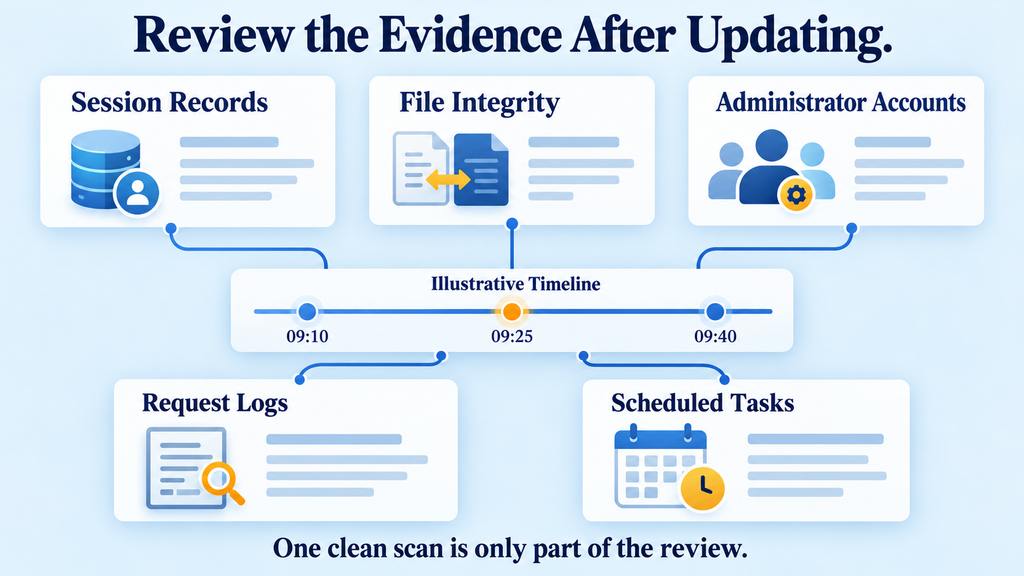
After the update, decide how much investigation the available evidence justifies. A site with a short exposure window and no concerning observations has a different starting point from one with unexplained administrator accounts or altered files. Neither case benefits from guesswork. Begin a timeline containing the previous version, deployment history if known, update time, and any suspicious events. Ask the hosting provider which logs are available and how long they are retained. Preserve useful records promptly so ordinary log rotation does not remove information while you are still deciding what to examine.
Preservation and containment should support each other. If you see an active compromise, ask for immediate containment while the host preserves the relevant data. Do not leave a vulnerable or visibly compromised site exposed simply because a complete forensic image takes time. Conversely, avoid indiscriminate cleanup that destroys the only available evidence. WordPress’s hacked-site guidance recommends documenting what you observe and taking a methodical approach. The appropriate balance depends on the situation, which is why a busy commercial learning platform may benefit from professional assistance. [8]
Separate the audit into questions you can actually answer. Are there unusual values in the relevant session records? Do file comparisons reveal unexplained changes? Were new privileged accounts created? Do logs show activity worth correlating with those observations? This structure keeps the review focused. For example, an unfamiliar file is a lead, not an automatic diagnosis. Its location, contents, source, and relationship to other events determine its significance. The same principle applies to database records and error messages: context turns an observation into useful evidence.
Review Session Records Without Executing Their Contents
Have a developer or database administrator identify the actual LearnPress session storage and schema in your installation. Database prefixes and layouts can vary, so avoid copying a destructive SQL statement from a generic tutorial. Begin with a protected export or snapshot and inspect values as data. Do not feed suspicious values into unserialize(), a plugin helper, or an online decoder to see what they do. An investigation should not recreate the unsafe processing it is trying to understand. Use an isolated analysis environment and suitable tooling when deeper interpretation is necessary.
Look for values that are inconsistent with the purpose of the field, and compare them with known legitimate sessions from the same installation. An apparent object representation inside a field intended for an email address deserves review. However, serialized structures elsewhere in WordPress are not automatically malicious. Legitimate applications also store structured data. The location, expected format, and surrounding activity matter. A useful finding explains why a specific value is unexpected in that specific place, rather than treating every unusual punctuation pattern or long database string as proof of an attack.
If session cleanup is warranted, agree on the scope and preserve relevant records first. Clearing sessions may interrupt carts or temporary checkout state, depending on how the installation uses them. Explain that possibility to whoever supports students. Follow vendor-supported procedures or a reviewed database plan, and verify normal behavior afterward. Do not assume that updating the plugin automatically removes every previously stored suspicious value; that requires confirmation of the actual remediation behavior. Equally, do not assume clearing all sessions completes incident recovery if other evidence suggests unauthorized activity elsewhere.
Compare WordPress Files With Trusted Copies
File review should establish what belongs on the site and what changed without an explanation. Begin with trusted copies of the installed software versions and compare the relevant directories. For plugins distributed through WordPress.org, WP-CLI can check files against repository checksums. The LearnPress-specific command below can help identify differences in that plugin’s files. A mismatch requires investigation; it may reflect corruption, an intentional local modification, or an unauthorized change. A successful comparison covers the files and checks available to that command, not the entire website or its database. [9]
wp plugin verify-checksums learnpressFor WordPress core, the corresponding command checks core files, and the additional option asks it to inspect the root for unexpected items. Review any reported differences before deciding what to replace. These commands assume an administrator-controlled environment suitable for running maintenance tools. If you suspect active server compromise, have the host perform verification from a trusted environment or preserved copy instead of relying blindly on the affected installation. Local tooling and the system around it also need to be trustworthy for the results to support a confident conclusion. [10]
wp core verify-checksums --include-rootReview areas outside those comparisons as well. Custom themes, premium plugins, must-use plugins, configuration files, uploads, and server rules may require separate inspection. Unexpected PHP in a directory normally used for student uploads is worth examining, but filename and location alone are not a verdict. Preserve suspicious material and compare it with deployment records before removal. Modification times can help build a timeline, although legitimate updates change timestamps and timestamps can be manipulated. Treat them as clues that need supporting evidence rather than a reliable record of every action.
Correlate Logs, Accounts, and Scheduled Activity
Ask for relevant web-server, firewall, PHP, and administrative activity logs. Ordinary access logs often omit request bodies, so they may not contain the checkout field’s value. A clean-looking access log cannot rule out what it never recorded. At the same time, a blocked request does not demonstrate successful exploitation. Match the time, route, response, and available application context with other findings. Normalize time zones before comparing records. An event recorded in UTC and another displayed in local time can look unrelated until you account for the difference.
Review privileged users and recent role changes. Compare unfamiliar accounts with staff records, development work, and approved integrations. Do not delete a legitimate instructor simply because the username is unfamiliar to the person investigating. Focus especially on unexpected administrator privileges, changed contact addresses, and unexplained authentication activity where records exist. If an account appears unauthorized, preserve the relevant details and restrict access through an agreed response process. The purpose is to establish whether access changed without approval, while protecting legitimate teaching activity and preserving useful evidence.
Include scheduled tasks and configuration changes in a broader review when compromise is suspected. Ask your developer to identify unfamiliar jobs, integrations, or outbound connections and explain their purpose. Many legitimate plugins schedule routine work, so an unfamiliar task name is only a starting point. Compare findings with known installations and deployment notes. Avoid disabling every scheduled task as a blanket cleanup measure; that can interrupt notifications, background processing, and other expected functions. Each change should address an identified concern and have a clear owner who verifies its effect.
What to Do If You Discover Signs of Compromise
If the review identifies an unauthorized administrator, a confirmed malicious file, or another concrete sign of intrusion, move beyond routine plugin maintenance. Contact your host and a qualified responder, explain the evidence, and preserve relevant records. Agree on containment that fits the situation. A public maintenance page may reassure visitors, but it should not be assumed to block every application route. Ask the person implementing restrictions to verify that the intended controls actually apply. The immediate objective is to limit further unauthorized activity while keeping recovery options and evidence available.
Recovery should address the whole affected environment, not merely the first suspicious file. Establish which components can be trusted, what needs replacement, and whether a known-good backup is suitable. A backup made after an intrusion may preserve the intrusion as well. Restoring a clean but outdated backup may reintroduce the original weakness unless the software is patched before reopening access. For a course platform, recovery planning must also account for valid orders and student progress recorded after the backup. Reconcile those business records carefully rather than accepting avoidable data loss.
Plan credential replacement around the incident scope and containment work. Depending on the findings, this may include WordPress accounts, hosting access, database credentials, and integration secrets. Coordinate urgent revocation of exposed credentials with the responder, and ensure new secrets are introduced into a trusted environment. Confirm that revoked sessions or tokens actually stop working where applicable. Finally, agree on a monitoring period and a responsible person. Finding no further alerts during a short interval is useful, but recovery confidence should rest on several checks and an explained remediation process.
Frequently Asked Questions
Does This LearnPress Vulnerability Mean My Website Was Hacked?
No. Installing an affected release establishes exposure to a reported weakness, not proof that somebody successfully exploited your website. Determine the installed version, apply the correction, and review available evidence in proportion to what you observe. If you discover unauthorized changes, investigate them as actual findings. Keep the wording in your maintenance notes precise: “affected software updated” and “compromise confirmed” describe different conclusions. That distinction helps staff understand what is known without suggesting that uncertainty makes the security update optional.
Which Version Should I Install?
Use the currently maintained patched release from the official distribution channel, with 4.4.11 as the fix identified for this issue. If a newer maintained version is available when you read this article, review its compatibility information and use the appropriate current release. Do not downgrade a newer installation just to match a tutorial. Record the version you actually install, because that number is what future maintenance and troubleshooting will rely on. The article’s research date provides context; your live installation needs a current check.
Does Changing My Administrator Password Fix the Issue?
No. A password change does not replace vulnerable plugin code. Strong authentication still protects account access, and credential changes may be appropriate if an investigation identifies exposure. However, those measures serve a different purpose from the software correction. For a straightforward maintenance response, install the update first through a controlled process and verify the result. If you suspect an active intrusion, coordinate containment and credential handling with your host or responder rather than treating a password reset as complete recovery.
Can a Firewall Replace the LearnPress Update?
Do not treat a firewall as a substitute for installing the correction. Ask your provider whether a relevant rule exists, whether it is enabled for your plan, and which traffic it covers. That information may support temporary protection during maintenance, but it does not change the installed plugin files. Avoid claiming that a security product blocks this specific issue unless you have current confirmation. The useful question is what protection is demonstrably in place while the affected software is being brought up to date.
Should I Disable LearnPress Until I Can Update?
If you cannot apply the correction promptly, ask your host or developer for a verified temporary mitigation. Disabling the plugin may interrupt lessons, enrollment, and checkout, so assess the business impact and communicate with students where necessary. Hiding a page or removing a menu link is not an adequate way to establish that a request handler is inaccessible. Whatever temporary measure you choose, set a clear deadline for installing the update and confirm that the intended restriction works at the application or hosting layer.
Should I Delete Every LearnPress Session?
Not as an automatic first step. Preserve relevant records and understand the installation’s session behavior before deciding on cleanup. Session removal may interrupt legitimate checkout activity and can destroy evidence useful to an investigation. A developer can identify the appropriate storage, inspect values safely, and determine whether a targeted or broader reset is justified. Record what was removed and why. Session cleanup, when needed, is one part of the response; it does not establish that files, accounts, and other stored information are trustworthy.
Does an Unserialize Error Prove an Attack Succeeded?
No. An error can indicate malformed data or a software problem, but its meaning depends on context. Preserve the message, timestamp, and relevant request details, then compare them with other evidence. Likewise, the absence of an error does not establish that nothing happened. Useful investigation connects observations rather than treating one log line as a verdict. If the message contains private data or session information, share it securely with your technical contact instead of posting the full contents in a public support thread.
Is One Clean Malware Scan Enough?
A clean scan is useful information, but its scope matters. Ask what the scanner examined, which checks were enabled, and whether it covered database content and custom components. Combine the result with version verification, appropriate file comparisons, account review, and available logs. You do not need to perform every imaginable test on every website. You do need to understand the limits of the checks you use, particularly before telling colleagues that an installation has been fully cleared after a suspected incident.
Can I Restore Yesterday’s Backup and Continue?
Only after establishing that the backup is suitable and planning how to preserve later legitimate activity. A recent backup may already contain unwanted changes, while an older clean backup may contain vulnerable software. For a learning business, restoration can also overwrite recent orders and progress. Ask your developer to reconcile those concerns before reopening the site. The recovery plan should explain the trusted starting point, required updates, data reconciliation, and final verification rather than relying on the backup’s date as proof of safety.
What Should I Send to My Hosting Provider?
Provide the affected domain, CVE identifier, installed version, update status, and a concise description of anything unusual. Include timestamps with their time zone and explain what you have already changed. Ask the provider to preserve relevant logs and identify any evidence of unauthorized activity. Avoid sending passwords or complete student databases in an ordinary support message. A focused request helps the support team start useful work quickly and reduces the chance that several people repeat the same checks or overwrite evidence while troubleshooting.
Protect the Course Platform Your Students Depend On
The most useful response to the LearnPress vulnerability is prompt, documented maintenance followed by an evidence-based review. Confirm the installation, use the official patched release, and test the learning and checkout functions that matter to your school. Keep the distinction between an unsafe processing path and a demonstrated incident clear throughout that work. You can explain the risk accurately without minimizing it. Students benefit when the people running their platform make calm, timely decisions and verify the outcome rather than relying on a reassuring notification alone.
Once the urgent work is complete, make the next update easier. Keep an inventory of your WordPress installations, maintain protected backups, and assign someone to review security notices. Record which integrations need testing after a learning-platform update. A small test account and a documented enrollment check can save valuable time when another alert arrives. These habits do not eliminate every risk, but they make your response more consistent and help you protect the course content, progress records, and trust that your website exists to support.
⚠️ Disclaimer and Source Hygiene
This article provides general educational guidance and does not replace a qualified security assessment, incident response, or advice from your hosting provider. Consult a professional before destructive database changes or recovery work on a suspected compromised system. Product-specific facts were checked against the primary advisory and official release information on October 18, 2026. PHP, OWASP, and WordPress documentation support the technical background. The operational workflow and fictional examples are editorial guidance. This article does not claim a confirmed compromise, a universal code-execution chain, or guaranteed AdSense approval.
For more tutorials like this, consider subscribing to our blog.
Do you have questions or suggestions? Leave a comment or contact us!
Sources and References
[1] Specific advisory: Wordfence Intelligence – LearnPress PHP object injection through the checkout-email parameter. Source for the CVE, affected range, reported processing path, severity, and patched release.
[2] Release information: LearnPress on WordPress.org – official development information and changelog.
[3] Input handling: WordPress Developer Resources – sanitize_text_field().
[4] Vulnerability background: OWASP – PHP Object Injection.
[5] PHP behavior and warnings: PHP Manual – unserialize().
[6] Administrative security: WordPress – Hardening WordPress.
[7] Command-line updating: WP-CLI – wp plugin update.
[8] Incident response background: WordPress – FAQ: My site was hacked.
[9] Plugin file checks: WP-CLI – wp plugin verify-checksums.
[10] Core file checks: WP-CLI – wp core verify-checksums.
Secondary Sources and Testimonials
No customer testimonials, anonymous incident stories, or secondary reports are used to establish technical claims in this article. The examples are fictional and illustrate administrative decisions. Readers should verify future developments through the primary advisory, official release notes, and the documentation linked above.
Sign in with a Subscriber account to vote.