
Table of Contents
The Theme My Login vulnerability puts certain WordPress Multisite configurations at risk of account takeover. Learn what CVE-2026-89079 means, what reported attack activity actually proves, how to update safely, and which administrator accounts, passwords, sessions, and security records deserve attention after possible exposure.
What Is CVE-2026-89079?
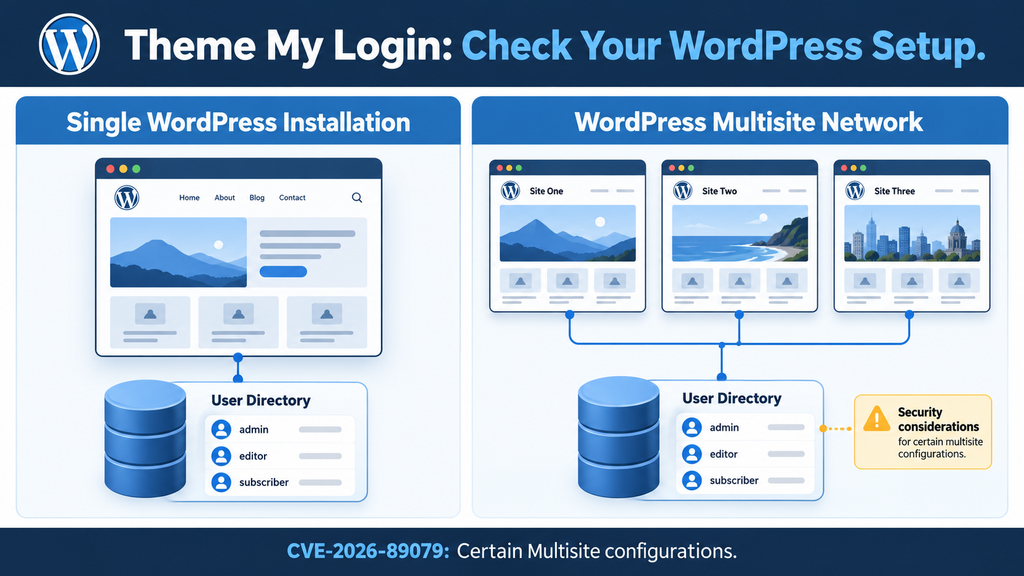
A security alert becomes much easier to understand when it answers two questions immediately: does this affect my website, and what should I do next? For this issue, the first distinction is particularly important. The published advisory describes a problem affecting certain WordPress Multisite configurations. It does not describe an equivalent attack against every ordinary WordPress installation. Administrators should identify how their websites are organized before deciding the scope of their investigation. That simple check prevents unnecessary panic while helping network owners recognize a situation that needs prompt attention.
CVE-2026-89079 identifies an account takeover vulnerability affecting Theme My Login through version 7.2.1. Wordfence rates it 9.8 Critical and explains that an unauthenticated attacker can change another user’s password in certain Multisite setups. Its advisory identifies missing identity validation before a password update. The first patched release is 7.2.2. These details make the issue urgent for potentially exposed networks, even when the website looks normal and no administrator has reported a problem. wordfence.com
This article explains the risk in practical terms, then walks through a defensive response. The examples illustrate how administrators can organize their work; they are not reports of particular victims. The aim is to help you establish what you operate, apply the correction, and check whether privileged access changed unexpectedly. A useful response should leave you with more than an updated version number. It should also leave you confident about who controls the network, which accounts remain trusted, and what evidence supports that confidence.
Why a Password Change Can Become Account Takeover
Imagine an office where employees use individual access cards. If someone can replace another employee’s access code without proving their identity, they may gain the permissions attached to that person. A website account works in a similar way. The account’s authority comes from its assigned permissions, while the password helps establish who may use it. When an unauthorized person controls that password, the affected account can become an entry point. The seriousness depends partly on what that account can do and which additional protections apply.
For example, a compromised editorial account might allow unauthorized changes to articles. A privileged administrative account could create a much broader problem. However, those possible consequences should not be confused with a confirmed outcome on a particular network. An administrator reviewing this alert should ask which accounts existed during the exposure period, what authority they held, and whether their activity matches legitimate work. That approach turns a frightening headline into a set of questions that someone can actually investigate.
A long, unique password remains valuable, but it protects against a different problem: someone guessing or reusing the secret. A defect in the process that changes the secret requires a software correction. Afterward, account review helps establish whether the earlier exposure had consequences. Think of updating as repairing the lock mechanism, while reviewing accounts checks who may already possess access. Both actions matter, but they answer different questions. Completing one does not automatically establish that the other is unnecessary.
Which WordPress Multisite Configurations Are Exposed?
Start by establishing whether your websites belong to one WordPress network or operate as separate installations. Several domain names, a shared hosting account, or one VPS do not automatically mean Multisite. A business might run its main website, support portal, and magazine through three independent WordPress installations. Another business might manage similar websites through one network. Their public appearance could be almost identical, yet their administration and account relationships would differ. For this alert, the underlying arrangement matters more than the number of websites you can see.
Ask the person responsible for hosting or development to confirm the installation type if you are uncertain. Someone with sufficient access to a Multisite network can inspect Network Admin and its site inventory. A restricted user may not see those controls, so their absence from one person’s toolbar is not conclusive. WordPress documents Multisite as a network administration model with network-level controls, including registration and plugin management. Use that information to locate the correct management area and the person authorized to maintain it. Developer.WordPress.org
Next, identify whether Theme My Login runs anywhere relevant in that environment and record its installed version. The important limitation is that the public advisory says certain configurations are affected without fully enumerating those conditions. Therefore, this article cannot responsibly promise that one registration setting, extension combination, or activation arrangement excludes exploitation. Treat those details as information to collect for assessment. Do not treat an undocumented assumption as a substitute for installing the available correction.
Build an Inventory Before Making Network Changes
A practical inventory can be simple. For each independent installation or network, record its main address, administrator contact, plugin version, activation status, and update status. Add a column for evidence, such as a screenshot from the authenticated dashboard or a maintenance record. For example, an agency managing twelve customer websites might discover that ten are independent installations and two belong to one network. That finding immediately changes who should coordinate the response and where the team should check accounts. It also prevents repeatedly investigating the same shared installation as though every domain were separate.
Include staging and development environments when they are reachable from the internet. Teams often maintain production carefully while forgetting a test copy created months earlier. A staging website can also contain copied user records, old credentials, or customer information. Its presence does not prove a route into production, but it deserves its own assessment. Record whether the environment remains necessary, whether access is restricted, and who maintains it. If it has no current purpose, plan its retirement through the normal hosting process rather than leaving an abandoned copy exposed indefinitely.
For an ordinary single-site installation, the correct message is measured: the published attack scope does not establish that this specific Multisite issue applies in the same way. Continue normal maintenance and install current trusted updates. You do not need to label the website compromised merely because the plugin appears in its plugin list. Equally, an administrator who cannot yet confirm the installation type should keep investigating. “We have not checked” and “we confirmed this is a separate installation” are different conclusions, and maintenance records should make that difference clear.
Understand the Difference Between Site and Network Authority
When reviewing privileged access, distinguish a person who administers one website from someone who manages the network. In a shared environment, the identity behind a login may matter beyond the particular page where a visitor entered it. Therefore, prepare an account map that connects each privileged person to their responsibilities. For example, record that one employee manages the news site, another maintains the member portal, and a designated technical owner handles network maintenance. This makes unusual activity easier to evaluate because you know what each account normally needs to do.
Avoid assuming that every administrator has identical authority. During an investigation, write down actual permissions and observed actions rather than relying entirely on a familiar job title. A person called “site manager” in an internal spreadsheet may have broader technical access than the role suggests. Conversely, someone who writes content may hold unnecessary administrative privileges from an old migration. The review offers a useful opportunity to identify these mismatches. Remove unnecessary access through an agreed process, keeping enough trusted administrative access available to complete maintenance and recovery.
How Could an Administrator’s Password Be Overwritten?
A legitimate password recovery process must establish that the requester may change the selected account’s password. Usually, a person begins recovery, receives a verification message, and follows a time-limited process before choosing a replacement secret. The initial request should not be enough to grant control. Otherwise, anyone who knows an account identifier could interfere with that account. This distinction explains why password recovery deserves the same security attention as the login form itself. Both processes influence who can become an authenticated user.
The advisory names the user_pass1 POST parameter and the wp_pre_insert_user_data filter in its technical title. In plain English, submitted password data could influence an account update without adequate identity checks in the affected circumstances. The developer’s changelog confirms the correction addresses a lost-password request overwriting an account password on Multisite. These statements explain the flaw’s nature; they do not establish that every password recovery request is malicious or that all network configurations behave identically. wordfence.com
Consider a hypothetical network administrator named Alex. Alex receives an unexpected account notification and later cannot sign in using the expected password. Those symptoms deserve investigation, but they do not identify the cause by themselves. A colleague might have performed an authorized reset, a password manager might contain an outdated entry, or an unauthorized change might have occurred. The next step is to preserve the notification and compare its timestamp with trustworthy account and security records. Evidence becomes stronger when several independent observations support the same explanation.
Why Hiding a Login Page Does Not Replace the Fix
Changing a login address can make some automated noise less convenient, but it does not establish that an account-management defect has been corrected. A visible button and the server-side process behind it are different things. Removing a menu link may prevent ordinary visitors from discovering a page through navigation while leaving the underlying functionality available. For this reason, cosmetic changes should not become the main response to an authentication alert. Administrators need to know whether the vulnerable software remains active and whether the corrected release actually replaced it.
The same caution applies to CAPTCHA and request limits. These controls can help with automated abuse, but their effectiveness depends on where they operate and what they inspect. A control protecting one login page may not cover every related account workflow. Review what your current protections actually cover instead of assuming that a familiar security badge settles the issue. The practical question is specific: does this measure prevent the affected behavior in this environment? If the answer is unknown, keep it as a supporting control and complete the software update.
Two-factor authentication deserves similar care. It can make unauthorized sign-in harder when correctly enforced, yet it should not justify keeping vulnerable account-handling code. Test the complete administrative login process after updating, including recovery and any alternate sign-in method your organization supports. For example, an administrator might normally use an authenticator app but retain an older integration that follows a different route. Reviewing those routes helps ensure that the protection you expect applies in practice. Do not assume this vulnerability defeats every two-factor system; that would go beyond the evidence reviewed here.
Keep Technical Investigation Separate From Production Testing
An administrator does not need to reproduce account takeover against a real administrator to justify patching. Testing on a production account can cause lockouts, interrupt customer support, and complicate the evidence you later need. Use routine version verification and controlled functional tests first. If deeper technical validation becomes necessary, ask a qualified developer or incident responder to work in an isolated environment. That environment should use test accounts, avoid real customer data, and have a clearly documented purpose.
This separation also makes communication clearer. You can tell management, “We confirmed the affected version and installed the correction,” without claiming that you demonstrated a successful attack. Likewise, you can report suspicious account activity without prematurely assigning its cause. Good incident notes preserve these distinctions. Record what you observed, how you observed it, and which conclusions remain uncertain. That disciplined approach reduces both false reassurance and unnecessary alarm while giving the next person enough information to continue the investigation.
What Evidence Shows Active Attacks?
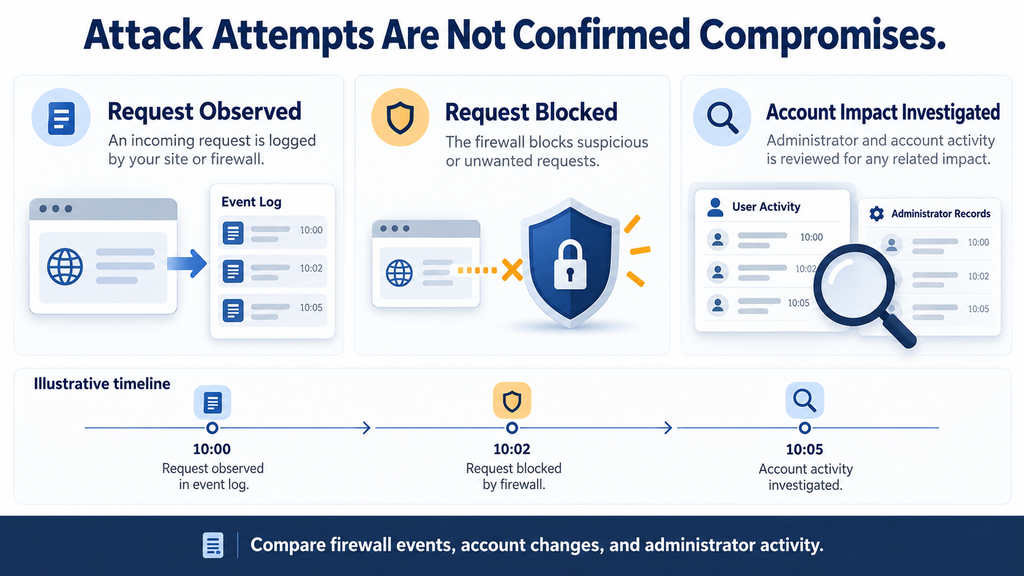
At the time of this review on October 17, 2026, Wordfence’s advisory displayed 953 blocked attacks targeting this vulnerability during the previous 24 hours. That is direct evidence of observed attack attempts within its visibility. It supports describing the issue as under active attack. The figure is a moving window, so readers checking later may see a different value. It should always be attributed to the reporting source and attached to a review date rather than presented as a permanent worldwide total. wordfence.com
The distinction between an attempt and a successful compromise is essential. A firewall may block many requests from one source, while several sources may target one website. Neither situation tells us how many accounts changed hands. Therefore, the reported figure does not mean 953 websites were compromised, 953 administrators lost access, or 953 separate attackers participated. Those are different measurements. A responsible security article should explain that difference because numbers without context can make an alert seem more precise than the underlying evidence allows.
For your own network, external reporting establishes urgency, while local records help establish impact. A public report cannot tell you whether a particular administrator’s password changed on your installation. Similarly, a quiet dashboard cannot prove that no relevant request reached the server. Your task is to connect the wider warning with your own maintenance history and available evidence. Start with the period during which vulnerable software was deployed, then examine account events and administrative activity during that period.
Read Firewall Records Without Overstating Their Meaning
Suppose your security dashboard shows a group of blocked requests against an account-related page. Preserve the event timestamps, targeted address, rule description, and recorded action. Then check whether the events reached the application or were stopped earlier. A request rejected by an edge firewall presents a different investigative picture from an application event followed by a successful privileged login. Both deserve an accurate record, but they do not justify the same conclusion. If your provider manages the firewall, ask for an explanation of the relevant event fields.
HTTP status codes also require context. A successful response code may simply mean the server returned a normal page containing an error message. A redirect may be part of routine account recovery. Neither response proves that a password changed. Likewise, an unfamiliar IP address might belong to a legitimate administrator using a mobile connection or corporate VPN. Stronger findings combine several details, such as an unrequested account change, a matching time window, and subsequent actions that the account owner denies performing.
Standard access logs often omit submitted form contents, so a log entry may show that a request happened without revealing its complete effect. Do not respond by enabling broad password or request-body logging. That can create a second security problem by collecting secrets and personal information. Instead, use existing security events, application audit records, account notifications, and hosting evidence where available. If additional monitoring is necessary, define what it should capture, who may access it, and when the temporary collection should stop.
Create a Timeline That Another Person Can Follow
A useful timeline connects a few concrete milestones: the last known vulnerable deployment, the first relevant alert, the maintenance action, and any suspicious account activity. Use explicit time zones. For example, record that the hosting log uses UTC while the administrator’s email client displays Brussels time. Without that clarification, two related events may appear hours apart. Save the original records alongside your interpretation so another person can check the sequence independently. A clear timeline is often more helpful than a large folder of unexplained screenshots.
If records are incomplete, state the limitation directly. “No suspicious event appeared in the retained seven-day log” is more defensible than “the site was never attacked.” The first statement explains what was checked and its boundary. The second claims knowledge that the evidence may not support. You can still complete meaningful remediation when visibility is imperfect. Apply the correction, review privileged access, strengthen monitoring, and record the unanswered questions. Uncertainty should guide the depth of review rather than prevent practical action.
How to Update Theme My Login Safely

The immediate maintenance goal is straightforward: replace the affected release with a current trusted release containing the correction. Version 7.2.2 is the first release identified as fixing this issue. During this review, the official WordPress plugin directory listed 7.3.1, whose changelog also includes additional Multisite account-flow changes. Use the current compatible release offered through the trusted update channel instead of assuming the earliest fix is the best long-term stopping point. Check the directory again when performing maintenance because available versions can change. WordPress.org
Before starting, confirm that you can recover if an unrelated compatibility problem interrupts login. Identify the hosting contact, verify that you have authorized access to the correct installation, and check that a recent backup includes files and the database. A backup is a recovery option, not proof that the current system is clean. Store it securely and record when it was created. For an urgent security update, keep this preparation focused; an elaborate maintenance exercise should not unnecessarily extend the exposure window.
Tell other administrators that you are updating an authentication-related component and may invalidate sessions later. This avoids confusion if someone is editing a page or reviewing orders during maintenance. For example, a short internal note can identify the network, the expected maintenance period, and the person coordinating recovery. You do not need to expose technical details publicly. The purpose is to prevent legitimate colleagues from interpreting planned access changes as a separate incident or accidentally undoing them while trying to troubleshoot.
Apply the Update Through the Correct Management Area
Sign in through your known administrative address and open the plugin management area for the relevant installation. In a network environment, use an account authorized to manage the shared plugin installation. Locate Theme My Login and record the displayed version before changing it. Apply the available update from the trusted channel, then wait for the operation to finish. Avoid repeatedly refreshing or starting parallel updates while the first operation is still running, particularly on a server with limited resources or slow storage.
After completion, reload the plugin screen and verify the installed version. An available-update notice disappearing is useful feedback, but recording the resulting version gives you a stronger maintenance record. If the update reports an error, inspect that result before assuming success. A permissions problem, interrupted download, or storage limitation can leave maintenance incomplete. Ask the hosting provider to investigate if necessary. Record the error privately, since diagnostic output can sometimes contain server paths or other details that do not belong in a public support comment.
When maintaining several independent WordPress installations, verify each one separately. Updating one installation does not establish the status of its neighbors, even when they share a server. Conversely, avoid treating every address inside a shared network as an unrelated plugin installation. Your earlier inventory should guide the work. Mark each environment complete only when someone has verified its state. That small administrative habit prevents the common situation where everyone assumes another person updated the last remaining copy.
Test Login and Recovery With a Dedicated Account
Use a test account with minimal permissions to check ordinary behavior after maintenance. Open a private browser window, visit the expected login page, sign in, and confirm that the account reaches the intended destination. Then sign out and check the legitimate lost-password process. Verify that the recovery message arrives at the expected test mailbox and that the normal verification steps work. These tests confirm that your members can still use the service. They do not require attempting to overwrite another user’s password.
Also check any business-specific redirects or account pages that depend on the plugin. A membership website might send subscribers to a dashboard, while an editorial website might direct contributors to an author area. Use representative test accounts rather than a super administrator for every check. If a page behaves unexpectedly, inspect the integration and relevant cache exclusions. Clear only the caches needed to resolve the problem. A successful security update should leave account workflows understandable, usable, and consistent with the organization’s access rules.
If the update cannot be completed promptly, ask the network owner or hosting provider to help restrict the affected functionality or deactivate the component safely. First establish a reliable administrative access route, because authentication integrations can interact with redirects and other extensions. Removing a visible recovery link alone does not demonstrate containment. Any temporary measure should have an owner, a documented scope, and a follow-up task to install the correction. Temporary arrangements tend to become permanent when nobody records what remains unfinished.
How to Audit Administrator Passwords and Sessions
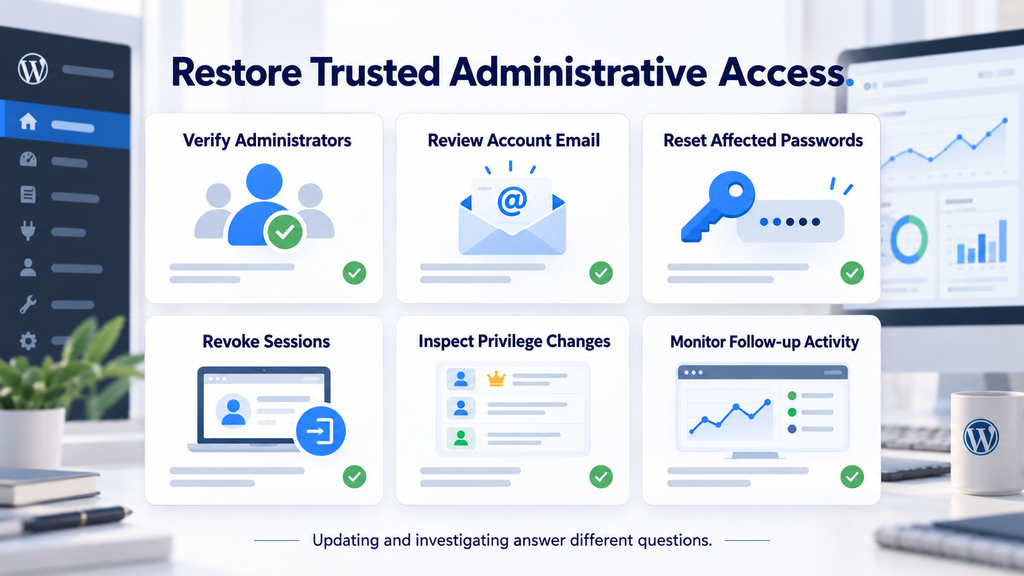
Updating addresses the software defect, while account review addresses the possibility of earlier unauthorized access. Begin with privileged identities and work outward according to what you find. List the people who should currently administer the network and its websites, then compare that list with the accounts present. Look for unfamiliar names, unexpected email addresses, unexplained privilege changes, and accounts belonging to former staff. An old account is not automatically malicious, but it should have a clear owner and a current reason to exist.
Contact privileged users through an established channel to ask whether recent password changes and administrative actions were theirs. For example, verify an unexpected account change through a known phone number or internal communication channel rather than relying only on a newly changed profile address. Record the response and its time. This is particularly useful when several people share maintenance responsibilities. What looks suspicious to one administrator may be an authorized change by another, and confirmation can prevent unnecessary disruption while preserving attention for genuinely unexplained events.
If unauthorized activity appears plausible, use a trusted device and coordinate credential changes with containment. Resetting a password while an attacker retains another route into the system may provide only temporary relief. Review whether the account’s email destination remains trusted, whether other privileged accounts appeared, and whether access settings changed. Preserve relevant evidence before removing suspicious items where practical. For a serious incident, involve the hosting provider or a qualified responder who can help determine the appropriate scope.
Reset Passwords Through Trusted Administrative Workflows
Assign a unique password to each privileged account and store it in a reputable password manager. Avoid sending replacement passwords through ordinary shared documents or group messages. Where possible, let each verified person complete an approved recovery process through a trusted mailbox. The administrative objective is to restore control to a known individual without creating a new collection of exposed secrets. Record that the change occurred, but never record the password itself in the incident timeline.
Review the email account associated with each important identity when there are signs of broader compromise. A mailbox can influence recovery for several services, so unexpected forwarding rules, unfamiliar access, or unexplained recovery changes deserve attention. However, do not automatically rotate every unrelated credential merely because this plugin was installed. Match the response to the evidence and the account’s importance. A targeted, well-documented change is easier to verify than a hurried wave of resets that leaves staff confused about which credentials remain valid.
For confirmed privileged compromise, expand the assessment beyond WordPress passwords. Determine what the affected account could view or change, including integrations and stored service credentials. Rotate relevant secrets when there is a reasonable possibility they were exposed or altered. Keep this work coordinated so changing an API key does not silently break a payment notification or essential business integration. Recovery includes restoring reliable service as well as removing unauthorized access. Document which connections were tested after each credential change.
Revoke Sessions and Review Other Access Methods
A session represents an authenticated browser relationship with the website. During a suspected account takeover, intentionally ending relevant sessions helps require fresh authentication. WordPress’s official WP-CLI documentation provides a command for destroying all sessions belonging to a selected user. For an authorized administrator with shell access, an example is wp user session destroy 123 --all, where 123 must be replaced with the verified target user ID in the correct installation. Confirm the account before running it, because the action signs out that user’s sessions. Developer.WordPress.org
If you do not use the command line, work through the available profile or security interface, or ask the hosting provider to help. The important outcome is verified session revocation for the intended accounts. Do not assume that every access method is represented by a browser session. Review application passwords, service integrations, and any alternate authentication arrangements separately when the evidence justifies it. Coordinate with the people who own those integrations so that necessary access can be restored under trusted credentials.
After revocation, confirm that legitimate administrators can sign in through the expected protected process. Test two-factor authentication where it is enforced and ensure that recovery arrangements belong to the verified account owner. If an old session remains usable unexpectedly, investigate rather than repeatedly repeating the same reset. The installation may have a customized authentication integration or another behavior that needs expert review. Record the result of the test, including which account and access method were checked.
Inspect Changes That Could Preserve Unauthorized Access
An attacker who gained administrative access might make changes beyond the original password. Review new accounts, recent privilege assignments, unexpected plugins, modified administrative settings, and unfamiliar integrations. These are investigative categories, not claims that this specific vulnerability automatically produces each result. Compare what you find with maintenance records and approved work. A newly installed plugin may be legitimate, while an apparently familiar plugin might deserve closer inspection if its files changed unexpectedly.
Prioritize changes that create durable access or alter where sensitive information goes. For example, an unexplained privileged account needs an immediate ownership check. An unexpected change to an administrator’s email address deserves similar attention. Avoid deleting large groups of files based only on their modification date, because updates and routine maintenance can change many files legitimately. A security scan can support the review, but its output still needs interpretation. Keep suspicious evidence available for someone qualified to distinguish an incident artifact from normal application behavior.
Finish by defining a short follow-up monitoring period and assigning responsibility. Someone should watch for repeated account changes, renewed unauthorized activity, and failed business workflows after containment. The exact period depends on the incident and available visibility; there is no universal number that proves a website clean. Schedule a review of unresolved findings rather than letting them disappear into a support thread. A response becomes more dependable when every remaining question has an owner and an explicit next step.
Frequently Asked Questions
Does This Vulnerability Affect Every Website Using Theme My Login?
No. The published scope identifies certain Multisite configurations. An ordinary independent installation should not be presented as exposed to the same scenario without supporting evidence. First establish your installation type, then verify the plugin’s maintenance status. If you manage several websites, check each underlying installation instead of assuming they all share one architecture. Keeping current remains sensible even when the specific attack conditions do not match your setup.
Is a Multisite Network the Same as Several Websites on One VPS?
No. One server can host many independent WordPress installations, each maintained separately. A Multisite network is an application-level arrangement, not simply a hosting location. Ask your developer or provider to confirm how the websites are configured if you cannot tell. A clear inventory should identify which addresses share one network and which belong to separate installations, making both maintenance and incident response easier to coordinate.
Does the Attack Count Mean Hundreds of Websites Were Hacked?
No. The reported count describes blocked attack attempts within the source’s monitoring visibility and stated time window. It does not establish a matching number of successful compromises. Several requests may target one website, and a blocked request may never reach vulnerable application behavior. Use the figure as a reason to act promptly, then use your own records to assess whether accounts or administrative actions changed.
Should I Change Every User’s Password Immediately?
Start with the evidence, the installation’s exposure, and the importance of the accounts involved. Privileged identities deserve early attention when unauthorized activity is suspected. A network-wide reset may be appropriate in some incidents, but it creates disruption and should be coordinated. Verify account ownership, trusted recovery addresses, and containment first. The objective is to restore reliable control, not simply generate a large number of password-change notifications.
Will Two-Factor Authentication Remove the Need to Update?
No. Two-factor authentication can strengthen sign-in, but it does not replace a correction to vulnerable account-handling software. Review how it applies to your administrative accounts and any alternate authentication methods. After updating, test the legitimate login and recovery experience with appropriate test accounts. Avoid broad claims that the vulnerability either defeats all two-factor systems or becomes harmless whenever a two-factor plugin appears in the dashboard.
Can I Fix the Problem by Renaming the Recovery Page?
Changing a visible address does not establish that the underlying server-side behavior is corrected or inaccessible. A page can disappear from navigation while related processing remains available. Apply the trusted software update and verify its completion. If you need temporary containment, have the responsible technical person assess the actual request paths and functionality. Record the measure as temporary and keep the permanent remediation task open.
Does Updating Prove That Nobody Accessed the Network Earlier?
No. A successful update establishes a change in software state. It does not reconstruct earlier account activity or remove every possible consequence of unauthorized access. If there are suspicious notifications, unexplained users, or disputed administrative actions, investigate them separately. Preserve available records and verify privileged access. Your final maintenance note should distinguish the completed update from the findings and limitations of the account review.
What If I Cannot Find Relevant Security Logs?
Ask the hosting provider which records remain available and what they can establish. Explain the approximate exposure period and the events you want to correlate. If evidence has expired or was never collected, state that limitation rather than declaring the installation untouched. You can still update, verify administrator ownership, revoke relevant sessions, and improve future monitoring. Better visibility starts with appropriate event collection, not indiscriminate logging of secrets.
Should I Delete Theme My Login Permanently?
That decision depends on whether the plugin still serves a necessary function and whether your team can maintain it reliably. A corrected release gives administrators a remediation path without automatically requiring permanent removal. If you choose to replace it, plan the migration carefully. Check login links, account pages, recovery messages, redirects, and integrations before removing the old workflow. Users should retain a clear, tested way to access their accounts.
When Should I Ask for Professional Incident Response?
Seek help when privileged access appears unauthorized, ownership is disputed, suspicious changes return, or you cannot establish a trusted administrative state. Outside assistance is also useful when the network supports important customer services or several organizations. Provide a concise timeline and preserved evidence. Explain what has already changed, including updates and credential resets, so the responder can interpret the current state without mistaking your recovery work for attacker activity.
Keep the Network Under Verified Control
The most useful response to an authentication alert combines urgency with precision. Establish the installation type, complete the trusted update, and review privileged access according to the evidence. Do not let a normal-looking homepage substitute for an account check. Equally, do not describe every website using the plugin as compromised. Clear boundaries help administrators spend their time where it matters, while accurate records help colleagues understand what was verified and what remains uncertain.
For network owners, the lasting improvement is a maintenance process that connects software changes with account ownership. Keep an inventory of shared environments, designate someone responsible for authentication components, and make privileged activity reviewable. A future alert then becomes easier to handle because the basic facts are already available. You know which installation needs attention, who can update it, and which people should hold administrative access. That preparation makes a timely, proportionate response much more achievable.
⚠️ Disclaimer and Source Hygiene
This article provides educational security information and suggested defensive workflows. It does not establish whether a particular website has been compromised, and it cannot guarantee advertising platform approval. Consult your hosting provider, developer, or a qualified incident responder when privileged access is in doubt. The vulnerability details and release information were checked against primary sources, including the security advisory, the developer’s official plugin listing, and WordPress documentation. General examples describe possible investigative situations rather than confirmed incidents.
Information was reviewed on October 17, 2026. Release availability, advisory details, and attack counters can change afterward. The public description does not fully enumerate every affected configuration, so this article deliberately avoids inventing a definitive settings checklist. Reported blocked attempts are distinguished from successful compromise throughout. If you republish this article later, revisit the original advisory and plugin directory, update the review date, and correct any time-sensitive statement before presenting it as current.
Sources and References
Primary Security Advisory
Wordfence Intelligence: Theme My Login vulnerability advisory
Used to verify the vulnerability identifier, severity, published scope, affected version range, remediation version, and reported blocked attack activity.
Official Plugin and Release Information
Theme My Login on WordPress.org
Used to verify the developer’s description, the relevant security correction in the changelog, and the release listed during review.
WordPress Network Administration
WordPress Multisite Network Administration
Provides official background on network administration and helps distinguish shared network management from unrelated installations on one server.
Administrative Session Management
Documents the administrative command referenced for intentionally invalidating a selected user’s sessions.
Additional Defensive Reading
Provides broader security background for administrators planning ongoing maintenance and access protection.
Secondary Sources and Testimonials
No victim testimonials are used in this article. Hypothetical examples explain administrative decisions and should not be interpreted as evidence of particular breaches. Primary documentation supports the central technical claims; the suggested response workflow should be adapted to the actual installation and available evidence.
Sign in with a Subscriber account to vote.