
Table of Contents
The White Screen of Death in WordPress can break your site instantly. This guide explains the causes and provides step-by-step solutions to restore your website quickly, even if you have no technical experience. Learn how to troubleshoot and prevent it from happening again.
Understanding the White Screen of Death in WordPress
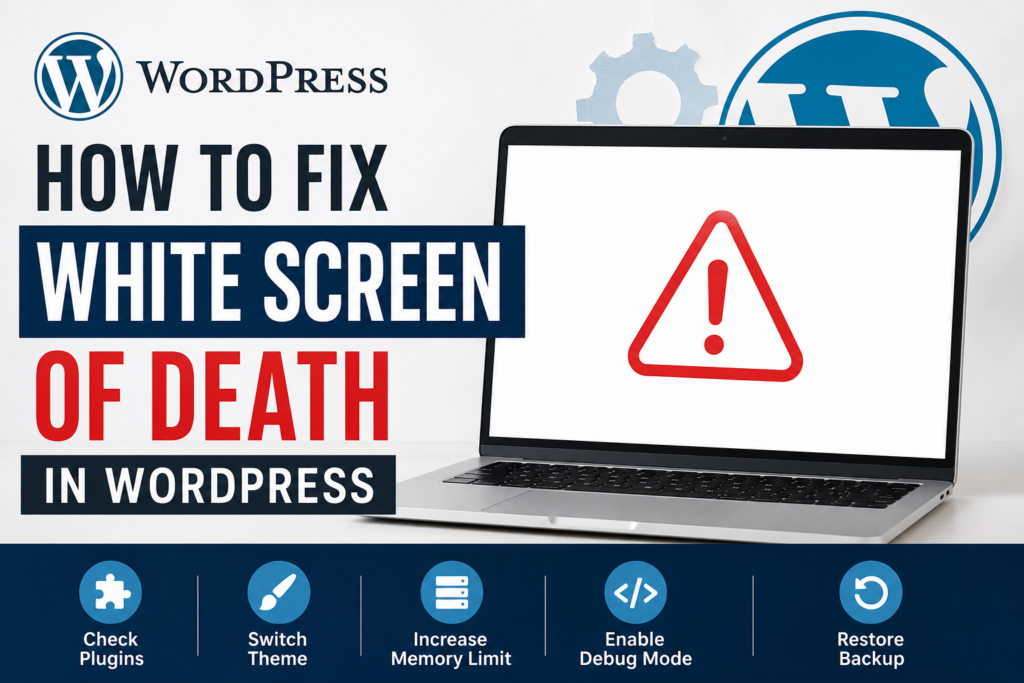
The White Screen of Death, often called WSOD, is one of the most frustrating issues WordPress users face. Instead of loading your website, you see a completely blank white page. No error message appears. No clues exist. It feels like your site has disappeared.
This issue can affect your entire website or only specific sections. Sometimes, only the admin panel shows a white screen. Other times, both the front end and dashboard stop working.
The lack of error messages makes WSOD difficult to diagnose. However, once you understand the common causes, fixing it becomes much easier.
Why the White Screen of Death Happens
The White Screen of Death usually occurs due to a fatal PHP error. WordPress stops loading when something breaks at a core level.
Plugin Conflicts
Plugins are one of the most common reasons. A poorly coded plugin or a conflict between two plugins can crash your site.
Theme Issues
A theme with bugs or incompatible code can trigger WSOD. This often happens after updating or installing a new theme.
Memory Limit Exhaustion
WordPress runs on PHP, which has memory limits. If your site exceeds the allowed memory, it may stop loading.
Corrupted Core Files
WordPress core files can become corrupted during updates or due to malware.
Server Problems
Sometimes, the issue comes from your hosting provider. Server misconfigurations or downtime can cause WSOD.
Syntax Errors in Code
If you manually edit files and make a mistake, even a small typo can break your site completely.
Initial Checks Before Fixing WSOD
Before diving into technical fixes, perform a few basic checks.
Refresh Your Page
It sounds simple, but sometimes a temporary glitch causes the issue.
Clear Browser Cache
Your browser might be loading an outdated version of your site.
Try a Different Browser or Device
This helps determine if the issue is local or server-side.
Check Website Status
Use tools like uptime checkers to see if your site is down for everyone.
Enabling Debug Mode in WordPress
Debug mode helps reveal hidden errors.
How to Enable Debug Mode
Access your WordPress files using FTP or File Manager. Locate the wp-config.php file.
Find this line:
define('WP_DEBUG', false);
Change it to:
define('WP_DEBUG', true);
define('WP_DEBUG_LOG', true);
define('WP_DEBUG_DISPLAY', true);
Save the file and reload your site.
What Debug Mode Shows
You may now see error messages instead of a blank screen. These messages help identify the root cause.
Fixing Plugin Issues

Plugins often cause WSOD. Fixing them is usually straightforward.
Disable All Plugins
Access your site via FTP or File Manager.
Navigate to:
/wp-content/
Rename the plugins folder to something like:
plugins-disabled
Reload your site. If it works, plugins are the issue.
Identify the Problematic Plugin
Rename the folder back to plugins. Then disable plugins one by one.
After each activation, check your site. When WSOD returns, you have found the faulty plugin.
Replace or Remove the Plugin
Once identified, delete or replace it with a safer alternative.
Fixing Theme Issues
Themes can also break your site.
Switch to Default Theme
Go to:
/wp-content/themes/
Rename your active theme folder.
WordPress will automatically switch to a default theme like Twenty Twenty-Four.
Check if the Site Loads
If your site works, your theme is the problem.
Fix or Replace the Theme
Update the theme or reinstall it. If issues persist, consider switching to a more stable theme.
Increasing PHP Memory Limit
Memory issues can cause WSOD, especially on large sites.
Edit wp-config.php
Add this line:
define('WP_MEMORY_LIMIT', '256M');
Edit php.ini (If Available)
Add or update:
memory_limit = 256M
Contact Hosting Provider
If changes do not work, your host may need to increase the limit.
Fixing Corrupted Core Files
Core file corruption can break your site.
Reinstall WordPress Core
Download the latest version from WordPress.org.
Upload and replace the following folders:
- wp-admin
- wp-includes
Do not overwrite wp-content.
Check Site Functionality
After replacement, reload your website.
Fixing Syntax Errors in Code
Manual code edits can cause fatal errors.
Review Recent Changes
If you recently edited files, revert those changes.
Use Backup Files
Restore a working version from your backup.
Check Error Logs
Logs can help pinpoint syntax issues.
Checking Server Logs
Server logs provide detailed error information.
Access Logs via Hosting Panel
Look for sections like:
- Error Logs
- Raw Access Logs
Identify the Error
Search for recent errors that match the time WSOD occurred.
Fixing File Permissions
Incorrect permissions can cause loading issues.
Recommended Permissions
- Files: 644
- Folders: 755
How to Change Permissions
Use FTP or File Manager tools.
Dealing with Database Issues
Sometimes, the database becomes corrupted.
Repair Database
Add this line to wp-config.php:
define('WP_ALLOW_REPAIR', true);
Visit:
yourwebsite.com/wp-admin/maint/repair.php
Run the repair tool.
Remove the Line After Repair
Always remove the repair line for security reasons.
Using Backup to Restore Site
Backups are lifesavers.
Restore Latest Backup
Use your hosting panel or backup plugin.
Check Site After Restoration
Ensure everything works correctly.
Preventing White Screen of Death
Prevention is always better than fixing problems.
Keep WordPress Updated
Always update:
- Core
- Plugins
- Themes
Use Reliable Plugins
Avoid poorly rated or outdated plugins.
Choose Quality Hosting
A good host reduces server-related issues.
Enable Automatic Backups
Use plugins like UpdraftPlus or Jetpack.
Test Changes on Staging Site
Never test changes on a live site.
Monitor Site Health
Use tools to track performance and errors.
Advanced Troubleshooting Techniques
For advanced users, deeper analysis may be needed.
Check .htaccess File
Rename .htaccess to reset it.
Disable CDN
CDN conflicts can cause issues.
Check PHP Version
Ensure compatibility with WordPress.
Review Custom Code
Check functions.php and custom plugins.
When to Contact Support
Sometimes, professional help is needed.
Hosting Support
They can check server-level issues.
Developer Assistance
A developer can fix complex problems.
WordPress Community
Forums often provide solutions.
Frequently Asked Questions
What is the White Screen of Death in WordPress?
It is a blank page that appears when your site encounters a fatal error.
Can I fix WSOD without technical skills?
Yes, many fixes are simple, such as disabling plugins or switching themes.
Will I lose my data when fixing WSOD?
No, if you follow safe methods and use backups.
How long does it take to fix WSOD?
It can take minutes or hours depending on the issue.
Is WSOD caused by hackers?
Sometimes, but usually it is due to coding or configuration issues.
Can hosting cause WSOD?
Yes, server problems can trigger it.
Should I reinstall WordPress?
Only if core files are corrupted.
How do I prevent WSOD in the future?
Keep everything updated and use reliable tools.
Does WSOD affect SEO?
Yes, downtime can impact rankings.
Is WSOD common?
Yes, especially on sites with many plugins.
Wrapping It All Together: Keep Your WordPress Site Healthy
The White Screen of Death may seem terrifying at first. However, it is usually fixable with the right approach. By understanding the causes and following structured troubleshooting steps, you can restore your site quickly.
Consistency matters. Regular updates, backups, and monitoring can prevent most issues before they happen. Even if problems arise, you now have the tools to fix them confidently.
⚠️ Disclaimer and Source Hygiene
This article is based on general WordPress troubleshooting practices and publicly available documentation. It is intended for informational purposes only. For critical issues, consult a professional developer or hosting provider. Always back up your website before making changes.
🔔 For more tutorials like this, consider subscribing to our blog.
📩 Do you have questions or suggestions? Leave a comment or contact us!
🏷️ Tags: WordPress WSOD, fix white screen WordPress, WordPress errors, plugin conflict WordPress, WordPress troubleshooting, WordPress theme issues, PHP memory WordPress, WordPress debugging, website errors, WordPress fixes
📢 Hashtags: #WordPress #WSOD #WebDevelopment #BloggingTips #WordPressHelp #WebsiteFix #TechGuide #WPBeginner #CodingHelp #WebDesign
📚 Sources and References
- WordPress.org Documentation
- WPBeginner Guides
- PHP Official Documentation
- Hosting Provider Knowledge Bases
🕊️ Secondary Sources and Testimonials
Many WordPress developers and users report that plugin conflicts are the most common cause of WSOD. Hosting experts also emphasize the importance of memory limits and server configuration in maintaining site stability.