
Table of Contents
The 10Web Booster vulnerability shows how an image optimization workflow can expose a security token and enable dangerous file uploads. Learn what CVE-2026-108587 means, why version 2.34.11 matters, how to review your uploads folder, and which recovery steps help protect a potentially compromised WordPress website.
What Is CVE-2026-108587?
A performance plugin should make everyday website maintenance easier. You install it, connect the service, and let it handle tasks that would otherwise take considerable time. A security notice about that same plugin can therefore feel especially unsettling. The sensible response is to establish which version you have, update it promptly, and decide whether your website needs further investigation. A vulnerability notice does not prove that someone accessed your website. However, a successful update does not establish that earlier activity was harmless. Keeping those two questions separate helps you respond calmly and avoids both unnecessary panic and misplaced confidence.
Wordfence identifies the 10Web Booster vulnerability as CVE-2026-108587, with a critical CVSS rating of 9.8. Versions through 2.34.10 are affected; 2.34.11 is listed as patched. Its advisory describes insufficient file validation in compressCustom, involving page_id, combined with a publicly readable REST nonce. During a paused bulk optimization batch, plugin state containing the tenwebio_rest nonce is serialized beneath wp-content/uploads/. Generated in a cron or loopback context with user ID 0, that nonce can validate unauthenticated requests. The chain can permit executable uploads and possible remote code execution. These are documented capabilities, not evidence that every affected website has been compromised. [1]
Understand the Risk Without Assuming the Worst
Think of the difference between an unlocked storage room and evidence that someone entered it. Discovering the unlocked door means you should secure it immediately. Finding an unfamiliar package inside means you also need to investigate what happened. Website security follows a similar pattern. Your installed version tells you whether a known weakness applies. Your files, logs, accounts, and hosting records help establish whether someone used that weakness. Neither question can replace the other. A site may look completely normal while containing an unauthorized file, and a site may run an affected release without showing evidence of successful exploitation.
The examples in this article describe defensive decisions for website owners. They do not demonstrate an exploit or provide a malicious upload. When a hypothetical shop, blog, or agency appears below, it illustrates a general recovery principle rather than a reported victim. That distinction matters because technical possibility, observed exploitation, and confirmed compromise are different claims. You can take urgent protective action without inventing an incident. Equally, you can ask for professional help without first proving the entire attack sequence. A clear record of what you know, what you suspect, and what remains unverified makes that help more effective.
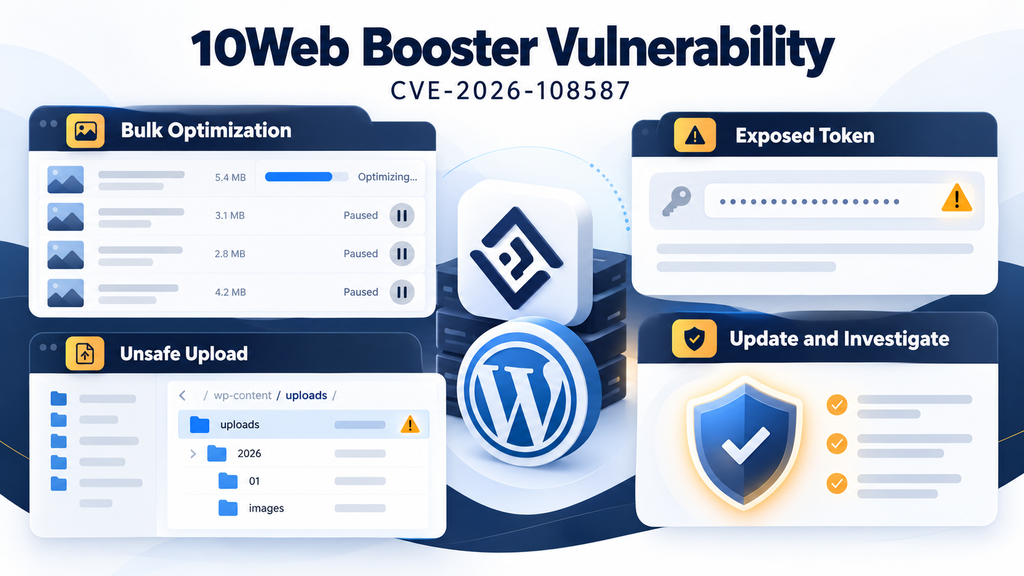
How a REST Nonce Ends Up in a Public File
Understanding this incident requires one important distinction: temporary application data can become public when software stores it in a web accessible location. A website may need to save progress when a long operation pauses. That saved progress might describe completed jobs, pending items, or information required to continue. Saving progress is useful, especially on hosting plans with limited execution time. However, the storage location and the contents require separate security decisions. A file can be perfectly valid as application data while being inappropriate for publication. Website owners should therefore treat public directories as places where visitors may retrieve files, rather than as private internal storage.
Imagine a fictional image processor that pauses after handling a small group of photographs. It writes a progress note so the next run can continue with the remaining images. A note containing only a position in the queue may be relatively ordinary. Adding a security sensitive value changes the situation. This example explains the general design problem; it is not a claim about an additional implementation detail in 10Web. The useful lesson is that background processing and access control interact. Reviewing each component in isolation can miss a problem created when data moves between them during a pause, restart, or scheduled task.
A Nonce Is a Request Check, Not Proof of Permission
WordPress nonces help protect actions against certain kinds of request misuse, but they do not establish identity or permission by themselves. WordPress explicitly advises developers to use authorization checks alongside them. Its documentation also explains that guests share user ID 0 by default. For a website owner, the practical meaning is straightforward: a request can contain a technically valid token without coming from an administrator. A secure action still needs to establish whether the requester has permission to perform it. The token is one part of the decision, not a substitute for the whole decision. [2]
Consider a building where a visitor receives a numbered service ticket. The ticket can help staff recognize the request, but it should not give the visitor access to a restricted equipment room. A separate permission check must decide who can enter. This analogy explains why simply adding a token field does not automatically secure an upload feature. It also explains why changing your administrator password is not a complete response to every token related weakness. Different controls solve different problems. Strong passwords protect account access, while correct authorization protects privileged actions even when a request includes expected fields or other apparently legitimate information.
Public Readability Depends on More Than Directory Listings
A disabled directory listing does not necessarily make individual files private. Directory listing controls whether a server displays the contents of a folder when someone requests the folder itself. Direct file access is a separate behavior. A visitor might receive a forbidden response for a directory while still retrieving a file through its exact address. For that reason, seeing an empty screen or an access denied message at the uploads directory does not establish that every file beneath it is protected. Ask your host to verify the relevant access rules and how the actual origin server serves those files.
The same principle applies when a website uses a content delivery network. A public address may pass through several systems before reaching a file. Some requests may come from a cached copy, while others reach the origin. A complete review considers both places when sensitive material has been published. Avoid posting suspected token files in a public support forum to ask whether they are dangerous. Instead, provide a private description, a redacted sample, or a secure copy through an agreed support channel. Your aim is to investigate exposure without accidentally distributing the same material to a wider audience.
How File Validation Can Be Bypassed
The broader upload security lesson is that a feature name does not constrain what its backend actually accepts. Calling something an image optimizer does not make every submitted file an image. The server must enforce its own rules before accepting, storing, or processing content. A browser upload window may suggest certain formats, and a dashboard may display only image controls, but those interface choices do not establish a security boundary. Website owners should judge protection by server behavior and trusted vendor guidance. A clean looking upload form cannot tell you whether the underlying checks are complete or whether another request path reaches the same functionality.
File names, declared content types, actual contents, and storage destinations are different pieces of information. A robust upload process needs to handle them consistently for its intended purpose. For example, an ordinary photograph should not gain the ability to execute server instructions because of its stored name or a server handler. This is a general engineering principle rather than a recipe for testing the reported flaw. Administrators do not need to create a dangerous file to establish that an installed version requires an update. A version comparison against a trusted advisory usually provides the safer and faster basis for that decision.
Why Executable Uploads Change the Impact
A normal media upload adds content that the website serves to readers. An executable server file can behave very differently if the hosting configuration allows it to run. Instead of simply displaying a photograph, the server may interpret instructions. A webshell is one possible form of unauthorized server software that provides an attacker with continuing access or control. This term describes a category of malicious functionality, not a particular filename. The possible reach depends on the permissions of the affected process and the surrounding environment. It should not automatically be described as full control of an entire physical server.
That distinction is especially useful on a VPS hosting several websites. A compromise in one WordPress installation deserves investigation beyond that site’s homepage, but its reach still needs evidence. Separate hosting users, file permissions, and account isolation can affect what one process can access. Shared credentials or writable directories can create additional concerns. Ask your hosting provider to assess those boundaries rather than assuming either complete isolation or total server takeover. A measured description helps the investigation focus on the right accounts, directories, and services. It also prevents a technical incident from turning into an unsupported claim about every neighboring website.
Why Strong Passwords Still Matter
Strong passwords remain valuable even when the initial weakness does not require a WordPress login. They protect other entry points and become particularly important during recovery. However, password changes do not remove unauthorized files, repair vulnerable code, or prove that all access has ended. Think of a recovery plan as several related tasks with different purposes. Updating addresses known software weaknesses. Investigating establishes the likely scope. Removing persistence and restoring trusted components addresses unauthorized changes. Credential rotation reduces the usefulness of exposed access details. Each action contributes, but none should be presented as a universal substitute for the others.
For example, a fictional blog owner might change the administrator password after finding an unfamiliar script. If the script remains accessible, that password change may leave the underlying access problem unresolved. Conversely, removing one script without addressing compromised credentials may allow a return through another route. The sensible response joins those tasks in a controlled order. Contain active harm, preserve evidence where possible, close the entry point, remove unauthorized changes, and rotate affected access details from a trusted device. During an active incident, a qualified responder can adapt that order to the immediate risks and the evidence available.
Updating to 10Web Booster 2.34.11
The official plugin changelog describes version 2.34.11 as including security hardening for the image optimization queue and REST API. Read that alongside the vulnerability advisory rather than relying on the changelog’s brief wording alone. Start by opening your WordPress dashboard and choosing Plugins, then Installed Plugins. Locate the exact plugin and record its displayed version. Check the name carefully if you have several performance tools installed. A note such as “10Web Booster checked on October 17, installed version recorded before update” gives you a useful maintenance record without requiring complicated documentation. [3]
Before making changes, confirm that you have a usable backup and know how to restore it. If you already suspect compromise, label a fresh snapshot as an incident snapshot rather than a clean recovery point. It may contain the evidence you need, but it may also contain unauthorized changes. Store that snapshot away from public website directories. A backup archive inside a publicly accessible folder can create a separate information exposure problem. For a simple blog, your hosting backup system may be sufficient. For a shop or membership site, consider how recent orders and account changes would be preserved during recovery.
Perform the Update and Confirm Completion
Use the update option supplied by WordPress or your trusted hosting management interface. Wait for the process to finish before starting another plugin operation. Afterwards, return to the plugin list and check the installed version again. An update notification disappearing is less useful than verifying the version actually present. If you manage several websites, repeat this check for each installation, including staging copies and less frequently used projects. Keep a short inventory showing the site, plugin version, update time, and any errors. This avoids assuming that one successful update automatically covered every copy of the plugin in your hosting account.
If the update fails, capture the error message and ask your host or developer to identify the cause. Storage limits, file ownership problems, or interrupted transfers require their own repair. Avoid downloading replacement packages from random mirrors or uploading a renamed copy beside the old installation. Duplicate folders can make version checks confusing and leave unwanted code behind. Use official distribution channels and confirm which directory WordPress actually loads. When a security update cannot be completed promptly, discuss temporary containment with your provider. Deactivation may help reduce plugin exposure, but it does not remove files or persistence created during an earlier compromise.
Test the Website Without Recreating the Vulnerability
After updating, test ordinary website behavior. Open the homepage, an article, a category archive, and a page containing several images. On a shop, also check the cart and checkout using an appropriate test process. Review the mobile layout and make sure images and menus behave normally. These checks assess functionality, not the completeness of a security fix. You do not need to upload a PHP test file or reproduce an attack to finish routine maintenance. If formal security validation is necessary, arrange an authorized review with someone who can perform it safely and document the results.
Cache clearing may be helpful if visitors still see an old layout or stale optimized assets after maintenance. Keep its purpose clear: clearing a cache does not remove a webshell or undo unauthorized database changes. Likewise, a successful page speed test says little about whether the site is clean. Security and performance checks answer different questions. Record the outcome of both where relevant. A useful maintenance note might say that the update completed, the visible pages passed basic checks, and an uploads review remains in progress. This communicates actual progress without turning a partial check into an unsupported all clear.
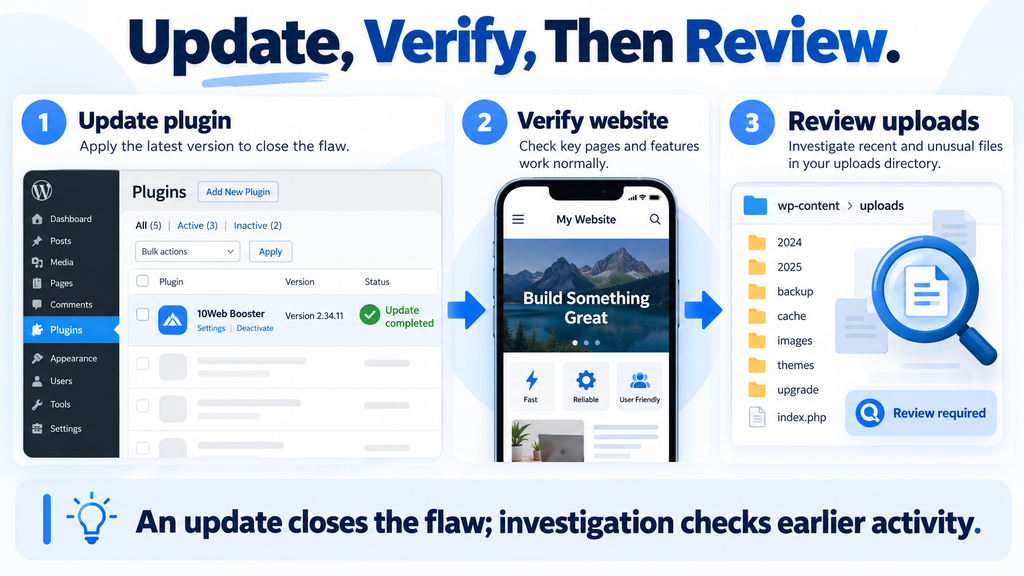
Checking the Uploads Directory for Webshells

Begin with your hosting file manager or a secure file access method you already trust. Identify the correct document root for the affected website before opening wp-content/uploads/. Hosting accounts often contain multiple installations, and inspecting the wrong directory can produce misleading reassurance. Media folders commonly contain year and month directories, along with files created by legitimate plugins. Their exact structure varies. Make a private inventory of unfamiliar items rather than immediately deleting everything that does not look like a photograph. The purpose of this first pass is to identify candidates for review while preserving enough context to understand them.
Pay attention to unexpected executable files, unusual nested folders, recently changed files with no clear owner, and filenames that do not match normal site activity. These are general review clues, not a published list of indicators specific to this CVE. Some legitimate software creates small protective files in media directories, so a PHP extension alone is not proof of malware. Conversely, a reassuring name is not proof of safety. An unfamiliar file named after a cache or image process still needs explanation. Compare its purpose with trusted plugin documentation and ask a professional to inspect suspicious content as text.
Review Suspicious Files Without Running Them
Do not open a suspected server script by visiting its public address. If the server treats it as executable, that request could activate the very file you are investigating. Use a file viewer or a private copy reviewed as plain text instead. Avoid uploading entire sensitive files to public scanners without understanding the service’s retention and sharing rules. Some material may contain access details, customer information, or internal configuration. Your hosting provider can often arrange a safer review. Share the path, size, modification time, and reason for concern through a private support channel before distributing the file itself.
For each suspicious item, record where you found it and what made it stand out. For example, an unexplained server script appearing in a folder used for article images deserves attention because its role is unclear. That observation is more useful than simply labeling it “hacked.” If containment requires blocking access or quarantining a file, coordinate with your responder and preserve a private evidence copy where practical. Quarantine should prevent public execution; moving a file to another publicly accessible folder may not achieve that. Do not rely on a cosmetic rename without checking how your server handles the new location and name.
Use Timestamps as Clues, Not Proof
Modification times can help build a timeline, but they do not independently establish who created a file or when an intrusion began. Backup restores, deployments, image regeneration, and routine maintenance can change timestamps. An attacker may also attempt to alter them. Compare several sources instead of trusting one field. A useful review combines file changes, known maintenance activity, hosting records, and relevant web requests. Document the timezone used by each source. A one hour or two hour difference between systems can otherwise make related events appear unrelated, especially when you compare a local dashboard with server logs recorded in UTC.
Suppose a fictional site owner updated an image tool in the afternoon and later noticed hundreds of changed thumbnails. That pattern might reflect legitimate regeneration rather than compromise. A single unexplained executable file alongside those thumbnails would still need separate review. Grouping all changes under one convenient explanation can hide important differences. Start with the maintenance activities you can confirm, then identify what they do not explain. When the evidence is incomplete, write that clearly. “Unexplained file requiring review” is a useful finding. “Confirmed attacker upload” requires stronger support than an unusual timestamp or an unfamiliar filename alone.
Keep Large Reviews Manageable on a VPS
A large uploads directory can contain many files, particularly when WordPress generates several image sizes. Start with a targeted inventory and a sensible time window, then expand when findings justify it. Ask your host about scan scheduling and resource limits before launching several heavy tools together. Running multiple full scans at the same time can make a busy website harder to use and complicate troubleshooting. A staged review is often easier to assess: identify candidate files, inspect the strongest leads, correlate them with logs, and then broaden the search to related locations. Record which areas have actually been checked.
Avoid assuming that every suspicious object must remain inside uploads. That folder is an important starting point for this article, but a broader incident review may need to inspect plugins, themes, must use plugins, scheduled jobs, and configuration files. The right scope depends on what the first findings show. If you manage several websites under the same hosting user, explain that arrangement to your responder. They can assess whether shared permissions require additional checks. Resource usage also deserves context. A sudden load increase may support an investigation, but ordinary traffic, backups, and legitimate optimization tasks can create similar symptoms.
Reviewing Logs and Accounts After the Update
Files tell you what exists now; logs may help explain how it arrived or whether someone accessed it. Ask your provider to preserve relevant access logs, error logs, and available security records before normal rotation removes them. Record the exposure period as accurately as you can, including when the affected plugin was installed and when the update completed. Those dates may be uncertain, and that uncertainty should remain visible. An update timestamp is not automatically the end of an incident if unauthorized access persists elsewhere. Equally, the earliest suspicious request you can find may not be the first request that occurred.
When reviewing requests, look for patterns that relate to actual findings rather than treating every automated probe as a successful attack. An unfamiliar internet address requesting a nonexistent file may be background scanning. A request associated with an unexplained executable file warrants closer investigation. Response codes, timing, file contents, and surrounding activity all matter. A successful HTTP response alone does not prove that malicious instructions ran. A missing log entry also does not prove that nothing happened, particularly when logging was limited or records have expired. Ask your responder to state what the available evidence can and cannot establish.
Review Privileged Accounts and Other Access Paths
Open the WordPress user list and inspect accounts with administrative capabilities. Compare names, email addresses, and roles against people you know should have access. On a larger site, confirm unfamiliar accounts with the responsible team before removing them. Record suspicious findings privately and consider whether preserving evidence affects the next step. Remember that unauthorized access does not always create a visible administrator. Existing accounts, application passwords, hosting credentials, and modified files can also matter. The aim is to understand the site’s access paths, not merely to remove unfamiliar names until the user list looks tidy again.
Review scheduled tasks and configuration with similar care. WordPress uses scheduled events for legitimate functions, while hosting accounts may also run system cron jobs. An unfamiliar name is a prompt to investigate its owner and purpose. Avoid deleting scheduled entries indiscriminately because that can disrupt backups, email, or normal publishing. A developer can compare the current setup with trusted configuration and expected plugin behavior. If your site sends email, also review unusual message activity with your provider. These broader checks are general incident response measures; they should not be described as confirmed behaviors of an attacker exploiting this particular vulnerability.
Responding After a Possible Compromise
If you find strong signs of unauthorized access, prioritize reducing ongoing harm. Your provider may recommend restricting access, isolating the affected account, or temporarily taking parts of the site offline. The appropriate choice depends on whether the site serves customers, processes orders, or exposes sensitive information. Preserve useful evidence where practical, but do not let a desire for perfect documentation prolong active harm. Start a simple incident record containing the discovery time, observed symptoms, actions taken, and people involved. WordPress’s own hacked site guidance emphasizes documentation and a careful cleanup process rather than treating a single visible symptom as the whole problem. [4]
Communicate clearly with whoever helps you. A practical request might say: “We used an affected 10Web Booster release, have now updated, and found an unexplained executable file in uploads. Please preserve logs, assess the account’s scope, and help contain the issue.” Include the relevant paths through a private channel. Avoid publishing passwords, live tokens, complete configuration files, or unredacted customer records. Clear descriptions reduce delays and prevent a responder from spending the first hour reconstructing basic facts. If you have several sites, provide their hosting relationship and the accounts that own their files, rather than assuming the responder already knows your environment.
Restore Trusted Components and Remove Persistence
A reliable cleanup looks beyond the first suspicious file. Trusted WordPress components may need comparison or replacement, while custom code requires review against your own known version. Reinstalling a plugin package can replace its normal files, but it may not remove every unexpected file in every location. Restoring a backup also requires judgment. Choose a recovery point that predates the likely compromise and account for uncertainty in the timeline. Apply current security updates before returning a restored site to public use. Otherwise, you may restore a working website together with the same weakness that prompted the incident review.
Database content deserves attention as well when the evidence suggests broader access. Review unauthorized account changes, unexpected settings, injected content, or unfamiliar integrations with professional help where needed. Do not assume that a clean filesystem scan establishes a clean database. For a shop, reconcile legitimate orders created after your chosen recovery point before replacing current data. For a membership site, consider recent registrations and account updates. Recovery should protect both security and business continuity. Keeping a written restoration plan helps avoid an emergency decision that removes malicious files but also discards valuable customer activity or leaves important changes unexplained.
Rotate Credentials From a Trusted Environment
After containment and alongside remediation, identify credentials that may have been exposed or abused. Depending on the findings, this may include WordPress accounts, hosting access, secure file transfer, database credentials, service tokens, or connected integrations. Rotate them through official interfaces from a trusted device. Plan changes that affect application configuration so the website can continue connecting to required services. If active access is ongoing, your responder may prioritize some rotations immediately. There is no single order that fits every incident. The important point is to coordinate changes with containment and cleanup, rather than assuming a password reset completes recovery.
Review active sessions and application passwords where supported, and refresh WordPress security keys and salts when appropriate to the recovery plan. Record which access details changed without recording their new secret values in the incident document. Enable stronger account protection for administrative users when available. Then watch for renewed unauthorized activity. If suspicious files reappear after cleanup, investigate what can recreate them instead of repeatedly deleting the same symptom. Possible explanations require evidence and may include missed persistence, compromised access details, or another vulnerable component. A recurring symptom means the recovery assessment needs to continue, even if the homepage still works normally.
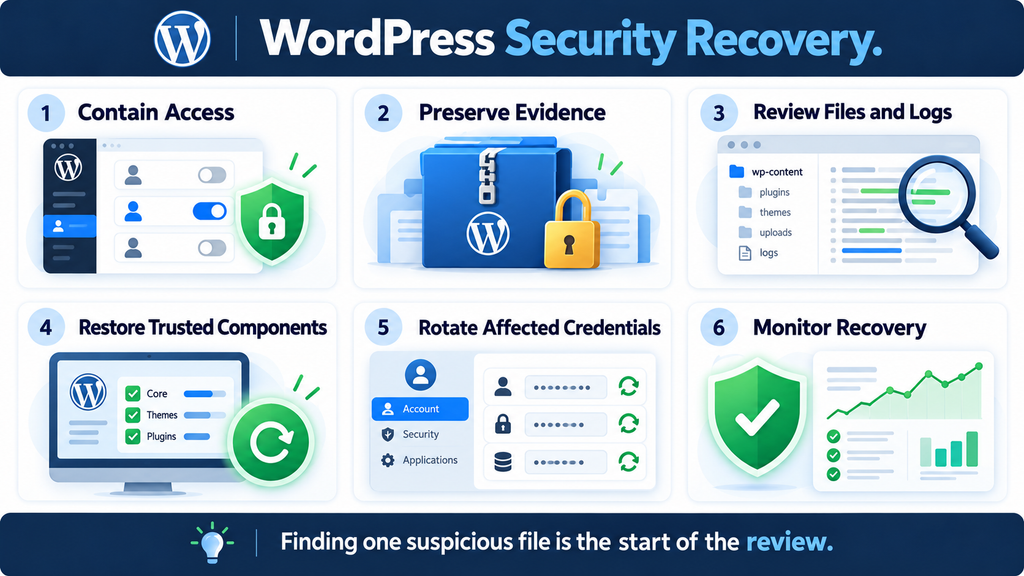
Reducing Future Upload and Maintenance Risks
Ask your host whether executable server content can be prevented from running in directories intended for media. The correct configuration depends on the web server, PHP handler, proxy setup, and any legitimate application requirements. A copied rule may not work as expected on a different stack. Have the provider apply and verify the appropriate control, including the origin server where relevant. This is a defense in depth measure, not permission to keep vulnerable software installed. Preventing execution in one location does not prevent every possible unauthorized write, information exposure, or alternative application weakness. Continue maintaining the software that accepts and processes files.
Improve maintenance visibility with a small, realistic routine. Keep an inventory of active plugins, remove unused components through normal maintenance, and review security notices relevant to what you actually run. Decide who handles urgent updates and who checks that they completed. Protect backups and retain enough logs to support an investigation. Where automatic updates fit your site, combine them with availability checks and a known recovery process. A complicated checklist that nobody follows is less useful than a short routine with clear ownership. The goal is consistent action and evidence that each important step happened, especially across multiple websites.
Frequently Asked Questions
What Should I Do First If I Use 10Web Booster?
Check the installed plugin version, consult the current advisory, and complete the relevant security update promptly. Keep a record of the version and update time. If you already see suspicious activity, ask your host to help contain it and preserve evidence at the same time. Updating and investigating can proceed as related tasks, but they answer different questions. The update addresses the known weakness; the review checks whether earlier unauthorized activity needs cleanup. Avoid waiting for visible damage before taking the version notice seriously, and avoid claiming compromise solely because your previous version fell within the affected range.
Does a Critical Rating Mean My Website Was Hacked?
No. A severity rating describes the potential seriousness of a vulnerability under its scoring assumptions. It does not report the outcome for your installation. Your exposure depends on the software and environment, while a compromise assessment depends on evidence. Treat the rating as a reason to prioritize remediation, then review the site proportionately. If a security report is inconclusive, describe it that way. A useful status might say that maintenance is complete and no confirmed compromise has been established from the available evidence. That is more precise than promising absolute safety or assuming that every affected website has already been attacked.
Does Updating Remove an Existing Webshell?
Do not assume that it does. An update changes the plugin’s distributed software, while an unauthorized file may exist elsewhere. Other changes could also survive, depending on what happened. If you discovered suspicious files before updating, keep the incident review open until those findings have been addressed. Your responder should assess whether cleanup, restoration, credential rotation, or wider account checks are necessary. A normal looking website after an update is useful for functionality testing, but it is not a complete security assessment. The same distinction applies when you deactivate or remove a plugin after discovering a possible compromise.
Should I Delete Every PHP File in Uploads?
No. Investigate unfamiliar files before treating them as confirmed malware. Some applications place legitimate protective or utility files in media related directories. Their presence still deserves explanation, especially if you did not expect it. Preserve relevant evidence and ask your host to assess suspicious content without executing it. If malicious behavior is confirmed, remove or quarantine it through the recovery process and look for related changes. Blanket deletion can disrupt legitimate functionality and destroy clues without explaining how the file arrived. A deliberate review protects the website and gives you a better basis for deciding what requires removal.
Can a Firewall Replace the Plugin Update?
A firewall may provide an additional protective layer, but its coverage depends on the product, rules, traffic path, and configuration. Do not assume that every generic firewall blocks every variation of a known weakness. Confirm any specific claim with the provider and still install the relevant security update. Restrictions can be useful during a maintenance window or incident, particularly when an update cannot complete immediately. However, they do not establish whether earlier unauthorized changes exist. Keep a distinction between reducing current exposure, correcting software, and investigating history. Those are complementary jobs that benefit from clear ownership and verification.
Is a Clean Malware Scan Enough?
A clean result is useful evidence, but its value depends on what the tool inspected and what it can recognize. Review the scan scope, exclusions, completion status, and any errors before interpreting the result. Combine it with relevant file, account, and log checks when you have credible reasons for concern. A scanner cannot report on records it never examined or changes outside its visibility. Similarly, an alert needs investigation because legitimate files can trigger warnings. Use scanning as part of a reasoned assessment rather than as a button that proves either complete safety or definite compromise on its own.
Should I Restore a Backup Immediately?
Choose restoration as part of a recovery plan rather than as an automatic first click. Confirm that the backup is usable, reasonably predates the suspected incident, and preserves the information your business needs. Keep an incident snapshot where practical, then address the relevant weakness before exposing the restored installation. Recent orders, submissions, or registrations may need reconciliation. A restore that loses current customer data or reintroduces vulnerable software can create additional problems. Your hosting provider can help select a suitable point and identify what requires separate recovery. When the timeline is uncertain, document that limitation instead of calling a backup clean without supporting evidence.
Could Other Websites on My VPS Need Checking?
Possibly, depending on account separation, permissions, shared credentials, and what the investigation finds. Explain your hosting arrangement to the responder, including any sites that share a system user or writable directories. They can determine whether a broader review is justified. Do not assume that one affected WordPress site automatically means full server compromise, and do not assume that separate domain names guarantee isolation. The relevant boundaries exist in the server configuration and access model. A targeted assessment can establish which neighboring installations require checks and which conclusions remain uncertain. Keep those findings in the incident record for future maintenance planning.
A Clearer Path Back to Routine Maintenance
The most useful response to a serious plugin notice is a sequence you can actually complete. Establish the version, apply the relevant update, confirm normal functionality, and investigate credible signs of earlier unauthorized activity. Keep short records as you go. If you need help, provide the facts you have rather than a dramatic diagnosis you cannot yet support. A small website owner does not need to become a forensic specialist overnight. Knowing when a version check is sufficient for maintenance, and when suspicious evidence requires a wider response, is already a practical improvement in how you protect your site.
This incident also offers a broader lesson about convenience features. Background processing, saved progress, public storage, and request verification each have legitimate purposes. Security depends on how those pieces work together. As a website owner, you can support safer outcomes through prompt maintenance, appropriate hosting controls, protected backups, and a recovery plan that extends beyond the update screen. Once the immediate work is complete, turn the experience into a repeatable routine. A calmer process makes future notices easier to assess and helps you explain what was fixed, what was checked, and what still deserves attention without overstating the evidence.
⚠️ Disclaimer and Source Hygiene
This article provides general educational information for WordPress administrators and does not replace a professional security assessment. Consult your hosting provider, developer, or qualified incident responder when suspicious activity or sensitive information is involved. Advisory details and release guidance were checked on October 17, 2026. Recheck current sources before acting on a later date. Source based facts are identified in the opening advisory summary and update guidance; fictional examples and general defensive recommendations illustrate practical decisions. No exploitation test was performed for this article. Editorial language or subject matter alone cannot guarantee advertising approval, which also depends on the complete website and applicable platform policies.
Sources and References
[1] Wordfence Intelligence: CVE-2026-108587 advisory, affected versions, severity, technical description, and patched release. https://www.wordfence.com/threat-intel/vulnerabilities/wordpress-plugins/tenweb-speed-optimizer/10web-booster-23410-unauthenticated-arbitrary-file-upload-via-page-id-parameter
[2] WordPress Developer Resources: Nonces, including their security limitations and guest user behavior. https://developer.wordpress.org/apis/security/nonces/
[3] Official WordPress plugin directory: 10Web Booster development and changelog information. https://wordpress.org/plugins/tenweb-speed-optimizer/#developers
[4] WordPress Documentation: FAQ – My site was hacked. General guidance for documenting and recovering from a compromised installation. https://wordpress.org/documentation/article/faq-my-site-was-hacked/
Secondary Sources and Testimonials
Rapid7’s vulnerability database provides a secondary listing for CVE-2026-108587: https://www.rapid7.com/db/vulnerabilities/cve-2026-108587/ . It is included for cross checking, not as the basis for additional attack claims. No victim testimonials, independently verified exploitation statistics, or original forensic findings are presented here. The fictional examples throughout the article explain maintenance decisions and should not be interpreted as accounts of real affected customers.
Sign in with a Subscriber account to vote.