
Table of Contents
Discover how WPZone Image SEO Scanner helps you review missing ALT text, repeated descriptions, generic image titles, oversized originals, and missing local files. Follow practical steps to scan your WordPress Media Library, edit image details, export results, and create WebP copies while keeping your original images.
Give Your WordPress Images the Attention They Deserve
You can spend hours improving an article and still overlook the images that help readers understand it. A screenshot may explain a setting better than several paragraphs. A photograph can make a travel story feel real. However, those images also need sensible descriptions, manageable file sizes, and reliable storage. When a website grows, reviewing everything through the Media Library becomes tiring. You open an image, close it, forget where you stopped, and eventually decide to continue another day. That is the everyday problem behind WPZone Image SEO Scanner: making image maintenance easier to organize without taking editorial decisions away from you.
This WPZone guide explains the supplied version 1.4.0, including its manual WebP converter. You will learn what each scanner checks, how to work through results, and where human judgment still matters. The plugin reviews WordPress image attachments; it does not inspect every image displayed across every page. Its results provide a practical review list rather than a complete accessibility or performance verdict. Throughout this article, examples use imaginary filenames and measurements. They illustrate the workflow, not results from a measured installation. You can follow the same approach on a small personal blog or adapt it to a larger publishing schedule.
What WPZone Image SEO Scanner Actually Does
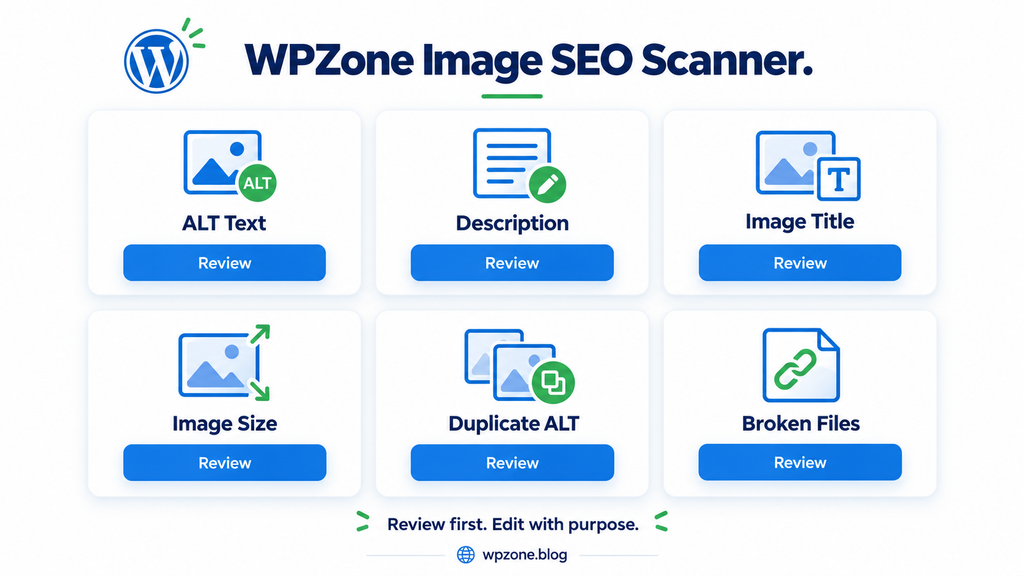
The dashboard brings six review tools together: ALT Text, Description, Image Title, Image Size, Duplicate ALT, and Broken Files. Each tool answers a different question about the images registered in your WordPress Media Library. For example, the ALT scanner looks for an empty alternative text field. The size scanner compares the locally stored attachment file against a threshold you choose. The broken files scanner checks whether that local file exists. These are specific checks with specific limits. An image can pass one check and still need attention elsewhere, so you should select the scanner that matches the problem you want to investigate.
Four result types support direct text editing: ALT text, duplicate ALT values, Media Library descriptions, and image titles. File size and missing file results need further review outside those text fields. You can search results, change their order, export the remaining findings, and inspect recent completed scans. The separate WebP panel creates a smaller alternative file when conversion succeeds. It preserves the original attachment file and does not automatically replace published image URLs. This distinction matters throughout the tutorial: organizing metadata, creating image files, and delivering those files to visitors are related tasks, but they are separate steps in this version.
Understand the Difference Between Image Fields
The image title, ALT text, caption, description, and filename serve different purposes. A title can help you recognize an attachment inside WordPress. ALT text provides a text alternative for an image in the context where it appears. A caption adds visible supporting information beside an image when the layout displays it. The Media Library description is another attachment field that your theme or another feature may display. The filename identifies the stored file. Editing one does not automatically rewrite all the others. For example, changing an attachment title from “IMG_2048” to “WordPress Reading Settings” does not rename the underlying JPEG file.
Imagine a screenshot showing the WordPress dashboard with the Settings menu expanded. Its title could be “WordPress Settings Menu.” A useful ALT value might describe the highlighted setting relevant to the tutorial. A visible caption could tell readers which menu to open next. Its description might record which tutorial the screenshot belongs to. None of these fields needs a collection of repeated search phrases. Before editing, ask which reader need the field should serve. The scanner deliberately separates these checks, allowing you to improve a useful field without assuming that every blank field creates the same problem or deserves the same priority.
Prepare a Sensible Starting Point Before Installation
Begin with a current backup of your database and uploads directory. The database stores attachment text fields, while the uploads directory contains the images themselves. Keeping both gives you a practical recovery route if an edit needs to be reversed. A backup is especially helpful when several people manage the website or another plugin also changes media. You do not need an elaborate maintenance project for a few ALT corrections. You simply need to know that you can recover the original information. If your hosting offers staging, use that copy to understand the dashboard before changing a busy production website.
Choose a quiet period for your first scan and start with a small batch. Close unnecessary administrator tabs so that you can watch one task clearly. Record any existing image optimization, CDN, or media offload tools because they influence how local files relate to public images. For instance, a storage plugin may intentionally remove local originals after uploading them elsewhere. The local file scanner cannot understand every external storage arrangement. This preparation helps you interpret its findings correctly. You are establishing the website’s starting conditions, making it easier to distinguish an actual missing upload from a deliberate storage configuration.
Install the WPZone Plugin Through WordPress

Open your WordPress administration area and navigate to Plugins, then Add New Plugin. Choose Upload Plugin, select the supplied WPZone ZIP archive, and press Install Now. After WordPress finishes extracting the package, activate the plugin. You should then find WPZone Image SEO Scanner in the administrator menu. The supplied code declares PHP 7.4 as its minimum requirement. That declaration does not mean every old hosting environment has been tested or remains suitable for production. Use a maintained hosting setup and check the plugin on your own installation before relying on it for a large editing session.
If the original Image SEO Scanner is already installed, treat the branded package as an update to that plugin rather than a second independent scanner. The internal folder and identifiers remain the same. Follow WordPress’s replacement prompt if it appears, or deactivate the existing copy before updating through your normal process. Avoid running two copies that register the same PHP class. Once installation finishes, open the dashboard and confirm that its cards and controls appear. If activation fails, stop there and inspect the error through your usual WordPress troubleshooting process. Repeated activation attempts do not resolve a compatibility error and can make diagnosis more confusing.
Read the Dashboard Without Misreading the Numbers
The overview shows Images Scanned, Issues Found, Fixed This Session, and SEO Health Score. These figures help you follow the work happening in the current browser session. Images Scanned reflects the largest scanned count among the available session statistics. Issues Found combines findings from the scan types held in that session. One attachment can contribute to several findings. For example, the same screenshot may have empty ALT text, a generic title, and a large original. Therefore, an issue total does not represent a count of distinct damaged images. Read it as a workload indicator that helps you choose the next task.
The health percentage uses completed scan statistics and changes as the recorded issue counts change during editing. It is an internal audit indicator, not a score supplied by Google. Completing only one scanner also creates a narrower picture than completing several. Do not compare two percentages unless the scan coverage and settings are comparable. A score can also flag intentional empty ALT fields or optional descriptions, making perfect scores an unsuitable goal. Focus on meaningful improvements: a clearer instructional screenshot, a restored local file, or a verified reduction in bytes delivered to visitors. Those outcomes explain progress more clearly than an isolated dashboard percentage.
Start a Scan With a Manageable Batch Size
The batch selector offers 25, 50, or 100 attachments per request. Begin with 25 if you do not know how your hosting handles the task. Then choose the relevant card and press Scan. The progress display shows how many attachments the tool has examined. A result count grows when matching findings appear. Batch scanning divides the work into successive requests instead of asking one request to review the whole library. However, the plugin does not add a deliberate cooling interval between every successful batch. Smaller batches can reduce work per request, but they do not guarantee negligible CPU or database activity.
For a practical first test, run ALT Text on a modest library and watch how the dashboard responds. If the administration area remains responsive, continue with the same batch setting. A higher setting is optional, not a target you must reach. Duplicate ALT scanning performs an additional database aggregation, and file checks involve local storage access. Their costs can differ from a simple empty text check. On a large site, coordinate scans with backups, imports, and other maintenance. You gain more from a predictable, observable task than from finishing a little faster while several unrelated jobs compete for the same server resources.
Use Pause and Resume Within the Same Open Page
Pause lets you stop the scanning loop between requests, while Resume continues the active job. A request already running may finish after you press Pause, so a few additional results can still appear. Allow that request to settle before resuming or editing the collected findings. For straightforward use, keep the dashboard open, press Pause once, wait for progress to stop, and then decide what to do next. The control is useful when you need to inspect results or temporarily reduce activity. It is not a server service that remains available independently of the administrator page you opened.
The active scan position and collected result list live in browser memory. Reloading the page, closing the tab, or losing that browser state does not provide a durable resume point. Completed scan summaries are stored separately in history, but those summaries do not restore the full previous result list. For a long review, finish one scan, export the findings, and work in planned sessions. Keep the Media Library reasonably stable during scanning as well. Adding or deleting many attachments while paginated requests are running can change which records appear on later pages. A fresh scan after major media changes gives you a cleaner baseline.
Find Empty ALT Text and Decide What Needs Editing
Choose ALT Text and press Scan to find image attachments whose saved ALT field is empty or contains only whitespace. Review the thumbnail and filename before writing anything. Open Edit Media if you need a larger preview or more context. A thumbnail alone may not reveal the setting highlighted in a screenshot or the detail that matters in a photograph. Then consider the article where the image appears. A picture of a laptop could illustrate remote work, a hardware repair, or a WordPress demonstration. Its most useful description depends on the role it plays for the reader in that specific situation.
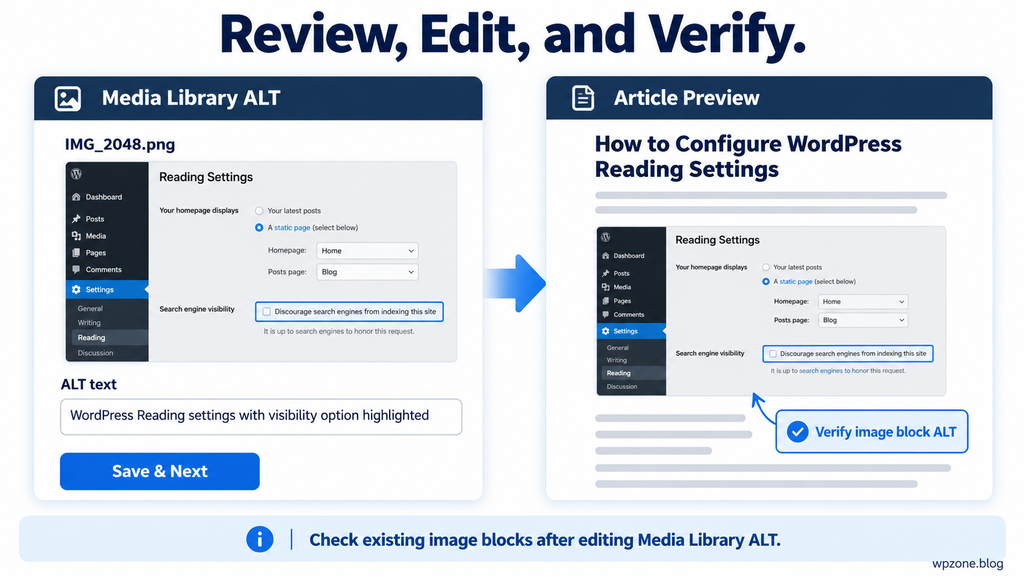
For an instructional screenshot, a value such as “WordPress Reading settings with the search engine visibility option highlighted” may explain the useful detail. Compare that with “best WordPress SEO image settings tutorial,” which provides little visual information. Keep the wording clear and proportionate to the image. You do not need to fill the field with everything visible on the screen. The scanner finds empty attachment metadata; it does not judge whether an existing sentence accurately describes an image. You still need to review misleading, outdated, or automatically generated ALT values through your normal editorial checks, even when this particular scan does not flag them.
Leave Decorative Images Empty When That Is Appropriate
Some images exist only to decorate a page. A soft background shape, a divider, or an ornamental flourish may add no information beyond the nearby text. W3C guidance allows decorative images to use an empty text alternative when that treatment fits their purpose. This means an empty ALT finding can be intentional. The scanner cannot decide that context for you. Rather than adding “decorative blue line” everywhere, inspect the published use and decide whether describing the image would help someone understand the page. An editorial decision can be correct even when the attachment remains visible in an empty ALT report.
This version’s quick editing form requires a nonempty value before saving, so it is designed for adding or improving text. It does not provide a dedicated “mark as intentionally decorative” exclusion. Keep a separate review note if necessary, or manage the decorative treatment in the relevant editor. Also remember that one attachment may appear in more than one context. A logo used as a homepage link has a different job from a decorative logo beside an already labeled link. Treating every use identically can create unhelpful results. Review the final HTML and actual page meaning instead of treating the attachment field as the only source of truth.
Save an ALT Correction and Check an Existing Article
Enter the new text in the result field and choose Save & Next. The plugin sends that value to WordPress and removes the item from the current working list when saving succeeds. The session correction counter increases, and the displayed issue count decreases for that scan type. This makes a series of small edits easier to handle. Work on a few images first, especially when several contributors share the library. For example, update three tutorial screenshots, check them on their articles, and then continue. You can catch a wording problem early before repeating the same approach across dozens of attachments.
After saving, open an article that already contains the image and inspect the image block’s ALT setting or its rendered markup. Existing posts can retain their own stored image attributes instead of adopting every later Media Library change. In that case, update the block where appropriate and save the article. If a page cache is involved, clear the relevant cached page and check again. The practical goal is the text delivered to visitors, not merely a successful message in the scanner. This distinction is particularly useful on established blogs, where older content may have been created through different editors, page builders, or custom templates.
Review Duplicate ALT Without Inventing False Differences
Select Duplicate ALT to find nonempty ALT values shared by more than one image attachment. Suppose several uploads all use “WordPress dashboard.” The report gives you a reason to inspect whether those images actually show different tasks. One might show plugin installation, another user management, and another reading settings. If the visual information differs, a more specific description can help. The scan compares saved values through a database grouping query rather than analyzing image contents. It does not detect duplicate photographs, visually similar screenshots, or every semantically equivalent phrase. Database comparison rules may also influence which text values group together.
Repeated ALT is not automatically a defect. Identical images used for the same purpose can reasonably share a description. Avoid changing accurate text just to make a duplicate counter disappear. For genuinely different screenshots, use the relevant difference: “Plugin upload form with a ZIP file selected” and “Installed plugins screen showing an inactive plugin.” After saving several duplicate findings, run the duplicate scan again. Changing one member can affect whether another attachment still belongs to a repeated group. The current list is a working snapshot, so a fresh scan is a better final check than assuming every original duplicate entry remains a valid finding.
Replace Generic Titles Without Renaming Image Files
The Image Title scanner identifies empty titles and a defined set of common camera or screenshot naming patterns. Examples include titles beginning with IMG, DSC, PXL, IMAGE, PHOTO, or SCREENSHOT followed by numbers in recognized forms. It is a focused pattern check, not a complete assessment of title quality. A vague title such as “final version” might pass, while a technical identifier could be flagged even when it has a valid organizational purpose. Open the result, review the image, and replace a generic title only when a clearer title helps you or other editors recognize the attachment.
For example, “IMG_3842” might become “WordPress Media Library Attachment Details.” Save the value through Save & Next, then check the attachment in Media Library if you want confirmation. The plugin updates the WordPress attachment title, keeping the stored filename and published file URL unchanged. That behavior avoids turning a simple organizational edit into a link migration. If you want descriptive filenames, choose them before uploading future images. Renaming existing files requires a separate process that accounts for references and generated sizes. Do not assume that editing a title performs that additional work, and do not promise readers that it changes URLs behind the scenes.
Use Media Descriptions Where They Add Useful Context
The Description scanner finds image attachments with an empty Media Library description. You can use that field for background information that helps editors understand an asset. For a tutorial screenshot, a description might record the feature shown and the guide it belongs to. For a photograph, it could identify a location or provide an editorial note. The field is different from ALT text and from a visible caption. Whether readers see it depends on your theme and other site features. Before investing hours in descriptions, check where your own website uses them and decide whether filling them serves a practical purpose.
A useful example might read, “Screenshot used in the WPZone guide to uploading a WordPress plugin through the administrator dashboard.” That is an organizational explanation, not a replacement for the image’s text alternative in an article. The plugin lets you enter a description and save it directly from the results. However, a missing description should not automatically outrank a missing instructional image or an incorrect ALT value. Set priorities according to reader impact. If your theme never displays descriptions and your editorial team does not need them, leaving some fields blank may be a reasonable choice rather than a maintenance failure.
Find Large Original Files With Your Own Threshold
Open the Image Size card and choose a threshold in KB before scanning. The default is 200 KB, and the code flags attachment files larger than the selected amount. This is a review threshold, not a universal performance rule. A detailed illustration may justify more bytes than a small decorative image. Also, WordPress may deliver a generated smaller size rather than the attachment file checked here. A large local original therefore does not prove that a phone downloads the same large file. Use the findings to choose images for closer inspection, then examine representative published pages to understand actual delivery.
Start by sorting results with Largest first. If a blog contains several multi-megabyte screenshots, those may be good candidates for resizing or more efficient encoding. Before changing anything, compare dimensions with the displayed layout. A source image wider than the intended content area may contain unnecessary pixels, while a detailed diagram may need extra resolution for legibility. The size scanner does not resize, recompress, or replace files from its result cards. Its role is to identify candidates. Use a suitable editing workflow, preserve quality, and test the page after any separate optimization. Smaller numbers alone do not guarantee a better reading experience.
Investigate Missing Local Files Before Deleting Anything
The Broken Files scanner checks whether the locally attached file can be found on the server. A missing result may point to an incomplete migration, a deleted upload, an incorrect path, or an external storage setup. It is not a complete public website link checker. A local file can exist while a public request fails because of permissions or delivery rules. Conversely, an offloaded image may load correctly for visitors even when its local original has been removed intentionally. Start by opening the attachment and the article where it appears. Compare the visible behavior with what the report says about local storage.
If the image is genuinely missing, look for the original in your backups or upload source. Restoring the expected file can be preferable to replacing an attachment used in many posts. For example, a migration might have copied database records but missed part of an older uploads folder. Restoring the missing folder addresses the cause more directly than deleting hundreds of attachment records. Do not delete an attachment simply because the scanner cannot find a local file. Confirm the storage arrangement first, repair the underlying problem, and rerun the check. The report provides a starting point for investigation, not permission for automatic removal.
Search, Filter, and Sort a Busy Results List
The search field matches text in filenames and the current field values held in the result list. If you are editing ALT text, that can help you locate a particular subject or a familiar filename. Search does not scan article bodies, image pixels, or the whole server. It narrows the findings already collected for the displayed scan. For example, searching “plugin” can help you focus on related screenshots if that word appears in their filenames or saved values. If a search produces no matches, clear it before deciding that the scanner found nothing. A leftover search term can hide otherwise available findings.
The filters distinguish editable findings from review only findings. ALT, duplicate ALT, descriptions, and titles can be edited in the results, while size and missing file findings require separate investigation. Because the displayed list belongs to one scan type, choosing an incompatible filter may leave it empty. Sorting offers filename order in both directions and a largest first option. Results display in pages of twelve cards, helping keep the interface manageable. Use these controls to create a comfortable editing rhythm. They organize the current workload; they do not add new scan categories or combine every completed scan into one permanent searchable database.
Export CSV Findings and Understand Scan History
Choose Export CSV when you want a portable copy of the remaining findings. The file includes the attachment ID, filename, scanner label, current value, size in KB, and an edit URL. In this version, export uses the current scan’s remaining items rather than only the subset visible after searching or filtering. Export before making many corrections if you want a baseline. Then export again after the session if a handover record would help. Treat it as a report, not a full backup. It does not include the image files or all attachment metadata needed to reconstruct a Media Library.
Scan History stores summaries of the latest thirty completed scans, showing the date, scanner, image count, and issue count. A paused or interrupted run does not supply the same completed record. History also does not reopen every previous result card or preserve each individual edit. For a practical weekly routine, note the scanner and threshold you used, complete the task, and compare similar runs over time. Changing the size threshold or scanning a different library changes the meaning of the counts. Consistent settings make history more informative, especially when several people need to understand whether a maintenance session reduced a particular kind of finding.
Understand Manual WebP Conversion Before Starting
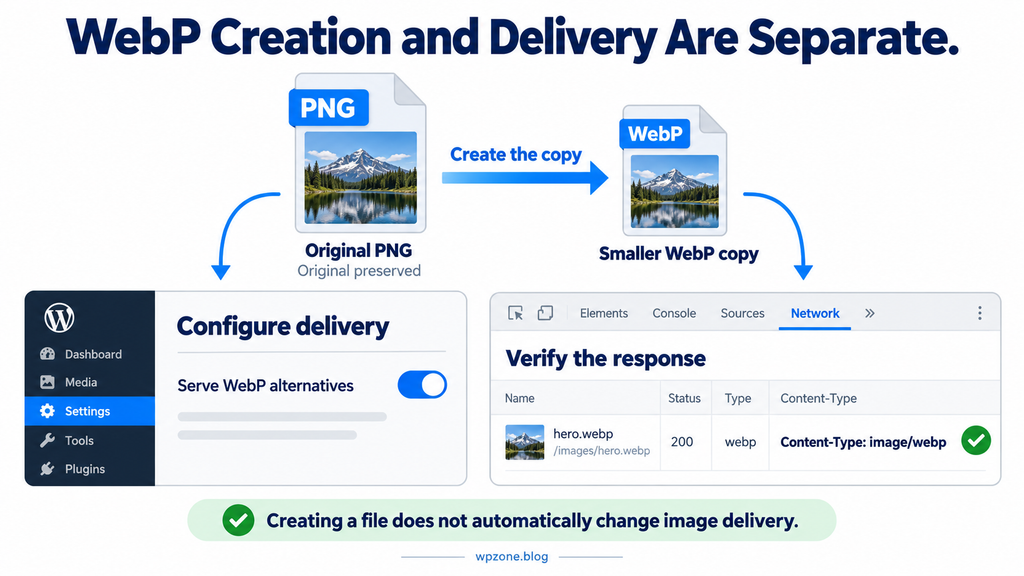
The Manual WebP Converter works with eligible JPEG and PNG attachment originals available in the uploads directory. It creates a WebP file alongside the source image while preserving that source. For example, a file named “reading-settings.png” can produce “reading-settings.webp” in the same folder. The converter does not change the attachment MIME type, update its metadata, register the sidecar as a new Media Library item, or rewrite article markup. It also does not automatically generate matching WebP copies for every thumbnail. Think of it as a controlled file creation tool whose output needs a separate delivery plan before visitors can benefit.
Server support matters because conversion uses the WordPress image editor available on your hosting. The panel checks whether that environment reports WebP encoding support. If support is unavailable, ask your hosting provider to inspect the relevant image processing configuration. Installing another copy of the scanner does not add a missing server encoder. Also check available storage before converting a large collection. Preserving originals and adding sidecars consumes extra disk space, even when each sidecar is smaller. This is a tradeoff you can plan: keeping originals supports recovery and comparison, while the new files provide alternative versions for an appropriate delivery setup.
Convert One Image and Inspect the Result
Open the Manual WebP Converter panel and press Load images. The panel lists eligible attachment records in pages of twenty, subject to file availability and your editing permissions. Set WebP quality before selecting Convert to WebP on one card. The default is 82, and accepted quality values run from 50 to 95. There is no single quality value that suits every photograph and screenshot. Start with one representative image, convert it, and inspect the output before repeating the process. This version operates through individual conversion buttons; it does not offer an unattended bulk conversion job for the entire library.
After a successful request, the card reports the original size, converted size, and saved KB. Imagine a 480 KB original produces a 170 KB sidecar: that would represent 310 KB less for that particular full image if it were delivered instead. These are illustrative numbers, not expected savings for your files. Examine small interface labels, gradients, sharp edges, and other important details. The plugin does not provide a dedicated side by side quality preview, so use your file manager or another suitable inspection method. A successful conversion message confirms file creation, while your visual review determines whether that version is suitable for readers.
Handle Existing WebP Files and Unhelpful Conversions
The converter refuses to overwrite an existing target file. If a matching WebP sidecar already exists, the listing identifies it, and a conversion request will not replace it. This protects an existing file but does not prove that the sidecar was created by this plugin or still matches the current source. Another optimizer might have generated it earlier. If you want to recreate an existing sidecar, first establish which system owns and serves it. Avoid deleting files casually because a cache or delivery rule may depend on them. Keep the workflow clear when more than one image tool manages the same upload directory.
Some source images will not become smaller at the selected quality. When the newly created WebP is empty or at least as large as the original, this implementation removes that generated file and reports that no smaller copy was kept. Your original remains in place. That outcome does not necessarily indicate a broken server. A source may already be efficiently compressed, or its visual characteristics may make the chosen conversion less useful. Review the message before trying again. You can consider a different quality setting after inspecting the image, but repeated conversion attempts are not a substitute for understanding dimensions, source quality, and actual delivery needs.
Make Sure Visitors Receive the Optimized Version
Creating a WebP file does not automatically make an existing article load it. If a published image still points to “reading-settings.png,” that reference remains unchanged after conversion. A separate delivery mechanism must select the appropriate alternative when serving the page. Depending on your site, that could involve a compatible optimization tool, carefully configured server rules, or a deliberate implementation using responsive image markup. Choose one method that fits your hosting and existing plugins. Avoid stacking unrelated solutions without understanding which one controls the final response. The scanner’s role ends at creating the sidecar and reporting whether that file is smaller.
Verify delivery on a real article after configuring that separate layer. Open browser developer tools, load the page, and inspect the relevant image request. Check its response type, transferred size, and selected source. A URL can sometimes remain unchanged while server negotiation changes the response format, so the visible extension is not always enough. Also inspect mobile and desktop behavior because WordPress may select different generated sizes. If you converted only the full attachment, a smaller JPEG or PNG selected through responsive markup may still be the actual file delivered. Base performance claims on observed requests rather than on the number of sidecars created.
Build a Practical Routine for a Growing Blog
Begin with the images that readers encounter most often. On a tutorial website, that may mean the main screenshots in frequently visited guides. Run the relevant scanner, inspect a manageable group, and make a few accurate corrections. Next, review the largest files associated with those pages and decide whether resizing, compression, or WebP delivery would help. Finish by checking the published result. This sequence keeps your effort connected to a clear reader benefit. You do not need to complete every scanner in one sitting, and you do not need to fill optional fields simply because they appear in a report.
For future uploads, establish a short editorial habit. Choose a descriptive filename before uploading, use dimensions appropriate to the intended layout, add useful text alternatives for informative images, and preview the article on a phone. Then use occasional scans to catch what slips through. For example, review new tutorial images after a publishing week and investigate missing files after a migration. A routine like this turns the plugin into a maintenance assistant instead of a permanent emergency dashboard. It also reduces the temptation to apply mass text replacements that make reports look cleaner while making the actual image descriptions less useful.
Troubleshoot Problems by Following the Exact Message
If a scan pauses after an error, read the message before restarting. A failed request can arise from an expired administrator session, access restrictions, a server limit, or a plugin conflict. Save any useful report you already have, reload when appropriate, and test with a smaller batch. Remember that reloading loses the in memory scan position. If the problem repeats, inspect the relevant server or WordPress error logs through your normal support process. Describe the scanner, batch setting, and point of failure when asking for help. Those details make investigation more useful than saying only that the plugin does not work.
Conversion messages also need specific interpretation. “WebP encoding is unavailable” points toward server capability. “Original file missing or outside uploads” concerns the source location checked by the plugin. “WebP file already exists” means the target was protected from replacement. “WebP was not smaller” means the generated alternative did not meet the size requirement. None of these messages should lead you directly to deleting originals. For a live commercial site, involve a qualified WordPress developer or hosting specialist when storage paths or delivery rules are unclear. Solving the underlying condition gives you a more reliable result than repeatedly pressing the same button.
Frequently Asked Questions
Does the plugin fix every image automatically?
No. It finds defined attachment conditions and lets you edit supported text fields manually. It does not analyze image meaning, generate descriptions with artificial intelligence, replace missing uploads, or optimize every file without intervention. Use the findings as a review list, make deliberate changes, and inspect the published result afterward. This approach keeps editorial control with the person who knows the content.
Can I leave ALT text empty for decorative images?
Yes, when an image is truly decorative in its published context. The scanner may continue to list its empty attachment ALT field because it has no dedicated decorative exclusion. Review the image’s purpose instead of adding unnecessary words to improve a dashboard percentage. A useful accessibility decision can leave a scanner finding unresolved intentionally.
Does Save & Next update old image blocks everywhere?
It saves the relevant attachment field. Existing article blocks can retain their own image attributes, so you should check those published uses separately. If an older block still contains its previous ALT text, update that block and save the post. Clearing a relevant page cache may also be necessary before you can verify the final markup delivered to visitors.
Is the SEO Health Score a Google ranking score?
No. It is calculated inside the plugin from completed scan statistics available in the current session. It does not predict indexing, traffic, search positions, or advertising revenue. Compare it only when scan coverage is similar, and prioritize meaningful editorial and technical improvements over reaching a perfect percentage.
Will smaller batches prevent every server slowdown?
No. Smaller batches limit the number of attachments examined per request, which can make work more manageable. Total cost still depends on library size, storage, database performance, and other running tasks. The scanner sends successive requests without a deliberate long rest between them. Begin with 25 and observe your own hosting rather than assuming any setting guarantees zero impact.
Does the WebP converter delete the original image?
The converter preserves the source JPEG or PNG. It creates a separate sidecar and removes that newly generated sidecar if it is not smaller. Existing matching WebP files are protected against replacement. Keep your normal backups because preserving an original during conversion does not replace a complete recovery plan for your website.
Does WebP conversion immediately make my pages faster?
Only files actually delivered to visitors can affect the transferred image bytes. This version creates sidecars without changing attachment metadata or published image references. Configure an appropriate delivery method separately, then inspect real browser requests. File creation alone does not demonstrate a page speed improvement or confirm that responsive image sizes use WebP.
Can the converter handle GIF, SVG, or AVIF originals?
The supplied conversion workflow targets JPEG and PNG attachment originals. It is not a general converter for every format, an animated image processor, or an AVIF export tool. Use a workflow designed for the source format when you need those capabilities, and verify that it preserves the visual or animation features your article requires.
Can I resume tomorrow after closing the dashboard?
This version does not persist the active scan position across a closed or reloaded page. Pause and Resume operate within the same running page session. Completed history summaries remain available, but they do not restore the full working list. Finish and export a scan when possible, or start a fresh scan during your next planned maintenance session.
Does the scanner check external article images too?
It reviews image attachment records in the WordPress Media Library. It does not crawl every article for external image URLs, inspect all CSS background images, or validate every generated thumbnail and CDN response. Use page level checks when you need that wider coverage. A clean Media Library report is one useful signal within a broader maintenance process.
Give Each Image a Clear Job
The most useful image improvements often start with a simple question: what should this picture help the reader understand? Once that purpose is clear, editing becomes easier. You can write a relevant description, preserve an appropriate decorative treatment, choose a sensible size, and check that the file loads as expected. WPZone Image SEO Scanner brings several of those review tasks into one dashboard. Its value comes from making a growing library easier to work through, while leaving important context and quality decisions in human hands. Start with a few important images and build a repeatable process around real improvements.
Keep the main boundaries in mind as you work. The dashboard score is an internal indicator, local file checks are not a complete public image audit, and WebP creation needs separate delivery configuration. These details help you use the tool with realistic expectations. When you finish a session, verify representative pages, keep a useful report, and move on to the next priority. A website benefits more from clear, reliable, appropriately sized images than from an impressive looking counter. Treat image maintenance as part of publishing good content, and the scanner becomes a practical companion to the editorial work you already do.
⚠️ Disclaimer and Source Hygiene
This article provides general educational guidance based on inspection of the supplied Image SEO Scanner 1.4.0 source and research from the official references below. The WPZone branded copy keeps the original internal identifiers and corrects the converter panel’s placement and displayed version. Source inspection and structural checks do not constitute a live WordPress compatibility or load test. Test changes on your own environment and consult a qualified developer, accessibility specialist, or hosting professional when needed. No plugin, article, or audit score guarantees search rankings, indexing, performance gains, AdSense approval, or advertising income. The numerical examples are illustrative, and no customer testimonials or benchmark results are invented here.
Sources and References
Primary product source: The supplied Image SEO Scanner version 1.4.0 PHP file and readme, plus the WPZone branded package accompanying this guide. Product behavior described here comes from those files, not a third party review or a claimed production benchmark.
Google Search Central: Image SEO best practices. Reference for the general relationship between useful image descriptions, image quality, responsive delivery, and image search presentation. It does not validate this custom plugin or its health score.
WordPress documentation: Image block and Edit Media. References for distinguishing attachment details from individual image uses and for understanding WordPress media editing controls.
W3C Web Accessibility Initiative: Images tutorial and Decorative images. References for considering image purpose and appropriate text alternatives, including intentional empty ALT for decorative images.
WordPress developer reference: wp_image_editor_supports(). Reference for the image editor capability check used by the supplied conversion workflow. Actual availability depends on the hosting environment.
Secondary Sources and Testimonials
No secondary reviews or customer testimonials were used. The guide separates verified source code behavior from hypothetical examples and general editorial suggestions. Before adding a testimonial to a future version of this article, obtain permission and preserve the original statement accurately. Before adding a performance claim, record the tested page, environment, image request, and measurement method so readers can understand what changed and what the result actually demonstrates.
Sign in with a Subscriber account to vote.