
Table of Contents
Add a stylish digital clock to your WordPress website with WPZone Neon Clock. This practical guide explains installation, shortcode placement, automatic display settings, color options, and troubleshooting, with clear examples to help you choose a useful layout and understand exactly how the plugin displays time.
Give Your WordPress Website a Practical Neon Touch
A small design feature can change the atmosphere of a website. A live digital clock adds movement, makes a sidebar feel more active, and gives visitors a familiar reference point. On a technology blog, personal dashboard, or resource page, a neon clock can also complement the overall design. The key is to place it thoughtfully. A useful clock should fit naturally beside your content, remain readable on smaller screens, and avoid competing with the main reason someone opened the page.
WPZone Neon Clock provides this feature through a WordPress plugin with a straightforward settings screen. You can insert its shortcode manually or let the plugin add the clock before or after supported content. Four neon colors give you a few visual choices without requiring a separate design tool. This guide follows the supplied plugin package, whose main PHP file identifies version 1.3.5. The explanations below come from inspecting that package, alongside official documentation for the WordPress features involved. They describe the implementation rather than claiming a completed compatibility test across every theme.
There is one detail worth understanding immediately: the shortcode follows the plugin’s selected display locations. Placing
What WPZone Neon Clock Actually Includes
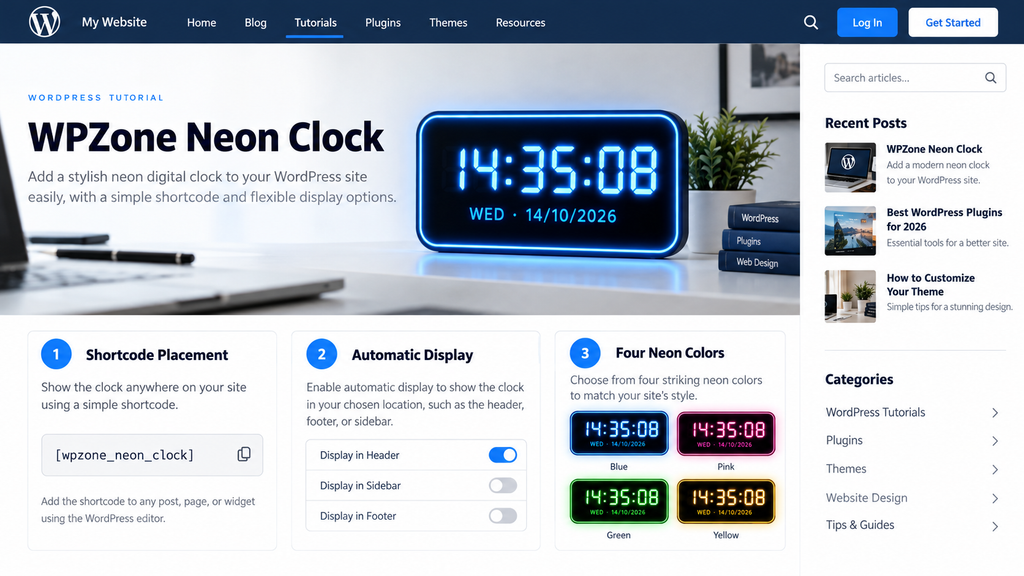
The plugin displays hours, minutes, and seconds inside a black panel with rounded corners. Beneath the time, it shows an abbreviated weekday and a numeric date. The default appearance uses blue neon text, a matching border, and glow effects. You can switch the color to red, yellow, or green from the settings screen. These choices apply through the shared plugin configuration, so they affect clocks rendered by the plugin rather than acting as separate settings for individual shortcode instances.
Two placement methods are available. Manual placement uses the shortcode
The supplied package contains one main PHP file, a local stylesheet, a local JavaScript file, and a readme. The clock implementation does not include a settings option for a named timezone, a 12-hour display, a countdown, or separate shortcode colors. It also does not implement an analytics dashboard or click tracking. Understanding those boundaries helps you use the plugin for its intended purpose: displaying a decorative, browser-based digital clock with a small set of placement controls.
A Quick Overview of the Available Controls
| Control | What it does |
|---|---|
| Enable Automatic Display | Allows the plugin to insert the clock through supported content filters |
| Front Page | Allows output when WordPress identifies the current request as the front page |
| Single Posts | Allows output on individual standard blog posts |
| Pages | Allows output on ordinary pages, excluding the front page |
| Category / Archive | Allows output in archive contexts |
| Search Results | Allows output on search-result pages |
| 404 Page | Allows output in a 404 context when a suitable rendering location exists |
| Neon Color | Selects blue, red, yellow, or green |
| Position | Places automatic output before or after the filtered content |
| Requests manual output, subject to the selected display locations |
Understand Which Time Your Visitors Will See
WPZone Neon Clock reads time from the visitor’s browser environment. Its JavaScript creates a Date object and obtains the local hour, minute, second, weekday, and date. This means the display follows the visitor’s device settings. It does not retrieve a dedicated time feed from your hosting provider or apply the timezone configured in the WordPress dashboard. JavaScript’s local date methods use the host environment’s local timezone, which explains why different visitors can see different times. MDN
Imagine that you manage your website from Brussels while a reader opens it from another timezone. Your clock can show your local afternoon while their clock shows their local morning. Both displays can reflect the intended behavior. Changing Settings → General → Timezone in WordPress will not turn this plugin into a Brussels-time clock. That WordPress setting serves other website functions, but the supplied clock script does not read it.
This distinction matters when you choose the text around the clock. A caption such as “Your local time” describes the feature accurately. A caption such as “Current time at our Brussels office” could mislead international readers. Device accuracy matters too. If someone’s computer has an incorrect clock or timezone, the website clock can repeat that error. For meeting deadlines, official opening hours, or appointment scheduling, provide explicit written timezone information alongside the relevant content.
Read the Time and Date Format Correctly
The clock uses a 24-hour display with two digits for each time component. For example, 08:05:09 represents eight hours, five minutes, and nine seconds, while 20:05:09 represents the evening equivalent. The date appears in day/month/year order. A display such as WED · 14/10/2026 combines an English weekday abbreviation with a numeric date. The script supplies its own English weekday labels rather than using the website language to translate them.
There is no built-in setting to hide seconds, replace the date format, or show AM and PM. The shortcode handler also does not implement customization attributes. Adding something like timezone="Europe/Brussels" or color="green" to the shortcode will not activate those features. If your website needs several named city clocks or localized weekday names, treat those as development requirements rather than assuming that an undocumented shortcode parameter exists.
Download and Prepare the Plugin Before Installation
Use the supplied wpzone-neon-clock.zip package for this tutorial. Keep the archive intact when uploading it through WordPress. Inside the ZIP, the files sit within a wpzone-neon-clock directory, which gives WordPress the plugin folder it needs. You do not need to paste the PHP into your theme or copy the JavaScript into an article. Installing the package as a plugin keeps the feature separate from your theme and makes ordinary activation or deactivation easier.
Before making the change, create or confirm a recent backup using your usual website workflow. A staging website is also a useful place to check the clock’s appearance, especially if you already use several layout or optimization plugins. Start with a page that has an ordinary content area. That gives you a simple first test and reduces the number of template-specific questions you need to investigate.
The supplied archive contains a minor documentation mismatch. Its main plugin header reports version 1.3.5, while the beginning of the readme still says 1.2.0. Later readme entries describe changes through 1.3.5. For this guide, the main PHP header provides the version reference. This observation does not establish the quality of every release; it simply explains why someone opening the readme might see a different number from the one shown in WordPress.
Download file: wpzone-neon-clock.zip
Plugin name: WPZone Neon Clock
Version identified in the main plugin file: 1.3.5
Author identified in the plugin header: WPZone
Install WPZone Neon Clock Through the Dashboard

Sign in to WordPress using an account that can install plugins. Open Plugins → Add New Plugin, then choose Upload Plugin. Select wpzone-neon-clock.zip from your computer and click Install Now. Once WordPress finishes unpacking the archive, choose Activate Plugin. The official WordPress plugin documentation covers ZIP uploads as a standard installation method, although the exact wording of dashboard controls can vary with the installation and interface language. WordPress.org
After activation, visit Settings → WPZone Neon Clock. You should find the automatic display checkbox, location controls, color selector, and position selector. Activation alone does not mean the clock will appear publicly. In the supplied code, automatic display starts disabled and every display location starts unchecked. This gives you a blank starting configuration, so choose where the clock should be allowed before expecting visible output.
For a first test, select Pages, leave automatic display disabled, and save the settings. Create a draft page called “Clock Preview” and insert the shortcode using a Shortcode block. Preview the page on the front end. This approach checks the core manual placement without automatically changing all published pages. Once you have confirmed the display, you can decide whether a sidebar, selected article, or automatic placement makes more sense.
If WordPress Reports an Existing Plugin Folder
An existing wpzone-neon-clock folder may mean an earlier copy is already installed. Check Plugins → Installed Plugins before continuing. Confirm the existing plugin name and version, then use your normal update workflow. Some WordPress installations offer an upload replacement screen, but the exact experience depends on the environment. Read that screen carefully rather than deleting files immediately or assuming the uploaded package is necessarily newer.
Keep a copy of any custom modifications before replacing an installed plugin. Direct edits to its CSS, JavaScript, or PHP can disappear during replacement. For appearance-only changes, a separate custom CSS location is usually easier to maintain. If the plugin already works on your live site, take note of its settings and shortcode placements so you can compare the result after the upload.
Configure Display Locations Before Adding the Shortcode
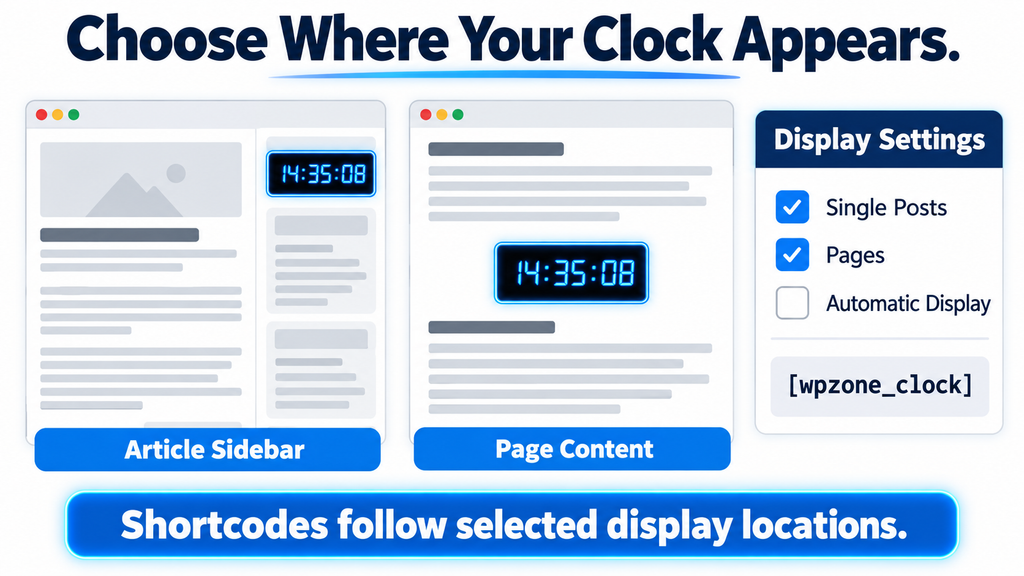
The display location checkboxes determine whether the plugin may render a clock in the current WordPress context. This rule applies to the manual shortcode as well as automatic placement. For example, if you add the shortcode to an ordinary page while Pages remains unchecked, the plugin returns an empty result. The shortcode can be correctly typed and the plugin can be active, yet no clock appears because the location permission is missing.
To show a clock inside one selected article, enable Single Posts, leave Enable Automatic Display unchecked, and place the shortcode only in that article. Other individual posts become eligible for a manually placed clock, but eligibility does not insert anything by itself. This combination gives you a useful balance: one broad context permission and a precise placement chosen in the editor.
For a sidebar clock that should appear beside articles, use the same Single Posts selection and place the shortcode in the sidebar widget area. When someone opens an ordinary page or the front page, the shortcode should return no clock unless those contexts are enabled too. The surrounding theme widget may still need attention if it leaves an empty wrapper. That behavior deserves its own check, especially on a website where sidebar spacing is part of the design.
Use a Simple Configuration for Your First Test
| Goal | Automatic display | Selected locations | Manual shortcode |
|---|---|---|---|
| Clock inside one article | Disabled | Single Posts | Add it to that article |
| Clock inside one ordinary page | Disabled | Pages | Add it to that page |
| Sidebar clock beside articles | Disabled | Single Posts | Add it to the sidebar |
| Clock after individual posts | Enabled | Single Posts | Usually unnecessary |
| Clock on a static homepage | Either, depending on placement | Front Page | Use if placing manually |
Start with one row rather than enabling every location at once. A narrow configuration makes troubleshooting easier because you know exactly where output is expected. After the first placement works, add other locations one at a time and check their public pages.
Add the Clock With a WordPress Shortcode Block
Open the post or page where you want the clock. In the block editor, select the block inserter and search for Shortcode. Add that block, then enter
Place the block where the clock contributes to the page. On a personal resource page, it could sit between an introduction and a list of tools. Inside a technology article, it might appear beside a short explanation of browser time. On a focused tutorial, a clock at the beginning may distract from the instructions, so a later placement could work better. The shortcode marks the location, while the plugin settings control whether output is allowed there.
Remember that the Position selector does not relocate a manually inserted shortcode. If the shortcode sits between two paragraphs, the clock belongs between those paragraphs. Selecting After Content only affects the plugin’s automatic insertion. This distinction prevents unnecessary experimentation: use the editor to move manual output, and use the position setting to move automatic output.
Avoid Unsupported Shortcode Attributes
Use the documented shortcode without extra parameters:
The supplied implementation does not read shortcode attributes. A reader might reasonably try
Display the Clock Automatically Before or After Content
Automatic display is useful when you want the same placement across a supported content type. Open the plugin settings, check Enable Automatic Display, and select the appropriate locations. Choose Before Content or After Content, then save. For a typical blog, Single Posts with After Content offers an easy first configuration. Open a published article and look immediately after the main content to confirm the result.
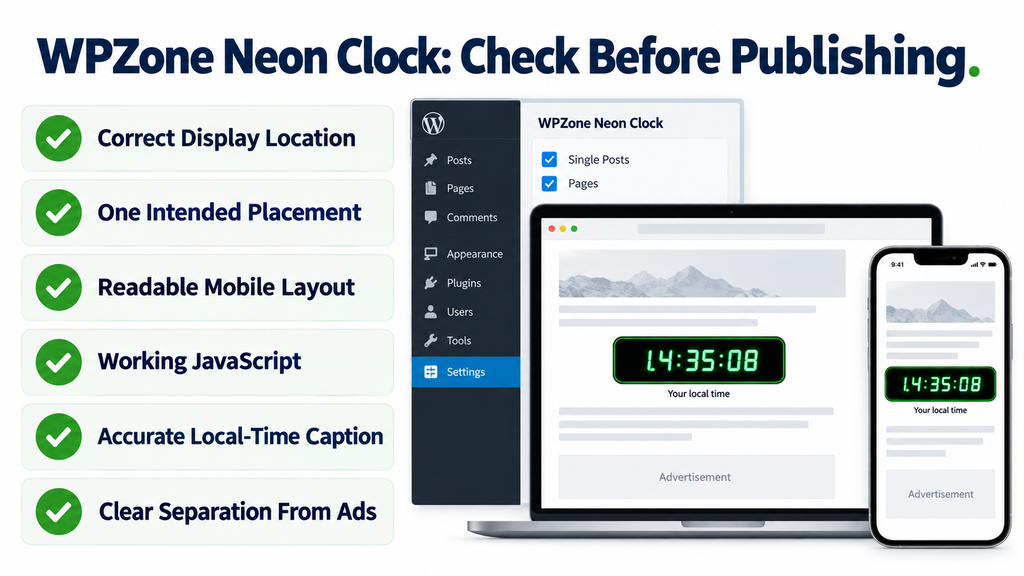
The placement follows WordPress’s filtered content, which is not always identical to the visual end of an entire article layout. A theme may render author information, related articles, advertisements, or a comments section separately. Consequently, “after content” does not necessarily mean beneath every element on the page. Inspect the finished template to understand the clock’s relationship with those additional components.
Avoid leaving a manual shortcode inside the same article unless you want another clock there. The automatic content function does not check whether
Choose the Position Around the Reader’s Task
A clock before an article creates a strong visual opening, but it also pushes the introduction lower. That may suit a dashboard or demonstration page. After-content placement keeps the main explanation first and makes the clock a secondary element. A sidebar placement can preserve the article flow on desktop, although many themes move sidebars below content on mobile. Choose based on the complete layout rather than the desktop screenshot alone.
Handle the Front Page and Blog Index Carefully
WordPress distinguishes the front page from a separate posts index. Your front page might show recent posts, or it might be a static page while a different URL lists articles. WPZone Neon Clock uses is_front_page() for its Front Page location. It does not offer a separate Posts Page checkbox. That distinction explains why selecting Front Page may not enable output on a separate blog index.
Consider a website with a static homepage at / and a posts index at /blog/. The homepage can match the plugin’s front-page rule. The separate /blog/ index generally does not match the same rule, and the ordinary Pages condition does not turn a WordPress posts index into a standard page content request. If the clock is missing there, review the page context before changing unrelated settings.
Automatic front-page output also depends on how the theme renders the page. A static page using the normal content area is a different case from a posts listing built with excerpts or a custom query. The plugin’s content filter may run for multiple listed items, while its special excerpt insertion targets archives and search results. Test the actual homepage rather than assuming every front-page design behaves like a normal page.
Keep Individual Posts Separate From Listings
Selecting Single Posts is intended for individual standard blog posts. It does not mean every visual card that represents a post should receive a clock. This separation helps you keep the article experience distinct from the homepage listing. If your goal is a clock beside full articles, start with Single Posts alone and verify both an article URL and the homepage after saving.
Add a Sidebar Clock in GeneratePress
On a GeneratePress site with widget-based sidebars, open the available widget management screen and find the sidebar used by your article template. Add a Shortcode block containing
The supplied stylesheet includes specific rules for common sidebar and widget wrappers. On desktop widths, those rules reduce the clock digits and date text so they fit more comfortably inside narrow columns. Additional selectors target GeneratePress-style left and right sidebar containers. These styles show that sidebar placement was considered in the package, although they do not guarantee a perfect fit for every customized GeneratePress layout.
Check the clock inside your real sidebar width. A layout with generous widget padding may leave less room than expected. At some tablet widths, the site may still retain a narrow sidebar while different clock sizing rules apply. Look for clipped digits, crowded dates, and a panel that feels much taller than nearby widgets. A readable clock should fit the column without forcing visitors to interpret partially hidden information.
Understand the Empty Widget Limitation
Version 1.3.5 includes JavaScript intended to hide empty widget wrappers, including certain GeneratePress block widgets. However, the plugin enqueues that JavaScript when it generates clock markup. If the shortcode returns nothing and no other clock is rendered, the cleanup script may not load through this plugin at all. An empty sidebar box can therefore remain even though the package includes cleanup code.
There is another detail to test: the cleanup routines inspect empty widget containers more broadly than a single uniquely identified clock widget. A widget that intentionally starts empty and receives content later could need closer review. If an unwanted gap persists, inspect the widget structure and its title rather than repeatedly changing the clock color. A targeted template or widget adjustment may be more appropriate.
Choose a Neon Color That Fits Your Website
Blue is the default color and works naturally with many technology-oriented designs. Green offers a terminal-like appearance, yellow introduces a warmer accent, and red creates a stronger visual signal. Each option changes the time color, date styling, and matching panel border. The black background remains part of the supplied design. Choose a color by viewing it against your website’s surrounding elements rather than judging the panel in isolation.
To make a change, open Settings → WPZone Neon Clock, choose a value under Neon Color, and save. Reload a page where the clock is allowed to appear. If your website uses page caching, clear the relevant cached page before concluding that the setting failed. The selected color is included in the generated clock class, so stale HTML can preserve an earlier class until the page refreshes from a newer version.
Use the clock as a supporting visual feature. If your article already contains bright banners, colored notices, and promotional buttons, another glowing panel may make the page feel crowded. A single accent color used consistently often produces a calmer result. Evaluate readability as well as appearance, particularly for the smaller date line. A glow that looks attractive in a large preview can become harder to read inside a compact sidebar.
Keep Custom Styling Easy to Reverse
If you need a small visual adjustment, place custom CSS in your theme’s supported custom CSS area or a maintained child theme stylesheet. For example, you might reduce surrounding margins or adjust panel padding. Change one property at a time and inspect both desktop and mobile output. Direct edits inside assets/clock.css are harder to maintain because replacing the plugin can overwrite them.
Check Mobile and Tablet Layouts Before Publishing
WPZone Neon Clock includes responsive CSS, but responsive rules still need real layout testing. The main clock uses flexible font sizing, while smaller-screen rules adjust padding, digits, and date text. Desktop sidebar rules use their own smaller sizes. This provides several intended adaptations, yet the final result depends on the container width, theme spacing, and any custom CSS already applied to the page.
Open the page on a phone and inspect it in portrait orientation. Confirm that every digit remains visible and the date fits comfortably. Then test landscape orientation or a wider browser window. A clock should not introduce horizontal scrolling or occupy so much vertical space that it overwhelms a short page. If the sidebar moves beneath the article, consider whether the clock still belongs in that position.
Pay particular attention to intermediate widths. The package uses a mobile breakpoint at 600 pixels and desktop sidebar rules beginning at 769 pixels. A theme that keeps a narrow sidebar between those widths may produce a different fit from the full desktop layout. This is a reason to test tablet-like sizes instead of checking only a wide monitor and a small phone. Do not assume clipped content is acceptable merely because the page itself does not scroll sideways.
Consider Readability Beyond Screen Size
The markup includes an accessible label identifying the component as a digital clock. It does not provide a complete accessibility preference system or a pause control. The seconds also change continuously, which some readers may find distracting. Keep the clock secondary to meaningful content and review the experience with your usual accessibility checks. Where it adds little value, choosing a more selective display location can improve the page.
Use Archive, Search, and 404 Settings With Realistic Expectations
Archive and search pages often show excerpts instead of full article content. The plugin includes an excerpt filter for those contexts and uses a request-level flag to limit that particular insertion path to one clock. Depending on your theme, the result may appear near the first rendered excerpt. The setting does not create a dedicated clock area above the entire results list or inside the archive heading.
A theme that renders full content can produce different behavior. The automatic content filter has no equivalent one-clock flag, so it can append or prepend a clock whenever an eligible item passes through that path. Themes and builders may also construct cards without using either relevant filter. Consequently, the accurate instruction is to enable the location and inspect the output, rather than promising one consistent archive placement across all websites.
The 404 Page checkbox has a similar limitation. Many error templates print their own message without running a normal post content loop. In that case, enabling the setting alone cannot create a clock. A template that explicitly processes the shortcode can provide a manual rendering location, provided the 404 context is enabled. That is a template-level task, so use a supported editing workflow and test a genuinely missing URL afterward.
Prefer a Controlled Placement on Complex Templates
If an archive or search layout is important to your site, a deliberate shortcode location can be easier to manage than automatic injection into individual results. The right method depends on what your theme supports. Avoid stacking several hooks, widgets, and automatic settings before checking the first result. One controlled placement gives you a clearer understanding of which component owns the clock.
Understand Performance, Caching, and Privacy
The supplied clock uses local CSS and JavaScript files. Its visible time updates in the browser, and the clock script does not send a fresh server request every second. Instead, it updates the relevant text elements on a timer. This explains why a cached page can still show a moving clock: the cached markup supplies the component, while the browser calculates the displayed time after the script runs.
These implementation details do not establish a measured performance score. The plugin still adds assets, DOM elements, text updates, and visual effects. Multiple clock instances each receive their own interval, so adding several identical clocks is unnecessary in most layouts. Use one where it helps, then assess the page with your ordinary performance tools. A small feature deserves the same practical question as any other addition: does its value justify its presence?
Within the supplied files, the clock feature does not implement cookies, visitor tracking, analytics submissions, or a remote time-service request. That observation applies to this package’s clock code. It does not describe the privacy behavior of your entire website, advertising scripts, or other plugins. Continue to document those services through your normal privacy process, especially when the surrounding site uses advertising or third-party integrations.
Allow the Clock Script to Run Normally
Optimization settings can affect the first visible update. The generated markup initially contains 00:00:00 and a placeholder date. If an optimization tool delays JavaScript until interaction, those placeholders may remain until the visitor clicks or scrolls. Inspect that behavior before excluding files from optimization. If necessary, test a narrowly targeted exception for the clock script and compare the result with your normal configuration.
Troubleshoot a Missing Clock Step by Step
Begin with the simplest checks. Confirm that WPZone Neon Clock is active, then open its settings and verify the location that matches the current page. A normal page needs Pages; an individual article needs Single Posts; a static homepage needs Front Page. Save the settings even if you believe the selections were already correct. Then preview the relevant public URL rather than relying only on the editor canvas.
Next, identify your placement method. For manual placement, check that the shortcode is entered exactly and sits in a shortcode-capable block or widget. For automatic placement, confirm that Enable Automatic Display is checked. If the theme builds the target area without passing through the plugin’s content or excerpt filters, try a normal page shortcode as a comparison. That helps distinguish a basic plugin problem from a template-specific limitation.
After those checks, review caching and browser errors. Clear the relevant page cache, reload the page, and inspect the browser console if the clock panel appears without a working time. Avoid changing several unrelated settings simultaneously. A useful troubleshooting note records the URL, selected locations, placement method, and observed result. Those details make it much easier to explain the issue to a developer or reproduce it on staging.
Resolve Frozen Digits, Duplicate Clocks, and Empty Boxes
A panel frozen at 00:00:00 suggests that markup exists but its JavaScript has not initialized successfully. Check for a missing script, a JavaScript error, or delayed execution. Two working clocks usually suggest two rendering locations, such as automatic output plus an article shortcode. An empty sidebar box points toward the surrounding widget wrapper or its title. These symptoms have different causes, so address the specific result instead of treating them as one general display failure.
Build a Useful Clock Page Without Overstating Its Benefits
A clock can support a worthwhile page when it belongs to a larger purpose. For example, a browser-tools article could explain how local device time works, why timezones differ, and how to check an incorrect system clock. A personal dashboard could combine the clock with useful navigation. A technology blog might use it as a visual accent in the sidebar while keeping articles as the main attraction.
A page containing only a clock offers much less original information. Adding a moving widget does not automatically create substantial editorial value or establish suitability for advertising. Google’s publisher policies address pages without publisher content or with low-value content, so keep your monetized pages focused on helpful material. The clock should support the experience instead of serving as the entire reason for an otherwise empty page. Google AdSense Help
Keep advertising clearly distinguishable from the clock and from any plugin download button. Readers should understand which elements provide site functionality and which are advertisements. Avoid instructions that encourage ad clicks as a way to obtain the download or support the plugin. Google’s AdSense program policies prohibit encouraging users to click advertisements. No plugin or article format can guarantee approval, which remains dependent on the website and Google’s review. Google AdSense Help
Frequently Asked Questions
Does the Clock Show My WordPress Website Timezone?
No. The supplied JavaScript reads local time from the visitor’s browser environment. Changing your WordPress timezone does not change this clock’s timezone. If you need to display a fixed location, such as Brussels or London, the plugin requires a corresponding implementation change.
Why Does the Shortcode Show Nothing on My Page?
Check the display locations first. The shortcode follows those selections even when automatic display is disabled. Enable Pages for an ordinary page, Single Posts for an individual article, or Front Page for the homepage context. Also confirm that your block or widget processes shortcodes.
Can I Use the Shortcode With Automatic Display Disabled?
Yes. Automatic display controls the plugin’s content injection. Manual shortcode output does not require that checkbox. However, the relevant display location must still be selected, and the shortcode must sit somewhere WordPress processes it.
Can I Give Two Clocks Different Colors?
The supplied version uses one shared color setting and does not implement per-shortcode attributes. Selecting green changes the setting used by plugin-generated clocks. Separate colors would require custom styling or additional functionality rather than an existing shortcode option.
Does WPZone Neon Clock Support a 12-Hour Format?
The supplied version displays 24-hour time with seconds. Its settings screen does not include an AM/PM option, a seconds toggle, or a date-format selector. Use the documented format when describing the plugin to readers.
Why Is the Clock Missing From My Separate Blog Page?
A separate posts index is not the same as the front page in WordPress. The plugin provides a Front Page checkbox but no separate posts-index control. Review your reading settings and template context before assuming the shortcode or plugin activation has failed.
Will the 404 Checkbox Automatically Add a Clock to Every Error Page?
No. The setting permits output in a 404 context, but the template still needs a suitable rendering path. Many error templates do not use the normal content loop. A deliberate shortcode placement in an appropriate template can be necessary.
Does the Plugin Contact a Time Server Every Second?
The supplied clock script calculates the displayed time locally and updates the text on a timer. It does not contain a recurring time-service request. Its accuracy therefore depends on the visitor’s device clock and browser execution.
Why Does an Empty GeneratePress Widget Remain?
The shortcode may return no markup when the location is disabled. Although the package includes empty-widget cleanup code, its script may not be loaded when no clock renders. A widget title or additional wrapper content can also keep the container visible.
Does Installing the Clock Improve SEO or Guarantee AdSense Approval?
No such outcome is established by the plugin. Its purpose is to display a clock. Keep your content useful, your layout readable, and your advertising implementation compliant with the applicable policies. Evaluate the clock as a design feature rather than a ranking or approval tool.
Make the Clock Earn Its Place on Your Website
WPZone Neon Clock works best when you give it one clear role. You might place it beside individual articles, include it on a useful resource page, or add it after selected content. Begin with a manual shortcode and one enabled location. Once that placement looks right, decide whether automatic insertion would save time without making the website feel repetitive.
The most useful setup lessons are straightforward. The shortcode follows location settings, the displayed time comes from the visitor’s device, and automatic output depends on the theme’s rendering path. Colors apply through a shared setting, while sidebar and mobile layouts deserve a visual check. With those details understood, you can choose the clock for its actual capabilities and publish instructions that readers can follow confidently.
⚠️ Disclaimer and Source Hygiene
This guide is based on inspection of the supplied WPZone Neon Clock package and relevant official documentation. It is not a claim of completed runtime testing across all WordPress installations, themes, browsers, or optimization configurations. Interface wording and third-party documentation may change. Use a backup and a suitable test environment when making website changes, and consult a qualified WordPress developer for template modifications or unresolved compatibility problems.
The package’s main PHP header identifies version 1.3.5, while the readme begins with an older version label. Plugin-specific descriptions in this article follow the supplied implementation. Advertising suitability depends on the entire website and its operation; this tutorial does not guarantee AdSense approval, earnings, search rankings, or a particular performance result.
Sources and References
Primary plugin source: The supplied wpzone-neon-clock.zip archive, including its main PHP file, assets/clock.js, assets/clock.css, and readme.txt.
WordPress installation documentation: Manage Plugins.
WordPress editor documentation: Shortcode Block.
JavaScript reference: MDN: Date.
Publisher guidance: Google Publisher Policies.
Advertising guidance: AdSense Program Policies.
Secondary Sources and Testimonials
No customer testimonials, user satisfaction figures, compatibility certifications, or performance benchmarks were supplied for this article. The configuration examples illustrate the inspected code’s behavior and practical setup choices. They should not be presented as independent customer reviews or measured results.
Sign in with a Subscriber account to vote.